At least 9 out of 10 consumers read online reviews when looking to buy from a business. As such, embedding Google reviews on your website can provide invaluable social proof for your business.

There are two ways to embed Google Reviews on your website:

  • Website widget method
  • Embed or link method

In this article, you will learn how to embed Webflow Google reviews on your website, including how to customize the feed to maximize visitor engagement.

Looking for a quick way to showcase Google customer testimonials on Webflow? Use SociableKIT.

Our widget helps website owners experiencing low engagement showcase interactive Google reviews feeds on their site to boost dwell time. Even better, you can set up and customize your Google Reviews widget without coding, making it convenient for users without web design skills. 

Create a SociableKIT widget today and display your best customer testimonials on Webflow!

Benefits of Displaying Google Reviews on Your Site

Showcasing Google reviews on Webflow has numerous incentives for your website and business. 

Let’s discuss them in detail below:

  • Revamped Appearance: Embedding Google reviews with dynamic images and videos helps make your website vibrant, creating a strong impression on first-time visitors.
  • Boosted Credibility: Displaying positive reviews about your products provides social proof for your business, encouraging high-intent buyers to trust you.
  • Effective Engagement: Adding Google reviews to your website boosts engagement as visitors will likely spend time interacting with the customer testimonials to see what past clients say about your business. This increases your website’s dwell time and signals search engines that your site contains helpful information.
  • Improved Lead Generation: Google reviews are the most influential source of information for first-time buyers searching for products or services. As such, adding Google customer testimonials on your website may encourage undecided leads to make their purchase decisions, increasing sales.
  • Creating a Feedback Cycle: Adding customer testimonials on a website is an effective way to get Google reviews, as other visitors also look forward to sharing their experiences with your products and services, growing your review count.
Man typing on laptop while studying grammar.

Ways to Add Google Reviews on Webflow

To avail these benefits, you should understand how to effectively embed your customer testimonials on Webflow.

This section provides step-by-step guides using the website widget and link methods:

Method 1: Use a Website Widget

To quickly embed Google Reviews to your Webflow website, follow the steps below.

  1. Create your Google Reviews widget here.
  2. Customize your Google Reviews widget.
  3. Copy the Google Reviews widget embed code.
  4. Login to your Webflow website admin panel and create or edit a page.
  5. Paste the embed code where you want the Google Reviews widget to appear.
  6. Save and view your page. Done!

That’s easy! Embedding Google Reviews widget on your Webflow website will take only 2 minutes. If you need a more detailed guide, scroll down to follow our complete guide or watch our video guide.

Looking to purchase our premium features like auto-sync, customization, premium support and more? Please check the details on our pricing page here.

Testimonial card for Bauhouse Real Estate featuring a night sky quote.

Method 2: Use the Embed or Link Option

To add Google reviews to your website using Google’s embed option, follow the steps below.

  1. Go to google.com/maps/
  2. Search your Google business profile.
  3. Click the “Reviews” tab.
  4. Choose a review and click the 3 dots on the upper left.
  5. Click the “Share review” option.
  6. On the popup, click the “Embed…” tab.
  7. Click “Copy HTML”.
  8. Login to your website admin panel.
  9. Create or update a page where you want to put your Google reviews.
  10. Paste the HTML code you copied earlier.
  11. It will show the Google map with your company name, review count, and link to your reviews.
  12. Save your page. Done!

To add Google reviews to your website using Google’s link option, follow the steps below.

  1. Go to google.com/maps/
  2. Search your Google business profile.
  3. Click the “Reviews” tab.
  4. Choose a review, screenshot, and save the image.
  5. On the same review, click the 3 dots on the upper left.
  6. Click the “Share review” option.
  7. On the popup, click the “Send a link” tab.
  8. Click “Copy Link”.
  9. Login to your website admin panel.
  10. Create or update a page where you want to put your Google reviews.
  11. Upload the image you saved earlier.
  12. Highlight the uploaded image and insert a link.
  13. Paste the link you copied earlier.
  14. It will show the screenshot of your reviews with link to the actual review on Google.
  15. Save your page. Done!

You may choose method 1 or method 2, it depends on your needs. However, if you choose method 1, you can follow our complete guide below.

Bearded man using computer at modern workspace.

How to Embed Google Reviews on Webflow Step-by-Step

Follow our complete guide below to embed Google Reviews on your Webflow website for free. The guide is divided into two parts to make it easier to follow.

Create and Customize Your Google Reviews Widget

The first part is creating your Google Reviews widget using the SociableKIT dashboard. Customize the look and feel to match your brand. Follow the steps below.

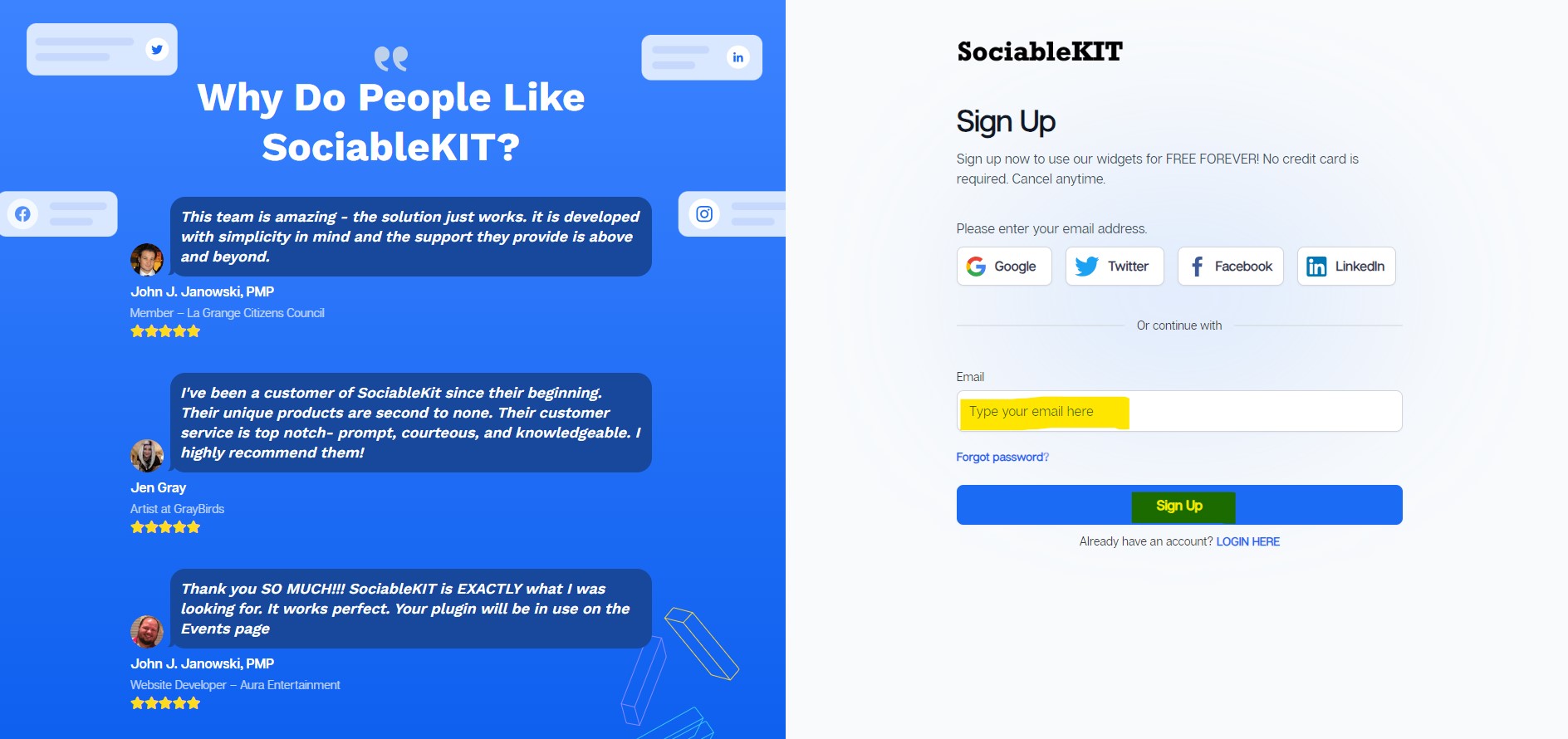
  1. Sign up FREE or login to SociableKIT. You can login here if you already have an account. Once you sign up, you will start your 7-day premium trial. After 7 days, you can activate the free plan if you don’t need our premium features.
SociableKit-Signup page
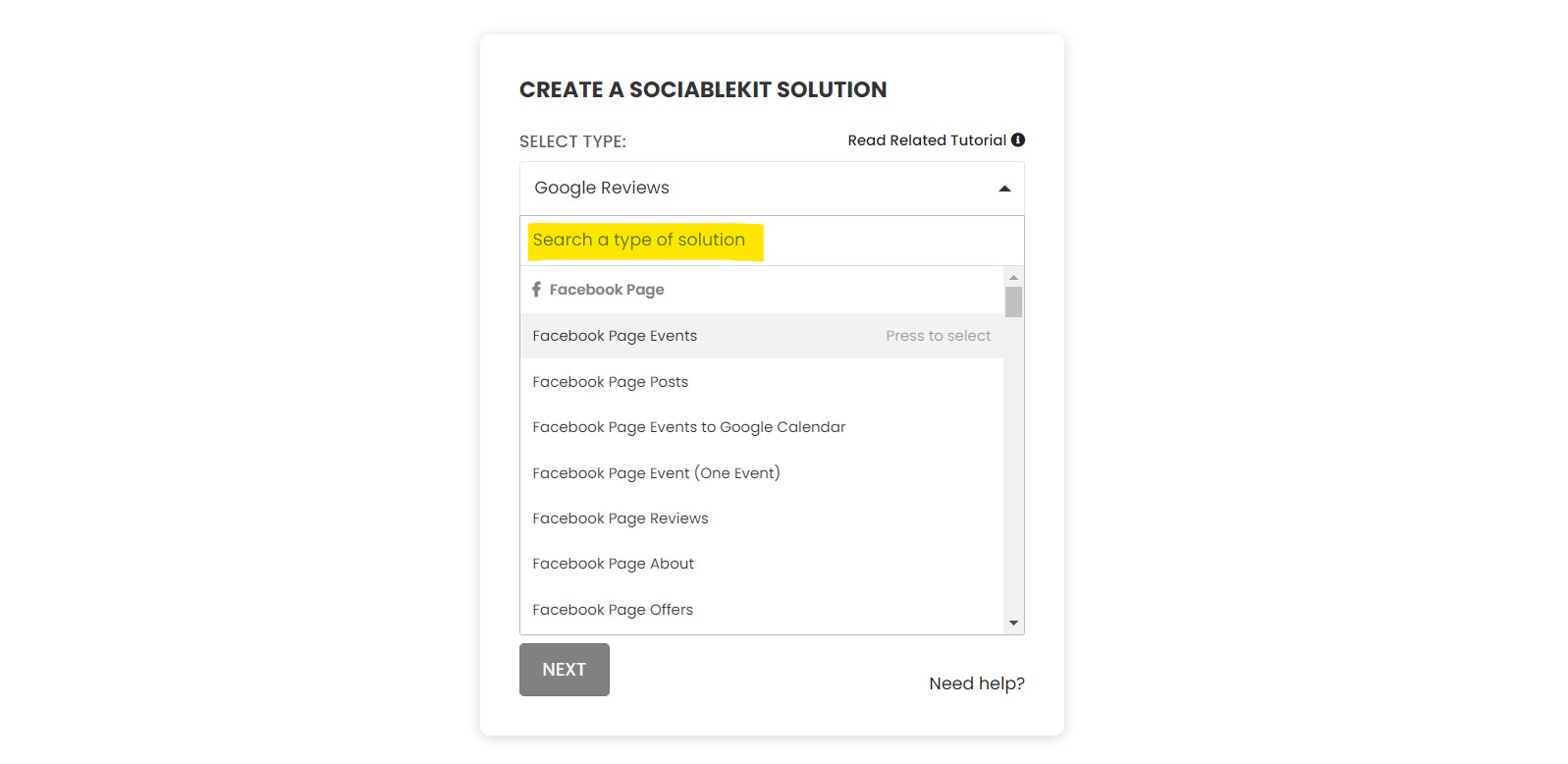
  1. Select “Google Reviews” on the dropdown. SociableKIT offers several social media feeds widgets. You might need to search it using the highlighted area below. Once found, you can then select it.
Screenshot of a dropdown menu for creating a social media solution, featuring options like Google Reviews and Facebook Page.

Search and select your Google place or enter your Google place ID in the box.

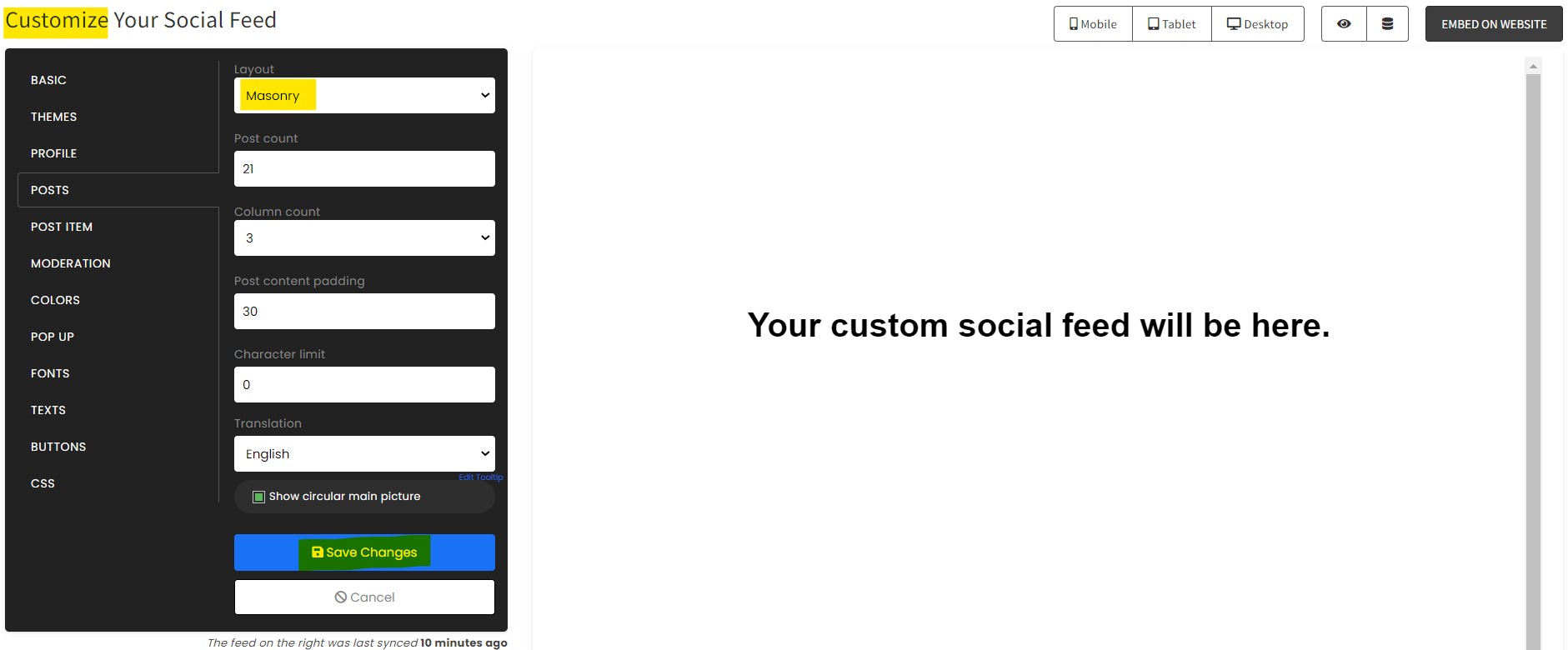
  1. Customize your feed. Click the “NEXT” button to show the customization options of your social feed. You can change the layout, colors, font, and more to match your brand. Click the Save changes button.
A screenshot of how to customize your feed.
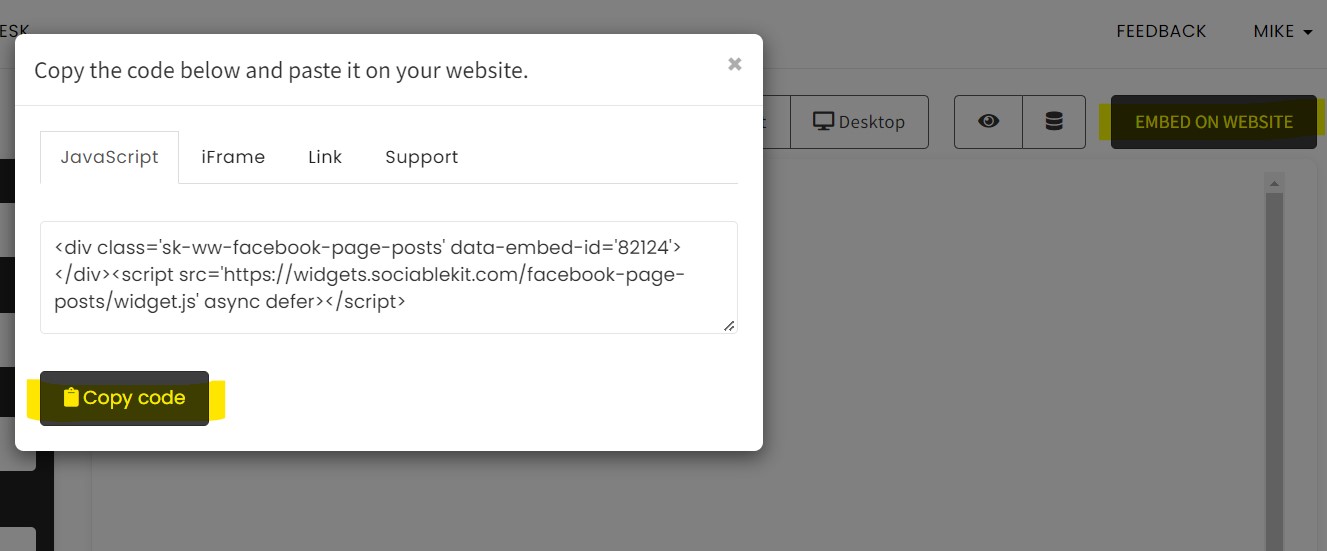
  1. Copy the embed code. Click the “Embed on website” button on the upper right corner. Select your website builder. On the popup, copy the JavaScript embed code.
A screenshot showing a code.
  1. Paste the embed code and save your Webflow website page. Please follow the second part below to add Google Reviews widget to your Webflow website.
Add Google Reviews Widget to Your Webflow Website

The second part is adding your Google Reviews widget to your Webflow website. After you customize your Google Reviews widget and copied the embed code, it is time to add it to your Webflow website. Follow the steps below.

  1. Copy your free Google Reviews widget embed code. Make sure you followed the first part above. It detailed how to you can create and customize your widget to get your free embed code.
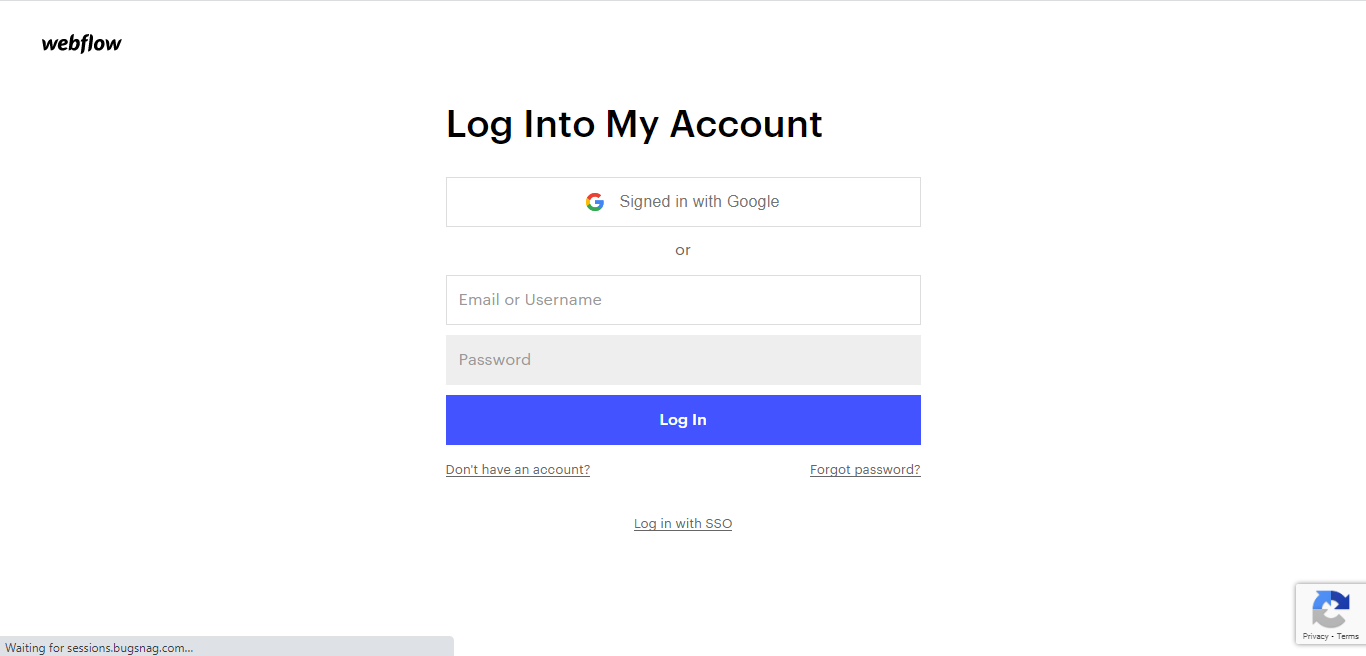
  2. Login to Webflow
A login screen with options to sign in with Google or enter email and password.
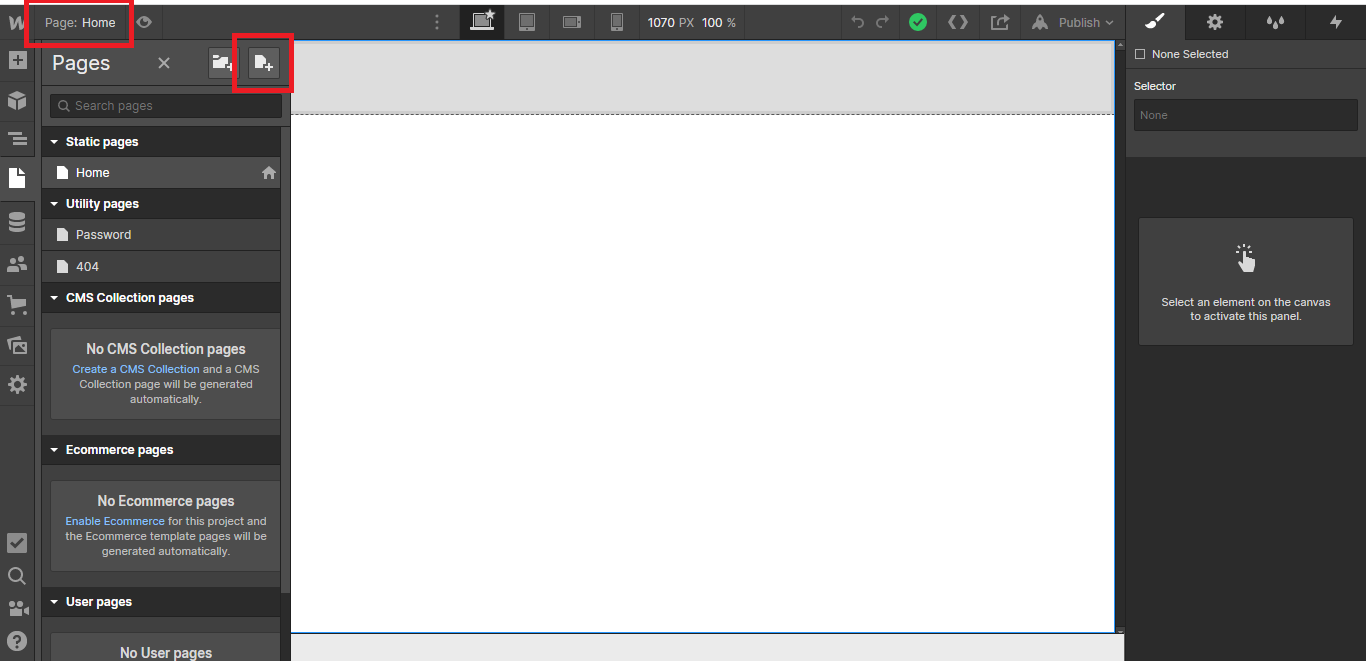
  1. On your existing website, click the “Page: ….” in the upper left corner then click the “Create new page” icon.
A screenshot of a computer interface with a white canvas and menu options on the left.
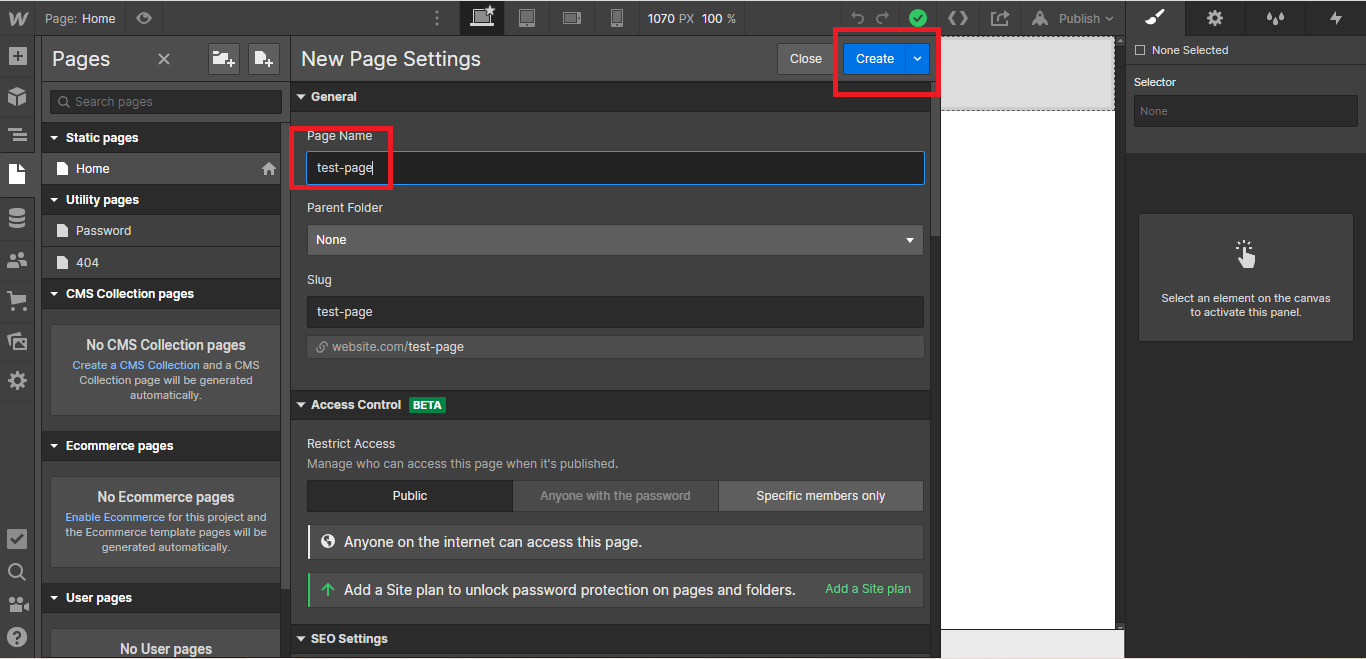
  1. Once done add a name for your new page then click “Save”.
Screenshot of a website builder's "New Page Settings" with "test-page" entered as the page name.
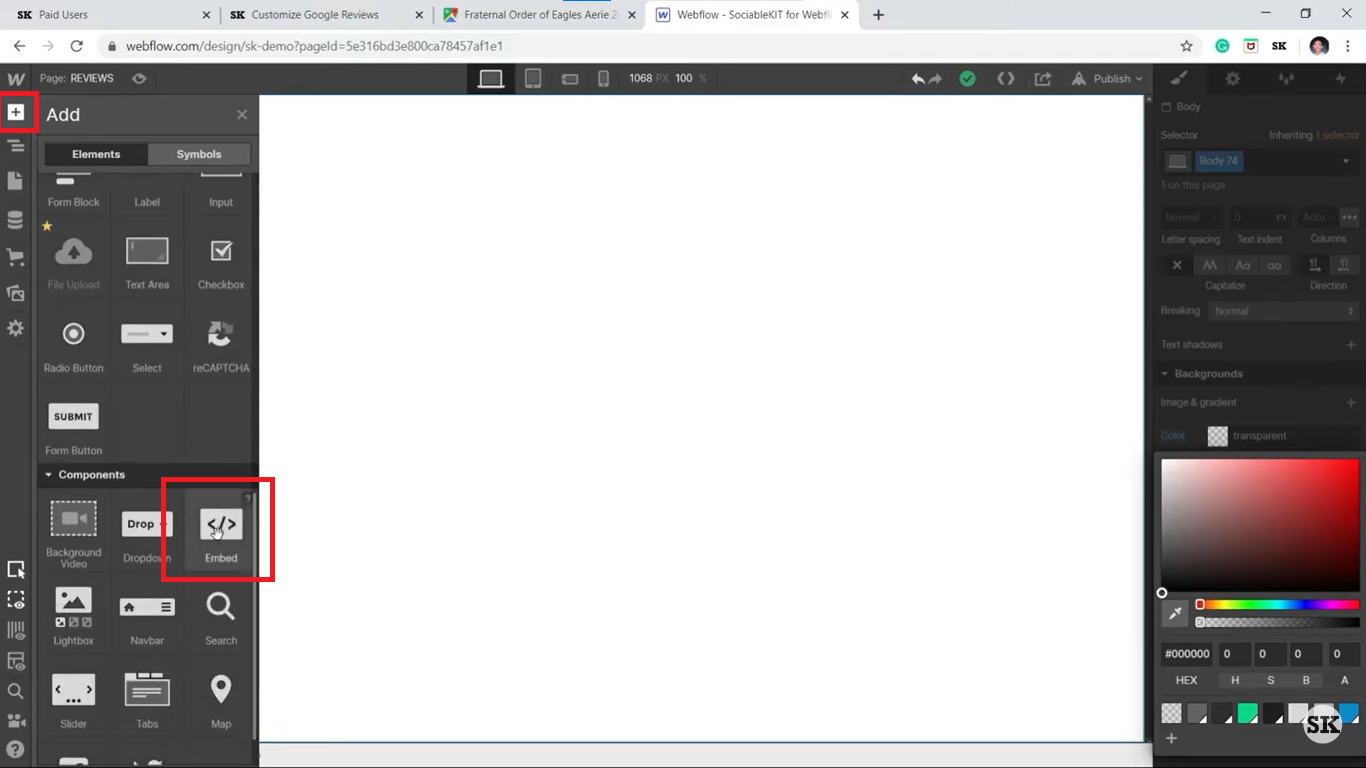
  1. On the left, click “Add Element”. Drag “Embed” to your page.
Screenshot of a web design interface with a sidebar highlighting the 'Embed' component.
  1. Paste the JavaScript code you copied from SociableKIT.
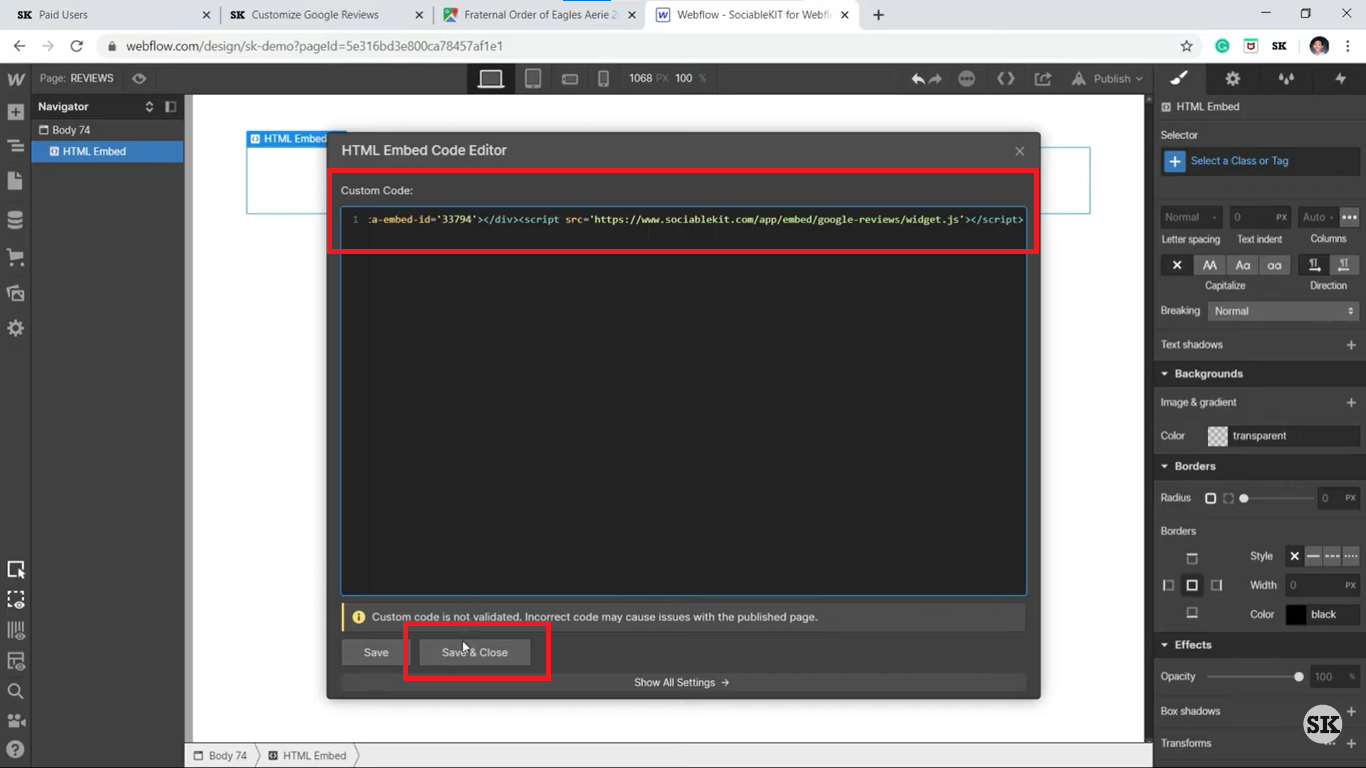
Screenshot of an HTML embed code editor within a web design interface with a warning about custom code validation.
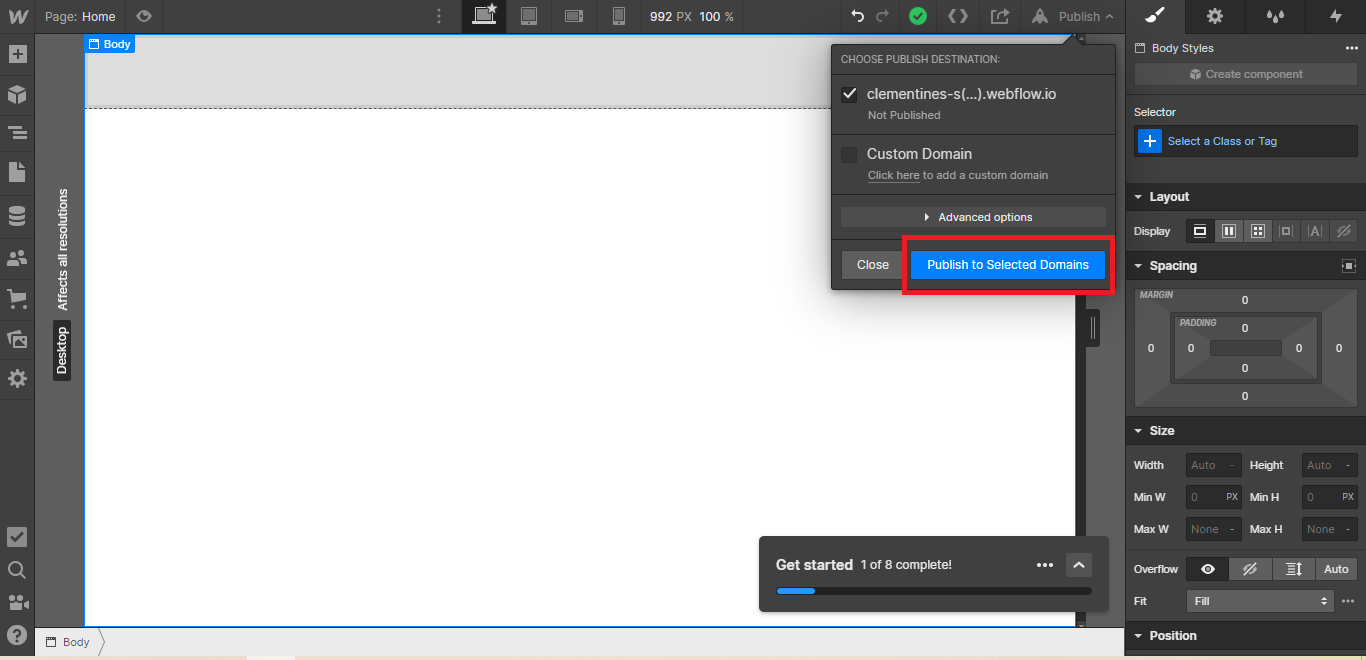
  1. On the upper right, click “Publish” > “Publish to Selected Domains”. 
Screenshot of a web design interface with a "Publish to Selected Domains" button highlighted.
  1. View your page. Done!

Now, get to showcase your best customer testimonials on your Webflow website and see how they boost visitor engagement. Sign up for SociableKIT today!

Video Guide: Embed Google Reviews on Your Webflow Website

Watch our YouTube video below to learn how to embed Google Reviews on your Webflow website for free.

Live demo

Below, you can see a live demo of our Google Reviews widget. You can click on different
layouts such as Masonry layout, Grid, and Carousel if available.

Customization Tips for Showcasing Reviews in Webflow

Even as you embed Google reviews on Webflow, you want the feed to attract visitors and boost interactions. 

Use our cheatsheet to showcase an engaging customer testimonials feed on your Webflow website:

  • Mobile-First Approach: Make the Google reviews feed dynamic (mobile-friendly) so it auto-adjusts to different screen sizes, delivering a consistent user experience.
  • Curate the Feed: Use filters to manage which Google reviews appear on the feed, ensuring positive testimonials appear first.
  • Customize the Feed’s Appearance: Personalize the feed, including selecting colors that match or contrast your website theme to make it stand out. 
  • Include a Call-to-Action Statement: After the reviews section, craft a compelling CTA directing visitors’ next steps, such as to order your products or join your mailing list.
Woman browsing digital content on a tablet.

Potential Challenges and How to Avoid Them

Although it seems straightforward, you may encounter some issues while embedding your Google reviews. 

Below are common challenges you might encounter and how to avoid them:

  • Blank Feed: A blank or defective feed often points to your embed code being incorrect or incompatible with Webflow. Given the time it takes to rewrite code, we recommend using our Google reviews embed code generator to create an error-free script compatible with all major web builders.
  • Unresponsive Feed: Failing to use a mobile-first approach often makes your Google reviews feed appear distorted on smaller screens, such as mobile phones. Our SociableKIT widget makes your Google review feed dynamic, so it auto-responds to different screen sizes.
  • Limited Customization: Embedding using the link option limits how much you can customize the Google reviews feed, especially if you are not a proficient web developer. Our widget offers flexible styling options, including setting your preferred font and choosing a theme that complements your Webflow website.
  • Privacy Concerns: Many website owners are often concerned that embedding Google reviews on Webflow could compromise their website security or customers’ personal information. We recommend using our widget if you have similar concerns. SociableKIT is safe and doesn’t collect any user data for third-party use without your permission.
  • Slow Loading Speed: Embedding multiple Google reviews feeds on Webflow can slow down your website, hurting its user experience. At SociableKIT, we address this concern by configuring our widgets to ‘lazy loading,’ so the Google reviews feed only appears when visitors scroll to that section, preserving your website’s bandwidth.
Businesswoman managing her schedule using a planner and laptop.

Testimonials

Thousands of creators and business owners have already embedded Google Reviews
on their website using SociableKIT. They love our service! Here’s what they tell us.

Yannick Picard
Yannick Picard

High Performance Coach, NeuroActivCoach

quote-icon

I have to hand it to a company that goes above and beyond with their customer service... your team is a notch above anything I've experienced. Great software, great support - what else can you ask for?

Robert Herring
Robert Herring

CMO – Disciple Christian Motorcycle Club

quote-icon

Thank you SO MUCH!!! SociableKIT is EXACTLY what I was looking for. It works perfect. Your plugin will be in use on the Events page.

Einstein Gan
Einstein Gan

Senior Web Designer, Human & Human

quote-icon

Awesome easy-to-use solution for our client's social media campaign. Support was very responsive and helpful. Can't thank you enough for accommodating our new feature request.

Kristin Berg
Kristin Berg

Co-Founder – Tango Social Club

quote-icon

I’m using a custom Facebook page events feed on my website. I asked Mike to translate the day and month labels to French for my calendar. Mike quickly did it for me. Thank you Mike, I appreciate it a lot! SociableKIT support is great! :)

Cristian Castañeda
Cristian Castañeda

Business Process Manager, Maschinenfabrik

quote-icon

Wow, I'm using SK for sharing my LinkedIn posts on my WordPress site and it works incredible. It's quick and easy to "deploy". And when I was needing some extra customization, support worked really quick. You are great guys!

John Parker

Website Developer – Aura Entertainment

quote-icon

Finding SociableKIT saved a huge amount of hours in a project to integrate social/web channels. Absolutely excellent support with quick responses and updates.

Kristen Williams
Kristen Williams

Founder & CEO, Hempsley

quote-icon

This was a great way to easily embed Google Reviews into my client's Wix site. I had trouble at first because the business has no physical address listed, but the support team helped me out and everything is running smoothly so far. I recommend!

Marc Maessen
Marc Maessen

Founder & Owner – Online Profile Coach

quote-icon

Wow! I have had experience with a lot of companies who had good to great customer service but this is just insane! I absolutely love SociableKIT as I was planning on creating something similar myself. For these prices and the attention to detail and functionality I quickly decided that I won't even bother and will gladly subscribe to the SocialKIT services. Keep up the amazing work and thanks you so much!

David Chapa
David Chapa

Recording Artist, David Chapa Music

quote-icon

Simple, clean, and efficient. That's the best way to describe this platform of social plug-ins. Now I just have to update my events calendar in one place on Facebook and my website is updated automatically. That just saved me from hours of "double-entry" work!

John J. Janowski, PMP

Member – La Grange Citizens Council

quote-icon

Thank you!!! The SociableKIT website plugin is an incredibly simple, clean and easy solution for us.

Good Shepherd Episcopal Church

Church social media team

quote-icon

Excellent product and even better customer service. On the rare occasion that I run into an issue, they are very responsive and always solve the problem. They never give a workaround or make an excuse. They take care of it, and they do it quickly!!!

Benny Bowden
Benny Bowden

Co-Founder & Designer – Moonbase Labs

quote-icon

I LOVE what you’ve built here. I’ve successfully linked my client’s Facebook Page ID and events are coming in just fine. Thanks for what you do. You have been incredibly helpful! I’m really impressed with your customer service and I’ll be recommending SociableKIT to anyone looking for what it offers!

Embed Google Reviews on Your Webflow Website in 2 Minutes

Quickly upgrade your website by embedding Google Reviews on Webflow website in 2 minutes.Sign up to SociableKIT now!

Frequently Asked Questions (FAQs)

This section addresses commonly asked questions about embedding Google reviews on Webflow:

Is It Legal to Display Google Reviews on My Website?

Yes. It is legal to display Google reviews on your website. The only legal considerations relate to how you use the reviews. 

For example, Google prohibits altering the reviews to mislead users about your products or services.

How Often Do Embedded Google Reviews Update?

It depends on the method you use to embed Google reviews on your website. For example, the link method requires that you embed recent Google reviews manually. 

In contrast, we configure our SociableKIT widgets to auto-refresh frequently so recent customer testimonials appear on your site in no time.

Can I Style Google Reviews to Match My Webflow Design?

Yes. You can style Google reviews to match your Webflow design. However, using the link method means you must modify your website’s CSS code to customize the feed’s appearance. 

We recommend using our widget, as you can personalize your Google reviews feed to blend with your website theme without writing any code.

Can I Show Reviews From Multiple Google Locations in Webflow?

Yes. You can show reviews from multiple Google locations in Webflow. 

Use our widget to display customer testimonials from different locations on the same web page or different ones without hurting your website’s performance.

How Do I Remove Google Reviews From My Webflow Site If Needed?

The best way to remove Google reviews from your Webflow website is to go to the web page where you displayed the testimonials and clear the embed code. 

However, if you only want to delete some reviews and keep the rest, our widget has an automatic and manual moderation feature that lets you filter which testimonials appear on your website.

Conclusion

Having positive customer reviews prominently displayed on your website can be a game-changer for your business. It helps build trust with potential customers and can even boost your search engine rankings. Our website widgets make it easy to embed Google reviews on Webflow, so don’t miss out on this opportunity to enhance your online reputation. 

Create a SociableKIT widget today and leverage your Google reviews to build social proof for your Webflow website!