Your Facebook reviews on Framer website — live in 3 steps
SociableKIT syncs your facebook reviews automatically. Set up once, embed anywhere — free to start, no coding required.
-
Create in 60 seconds
Pick Facebook reviews in the dashboard and connect your source.
-
Match your brand
Colors, fonts, layout — tune it until it feels native to your site.
-
Paste one line of code
Drop the embed snippet on your Framer website. No dev team needed.
Embed Facebook reviews with SociableKIT — step by step
Create your widget in the dashboard, copy the embed code, and paste it on your Framer website. Screenshots included so you never get stuck.
Create and customize your Facebook reviews widget
The first part is creating your Facebook reviews widget using the SociableKIT dashboard. Customize the look and feel to match your brand. Follow the steps below.
-
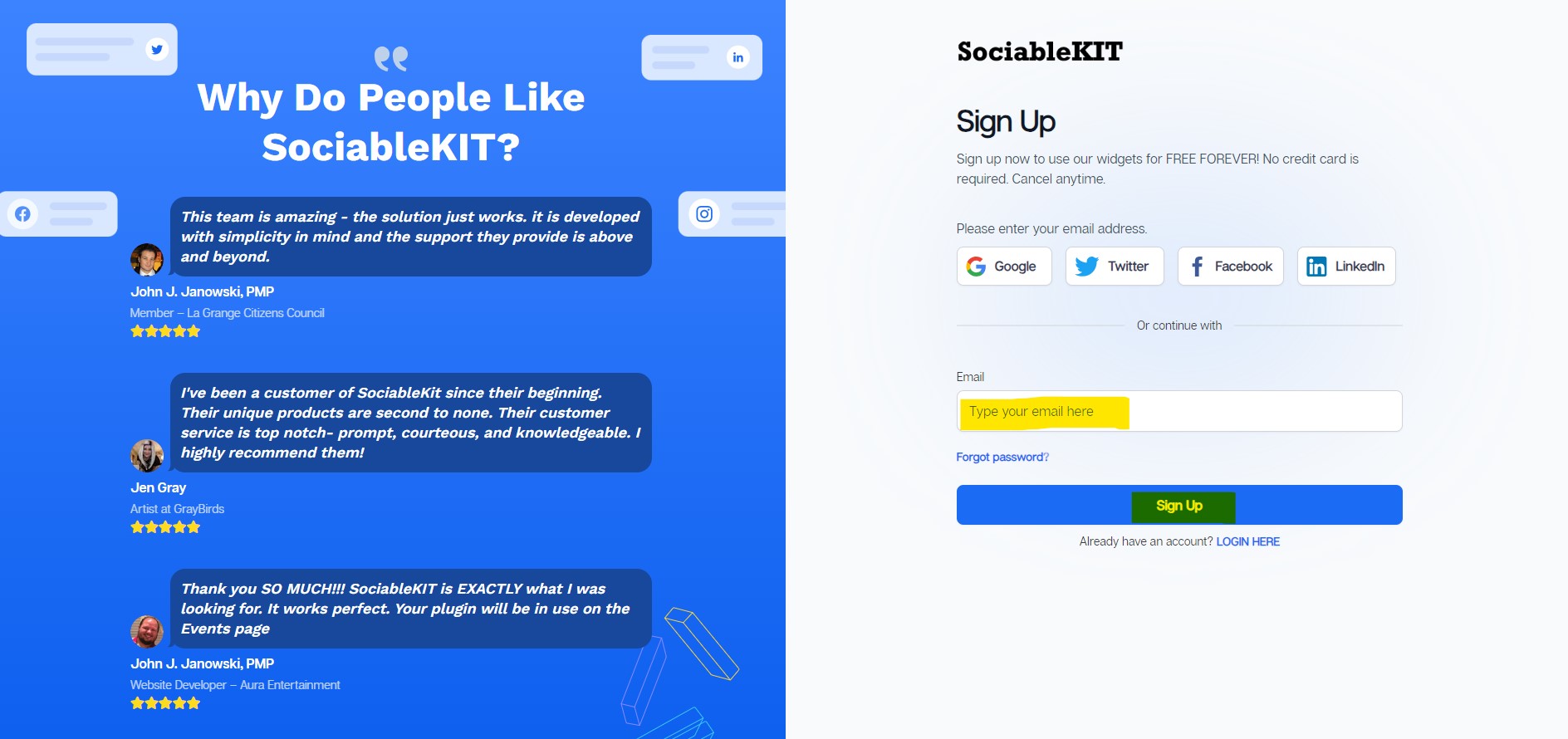
Sign up FREE or login to SociableKIT. You can login here if you already have an account. Once you sign up, you will start your 7-day premium trial. After 7 days, you can activate the free plan if you don't need our premium features.

- Select your Facebook reviews type on the dropdown.
SociableKIT offers several Facebook reviews widgets. You might need to search it using the highlighted area below. Once found, you can then select it.
Here are the different types of Facebook reviews that you can add to your Framer website :

- Enter your Facebook reviews ID or username. Copy your Facebook reviews URL and paste it in the username box. Our system will automatically identify your Facebook reviews ID or username.
-
Customize your feed. Click the "NEXT" button to show the customization options of your social feed. You can change the layout, colors, font, and more to match your brand. Click the Save changes button.

-
Copy the embed code. Click the "Embed on website" button on the upper right corner. On the popup, copy the JavaScript embed code.

- Paste the embed code and save your Framer website page. Please follow the second part below to add Facebook reviews widget to your Framer website .


Add Facebook reviews widget to your Framer website
The second part is adding your Facebook reviews widget to your Framer website . After you customize your Facebook reviews widget and copied the embed code, it is time to add it to your Framer website . Follow the steps below.
- Get your free embed code from SociableKIT. Make sure you followed the first part above to create your widgget, customize it, and copy your free embed code.
- Log in to Framer with Google or your work email. If you don’t have an account yet, you can register at the same link.
![]()
- On the Framer dashboard, open the project where you want to add the widget.
![]()
- Open your SociableKIT widget and click Get code at the top right of the editor.
![]()
- In the embed code window, select the Link tab (beside JavaScript and iFrame), then click Copy link.
![]()
- Back in your Framer project, click the + icon at the top left of the toolbar, then select Utility.
![]()
- Choose Embed to add it to your page, and drag it to where you want the widget to appear.
![]()
- Click the Embed element, and in the Style panel on the right, set Type to URL, then paste the copied link into the URL field.
![]()
- Click Publish at the top right to make your website live.
![]()


Website builders
Paste your embed code on any platform
SociableKIT works with every major website builder. Pick yours below for copy-paste instructions tailored to that platform.
To embed Facebook reviews on your Framer site, follow the steps below after you have your SociableKIT embed code.
- Sign up free to SociableKIT and create your Facebook reviews widget.
- Customize your widget and copy the embed code from the dashboard.
- Log in to Framer with Google or your work email. If you don’t have an account yet, you can register at the same link.
![]()
- On the Framer dashboard, open the project where you want to add the widget.
![]()
- Open your SociableKIT widget and click Get code at the top right of the editor.
![]()
- In the embed code window, select the Link tab (beside JavaScript and iFrame), then click Copy link.
![]()
- Back in your Framer project, click the + icon at the top left of the toolbar, then select Utility.
![]()
- Choose Embed to add it to your page, and drag it to where you want the widget to appear.
![]()
- Click the Embed element, and in the Style panel on the right, set Type to URL, then paste the copied link into the URL field.
![]()
- Click Publish at the top right to make your website live.
![]()
To embed Facebook reviews on your WordPress site, follow the steps below after you have your SociableKIT embed code.
- Sign up free to SociableKIT and create your Facebook reviews widget.
- Customize your widget and copy the embed code from the dashboard.
- Log in to your WordPress site.
![]()
- Go to the Posts section. To add a new widget, click the Add Post button at the top.
![]()
- To edit an existing widget, click the title of the post that has your widget instead. Skip this step if you’re adding a new post.
![]()
- In your SociableKIT editor, click Get code at the top right.
![]()
- In the Get the embed code window, make sure the JavaScript tab is selected, then click “Copy code.”
![]()
- Back in WordPress, click the + icon in the post body, type Custom HTML in the search bar, then select the Custom HTML block.
![]()
- In the HTML tab, paste the code, then click Update.
![]()
- Click the Save button at the top right of your WordPress post (or Publish if it’s a new post).
![]()
- The widget will appear on your WordPress post. Done!
![]()


To embed Facebook reviews on your Wix site, follow the steps below after you have your SociableKIT embed code.
- Sign up free to SociableKIT and create your Facebook reviews widget.
- Customize your widget and copy the embed code from the dashboard.
- Log in to Wix.
![]()
- On your existing website, click the “+ Add” button at the top left.
![]()
- Click “Elements”.
![]()
- In the Add Elements panel, click “Embed” from the left menu.
![]()
- Under the Embed section, click “Embed code” to add it to your page.
![]()
- Click the HTML Element on your page, then click the Settings (gear) icon in the toolbar above it.
![]()
- Under “Choose what to embed”, open the dropdown and select “Link”.
![]()
- Paste the link you copied from SociableKIT into the Link field, then click “Apply”.
![]()
- Click “Publish” at the upper right.
![]()
- Click “View Site”. Done!
![]()


To embed Facebook reviews on your Squarespace site, follow the steps below after you have your SociableKIT embed code.
- Sign up free to SociableKIT and create your Facebook reviews widget.
- Customize your widget and copy the embed code from the dashboard.
- Log in to Squarespace.
![]()
- In the Pages panel, click the page where you want the widget, then click the Edit button at the top left of the page preview.
![]()
- In the page section, click the Add Block button at the top left.
![]()
- In the search bar, type Code, then select the Code block.
![]()
- In your SociableKIT editor, click Get code at the top right.
![]()
- In the “Get the embed code” window, make sure the JavaScript tab is selected, then click Copy code.
![]()
- Back in Squarespace, open the Code block’s Content tab, make sure the Mode is set to HTML, then paste the embed code in the code area.
![]()
- Click the Save button at the top left of the page.
![]()
- Refresh your Squarespace page to check the widget. Done!
![]()


To embed Facebook reviews on your Webflow site, follow the steps below after you have your SociableKIT embed code.
- Sign up free to SociableKIT and create your Facebook reviews widget.
- Customize your widget and copy the embed code from the dashboard.
- Login to Webflow.
![]()
- On your existing website, click the "Page: ...." in the upper left corner then click the "Create new page" icon.
![]()
- Once done add a name for your new page then click "Save".
![]()
- On the left, click "Add Element". Drag "Embed" to your page.
![]()
- Paste the JavaScript code you copied from SociableKIT.
![]()
- On the upper right, click "Publish" > "Publish to Selected Domains".
![]()
- View your page. Done!


To embed Facebook reviews on your Shopify site, follow the steps below after you have your SociableKIT embed code.
- Sign up free to SociableKIT and create your Facebook reviews widget.
- Customize your widget and copy the embed code from the dashboard.
- Log in to Shopify.
![]()
- On the left side, click Online Store.
![]()
- Click “Pages,” then click Add page at the top right. To edit an existing widget page, click its title instead.
![]()
- In your SociableKIT editor, click Get code at the top right.
![]()
- In the Get the embed code window, make sure the JavaScript tab is selected, then click Copy code.
![]()
- Back in Shopify, Click the Show HTML icon (<>) in the Content toolbar.
![]()
- Enter a page title, then click Save.
![]()
- Click the Save button at the top.
![]()
- Click the Preview button at the top right to check your widget. Done!
![]()
![]()


To embed Facebook reviews on your HTML site, follow the steps below after you have your SociableKIT embed code.
- Sign up free to SociableKIT and create your Facebook reviews widget.
- Customize your widget and copy the embed code from the dashboard.
- Open your HTML file.
![]()
- You can create a new HTML page or edit your existing HTML page.
![]()
- Paste the Javascript code you copied from SociableKIT. Paste it where you want the widget to appear.
![]()
- Save your HTML page.
![]()
- You may now upload your HTML page to your web hosting.


To embed Facebook reviews on your Google Sites site, follow the steps below after you have your SociableKIT embed code.
- Sign up free to SociableKIT and create your Facebook reviews widget.
- Customize your widget and copy the embed code from the dashboard.
- Login to Google sites.
![]()
- Create or edit an existing website. Click the ‘Blank site’ tile (the + icon) in the ‘Start a new site’ section to create a new website, or open your existing website from the ‘Recent sites’ section.
![]()
- Create a new blank page or edit your existing page. Identify which page you want the widget to appear on. On the right sidebar, under the ‘Insert’ tab, click the ‘Embed’ button.
![]()
- Add the widget. A popup ‘Embed from the web’ will open. Select the ‘Embed code’ tab, paste the embed code from your SociableKIT widget into the ‘HTML code goes here’ box, then click the ‘Next’ button.
![]()
- Preview your widget. A preview of your SociableKIT widget will be displayed. To change the code, click the pencil icon on the preview. When you’re happy with it, click the ‘Insert’ button to add the widget to your page.
![]()
- Publish your page. Click the ‘Publish’ button on the upper right corner of the page. Done!
![]()


Live preview
Pick a Facebook Page Reviews template — see it live
Choose a starting design on the left and watch the preview update with real data. What you see is exactly what visitors get on your Framer website.
Common questions
Frequently asked questions
Everything you need to know about embedding Facebook reviews on your Framer website.
What is a Facebook reviews widget and how does it work?
A Facebook reviews widget automatically pulls real customer reviews from your Facebook Page and displays them on your website. It allows you to showcase authentic feedback from verified profiles, building trust and influencing buying decisions. SociableKIT connects to your page, fetches the reviews, and updates them on your site without any coding. The result is 24/7 social proof that works even when you’re not online.
Do I need to be a page admin or have special permissions to use the widget?
Yes – to connect your Facebook Page you need to be an admin or have sufficient permissions on that page. SociableKIT handles the technical connection for you, so you simply log in, select the Page, and we pull in the reviews. You don’t need to manage tokens or build a Facebook app. Once connected, the widget fetches reviews automatically so you can focus on running your business.
Do I need a Facebook App ID or access token to display reviews?
No. Unlike some tools that require you to create a custom app or generate access tokens, SociableKIT manages the integration for you. Just sign in with your Facebook account, select your page, and our system securely fetches the reviews. This means you avoid the complex approval process of Facebook’s API while still displaying your reviews on your site.
How do I embed the Facebook reviews widget on my website? Do I need coding skills or a plugin?
Embedding is simple. After you create your widget and customize its appearance, copy a single line of embed code from your SociableKIT dashboard and paste it into your website. You don’t need a plugin or technical expertise – the code works on any platform that supports custom HTML. The whole process takes only a few minutes.
Will the widget work with my website builder (WordPress, Shopify, Wix, Squarespace, etc.)?
Yes. SociableKIT widgets are compatible with all major website platforms, including WordPress, Shopify, Wix, Squarespace, Webflow, Weebly, Google Sites and any site where you can paste code. You simply place the snippet into a custom HTML block and it appears instantly. If you run into any questions, our support team is ready to assist you (24/7 on Business and Enterprise plans).
Can I show reviews from more than one Facebook page or combine reviews from multiple sources?
Each Facebook Page reviews widget is designed to display reviews from a single Facebook Page, which ensures authenticity and clarity. If you want to merge reviews from multiple Pages or other platforms like Google or Yelp, SociableKIT’s separate Reviews widget aggregates them into one feed. You can add additional sources to your account at any time, with simple pricing that scales as you grow.
Can I filter or moderate which reviews appear?
Absolutely. You can manually hide any review that doesn’t match your brand voice or quality standards, and set a minimum star rating so only positive feedback appears. Keyword filters let you highlight reviews mentioning specific products or services, keeping your testimonial feed relevant. This control helps you showcase your best customer stories while keeping the process honest and transparent.
Can I sort reviews by date or rating?
Yes. SociableKIT lets you choose the order in which reviews appear – newest first, oldest first, or by highest rating. This flexibility means you can display the freshest feedback or highlight your top-rated testimonials, depending on what resonates most with your visitors. Sorting options are easy to toggle in the widget settings.
Does the widget update automatically when new reviews come in?
On paid plans, your widget syncs automatically so new reviews appear on your website without any action needed. If you’re using the free plan, you can refresh your widget manually in a few clicks. Either way, your site stays current and visitors see the latest customer experiences.
How customizable is the widget’s design?
SociableKIT offers multiple templates such as masonry, grid, carousel, list and badge layouts. You can tweak colors, fonts, spacing and call-to-action buttons to match your brand. Even on the free plan, you have full control over styling so the reviews feel native to your site and reinforce your credibility.
Can I hide negative reviews or show only positive ones?
You can set a minimum star rating threshold so that only reviews meeting or exceeding that rating are displayed. Additionally, manual moderation allows you to hide specific comments that don’t align with your messaging. This ensures visitors see feedback that builds confidence while maintaining transparency about the overall rating.
Will the widget slow down my website?
No. The embed code is lightweight and loads asynchronously, so it doesn’t block your page content. It’s designed to be performance-friendly, ensuring that reviews display quickly and your site continues to load smoothly. Even with high traffic, there are no view limits that could throttle performance.
Is the widget mobile‑friendly and responsive?
Yes. The widget automatically adapts to different screen sizes, ensuring your reviews look great on smartphones, tablets and desktops. The layout inherits the width of its container, so it fits seamlessly into any design. You don’t need to build separate versions for mobile users.
Can I display a compact rating badge instead of full reviews?
If you prefer a minimal display, choose the badge layout. This template shows only your overall star rating in a small footprint, ideal for footers or sidebars. It still links to a full reviews page so visitors can read the details if they want to learn more.
Does embedding Facebook reviews help with SEO?
Displaying genuine customer reviews adds fresh, keyword-rich content to your site, which search engines favour for relevance. Review snippets can also enhance your search results with star ratings, improving click‑through rates. Over time, this combination can support higher rankings and attract more qualified traffic.
Is the widget free? How much does it cost?
SociableKIT offers a free plan that lets you create and customize a working reviews widget without a credit card. For automatic syncing and unlimited views, paid plans start at just $10 per month, with additional sources available for $5/month each. You pay only for what you need, and there are no hidden fees or long-term commitments.
Are there any view limits or quotas?
No. Unlike some providers that cap traffic or restrict impressions, SociableKIT provides unlimited views even on paid plans. Your widget will never shut off or throttle visitors, so you can scale confidently without worrying about surprise overage charges.
Can I encourage visitors to leave a new review?
Yes. You can add a call‑to‑action button that directs visitors to your Facebook page’s review form. This makes it easy for happy customers to share their experiences, helping you gather more social proof without leaving your site. More fresh reviews keep your widget compelling and current.
Do I need to update the embed code when I change settings or receive new reviews?
No. Once your widget is embedded, any changes you make in the SociableKIT dashboard – such as design tweaks or new reviews appearing – automatically reflect on your website. You won’t need to edit your site’s code again, saving time and eliminating maintenance hassle.
What happens if I cancel my subscription or trial?
There are no long‑term contracts. If you cancel a paid plan, your account reverts to the free tier and your widget continues to work with manual sync. You can upgrade again whenever you need automatic updates or additional sources, and we never charge a cancellation fee.
Add your Facebook reviews widget today
Set up in minutes. Free forever to start.
Create your widgetFree forever · No credit card · Cancel anytime