Your Google business hours on Squarespace website — live in 3 steps
SociableKIT syncs your google business hours automatically. Set up once, embed anywhere — free to start, no coding required.
-
Create in 60 seconds
Pick Google business hours in the dashboard and connect your source.
-
Match your brand
Colors, fonts, layout — tune it until it feels native to your site.
-
Paste one line of code
Drop the embed snippet on your Squarespace website. No dev team needed.
Embed Google business hours with SociableKIT — step by step
Create your widget in the dashboard, copy the embed code, and paste it on your Squarespace website. Screenshots included so you never get stuck.
Create and customize your Google business hours widget
The first part is creating your Google business hours widget using the SociableKIT dashboard. Customize the look and feel to match your brand. Follow the steps below.
-
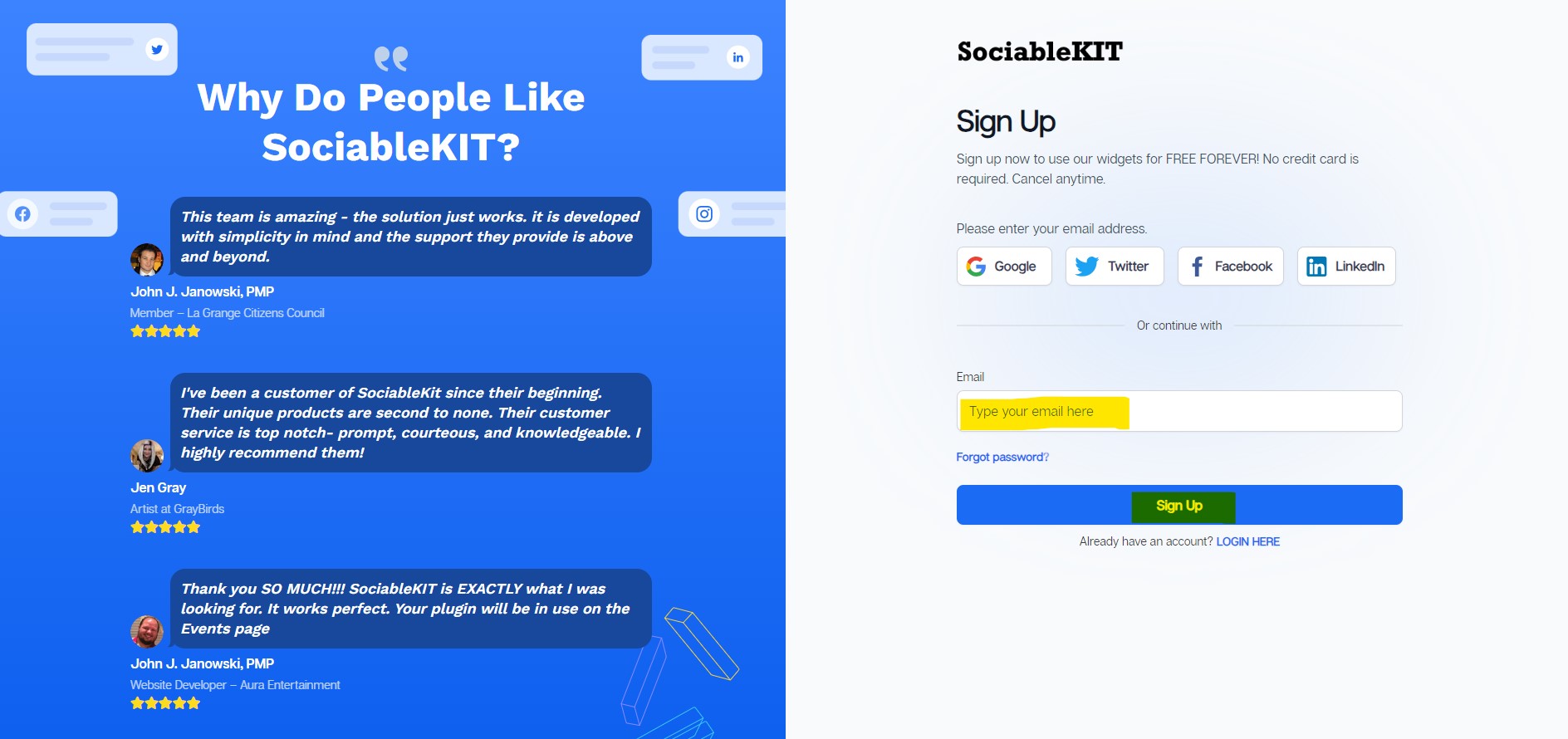
Sign up FREE or login to SociableKIT. You can login here if you already have an account. Once you sign up, you will start your 7-day premium trial. After 7 days, you can activate the free plan if you don't need our premium features.

- Select your Google business hours type on the dropdown.
SociableKIT offers several Google business hours widgets. You might need to search it using the highlighted area below. Once found, you can then select it.
Here are the different types of Google business hours that you can add to your Squarespace website :

- Enter your Google business hours ID or username. Copy your Google business hours URL and paste it in the username box. Our system will automatically identify your Google business hours ID or username.
-
Customize your feed. Click the "NEXT" button to show the customization options of your social feed. You can change the layout, colors, font, and more to match your brand. Click the Save changes button.

-
Copy the embed code. Click the "Embed on website" button on the upper right corner. On the popup, copy the JavaScript embed code.

- Paste the embed code and save your Squarespace website page. Please follow the second part below to add Google business hours widget to your Squarespace website .


Add Google business hours widget to your Squarespace website
The second part is adding your Google business hours widget to your Squarespace website . After you customize your Google business hours widget and copied the embed code, it is time to add it to your Squarespace website . Follow the steps below.
- Get your free embed code from SociableKIT. Make sure you followed the first part above to create your widgget, customize it, and copy your free embed code.
- Log in to Squarespace.
![]()
- In the Pages panel, click the page where you want the widget, then click the Edit button at the top left of the page preview.
![]()
- In the page section, click the Add Block button at the top left.
![]()
- In the search bar, type Code, then select the Code block.
![]()
- In your SociableKIT editor, click Get code at the top right.
![]()
- In the “Get the embed code” window, make sure the JavaScript tab is selected, then click Copy code.
![]()
- Back in Squarespace, open the Code block’s Content tab, make sure the Mode is set to HTML, then paste the embed code in the code area.
![]()
- Click the Save button at the top left of the page.
![]()
- Refresh your Squarespace page to check the widget. Done!
![]()


Website builders
Paste your embed code on any platform
SociableKIT works with every major website builder. Pick yours below for copy-paste instructions tailored to that platform.
To embed Google business hours on your Squarespace site, follow the steps below after you have your SociableKIT embed code.
- Sign up free to SociableKIT and create your Google business hours widget.
- Customize your widget and copy the embed code from the dashboard.
- Log in to Squarespace.
![]()
- In the Pages panel, click the page where you want the widget, then click the Edit button at the top left of the page preview.
![]()
- In the page section, click the Add Block button at the top left.
![]()
- In the search bar, type Code, then select the Code block.
![]()
- In your SociableKIT editor, click Get code at the top right.
![]()
- In the “Get the embed code” window, make sure the JavaScript tab is selected, then click Copy code.
![]()
- Back in Squarespace, open the Code block’s Content tab, make sure the Mode is set to HTML, then paste the embed code in the code area.
![]()
- Click the Save button at the top left of the page.
![]()
- Refresh your Squarespace page to check the widget. Done!
![]()
To embed Google business hours on your WordPress site, follow the steps below after you have your SociableKIT embed code.
- Sign up free to SociableKIT and create your Google business hours widget.
- Customize your widget and copy the embed code from the dashboard.
- Log in to your WordPress site.
![]()
- Go to the Posts section. To add a new widget, click the Add Post button at the top.
![]()
- To edit an existing widget, click the title of the post that has your widget instead. Skip this step if you’re adding a new post.
![]()
- In your SociableKIT editor, click Get code at the top right.
![]()
- In the Get the embed code window, make sure the JavaScript tab is selected, then click “Copy code.”
![]()
- Back in WordPress, click the + icon in the post body, type Custom HTML in the search bar, then select the Custom HTML block.
![]()
- In the HTML tab, paste the code, then click Update.
![]()
- Click the Save button at the top right of your WordPress post (or Publish if it’s a new post).
![]()
- The widget will appear on your WordPress post. Done!
![]()


To embed Google business hours on your Wix site, follow the steps below after you have your SociableKIT embed code.
- Sign up free to SociableKIT and create your Google business hours widget.
- Customize your widget and copy the embed code from the dashboard.
- Log in to Wix.
![]()
- On your existing website, click the “+ Add” button at the top left.
![]()
- Click “Elements”.
![]()
- In the Add Elements panel, click “Embed” from the left menu.
![]()
- Under the Embed section, click “Embed code” to add it to your page.
![]()
- Click the HTML Element on your page, then click the Settings (gear) icon in the toolbar above it.
![]()
- Under “Choose what to embed”, open the dropdown and select “Link”.
![]()
- Paste the link you copied from SociableKIT into the Link field, then click “Apply”.
![]()
- Click “Publish” at the upper right.
![]()
- Click “View Site”. Done!
![]()


To embed Google business hours on your Webflow site, follow the steps below after you have your SociableKIT embed code.
- Sign up free to SociableKIT and create your Google business hours widget.
- Customize your widget and copy the embed code from the dashboard.
- Login to Webflow.
![]()
- On your existing website, click the "Page: ...." in the upper left corner then click the "Create new page" icon.
![]()
- Once done add a name for your new page then click "Save".
![]()
- On the left, click "Add Element". Drag "Embed" to your page.
![]()
- Paste the JavaScript code you copied from SociableKIT.
![]()
- On the upper right, click "Publish" > "Publish to Selected Domains".
![]()
- View your page. Done!


To embed Google business hours on your Shopify site, follow the steps below after you have your SociableKIT embed code.
- Sign up free to SociableKIT and create your Google business hours widget.
- Customize your widget and copy the embed code from the dashboard.
- Log in to Shopify.
![]()
- On the left side, click Online Store.
![]()
- Click “Pages,” then click Add page at the top right. To edit an existing widget page, click its title instead.
![]()
- In your SociableKIT editor, click Get code at the top right.
![]()
- In the Get the embed code window, make sure the JavaScript tab is selected, then click Copy code.
![]()
- Back in Shopify, Click the Show HTML icon (<>) in the Content toolbar.
![]()
- Enter a page title, then click Save.
![]()
- Click the Save button at the top.
![]()
- Click the Preview button at the top right to check your widget. Done!
![]()
![]()


To embed Google business hours on your HTML site, follow the steps below after you have your SociableKIT embed code.
- Sign up free to SociableKIT and create your Google business hours widget.
- Customize your widget and copy the embed code from the dashboard.
- Open your HTML file.
![]()
- You can create a new HTML page or edit your existing HTML page.
![]()
- Paste the Javascript code you copied from SociableKIT. Paste it where you want the widget to appear.
![]()
- Save your HTML page.
![]()
- You may now upload your HTML page to your web hosting.


To embed Google business hours on your Google Sites site, follow the steps below after you have your SociableKIT embed code.
- Sign up free to SociableKIT and create your Google business hours widget.
- Customize your widget and copy the embed code from the dashboard.
- Login to Google sites.
![]()
- Create or edit an existing website. Click the ‘Blank site’ tile (the + icon) in the ‘Start a new site’ section to create a new website, or open your existing website from the ‘Recent sites’ section.
![]()
- Create a new blank page or edit your existing page. Identify which page you want the widget to appear on. On the right sidebar, under the ‘Insert’ tab, click the ‘Embed’ button.
![]()
- Add the widget. A popup ‘Embed from the web’ will open. Select the ‘Embed code’ tab, paste the embed code from your SociableKIT widget into the ‘HTML code goes here’ box, then click the ‘Next’ button.
![]()
- Preview your widget. A preview of your SociableKIT widget will be displayed. To change the code, click the pencil icon on the preview. When you’re happy with it, click the ‘Insert’ button to add the widget to your page.
![]()
- Publish your page. Click the ‘Publish’ button on the upper right corner of the page. Done!
![]()


To embed Google business hours on your Weebly site, follow the steps below after you have your SociableKIT embed code.
- Sign up free to SociableKIT and create your Google business hours widget.
- Customize your widget and copy the embed code from the dashboard.
- Log in to Weebly.
![]()
- On your existing website on Weebly, click the "Pages" section on the upper left then click the "+".
![]()
- Select what type of page you want to add.
![]()
- Add a name to your page and then click "Done".
![]()
- On the top menu, click "Build" then on the sidebar, drag the "Embed Code" option on your page.
![]()
- Click the "Click to set custom HTML" then click "Edit Custom HTML".
![]()
- Paste the code you copied from SociableKIT then in the upper right corner, click the “Publish” button.
![]()
- Click the link to your site. Done!


Live preview
Pick a Google Business Profile template — see it live
Choose a starting design on the left and watch the preview update with real data. What you see is exactly what visitors get on your Squarespace website.
Common questions
Frequently asked questions
Everything you need to know about embedding Google business hours on your Squarespace website.
What is a Google business hours widget and how does it work?
The SociableKIT Google business hours widget automatically syncs your operating hours from your Google Business Profile and displays them on your website. Instead of manually typing your hours on multiple pages, you connect your business once and the widget pulls accurate, up‑to‑date hours directly from Google. This gives visitors confidence they’re looking at the correct schedule, and you never need to worry about outdated information. It’s a simple way to keep your site current and professional.
How do I connect my Google Business Profile and embed the widget on my website? Do I need coding skills or a plugin?
Embedding the widget is as easy as copy and paste. After creating your SociableKIT widget and linking it to your Google Business Profile, the platform generates a single line of code. You paste this snippet into any HTML or embed block on your site—no plugins or programming required. The widget works seamlessly with WordPress, Shopify, Wix, Squarespace, Webflow, and virtually every website builder.
Do I need to verify my Google Business Profile or be an admin to use the widget?
For security and accuracy, you need to manage or own the Google Business Profile you want to display. As long as you can access your business details in Google, SociableKIT can pull your hours automatically. There’s no need to create a separate app or fiddle with API tokens—just log in and choose your business. The widget will display the same hours your customers see on Google.
Can I display business hours for multiple locations or branches?
Yes. SociableKIT allows you to add multiple business profiles under one account. You can create separate widgets for each location or combine them into one display with clear labels. This makes it easy to manage hours for franchises, multi‑branch businesses, or agencies with multiple clients—all without juggling several logins.
Can I show special holiday hours, lunch breaks, or temporary closures?
The widget pulls whatever hours you set in your Google Business Profile, including special hours and temporary changes. When you adjust holiday schedules, lunchtime breaks, or unexpected closures on Google, the widget reflects those updates. This ensures visitors always see accurate information without any extra editing on your site. You can also choose to highlight special notes within the widget by customizing its design.
Will my hours update automatically when I change them in Google? Do I need to manually refresh?
On paid plans, SociableKIT automatically syncs your hours in the background, so any changes you make in Google Business Profile appear on your website without action from you. The free plan includes manual syncing, which lets you refresh your widget with one click whenever you make changes. Either way, you control how and when your hours are updated.
Can I customize the look of the widget to match my brand?
Absolutely. SociableKIT offers full design control on every plan. You can adjust colors, fonts, spacing, and layout to blend seamlessly with your website. There are several templates to choose from, including light and dark modes, and you can preview your changes in real time before publishing.
Does the widget display an “Open Now” or “Closed” indicator?
You can configure the widget to clearly communicate when you’re open or closed. By displaying your current status alongside the hours, the widget removes guesswork for visitors. Combined with special hours and up‑to‑date schedules, this helps manage expectations and encourages contact at the right times. It’s a simple way to prevent missed calls and frustrated customers.
Can I change the time format (12‑hour vs 24‑hour) or first day of the week?
Yes, you can choose the time format and first day of the week that fits your audience. Whether you prefer a 12‑hour AM/PM format or a 24‑hour clock, SociableKIT supports both. You can also set the first day of the week to Sunday, Monday, or any other day to match local conventions. These settings ensure the widget feels familiar to your visitors.
Does the widget adjust to visitors’ local time zones?
By default, the widget displays the hours set in your Google Business Profile, which include your business’s local time zone. If your audience spans different regions, you can add a note or configure the widget to display time zone information. This helps remote customers understand when you’re available without doing time conversions themselves.
Will the widget work on my website builder (WordPress, Shopify, Wix, Squarespace, etc.)?
Yes. SociableKIT is platform‑agnostic. The same embed code works on all popular website builders and custom sites. If your platform supports custom HTML, you can display your business hours with no additional plugins. This makes the widget ideal for agencies managing multiple platforms.
Is the widget mobile‑friendly and responsive?
The widget is designed to look great on any device. It adapts automatically to different screen sizes, from phones to tablets to desktop computers. Visitors get a clear, readable schedule whether they’re browsing at home or on the go, helping them contact you at the right time.
Will embedding the widget slow down my website?
No. The widget loads asynchronously and is optimized for performance, so it doesn’t block other content. It adds only a small, self‑contained script to your page. This means you can display accurate business hours without sacrificing site speed or user experience.
Does displaying accurate hours help with SEO or customer experience?
Accurate, consistent hours improve both your customers’ experience and your local search presence. Search engines favor businesses that provide consistent information across the web. By syncing directly from Google, the widget ensures your website matches your Google listing, reducing confusion and potential penalties for outdated data.
Are there any limits on the number of views or hours? How much does it cost?
Paid plans start at $10 per month and include unlimited views with no traffic caps. You pay per source, not per visitor, so you don’t need to worry about sudden spikes deactivating your widget. A free plan is available with 2,000 monthly views and manual sync; you can upgrade any time for automatic updates and more sources.
What happens if I cancel my subscription or free plan?
There are no long‑term contracts or cancellation fees. If you downgrade to the free plan, your widget continues to work with manual sync and SociableKIT branding. If you decide to cancel entirely, you can remove the embed code from your site and reconnect anytime. Your account remains available whenever you’re ready to return.
Do I need to update the embed code when I change hours or settings?
No. Once the widget is embedded, all design and content changes are managed in your SociableKIT dashboard. Whether you update hours, adjust the design, or add sources, the live widget updates automatically without touching your website code. This separation saves you time and prevents mistakes.
Can I add multiple daily time slots (e.g., open in the morning and evening)?
Yes. If your business operates in multiple shifts, you can create several opening and closing intervals for each day in your Google Business Profile. The widget will display each time slot clearly, ensuring visitors understand your schedule. This flexibility is perfect for restaurants, clinics, or any business with break times.
Can I add a custom message, like a holiday notice or call‑to‑action, to my hours display?
You have the option to include a short note or call‑to‑action within the widget. Use this space to alert customers to holiday hours, seasonal changes, or direct them to book appointments. Because you control the text and styling, the widget becomes a mini information hub that goes beyond just open and close times.
Does SociableKIT offer support if I have questions or need help?
Yes. Friendly, real human support is available to help you at every step. Business and Enterprise plans include 24/7 chat and email assistance, and even the free plan includes responsive support. Whether you need help connecting your profile, customizing your design, or troubleshooting, SociableKIT’s team is ready to assist.
Add your Google business hours widget today
Set up in minutes. Free forever to start.
Create your widgetFree forever · No credit card · Cancel anytime