
Your Instagram Profile on Tilda website — live in 3 steps
SociableKIT syncs your instagram profile automatically. Set up once, embed anywhere — free to start, no coding required.
-
Create in 60 seconds
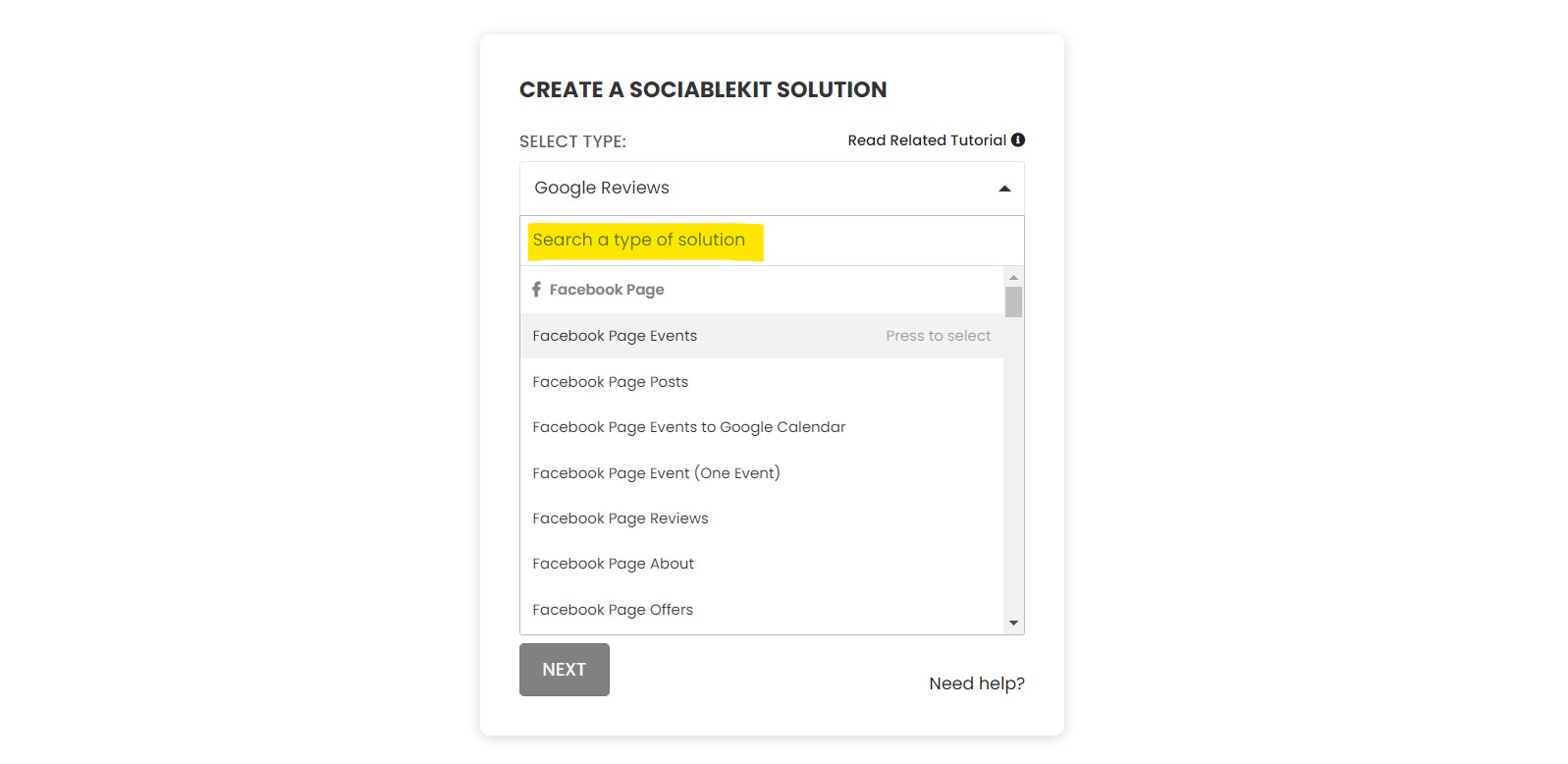
Pick Instagram Profile in the dashboard and connect your source.
-
Match your brand
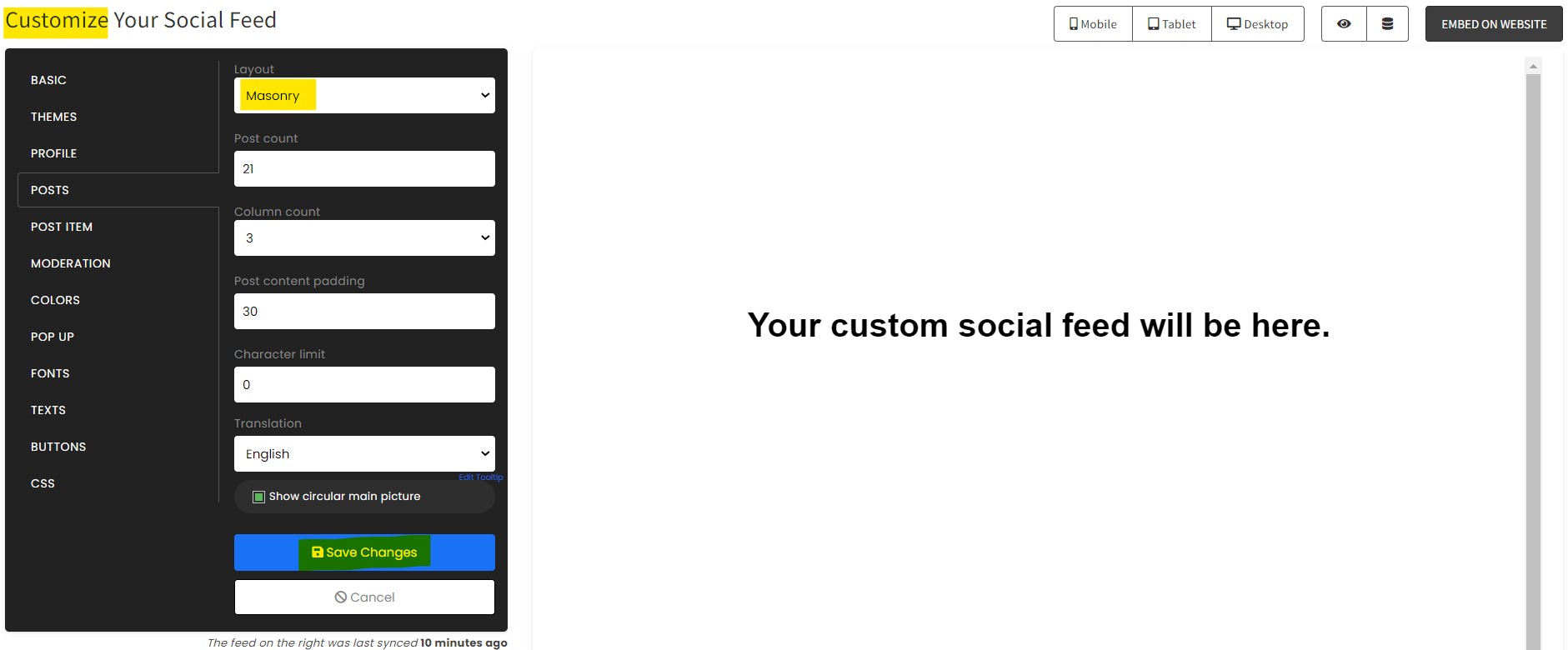
Colors, fonts, layout — tune it until it feels native to your site.
-
Paste one line of code
Drop the embed snippet on your Tilda website. No dev team needed.
Embed Instagram Profile with SociableKIT — step by step
Create your widget in the dashboard, copy the embed code, and paste it on your Tilda website. Screenshots included so you never get stuck.
Create and customize your Instagram Profile widget
The first part is creating your Instagram Profile widget using the SociableKIT dashboard. Customize the look and feel to match your brand. Follow the steps below.
-
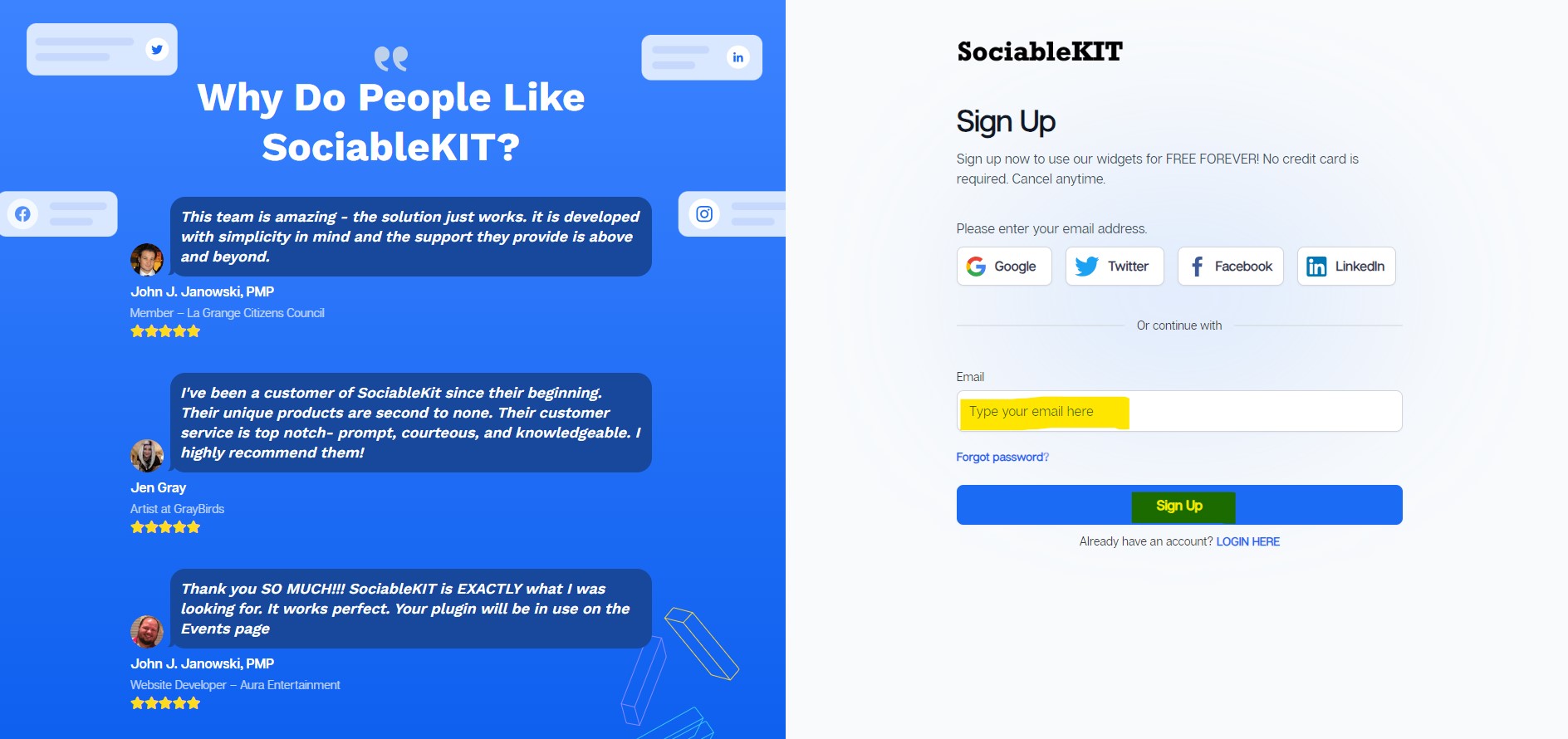
Sign up FREE or login to SociableKIT. You can login here if you already have an account. Once you sign up, you will start your 7-day premium trial. After 7 days, you can activate the free plan if you don't need our premium features.

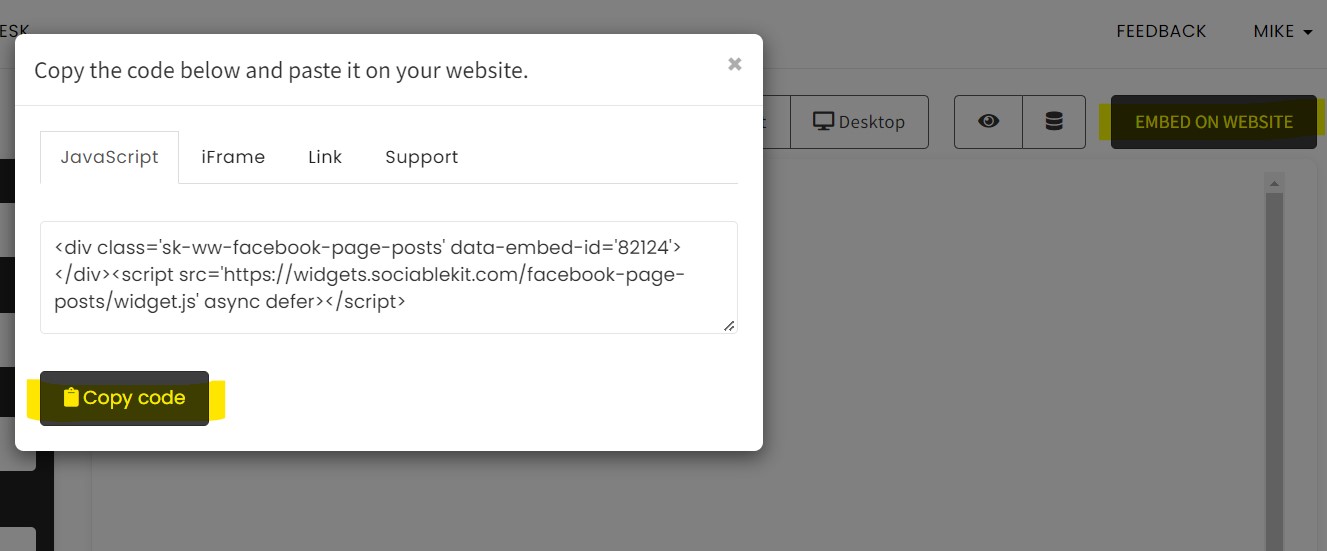
- Paste the embed code and save your Tilda website page. Please follow the second part below to add Instagram Profile widget to your Tilda website .
Click "Connect Instagram account" button. Follow the steps given by Instagram.
Add Instagram Profile widget to your Tilda website
The second part is adding your Instagram Profile widget to your Tilda website . After you customize your Instagram Profile widget and copied the embed code, it is time to add it to your Tilda website . Follow the steps below.
- Copy your free Instagram Profile widget embed code. Make sure you followed the first part above. It detailed how to you can create and customize your widget to get your free embed code.
- Login to Tilda.
![]()
- Create or edit an existing page.
![]()
- On the page, click the 'More Blocks' button.
![]()
- Find the 'Other' tab and select the 'T123' 'Embed HTML Code' block.
![]()
- Paste the embed code from SociableKIT.
![]()
- Click 'Publish' and click the 'Open page' button.
![]()
- Done!
![]()
Website builders
Paste your embed code on any platform
SociableKIT works with every major website builder. Pick yours below for copy-paste instructions tailored to that platform.
To embed Instagram Profile on your Tilda site, follow the steps below after you have your SociableKIT embed code.
- Sign up free to SociableKIT and create your Instagram Profile widget.
- Customize your widget and copy the embed code from the dashboard.
- Login to Tilda.
![]()
- Create or edit an existing page.
![]()
- On the page, click the 'More Blocks' button.
![]()
- Find the 'Other' tab and select the 'T123' 'Embed HTML Code' block.
![]()
- Paste the embed code from SociableKIT.
![]()
- Click 'Publish' and click the 'Open page' button.
![]()
- Done!
![]()
To embed Instagram Profile on your WordPress site, follow the steps below after you have your SociableKIT embed code.
- Sign up free to SociableKIT and create your Instagram Profile widget.
- Customize your widget and copy the embed code from the dashboard.
- Login to your WordPress site.
![]()
- On your WordPress, go to the "Pages" section then click the "Add new page".
![]()
- Pick a pre-defined layout or start with a blank page by clicking the "Blank page" button.
![]()
- On the body of your page, click the "+" icon and click the "Custom HTML".
![]()
- Paste the code in the text area and click update.
![]()
- The widget will appear on the WordPress page.
![]()
- Click the Publish or Update button on your WordPress page.
![]()
- Click the view page. Done!
To embed Instagram Profile on your Wix site, follow the steps below after you have your SociableKIT embed code.
- Sign up free to SociableKIT and create your Instagram Profile widget.
- Customize your widget and copy the embed code from the dashboard.
- Login to Wix.
![]()
- On your existing website click the "+" button beside the "Main pages" section.
![]()
- Then click the "Add page" button.
![]()
- Name your page then hit enter.
![]()
- On the left, click "Add element". Find and click "Embed code". Click and drag "Embed a site" on your page then resize the container.
![]()
- Click "Change website address".
![]()
- Paste the link you copied from SociableKIT then click "Apply".
![]()
- Click "Publish" on the upper right.
![]()
- Click "View site". Done!
![]()
To embed Instagram Profile on your Squarespace site, follow the steps below after you have your SociableKIT embed code.
- Sign up free to SociableKIT and create your Instagram Profile widget.
- Customize your widget and copy the embed code from the dashboard.
- Login to Squarespace. You must have a "Business" account in Squarespace to use the widget. The "code block" needed cannot be found if you only have a "Personal" account.
![]()
- Create a new blank page or edit your existing page. Identify which page you want the widget to appear. You can create a new page on Squarespace, or you can edit your existing page where you want the widget to appear.
![]()
- Add a Code Block. On your Squarespace page, click the 'Edit' button. Find the 'Code' block and click it.
![]()
- Paste the embed code from SociableKIT. On the 'Content' of the 'Code' block, paste the JavaScript embed code you have copied from your widget.
![]()
- Save the changes on the 'Code block'. After pasting your widget's embed code. Click the 'Save' button on the left part of the page.
![]()
- View your page. Refresh your Squarespace page and check your SociableKIT widget. Done!
![]()
To embed Instagram Profile on your Webflow site, follow the steps below after you have your SociableKIT embed code.
- Sign up free to SociableKIT and create your Instagram Profile widget.
- Customize your widget and copy the embed code from the dashboard.
- Login to Webflow.
![]()
- On your existing website, click the "Page: ...." in the upper left corner then click the "Create new page" icon.
![]()
- Once done add a name for your new page then click "Save".
![]()
- On the left, click "Add Element". Drag "Embed" to your page.
![]()
- Paste the JavaScript code you copied from SociableKIT.
![]()
- On the upper right, click "Publish" > "Publish to Selected Domains".
![]()
- View your page. Done!
To embed Instagram Profile on your Shopify site, follow the steps below after you have your SociableKIT embed code.
- Sign up free to SociableKIT and create your Instagram Profile widget.
- Customize your widget and copy the embed code from the dashboard.
- Login to Shopify.
![]()
- On the left side, click Online Store.
![]()
- Click Pages. Add a new page or edit your existing page.
![]()
- On the Page details, click Show HTML icon (<>).
![]()
- Paste the embed code and click the Save button.
![]()
- Click the View page button. Done!
![]()
To embed Instagram Profile on your HTML site, follow the steps below after you have your SociableKIT embed code.
- Sign up free to SociableKIT and create your Instagram Profile widget.
- Customize your widget and copy the embed code from the dashboard.
- Open your HTML file.
- You can create a new HTML page or edit your existing HTML page.
![]()
- Paste the Javascript code you copied from SociableKIT. Paste it where you want the widget to appear.
![]()
- Save your HTML page.
![]()
- You may now upload your HTML page to your web hosting.
To embed Instagram Profile on your Google Sites site, follow the steps below after you have your SociableKIT embed code.
- Sign up free to SociableKIT and create your Instagram Profile widget.
- Customize your widget and copy the embed code from the dashboard.
- Login to Google sites. You must have at least a 'Business Starter' plan to create and customize your Google sites.
![]()
- Create or edit an existing website. Click the + 'Blank' button on the 'Start a new site' section to create or find your existing website under the 'Recent sites' section.
![]()
- Create a new blank page or edit your existing page. Identify which page you want the widget to appear. On the right sidebar, you will see an 'Embed' button. Click the 'Embed' button.
![]()
- Add the widget. A popup 'Embed from the web' will open up. Select the 'Embed code' tab on the popup.
![]()
- Paste the embed code from SociableKIT. On the 'Embed code' tab, you will see 'HTML code goes here' text. Paste the embed code from your SociableKIT widget.
![]()
- Save the widget. Once you have pasted your embed code, click the 'Next' button.
![]()
- Preview of your SociableKIT widget. After clicking the Next button, a preview of your embed code will be displayed. Click the 'Insert' button to insert the widget to your Google sites page.
![]()
- Edit the widget. Once the widget has been inserted, you will have the option to resize the widget. After resizing the widget to your preferences, click the 'Publish' button on the upper right corner of the page.
![]()
- Publish your page. After publishing the site, click the down 'Arrow' button beside the 'Publish' button.
![]()
- View your page. A dropdown of buttons will be displayed, click the 'View published site' button. Done!
![]()
Live preview
Pick a Instagram Profile template — see it live
Choose a starting design on the left and watch the preview update with real data. What you see is exactly what visitors get on your Tilda website.
Common questions
Frequently asked questions
Everything you need to know about embedding Instagram Profile on your Tilda website.
What is the SociableKIT Instagram Profile widget and why should I use it?
The Instagram Profile widget automatically pulls your latest Instagram posts onto your website, giving visitors a live glimpse into your brand’s activity. It turns your site into a living showcase of social proof, keeps pages fresh without manual updates, and helps convert visitors into followers and customers.
How do I embed the Instagram Profile widget on my website?
It takes just three steps: create your widget in the SociableKIT dashboard, customize the layout and colors to match your brand, then copy and paste a short embed code into your website. The same code works on WordPress, Shopify, Wix, Squarespace, Webflow, Google Sites, SharePoint and any HTML site.
Do I need any coding knowledge or a developer to set up the widget?
No. SociableKIT is designed for anyone to use – no coding or design skills required. You customize your widget visually in minutes and paste one line of code into your site. If you ever need help, real human support is available around the clock.
Do I need an Instagram Business or Creator account?
Instagram’s API only allows professional accounts to access their feeds, so you’ll need a Business or Creator account to connect your own posts. Converting a personal account to a Creator account is quick and reversible, and lets the widget sync your content automatically.
Can I use the widget with a private Instagram account?
Instagram does not permit private feeds to be embedded. To display posts, the connected account must be public and set to a Business or Creator profile. You can change your account type in Instagram’s settings whenever you need to.
Can I combine multiple Instagram accounts or hashtags in one widget?
Yes. You can create as many widgets as you like and display posts from multiple accounts or hashtags. Each Instagram profile or hashtag counts as a source; simply add additional sources as your needs grow.
Is there a free plan? What does it include?
There is a free forever plan that lets you connect one Instagram source, publish one widget and get up to 2,000 views per month. You still get full design customization and can sync your feed manually whenever you need to.
What’s the difference between the free and paid plans?
Paid plans remove the view limits, allow unlimited widgets, offer automatic syncing and remove SociableKIT branding. Higher tiers also include multiple sources, advanced analytics and automated moderation. You can upgrade or downgrade anytime.
How often does the widget sync new posts?
On free plans you trigger a sync manually; on paid plans the widget checks for new posts automatically, so your site updates without you lifting a finger. New widgets may take a few minutes to populate, and the sync frequency depends on the plan and source type.
Will the widget slow down my website or hurt SEO?
No. The embed code loads asynchronously and lazy-loads images, so it won’t block your page’s initial render. Your content is cached to keep load times fast and protect your Core Web Vitals scores.
Can I customize the design to match my brand?
Absolutely. You can choose different layouts like grid, masonry or carousel, change colors and fonts, set dark or light modes and even add call‑to‑action buttons. Every plan gives you full control, so the widget feels like a natural part of your site.
Can I moderate or filter the posts that appear?
Yes. You can hide or show posts based on keywords, hashtags or individual entries, and business plans include automatic moderation that screens out unwanted content. This ensures only on‑brand posts show up on your site.
Does the widget support videos, Reels and carousel posts?
Yes. The Instagram Profile widget displays all post types — single images, carousels, videos and Reels — so visitors can experience your full content mix in one place.
Is the widget mobile‑friendly and responsive?
Yes. The widget is fully responsive, adapting seamlessly to phones, tablets and desktops. You get a consistent, polished look on any screen size.
Will the widget work with my website platform?
Yes. SociableKIT provides a single embed code that works on WordPress, Shopify, Wix, Squarespace, Webflow, Weebly, Google Sites, SharePoint and almost any other website builder or custom HTML site.
Do I need to worry about API tokens and maintenance?
No. Connecting your Instagram account once is enough — SociableKIT handles token management, API changes and other technical details. You avoid the headaches of expired tokens or complicated app approvals, and your feed keeps running smoothly.
What if my feed is not showing or not updated?
New widgets can take a few minutes to load, and free plans require manual syncing. If posts aren’t updating, check that your Instagram account is still connected and that your trial or subscription is active. Our support team can help troubleshoot any issues.
Can I control how many posts display or which layout is used?
Yes. You can set the number of posts per page and choose from multiple layouts, including grid, masonry, carousel and dark mode variations. Adjust columns, spacing and order to create the perfect look for your site.
Do you offer support if I need help?
Yes. Real human support is available via chat and email on every plan, with 24/7 availability on paid plans. Whether you’re stuck on setup or want to customize your widget further, we’re here to guide you.
Add your Instagram Profile widget today
Set up in minutes. Free forever to start.
Create your widgetFree forever · No credit card · Cancel anytime