



Your Medium Post on Ucoz website — live in 3 steps
SociableKIT syncs your medium post automatically. Set up once, embed anywhere — free to start, no coding required.
-
Create in 60 seconds
Pick Medium Post in the dashboard and connect your source.
-
Match your brand
Colors, fonts, layout — tune it until it feels native to your site.
-
Paste one line of code
Drop the embed snippet on your Ucoz website. No dev team needed.
Embed Medium Post with SociableKIT — step by step
Create your widget in the dashboard, copy the embed code, and paste it on your Ucoz website. Screenshots included so you never get stuck.
Create and customize your Medium Post widget
The first part is creating your Medium Post widget using the SociableKIT dashboard. Customize the look and feel to match your brand. Follow the steps below.
-
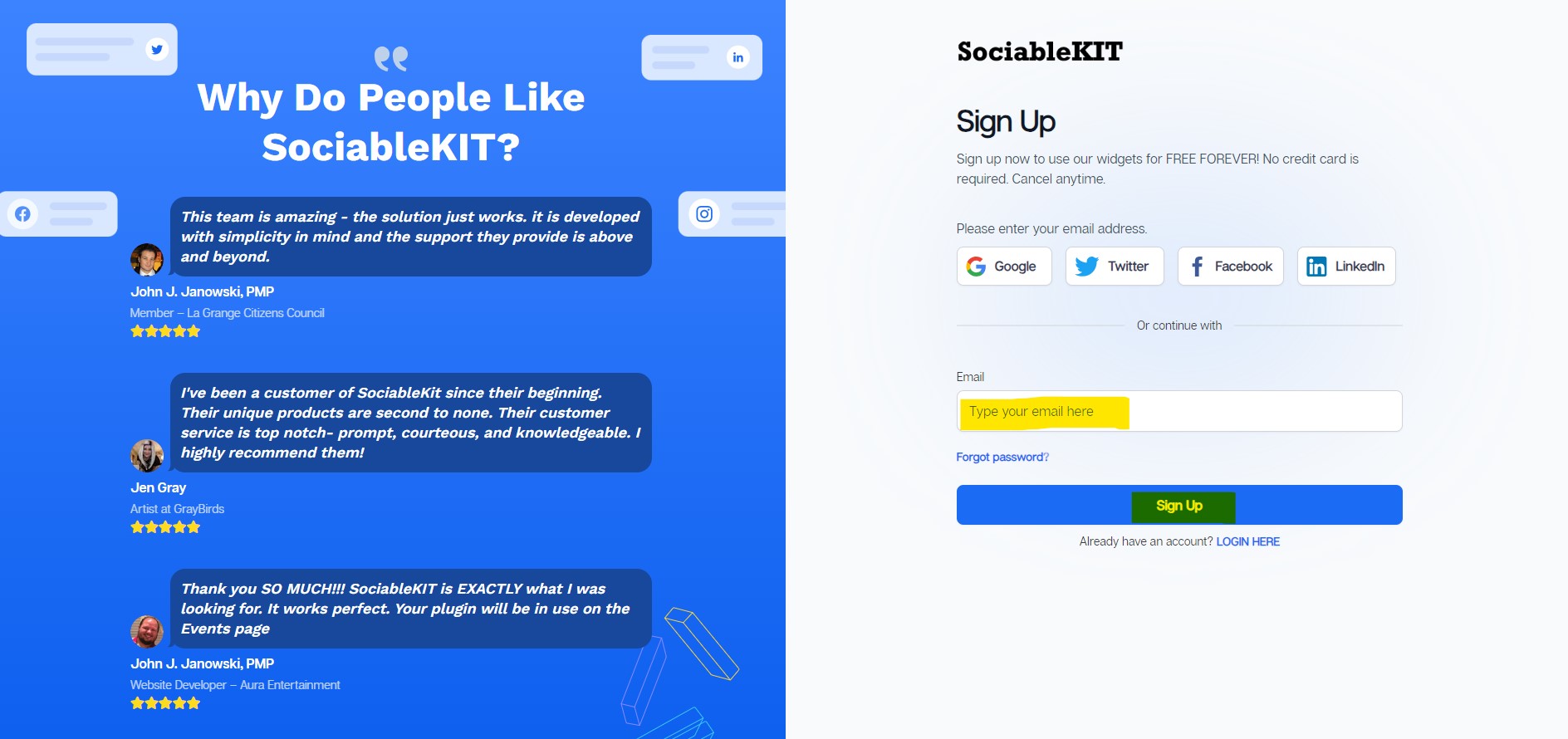
Sign up FREE or login to SociableKIT. You can login here if you already have an account. Once you sign up, you will start your 7-day premium trial. After 7 days, you can activate the free plan if you don't need our premium features.

-
Select "Medium Post" on the dropdown. SociableKIT offers several social media feeds widgets. You might need to search it using the highlighted area below. Once found, you can then select it.

-
Customize your feed. Click the "NEXT" button to show the customization options of your social feed. You can change the layout, colors, font, and more to match your brand. Click the Save changes button.

-
Copy the embed code. Click the "Embed on website" button on the upper right corner. Select your website builder. On the popup, copy the JavaScript embed code.

- Paste the embed code and save your Ucoz website page. Please follow the second part below to add Medium Post widget to your Ucoz website .

Enter the link to your Medium post.


Add Medium Post widget to your Ucoz website
The second part is adding your Medium Post widget to your Ucoz website . After you customize your Medium Post widget and copied the embed code, it is time to add it to your Ucoz website . Follow the steps below.
- Copy your free Medium Post widget embed code. Make sure you followed the first part above. It detailed how to you can create and customize your widget to get your free embed code.
- Login to Ucoz. You must have a 'Basic' plan to create and customize your Ucoz website.
![]()
- Create or edit an existing page. On the left sidebar, click the 'Page Editor' tab. Select the 'Add new page' button on the right of the page.
![]()
- Edit your Ucoz page. Enter your page name in the middle part of the page. On the 'Page content', find the <> 'Source' button and select it.
![]()
- Paste the embed code from SociableKIT. Paste the JavaScript embed code that you have copied on SociableKIT. After pasting the embed code, find the 'Save' button on the bottom part of the page and click it.
![]()
- Go to your published Ucoz page. After saving the page, a popup will appear. Click the 'Go to the page' button to view your published page.
![]()
- View your page. Check your SociableKIT widget on your Ucoz page. Done!
![]()


Website builders
Paste your embed code on any platform
SociableKIT works with every major website builder. Pick yours below for copy-paste instructions tailored to that platform.
To embed Medium Post on your Ucoz site, follow the steps below after you have your SociableKIT embed code.
- Sign up free to SociableKIT and create your Medium Post widget.
- Customize your widget and copy the embed code from the dashboard.
- Login to Ucoz. You must have a 'Basic' plan to create and customize your Ucoz website.
![]()
- Create or edit an existing page. On the left sidebar, click the 'Page Editor' tab. Select the 'Add new page' button on the right of the page.
![]()
- Edit your Ucoz page. Enter your page name in the middle part of the page. On the 'Page content', find the <> 'Source' button and select it.
![]()
- Paste the embed code from SociableKIT. Paste the JavaScript embed code that you have copied on SociableKIT. After pasting the embed code, find the 'Save' button on the bottom part of the page and click it.
![]()
- Go to your published Ucoz page. After saving the page, a popup will appear. Click the 'Go to the page' button to view your published page.
![]()
- View your page. Check your SociableKIT widget on your Ucoz page. Done!
![]()
To embed Medium Post on your WordPress site, follow the steps below after you have your SociableKIT embed code.
- Sign up free to SociableKIT and create your Medium Post widget.
- Customize your widget and copy the embed code from the dashboard.
- Log in to your WordPress site.
![]()
- Go to the Posts section. To add a new widget, click the Add Post button at the top.
![]()
- To edit an existing widget, click the title of the post that has your widget instead. Skip this step if you’re adding a new post.
![]()
- In your SociableKIT editor, click Get code at the top right.
![]()
- In the Get the embed code window, make sure the JavaScript tab is selected, then click “Copy code.”
![]()
- Back in WordPress, click the + icon in the post body, type Custom HTML in the search bar, then select the Custom HTML block.
![]()
- In the HTML tab, paste the code, then click Update.
![]()
- Click the Save button at the top right of your WordPress post (or Publish if it’s a new post).
![]()
- The widget will appear on your WordPress post. Done!
![]()


To embed Medium Post on your Wix site, follow the steps below after you have your SociableKIT embed code.
- Sign up free to SociableKIT and create your Medium Post widget.
- Customize your widget and copy the embed code from the dashboard.
- Log in to Wix.
![]()
- On your existing website, click the “+ Add” button at the top left.
![]()
- Click “Elements”.
![]()
- In the Add Elements panel, click “Embed” from the left menu.
![]()
- Under the Embed section, click “Embed code” to add it to your page.
![]()
- Click the HTML Element on your page, then click the Settings (gear) icon in the toolbar above it.
![]()
- Under “Choose what to embed”, open the dropdown and select “Link”.
![]()
- Paste the link you copied from SociableKIT into the Link field, then click “Apply”.
![]()
- Click “Publish” at the upper right.
![]()
- Click “View Site”. Done!
![]()


To embed Medium Post on your Squarespace site, follow the steps below after you have your SociableKIT embed code.
- Sign up free to SociableKIT and create your Medium Post widget.
- Customize your widget and copy the embed code from the dashboard.
- Log in to Squarespace.
![]()
- In the Pages panel, click the page where you want the widget, then click the Edit button at the top left of the page preview.
![]()
- In the page section, click the Add Block button at the top left.
![]()
- In the search bar, type Code, then select the Code block.
![]()
- In your SociableKIT editor, click Get code at the top right.
![]()
- In the “Get the embed code” window, make sure the JavaScript tab is selected, then click Copy code.
![]()
- Back in Squarespace, open the Code block’s Content tab, make sure the Mode is set to HTML, then paste the embed code in the code area.
![]()
- Click the Save button at the top left of the page.
![]()
- Refresh your Squarespace page to check the widget. Done!
![]()


To embed Medium Post on your Webflow site, follow the steps below after you have your SociableKIT embed code.
- Sign up free to SociableKIT and create your Medium Post widget.
- Customize your widget and copy the embed code from the dashboard.
- Login to Webflow.
![]()
- On your existing website, click the "Page: ...." in the upper left corner then click the "Create new page" icon.
![]()
- Once done add a name for your new page then click "Save".
![]()
- On the left, click "Add Element". Drag "Embed" to your page.
![]()
- Paste the JavaScript code you copied from SociableKIT.
![]()
- On the upper right, click "Publish" > "Publish to Selected Domains".
![]()
- View your page. Done!


To embed Medium Post on your Shopify site, follow the steps below after you have your SociableKIT embed code.
- Sign up free to SociableKIT and create your Medium Post widget.
- Customize your widget and copy the embed code from the dashboard.
- Log in to Shopify.
![]()
- On the left side, click Online Store.
![]()
- Click “Pages,” then click Add page at the top right. To edit an existing widget page, click its title instead.
![]()
- In your SociableKIT editor, click Get code at the top right.
![]()
- In the Get the embed code window, make sure the JavaScript tab is selected, then click Copy code.
![]()
- Back in Shopify, Click the Show HTML icon (<>) in the Content toolbar.
![]()
- Enter a page title, then click Save.
![]()
- Click the Save button at the top.
![]()
- Click the Preview button at the top right to check your widget. Done!
![]()
![]()


To embed Medium Post on your HTML site, follow the steps below after you have your SociableKIT embed code.
- Sign up free to SociableKIT and create your Medium Post widget.
- Customize your widget and copy the embed code from the dashboard.
- Open your HTML file.
![]()
- You can create a new HTML page or edit your existing HTML page.
![]()
- Paste the Javascript code you copied from SociableKIT. Paste it where you want the widget to appear.
![]()
- Save your HTML page.
![]()
- You may now upload your HTML page to your web hosting.


To embed Medium Post on your Google Sites site, follow the steps below after you have your SociableKIT embed code.
- Sign up free to SociableKIT and create your Medium Post widget.
- Customize your widget and copy the embed code from the dashboard.
- Login to Google sites.
![]()
- Create or edit an existing website. Click the ‘Blank site’ tile (the + icon) in the ‘Start a new site’ section to create a new website, or open your existing website from the ‘Recent sites’ section.
![]()
- Create a new blank page or edit your existing page. Identify which page you want the widget to appear on. On the right sidebar, under the ‘Insert’ tab, click the ‘Embed’ button.
![]()
- Add the widget. A popup ‘Embed from the web’ will open. Select the ‘Embed code’ tab, paste the embed code from your SociableKIT widget into the ‘HTML code goes here’ box, then click the ‘Next’ button.
![]()
- Preview your widget. A preview of your SociableKIT widget will be displayed. To change the code, click the pencil icon on the preview. When you’re happy with it, click the ‘Insert’ button to add the widget to your page.
![]()
- Publish your page. Click the ‘Publish’ button on the upper right corner of the page. Done!
![]()


Live preview
Pick a Medium Post template — see it live
Choose a starting design on the left and watch the preview update with real data. What you see is exactly what visitors get on your Ucoz website.
Common questions
Frequently asked questions
Everything you need to know about embedding Medium Post on your Ucoz website.
What is a Medium Post widget?
A Medium Post widget displays one selected Medium story directly on your website. It gives an important article, guide, announcement, or thought-leadership piece a focused place where your visitors can discover it.
How do I embed a Medium post on my website without coding?
Create the widget in SociableKIT, paste the Medium post link, customize the design, and copy the generated embed code. Add the code to an HTML, custom code, iframe, or embed block on your website.
Where can I find the Medium post link?
Open the published Medium story in a browser and copy its complete address from the address bar. Paste that full link into the Medium Post source field in SociableKIT.
Does the Medium story need to be published and public?
A published story that anyone can access gives the widget the most reliable source. Drafts, deleted stories, and content unavailable to ordinary visitors cannot provide a dependable public website experience.
Do I need to own the Medium post or create an API key?
No custom API development or developer key is required for the standard SociableKIT setup. You can connect an accessible Medium post, although you should feature only content that you own or have permission to display.
Can I display a member-only Medium story?
A member-only story may provide only the content that Medium makes available to non-members, such as an opening preview. The widget does not bypass Medium's paywall, and visitors may need a Medium membership to read the complete story.
Can an unlisted Medium post work in the widget?
An unlisted story remains published and can be opened by anyone who has its direct link, even though it is hidden from Medium feeds, search, and the author's profile. It may work when the correct direct post link remains publicly accessible.
Will changes to the Medium post update automatically?
Yes, paid SociableKIT plans include automatic syncing for eligible source changes, so you can keep the same embed code after editing the story. The free plan lets you request a manual sync when you want to refresh the widget.
Will the widget automatically replace the post with my newest Medium story?
No, the Medium Post widget remains connected to the one story link you selected. Use SociableKIT's Medium Blog widget when you want a changing feed that can show several stories from an author or publication.
What information can the Medium Post widget display?
The widget can present available details such as the story title, subtitle, author, publication, featured image, publish date, reading content or preview, and a read-more action. The exact fields depend on what Medium makes accessible and which SociableKIT settings and template are enabled.
Will images and featured images appear in the widget?
Images may appear when they are part of the published story and available through the Medium source. The selected featured image can also be used in the story's preview, while the final widget display depends on its template.
Can the widget display videos, social posts, and other Medium embeds?
Medium stories can contain supported third-party embeds and link-preview cards. Their appearance and interactivity inside the website widget depend on Medium's source output, the original provider, browser rules, and the selected SociableKIT layout.
Will Medium code blocks and formatted text display correctly?
The widget can display available story formatting such as headings, lists, links, quotes, and code sections when the source provides them. Complex formatting or newly introduced Medium features may appear differently from the original story page.
Can visitors clap, highlight, respond, or follow the author from the widget?
The widget mainly presents the story and can guide visitors to the original Medium page. Clapping, highlighting, responding, following, listening, or using other Medium features may open Medium and require an account or membership.
What happens if the Medium post is edited, moved, or added to a publication?
Published stories can be edited, and a story accepted into a publication may receive a publication-based address while its earlier link continues pointing to it. SociableKIT can reflect eligible source changes after the next sync.
What happens if the Medium story is deleted?
Deleting a Medium story is permanent and removes the public source used by the widget. The website section can stop displaying correctly, so replace the source link with another published story when needed.
Will embedding a Medium post cause duplicate-content SEO problems?
A widget cannot guarantee higher search rankings or prevent every duplicate-content concern. When the same full article is published on Medium and another website, the author can set a canonical link so search engines understand which version is the primary source.
Can I display several Medium posts?
This widget is designed to highlight one selected story. You can create separate sources for additional individual posts or use the Medium Blog widget when you want several stories presented as one updating feed.
Can I reuse the same Medium post on multiple pages or websites?
Yes, paid SociableKIT plans let one connected post source power multiple widget designs across unlimited websites. You can use a compact preview on a homepage and a more detailed layout on a resource or author page.
Is the Medium Post widget mobile friendly, customizable, and available free?
Yes, the widget adjusts to desktop, tablet, and mobile screens and supports customizable colors, fonts, spacing, layouts, and calls to action. The free plan includes one source, one widget, one domain, and up to 2,000 monthly views, while paid plans add automatic syncing, unlimited widgets and views, branding removal, and human support (24/7 on Business and Enterprise plans).
Add your Medium Post widget today
Set up in minutes. Free forever to start.
Create your widgetFree forever · No credit card · Cancel anytime