
Your Spotify Podcast on Ecwid website — live in 3 steps
SociableKIT syncs your spotify podcast automatically. Set up once, embed anywhere — free to start, no coding required.
-
Create in 60 seconds
Pick Spotify Podcast in the dashboard and connect your source.
-
Match your brand
Colors, fonts, layout — tune it until it feels native to your site.
-
Paste one line of code
Drop the embed snippet on your Ecwid website. No dev team needed.
Embed Spotify Podcast with SociableKIT — step by step
Create your widget in the dashboard, copy the embed code, and paste it on your Ecwid website. Screenshots included so you never get stuck.
Create and customize your Spotify Podcast widget
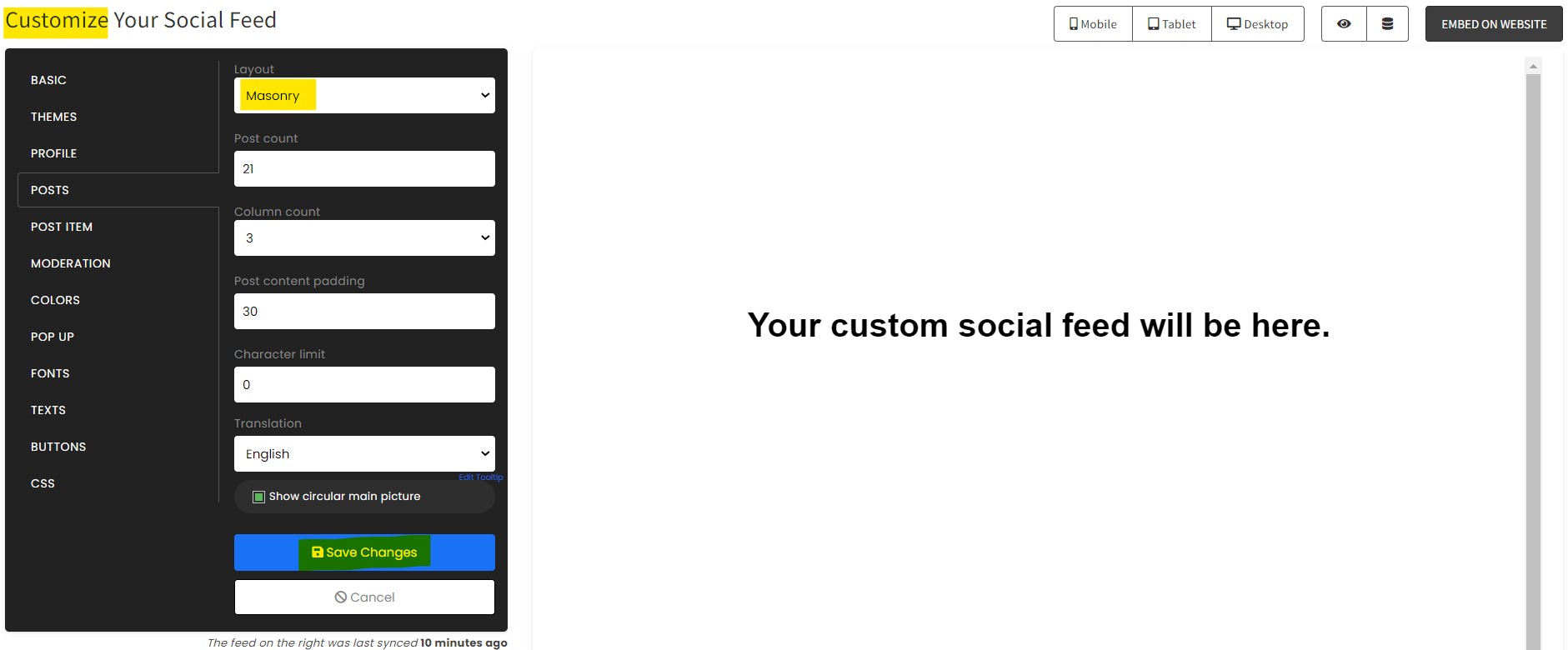
The first part is creating your Spotify Podcast widget using the SociableKIT dashboard. Customize the look and feel to match your brand. Follow the steps below.
-
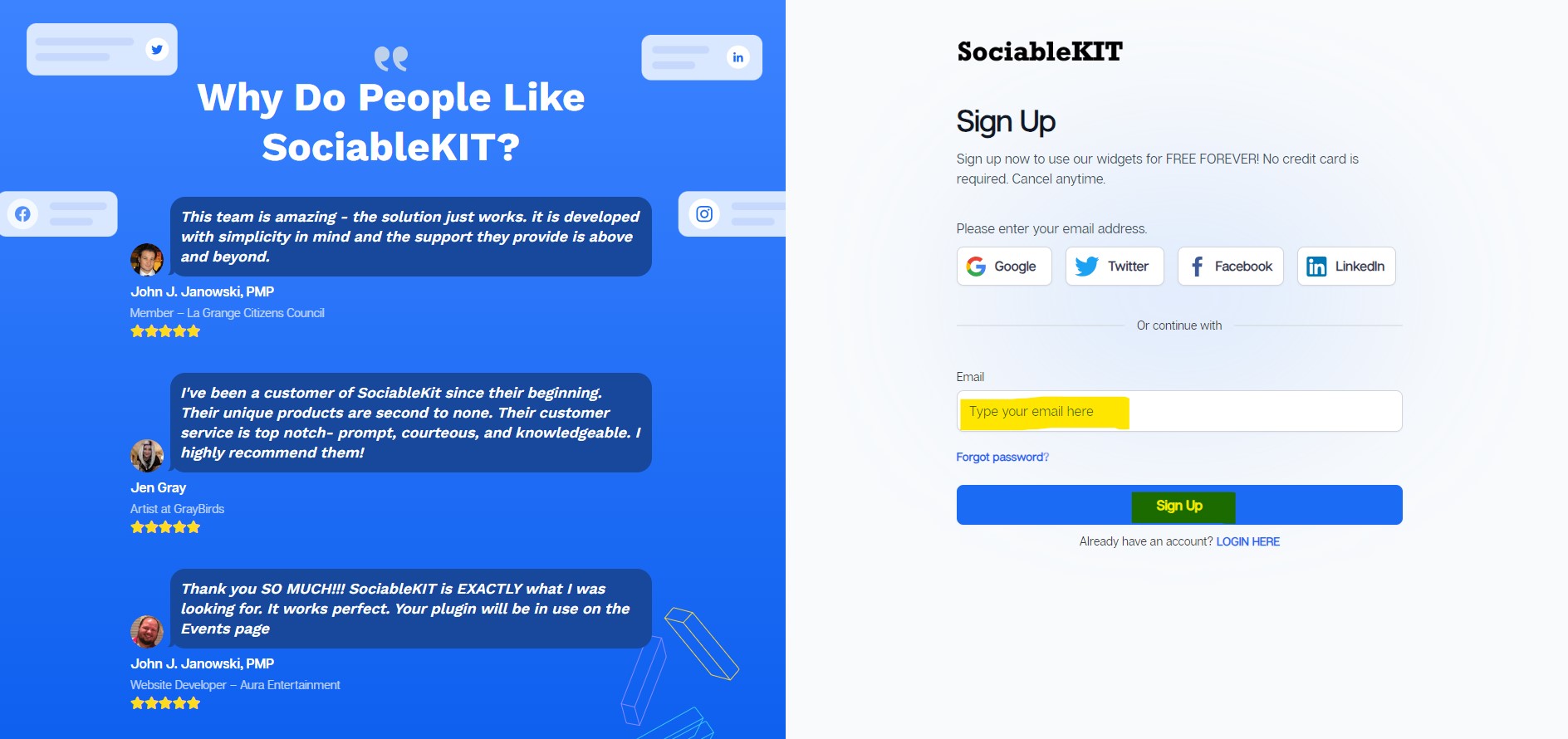
Sign up FREE or login to SociableKIT. You can login here if you already have an account. Once you sign up, you will start your 7-day premium trial. After 7 days, you can activate the free plan if you don't need our premium features.

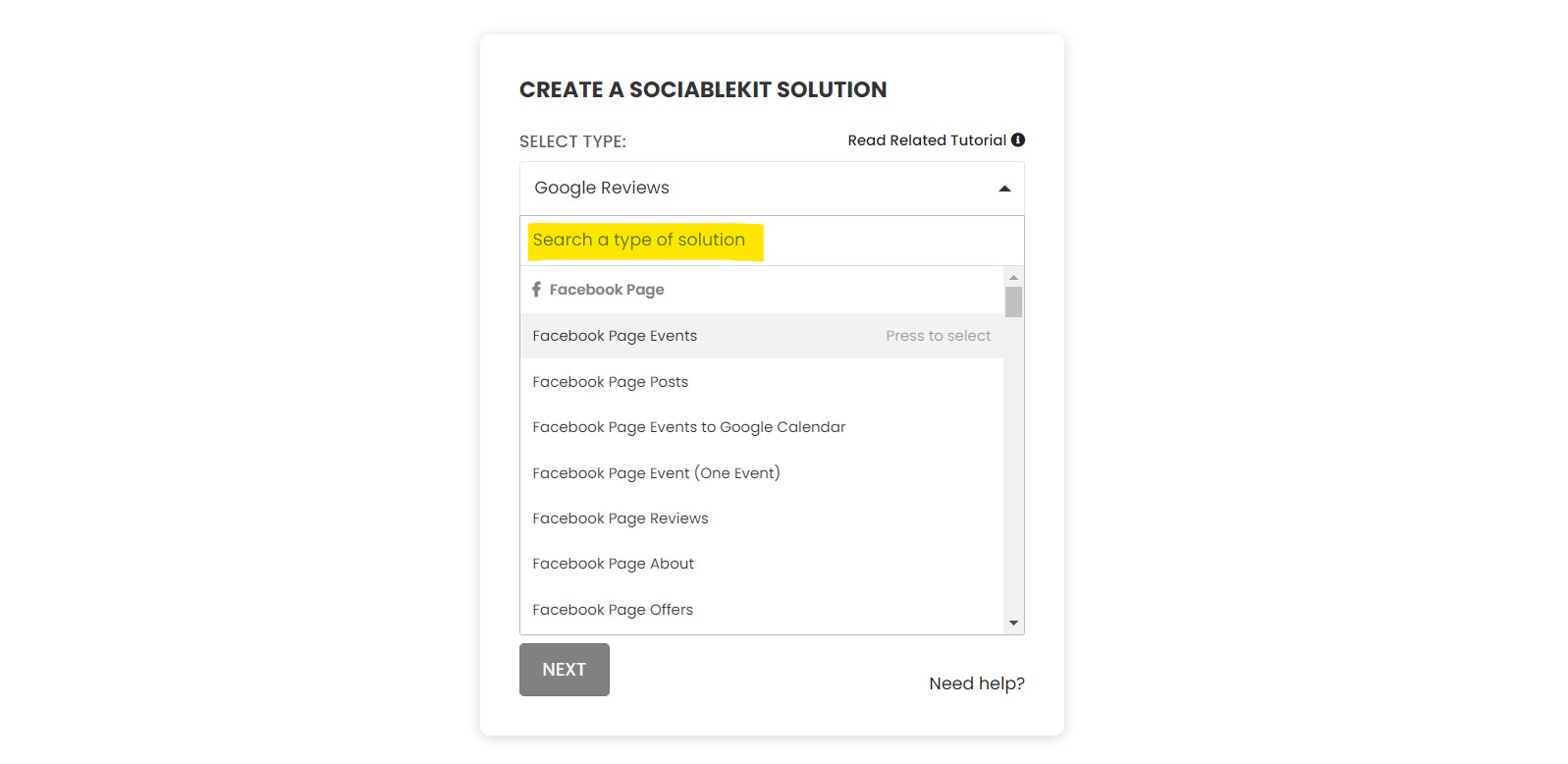
- Enter your podcast ID. You can copy the link to your Spotify podcase and paste it into the box. Our system will automatically identify your Spotify podcast ID.
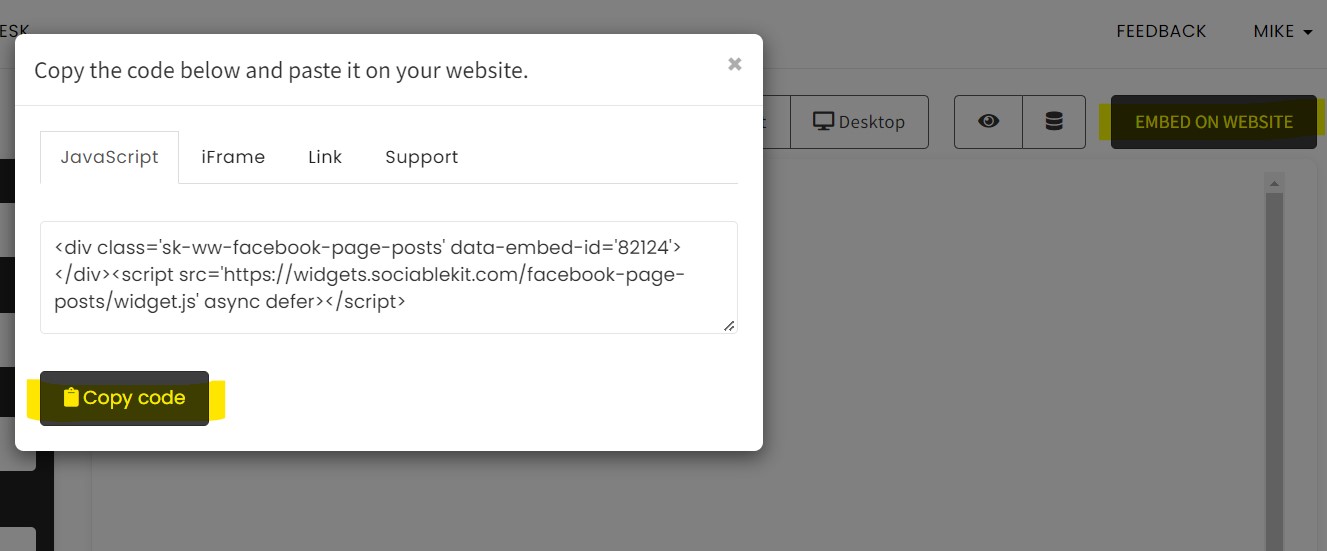
- Paste the embed code and save your Ecwid website page. Please follow the second part below to add Spotify Podcast widget to your Ecwid website .
Add Spotify Podcast widget to your Ecwid website
The second part is adding your Spotify Podcast widget to your Ecwid website . After you customize your Spotify Podcast widget and copied the embed code, it is time to add it to your Ecwid website . Follow the steps below.
- Copy your free Spotify Podcast widget embed code. Make sure you followed the first part above. It detailed how to you can create and customize your widget to get your free embed code.
- Login to Ecwid.
![]()
- On the left, click the 'Catalog' tab. Select the 'Categories' option.
![]()
- Create or edit an existing root category.
![]()
- On the 'Description' section, click the <> 'HTML' button.
![]()
- Paste the iFrame embed code from SociableKIT. Make sure that you have a 'Subcategory' on your 'Root category' for the widget to work.
![]()
- Click the 'Save' button.
![]()
- Click the 'View store' button on the upper right of the page.
![]()
- Done!
Website builders
Paste your embed code on any platform
SociableKIT works with every major website builder. Pick yours below for copy-paste instructions tailored to that platform.
To embed Spotify Podcast on your Ecwid site, follow the steps below after you have your SociableKIT embed code.
- Sign up free to SociableKIT and create your Spotify Podcast widget.
- Customize your widget and copy the embed code from the dashboard.
- Login to Ecwid.
![]()
- On the left, click the 'Catalog' tab. Select the 'Categories' option.
![]()
- Create or edit an existing root category.
![]()
- On the 'Description' section, click the <> 'HTML' button.
![]()
- Paste the iFrame embed code from SociableKIT. Make sure that you have a 'Subcategory' on your 'Root category' for the widget to work.
![]()
- Click the 'Save' button.
![]()
- Click the 'View store' button on the upper right of the page.
![]()
- Done!
To embed Spotify Podcast on your WordPress site, follow the steps below after you have your SociableKIT embed code.
- Sign up free to SociableKIT and create your Spotify Podcast widget.
- Customize your widget and copy the embed code from the dashboard.
- Login to your WordPress site.
![]()
- On your WordPress, go to the "Pages" section then click the "Add new page".
![]()
- Pick a pre-defined layout or start with a blank page by clicking the "Blank page" button.
![]()
- On the body of your page, click the "+" icon and click the "Custom HTML".
![]()
- Paste the code in the text area and click update.
![]()
- The widget will appear on the WordPress page.
![]()
- Click the Publish or Update button on your WordPress page.
![]()
- Click the view page. Done!
To embed Spotify Podcast on your Wix site, follow the steps below after you have your SociableKIT embed code.
- Sign up free to SociableKIT and create your Spotify Podcast widget.
- Customize your widget and copy the embed code from the dashboard.
- Login to Wix.

![]()
- On your existing website click the "+" button beside the "Main pages" section.
![]()
- Then click the "Add page" button.
![]()
- Name your page then hit enter.
![]()
- On the left, click "Add element". Find and click "Embed code". Click and drag "Embed a site" on your page then resize the container.
![]()
- Click "Change website address".
![]()
- Paste the link you copied from SociableKIT then click "Apply".
![]()
- Click "Publish" on the upper right.
![]()
- Click "View site". Done!
![]()
To embed Spotify Podcast on your Squarespace site, follow the steps below after you have your SociableKIT embed code.
- Sign up free to SociableKIT and create your Spotify Podcast widget.
- Customize your widget and copy the embed code from the dashboard.
- Login to Squarespace. You must have a "Business" account in Squarespace to use the widget. The "code block" needed cannot be found if you only have a "Personal" account.
![]()
- Create a new blank page or edit your existing page. Identify which page you want the widget to appear. You can create a new page on Squarespace, or you can edit your existing page where you want the widget to appear.
![]()
- Add a Code Block. On your Squarespace page, click the 'Edit' button. Find the 'Code' block and click it.
![]()
- Paste the embed code from SociableKIT. On the 'Content' of the 'Code' block, paste the JavaScript embed code you have copied from your widget.
![]()
- Save the changes on the 'Code block'. After pasting your widget's embed code. Click the 'Save' button on the left part of the page.
![]()
- View your page. Refresh your Squarespace page and check your SociableKIT widget. Done!
![]()
To embed Spotify Podcast on your Webflow site, follow the steps below after you have your SociableKIT embed code.
- Sign up free to SociableKIT and create your Spotify Podcast widget.
- Customize your widget and copy the embed code from the dashboard.
- Login to Webflow.
![]()
- On your existing website, click the "Page: ...." in the upper left corner then click the "Create new page" icon.
![]()
- Once done add a name for your new page then click "Save".
![]()
- On the left, click "Add Element". Drag "Embed" to your page.
![]()
- Paste the JavaScript code you copied from SociableKIT.
![]()
- On the upper right, click "Publish" > "Publish to Selected Domains".
![]()
- View your page. Done!
To embed Spotify Podcast on your Shopify site, follow the steps below after you have your SociableKIT embed code.
- Sign up free to SociableKIT and create your Spotify Podcast widget.
- Customize your widget and copy the embed code from the dashboard.
- Login to Shopify.
![]()
- On the left side, click Online Store.
![]()
- Click Pages. Add a new page or edit your existing page.
![]()
- On the Page details, click Show HTML icon (<>).
![]()
- Paste the embed code and click the Save button.
![]()
- Click the View page button. Done!
![]()
To embed Spotify Podcast on your HTML site, follow the steps below after you have your SociableKIT embed code.
- Sign up free to SociableKIT and create your Spotify Podcast widget.
- Customize your widget and copy the embed code from the dashboard.
- Open your HTML file.
![]()
- You can create a new HTML page or edit your existing HTML page.
![]()
- Paste the Javascript code you copied from SociableKIT. Paste it where you want the widget to appear.
![]()
- Save your HTML page.
![]()
- You may now upload your HTML page to your web hosting.
To embed Spotify Podcast on your Google Sites site, follow the steps below after you have your SociableKIT embed code.
- Sign up free to SociableKIT and create your Spotify Podcast widget.
- Customize your widget and copy the embed code from the dashboard.
- Login to Google sites. You must have at least a 'Business Starter' plan to create and customize your Google sites.
![]()
- Create or edit an existing website. Click the + 'Blank' button on the 'Start a new site' section to create or find your existing website under the 'Recent sites' section.
![]()
- Create a new blank page or edit your existing page. Identify which page you want the widget to appear. On the right sidebar, you will see an 'Embed' button. Click the 'Embed' button.
![]()
- Add the widget. A popup 'Embed from the web' will open up. Select the 'Embed code' tab on the popup.
![]()
- Paste the embed code from SociableKIT. On the 'Embed code' tab, you will see 'HTML code goes here' text. Paste the embed code from your SociableKIT widget.
![]()
- Save the widget. Once you have pasted your embed code, click the 'Next' button.
![]()
- Preview of your SociableKIT widget. After clicking the Next button, a preview of your embed code will be displayed. Click the 'Insert' button to insert the widget to your Google sites page.
![]()
- Edit the widget. Once the widget has been inserted, you will have the option to resize the widget. After resizing the widget to your preferences, click the 'Publish' button on the upper right corner of the page.
![]()
- Publish your page. After publishing the site, click the down 'Arrow' button beside the 'Publish' button.
![]()
- View your page. A dropdown of buttons will be displayed, click the 'View published site' button. Done!
![]()
Live preview
Pick a Spotify Podcast template — see it live
Choose a starting design on the left and watch the preview update with real data. What you see is exactly what visitors get on your Ecwid website.
Common questions
Frequently asked questions
Everything you need to know about embedding Spotify Podcast on your Ecwid website.
What is a Spotify Podcast widget?
A Spotify Podcast widget lets you display your podcast episodes on your website in a clean, listenable section. With SociableKIT, you can show your Spotify podcast, customize the design, and give visitors an easy way to listen without searching for your show somewhere else.
Why should I add a Spotify Podcast widget to my website?
Your podcast already builds trust through your voice, ideas, and expertise. A Spotify Podcast widget brings that content onto your own website so visitors can listen, stay longer, and feel more connected to your brand.
How do I embed a Spotify podcast on my website?
Create your Spotify Podcast widget in SociableKIT, add your podcast source, customize the look, then copy and paste the embed code into your website. It is made for website owners who want a simple setup without rebuilding their page or writing custom code.
Do I need coding skills to use the Spotify Podcast widget?
No. SociableKIT gives you a ready-to-use embed code that you can paste into your website builder. You can adjust the design from your dashboard instead of editing code by hand.
Will new Spotify podcast episodes appear automatically on my website?
Yes, SociableKIT can keep your widget updated as new episodes are available from your Spotify podcast source. The free plan includes manual sync requests, while paid plans include automatic syncing so your website stays current with less work.
Can I show my full podcast show instead of only one episode?
Yes. SociableKIT is useful when you want to show your podcast as an ongoing feed, not just a single embedded episode. This helps visitors discover more of your content from one place.
Can I embed only one Spotify podcast episode?
Yes, you can use a single episode when you want to highlight a specific interview, announcement, or featured story. For a product page, blog post, or speaker page, this can keep the listening experience focused.
Can visitors listen to the podcast directly on my website?
Yes. The widget gives visitors a convenient way to listen from your website. Some playback behavior may depend on Spotify and the visitor’s device or account settings, but the goal is to make listening simple and close to your content.
Can I customize the Spotify Podcast widget design?
Yes. You can adjust the layout, colors, fonts, spacing, and other style settings so the widget feels like part of your website. A polished podcast section looks more intentional than a plain pasted player.
What layouts are available for a Spotify Podcast widget?
SociableKIT gives you templates and layout options so you can start fast and refine the look. You can choose a clean style for a professional page or a more visual layout for a creator, event, or media website.
Is the Spotify Podcast widget mobile responsive?
Yes. SociableKIT widgets are designed to work across screen sizes, so visitors can browse and listen from desktop, tablet, or mobile. This matters because many podcast listeners discover content while using their phones.
Does the widget work with WordPress, Shopify, Wix, Squarespace, Webflow, and other website builders?
Yes. SociableKIT works with major website builders and any site that supports custom embed code. You copy one code snippet, paste it where you want the podcast to appear, and save the page.
Can I use the Spotify Podcast widget on multiple pages?
Yes, you can place your widget on the pages where it adds the most value, such as your homepage, blog, media page, speaker page, or about page. Your plan and widget setup will determine how many widgets and sources you can manage.
Can I display more than one Spotify podcast?
Yes, you can create widgets for multiple podcast sources when your plan supports the number of sources you need. This is helpful for agencies, networks, schools, churches, creators, and brands with more than one show.
Is there a free Spotify Podcast widget plan?
Yes. SociableKIT has a free plan you can use to create a working Spotify Podcast widget without a credit card. It is a good way to test the widget on your website before upgrading for more views, automatic syncing, or removing branding.
Do paid plans include unlimited views?
Yes. SociableKIT paid plans include unlimited views, so your podcast section can keep working as your traffic grows. This is useful for campaigns, launches, popular blog posts, and high-traffic pages.
Can I remove SociableKIT branding from the widget?
Yes. Branding can be removed on paid plans. This gives your podcast section a cleaner, more native look on business websites and client projects.
Will a Spotify Podcast widget help my SEO?
A widget will not guarantee higher rankings by itself. But it can make your page more useful, engaging, and current by adding real podcast content that supports your message and gives visitors another reason to stay.
What should I do if my Spotify podcast episodes are not showing?
First, check that your Spotify podcast is public and that the episode is already published. If the source is correct but the widget still needs help, SociableKIT support can guide you through setup, syncing, and display issues.
Is a Spotify Podcast widget better than manually pasting Spotify embed codes?
Manual embed codes can work for simple one-time use. SociableKIT is better when you want a branded podcast section that is easier to update, customize, manage, and support as your website grows.
Add your Spotify Podcast widget today
Set up in minutes. Free forever to start.
Create your widgetFree forever · No credit card · Cancel anytime