



Your Spotify Tour Dates on Duda website — live in 3 steps
SociableKIT syncs your spotify tour dates automatically. Set up once, embed anywhere — free to start, no coding required.
-
Create in 60 seconds
Pick Spotify Tour Dates in the dashboard and connect your source.
-
Match your brand
Colors, fonts, layout — tune it until it feels native to your site.
-
Paste one line of code
Drop the embed snippet on your Duda website. No dev team needed.
Embed Spotify Tour Dates with SociableKIT — step by step
Create your widget in the dashboard, copy the embed code, and paste it on your Duda website. Screenshots included so you never get stuck.
Create and customize your Spotify Tour Dates widget
The first part is creating your Spotify Tour Dates widget using the SociableKIT dashboard. Customize the look and feel to match your brand. Follow the steps below.
-
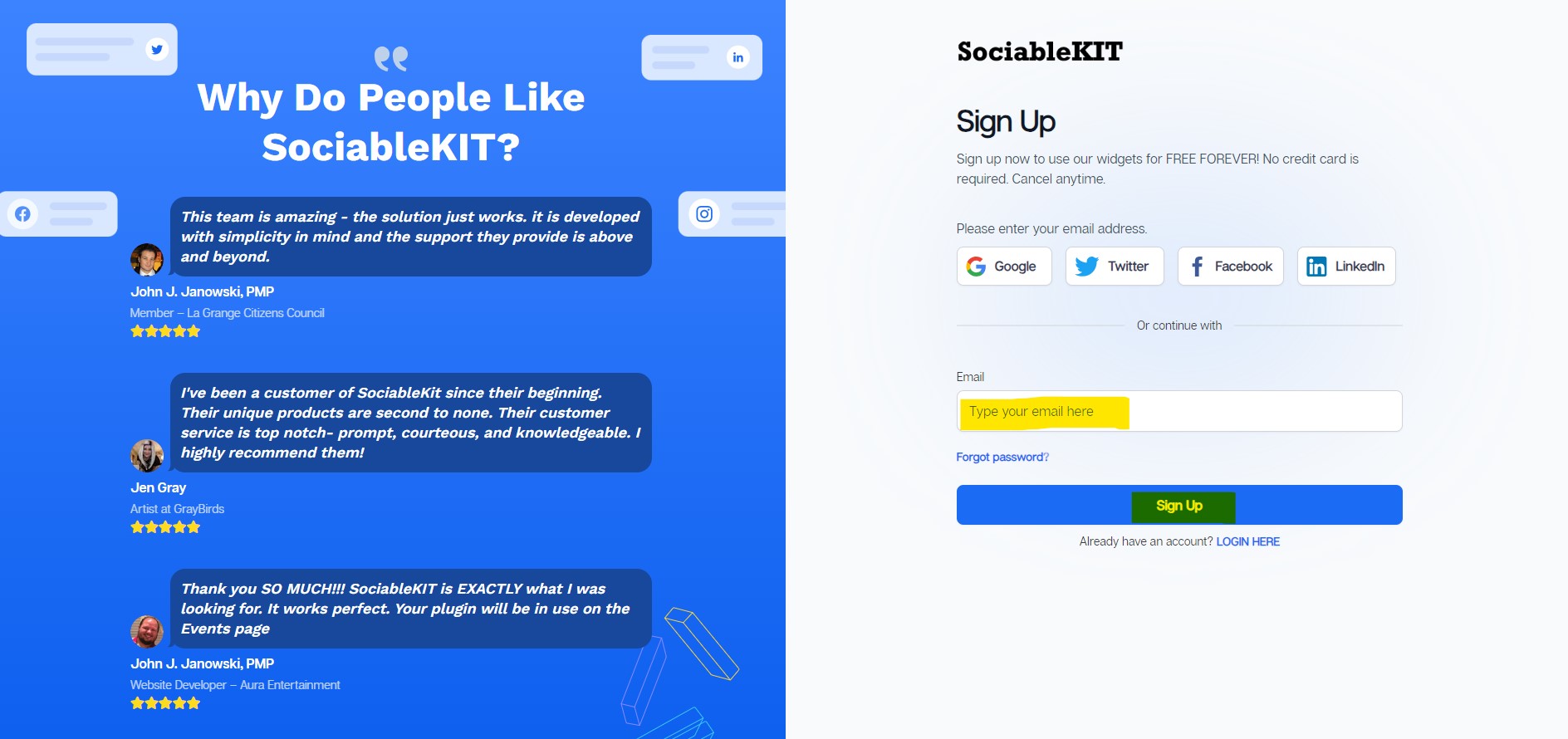
Sign up FREE or login to SociableKIT. You can login here if you already have an account. Once you sign up, you will start your 7-day premium trial. After 7 days, you can activate the free plan if you don't need our premium features.

-
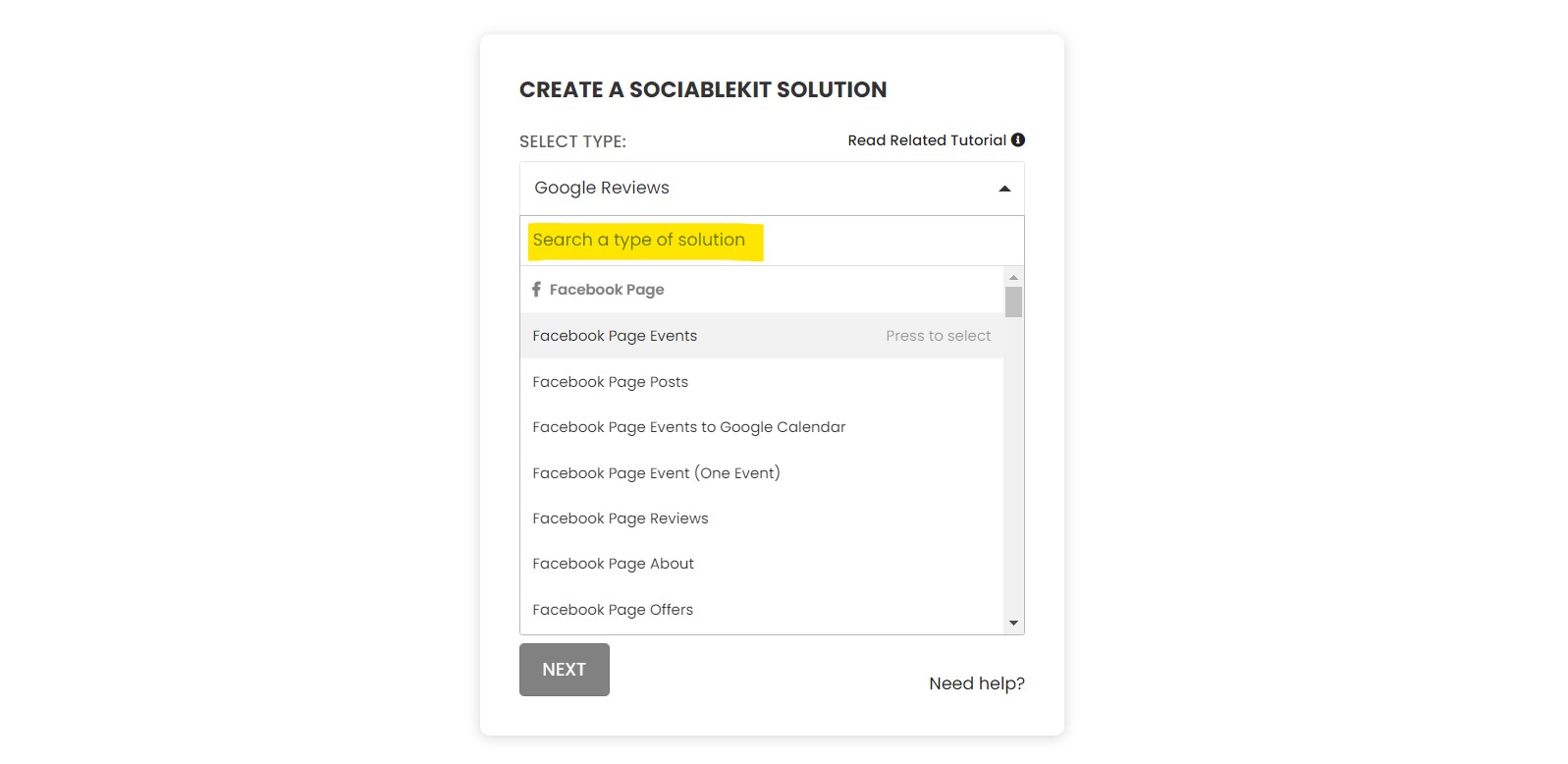
Select "Spotify Tour Dates" on the dropdown. SociableKIT offers several social media feeds widgets. You might need to search it using the highlighted area below. Once found, you can then select it.

-
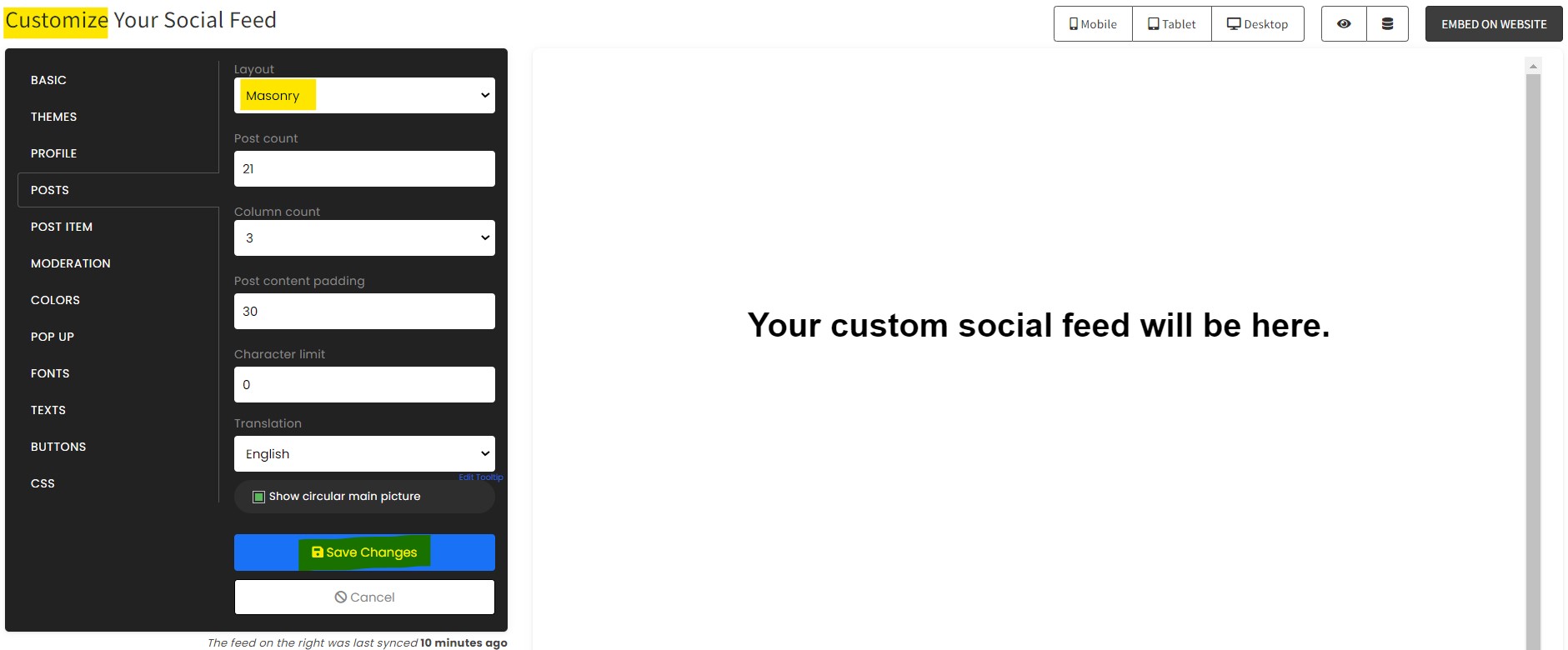
Customize your feed. Click the "NEXT" button to show the customization options of your social feed. You can change the layout, colors, font, and more to match your brand. Click the Save changes button.

-
Copy the embed code. Click the "Embed on website" button on the upper right corner. Select your website builder. On the popup, copy the JavaScript embed code.

- Paste the embed code and save your Duda website page. Please follow the second part below to add Spotify Tour Dates widget to your Duda website .

Add Spotify Tour Dates widget to your Duda website
The second part is adding your Spotify Tour Dates widget to your Duda website . After you customize your Spotify Tour Dates widget and copied the embed code, it is time to add it to your Duda website . Follow the steps below.
- Copy your free Spotify Tour Dates widget embed code. Make sure you followed the first part above. It detailed how to you can create and customize your widget to get your free embed code.
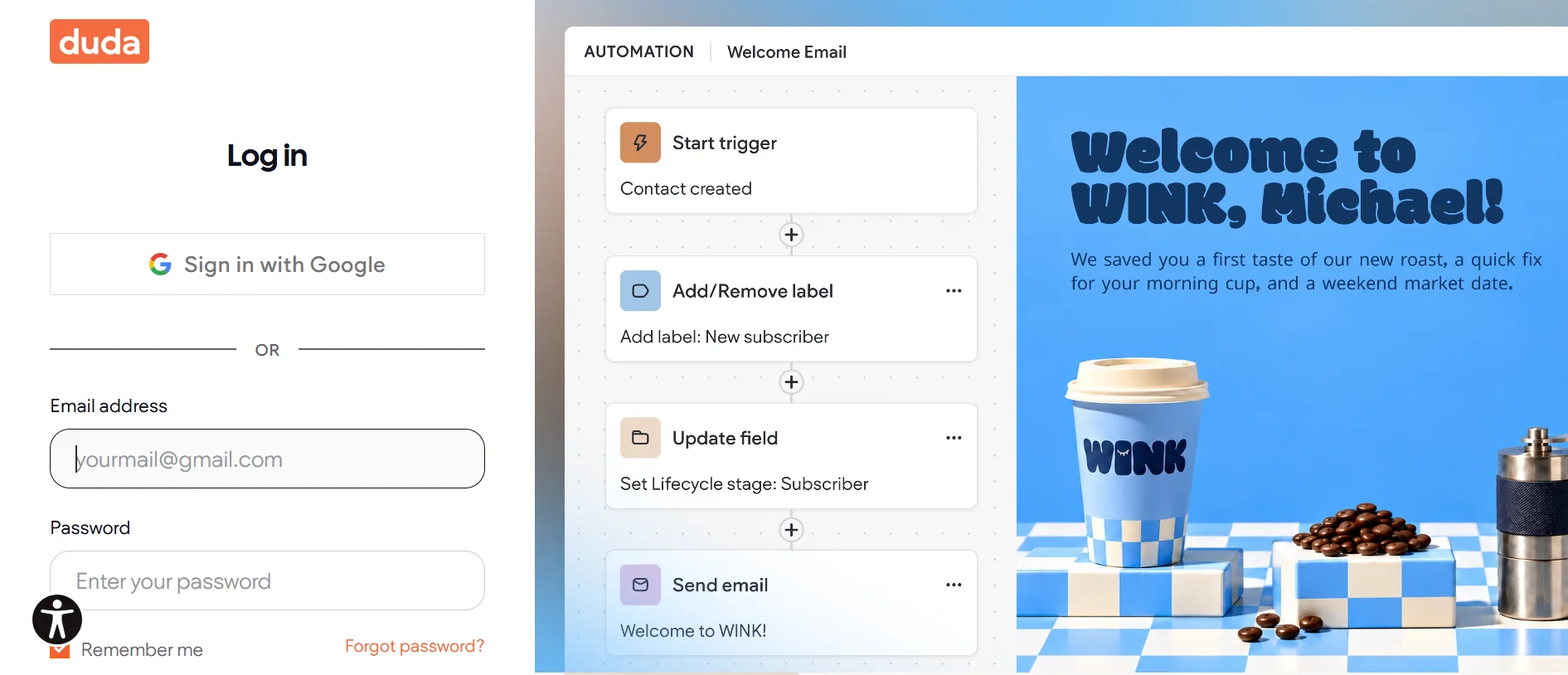
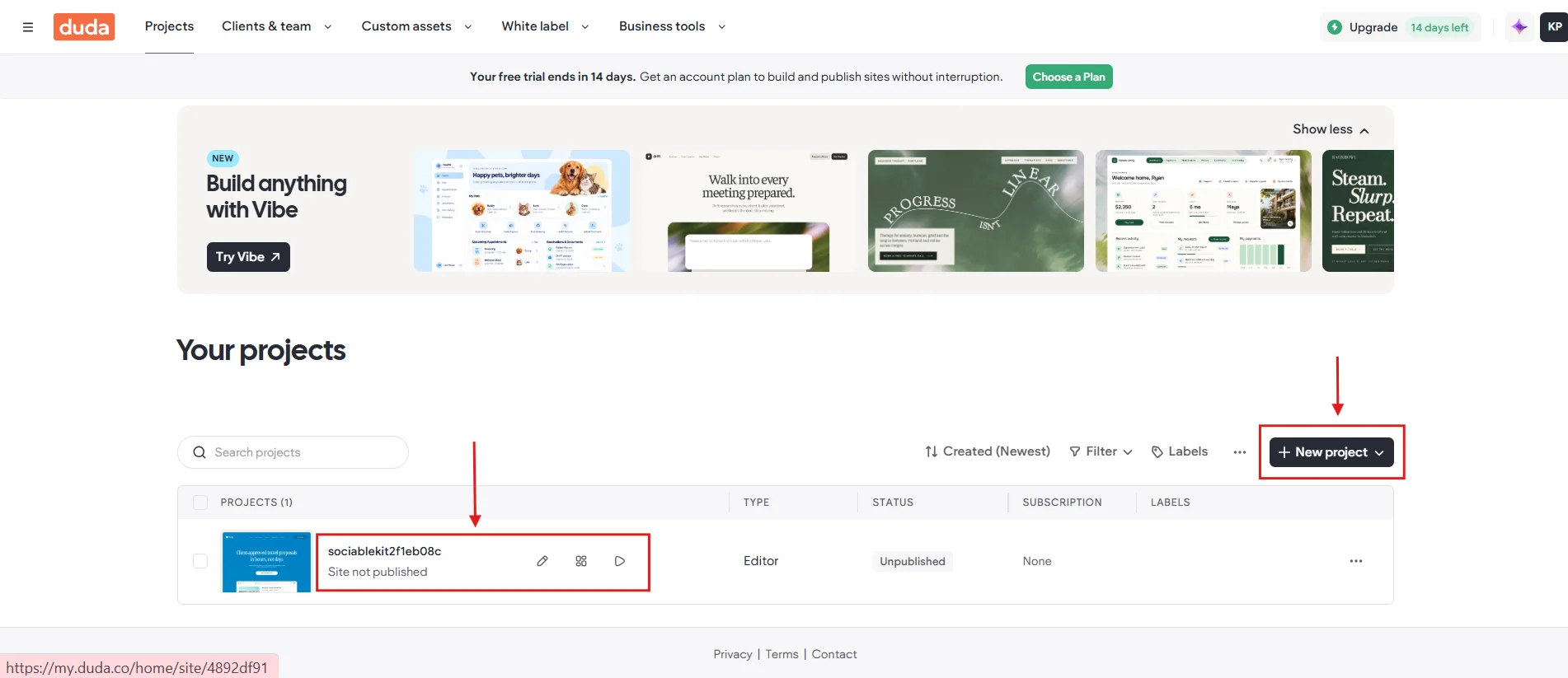
- Login to Duda.
![]()
- Create a new blank page or edit an existing Duda page.
![]()
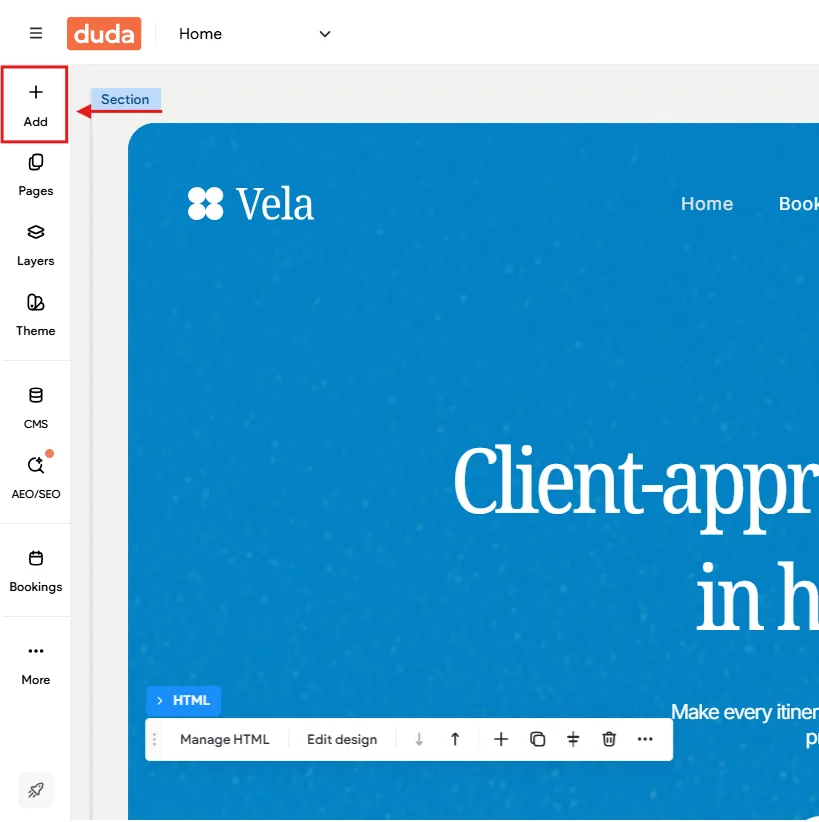
- On the left sidebar, click Add.
![]()
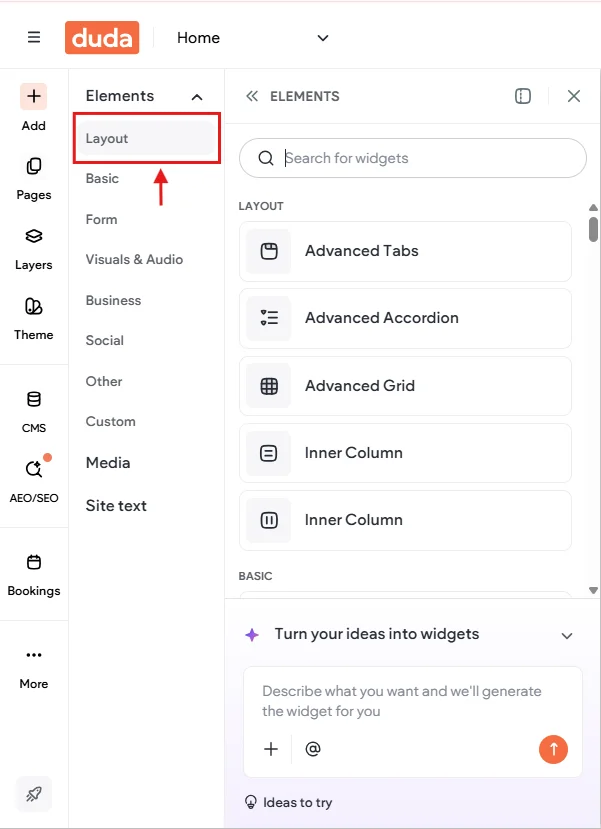
- In the Elements panel, click Layout.
![]()
- In the search bar, type html and select the HTML widget.
![]()
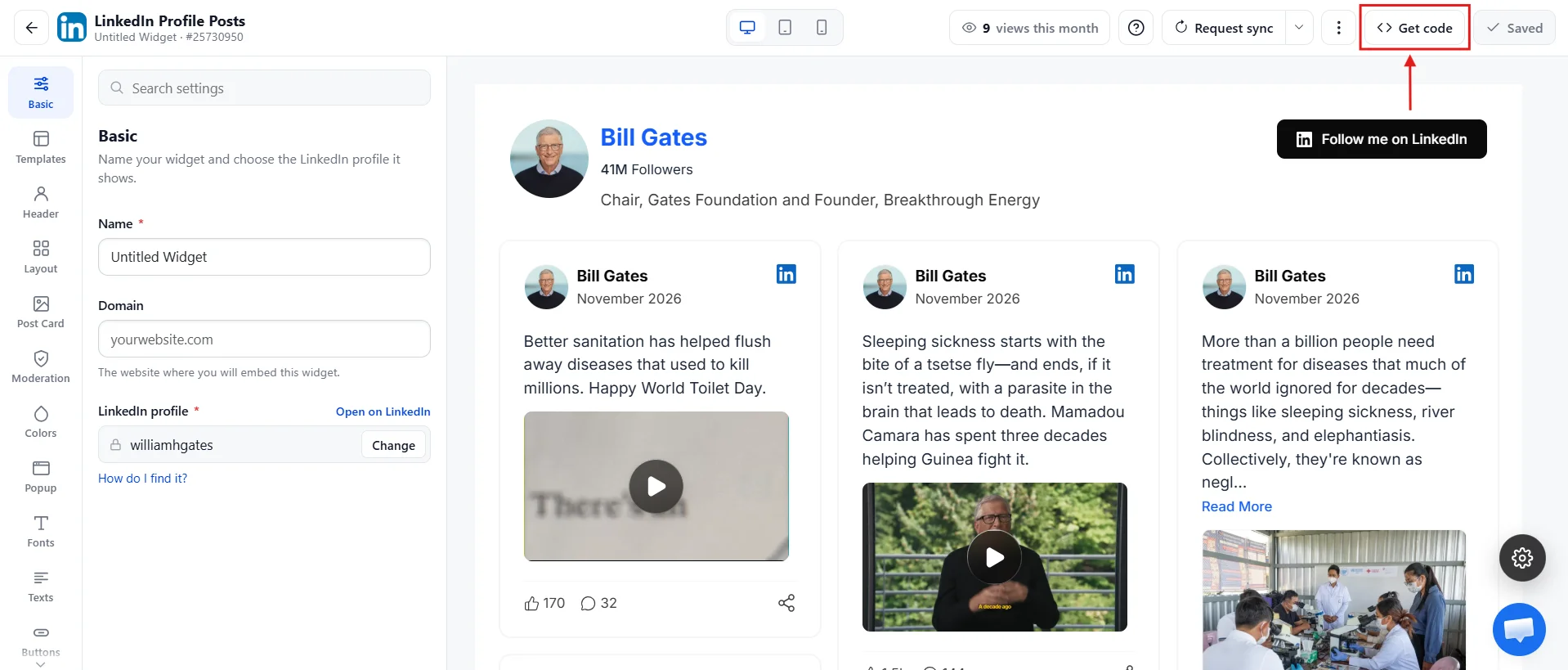
- In SociableKIT, open your widget and click "Get code" on the upper right.
![]()
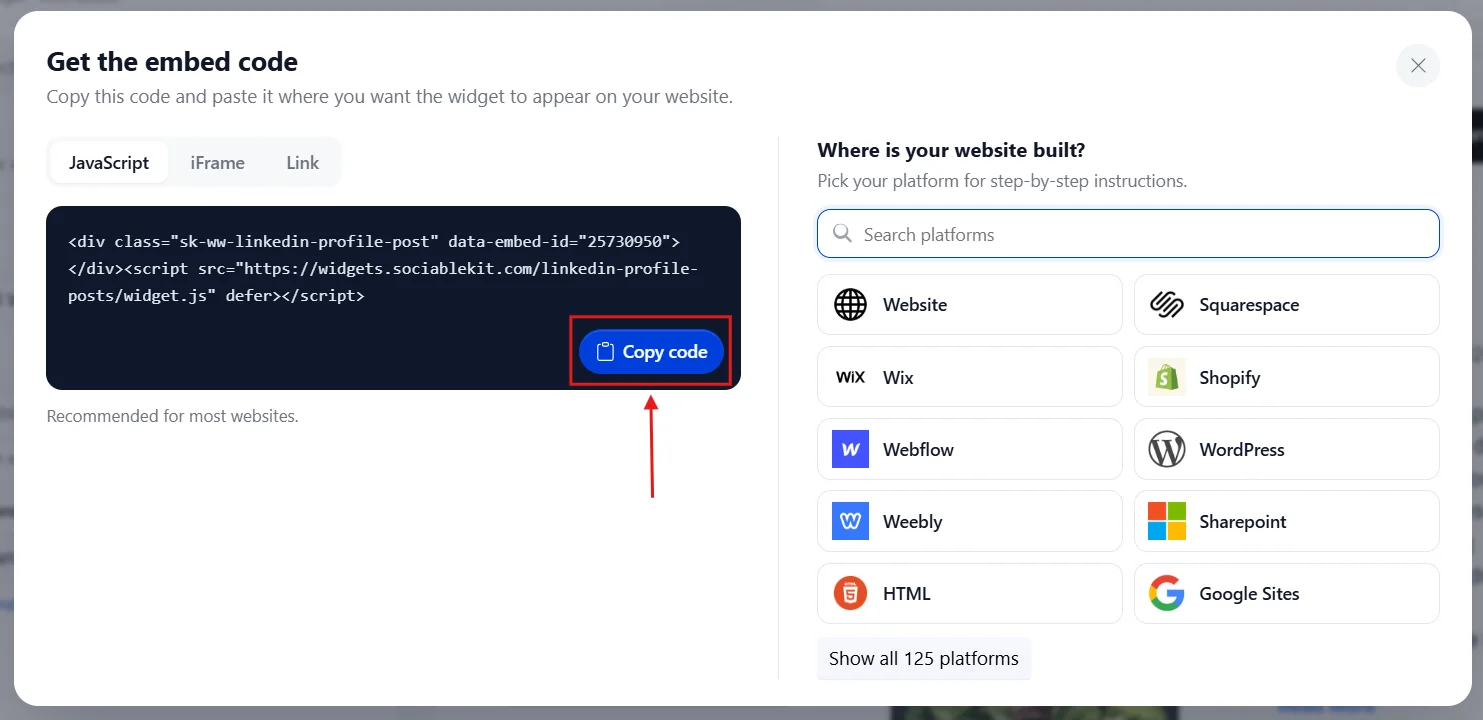
- In the "Get the embed code" pop-up, click "Copy code" under the JavaScript tab.
![]()
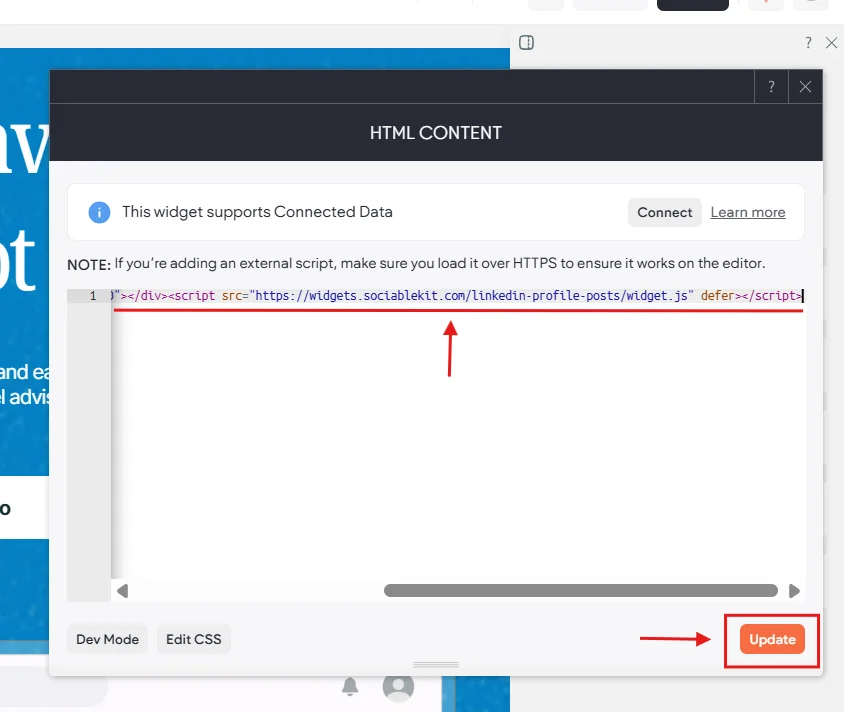
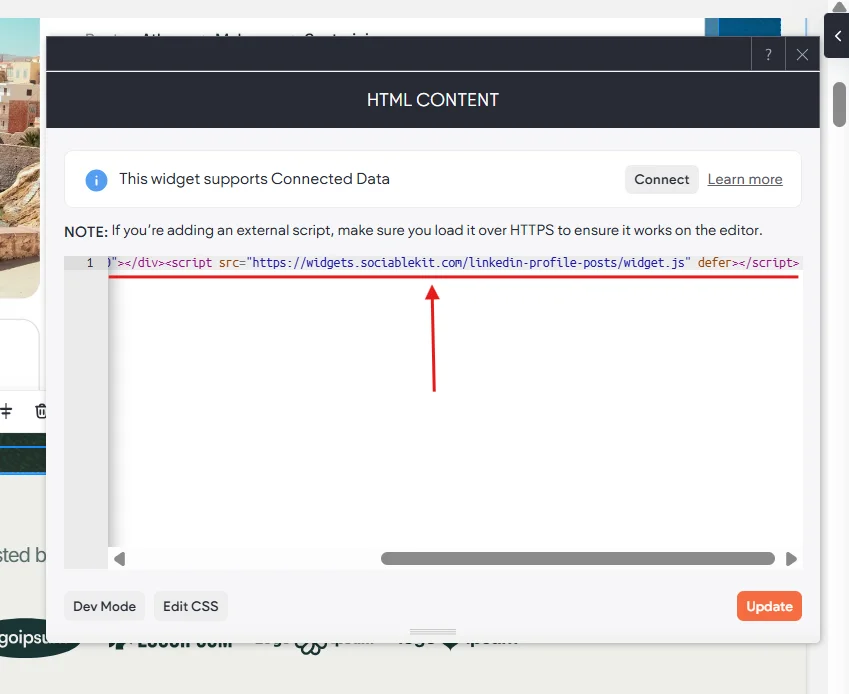
- Back in Duda, click Manage HTML on the HTML widget, then paste the embed code into the HTML Content box. Click the Update button.
![]()
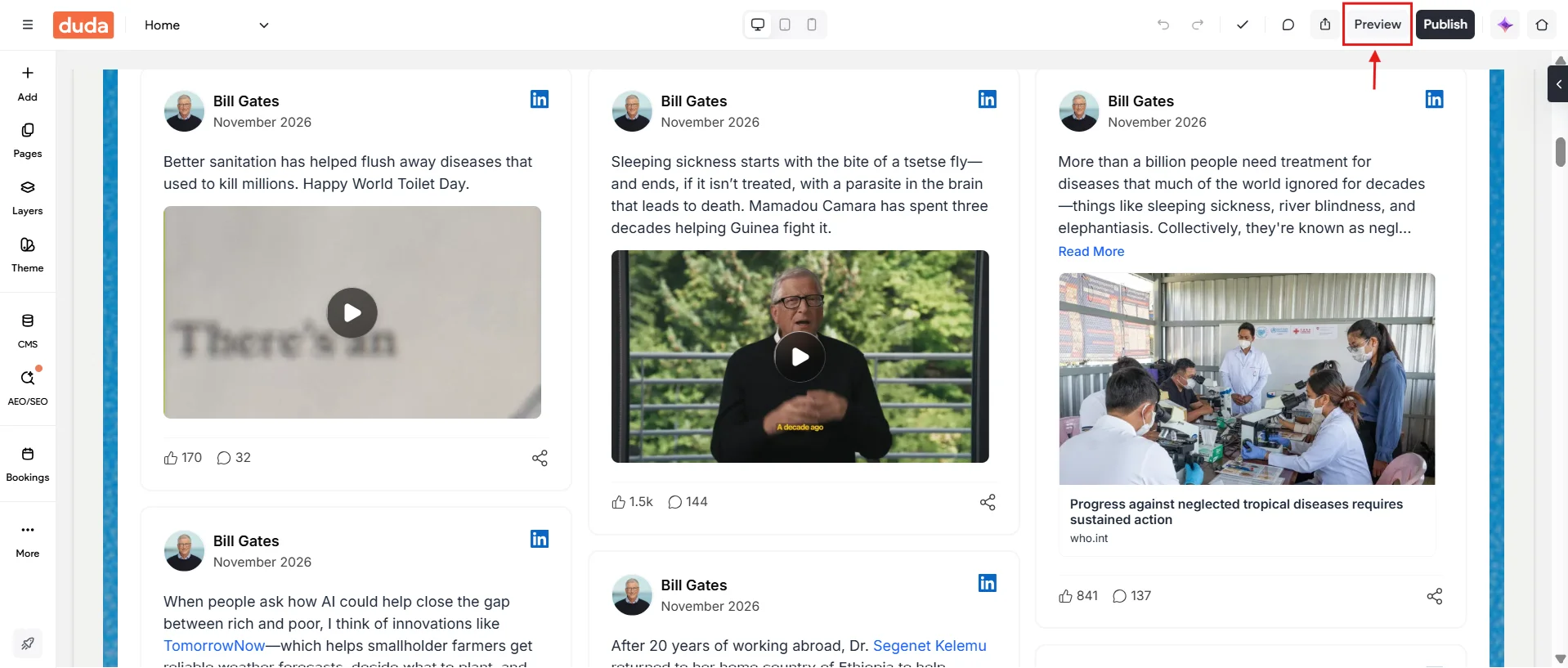
- Click the "Preview" button on the upper right to check how the widget looks.
![]()
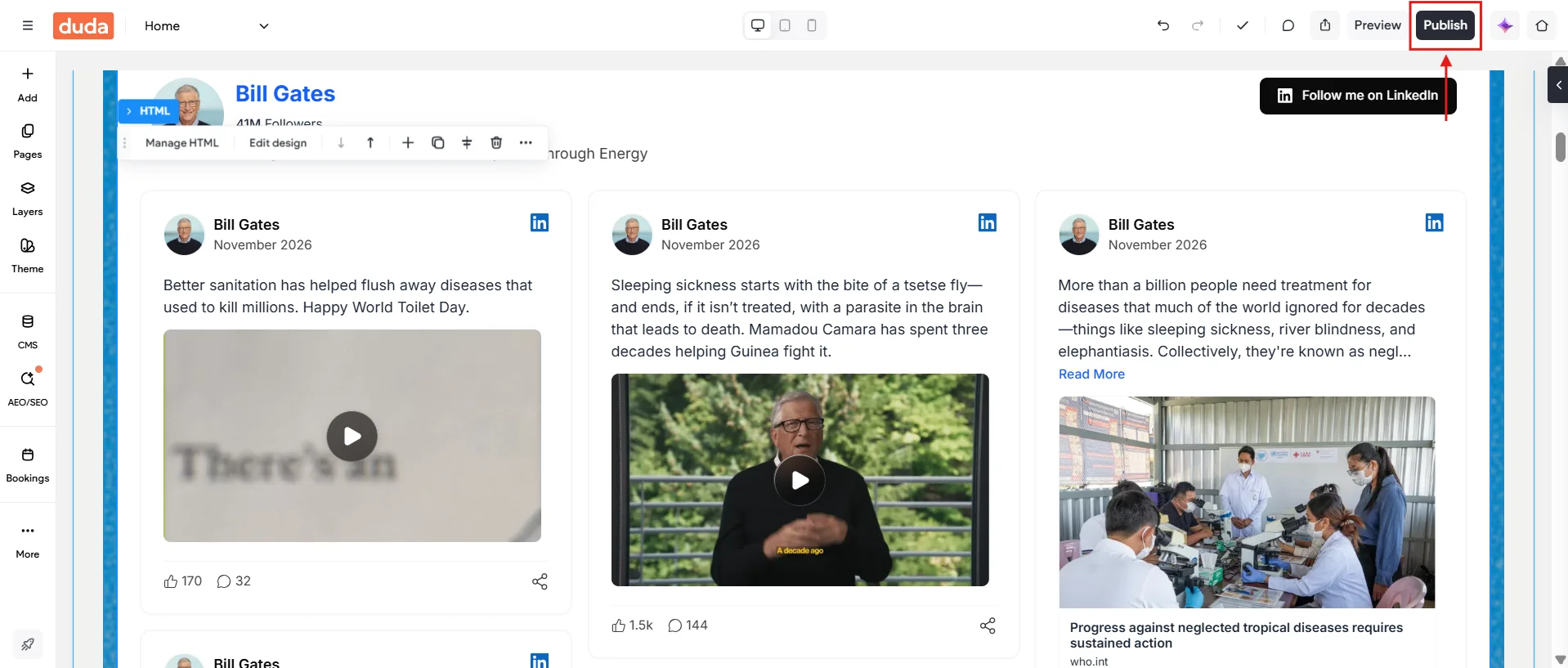
- Click the "Publish" button on the upper right. Done!
![]()
Website builders
Paste your embed code on any platform
SociableKIT works with every major website builder. Pick yours below for copy-paste instructions tailored to that platform.
To embed Spotify Tour Dates on your Duda site, follow the steps below after you have your SociableKIT embed code.
- Sign up free to SociableKIT and create your Spotify Tour Dates widget.
- Customize your widget and copy the embed code from the dashboard.
- Login to Duda.
![]()
- Create a new blank page or edit an existing Duda page.
![]()
- On the left sidebar, click Add.
![]()
- In the Elements panel, click Layout.
![]()
- In the search bar, type html and select the HTML widget.
![]()
- In SociableKIT, open your widget and click "Get code" on the upper right.
![]()
- In the "Get the embed code" pop-up, click "Copy code" under the JavaScript tab.
![]()
- Back in Duda, click Manage HTML on the HTML widget, then paste the embed code into the HTML Content box. Click the Update button.
![]()
- Click the "Preview" button on the upper right to check how the widget looks.
![]()
- Click the "Publish" button on the upper right. Done!
![]()
To embed Spotify Tour Dates on your WordPress site, follow the steps below after you have your SociableKIT embed code.
- Sign up free to SociableKIT and create your Spotify Tour Dates widget.
- Customize your widget and copy the embed code from the dashboard.
- Log in to your WordPress site.
![]()
- Go to the Posts section. To add a new widget, click the Add Post button at the top.
![]()
- To edit an existing widget, click the title of the post that has your widget instead. Skip this step if you’re adding a new post.
![]()
- In your SociableKIT editor, click Get code at the top right.
![]()
- In the Get the embed code window, make sure the JavaScript tab is selected, then click “Copy code.”
![]()
- Back in WordPress, click the + icon in the post body, type Custom HTML in the search bar, then select the Custom HTML block.
![]()
- In the HTML tab, paste the code, then click Update.
![]()
- Click the Save button at the top right of your WordPress post (or Publish if it’s a new post).
![]()
- The widget will appear on your WordPress post. Done!
![]()


To embed Spotify Tour Dates on your Wix site, follow the steps below after you have your SociableKIT embed code.
- Sign up free to SociableKIT and create your Spotify Tour Dates widget.
- Customize your widget and copy the embed code from the dashboard.
- Log in to Wix.
![]()
- On your existing website, click the “+ Add” button at the top left.
![]()
- Click “Elements”.
![]()
- In the Add Elements panel, click “Embed” from the left menu.
![]()
- Under the Embed section, click “Embed code” to add it to your page.
![]()
- Click the HTML Element on your page, then click the Settings (gear) icon in the toolbar above it.
![]()
- Under “Choose what to embed”, open the dropdown and select “Link”.
![]()
- Paste the link you copied from SociableKIT into the Link field, then click “Apply”.
![]()
- Click “Publish” at the upper right.
![]()
- Click “View Site”. Done!
![]()


To embed Spotify Tour Dates on your Squarespace site, follow the steps below after you have your SociableKIT embed code.
- Sign up free to SociableKIT and create your Spotify Tour Dates widget.
- Customize your widget and copy the embed code from the dashboard.
- Log in to Squarespace.
![]()
- In the Pages panel, click the page where you want the widget, then click the Edit button at the top left of the page preview.
![]()
- In the page section, click the Add Block button at the top left.
![]()
- In the search bar, type Code, then select the Code block.
![]()
- In your SociableKIT editor, click Get code at the top right.
![]()
- In the “Get the embed code” window, make sure the JavaScript tab is selected, then click Copy code.
![]()
- Back in Squarespace, open the Code block’s Content tab, make sure the Mode is set to HTML, then paste the embed code in the code area.
![]()
- Click the Save button at the top left of the page.
![]()
- Refresh your Squarespace page to check the widget. Done!
![]()


To embed Spotify Tour Dates on your Webflow site, follow the steps below after you have your SociableKIT embed code.
- Sign up free to SociableKIT and create your Spotify Tour Dates widget.
- Customize your widget and copy the embed code from the dashboard.
- Login to Webflow.
![]()
- On your existing website, click the "Page: ...." in the upper left corner then click the "Create new page" icon.
![]()
- Once done add a name for your new page then click "Save".
![]()
- On the left, click "Add Element". Drag "Embed" to your page.
![]()
- Paste the JavaScript code you copied from SociableKIT.
![]()
- On the upper right, click "Publish" > "Publish to Selected Domains".
![]()
- View your page. Done!


To embed Spotify Tour Dates on your Shopify site, follow the steps below after you have your SociableKIT embed code.
- Sign up free to SociableKIT and create your Spotify Tour Dates widget.
- Customize your widget and copy the embed code from the dashboard.
- Log in to Shopify.
![]()
- On the left side, click Online Store.
![]()
- Click “Pages,” then click Add page at the top right. To edit an existing widget page, click its title instead.
![]()
- In your SociableKIT editor, click Get code at the top right.
![]()
- In the Get the embed code window, make sure the JavaScript tab is selected, then click Copy code.
![]()
- Back in Shopify, Click the Show HTML icon (<>) in the Content toolbar.
![]()
- Enter a page title, then click Save.
![]()
- Click the Save button at the top.
![]()
- Click the Preview button at the top right to check your widget. Done!
![]()
![]()


To embed Spotify Tour Dates on your HTML site, follow the steps below after you have your SociableKIT embed code.
- Sign up free to SociableKIT and create your Spotify Tour Dates widget.
- Customize your widget and copy the embed code from the dashboard.
- Open your HTML file.
![]()
- You can create a new HTML page or edit your existing HTML page.
![]()
- Paste the Javascript code you copied from SociableKIT. Paste it where you want the widget to appear.
![]()
- Save your HTML page.
![]()
- You may now upload your HTML page to your web hosting.


To embed Spotify Tour Dates on your Google Sites site, follow the steps below after you have your SociableKIT embed code.
- Sign up free to SociableKIT and create your Spotify Tour Dates widget.
- Customize your widget and copy the embed code from the dashboard.
- Login to Google sites.
![]()
- Create or edit an existing website. Click the ‘Blank site’ tile (the + icon) in the ‘Start a new site’ section to create a new website, or open your existing website from the ‘Recent sites’ section.
![]()
- Create a new blank page or edit your existing page. Identify which page you want the widget to appear on. On the right sidebar, under the ‘Insert’ tab, click the ‘Embed’ button.
![]()
- Add the widget. A popup ‘Embed from the web’ will open. Select the ‘Embed code’ tab, paste the embed code from your SociableKIT widget into the ‘HTML code goes here’ box, then click the ‘Next’ button.
![]()
- Preview your widget. A preview of your SociableKIT widget will be displayed. To change the code, click the pencil icon on the preview. When you’re happy with it, click the ‘Insert’ button to add the widget to your page.
![]()
- Publish your page. Click the ‘Publish’ button on the upper right corner of the page. Done!
![]()


Common questions
Frequently asked questions
Everything you need to know about embedding Spotify Tour Dates on your Duda website.
What is a Spotify Tour Dates widget?
A Spotify Tour Dates widget displays an artist’s upcoming concerts and live events directly on a website. It helps fans discover where the artist is performing next without searching through several pages.
How does the SociableKIT Spotify Tour Dates widget work?
SociableKIT collects the upcoming tour dates connected to your selected Spotify artist and turns them into a website-ready event feed. Create the widget, choose your design, copy the embed code, and paste it into your website.
Where do the tour dates shown on Spotify come from?
Spotify receives concert information from supported ticketing and live-event partners. Make sure your shows are correctly published through an eligible event source before expecting them to appear in the widget.
Will new tour dates update automatically on my website?
Yes, automatic syncing is available on paid SociableKIT plans, so newly available tour information can appear without rebuilding the widget. The free plan can be refreshed using sync requests.
Do I need coding skills to install the widget?
No coding experience is required for the normal setup. SociableKIT provides one embed code that you can paste into an HTML, code, custom liquid, or embed block on your website.
Which website builders support the Spotify Tour Dates widget?
SociableKIT works with major website builders including WordPress, Wix, Shopify, Squarespace, Webflow, Weebly, Google Sites, SharePoint, and custom HTML websites. Your platform only needs to allow custom code or embedded content.
Can I customize the widget to match my artist branding?
Yes. You can customize the layout, colors, fonts, calls to action, and other design details so the tour schedule feels like a natural part of your artist or band website.
Can fans use the widget to find concert tickets?
The widget can help fans reach the event or ticket destination associated with the tour listing when that information is available from the source. Always check your published event data to make sure the ticket destination and show details are correct.
What event details can the widget display?
Available details may include the event date, artist, venue, city, and a link to view more information or find tickets. The exact information depends on what Spotify and its event partners provide for each show.
Can I use the widget on an artist, band, venue, or festival website?
It is best suited to artist and band websites that want to display tour dates connected to a Spotify artist profile. Venues, festivals, and promoters should first confirm that the selected Spotify source represents the event lineup they want visitors to see.
What should I do if a concert is missing from the widget?
First, confirm that the show appears on the correct Spotify artist profile and is listed through a supported event or ticketing source. After the source is corrected, allow time for Spotify and SociableKIT to receive the updated information before refreshing the widget.
How quickly do updated concert details appear?
Spotify says newly listed concerts typically appear within about 24 hours, although timing can vary by event provider. SociableKIT must then sync the latest available source data, so urgent changes should also be communicated directly to fans.
Can I choose which Spotify artist appears in the widget?
Yes. Connect the Spotify artist source whose upcoming shows you want to display. Double-check the artist profile before publishing, especially when several artists have similar names.
Can I hide an incorrect or unwanted event?
Content control depends on the moderation features included in your SociableKIT plan and the data available from the source. Correcting inaccurate event information at its original ticketing or event source is still the best way to keep every connected listing accurate.
Does SociableKIT offer a free Spotify Tour Dates widget?
Yes. SociableKIT offers a free plan with a working widget and no credit card required. You can upgrade when you need automatic syncing, unlimited views, branding removal, or additional premium features.
Are widget views unlimited?
Paid SociableKIT plans include unlimited widget views, so a traffic increase will not deactivate the widget because of a monthly view limit. The free plan includes a monthly view allowance.
Can I remove SociableKIT branding?
Yes. SociableKIT branding can be removed on paid plans, helping the tour schedule blend more cleanly with your artist’s visual identity.
Will the widget work well on mobile devices?
Yes. The widget is designed for responsive website layouts so fans can explore upcoming shows from desktop, tablet, or mobile devices. Preview it on different screen sizes before publishing to confirm the best layout for your site.
Can I display the widget on more than one website?
Paid SociableKIT plans support unlimited domains and websites. This is useful for artists, labels, management teams, or agencies that manage several official sites and campaign pages.
What support is available if I need help?
SociableKIT provides human support through chat and email, with 24/7 support available on paid plans. The team can help with connecting the source, embedding the code, customization, and common website-builder issues.
Add your Spotify Tour Dates widget today
Set up in minutes. Free forever to start.
Free forever · No credit card · Cancel anytime