
Your Thumbtack reviews on Yola website — live in 3 steps
SociableKIT syncs your thumbtack reviews automatically. Set up once, embed anywhere — free to start, no coding required.
-
Create in 60 seconds
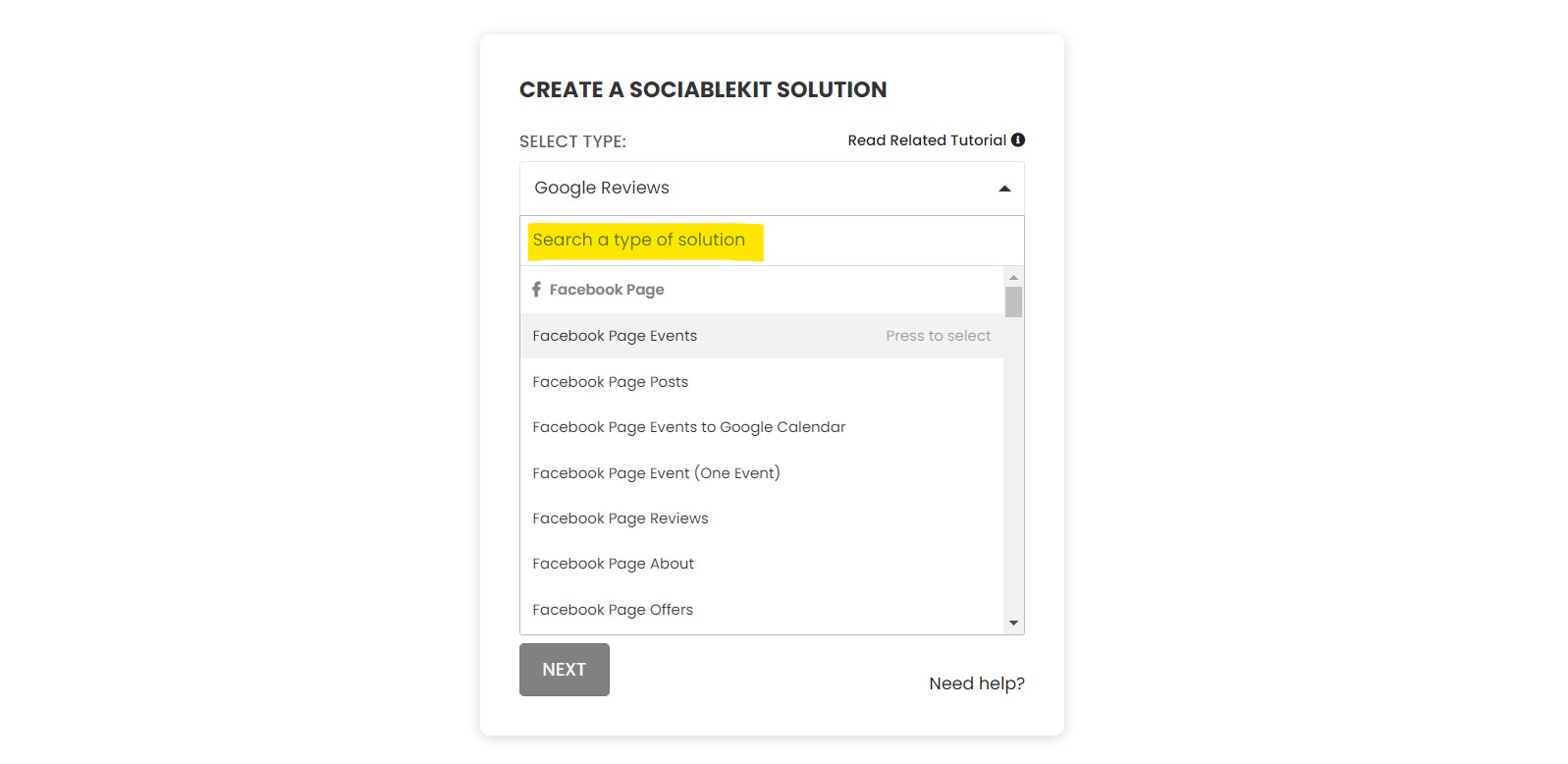
Pick Thumbtack reviews in the dashboard and connect your source.
-
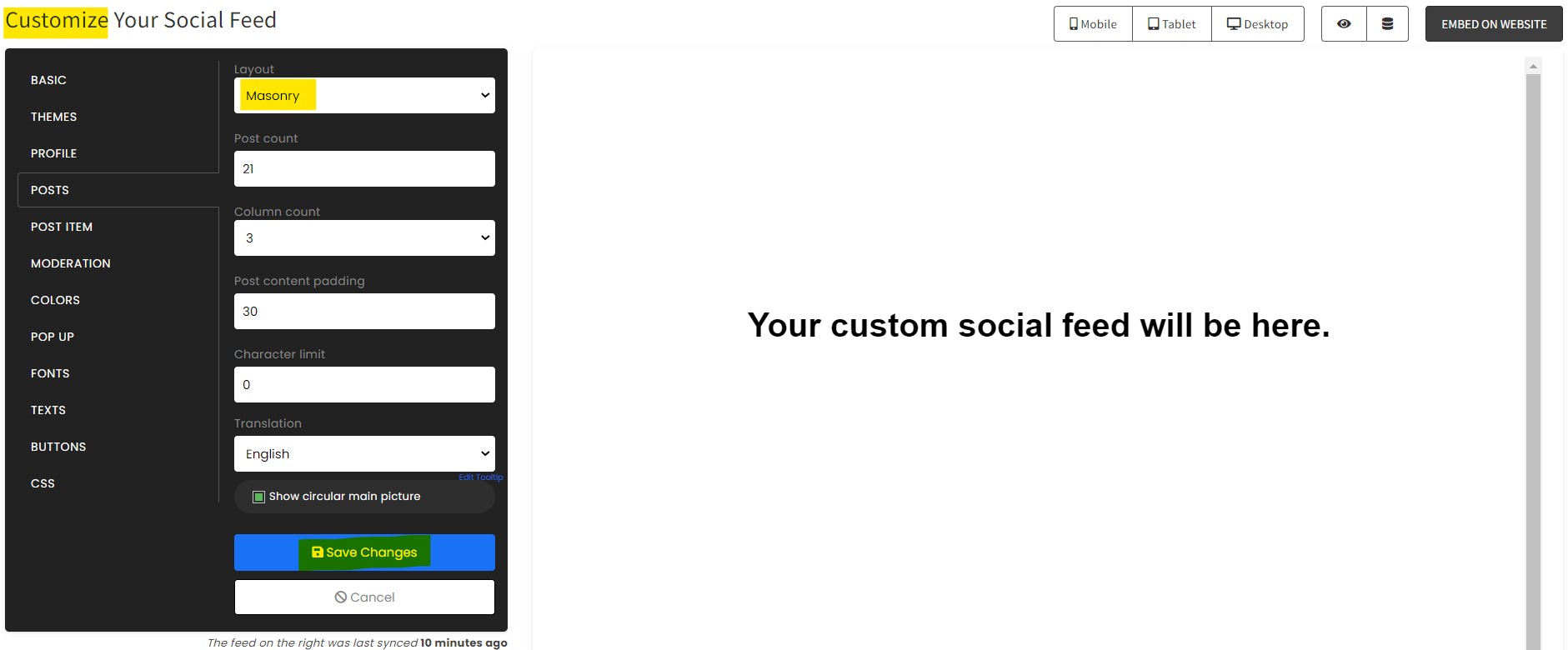
Match your brand
Colors, fonts, layout — tune it until it feels native to your site.
-
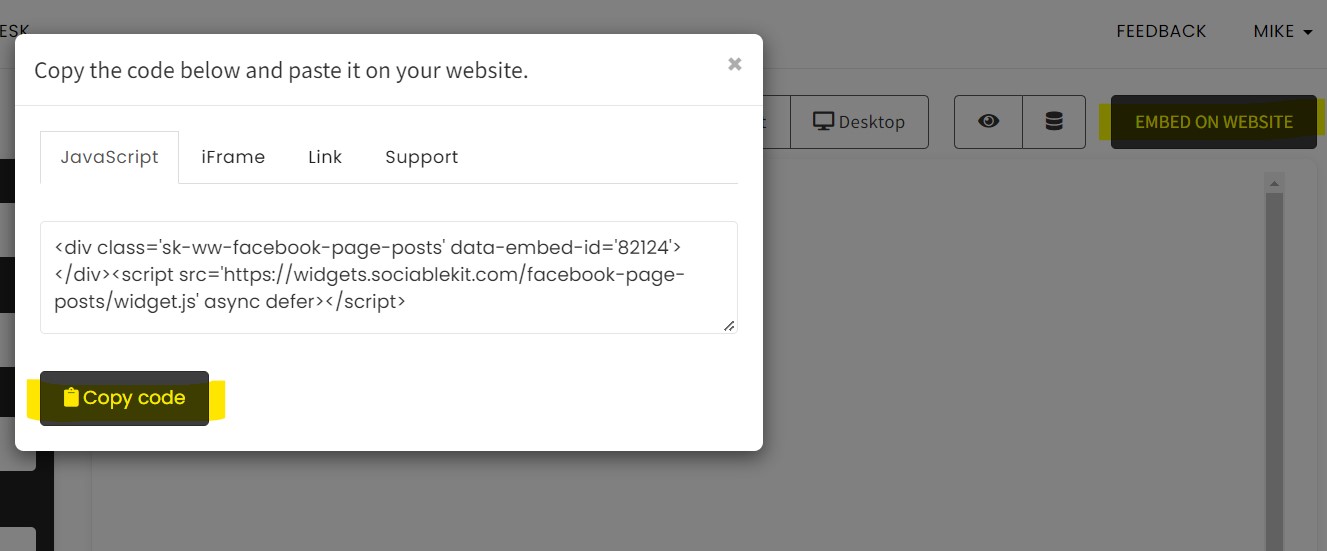
Paste one line of code
Drop the embed snippet on your Yola website. No dev team needed.
Embed Thumbtack reviews with SociableKIT — step by step
Create your widget in the dashboard, copy the embed code, and paste it on your Yola website. Screenshots included so you never get stuck.
Create and customize your Thumbtack reviews widget
The first part is creating your Thumbtack reviews widget using the SociableKIT dashboard. Customize the look and feel to match your brand. Follow the steps below.
-
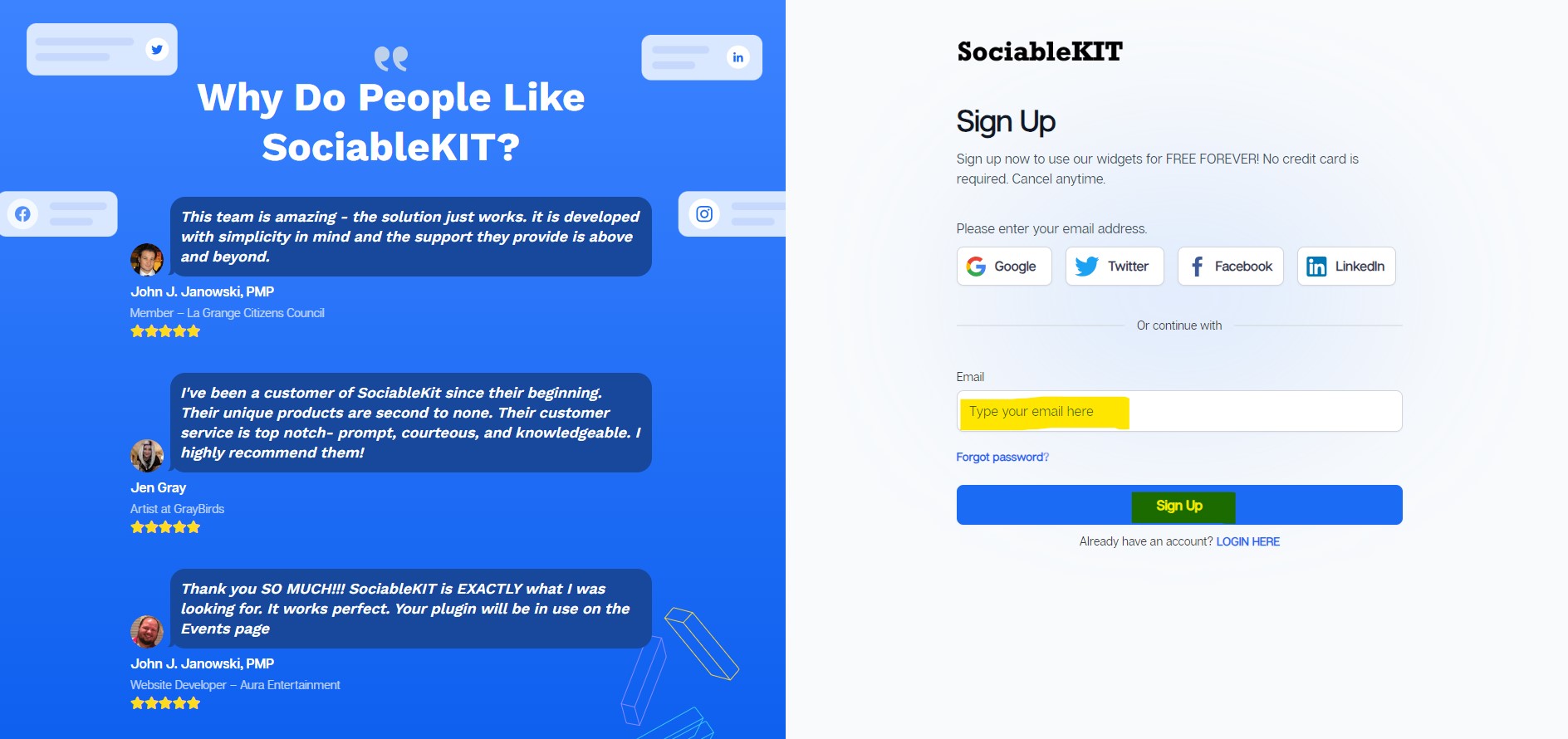
Sign up FREE or login to SociableKIT. You can login here if you already have an account. Once you sign up, you will start your 7-day premium trial. After 7 days, you can activate the free plan if you don't need our premium features.

- Paste the embed code and save your Yola website page. Please follow the second part below to add Thumbtack reviews widget to your Yola website .
Add Thumbtack reviews widget to your Yola website
The second part is adding your Thumbtack reviews widget to your Yola website . After you customize your Thumbtack reviews widget and copied the embed code, it is time to add it to your Yola website . Follow the steps below.
- Copy your free Thumbtack reviews widget embed code. Make sure you followed the first part above. It detailed how to you can create and customize your widget to get your free embed code.
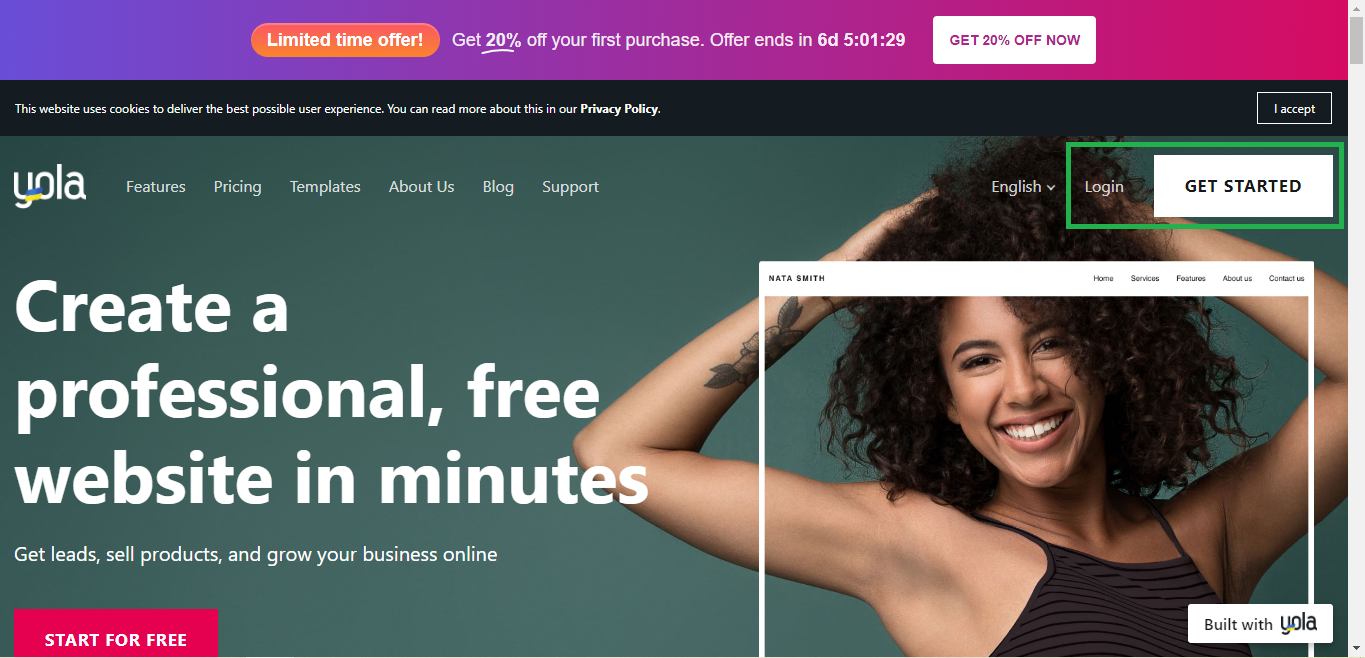
- Go to the Yola. Login or click "Get started" and then register to continue.
![]()
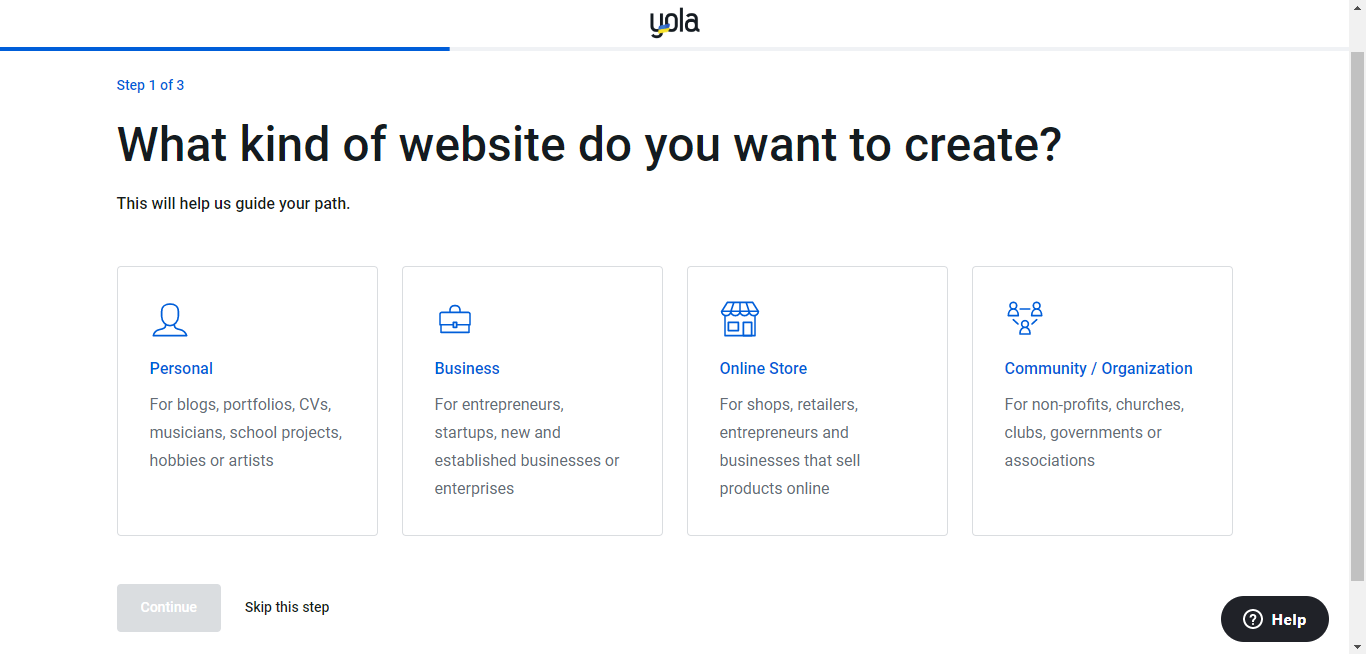
- Create or edit a website. If you just registered an account follow their guide or you can click "skip". This is where you want to display your widget.
![]()
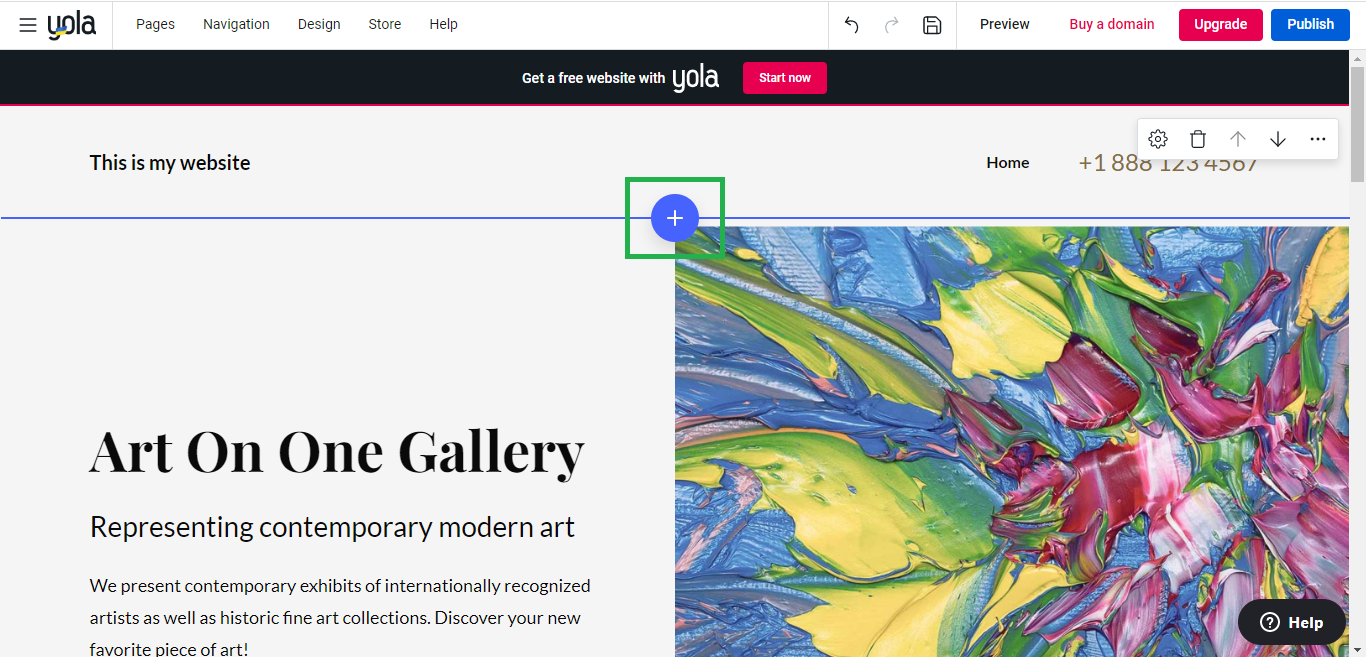
- Widget placement. Choose where block you want to display your widget by clicking the "+" icon.
![]()
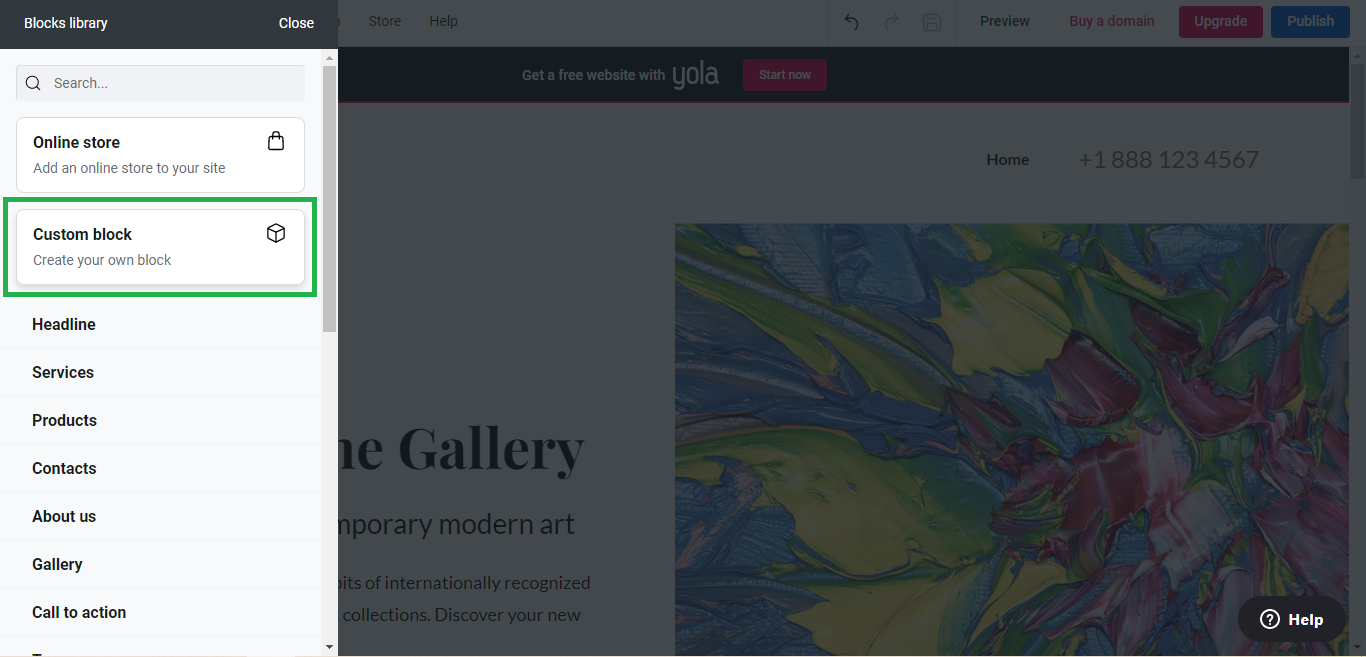
- Add the "Custom block". Add the "Custom block" to your website by clicking to the button.
![]()
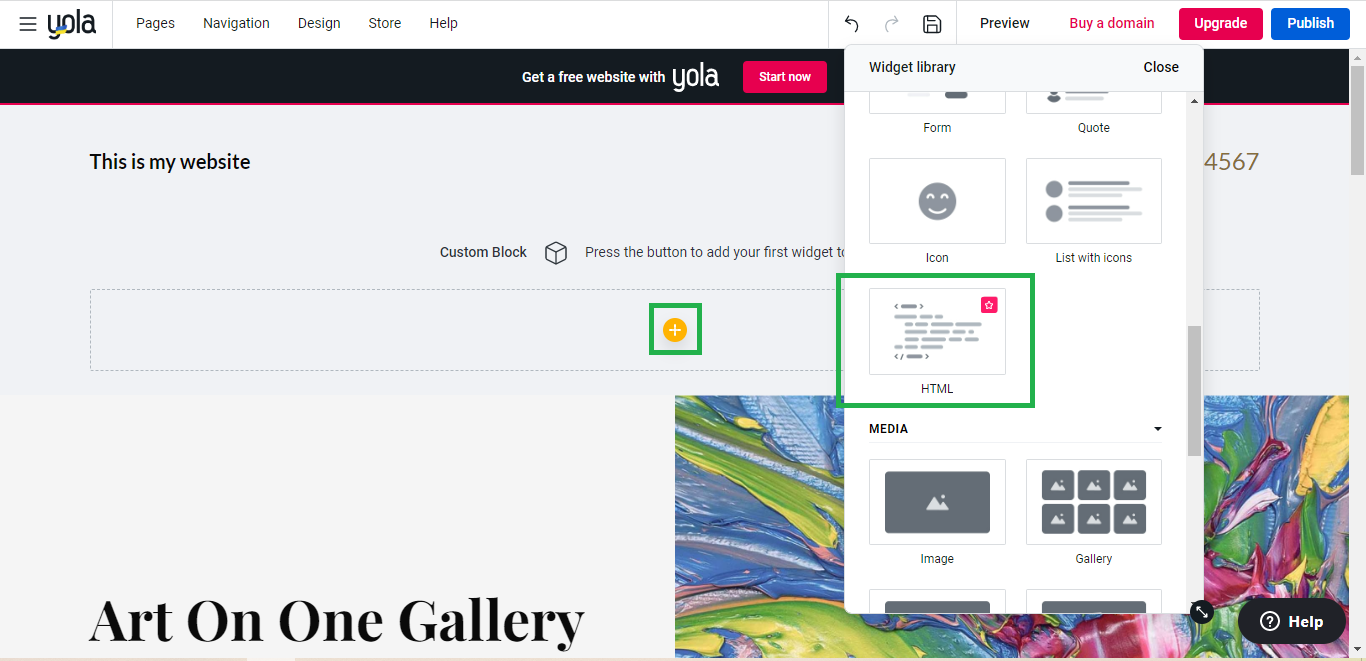
- Add the "HTML". Click the yellow "+" icon then scroll down until you saw the "HTML". *Note your account must be upgraded before you can use this feature.
![]()
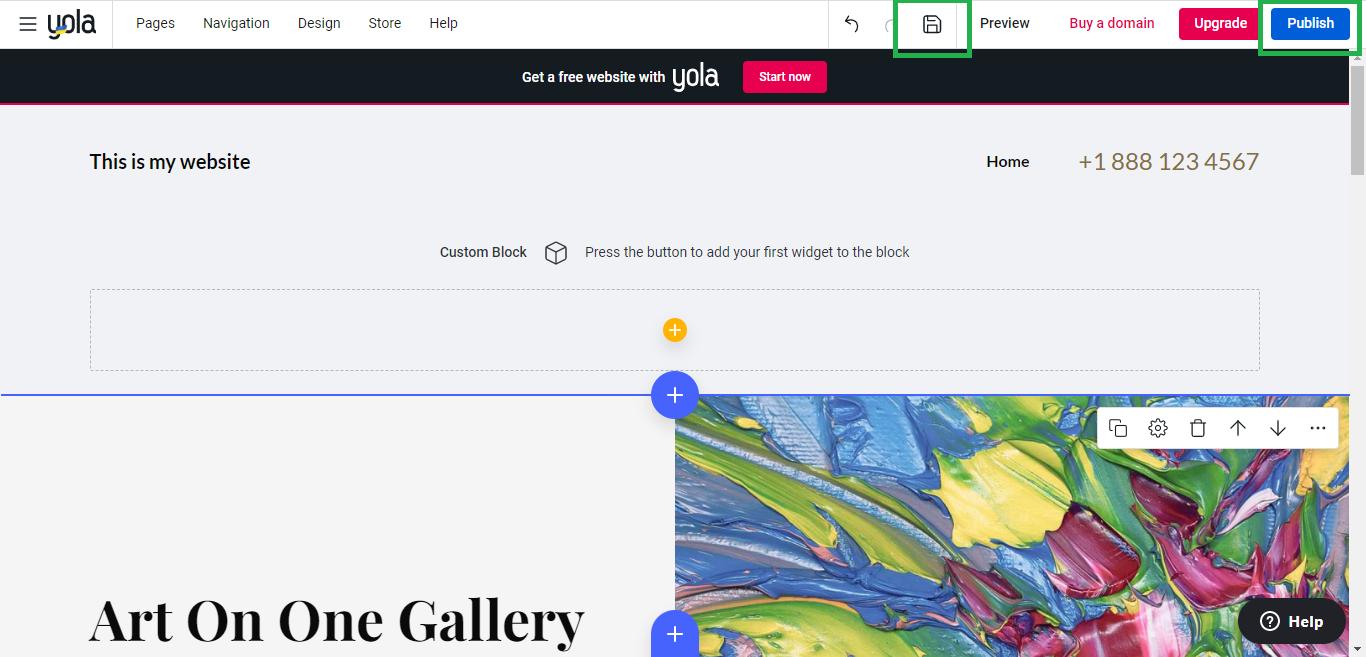
- Paste the Javascript code you copied from SociableKIT. Add the Javascript you copied earlier to the "HTML" and then save.
- Click on the "Save" icon on the top. Click on the "Publish" button.
![]()
- Done!
![]()
Website builders
Paste your embed code on any platform
SociableKIT works with every major website builder. Pick yours below for copy-paste instructions tailored to that platform.
To embed Thumbtack reviews on your Yola site, follow the steps below after you have your SociableKIT embed code.
- Sign up free to SociableKIT and create your Thumbtack reviews widget.
- Customize your widget and copy the embed code from the dashboard.
- Go to the Yola. Login or click "Get started" and then register to continue.
![]()
- Create or edit a website. If you just registered an account follow their guide or you can click "skip". This is where you want to display your widget.
![]()
- Widget placement. Choose where block you want to display your widget by clicking the "+" icon.
![]()
- Add the "Custom block". Add the "Custom block" to your website by clicking to the button.
![]()
- Add the "HTML". Click the yellow "+" icon then scroll down until you saw the "HTML". *Note your account must be upgraded before you can use this feature.
![]()
- Paste the Javascript code you copied from SociableKIT. Add the Javascript you copied earlier to the "HTML" and then save.
- Click on the "Save" icon on the top. Click on the "Publish" button.
![]()
- Done!
![]()
To embed Thumbtack reviews on your WordPress site, follow the steps below after you have your SociableKIT embed code.
- Sign up free to SociableKIT and create your Thumbtack reviews widget.
- Customize your widget and copy the embed code from the dashboard.
- Login to your WordPress site.
![]()
- On your WordPress, go to the "Pages" section then click the "Add new page".
![]()
- Pick a pre-defined layout or start with a blank page by clicking the "Blank page" button.
![]()
- On the body of your page, click the "+" icon and click the "Custom HTML".
![]()
- Paste the code in the text area and click update.
![]()
- The widget will appear on the WordPress page.
![]()
- Click the Publish or Update button on your WordPress page.
![]()
- Click the view page. Done!
To embed Thumbtack reviews on your Wix site, follow the steps below after you have your SociableKIT embed code.
- Sign up free to SociableKIT and create your Thumbtack reviews widget.
- Customize your widget and copy the embed code from the dashboard.
- Login to Wix.
![]()
- On your existing website click the "+" button beside the "Main pages" section.
![]()
- Then click the "Add page" button.
![]()
- Name your page then hit enter.
![]()
- On the left, click "Add element". Find and click "Embed code". Click and drag "Embed a site" on your page then resize the container.
![]()
- Click "Change website address".
![]()
- Paste the link you copied from SociableKIT then click "Apply".
![]()
- Click "Publish" on the upper right.
![]()
- Click "View site". Done!
![]()
To embed Thumbtack reviews on your Squarespace site, follow the steps below after you have your SociableKIT embed code.
- Sign up free to SociableKIT and create your Thumbtack reviews widget.
- Customize your widget and copy the embed code from the dashboard.
- Login to Squarespace. You must have a "Business" account in Squarespace to use the widget. The "code block" needed cannot be found if you only have a "Personal" account.
![]()
- Create a new blank page or edit your existing page. Identify which page you want the widget to appear. You can create a new page on Squarespace, or you can edit your existing page where you want the widget to appear.
![]()
- Add a Code Block. On your Squarespace page, click the 'Edit' button. Find the 'Code' block and click it.
![]()
- Paste the embed code from SociableKIT. On the 'Content' of the 'Code' block, paste the JavaScript embed code you have copied from your widget.
![]()
- Save the changes on the 'Code block'. After pasting your widget's embed code. Click the 'Save' button on the left part of the page.
![]()
- View your page. Refresh your Squarespace page and check your SociableKIT widget. Done!
![]()
To embed Thumbtack reviews on your Webflow site, follow the steps below after you have your SociableKIT embed code.
- Sign up free to SociableKIT and create your Thumbtack reviews widget.
- Customize your widget and copy the embed code from the dashboard.
- Login to Webflow.
![]()
- On your existing website, click the "Page: ...." in the upper left corner then click the "Create new page" icon.
![]()
- Once done add a name for your new page then click "Save".
![]()
- On the left, click "Add Element". Drag "Embed" to your page.
![]()
- Paste the JavaScript code you copied from SociableKIT.
![]()
- On the upper right, click "Publish" > "Publish to Selected Domains".
![]()
- View your page. Done!
To embed Thumbtack reviews on your Shopify site, follow the steps below after you have your SociableKIT embed code.
- Sign up free to SociableKIT and create your Thumbtack reviews widget.
- Customize your widget and copy the embed code from the dashboard.
- Login to Shopify.
![]()
- On the left side, click Online Store.
![]()
- Click Pages. Add a new page or edit your existing page.
![]()
- On the Page details, click Show HTML icon (<>).
![]()
- Paste the embed code and click the Save button.
![]()
- Click the View page button. Done!
![]()
To embed Thumbtack reviews on your HTML site, follow the steps below after you have your SociableKIT embed code.
- Sign up free to SociableKIT and create your Thumbtack reviews widget.
- Customize your widget and copy the embed code from the dashboard.
- Open your HTML file.
![]()
- You can create a new HTML page or edit your existing HTML page.
![]()
- Paste the Javascript code you copied from SociableKIT. Paste it where you want the widget to appear.
![]()
- Save your HTML page.
![]()
- You may now upload your HTML page to your web hosting.
To embed Thumbtack reviews on your Google Sites site, follow the steps below after you have your SociableKIT embed code.
- Sign up free to SociableKIT and create your Thumbtack reviews widget.
- Customize your widget and copy the embed code from the dashboard.
- Login to Google sites. You must have at least a 'Business Starter' plan to create and customize your Google sites.
![]()
- Create or edit an existing website. Click the + 'Blank' button on the 'Start a new site' section to create or find your existing website under the 'Recent sites' section.
![]()
- Create a new blank page or edit your existing page. Identify which page you want the widget to appear. On the right sidebar, you will see an 'Embed' button. Click the 'Embed' button.
![]()
- Add the widget. A popup 'Embed from the web' will open up. Select the 'Embed code' tab on the popup.
![]()
- Paste the embed code from SociableKIT. On the 'Embed code' tab, you will see 'HTML code goes here' text. Paste the embed code from your SociableKIT widget.
![]()
- Save the widget. Once you have pasted your embed code, click the 'Next' button.
![]()
- Preview of your SociableKIT widget. After clicking the Next button, a preview of your embed code will be displayed. Click the 'Insert' button to insert the widget to your Google sites page.
![]()
- Edit the widget. Once the widget has been inserted, you will have the option to resize the widget. After resizing the widget to your preferences, click the 'Publish' button on the upper right corner of the page.
![]()
- Publish your page. After publishing the site, click the down 'Arrow' button beside the 'Publish' button.
![]()
- View your page. A dropdown of buttons will be displayed, click the 'View published site' button. Done!
![]()
Live preview
Pick a Thumbtack reviews template — see it live
Choose a starting design on the left and watch the preview update with real data. What you see is exactly what visitors get on your Yola website.
Common questions
Frequently asked questions
Everything you need to know about embedding Thumbtack reviews on your Yola website.
What is a Thumbtack Reviews widget?
A Thumbtack Reviews widget displays public customer feedback from your professional profile directly on your website. It places real service experiences near your portfolio, pricing, and contact form while visitors are deciding whom to hire.
How do I add Thumbtack reviews to my website without coding?
Create the widget in SociableKIT, connect your public Thumbtack profile, customize the design, and copy the generated embed code. Paste the code into an HTML, custom code, iframe, or embed block on your website.
What information do I need to connect my Thumbtack reviews?
You need the public address of the correct Thumbtack professional profile requested by the SociableKIT editor. Confirm the business name, service area, profile photo, rating, and review count before completing the setup.
Do I need to own or manage the Thumbtack profile?
A publicly accessible profile is the main requirement for displaying its available reviews. Managing the profile is still recommended because it lets the professional update business information, request reviews, and respond to customer feedback.
Will new Thumbtack reviews appear on my website automatically?
Yes, paid SociableKIT plans include automatic syncing, so you can keep the same embed code as eligible public reviews change. The free plan lets you request a manual sync when you want to refresh the widget.
How quickly will a new Thumbtack review appear in the widget?
The review must first become publicly visible on the professional profile. It can then appear after the next available SociableKIT sync, so a newly submitted review may take a day or longer to reach the website.
What information can the Thumbtack Reviews widget display?
The widget can present available details such as the reviewer name or public label, star rating, review date, review text, overall rating, and total review count. The exact fields depend on what Thumbtack makes publicly available and which SociableKIT settings are enabled.
Can reviews from customers outside Thumbtack appear on the profile?
Thumbtack lets new professionals request a limited number of reviews from past customers who did not hire them through the platform. If those reviews appear publicly on the connected profile, SociableKIT can display the source-provided feedback.
Can I choose, hide, or filter which Thumbtack reviews appear?
SociableKIT provides moderation options for supported review displays, helping you keep the website section relevant to each page. Business plans also include automatic moderation for supported content.
Can I show only five-star Thumbtack reviews?
Where the available rating filters or moderation controls support it, you can feature your strongest reviews. A thoughtful mix of recent and detailed feedback can sometimes feel more natural and useful than a display that looks heavily edited.
Can I edit the wording or star rating of a Thumbtack review?
No, SociableKIT does not rewrite a customer's comments or change the original rating. Preserving the public source content protects its authenticity and helps visitors recognize it as genuine feedback.
What should I do about a negative or inaccurate Thumbtack review?
If the review appears to violate Thumbtack's content policy, use its dispute process promptly because review disputes have a limited submission period. SociableKIT moderation can control what appears in the website widget where supported, but it does not delete or alter the original review.
Can my professional response to a review appear in the widget?
Professionals can respond publicly to reviews from their Thumbtack profile. A response may appear in the widget when Thumbtack includes it in the public information available to SociableKIT.
Can customers leave a new Thumbtack review through the widget?
The widget is mainly designed to display reviews that already exist on the public profile. You can add a call to action that guides past customers toward the original review process, where Thumbtack handles account, eligibility, and publishing requirements.
Can a customer update or remove a Thumbtack review later?
A reviewer may be able to update feedback from their Thumbtack account, while Thumbtack can also remove content that violates its policies. After the public profile changes and SociableKIT syncs again, the website widget can reflect the update.
Can I display reviews from multiple Thumbtack profiles?
Yes, additional public professional profiles can be connected as separate sources and used in their own widgets. Choose a SociableKIT plan with enough sources for the businesses, professionals, or service brands you want to feature.
Can I combine Thumbtack reviews with reviews from other platforms?
Yes, SociableKIT offers a Reviews Widget that can combine supported review sources into one consistent display. This is useful when customers leave feedback in several places and you want one review section across your website.
Can Thumbtack reviews help me get more service inquiries?
Displaying relevant customer experiences near your contact or quote form can help visitors understand what working with you is like. The widget can support trust and decision-making, but it cannot guarantee more leads, bookings, or a higher Thumbtack ranking.
Is the Thumbtack Reviews widget mobile responsive and customizable?
Yes, the widget adjusts to desktop, tablet, and mobile screens and can be styled with your colors, fonts, spacing, layout, and calls to action. SociableKIT offers masonry, grid, carousel, and list templates and works with major website builders that accept embed code.
Is there a free plan, unlimited views, and customer support?
SociableKIT offers a free plan with one source, one widget, up to 2,000 monthly views, full design customization, branding, and manual sync requests. Paid plans add automatic syncing and unlimited widget views, with human chat and email support available 24/7.
Add your Thumbtack reviews widget today
Set up in minutes. Free forever to start.
Create your widgetFree forever · No credit card · Cancel anytime