
Your WordPress blog on Square Online website — live in 3 steps
SociableKIT syncs your wordpress blog automatically. Set up once, embed anywhere — free to start, no coding required.
-
Create in 60 seconds
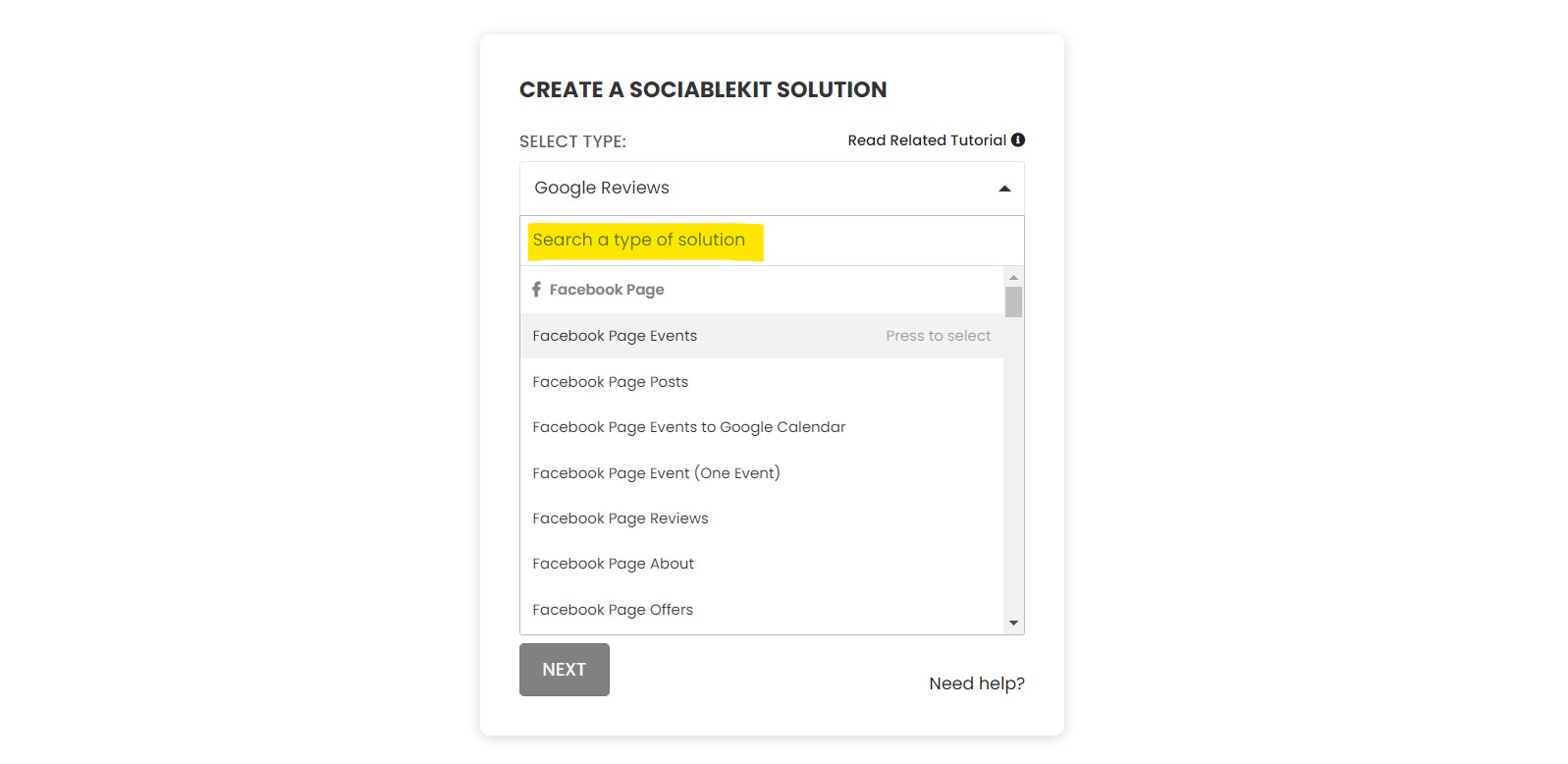
Pick WordPress blog in the dashboard and connect your source.
-
Match your brand
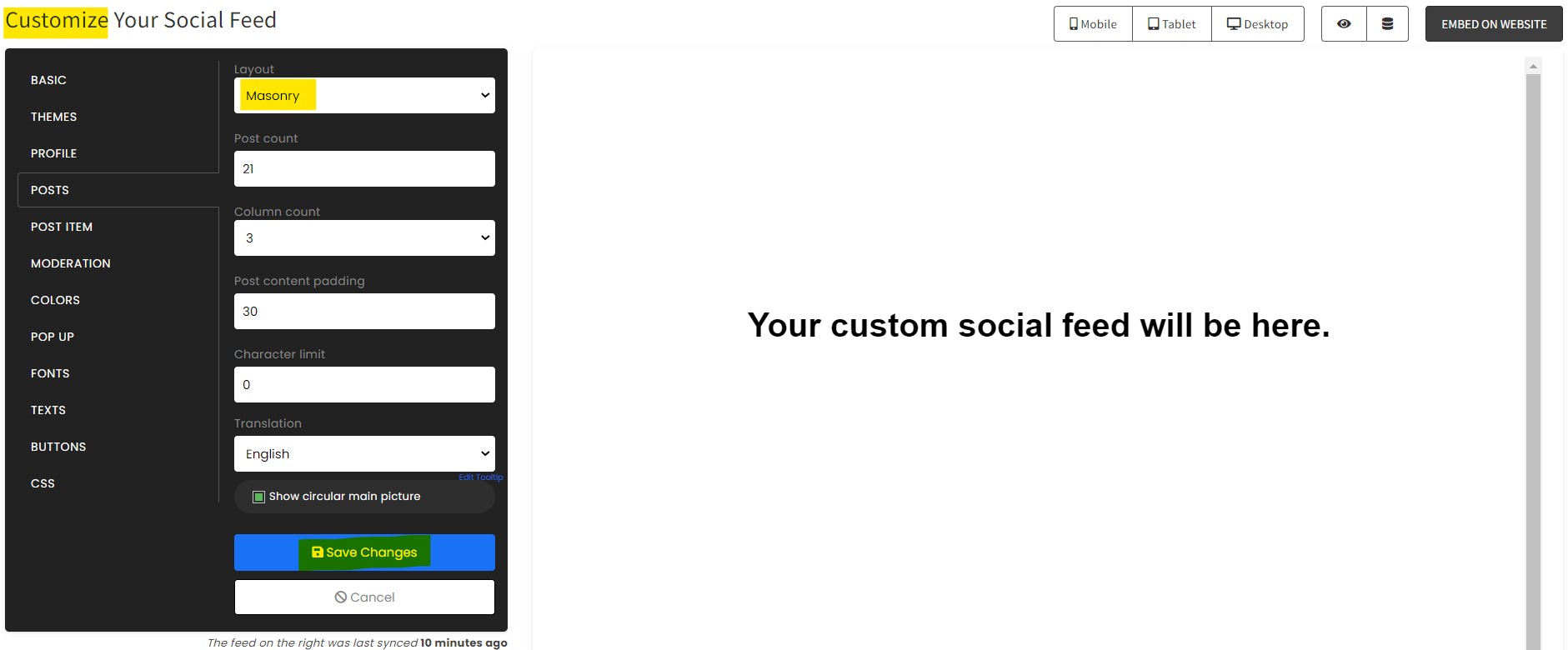
Colors, fonts, layout — tune it until it feels native to your site.
-
Paste one line of code
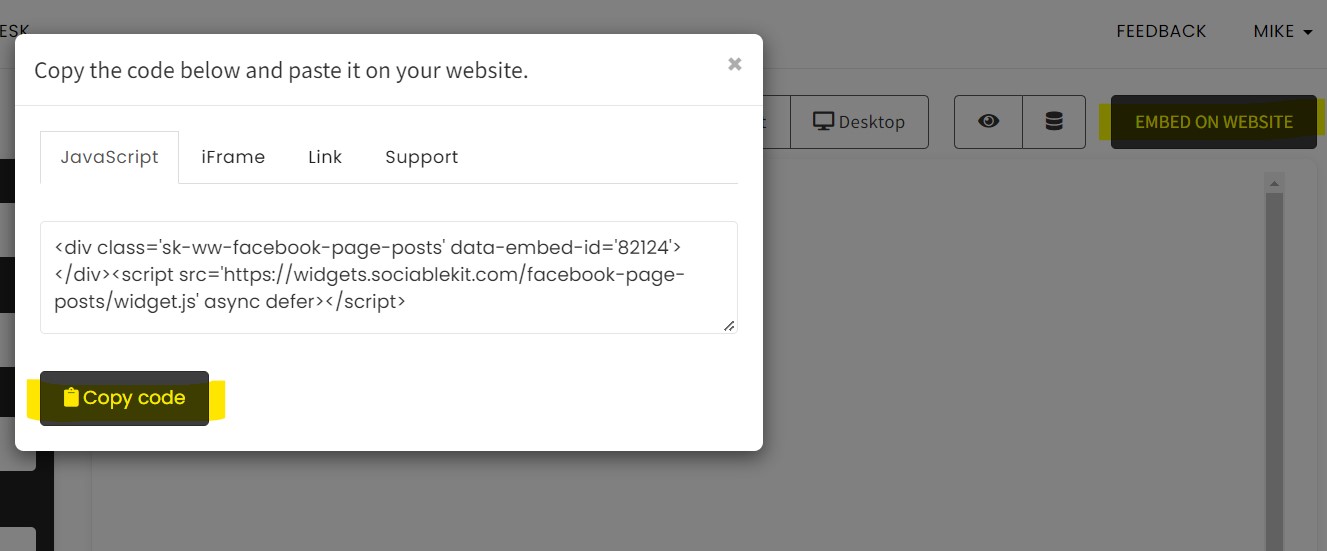
Drop the embed snippet on your Square Online website. No dev team needed.
Embed WordPress blog with SociableKIT — step by step
Create your widget in the dashboard, copy the embed code, and paste it on your Square Online website. Screenshots included so you never get stuck.
Create and customize your WordPress blog widget
The first part is creating your WordPress blog widget using the SociableKIT dashboard. Customize the look and feel to match your brand. Follow the steps below.
-
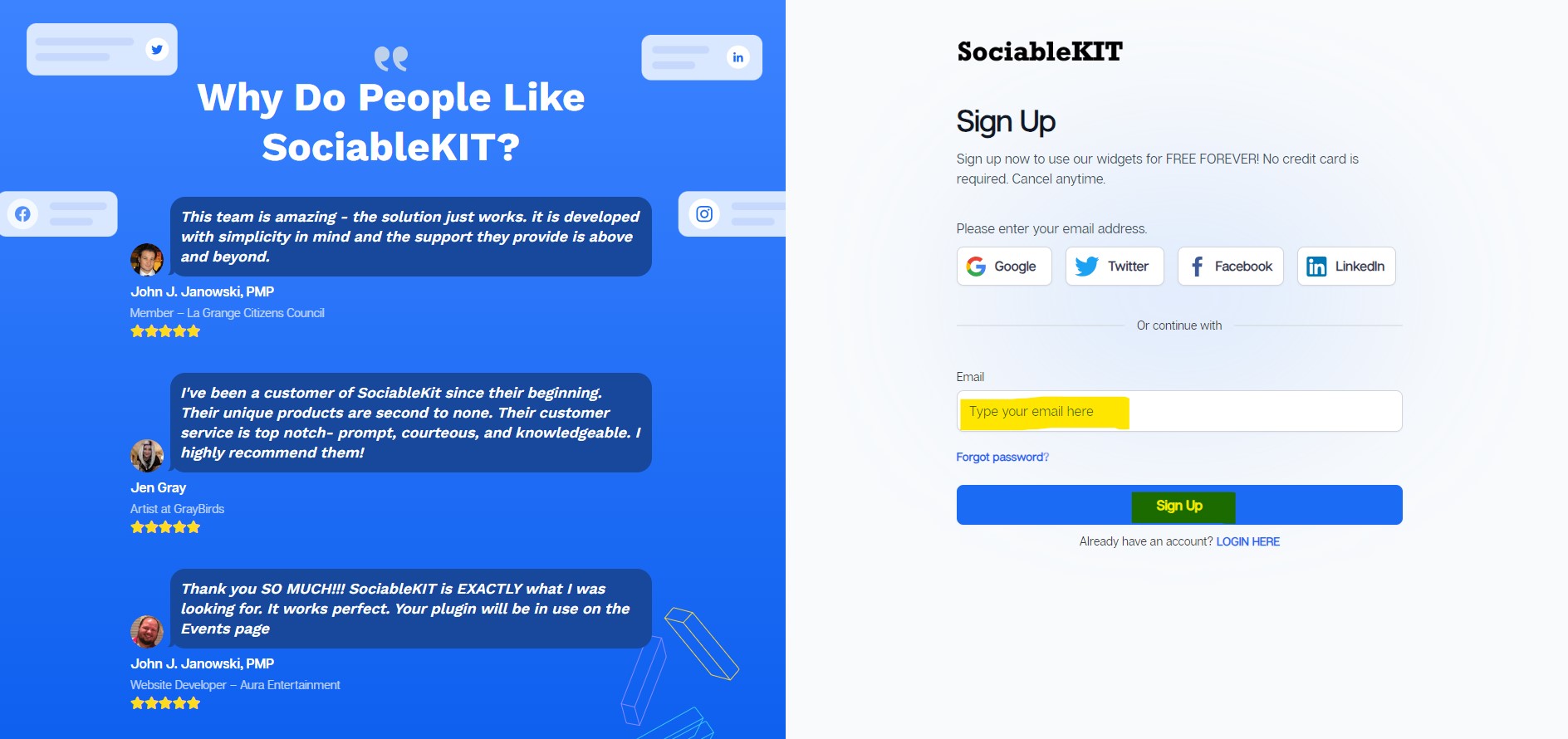
Sign up FREE or login to SociableKIT. You can login here if you already have an account. Once you sign up, you will start your 7-day premium trial. After 7 days, you can activate the free plan if you don't need our premium features.

- Paste the embed code and save your Square Online website page. Please follow the second part below to add WordPress blog widget to your Square Online website .
Add WordPress blog widget to your Square Online website
The second part is adding your WordPress blog widget to your Square Online website . After you customize your WordPress blog widget and copied the embed code, it is time to add it to your Square Online website . Follow the steps below.
- Copy your free WordPress blog widget embed code. Make sure you followed the first part above. It detailed how to you can create and customize your widget to get your free embed code.
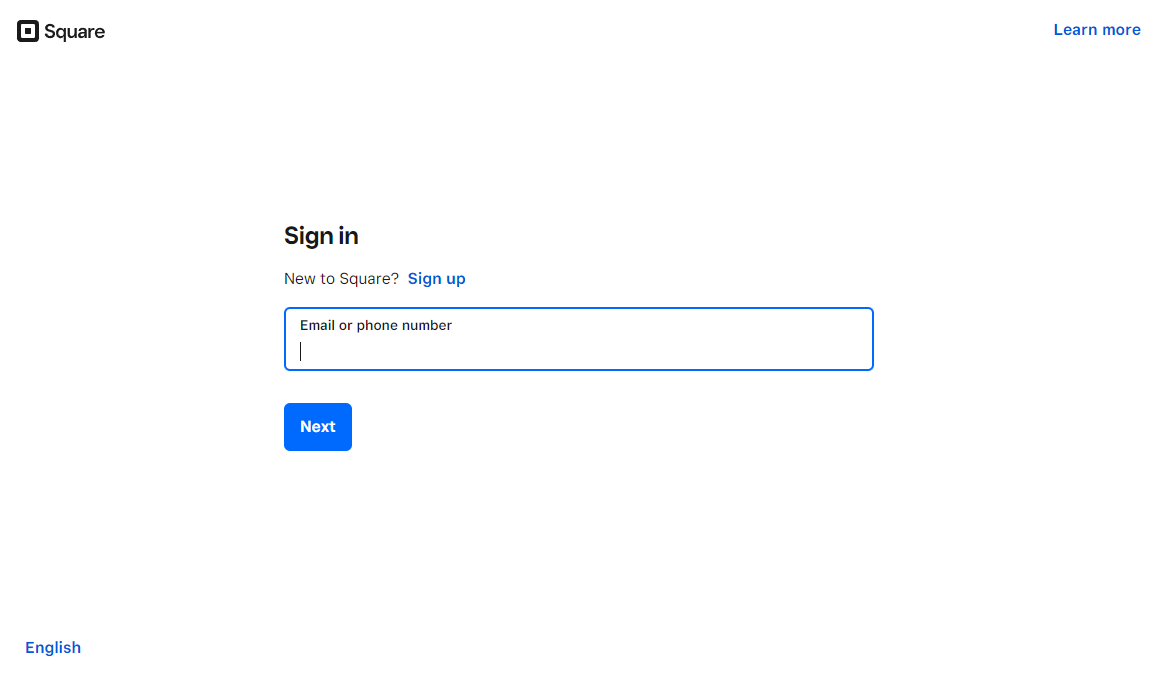
- Login to Square Online.
![]()
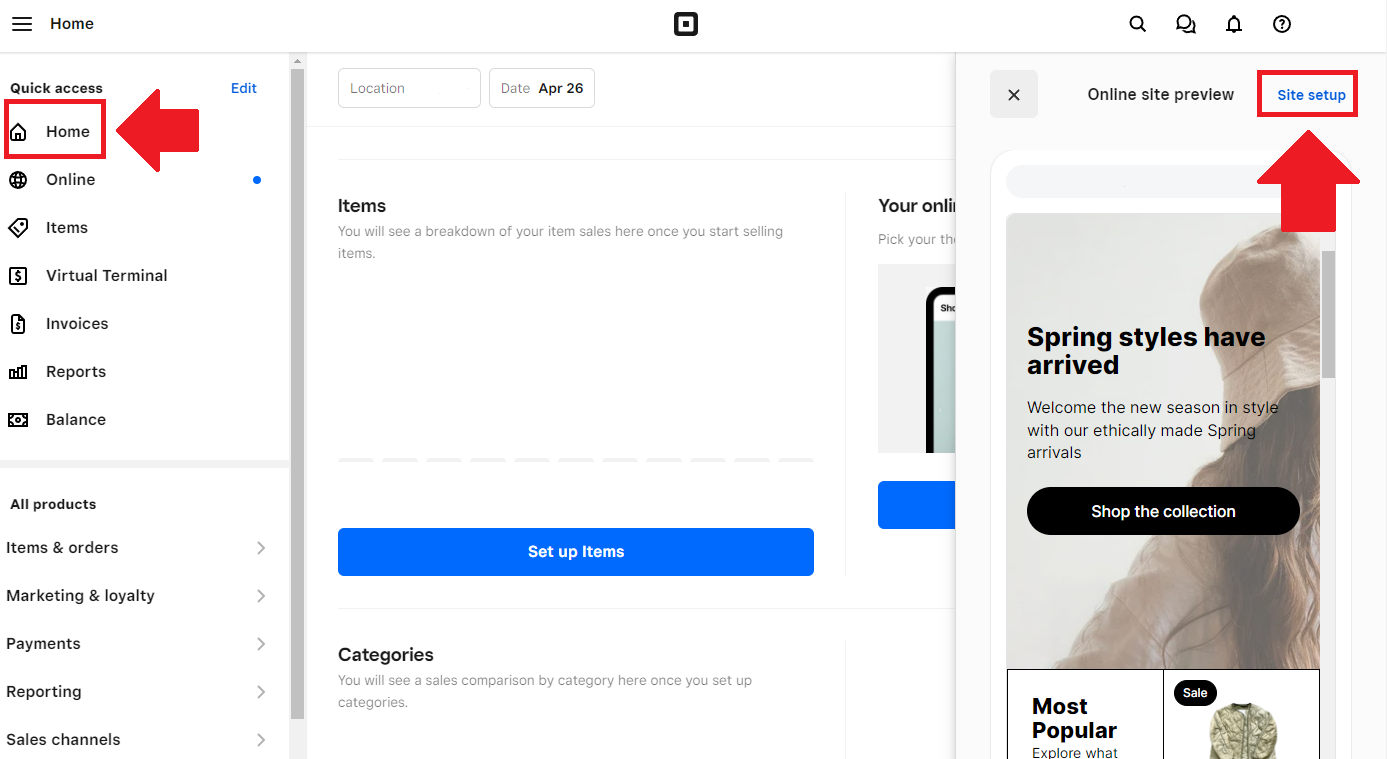
- Create or edit your existing website.
![]()
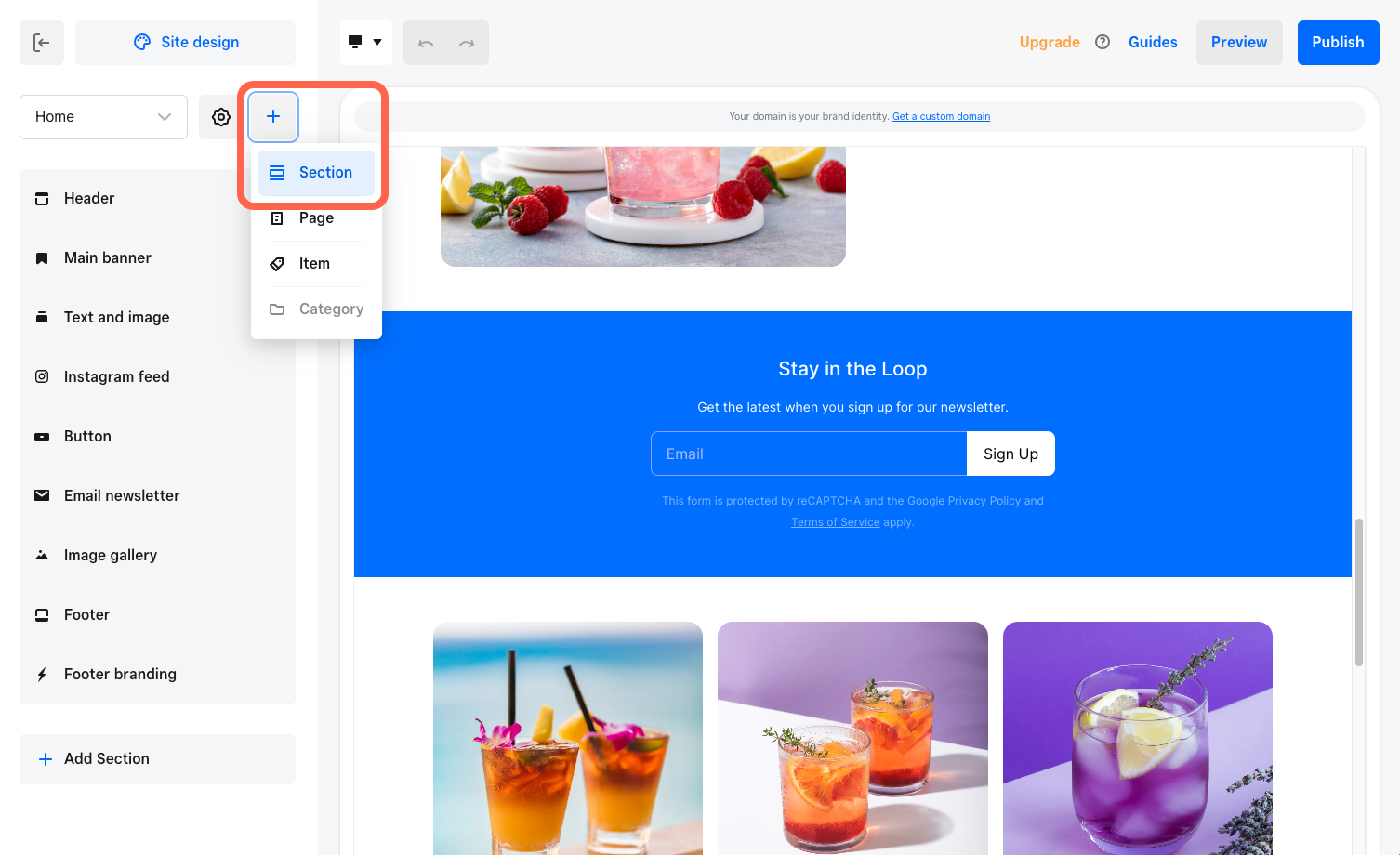
- Create or edit an existing page and add a Section.
![]()
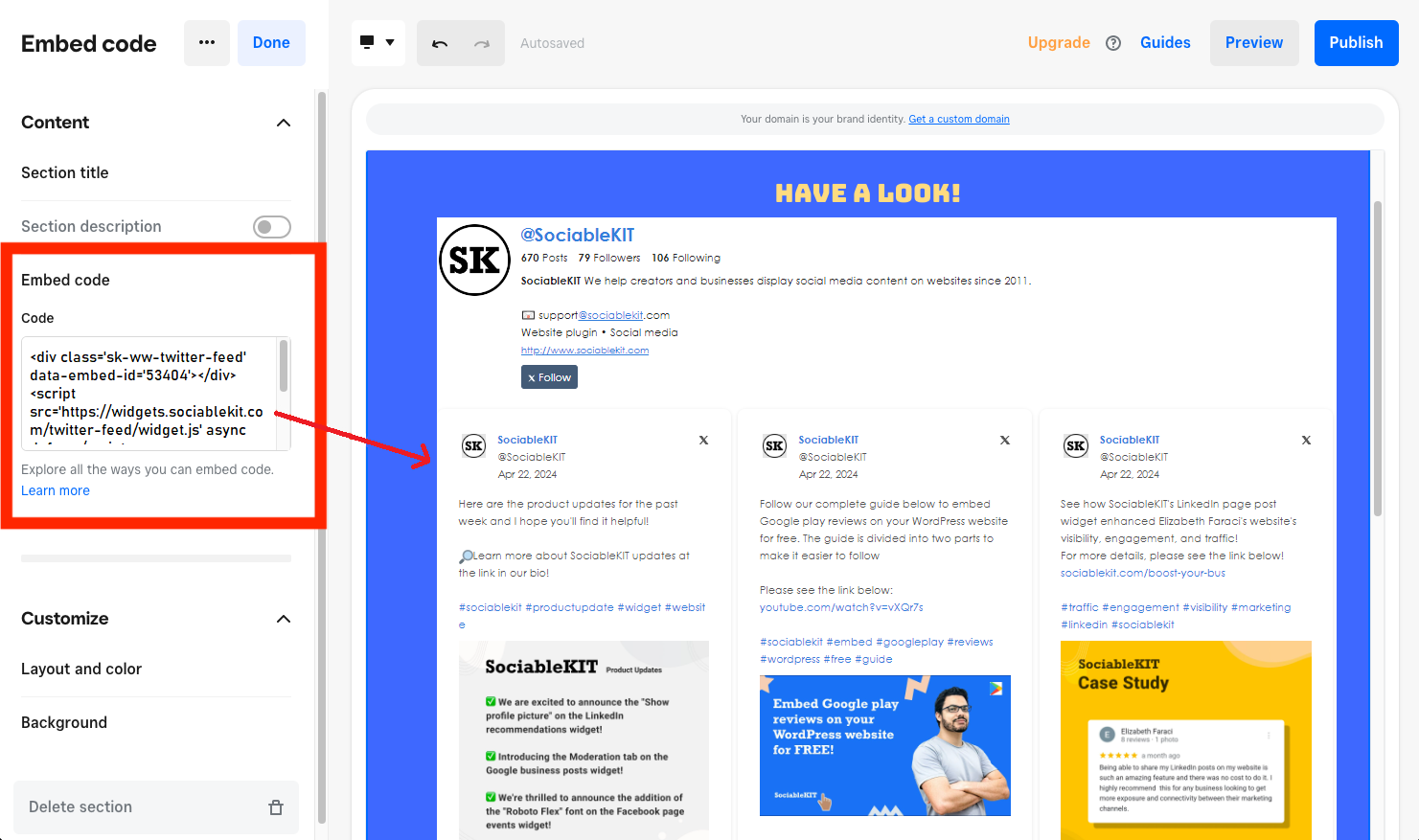
- Select the Embed code option. Paste the embed code from SociableKIT.
![]()
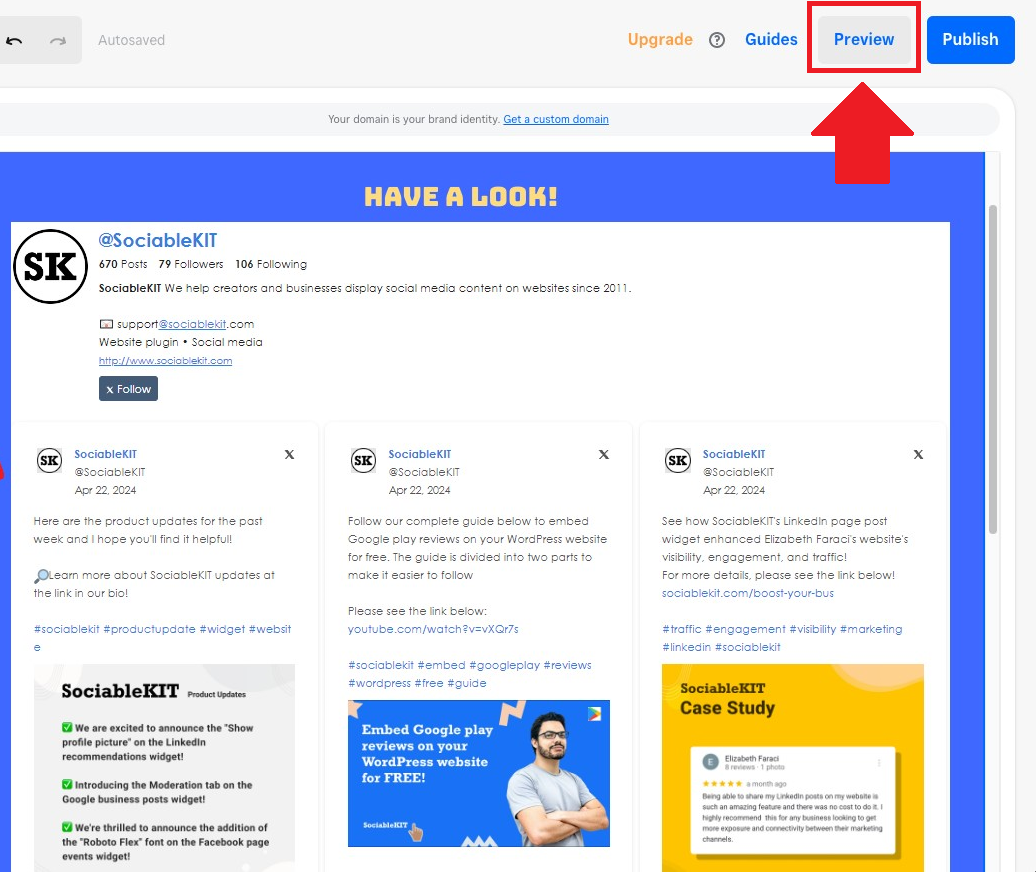
- Click the Preview button on the upper right corner of the page.
![]()
- Done!
Website builders
Paste your embed code on any platform
SociableKIT works with every major website builder. Pick yours below for copy-paste instructions tailored to that platform.
To embed WordPress blog on your Square Online site, follow the steps below after you have your SociableKIT embed code.
- Sign up free to SociableKIT and create your WordPress blog widget.
- Customize your widget and copy the embed code from the dashboard.
- Login to Square Online.
![]()
- Create or edit your existing website.
![]()
- Create or edit an existing page and add a Section.
![]()
- Select the Embed code option. Paste the embed code from SociableKIT.
![]()
- Click the Preview button on the upper right corner of the page.
![]()
- Done!
To embed WordPress blog on your WordPress site, follow the steps below after you have your SociableKIT embed code.
- Sign up free to SociableKIT and create your WordPress blog widget.
- Customize your widget and copy the embed code from the dashboard.
- Login to your WordPress site.
![]()
- On your WordPress, go to the "Pages" section then click the "Add new page".
![]()
- Pick a pre-defined layout or start with a blank page by clicking the "Blank page" button.
![]()
- On the body of your page, click the "+" icon and click the "Custom HTML".
![]()
- Paste the code in the text area and click update.
![]()
- The widget will appear on the WordPress page.
![]()
- Click the Publish or Update button on your WordPress page.
![]()
- Click the view page. Done!
To embed WordPress blog on your Wix site, follow the steps below after you have your SociableKIT embed code.
- Sign up free to SociableKIT and create your WordPress blog widget.
- Customize your widget and copy the embed code from the dashboard.
- Login to Wix.
![]()
- On your existing website click the "+" button beside the "Main pages" section.
![]()
- Then click the "Add page" button.
![]()
- Name your page then hit enter.
![]()
- On the left, click "Add element". Find and click "Embed code". Click and drag "Embed a site" on your page then resize the container.
![]()
- Click "Change website address".
![]()
- Paste the link you copied from SociableKIT then click "Apply".
![]()
- Click "Publish" on the upper right.
![]()
- Click "View site". Done!
![]()
To embed WordPress blog on your Squarespace site, follow the steps below after you have your SociableKIT embed code.
- Sign up free to SociableKIT and create your WordPress blog widget.
- Customize your widget and copy the embed code from the dashboard.
- Login to Squarespace. You must have a "Business" account in Squarespace to use the widget. The "code block" needed cannot be found if you only have a "Personal" account.
![]()
- Create a new blank page or edit your existing page. Identify which page you want the widget to appear. You can create a new page on Squarespace, or you can edit your existing page where you want the widget to appear.
![]()
- Add a Code Block. On your Squarespace page, click the 'Edit' button. Find the 'Code' block and click it.
![]()
- Paste the embed code from SociableKIT. On the 'Content' of the 'Code' block, paste the JavaScript embed code you have copied from your widget.
![]()
- Save the changes on the 'Code block'. After pasting your widget's embed code. Click the 'Save' button on the left part of the page.
![]()
- View your page. Refresh your Squarespace page and check your SociableKIT widget. Done!
![]()
To embed WordPress blog on your Webflow site, follow the steps below after you have your SociableKIT embed code.
- Sign up free to SociableKIT and create your WordPress blog widget.
- Customize your widget and copy the embed code from the dashboard.
- Login to Webflow.
![]()
- On your existing website, click the "Page: ...." in the upper left corner then click the "Create new page" icon.
![]()
- Once done add a name for your new page then click "Save".
![]()
- On the left, click "Add Element". Drag "Embed" to your page.
![]()
- Paste the JavaScript code you copied from SociableKIT.
![]()
- On the upper right, click "Publish" > "Publish to Selected Domains".
![]()
- View your page. Done!
To embed WordPress blog on your Shopify site, follow the steps below after you have your SociableKIT embed code.
- Sign up free to SociableKIT and create your WordPress blog widget.
- Customize your widget and copy the embed code from the dashboard.
- Login to Shopify.
![]()
- On the left side, click Online Store.
![]()
- Click Pages. Add a new page or edit your existing page.
![]()
- On the Page details, click Show HTML icon (<>).
![]()
- Paste the embed code and click the Save button.
![]()
- Click the View page button. Done!
![]()
To embed WordPress blog on your HTML site, follow the steps below after you have your SociableKIT embed code.
- Sign up free to SociableKIT and create your WordPress blog widget.
- Customize your widget and copy the embed code from the dashboard.
- Open your HTML file.
![]()
- You can create a new HTML page or edit your existing HTML page.
![]()
- Paste the Javascript code you copied from SociableKIT. Paste it where you want the widget to appear.
![]()
- Save your HTML page.
![]()
- You may now upload your HTML page to your web hosting.
To embed WordPress blog on your Google Sites site, follow the steps below after you have your SociableKIT embed code.
- Sign up free to SociableKIT and create your WordPress blog widget.
- Customize your widget and copy the embed code from the dashboard.
- Login to Google sites. You must have at least a 'Business Starter' plan to create and customize your Google sites.
![]()
- Create or edit an existing website. Click the + 'Blank' button on the 'Start a new site' section to create or find your existing website under the 'Recent sites' section.
![]()
- Create a new blank page or edit your existing page. Identify which page you want the widget to appear. On the right sidebar, you will see an 'Embed' button. Click the 'Embed' button.
![]()
- Add the widget. A popup 'Embed from the web' will open up. Select the 'Embed code' tab on the popup.
![]()
- Paste the embed code from SociableKIT. On the 'Embed code' tab, you will see 'HTML code goes here' text. Paste the embed code from your SociableKIT widget.
![]()
- Save the widget. Once you have pasted your embed code, click the 'Next' button.
![]()
- Preview of your SociableKIT widget. After clicking the Next button, a preview of your embed code will be displayed. Click the 'Insert' button to insert the widget to your Google sites page.
![]()
- Edit the widget. Once the widget has been inserted, you will have the option to resize the widget. After resizing the widget to your preferences, click the 'Publish' button on the upper right corner of the page.
![]()
- Publish your page. After publishing the site, click the down 'Arrow' button beside the 'Publish' button.
![]()
- View your page. A dropdown of buttons will be displayed, click the 'View published site' button. Done!
![]()
Live preview
Pick a WordPress blog template — see it live
Choose a starting design on the left and watch the preview update with real data. What you see is exactly what visitors get on your Square Online website.
Common questions
Frequently asked questions
Everything you need to know about embedding WordPress blog on your Square Online website.
What is a WordPress Blog widget?
A WordPress Blog widget lets you display your latest WordPress blog posts on your website in a clean, branded section. With SociableKIT, you can turn your blog into fresh website content that keeps visitors engaged. It is a simple way to show that your brand is active, helpful, and worth following.
Why should I display my WordPress blog on my website?
Your blog already holds helpful content, but many visitors may never find it. Displaying your WordPress blog on key pages helps people discover your latest articles while they are already interested in your business. It can support trust, education, and deeper engagement before visitors take the next step.
Can I embed my WordPress blog posts on another website?
Yes. SociableKIT lets you embed your WordPress blog posts on another website using a simple widget code. This is useful when your blog is on WordPress but your main website, store, or landing page is built somewhere else.
Do I need coding skills to add a WordPress Blog widget?
No coding skills are needed. You create the widget, customize the design, copy the embed code, and paste it into your website builder. SociableKIT keeps the setup beginner-friendly so you can launch faster without asking a developer for every small change.
Will my WordPress blog posts update automatically?
Yes, automatic syncing is available on paid plans. When you publish new blog posts, SociableKIT can refresh the widget so your website shows fresh content without manual copy-paste work. This helps your website feel active even when you are focused on running your business.
Does the widget work with WordPress.com and self-hosted WordPress blogs?
SociableKIT is designed to display public WordPress blog content, whether your blog is hosted on WordPress.com or a self-hosted WordPress site. The exact setup may depend on how your blog feed is available. If you are unsure, SociableKIT support can help you check the best way to connect it.
Do I need an API key to show my WordPress blog posts?
In many cases, you do not need to handle an API key yourself. SociableKIT is built to make the connection process simple for website owners who just want their posts displayed beautifully. If your blog has special privacy, security, or feed settings, support can guide you through the right setup.
Can I customize the design of the WordPress Blog widget?
Yes. You can customize the look of your SociableKIT widget so it feels natural on your website. Adjust layouts, colors, fonts, spacing, and call-to-action styles to match your brand. The goal is simple: your blog should look like part of your site, not a random add-on.
What layouts can I use for my WordPress blog posts?
You can present your WordPress blog posts in polished layouts such as masonry, grid, carousel, or other available templates. Use a grid for a clean content section, a carousel for limited space, or masonry for a more editorial feel. SociableKIT gives you flexible ways to show your posts without redesigning your whole page.
Which website builders work with the WordPress Blog widget?
SociableKIT works with website builders that allow custom embed code. This includes popular platforms such as WordPress, Shopify, Wix, Squarespace, Webflow, Framer, Weebly, Google Sites, SharePoint, and custom HTML websites. One widget code makes it easier to bring your blog content where your visitors already are.
Can I add WordPress blog posts to my Shopify store?
Yes. You can use SociableKIT to show WordPress blog posts on your Shopify store, such as on the homepage, product pages, or a content section. This helps shoppers discover guides, updates, stories, or educational articles that support their buying decision. It is a simple way to connect content and commerce.
Can I add WordPress blog posts to Wix, Squarespace, Webflow, or Framer?
Yes. If your builder supports custom embed code, you can add the SociableKIT WordPress Blog widget to your page. This helps you keep your blog on WordPress while showing your latest posts inside the website builder you already use.
Is the WordPress Blog widget mobile friendly?
Yes. SociableKIT widgets are designed to look good on different screen sizes. Your blog posts can be displayed in a clean, readable layout for desktop and mobile visitors. This matters because many visitors will discover your content from their phone first.
Can I choose how many blog posts to show?
Yes. You can control how your blog content appears, including how many posts you want to display when the setting is available for your widget. This helps you keep the section focused and easy to scan. A small set of strong posts often works better than showing too much at once.
Can I hide or filter certain WordPress blog posts?
Yes, SociableKIT includes moderation and filtering options depending on your plan and widget setup. You can use these controls to keep the feed clean, relevant, and aligned with the page where it appears. This is helpful when you want to highlight only the content that supports the visitor journey.
Can I show featured images, titles, excerpts, dates, and buttons?
Yes, the widget can present your blog posts in a rich and scannable way when the source provides those details. Showing images, titles, excerpts, dates, and buttons can make your content easier to understand at a glance. It helps visitors decide which article is worth opening next.
Will a WordPress Blog widget help with SEO?
A blog widget can help visitors discover more of your content and spend more time exploring your site. It is not a guaranteed SEO shortcut, and search results depend on many factors. The real value is that it makes your useful content more visible to people who are already on your website.
Will the WordPress Blog widget slow down my website?
SociableKIT is built to make embedding content simple while keeping the widget practical for real websites. Like any embedded element, performance can depend on your page setup, images, and other scripts. The best approach is to place the widget where it adds clear value and keep the layout focused.
Where should I place my WordPress Blog widget?
Place it where fresh content can help visitors make a better decision. Good spots include your homepage, resources page, service pages, product pages, footer section, or landing pages. Use it where your latest articles can answer questions, build trust, or move visitors closer to action.
What support do I get if I need help setting it up?
SociableKIT offers support to help you create, customize, and embed your WordPress Blog widget. Paid plans include 24/7 support, which is helpful when you want the widget live without delays. You are not left alone with a code snippet and a blank page.
Add your WordPress blog widget today
Set up in minutes. Free forever to start.
Create your widgetFree forever · No credit card · Cancel anytime