Your YouTube feed on Framer website — live in 3 steps
SociableKIT syncs your youtube feed automatically. Set up once, embed anywhere — free to start, no coding required.
-
Create in 60 seconds
Pick YouTube feed in the dashboard and connect your source.
-
Match your brand
Colors, fonts, layout — tune it until it feels native to your site.
-
Paste one line of code
Drop the embed snippet on your Framer website. No dev team needed.
- Select specific widget type:
-
 YouTube Channel
-
 YouTube Playlist (Single Playlist)
-
 YouTube Live Stream
-
 Youtube Playlists (Multiple Playlists)
- Free forever plan
- No credit card
- Cancel any time
Embed YouTube feed with SociableKIT — step by step
Create your widget in the dashboard, copy the embed code, and paste it on your Framer website. Screenshots included so you never get stuck.
Create and customize your YouTube feed widget
The first part is creating your YouTube feed widget using the SociableKIT dashboard. Customize the look and feel to match your brand. Follow the steps below.
-
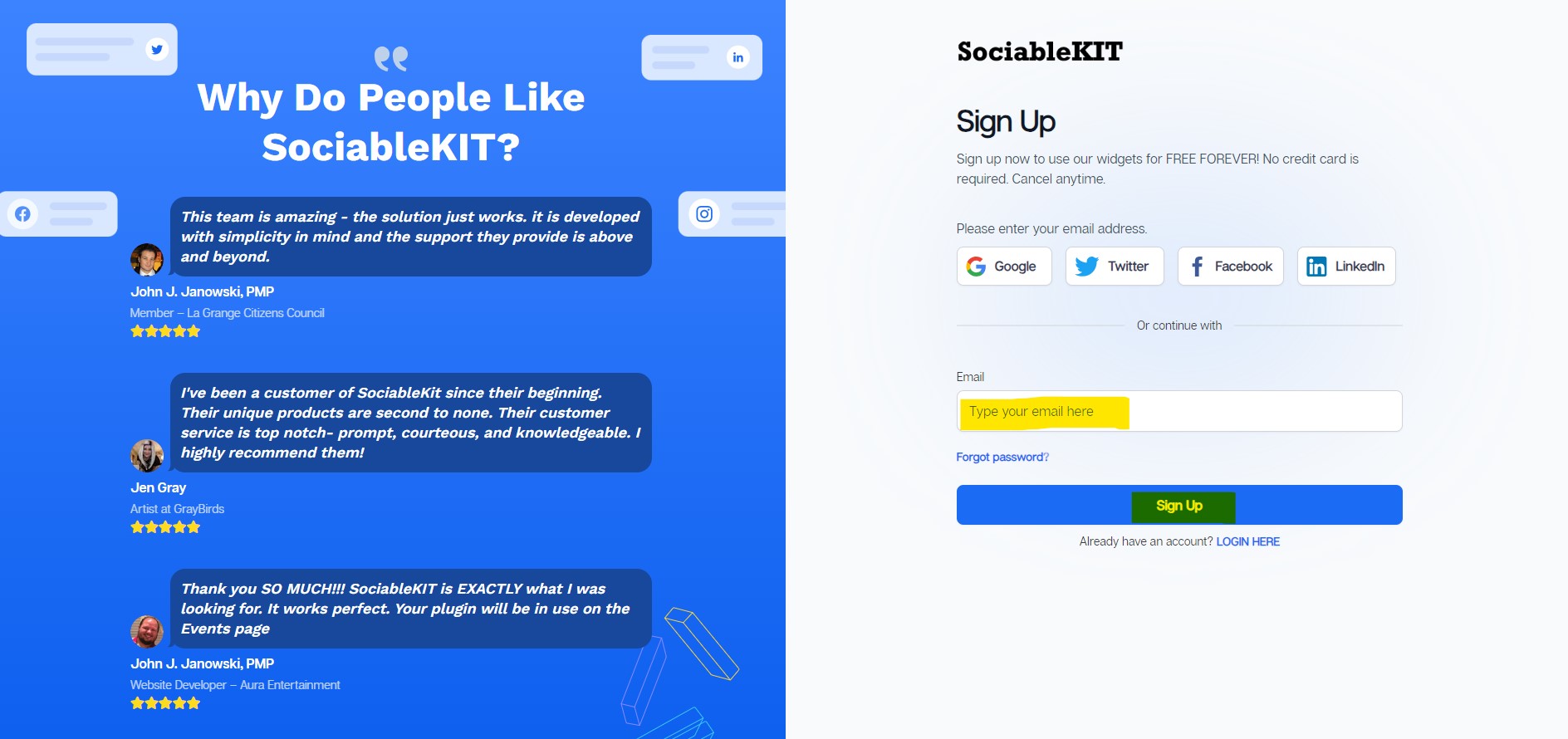
Sign up FREE or login to SociableKIT. You can login here if you already have an account. Once you sign up, you will start your 7-day premium trial. After 7 days, you can activate the free plan if you don't need our premium features.

- Select your YouTube feed type on the dropdown.
SociableKIT offers several YouTube feed widgets. You might need to search it using the highlighted area below. Once found, you can then select it.
Here are the different types of YouTube feed that you can add to your Framer website :

- Enter your YouTube feed ID or username. Copy your YouTube feed URL and paste it in the username box. Our system will automatically identify your YouTube feed ID or username.
-
Customize your feed. Click the "NEXT" button to show the customization options of your social feed. You can change the layout, colors, font, and more to match your brand. Click the Save changes button.

-
Copy the embed code. Click the "Embed on website" button on the upper right corner. On the popup, copy the JavaScript embed code.

- Paste the embed code and save your Framer website page. Please follow the second part below to add YouTube feed widget to your Framer website .


Add YouTube feed widget to your Framer website
The second part is adding your YouTube feed widget to your Framer website . After you customize your YouTube feed widget and copied the embed code, it is time to add it to your Framer website . Follow the steps below.
- Get your free embed code from SociableKIT. Make sure you followed the first part above to create your widgget, customize it, and copy your free embed code.
- Log in to Framer with Google or your work email. If you don’t have an account yet, you can register at the same link.
![]()
- On the Framer dashboard, open the project where you want to add the widget.
![]()
- Open your SociableKIT widget and click Get code at the top right of the editor.
![]()
- In the embed code window, select the Link tab (beside JavaScript and iFrame), then click Copy link.
![]()
- Back in your Framer project, click the + icon at the top left of the toolbar, then select Utility.
![]()
- Choose Embed to add it to your page, and drag it to where you want the widget to appear.
![]()
- Click the Embed element, and in the Style panel on the right, set Type to URL, then paste the copied link into the URL field.
![]()
- Click Publish at the top right to make your website live.
![]()


Website builders
Paste your embed code on any platform
SociableKIT works with every major website builder. Pick yours below for copy-paste instructions tailored to that platform.
To embed YouTube feed on your Framer site, follow the steps below after you have your SociableKIT embed code.
- Sign up free to SociableKIT and create your YouTube feed widget.
- Customize your widget and copy the embed code from the dashboard.
- Log in to Framer with Google or your work email. If you don’t have an account yet, you can register at the same link.
![]()
- On the Framer dashboard, open the project where you want to add the widget.
![]()
- Open your SociableKIT widget and click Get code at the top right of the editor.
![]()
- In the embed code window, select the Link tab (beside JavaScript and iFrame), then click Copy link.
![]()
- Back in your Framer project, click the + icon at the top left of the toolbar, then select Utility.
![]()
- Choose Embed to add it to your page, and drag it to where you want the widget to appear.
![]()
- Click the Embed element, and in the Style panel on the right, set Type to URL, then paste the copied link into the URL field.
![]()
- Click Publish at the top right to make your website live.
![]()
To embed YouTube feed on your WordPress site, follow the steps below after you have your SociableKIT embed code.
- Sign up free to SociableKIT and create your YouTube feed widget.
- Customize your widget and copy the embed code from the dashboard.
- Login to your WordPress site.
![]()
- On your WordPress, go to the "Pages" section then click the "Add new page".
![]()
- Pick a pre-defined layout or start with a blank page by clicking the "Blank page" button.
![]()
- On the body of your page, click the "+" icon and click the "Custom HTML".
![]()
- Paste the code in the text area and click update.
![]()
- The widget will appear on the WordPress page.
![]()
- Click the Publish or Update button on your WordPress page.
![]()
- Click the view page. Done!


To embed YouTube feed on your Wix site, follow the steps below after you have your SociableKIT embed code.
- Sign up free to SociableKIT and create your YouTube feed widget.
- Customize your widget and copy the embed code from the dashboard.
- Log in to Wix.
![]()
- On your existing website, click the “+ Add” button at the top left.
![]()
- Click “Elements”.
![]()
- In the Add Elements panel, click “Embed” from the left menu.
![]()
- Under the Embed section, click “Embed code” to add it to your page.
![]()
- Click the HTML Element on your page, then click the Settings (gear) icon in the toolbar above it.
![]()
- Under “Choose what to embed”, open the dropdown and select “Link”.
![]()
- Paste the link you copied from SociableKIT into the Link field, then click “Apply”.
![]()
- Click “Publish” at the upper right.
![]()
- Click “View Site”. Done!
![]()


To embed YouTube feed on your Squarespace site, follow the steps below after you have your SociableKIT embed code.
- Sign up free to SociableKIT and create your YouTube feed widget.
- Customize your widget and copy the embed code from the dashboard.
- Login to Squarespace. You must have a "Business" account in Squarespace to use the widget. The "code block" needed cannot be found if you only have a "Personal" account.
![]()
- Create a new blank page or edit your existing page. Identify which page you want the widget to appear. You can create a new page on Squarespace, or you can edit your existing page where you want the widget to appear.
![]()
- Add a Code Block. On your Squarespace page, click the 'Edit' button. Find the 'Code' block and click it.
![]()
- Paste the embed code from SociableKIT. On the 'Content' of the 'Code' block, paste the JavaScript embed code you have copied from your widget.
![]()
- Save the changes on the 'Code block'. After pasting your widget's embed code. Click the 'Save' button on the left part of the page.
![]()
- View your page. Refresh your Squarespace page and check your SociableKIT widget. Done!
![]()


To embed YouTube feed on your Webflow site, follow the steps below after you have your SociableKIT embed code.
- Sign up free to SociableKIT and create your YouTube feed widget.
- Customize your widget and copy the embed code from the dashboard.
- Login to Webflow.
![]()
- On your existing website, click the "Page: ...." in the upper left corner then click the "Create new page" icon.
![]()
- Once done add a name for your new page then click "Save".
![]()
- On the left, click "Add Element". Drag "Embed" to your page.
![]()
- Paste the JavaScript code you copied from SociableKIT.
![]()
- On the upper right, click "Publish" > "Publish to Selected Domains".
![]()
- View your page. Done!


To embed YouTube feed on your Shopify site, follow the steps below after you have your SociableKIT embed code.
- Sign up free to SociableKIT and create your YouTube feed widget.
- Customize your widget and copy the embed code from the dashboard.
- Login to Shopify.
![]()
- On the left side, click Online Store.
![]()
- Click Pages. Add a new page or edit your existing page.
![]()
- On the Page details, click Show HTML icon (<>).
![]()
- Paste the embed code and click the Save button.
![]()
- Click the View page button. Done!
![]()


To embed YouTube feed on your HTML site, follow the steps below after you have your SociableKIT embed code.
- Sign up free to SociableKIT and create your YouTube feed widget.
- Customize your widget and copy the embed code from the dashboard.
- Open your HTML file.
![]()
- You can create a new HTML page or edit your existing HTML page.
![]()
- Paste the Javascript code you copied from SociableKIT. Paste it where you want the widget to appear.
![]()
- Save your HTML page.
![]()
- You may now upload your HTML page to your web hosting.


To embed YouTube feed on your Google Sites site, follow the steps below after you have your SociableKIT embed code.
- Sign up free to SociableKIT and create your YouTube feed widget.
- Customize your widget and copy the embed code from the dashboard.
- Login to Google sites.
![]()
- Create or edit an existing website. Click the ‘Blank site’ tile (the + icon) in the ‘Start a new site’ section to create a new website, or open your existing website from the ‘Recent sites’ section.
![]()
- Create a new blank page or edit your existing page. Identify which page you want the widget to appear on. On the right sidebar, under the ‘Insert’ tab, click the ‘Embed’ button.
![]()
- Add the widget. A popup ‘Embed from the web’ will open. Select the ‘Embed code’ tab, paste the embed code from your SociableKIT widget into the ‘HTML code goes here’ box, then click the ‘Next’ button.
![]()
- Preview your widget. A preview of your SociableKIT widget will be displayed. To change the code, click the pencil icon on the preview. When you’re happy with it, click the ‘Insert’ button to add the widget to your page.
![]()
- Publish your page. Click the ‘Publish’ button on the upper right corner of the page. Done!
![]()


Live preview
Pick a YouTube Channel template — see it live
Choose a starting design on the left and watch the preview update with real data. What you see is exactly what visitors get on your Framer website.
Common questions
Frequently asked questions
Everything you need to know about embedding YouTube feed on your Framer website.
What is the SociableKIT YouTube feed widget?
It’s a simple tool that gathers your latest YouTube videos, playlists and Shorts and displays them on your website so visitors don’t have to leave your site. It automatically updates to show your newest content and presents it in a clean gallery format. You can choose which videos to highlight and give visitors a seamless viewing experience without any coding knowledge.
How do I connect and embed my YouTube feed on my website?
Just create your widget, connect your YouTube channel or playlist with a few clicks, customize the design, then copy and paste the provided embed code into your website. There’s no installation or plugin needed – your feed appears instantly wherever you place the code. It takes minutes, not hours.
Do I need a YouTube API key or developer access to use it?
No. The widget uses the official YouTube API behind the scenes, so you don’t have to register a developer account or manage tokens. Simply connect your channel and we handle the technical details while you focus on your videos.
Does the widget update automatically when I post new videos?
Yes. Once your feed is set up, it automatically refreshes whenever you upload a new video. Your website stays in sync with your channel without any manual updates, keeping content fresh and engaging.
Can I moderate which videos appear on my website?
Absolutely. You control which videos or playlists show up by filtering out irrelevant or off‑brand clips. Whether you want to feature only certain uploads or hide specific content, moderation tools give you full control.
Can I display content from multiple YouTube channels, playlists or keywords?
Yes. You can mix feeds from different channels, playlists or keywords into a single display or organize them in separate tabs. This flexibility lets you showcase all of your video content in one place without confusing visitors.
Is the widget mobile‑friendly and responsive?
The feed adapts perfectly to any screen size—from desktop monitors to smartphones. Your videos look great and play smoothly on mobile devices, ensuring a consistent user experience everywhere.
Can I customize the layout and design of my YouTube feed?
Yes. Choose from various layouts like grid, list or slider and adjust colors, fonts and spacing to match your brand. You can even shorten text or modify date formats to keep the feed compact and on‑brand.
Will the widget slow down my website?
No. The widget uses lazy‑loading techniques so videos load only when visitors scroll to them, avoiding any slowdown. Even with multiple feeds, it’s optimized to have minimal impact on page speed.
What types of YouTube content can I display with the widget?
You can embed regular videos, Shorts, playlists, music videos and live streams. This flexibility lets you share everything from long‑form content to bite‑sized clips, keeping your audience engaged.
Can visitors watch videos directly on my site or in a pop‑up?
Yes. Visitors can play your videos right on your page, and you can enable a pop‑up view for a larger playback experience without leaving your site. This keeps viewers focused on your content and encourages longer watch times.
Can I hide certain elements like the channel header or video details?
You have full control over which elements appear. Toggle the display of headers, descriptions or dates to create a clean, on‑brand feed. Customization options let you tailor the widget to your design preferences.
Is there a free plan or trial? Are there view limits?
Yes. You can start with a free plan without a credit card, making it easy to try the widget. Paid plans unlock unlimited views and advanced customization options, so you only pay when you’re ready to scale.
Will the widget work on my website platform?
The widget is compatible with all major website builders and CMSs—including WordPress, Shopify, Wix, Squarespace, Webflow and custom HTML sites. Just paste the embed code and it works seamlessly, no matter where your site is hosted.
Do I need to know how to code to use this widget?
No coding skills are required. The drag‑and‑drop editor makes customization simple, and embedding the widget is as easy as copying a single line of code. Anyone can set up a professional‑looking feed in minutes.
Is the widget GDPR compliant and secure?
Yes. It’s designed to comply with data‑privacy regulations and does not collect personal data from your visitors. You can confidently integrate the feed knowing your audience’s privacy is respected.
Can I combine my YouTube feed with other social channels on one page?
Yes. Create aggregated widgets that bring together YouTube and other social channels in a single view. This unified social hub keeps visitors engaged with all of your content in one place.
What happens if I cancel my subscription or stop paying?
There are no long‑term commitments. If you cancel or let your subscription lapse, your feed simply pauses and stops updating—you can reactivate it at any time. This flexibility ensures you stay in control of your plan.
Can I monetize views from videos embedded via the widget?
Yes. If you own the channel, views from your embedded videos still count toward your YouTube monetization metrics. Embedding other creators’ videos won’t generate revenue, but it can enhance your site’s engagement.
How can a YouTube feed widget improve my website’s SEO and engagement?
By showcasing fresh videos, you encourage visitors to stay longer and interact more. This increased engagement and dwell time signal relevance to search engines, helping your site rank better while building trust with your audience.
Add your YouTube feed widget today
Set up in minutes. Free forever to start.
- Select specific widget type:
-
YouTube Channel
-
YouTube Playlist (Single Playlist)
-
YouTube Live Stream
-
Youtube Playlists (Multiple Playlists)
Free forever · No credit card · Cancel anytime