SociableKIT
SociableKIT
close-icon
  • Home
  • Widgets

    Widgets

    socials

    Featured widgets

    • Google Reviews Widget
    • LinkedIn Feed Widget
    • Instagram Feed Widget
    • YouTube Channel Widget
    • Facebook Feed Widget
    • TikTok Feed Widget
    • X Feed Widget
    • Facebook Events Widget
    • Indeed Jobs Widget
    • YouTube Playlist Widget
    socials

    Aggregator widgets

    • Social Feed Widget
    • Reviews Widget
    • Content Aggregator Widget
    socials

    Google widgets

    • Google Reviews Widget
    • Google Business Profile Widget
    • Google Business Photos Widget
    • Google Calendar Widget
    • Google Play Reviews Widget
    socials

    Linkedin widgets

    • Linkedin Page Posts
    • Linkedin Profile Posts
    • Linkedin Page Jobs
    • Linkedin Recommendations
    • Linkedin Hashtag Posts
    socials

    Instagram widgets

    • Instagram Feed
    • Instagram Hashtag Feed
    • Instagram Reels
    • Instagram Story Highlights
    • Instagram Stories
    socials

    Facebook widgets

    • Facebook Page Events
    • Facebook Page Posts
    • Facebook Reels
    • Facebook Page Reviews
    • Facebook Profile
    socials

    Youtube widgets

    • Youtube Channel Widget
    • Youtube Playlist Widget
    • Youtube Shorts Widget
    • Youtube Posts Tab Widget
    • Youtube Live Stream Widget
    socials

    Tiktok widgets

    • Tiktok Profile Widget
    • Tiktok Hashtag Feed Widget
    • Tiktok Playlist Widget
    socials

    Indeed widgets

    • Indeed Jobs Widget
    • Indeed Reviews Widget
    socials

    X (Twitter) widgets

    • X Profile Widget
    • X Feed Widget
    • X List Widget
    view-widgets
    View all widgets
  • Pricing
  • Reviews
  • Social
  • Resources

    Resources

    • Tutorials
    • Blog
    • Demos
    • About Us
    • Support
    • Free Widgets
    • All Resources
Login Create a Widget

What are you looking for?

  • Home
  • Tutorials
  • TemplateToaster
Kristen Williams Marc Maessen John Janowski Jules Webb ★★★★★ Rated 4.9/5 · 620+ Reviews

How to embed YouTube Live Stream on your TemplateToaster website for FREE?

Embed your YouTube Live Stream directly on your website to captivate audiences, boost engagement, and create a seamless live experience for viewers.

Create your widget
Free forever plan No credit card Cancel any time
How to embed YouTube Live Stream on your TemplateToaster website  for FREE?
Photo of Mike Dalisay
Mike Dalisay Follow
Co-founder of SociableKIT · Helping small businesses since 2011
August 9, 2026 5 min read Ask ChatGPT
Quick answer

Your YouTube Live Stream on TemplateToaster website — live in 3 steps

SociableKIT syncs your youtube live stream automatically. Set up once, embed anywhere — free to start, no coding required.

  1. 1

    Create in 60 seconds

    Pick YouTube Live Stream in the dashboard and connect your source.

  2. 2

    Match your brand

    Colors, fonts, layout — tune it until it feels native to your site.

  3. 3

    Paste one line of code

    Drop the embed snippet on your TemplateToaster website. No dev team needed.

Create your widget
  • Free forever plan
  • No credit card
  • Cancel any time
Full walkthrough

Embed YouTube Live Stream with SociableKIT — step by step

Create your widget in the dashboard, copy the embed code, and paste it on your TemplateToaster website. Screenshots included so you never get stuck.

Complete Guide

Follow our complete guide below to embed YouTube Live Stream on your TemplateToaster website for free. The guide is divided into two parts to make it easier to follow.

Create and customize your YouTube Live Stream widget

The first part is creating your YouTube Live Stream widget using the SociableKIT dashboard. Customize the look and feel to match your brand. Follow the steps below.

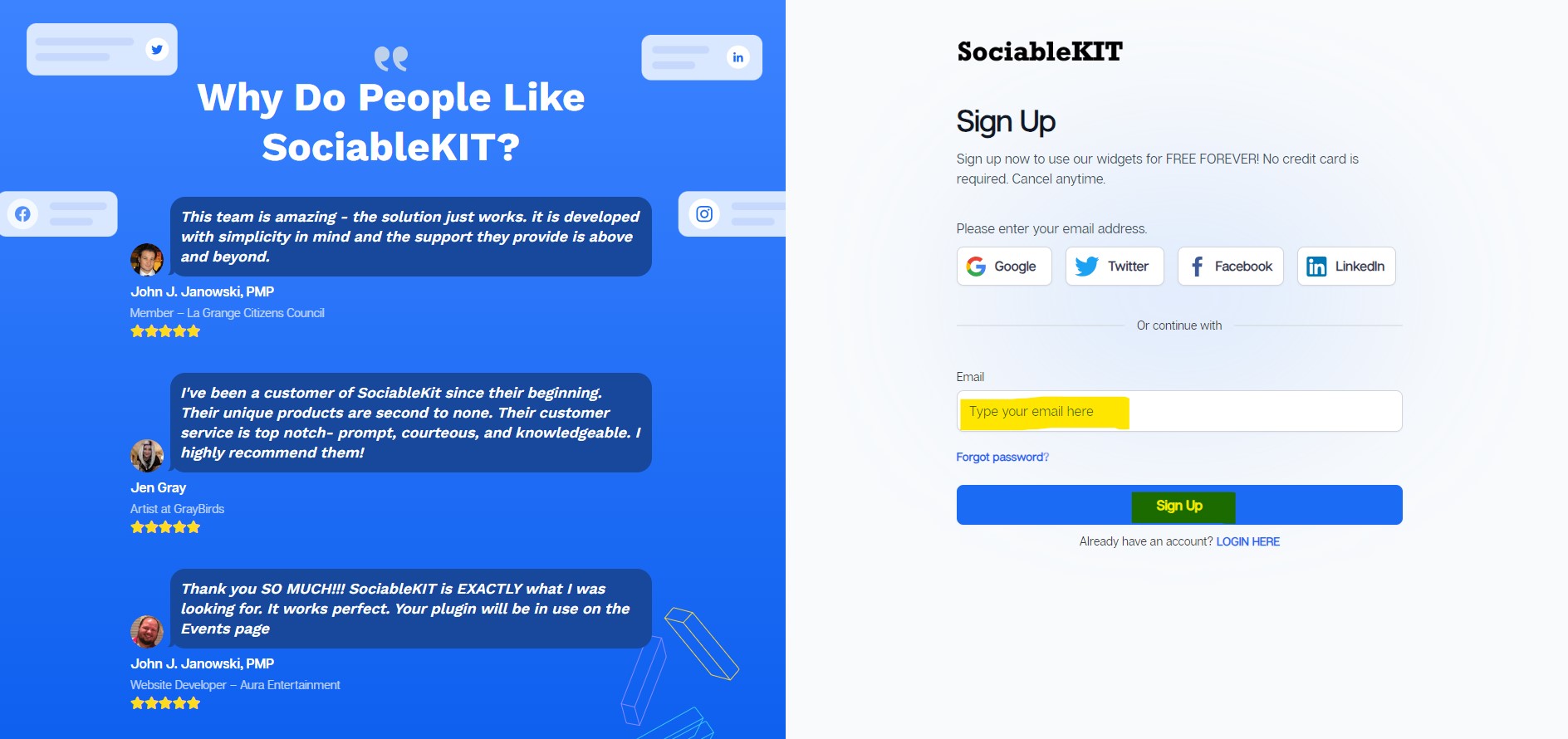
  1. Sign up FREE or login to SociableKIT. You can login here if you already have an account. Once you sign up, you will start your 7-day premium trial. After 7 days, you can activate the free plan if you don't need our premium features. Sign up to SociableKIT - How to embed YouTube Live Stream on your TemplateToaster website  for FREE?

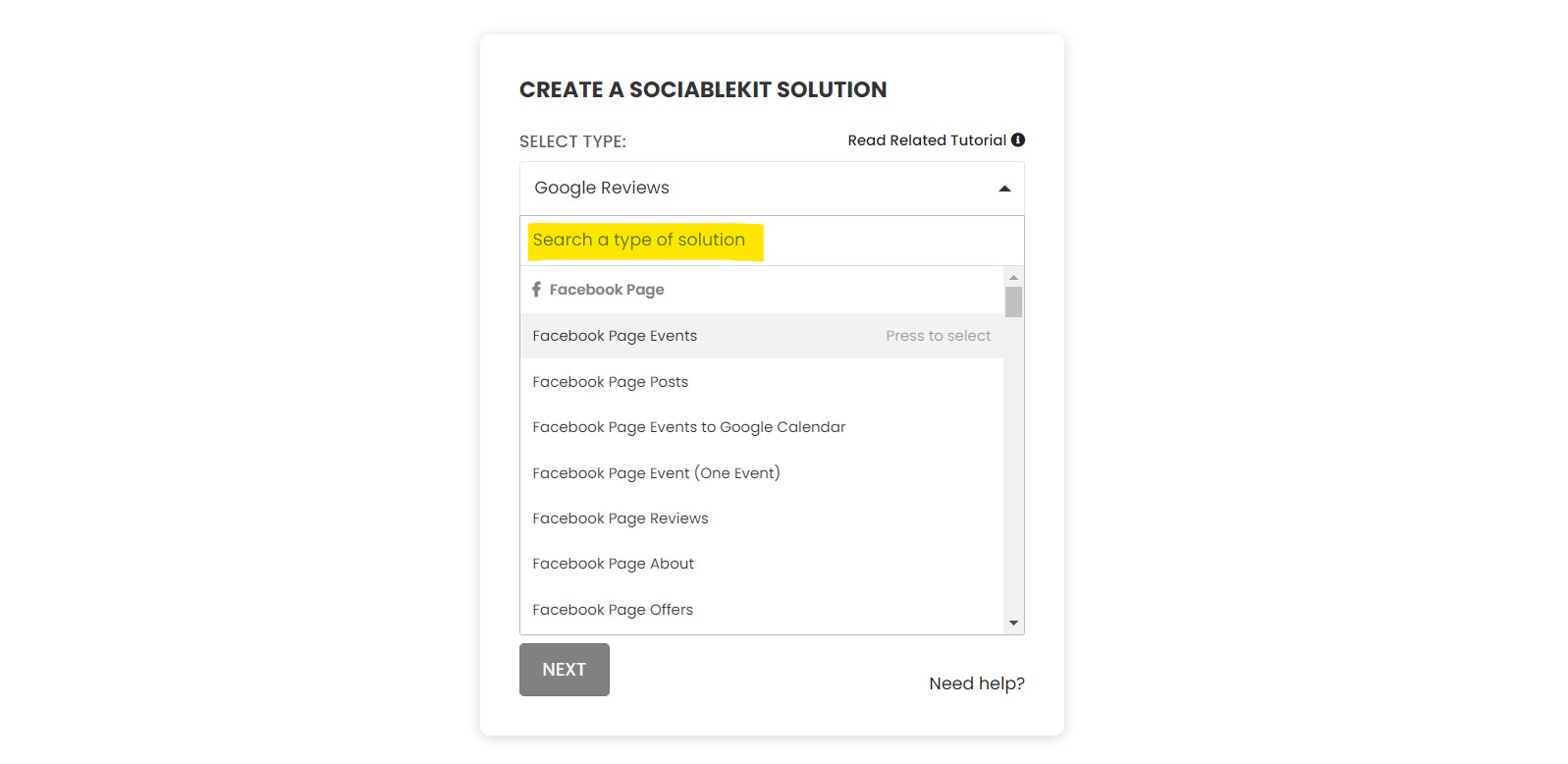
  2. Select "YouTube Live Stream" on the dropdown. SociableKIT offers several social media feeds widgets. You might need to search it using the highlighted area below. Once found, you can then select it.Select "YouTube Live Stream" on the dropdown - How to embed YouTube Live Stream on your TemplateToaster website  for FREE?
  3. Click the "Select Channel" button.

    You may also select your region and YouTube API key.
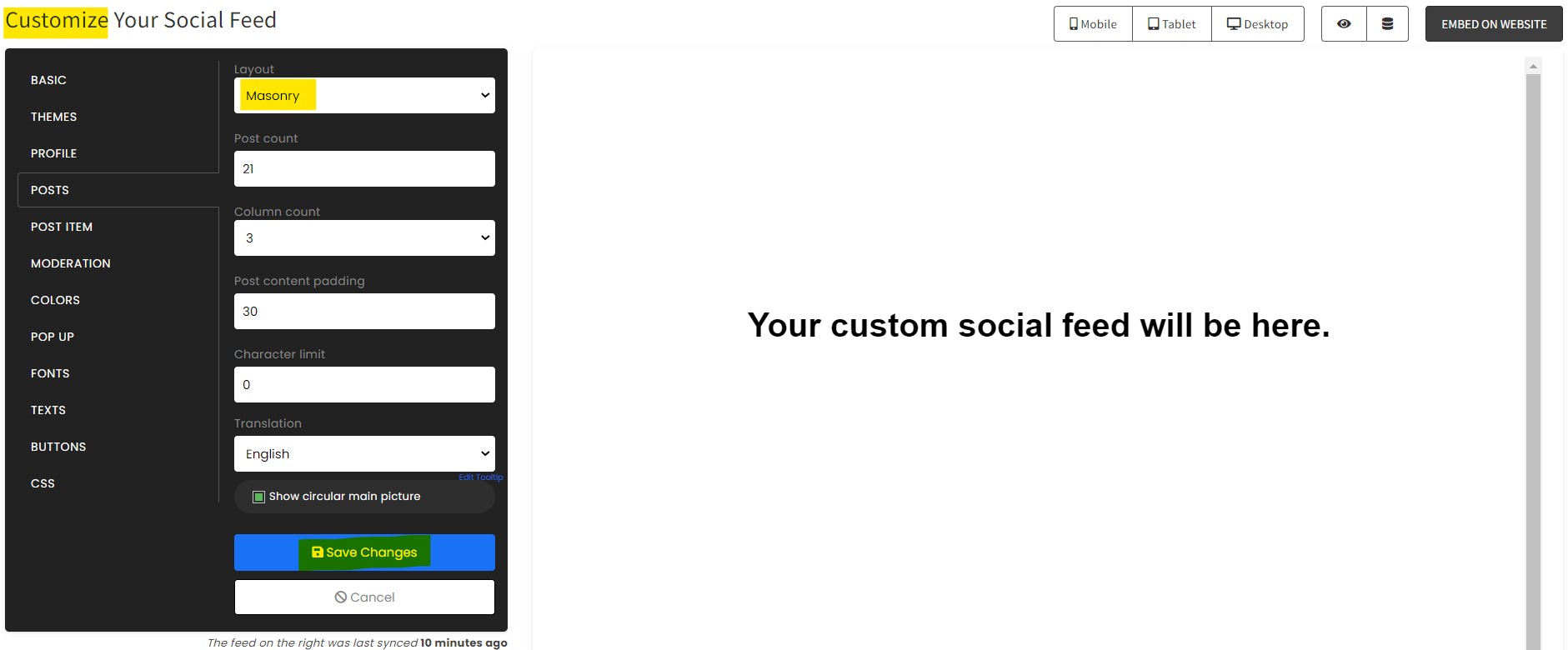
  4. Customize your feed. Click the "NEXT" button to show the customization options of your social feed. You can change the layout, colors, font, and more to match your brand. Click the Save changes button.Customize your feed - How to embed YouTube Live Stream on your TemplateToaster website  for FREE?
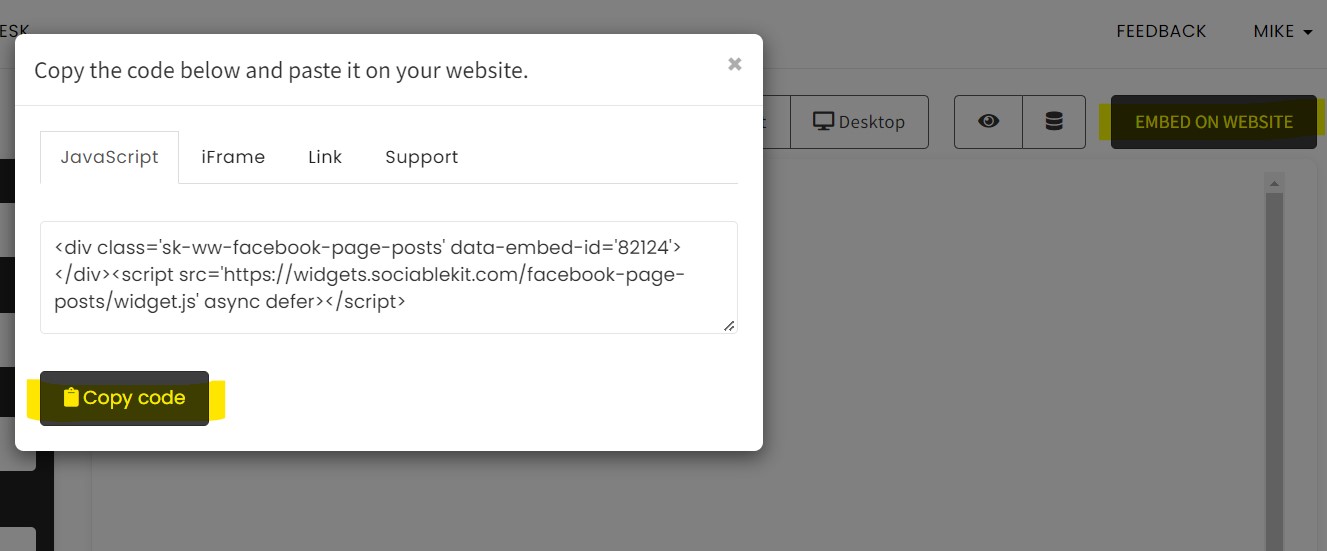
  5. Copy the embed code. Click the "Embed on website" button on the upper right corner. Select your website builder. On the popup, copy the JavaScript embed code.Copy the embed code. - How to embed YouTube Live Stream on your TemplateToaster website  for FREE?
  6. Paste the embed code and save your TemplateToaster website page. Please follow the second part below to add YouTube Live Stream widget to your TemplateToaster website .

Add YouTube Live Stream widget to your TemplateToaster website

The second part is adding your YouTube Live Stream widget to your TemplateToaster website . After you customize your YouTube Live Stream widget and copied the embed code, it is time to add it to your TemplateToaster website . Follow the steps below.

  1. Copy your free YouTube Live Stream widget embed code. Make sure you followed the first part above. It detailed how to you can create and customize your widget to get your free embed code.
  2. Login to TemplateToaster.
  3. Once you are logged in, You will need to download TemplateToaster On the Download page, You can download the latest version of TemplateToaster.
  4. Please note that you will need the Professional edition of your TemplateToaster to be able to embed your widget.
  5. Pick your preferred CMS to start with, In our case we choose WordPress for our CMS.
  6. You can choose a different template but you can start from scratch.
  7. Click Add/Edit page to add or edit your page.
  8. On your Selected page, Click the Column to adjust your preferred width of your content.
  9. Double-click the content and paste your JavaScript embed code.
  10. On the top left corner of your window, Click the icon of Google chrome. The changes you made will be saved and published automatically. Done! Please note that in my case, I use Google chrome as default browser. The default browser on your end will appear on the top left corner of your window.

Website builders

Paste your embed code on any platform

SociableKIT works with every major website builder. Pick yours below for copy-paste instructions tailored to that platform.

To embed YouTube Live Stream on your TemplateToaster site, follow the steps below after you have your SociableKIT embed code.

  1. Sign up free to SociableKIT and create your YouTube Live Stream widget.
  2. Customize your widget and copy the embed code from the dashboard.
  3. Login to TemplateToaster.
  4. Once you are logged in, You will need to download TemplateToaster On the Download page, You can download the latest version of TemplateToaster.
  5. Please note that you will need the Professional edition of your TemplateToaster to be able to embed your widget.
  6. Pick your preferred CMS to start with, In our case we choose WordPress for our CMS.
  7. You can choose a different template but you can start from scratch.
  8. Click Add/Edit page to add or edit your page.
  9. On your Selected page, Click the Column to adjust your preferred width of your content.
  10. Double-click the content and paste your JavaScript embed code.
  11. On the top left corner of your window, Click the icon of Google chrome. The changes you made will be saved and published automatically. Done! Please note that in my case, I use Google chrome as default browser. The default browser on your end will appear on the top left corner of your window.
Full TemplateToaster tutorial →

To embed YouTube Live Stream on your WordPress site, follow the steps below after you have your SociableKIT embed code.

  1. Sign up free to SociableKIT and create your YouTube Live Stream widget.
  2. Customize your widget and copy the embed code from the dashboard.
  3. Login to your WordPress site. 
  4. On your WordPress, go to the "Pages" section then click the "Add new page".
  5. Pick a pre-defined layout or start with a blank page by clicking the "Blank page" button.
  6. On the body of your page, click the "+" icon and click the "Custom HTML".
  7. Paste the code in the text area and click update.
  8. The widget will appear on the WordPress page.
  9. Click the Publish or Update button on your WordPress page. 
  10. Click the view page. Done!
Full WordPress tutorial →

To embed YouTube Live Stream on your Wix site, follow the steps below after you have your SociableKIT embed code.

  1. Sign up free to SociableKIT and create your YouTube Live Stream widget.
  2. Customize your widget and copy the embed code from the dashboard.
  3. Login to Wix. 
  4. On your existing website click the "+" button beside the "Main pages" section.
  5. Then click the "Add page" button.
  6. Name your page then hit enter.
  7. On the left, click "Add element". Find and click "Embed code". Click and drag "Embed a site" on your page then resize the container. 
  8. Click "Change website address". 
  9. Paste the link you copied from SociableKIT then click "Apply".
  10. Click "Publish" on the upper right. 
  11. Click "View site". Done!
Full Wix tutorial →

To embed YouTube Live Stream on your Squarespace site, follow the steps below after you have your SociableKIT embed code.

  1. Sign up free to SociableKIT and create your YouTube Live Stream widget.
  2. Customize your widget and copy the embed code from the dashboard.
  3. Login to Squarespace. You must have a "Business" account in Squarespace to use the widget. The "code block" needed cannot be found if you only have a "Personal" account.
  4. Create a new blank page or edit your existing page. Identify which page you want the widget to appear. You can create a new page on Squarespace, or you can edit your existing page where you want the widget to appear.
  5. Add a Code Block. On your Squarespace page, click the 'Edit' button. Find the 'Code' block and click it.
  6. Paste the embed code from SociableKIT. On the 'Content' of the 'Code' block, paste the JavaScript embed code you have copied from your widget.
  7. Save the changes on the 'Code block'. After pasting your widget's embed code. Click the 'Save' button on the left part of the page.
  8. View your page. Refresh your Squarespace page and check your SociableKIT widget. Done!
Full Squarespace tutorial →

To embed YouTube Live Stream on your Webflow site, follow the steps below after you have your SociableKIT embed code.

  1. Sign up free to SociableKIT and create your YouTube Live Stream widget.
  2. Customize your widget and copy the embed code from the dashboard.
  3. Login to Webflow. 
  4. On your existing website, click the "Page: ...." in the upper left corner then click the "Create new page" icon.
  5. Once done add a name for your new page then click "Save".
  6. On the left, click "Add Element". Drag "Embed" to your page. 
  7. Paste the JavaScript code you copied from SociableKIT.
  8. On the upper right, click "Publish" > "Publish to Selected Domains". 
  9. View your page. Done!
Full Webflow tutorial →

To embed YouTube Live Stream on your Shopify site, follow the steps below after you have your SociableKIT embed code.

  1. Sign up free to SociableKIT and create your YouTube Live Stream widget.
  2. Customize your widget and copy the embed code from the dashboard.
  3. Login to Shopify. 
  4. On the left side, click Online Store. 
  5. Click Pages. Add a new page or edit your existing page.
  6. On the Page details, click Show HTML icon (<>). 
  7. Paste the embed code and click the Save button.
  8. Click the View page button. Done!
Full Shopify tutorial →

To embed YouTube Live Stream on your HTML site, follow the steps below after you have your SociableKIT embed code.

  1. Sign up free to SociableKIT and create your YouTube Live Stream widget.
  2. Customize your widget and copy the embed code from the dashboard.
  3. Open your HTML file.
  4. You can create a new HTML page or edit your existing HTML page.
  5. Paste the Javascript code you copied from SociableKIT. Paste it where you want the widget to appear.
  6. Save your HTML page.
  7. You may now upload your HTML page to your web hosting.
Full HTML tutorial →

To embed YouTube Live Stream on your Google Sites site, follow the steps below after you have your SociableKIT embed code.

  1. Sign up free to SociableKIT and create your YouTube Live Stream widget.
  2. Customize your widget and copy the embed code from the dashboard.
  3. Login to Google sites. You must have at least a 'Business Starter' plan to create and customize your Google sites.
  4. Create or edit an existing website. Click the + 'Blank' button on the 'Start a new site' section to create or find your existing website under the 'Recent sites' section.
  5. Create a new blank page or edit your existing page. Identify which page you want the widget to appear. On the right sidebar, you will see an 'Embed' button. Click the 'Embed' button. 
  6. Add the widget. A popup 'Embed from the web' will open up. Select the 'Embed code' tab on the popup. 
  7. Paste the embed code from SociableKIT. On the 'Embed code' tab, you will see 'HTML code goes here' text. Paste the embed code from your SociableKIT widget.
  8. Save the widget. Once you have pasted your embed code, click the 'Next' button. 
  9. Preview of your SociableKIT widget. After clicking the Next button, a preview of your embed code will be displayed. Click the 'Insert' button to insert the widget to your Google sites page. 
  10. Edit the widget. Once the widget has been inserted, you will have the option to resize the widget. After resizing the widget to your preferences, click the 'Publish' button on the upper right corner of the page. 
  11. Publish your page. After publishing the site, click the down 'Arrow' button beside the 'Publish' button. 
  12. View your page. A dropdown of buttons will be displayed, click the 'View published site' button. Done!
Full Google Sites tutorial →

Live preview

Pick a YouTube Live Stream template — see it live

Choose a starting design on the left and watch the preview update with real data. What you see is exactly what visitors get on your TemplateToaster website.

Widget previewMasonry
Live data

Select a template to start with

Continue with this template

Common questions

Frequently asked questions

Everything you need to know about embedding YouTube Live Stream on your TemplateToaster website.

What is a YouTube Live Stream widget?

A YouTube Live Stream widget lets you show your live broadcasts directly on your website. Instead of sending visitors away, SociableKIT helps bring the live experience to the page where people already trust, learn, and take action.

Why should I embed my YouTube live stream on my website?

Your website is where visitors are closest to becoming subscribers, customers, members, or attendees. Adding your YouTube live stream keeps them engaged on your own page while giving your brand a more active, real-time presence.

How do I add a YouTube live stream to my website?

Create your YouTube Live Stream widget in SociableKIT, customize the design, then copy and paste the embed code into your website. No coding is required, and most users can place it on a page in just a few minutes.

Do I need to update the embed code every time I go live?

Not when you use SociableKIT with automatic syncing on a paid plan. Once your widget is embedded, SociableKIT helps keep your live stream display updated so you do not have to keep replacing code before every broadcast.

Can I embed a scheduled YouTube live stream?

Yes, scheduled YouTube live streams can be displayed when the stream is available and allowed to be embedded by YouTube. SociableKIT makes this easier by giving you one widget you can set up, customize, and keep in place.

Does the widget show the live stream after it ends?

In many cases, YouTube makes ended live streams available as replays, depending on your YouTube settings. SociableKIT can help keep your video area useful after the live event, so visitors who missed the broadcast still have something valuable to watch.

Will the YouTube Live Stream widget work on WordPress, Shopify, Wix, Squarespace, Webflow, and Google Sites?

Yes. SociableKIT works with major website builders and any website that supports custom embed code, including WordPress, Shopify, Wix, Squarespace, Webflow, Google Sites, Weebly, SharePoint, and custom HTML websites.

Can I customize the look of the YouTube Live Stream widget?

Yes. You can adjust the layout, colors, fonts, and display style so the widget feels like part of your website, not a pasted-on block. SociableKIT gives you design control even when you start on the free plan.

Is the YouTube Live Stream widget mobile-friendly?

Yes. The widget is designed to look good on desktop, tablet, and mobile screens. That matters because many viewers watch live content from their phones.

Can I use the widget without coding skills?

Yes. SociableKIT is built for business owners, creators, churches, teams, and marketers who want the result without the technical work. You create the widget, copy one embed code, and paste it where you want the stream to appear.

Does SociableKIT have a free YouTube Live Stream widget?

Yes. You can start with a free plan and test the widget before upgrading. The free plan is useful for trying the setup, while paid plans are better for automatic syncing, unlimited views, no SociableKIT branding, and long-term use.

What happens if my live stream page gets a lot of traffic?

Paid SociableKIT plans include unlimited widget views, so your widget is built to keep showing even when more people visit. That gives you room to promote events, services, launches, webinars, or broadcasts without worrying about view caps on your widget.

Can I remove SociableKIT branding from the widget?

Yes. SociableKIT branding can be removed on paid plans. This gives your live stream section a cleaner, more professional look that matches your own brand.

Can I show more than one YouTube live stream on my website?

Yes, you can embed the widget in more than one place and use additional sources depending on your plan. If you manage multiple streams or channels, SociableKIT can help you keep them organized without rebuilding your website every time.

Can I control what live stream content appears on my website?

You can choose the YouTube channel source and customize the display. YouTube settings still control whether a stream is public, restricted, private, or allowed to be embedded.

Why is my YouTube live stream not showing on my website?

The most common causes are an incorrect source, a private or restricted stream, embedding disabled in YouTube, a website security setting, or an old embed code. SociableKIT support can help you check the setup and get the widget displaying properly.

Can I embed a private, restricted, or age-restricted YouTube live stream?

Usually, no. YouTube controls which videos and live streams can be embedded, and private or restricted streams may not display on external websites. For the smoothest experience, make sure your live stream is public or otherwise allowed to be embedded.

Will embedding a YouTube live stream slow down my website?

Video embeds can affect performance if they are added carelessly or placed too many times on one page. SociableKIT is designed for a smoother embed experience, and our support team can help you choose the best placement for your site.

Can viewers watch the live stream without leaving my website?

Yes. The goal of the widget is to let visitors watch your YouTube live stream directly on your website. They get the live experience while staying closer to your message, offer, or next step.

Who is the YouTube Live Stream widget best for?

It is a strong fit for churches, creators, coaches, educators, event teams, nonprofits, product launches, webinars, and businesses that go live regularly. If your live content builds trust, SociableKIT helps put that trust where it can convert.

Add your YouTube Live Stream widget today

Set up in minutes. Free forever to start.

Create your widget

Free forever · No credit card · Cancel anytime

Just need a free widget? See our free plan → View YouTube Live Stream widget page →
More widgets

Show off everything your customers love.

YouTube Live Stream is just the start. Embed reviews and content from anywhere your customers talk about you.

Social Feed

Social Feed

Pull in your social posts and recommendations.

Learn more →
Reviews Widget

Reviews Widget

Show your latest reviews directly on your site.

Learn more →
Google Reviews

Google Reviews

Display your Google business reviews and ratings.

Learn more →
LinkedIn Feed

LinkedIn Feed

Share your professional updates and articles.

Learn more →
Instagram Feed

Instagram Feed

Show your latest Instagram posts directly on your site.

Learn more →
YouTube Channel

YouTube Channel

Embed your latest YouTube videos in a clean feed.

Learn more →
Facebook Feed

Facebook Feed

Pull in your Facebook page reviews and posts.

Learn more →
TikTok Feed

TikTok Feed

Showcase your TikTok content on your website.

Learn more →
X Feed

X Feed

Display your latest posts from X on your site.

Learn more →
Facebook Events

Facebook Events

Perfect for promoting upcoming events and meetups.

Learn more →
Indeed Jobs

Indeed Jobs

Show job listings from Indeed on your website.

Learn more →
YouTube Playlist

YouTube Playlist

Embed a curated YouTube playlist on your site.

Learn more →

100+ more widgets

Browse the full catalog of widgets for your website.

See all →
SociableKIT

SociableKIT turns your social feeds, reviews, and customer content into 24/7 social proof — automatically building trust on your website while you sleep. Trusted by 400,000+ websites worldwide.

Kristen Williams Marc Maessen John Janowski Jules Webb
Rated 4.9/5 from 620+ Reviews
  • twitter
  • fb
  • linkedin
  • youtube
  • instagram
Tour
  • Home
  • Widgets
  • Pricing
  • Blog
  • Tutorials
  • Demos
Company
  • About us
  • Reviews
  • Social
  • Customers
  • Support
  • Webynize
Resources
  • Tutorials
  • Free Widgets
  • Examples
  • Developers
  • Generators
  • Export
  • All resources
Policies
  • Terms of Service
  • Privacy Policy
  • Acceptable Use

All rights reserved © 2014 - 2026 / Sitemap