Different ways to show your LinkedIn Feed on your website
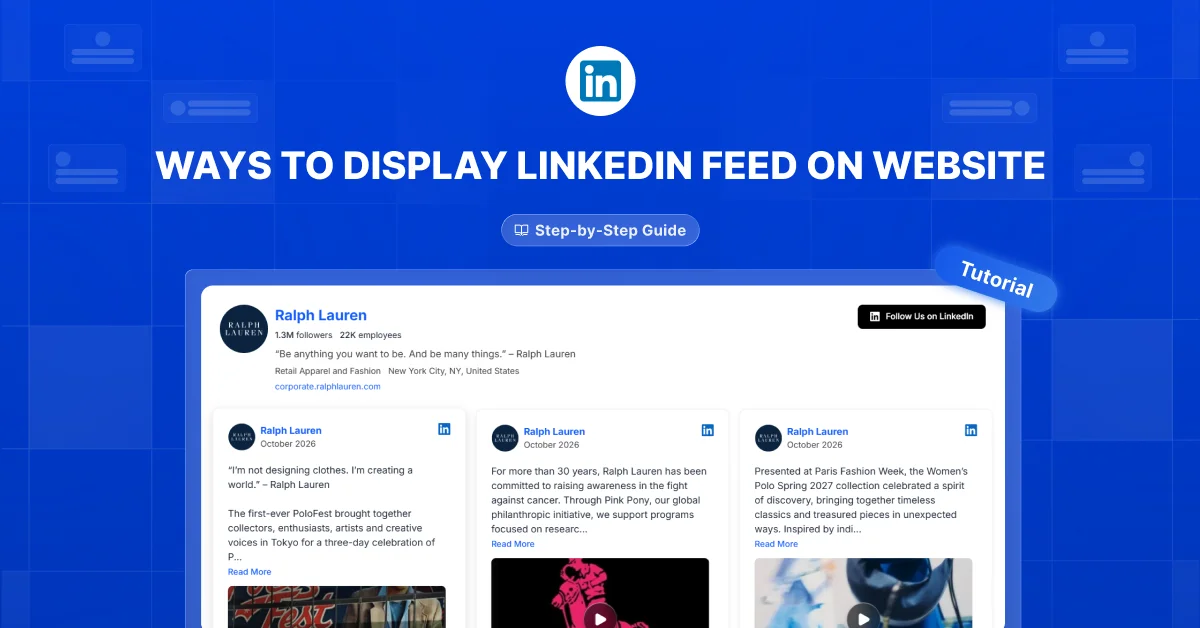

This article explores different ways to show LinkedIn feed on your website, from individual embeds to feeds that update automatically. You’ll learn which option fits your website, budget, and the time you have to manage it.
Website visitors may never see the useful updates you share on LinkedIn. Keep reading to find a practical way to bring those updates to them without adding more work than your team can handle.
You might already have a LinkedIn button on your website, yet visitors still cannot see your posts there. It’s also easy to embed one post and expect future updates to appear automatically. Decide whether you want selected highlights or a feed that adds new posts before choosing your tool.
Your best LinkedIn updates should reach people who never visit your LinkedIn page.
Start With One Post
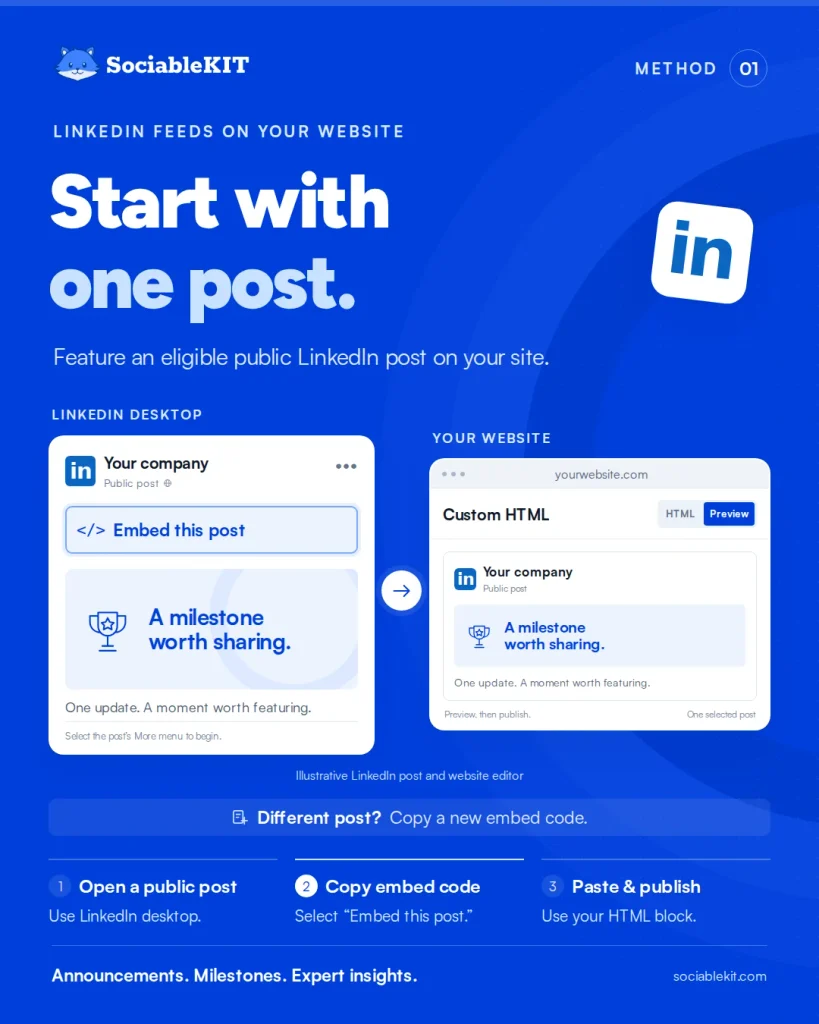
On LinkedIn desktop, open an eligible public post, select “Embed this post,” and copy the code into your website’s HTML block. This displays that post, so you’ll need another embed code whenever you want to add a different update.
In a WordPress walkthrough, Jetpack’s Jen Swisher demonstrates adding a LinkedIn post with a Custom HTML block. She explains where to paste the code and how to publish the page. Her guide gives website owners a practical way to feature one update.
Use a single post embed for an announcement, milestone, or expert insight that supports the page.
Choose Your Highlights
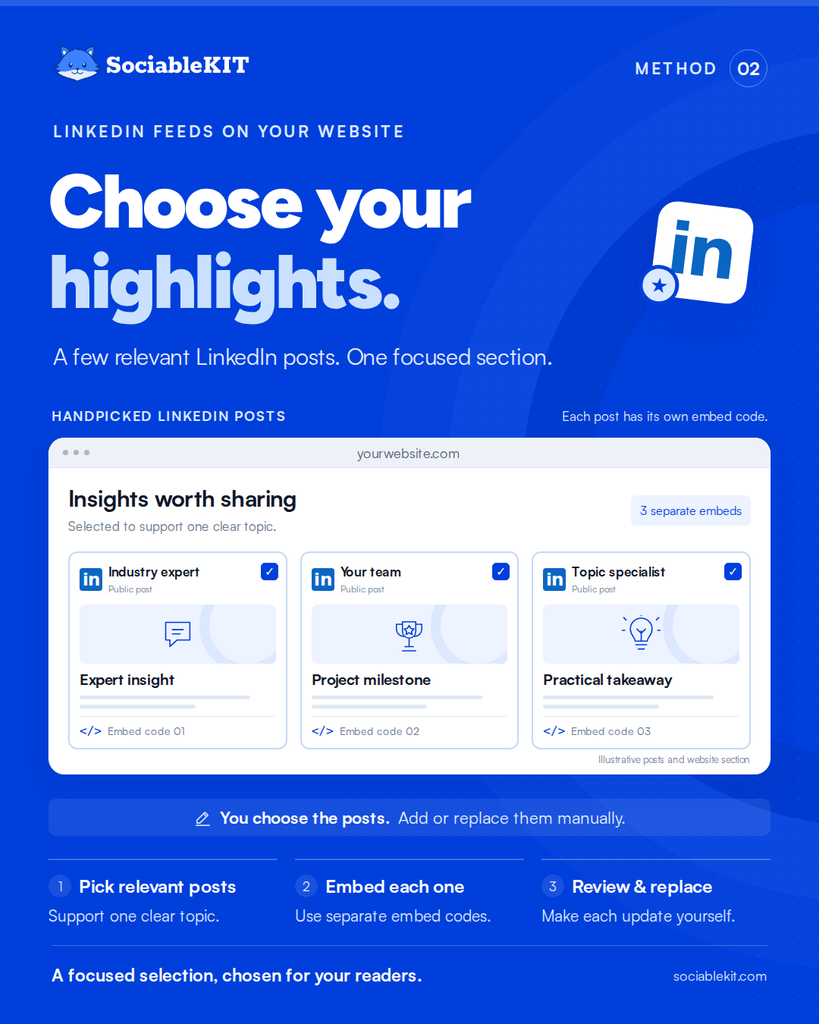
Build a handpicked section by placing separate LinkedIn post embeds together on one page. You control the selection, but you must add or replace posts yourself.
In a HubSpot guide, web designer Lauren Farrell describes using LinkedIn and X embeds in blog content. She uses them to bring expert views into her articles. Her approach offers a useful model for choosing posts that support a specific topic.
Choose a few relevant posts when a focused selection serves your readers better than a full feed.
Let Video Lead
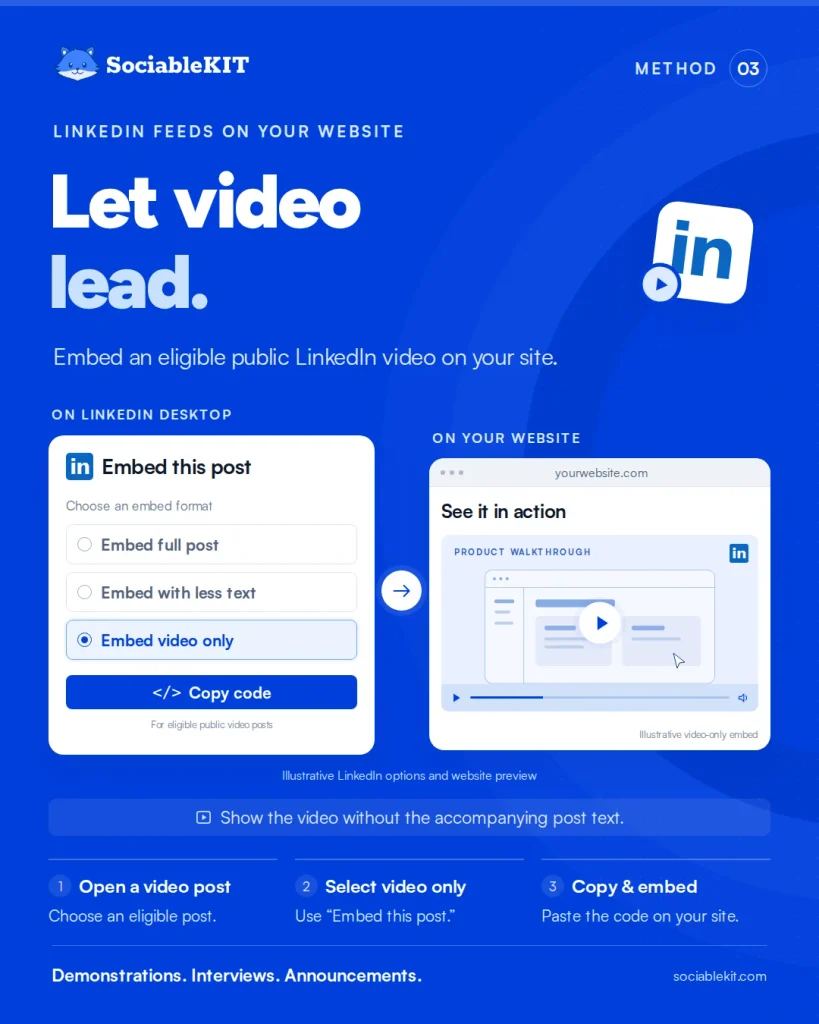
For an eligible public video post, LinkedIn offers an “Embed video only” option. Use it to place a demonstration, interview, or announcement on your page without the accompanying post text.
Social media analyst Lindsey Gamble documented this option when LinkedIn updated its embeds. The report highlighted uses such as creator portfolios and executive announcements. The update gave publishers another way to reuse LinkedIn videos on their own websites.
Choose a video embed when the video itself delivers the message your page needs.
Work With WordPress
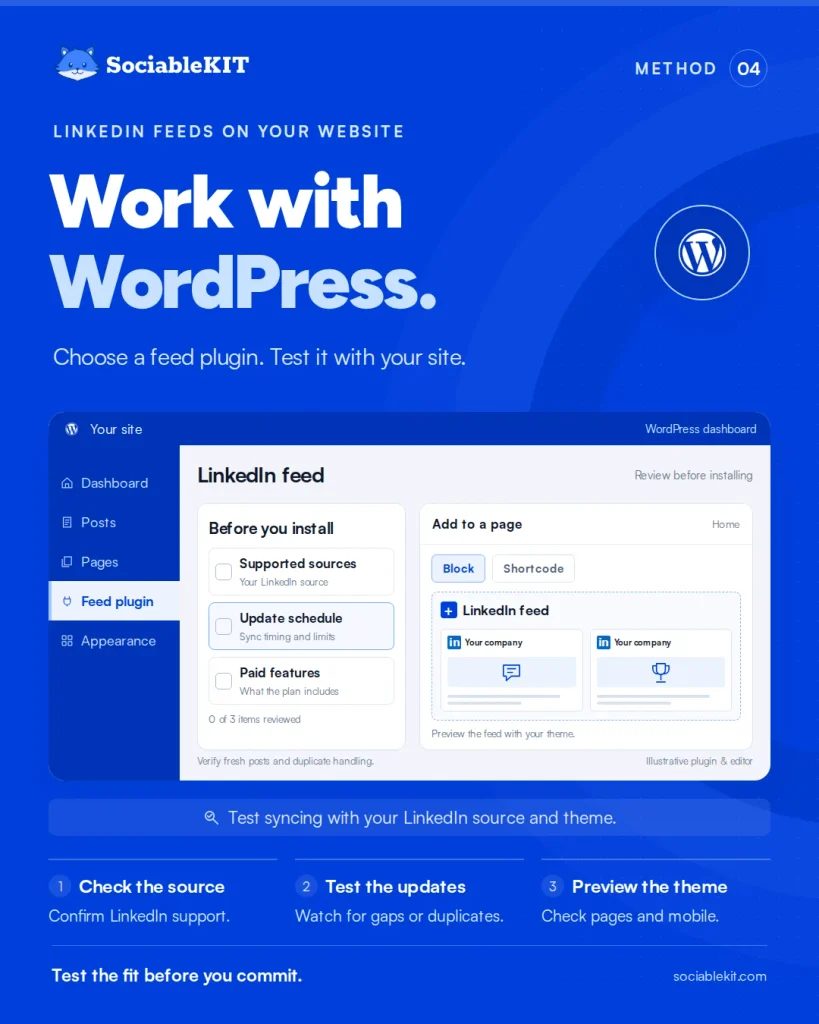
A WordPress feed plugin can display LinkedIn posts through a block or shortcode. Check its supported sources, update schedule, and paid features before installing it.
In a WordPress review, James Ratliff reported that his paid feed plugin missed LinkedIn updates for weeks. He also described duplicate posts after trying to add an update manually. His experience shows why it helps to test syncing before relying on a plugin.
Test a plugin with your LinkedIn source and website theme before making it part of your site.
Bring Your Channels Together
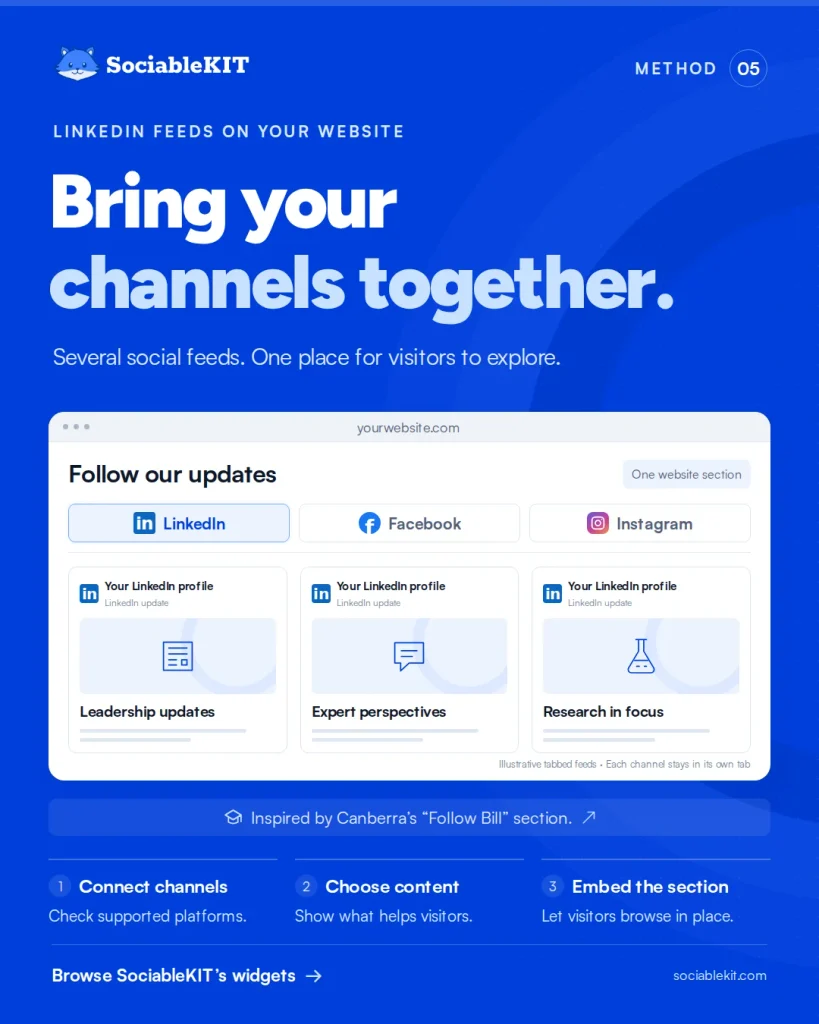
A social media aggregator can collect LinkedIn posts and content from other supported platforms in one website section. This is useful when you want visitors to browse several social channels in one place.
The University of Canberra shows how several feeds can share one website section. Its “Follow Bill” area includes LinkedIn, Facebook, and Instagram posts in separate tabs. Visitors can browse these updates without opening each social platform.
Use a combined social section when your audience benefits from more than your LinkedIn updates, and browse SociableKIT’s widgets to see which platforms you can combine.
Post Once, Show More
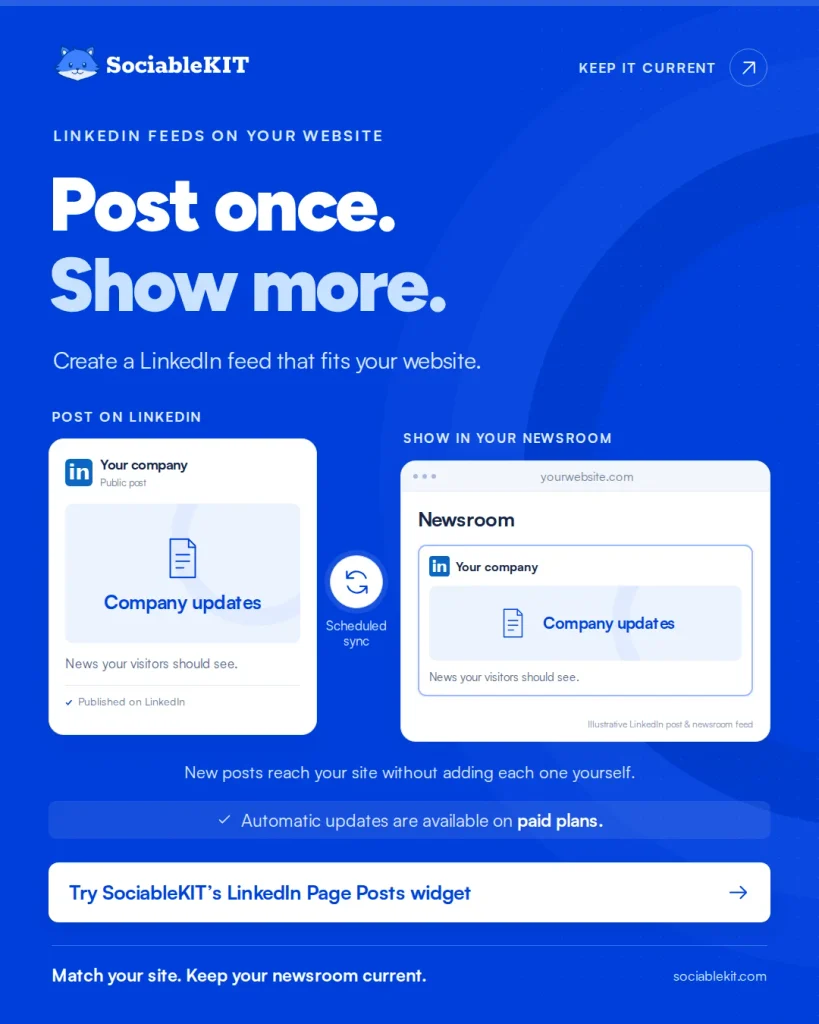
A website widget lets you create a LinkedIn feed, match its design to your site, and paste in an embed code. Choose a plan with automatic updates if you want new posts to appear without adding each one yourself.
Doctors Hospital in The Bahamas added LinkedIn feed, YouTube videos, and Facebook widget to its website newsroom. Its widgets refresh the content automatically. The team can keep the newsroom current without copying every social post by hand.
Try SociableKIT’s LinkedIn Page Posts widget to display company updates in a feed that matches your website.
Thanks for reading!
Thank you for reading our guide to showing LinkedIn feed on your website. We covered simple embeds, feed tools, and custom options to help you choose a setup you can manage. Follow us and subscribe to our newsletter for more practical ways to improve your website.