How to Set Your Google Calendar to Public? Step-by-Step Guide!

Want to share your Google Calendar with anyone? Making your Google Calendar public allows people to view your events without needing individual access or an invitation. It’s also an easy way to let tools like SociableKIT access and display your calendar events on your website.
In this guide, you’ll learn why you might want to make your Google Calendar public and follow a simple, step-by-step process to change your calendar’s sharing settings.
Why make your Google Calendar public?
There can be different reasons why you need to set your calendar to public. In some cases, you need it because you want to embed your Google Calendar on your website. It can also help if you want to share your events with customers, members, or the general public. SociableKIT can only read and display calendars that are public.
Step-by-step guide
Here’s how to make your Google Calendar public:
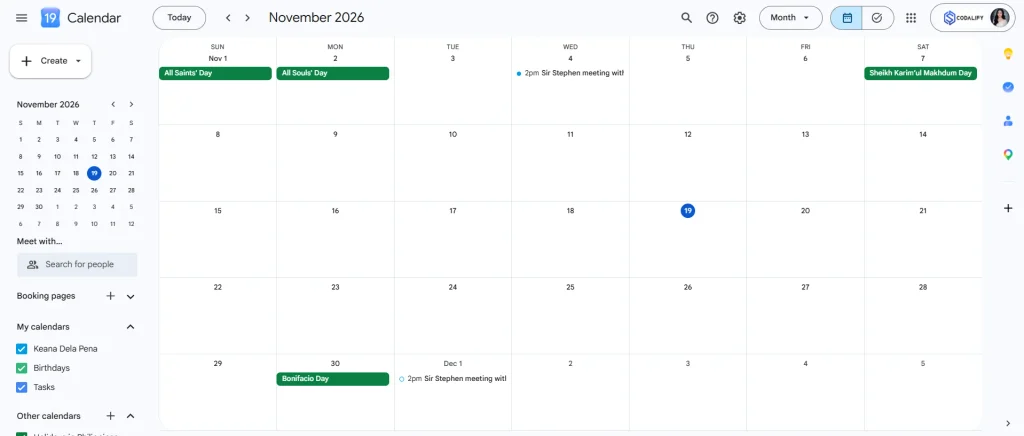
- Go to your Google Calendar.
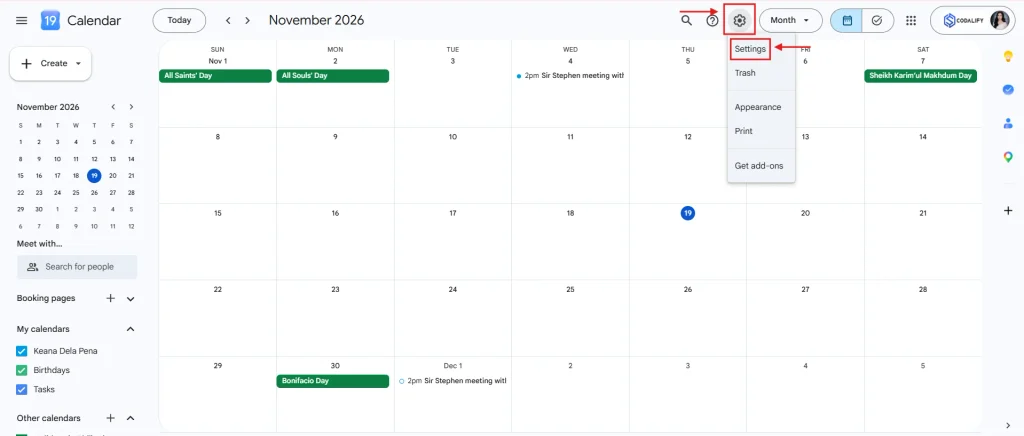
2. Click the Settings icon in the top right corner, then select the “Settings” option.
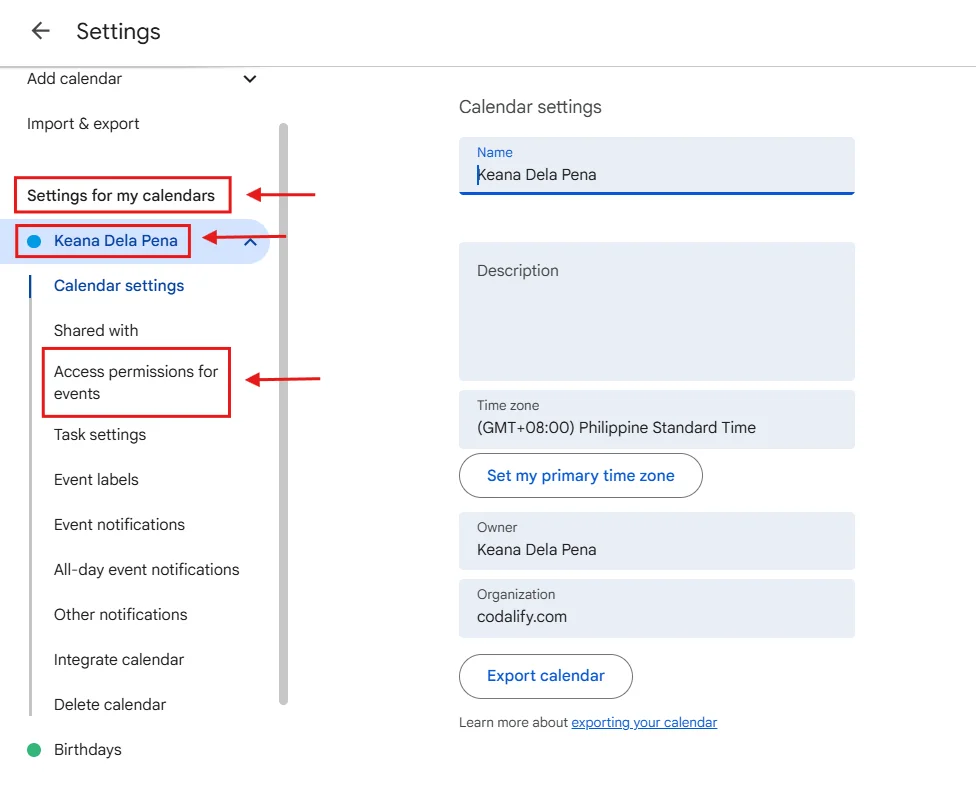
3. On the left sidebar of the settings page, under “Settings for my calendars”, select your calendar, then click “Access permissions for events”.
4. Under “Access permissions for events”, check the box “Make available to public”.
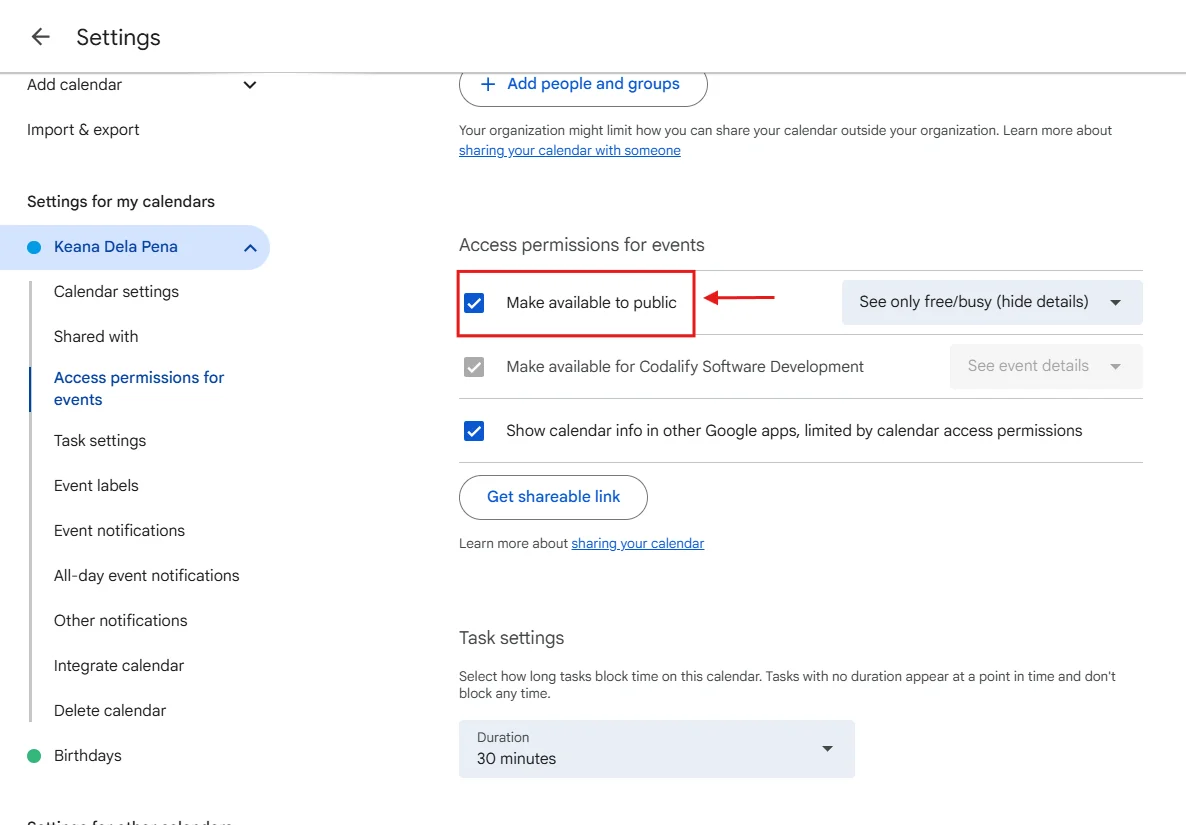
Your calendar is now public, and your events can be seen by everyone, including your Google Calendar widget.
Add your Google Calendar to your website
Add your Google Calendar to your website at no extra cost using SociableKIT. Easily create a Google Calendar widget and enrich your site’s content.
Want more?
Subscribe to our weekly newsletter for insightful tips and strategies to elevate your project. Keep up with the latest trends and advice by signing up here.
This Should Help!
Setting your calendar to public on Google Calendar is a straightforward process. With a few simple steps, you can make your events accessible to everyone and get your Google Calendar widget working on your website. We hope this guide was helpful. Feel free to share it with someone who might need it!