



Your Google Calendar on Backendless website — live in 3 steps
SociableKIT syncs your google calendar automatically. Set up once, embed anywhere — free to start, no coding required.
-
Create in 60 seconds
Pick Google Calendar in the dashboard and connect your source.
-
Match your brand
Colors, fonts, layout — tune it until it feels native to your site.
-
Paste one line of code
Drop the embed snippet on your Backendless website. No dev team needed.
Embed Google Calendar with SociableKIT — step by step
Create your widget in the dashboard, copy the embed code, and paste it on your Backendless website. Screenshots included so you never get stuck.
Create and customize your Google Calendar widget
The first part is creating your Google Calendar widget using the SociableKIT dashboard. Customize the look and feel to match your brand. Follow the steps below.
-
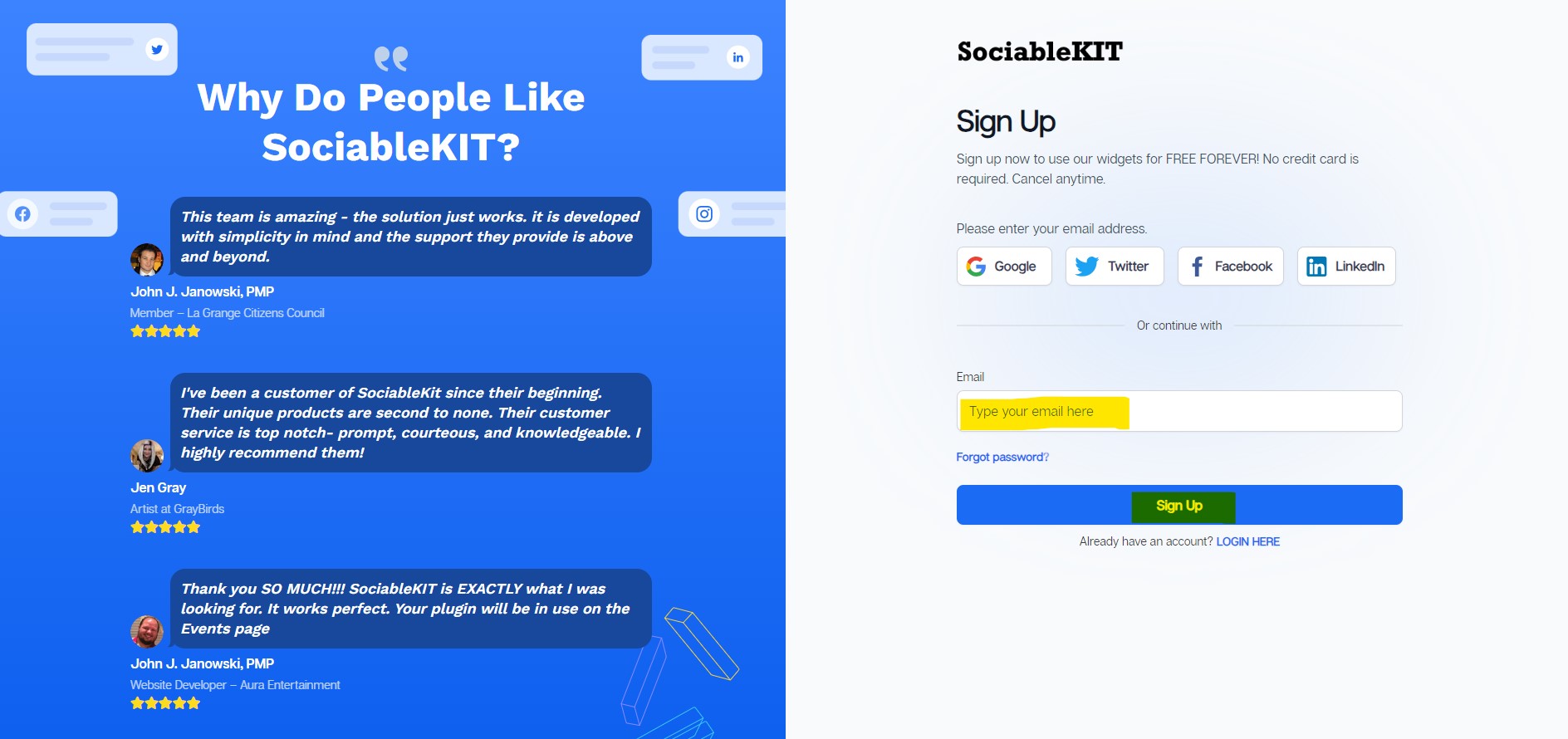
Sign up FREE or login to SociableKIT. You can login here if you already have an account. Once you sign up, you will start your 7-day premium trial. After 7 days, you can activate the free plan if you don't need our premium features.

-
Select "Google Calendar" on the dropdown. SociableKIT offers several social media feeds widgets. You might need to search it using the highlighted area below. Once found, you can then select it.

-
Customize your feed. Click the "NEXT" button to show the customization options of your social feed. You can change the layout, colors, font, and more to match your brand. Click the Save changes button.

-
Copy the embed code. Click the "Embed on website" button on the upper right corner. Select your website builder. On the popup, copy the JavaScript embed code.

- Paste the embed code and save your Backendless website page. Please follow the second part below to add Google Calendar widget to your Backendless website .

Enter your Google calendar ID.


Add Google Calendar widget to your Backendless website
The second part is adding your Google Calendar widget to your Backendless website . After you customize your Google Calendar widget and copied the embed code, it is time to add it to your Backendless website . Follow the steps below.
- Copy your free Google Calendar widget embed code. Make sure you followed the first part above. It detailed how to you can create and customize your widget to get your free embed code.
- Login to Backendless. Backendless has free blueprints you can use.
![]()
- Create a new App. Add your "App name" and "Subdomain name". Once done select the blueprint you want then click "Create". You can skip this step if you already have an App.
![]()
- Create a new page on your website/app. Click the "Frontend" button on the upper left. It should direct you to the front end of your website.
![]()
- Add your SociableKIT widget to your webpage. Drag and drop the "iFrame" tool from the right panel wherever you want your widget to show.
![]()
- Paste the embed code from SociableKIT. Paste the Link embed code you have copied on our site to the "Source URL" textbox.
![]()
- Save or publish your website. On the right side of the "Publish" text you can save it by clicking the icon.
![]()
- View your website. Click the mobile and desktop icons to view your website.
![]()


Website builders
Paste your embed code on any platform
SociableKIT works with every major website builder. Pick yours below for copy-paste instructions tailored to that platform.
To embed Google Calendar on your Backendless site, follow the steps below after you have your SociableKIT embed code.
- Sign up free to SociableKIT and create your Google Calendar widget.
- Customize your widget and copy the embed code from the dashboard.
- Login to Backendless. Backendless has free blueprints you can use.
![]()
- Create a new App. Add your "App name" and "Subdomain name". Once done select the blueprint you want then click "Create". You can skip this step if you already have an App.
![]()
- Create a new page on your website/app. Click the "Frontend" button on the upper left. It should direct you to the front end of your website.
![]()
- Add your SociableKIT widget to your webpage. Drag and drop the "iFrame" tool from the right panel wherever you want your widget to show.
![]()
- Paste the embed code from SociableKIT. Paste the Link embed code you have copied on our site to the "Source URL" textbox.
![]()
- Save or publish your website. On the right side of the "Publish" text you can save it by clicking the icon.
![]()
- View your website. Click the mobile and desktop icons to view your website.
![]()
To embed Google Calendar on your WordPress site, follow the steps below after you have your SociableKIT embed code.
- Sign up free to SociableKIT and create your Google Calendar widget.
- Customize your widget and copy the embed code from the dashboard.
- Log in to your WordPress site.
![]()
- Go to the Posts section. To add a new widget, click the Add Post button at the top.
![]()
- To edit an existing widget, click the title of the post that has your widget instead. Skip this step if you’re adding a new post.
![]()
- In your SociableKIT editor, click Get code at the top right.
![]()
- In the Get the embed code window, make sure the JavaScript tab is selected, then click “Copy code.”
![]()
- Back in WordPress, click the + icon in the post body, type Custom HTML in the search bar, then select the Custom HTML block.
![]()
- In the HTML tab, paste the code, then click Update.
![]()
- Click the Save button at the top right of your WordPress post (or Publish if it’s a new post).
![]()
- The widget will appear on your WordPress post. Done!
![]()


To embed Google Calendar on your Wix site, follow the steps below after you have your SociableKIT embed code.
- Sign up free to SociableKIT and create your Google Calendar widget.
- Customize your widget and copy the embed code from the dashboard.
- Log in to Wix.
![]()
- On your existing website, click the “+ Add” button at the top left.
![]()
- Click “Elements”.
![]()
- In the Add Elements panel, click “Embed” from the left menu.
![]()
- Under the Embed section, click “Embed code” to add it to your page.
![]()
- Click the HTML Element on your page, then click the Settings (gear) icon in the toolbar above it.
![]()
- Under “Choose what to embed”, open the dropdown and select “Link”.
![]()
- Paste the link you copied from SociableKIT into the Link field, then click “Apply”.
![]()
- Click “Publish” at the upper right.
![]()
- Click “View Site”. Done!
![]()


To embed Google Calendar on your Squarespace site, follow the steps below after you have your SociableKIT embed code.
- Sign up free to SociableKIT and create your Google Calendar widget.
- Customize your widget and copy the embed code from the dashboard.
- Log in to Squarespace.
![]()
- In the Pages panel, click the page where you want the widget, then click the Edit button at the top left of the page preview.
![]()
- In the page section, click the Add Block button at the top left.
![]()
- In the search bar, type Code, then select the Code block.
![]()
- In your SociableKIT editor, click Get code at the top right.
![]()
- In the “Get the embed code” window, make sure the JavaScript tab is selected, then click Copy code.
![]()
- Back in Squarespace, open the Code block’s Content tab, make sure the Mode is set to HTML, then paste the embed code in the code area.
![]()
- Click the Save button at the top left of the page.
![]()
- Refresh your Squarespace page to check the widget. Done!
![]()


To embed Google Calendar on your Webflow site, follow the steps below after you have your SociableKIT embed code.
- Sign up free to SociableKIT and create your Google Calendar widget.
- Customize your widget and copy the embed code from the dashboard.
- Login to Webflow.
![]()
- On your existing website, click the "Page: ...." in the upper left corner then click the "Create new page" icon.
![]()
- Once done add a name for your new page then click "Save".
![]()
- On the left, click "Add Element". Drag "Embed" to your page.
![]()
- Paste the JavaScript code you copied from SociableKIT.
![]()
- On the upper right, click "Publish" > "Publish to Selected Domains".
![]()
- View your page. Done!


To embed Google Calendar on your Shopify site, follow the steps below after you have your SociableKIT embed code.
- Sign up free to SociableKIT and create your Google Calendar widget.
- Customize your widget and copy the embed code from the dashboard.
- Log in to Shopify.
![]()
- On the left side, click Online Store.
![]()
- Click “Pages,” then click Add page at the top right. To edit an existing widget page, click its title instead.
![]()
- In your SociableKIT editor, click Get code at the top right.
![]()
- In the Get the embed code window, make sure the JavaScript tab is selected, then click Copy code.
![]()
- Back in Shopify, Click the Show HTML icon (<>) in the Content toolbar.
![]()
- Enter a page title, then click Save.
![]()
- Click the Save button at the top.
![]()
- Click the Preview button at the top right to check your widget. Done!
![]()
![]()


To embed Google Calendar on your HTML site, follow the steps below after you have your SociableKIT embed code.
- Sign up free to SociableKIT and create your Google Calendar widget.
- Customize your widget and copy the embed code from the dashboard.
- Open your HTML file.
![]()
- You can create a new HTML page or edit your existing HTML page.
![]()
- Paste the Javascript code you copied from SociableKIT. Paste it where you want the widget to appear.
![]()
- Save your HTML page.
![]()
- You may now upload your HTML page to your web hosting.


To embed Google Calendar on your Google Sites site, follow the steps below after you have your SociableKIT embed code.
- Sign up free to SociableKIT and create your Google Calendar widget.
- Customize your widget and copy the embed code from the dashboard.
- Login to Google sites.
![]()
- Create or edit an existing website. Click the ‘Blank site’ tile (the + icon) in the ‘Start a new site’ section to create a new website, or open your existing website from the ‘Recent sites’ section.
![]()
- Create a new blank page or edit your existing page. Identify which page you want the widget to appear on. On the right sidebar, under the ‘Insert’ tab, click the ‘Embed’ button.
![]()
- Add the widget. A popup ‘Embed from the web’ will open. Select the ‘Embed code’ tab, paste the embed code from your SociableKIT widget into the ‘HTML code goes here’ box, then click the ‘Next’ button.
![]()
- Preview your widget. A preview of your SociableKIT widget will be displayed. To change the code, click the pencil icon on the preview. When you’re happy with it, click the ‘Insert’ button to add the widget to your page.
![]()
- Publish your page. Click the ‘Publish’ button on the upper right corner of the page. Done!
![]()


Live preview
Pick a Google Calendar template — see it live
Choose a starting design on the left and watch the preview update with real data. What you see is exactly what visitors get on your Backendless website.
Common questions
Frequently asked questions
Everything you need to know about embedding Google Calendar on your Backendless website.
What is a Google Calendar widget?
A Google Calendar widget displays your calendar events directly on your website. With SociableKIT, visitors can see your schedule in a clean, branded layout without leaving the page. It helps keep everyone informed while reducing manual website updates.
Why should I add a Google Calendar widget to my website?
People act faster when your schedule is easy to see. A Google Calendar widget helps visitors find upcoming events, availability, classes, services, or reservations in one place. It makes your website feel current, useful, and easier to trust.
How do I add a Google Calendar widget to my website?
Create your widget in SociableKIT, connect your Google Calendar, customize the look, then copy and paste the embed code into your website. You do not need to code. Most users can add it in minutes.
Will my website calendar update automatically when I change my Google Calendar?
Yes, paid SociableKIT plans include automatic syncing so your website can stay updated when your Google Calendar changes. On the free plan, you can keep the widget current with sync requests. This helps prevent outdated dates and schedule mistakes.
Does the Google Calendar widget work with my website builder?
Yes. SociableKIT works with major website builders including WordPress, Shopify, Wix, Squarespace, Webflow, Weebly, Google Sites, SharePoint, and custom HTML websites. You only need a place where you can add embed code.
Do I need coding skills to use the Google Calendar widget?
No. SociableKIT gives you a simple embed code you can paste into your website editor. You can create, customize, preview, and publish the widget without touching code.
Does my Google Calendar need to be public?
Your calendar must be available for display before website visitors can see its events. If your calendar is private or restricted, some details may not appear. SociableKIT can help you check the right setup so your visitors see only what you want to show.
Can I hide private events from my website calendar?
Yes. Control your event visibility from Google Calendar before displaying it on your site. Keep private details out of your public calendar, then let SociableKIT show the version that is safe for visitors.
Can I control which events appear in the widget?
Yes. Your Google Calendar remains the source of truth. Add, edit, hide, or remove events in your calendar, and SociableKIT follows the events available to display.
Can I show more than one Google Calendar?
Yes, you can use additional sources when your setup needs more than one calendar. This is useful for schools, venues, churches, teams, clinics, and businesses with separate departments or locations. SociableKIT pricing scales by source, so you only pay for what you use.
Can I customize the design of my Google Calendar widget?
Yes. You can customize colors, fonts, layouts, and calls to action so the widget feels native to your website. The goal is simple: your calendar should look like part of your brand, not a pasted-on block.
What layouts can I use for my Google Calendar widget?
SociableKIT offers flexible layouts such as calendar, list, grid, masonry, carousel, and dark mode templates. You can start with a template, preview it with live data, then adjust the design before publishing.
Is the Google Calendar widget mobile-friendly?
Yes. SociableKIT widgets are designed to look good across desktop, tablet, and mobile screens. This matters because many visitors check events and availability from their phones.
Can visitors book appointments or reservations from the widget?
The Google Calendar widget helps visitors see your schedule, events, and availability clearly. If you use a separate booking or reservation flow, you can place it near the calendar so visitors can act right after checking the schedule. This keeps the path from interest to action simple.
What happens if my website gets a lot of traffic?
Paid SociableKIT plans include unlimited widget views, so your calendar can keep running as more people visit your site. You do not have to worry about traffic caps stopping your schedule from showing. That gives you room to grow without babysitting view limits.
What is the difference between the free and paid Google Calendar widget plans?
The free plan lets you create a working widget and test it on your website. Paid plans are better for long-term use because they include automatic syncing, unlimited views, more flexibility, and the option to remove SociableKIT branding. You can start small and upgrade when your site needs more.
Can I remove SociableKIT branding from the widget?
Yes. SociableKIT branding can be removed on paid plans. This gives your calendar a cleaner, more professional look that matches the rest of your website.
What should I do if my Google Calendar events are not showing?
First, check that the calendar and events are allowed to be displayed publicly or shared correctly. Also check that the calendar has upcoming events and that the correct source is connected. If something still looks wrong, SociableKIT support can help you troubleshoot the setup.
Will the Google Calendar widget slow down my website?
SociableKIT is built to make embedding simple without making your site hard to manage. Like any embedded content, performance can depend on your page, theme, and other scripts. Keep the widget placement clean, and ask support for help if you need guidance.
Can SociableKIT help me set up my Google Calendar widget?
Yes. SociableKIT provides human support, with 24/7 chat and email support on Business and Enterprise plans. If you are stuck with setup, syncing, design, or website-builder placement, you can ask for help instead of figuring it out alone.
Add your Google Calendar widget today
Set up in minutes. Free forever to start.
Create your widgetFree forever · No credit card · Cancel anytime