Your LinkedIn feed on LearnWorlds website — live in 3 steps
SociableKIT syncs your linkedin feed automatically. Set up once, embed anywhere — free to start, no coding required.
-
Create in 60 seconds
Pick LinkedIn feed in the dashboard and connect your source.
-
Match your brand
Colors, fonts, layout — tune it until it feels native to your site.
-
Paste one line of code
Drop the embed snippet on your LearnWorlds website. No dev team needed.
Embed LinkedIn feed with SociableKIT — step by step
Create your widget in the dashboard, copy the embed code, and paste it on your LearnWorlds website. Screenshots included so you never get stuck.
Create and customize your LinkedIn feed widget
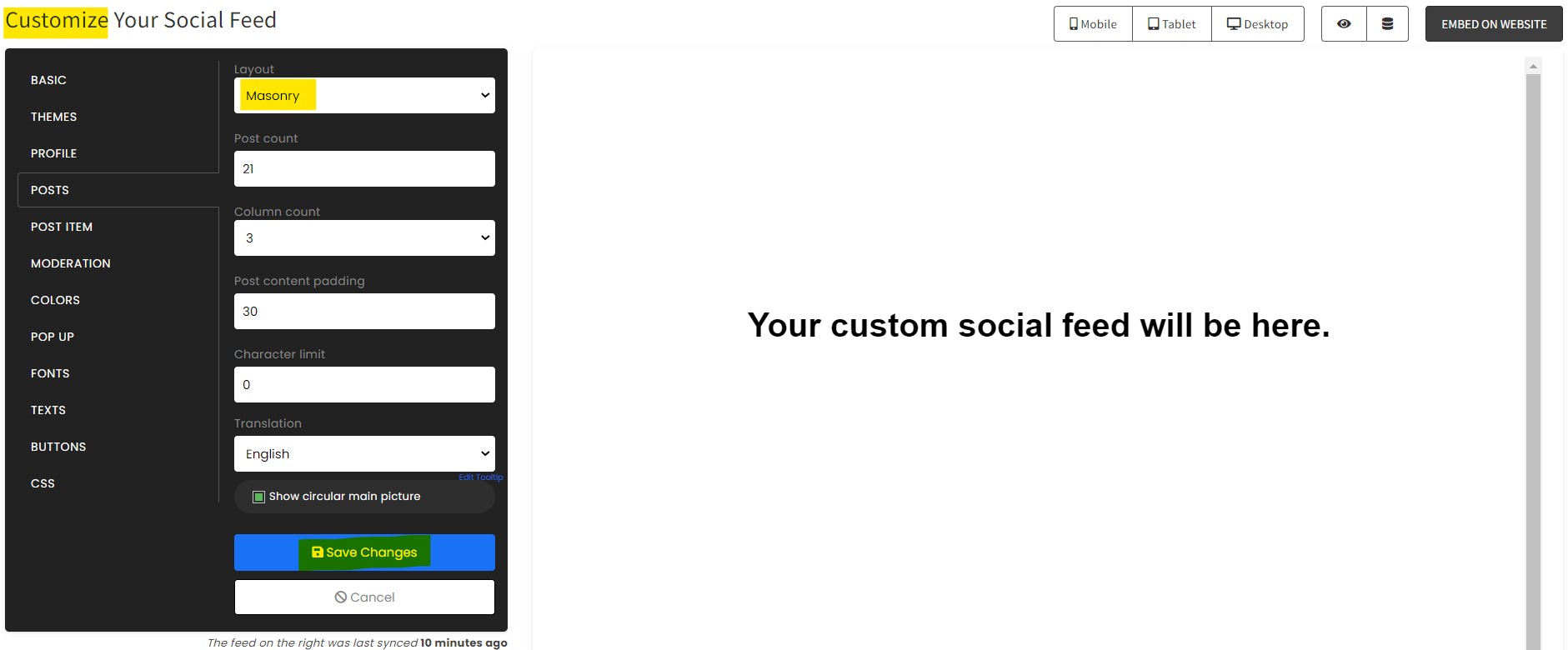
The first part is creating your LinkedIn feed widget using the SociableKIT dashboard. Customize the look and feel to match your brand. Follow the steps below.
-
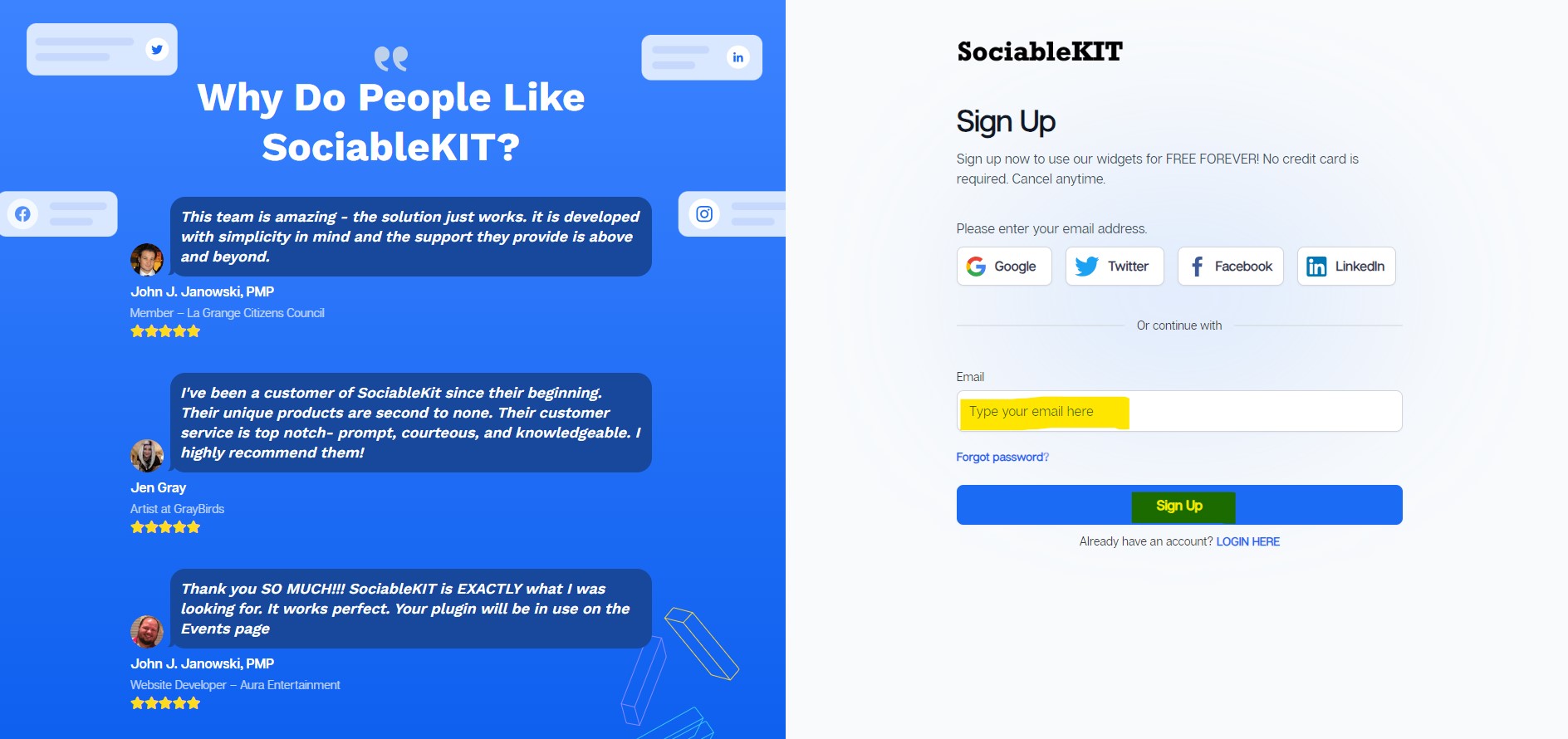
Sign up FREE or login to SociableKIT. You can login here if you already have an account. Once you sign up, you will start your 7-day premium trial. After 7 days, you can activate the free plan if you don't need our premium features.

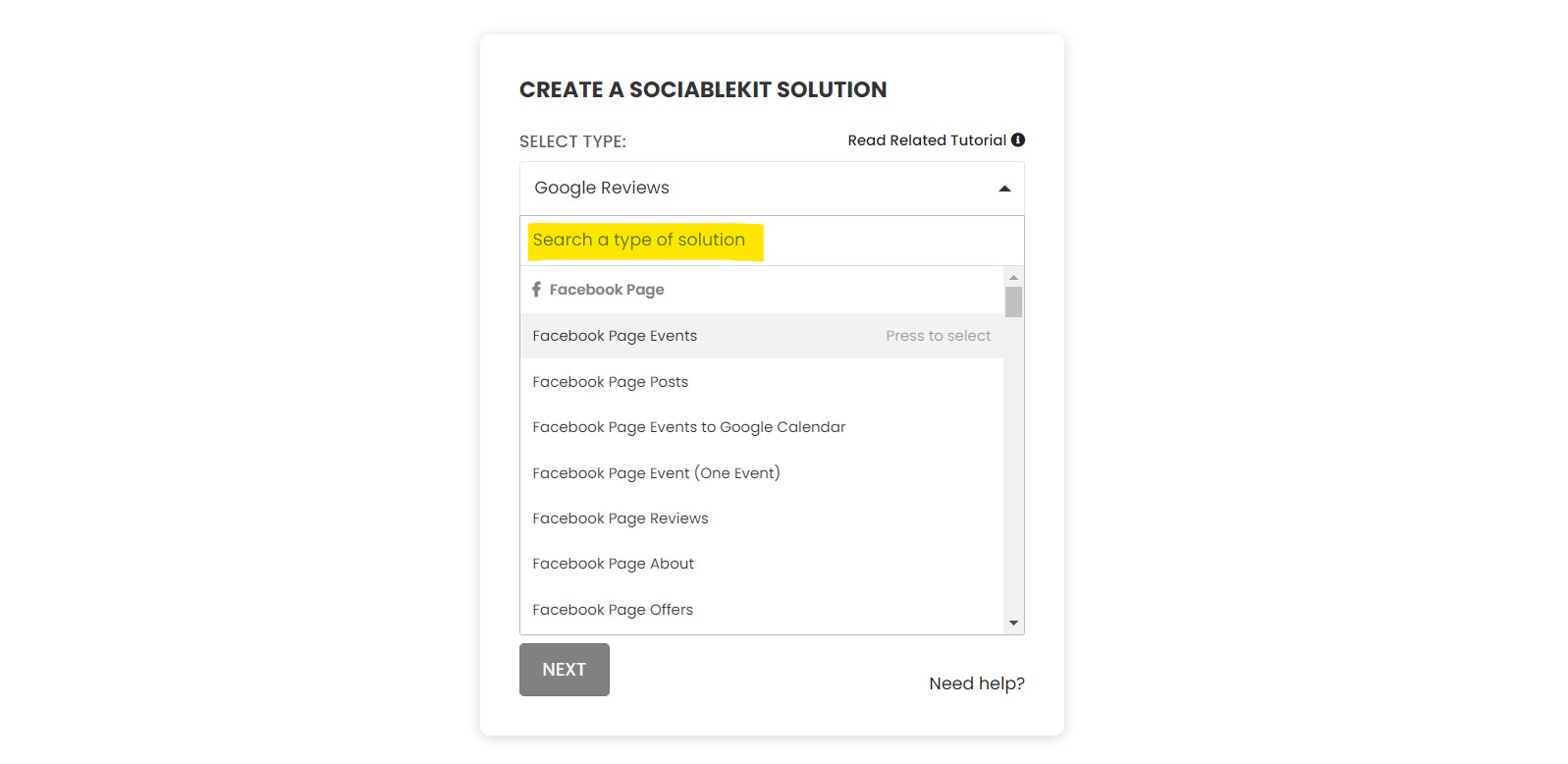
- Select your LinkedIn feed type on the dropdown.
SociableKIT offers several LinkedIn feed widgets. You might need to search it using the highlighted area below. Once found, you can then select it.
Here are the different types of LinkedIn feed that you can add to your LearnWorlds website :
LinkedIn Page Posts widget – Showcase your latest company posts using the LinkedIn Page posts directly on your site, boosting engagement and keeping visitors informed. Learn how to embed LinkedIn Page Posts on your website.
LinkedIn Profile Posts widget – Showcase your personal posts using the LinkedIn profile posts on your website to share insights, updates, and build credibility with your expertise. Learn how to embed LinkedIn Profile Posts on your website.
LinkedIn Page Events widget – Embed your LinkedIn Page Events on your website to drive attendance and keep your audience informed with upcoming professional gatherings and networking opportunities. Learn how to embed LinkedIn Page Events on your website.
LinkedIn Page Jobs widget – Embed your LinkedIn Page Jobs on your website to attract top talent by showcasing your open positions and enhancing your recruitment efforts. Learn how to embed LinkedIn Page Jobs on your website.
Linkedin Hashtag Posts widget – Display LinkedIn Hashtag Posts on your website to highlight trending industry conversations and engage your audience with relevant, up-to-date contents. Learn how to embed Linkedin Hashtag Posts on your website.
LinkedIn Newsletter Posts widget – Embed LinkedIn Newsletter Posts on your website to share valuable insights with your audience and keep them engaged with your latest updates and articles. Learn how to embed LinkedIn Newsletter Posts on your website.
LinkedIn recommendations widget – Showcase glowing LinkedIn recommendations effortlessly, boosting credibility and turning your website into a powerful trust-building tool. Learn how to embed LinkedIn recommendations on your website.
- Enter your LinkedIn feed ID or username. Copy your LinkedIn feed URL and paste it in the username box. Our system will automatically identify your LinkedIn feed ID or username.
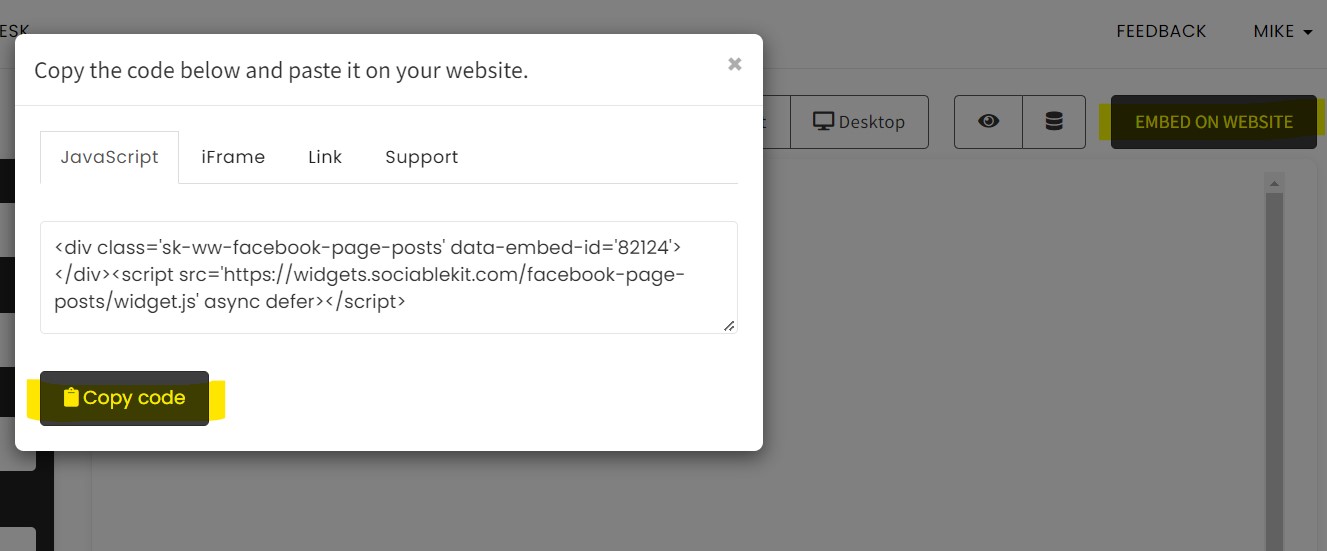
- Paste the embed code and save your LearnWorlds website page. Please follow the second part below to add LinkedIn feed widget to your LearnWorlds website .
Add LinkedIn feed widget to your LearnWorlds website
The second part is adding your LinkedIn feed widget to your LearnWorlds website . After you customize your LinkedIn feed widget and copied the embed code, it is time to add it to your LearnWorlds website . Follow the steps below.
- Get your free embed code from SociableKIT. Make sure you followed the first part above to create your widgget, customize it, and copy your free embed code.
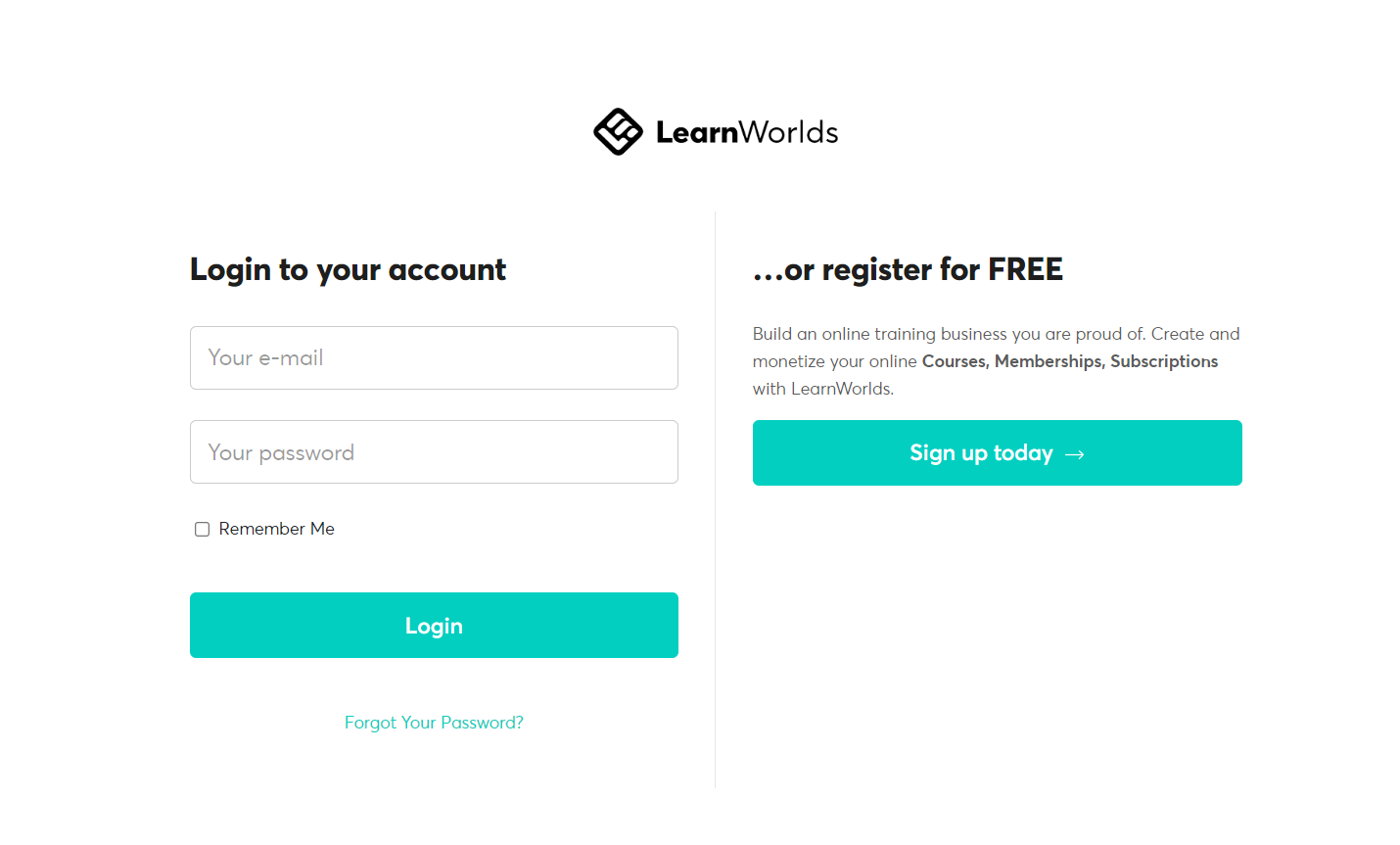
- Login to LearnWorlds.
![]()
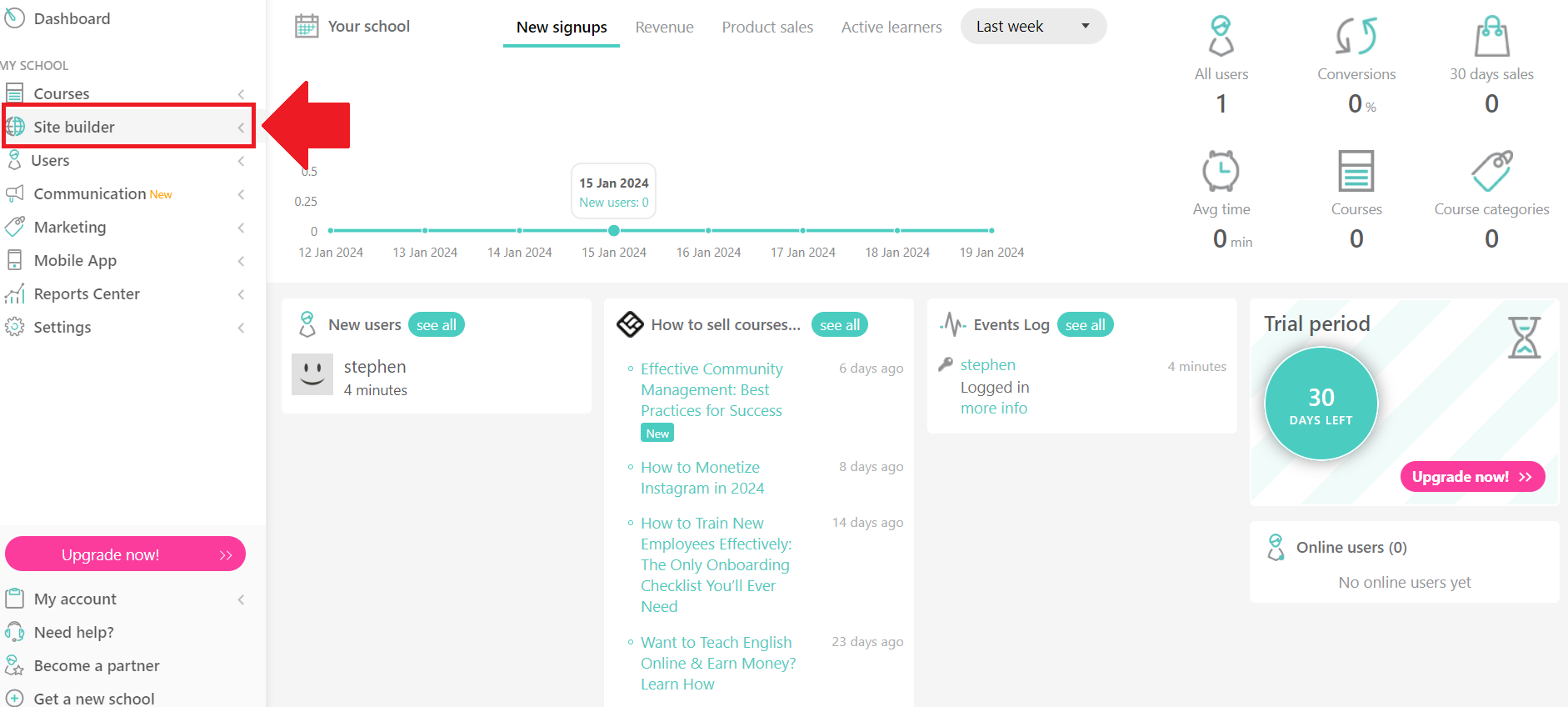
- Click the Site builder tab on the left dashboard and click the Edit School Site
![]()
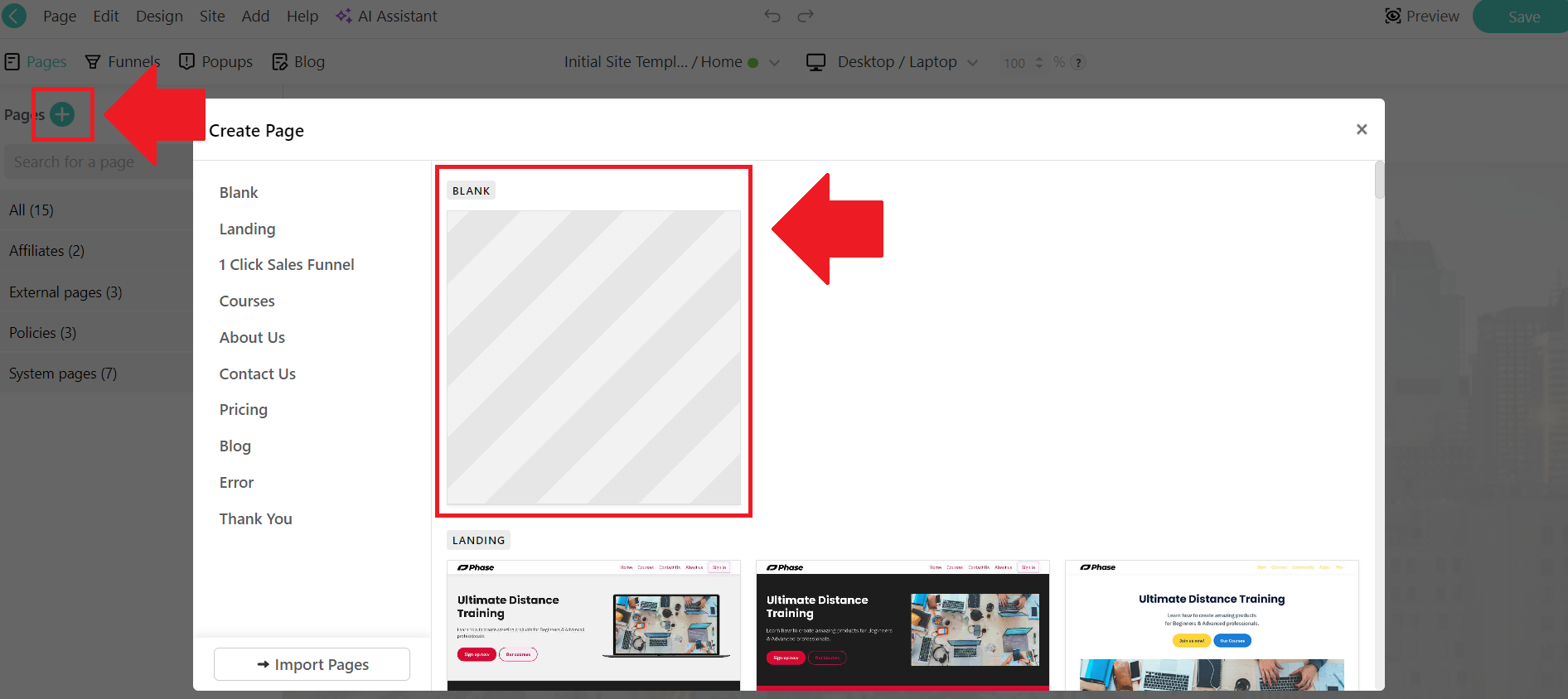
- Create a new page or edit an existing page on your school site.
![]()
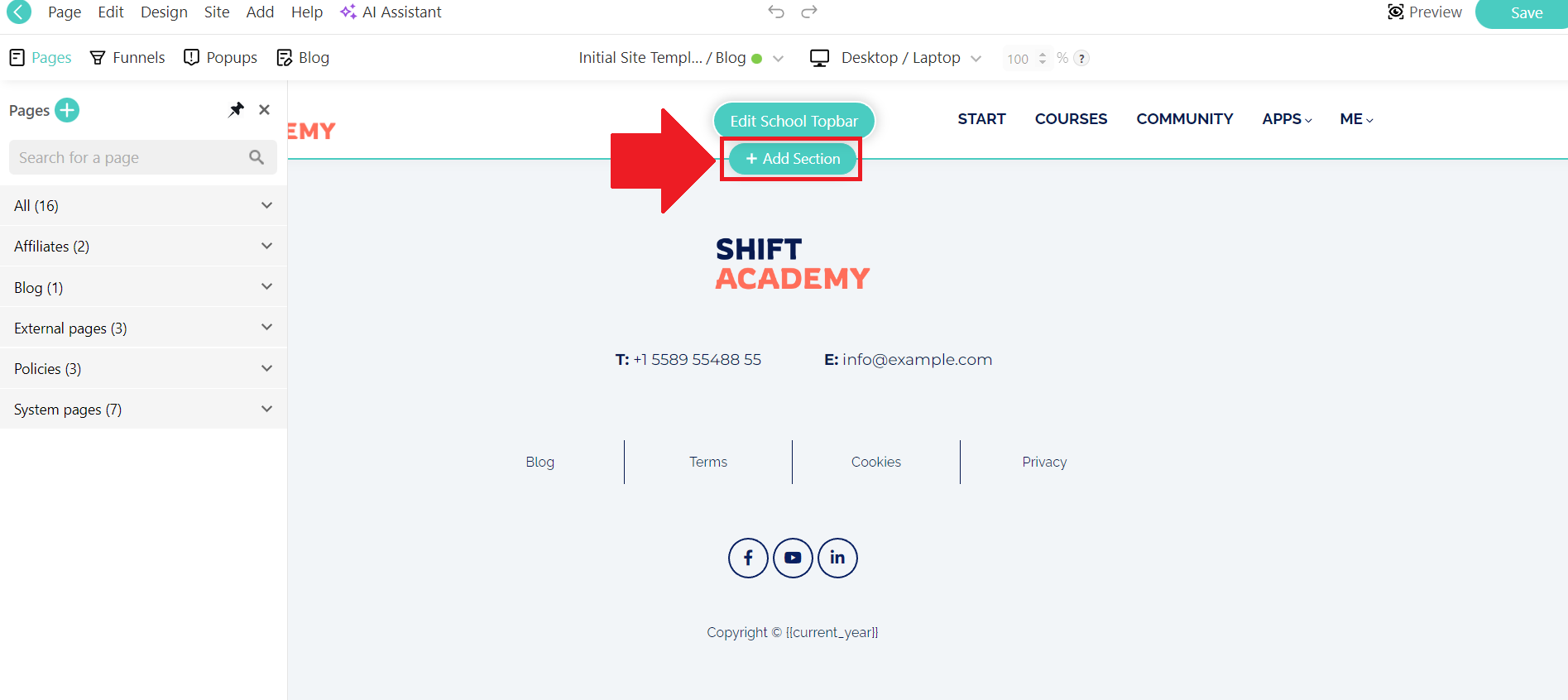
- On the page, hover on the page and click the Add section button.
![]()
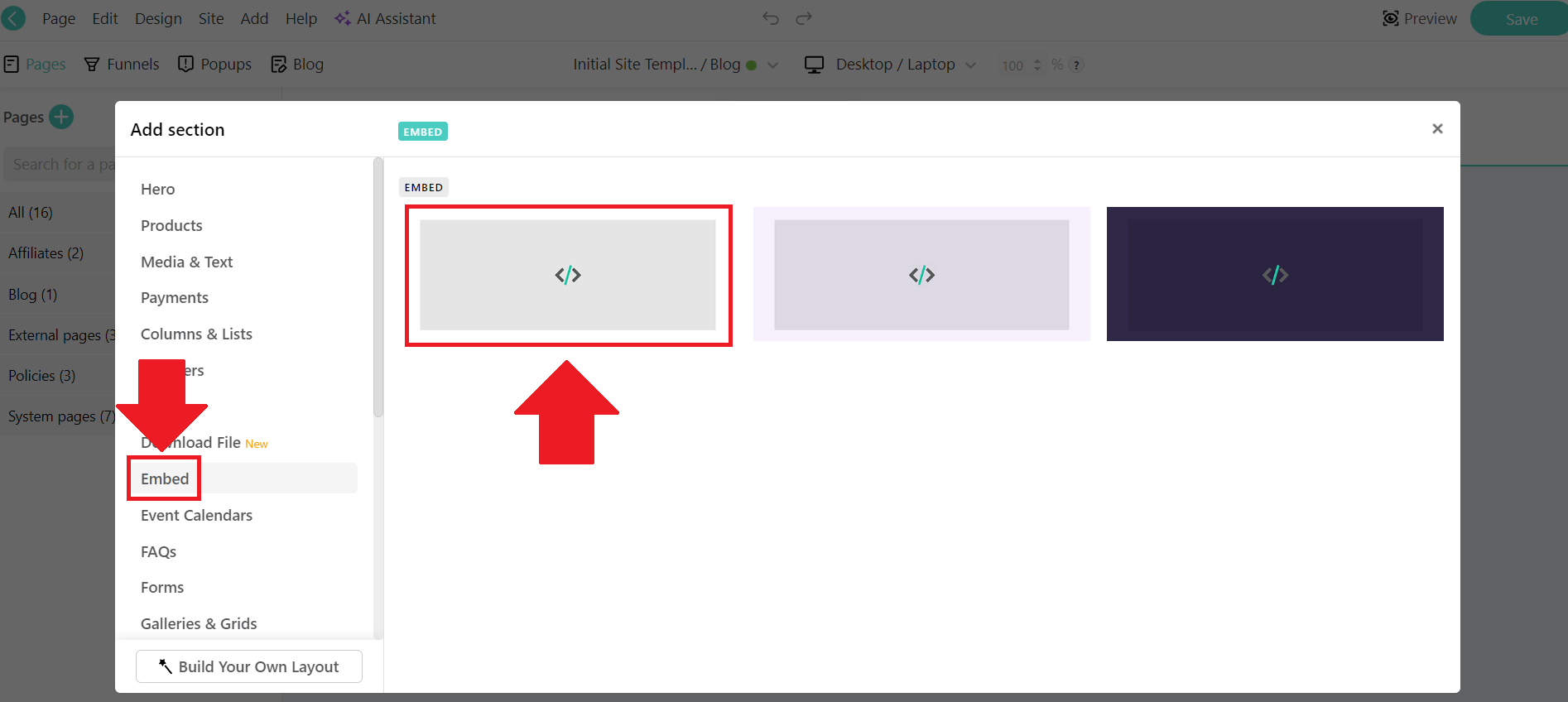
- Find the Embed section and select the Embed option.
![]()
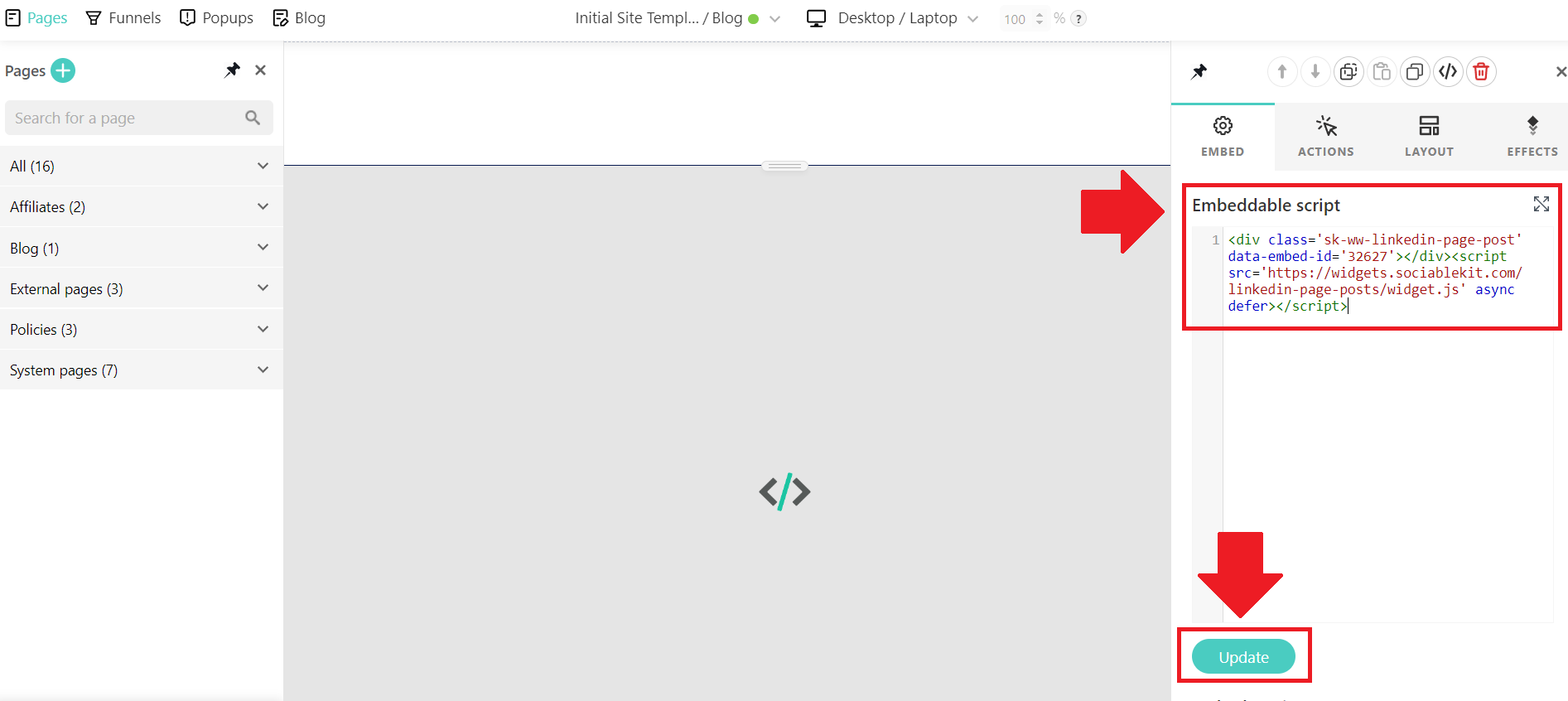
- Paste the embed code you copied on SociableKIT to the Embed section and click the Update button.
![]()
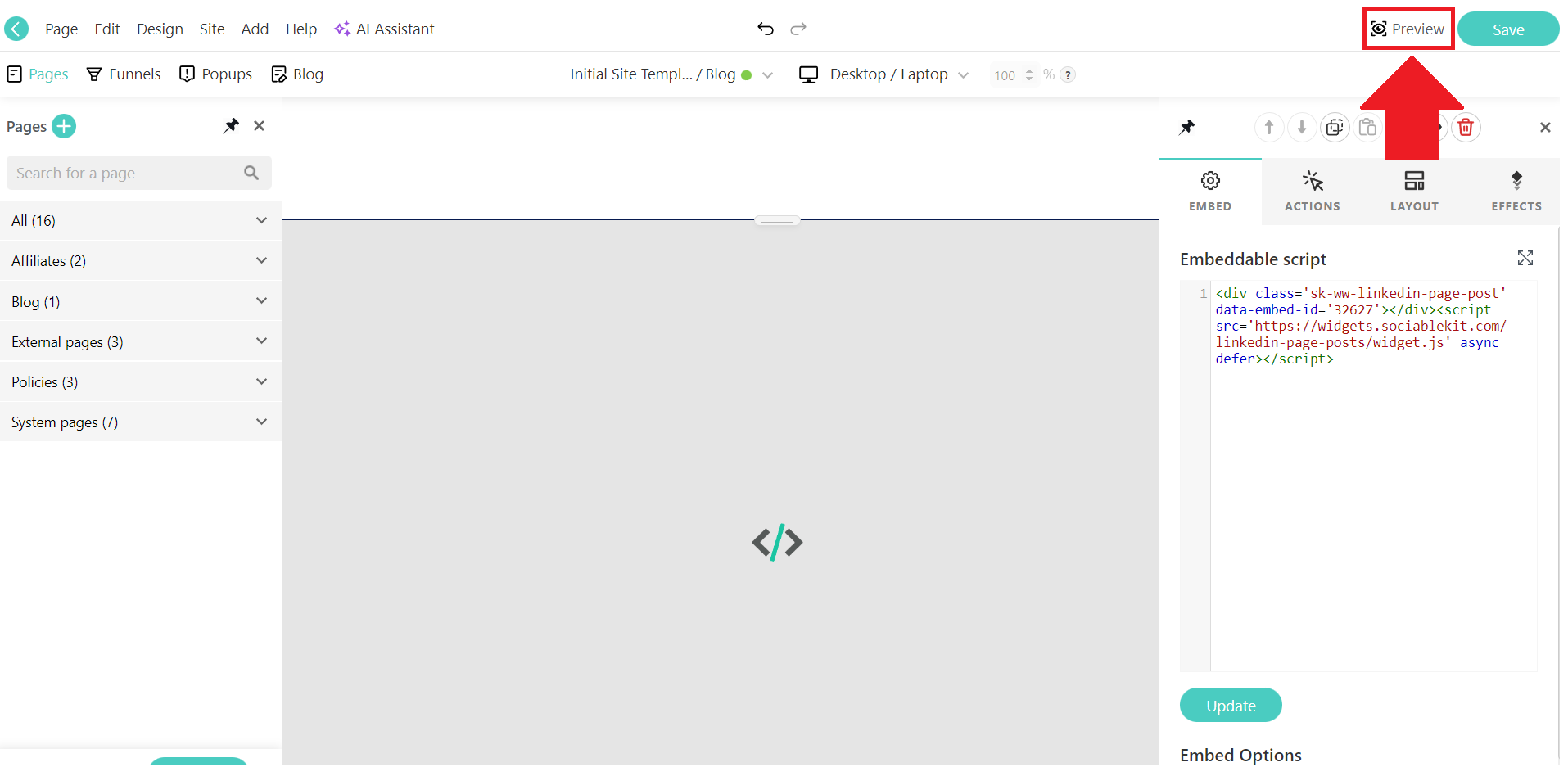
- Click the Preview button on the upper right corner beside the Save button.
![]()
- Done!
![]()
Website builders
Paste your embed code on any platform
SociableKIT works with every major website builder. Pick yours below for copy-paste instructions tailored to that platform.
To embed LinkedIn feed on your LearnWorlds site, follow the steps below after you have your SociableKIT embed code.
- Sign up free to SociableKIT and create your LinkedIn feed widget.
- Customize your widget and copy the embed code from the dashboard.
- Login to LearnWorlds.
![]()
- Click the Site builder tab on the left dashboard and click the Edit School Site
![]()
- Create a new page or edit an existing page on your school site.
![]()
- On the page, hover on the page and click the Add section button.
![]()
- Find the Embed section and select the Embed option.
![]()
- Paste the embed code you copied on SociableKIT to the Embed section and click the Update button.
![]()
- Click the Preview button on the upper right corner beside the Save button.
![]()
- Done!
![]()
To embed LinkedIn feed on your WordPress site, follow the steps below after you have your SociableKIT embed code.
- Sign up free to SociableKIT and create your LinkedIn feed widget.
- Customize your widget and copy the embed code from the dashboard.
- Login to your WordPress site.
![]()
- On your WordPress, go to the "Pages" section then click the "Add new page".
![]()
- Pick a pre-defined layout or start with a blank page by clicking the "Blank page" button.
![]()
- On the body of your page, click the "+" icon and click the "Custom HTML".
![]()
- Paste the code in the text area and click update.
![]()
- The widget will appear on the WordPress page.
![]()
- Click the Publish or Update button on your WordPress page.
![]()
- Click the view page. Done!
To embed LinkedIn feed on your Wix site, follow the steps below after you have your SociableKIT embed code.
- Sign up free to SociableKIT and create your LinkedIn feed widget.
- Customize your widget and copy the embed code from the dashboard.
- Login to Wix.
![]()
- On your existing website click the "+" button beside the "Main pages" section.
![]()
- Then click the "Add page" button.
![]()
- Name your page then hit enter.
![]()
- On the left, click "Add element". Find and click "Embed code". Click and drag "Embed a site" on your page then resize the container.
![]()
- Click "Change website address".
![]()
- Paste the link you copied from SociableKIT then click "Apply".
![]()
- Click "Publish" on the upper right.
![]()
- Click "View site". Done!
![]()
To embed LinkedIn feed on your Squarespace site, follow the steps below after you have your SociableKIT embed code.
- Sign up free to SociableKIT and create your LinkedIn feed widget.
- Customize your widget and copy the embed code from the dashboard.
- Login to Squarespace. You must have a "Business" account in Squarespace to use the widget. The "code block" needed cannot be found if you only have a "Personal" account.
![]()
- Create a new blank page or edit your existing page. Identify which page you want the widget to appear. You can create a new page on Squarespace, or you can edit your existing page where you want the widget to appear.
![]()
- Add a Code Block. On your Squarespace page, click the 'Edit' button. Find the 'Code' block and click it.
![]()
- Paste the embed code from SociableKIT. On the 'Content' of the 'Code' block, paste the JavaScript embed code you have copied from your widget.
![]()
- Save the changes on the 'Code block'. After pasting your widget's embed code. Click the 'Save' button on the left part of the page.
![]()
- View your page. Refresh your Squarespace page and check your SociableKIT widget. Done!
![]()
To embed LinkedIn feed on your Webflow site, follow the steps below after you have your SociableKIT embed code.
- Sign up free to SociableKIT and create your LinkedIn feed widget.
- Customize your widget and copy the embed code from the dashboard.
- Login to Webflow.
![]()
- On your existing website, click the "Page: ...." in the upper left corner then click the "Create new page" icon.
![]()
- Once done add a name for your new page then click "Save".
![]()
- On the left, click "Add Element". Drag "Embed" to your page.
![]()
- Paste the JavaScript code you copied from SociableKIT.
![]()
- On the upper right, click "Publish" > "Publish to Selected Domains".
![]()
- View your page. Done!
To embed LinkedIn feed on your Shopify site, follow the steps below after you have your SociableKIT embed code.
- Sign up free to SociableKIT and create your LinkedIn feed widget.
- Customize your widget and copy the embed code from the dashboard.
- Login to Shopify.
![]()
- On the left side, click Online Store.
![]()
- Click Pages. Add a new page or edit your existing page.
![]()
- On the Page details, click Show HTML icon (<>).
![]()
- Paste the embed code and click the Save button.
![]()
- Click the View page button. Done!
![]()
To embed LinkedIn feed on your HTML site, follow the steps below after you have your SociableKIT embed code.
- Sign up free to SociableKIT and create your LinkedIn feed widget.
- Customize your widget and copy the embed code from the dashboard.
- Open your HTML file.
- You can create a new HTML page or edit your existing HTML page.
![]()
- Paste the Javascript code you copied from SociableKIT. Paste it where you want the widget to appear.
![]()
- Save your HTML page.
![]()
- You may now upload your HTML page to your web hosting.
To embed LinkedIn feed on your Google Sites site, follow the steps below after you have your SociableKIT embed code.
- Sign up free to SociableKIT and create your LinkedIn feed widget.
- Customize your widget and copy the embed code from the dashboard.
- Login to Google sites. You must have at least a 'Business Starter' plan to create and customize your Google sites.
![]()
- Create or edit an existing website. Click the + 'Blank' button on the 'Start a new site' section to create or find your existing website under the 'Recent sites' section.
![]()
- Create a new blank page or edit your existing page. Identify which page you want the widget to appear. On the right sidebar, you will see an 'Embed' button. Click the 'Embed' button.
![]()
- Add the widget. A popup 'Embed from the web' will open up. Select the 'Embed code' tab on the popup.
![]()
- Paste the embed code from SociableKIT. On the 'Embed code' tab, you will see 'HTML code goes here' text. Paste the embed code from your SociableKIT widget.
![]()
- Save the widget. Once you have pasted your embed code, click the 'Next' button.
![]()
- Preview of your SociableKIT widget. After clicking the Next button, a preview of your embed code will be displayed. Click the 'Insert' button to insert the widget to your Google sites page.
![]()
- Edit the widget. Once the widget has been inserted, you will have the option to resize the widget. After resizing the widget to your preferences, click the 'Publish' button on the upper right corner of the page.
![]()
- Publish your page. After publishing the site, click the down 'Arrow' button beside the 'Publish' button.
![]()
- View your page. A dropdown of buttons will be displayed, click the 'View published site' button. Done!
![]()
Live preview
Pick a LinkedIn Page Posts template — see it live
Choose a starting design on the left and watch the preview update with real data. What you see is exactly what visitors get on your LearnWorlds website.
Common questions
Frequently asked questions
Everything you need to know about embedding LinkedIn feed on your LearnWorlds website.
What is the SociableKIT LinkedIn Feed Widget and why should I use it?
The LinkedIn Feed Widget lets you automatically display your LinkedIn posts, articles, videos and updates on your website. It keeps your site fresh and builds credibility by showing visitors that you’re active and engaged on LinkedIn. The widget runs on unlimited views, can be styled to match your brand, and is free to start.
How do I embed my LinkedIn feed on my website?
Sign up for a free SociableKIT account, create a LinkedIn feed widget in seconds, customize its look, then copy the one‑line embed code and paste it into your website’s HTML block or custom code section. It works on all major platforms including WordPress, Shopify, Wix, Squarespace, Webflow and even simple HTML sites. No coding skills are needed – you can see a live preview before publishing.
Do I need coding skills or a LinkedIn API key?
No developer skills or API keys are needed. The widget uses SociableKIT’s authorized integrations, so you simply choose your LinkedIn page or profile and paste the generated embed code. There’s no need to request API access or write custom code – even non‑technical users can set it up.
Is there a free plan or trial? How much does it cost?
Yes. SociableKIT offers a free plan that lets you create a working LinkedIn feed widget without a credit card; you can upgrade when you need automatic syncing or more sources. Paid plans start at about $10 per month with unlimited views and $5 per additional source. You only pay for what you use and can cancel anytime.
How often does the widget update my LinkedIn feed?
SociableKIT automatically pulls new posts from LinkedIn. On the free plan you can manually refresh the feed; paid plans include automatic syncing so new posts appear shortly after you publish on LinkedIn. This ensures your site always shows your latest content without waiting for long cache cycles.
Can I customize the design to match my website?
Absolutely. You can choose from multiple layouts like masonry, grid or carousel, pick light or dark themes, and adjust colors, fonts and call‑to‑action buttons. Every plan, even the free one, lets you tailor the widget’s appearance so it blends seamlessly into your site.
Can I show posts from multiple LinkedIn pages, profiles or hashtags in one feed?
You can create multiple LinkedIn feed widgets or use SociableKIT’s Social Feed aggregator to combine posts from several pages, profiles or hashtags into a single feed. Each additional source can be added for a small monthly fee. This allows agencies or multi‑brand businesses to manage various feeds under one account.
How do I moderate or filter which posts appear?
SociableKIT lets you control your feed. You can hide or remove individual posts, filter by keywords or hashtags and choose which elements to display (text, images, likes, comments). This means only approved, relevant content appears on your website.
Do I need to worry about privacy or GDPR compliance?
SociableKIT complies with LinkedIn’s terms and displays only content you’ve set to “Anyone” on LinkedIn. Only public posts can be embedded; posts restricted to connections or deleted by the author won’t show. We don’t store your login details and our infrastructure follows international privacy regulations.
Which website platforms does it work with?
The widget works on any platform that allows you to add custom HTML or script. This includes WordPress, Shopify, Wix, Squarespace, Webflow, Weebly, Google Sites, SharePoint and plain HTML sites. For platforms not listed, our support team can provide guidance.
Will embedding a LinkedIn feed slow down my website or hurt SEO?
No. The SociableKIT widget loads asynchronously and caches your feed, so it doesn’t block your page or noticeably slow down load times. In fact, adding a live feed can improve SEO because search engines favor fresh, regularly updated content.
Can I customize call‑to‑action buttons or link visitors back to LinkedIn?
Yes. You can add call‑to‑action buttons such as “Follow us on LinkedIn” or link specific posts back to the original LinkedIn post. This encourages visitors to engage with your profile directly while keeping them on your site.
Can visitors interact with the content or share posts?
Visitors can click a post to open it on LinkedIn, where they can like, comment or share. The widget includes share buttons so people can share your posts to other networks without leaving your site (available on paid plans). Direct likes or comments within the widget are limited by LinkedIn’s API.
Can I embed posts from personal profiles, company pages, newsletters or hashtags?
Yes. SociableKIT supports various widget types: LinkedIn Page posts, Profile posts, Page Events, Jobs, Newsletter posts and Hashtag feeds. Choose the type that fits your needs and you can create multiple widgets or combine them in the Social Feed widget.
What happens if I cancel my subscription?
If you cancel a paid plan, your embedded feed will stop automatically syncing and may no longer display. You can return to the free plan or reactivate your subscription at any time without losing your settings.
Why use a widget instead of LinkedIn’s native embed code?
LinkedIn’s native embed option only lets you display one post at a time and doesn’t offer automatic updates or customization. A widget aggregates multiple posts, updates automatically, and gives you control over layout, branding and moderation. It also avoids issues like iFrame restrictions.
Can I embed LinkedIn posts that are private or restricted?
No. LinkedIn only allows embedding of posts that are set to “Anyone” (public). Multi‑photo posts and reposts with commentary cannot be embedded, and if the author deletes a post it disappears from your feed. Make sure your content visibility is set to Public to display it.
Do visitors need a LinkedIn account to view the feed?
No. Anyone can view the feed on your site. Only when they click through to LinkedIn to like or comment will they need to sign in. This allows you to showcase your professional content to all website visitors.
Add your LinkedIn feed widget today
Set up in minutes. Free forever to start.
Free forever · No credit card · Cancel anytime