
Embedding a LinkedIn feed on your website provides invaluable social proof and attracts users to visit your LinkedIn profile, growing your following.
This article covers how to embed a LinkedIn feed on WordPress, step-by-step, including how to customize it to maximize visibility and visitor engagement.
Need a quick solution to showcase your LinkedIn posts on WordPress? Use SociableKIT.
Our widget lets you create and customize your LinkedIn feed without coding.
Also, you can use the built-in moderation feature to control which LinkedIn posts appear on your feed.
Create a SociableKIT widget today for a seamless way to share your LinkedIn updates with your website visitors.
Reasons to Embed a LinkedIn Feed on Your Website
Adding a LinkedIn feed creates a win-win situation for your website and LinkedIn profile.
Some key incentives include:
- Grow Your LinkedIn Following: Adding a LinkedIn feed on your website is an effective LinkedIn marketing strategy if you’re trying to boost your profile’s engagement or grow your network. For example, you could include a call-to-action statement after the embed asking users to visit and follow your LinkedIn profile or page.
- Effective Visitor Engagement: Embedding a LinkedIn feed consisting of dynamic photos, videos, and carousels helps revamp your website, creating a strong impression on visitors. The posts also attract visitors to interact with the feed, increasing your website’s dwell time.
- Boosted Professional Credibility: You may have shared your professional achievements and accreditations on LinkedIn. Showcasing such content on your website helps establish your credibility and authority in your industry.
- Improved SEO Performance: Embedding optimized LinkedIn posts helps your website appear in relevant searches and increases your SERP ranking, boosting your brand’s online presence.

Ways to Add LinkedIn Feed to WordPress
There are two ways to embed a LinkedIn feed on WordPress: the website widget and link methods.
This section provides a step-by-step guide for each method, including how to paste the script on your WordPress site:
Method 1: Use a Website Widget
To quickly embed LinkedIn feed to your WordPress website, follow the steps below.
- Sign up FREE or login to SociableKIT.
- Create and customize your LinkedIn feed widget.
- Copy the LinkedIn feed widget embed code.
- Login to your WordPress website admin panel and create or edit a page.
- Paste the embed code where you want the LinkedIn feed widget to appear.
- Save and view your page. Done!
That’s easy! Embedding LinkedIn feed widget on your WordPress website will take only 2 minutes. If you need a more detailed guide, scroll down to follow our complete guide or watch our video guide.
Method 2: Use the Embed or Link Option
Here’s a detailed tutorial for adding a LinkedIn feed on WordPress using the link method:
- Log in to your LinkedIn profile or company page.
- Go to the Posts section and find the one you want to embed.
- Click the three dots on the top-right corner of the selected posts and select the </> Embed this post option.
- A pop-up window will appear with the embed code. Click the Copy code button to copy the script to paste on your WordPress site.
- Log in to your WordPress admin panel.
- Open the web page where you want to embed the LinkedIn feed.
- Paste the embed code from LinkedIn and select to save or preview the changes.
- Repeat steps 2-7 to add other LinkedIn posts that you want to display on your WordPress website.

How to Embed LinkedIn Feed on Your WordPress Website
Follow our complete guide below to embed LinkedIn feed on WordPress website for free. The guide is divided into two parts to make it easier to follow.
Create and Customize Your LinkedIn Feed Widget
The first part is creating your LinkedIn feed widget using the SociableKIT dashboard. Customize the look and feel to match your brand. Follow the steps below.
- Sign up FREE or login to SociableKIT. You can login here if you already have an account. Once you sign up, you will start your 7-day premium trial. After 7 days, you can activate the free plan if you don’t need our premium features.

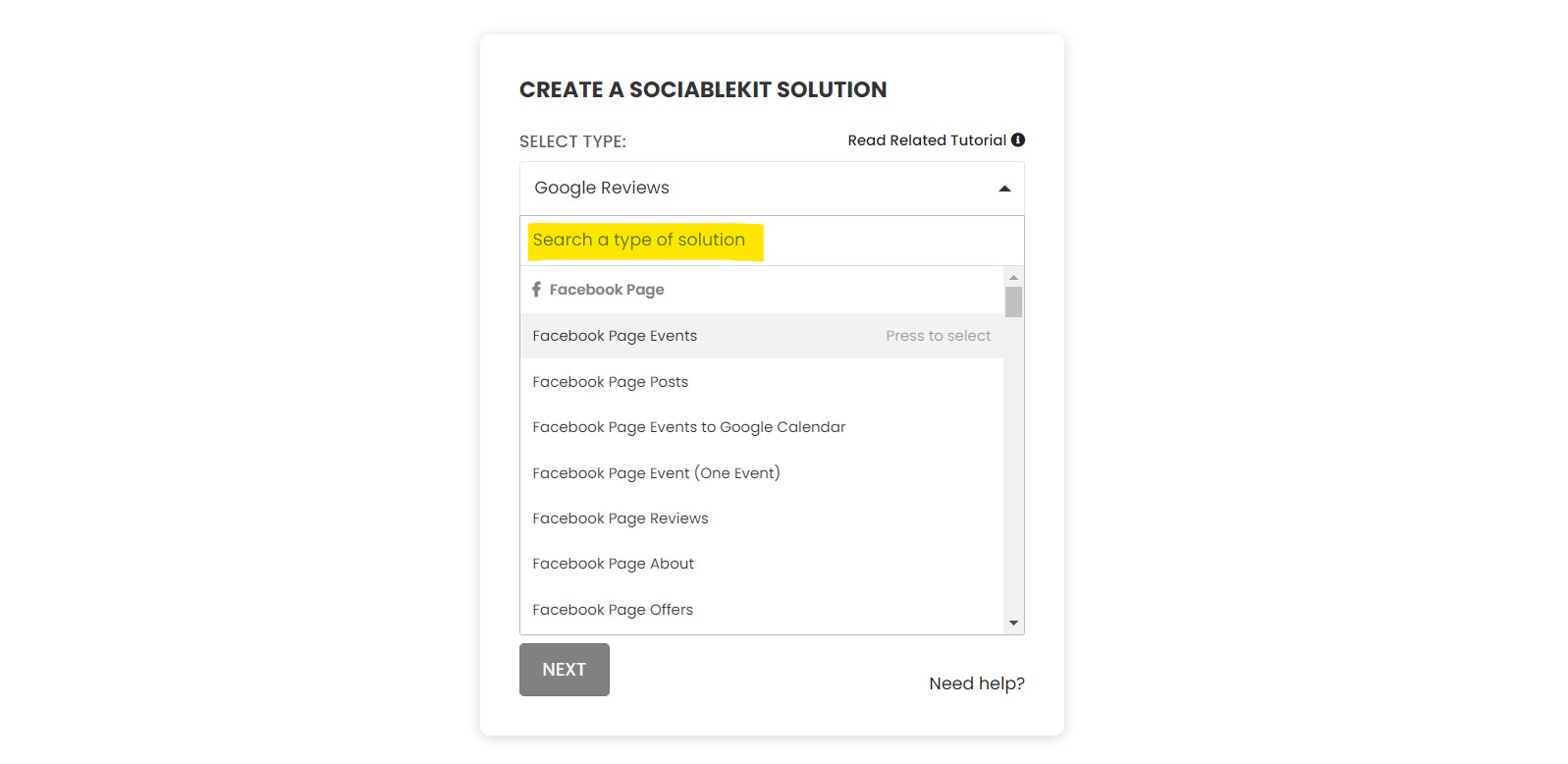
2. Select your LinkedIn feed type on the dropdown. SociableKIT offers several LinkedIn feed widgets. You might need to search it using the highlighted area below. Once found, you can then select it. Here are the different types of LinkedIn feed that you can add to your WordPress website:
LinkedIn Page Posts widget – Showcase your latest company posts using the LinkedIn Page posts directly on your site, boosting engagement and keeping visitors informed. Learn how to embed LinkedIn Page Posts on your website here.
LinkedIn Profile Posts widget – Showcase your personal posts using the LinkedIn profile posts on your website to share insights, updates, and build credibility with your expertise. Learn how to embed LinkedIn Profile Posts on your website here.
LinkedIn Page Events widget – Embed your LinkedIn Page Events on your website to drive attendance and keep your audience informed with upcoming professional gatherings and networking opportunities. Learn how to embed LinkedIn Page Events on your website here.
LinkedIn Page Jobs widget – Embed your LinkedIn Page Jobs on your website to attract top talent by showcasing your open positions and enhancing your recruitment efforts. Learn how to embed LinkedIn Page Jobs on your website here.

3. Enter your LinkedIn feed ID or username. Copy your LinkedIn feed URL and paste it in the username box. Our system will automatically identify your LinkedIn feed ID or username.
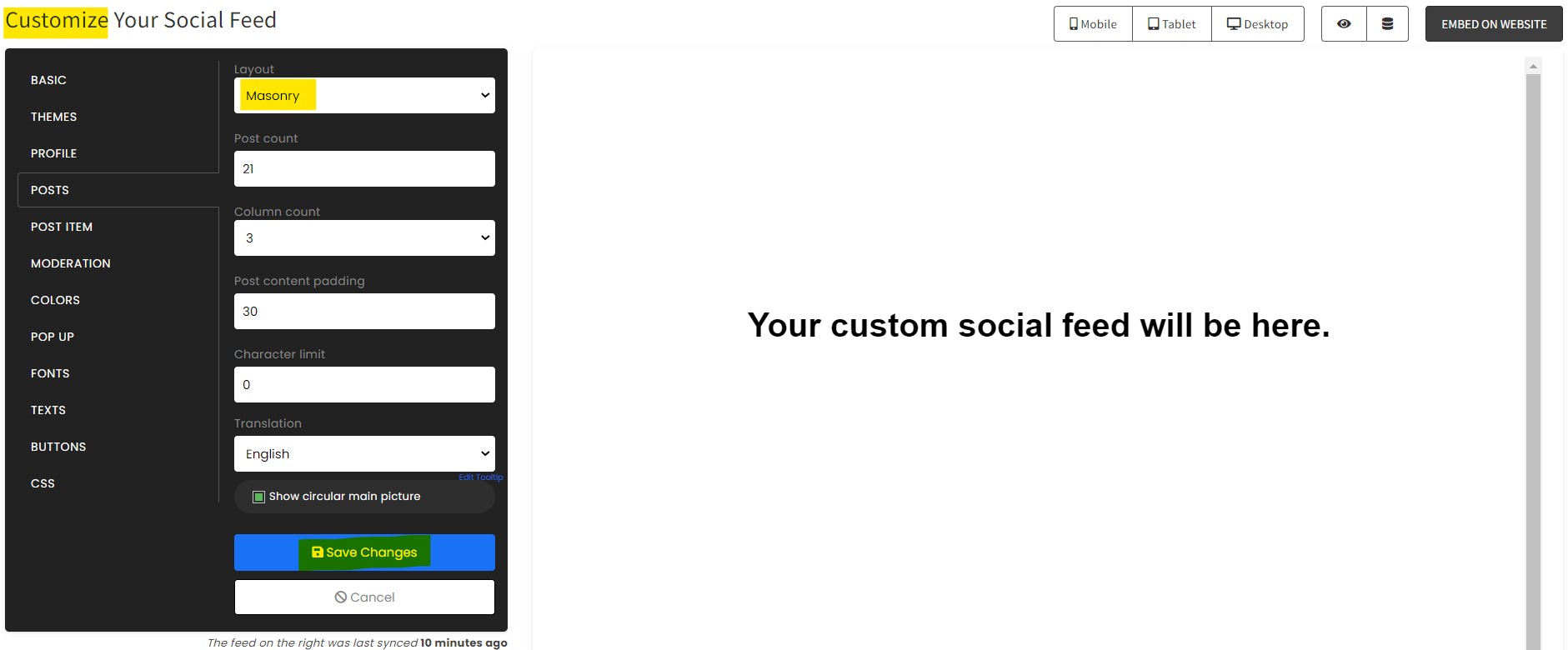
4. Customize your feed. Click the “NEXT” button to show the customization options of your social feed. You can change the layout, colors, font, and more to match your brand. Click the Save changes button.

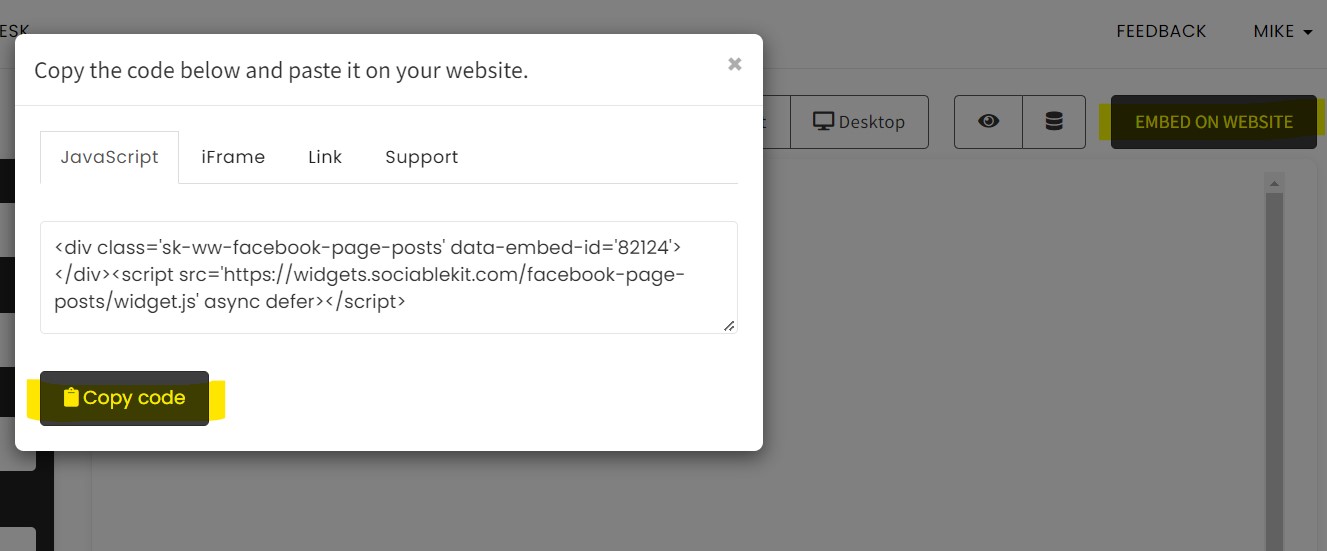
5. Copy the embed code. Click the “Embed on website” button on the upper right corner. On the popup, copy the JavaScript embed code.

6. Paste the embed code and save your WordPress website page. Please follow the second part below to add LinkedIn feed widget to your WordPress website.
Add LinkedIn Feed Widget to Your WordPress Website
The second part is adding your LinkedIn feed widget to your WordPress website. After you customize your LinkedIn feed widget and copied the embed code, it is time to add it to your WordPress website. Follow the steps below.
- Get your free embed code from SociableKIT. Make sure you followed the first part above to create your widgget, customize it, and copy your free embed code.
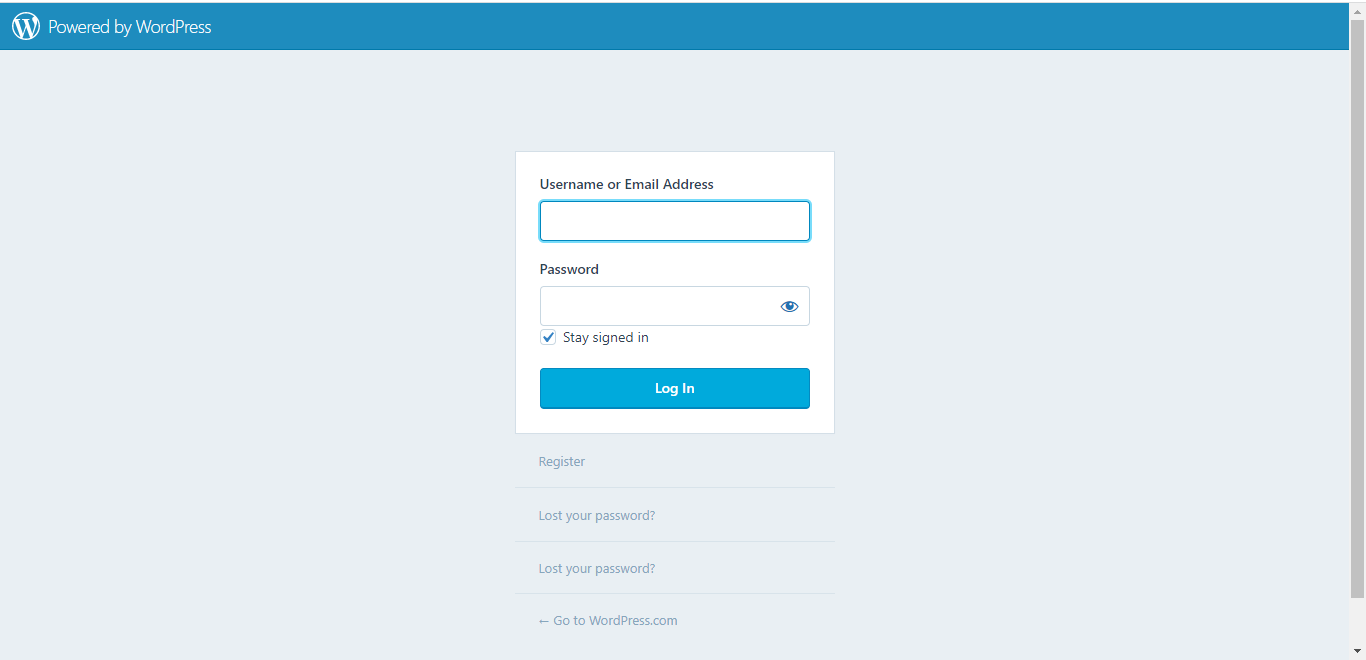
- Login to your WordPress site.
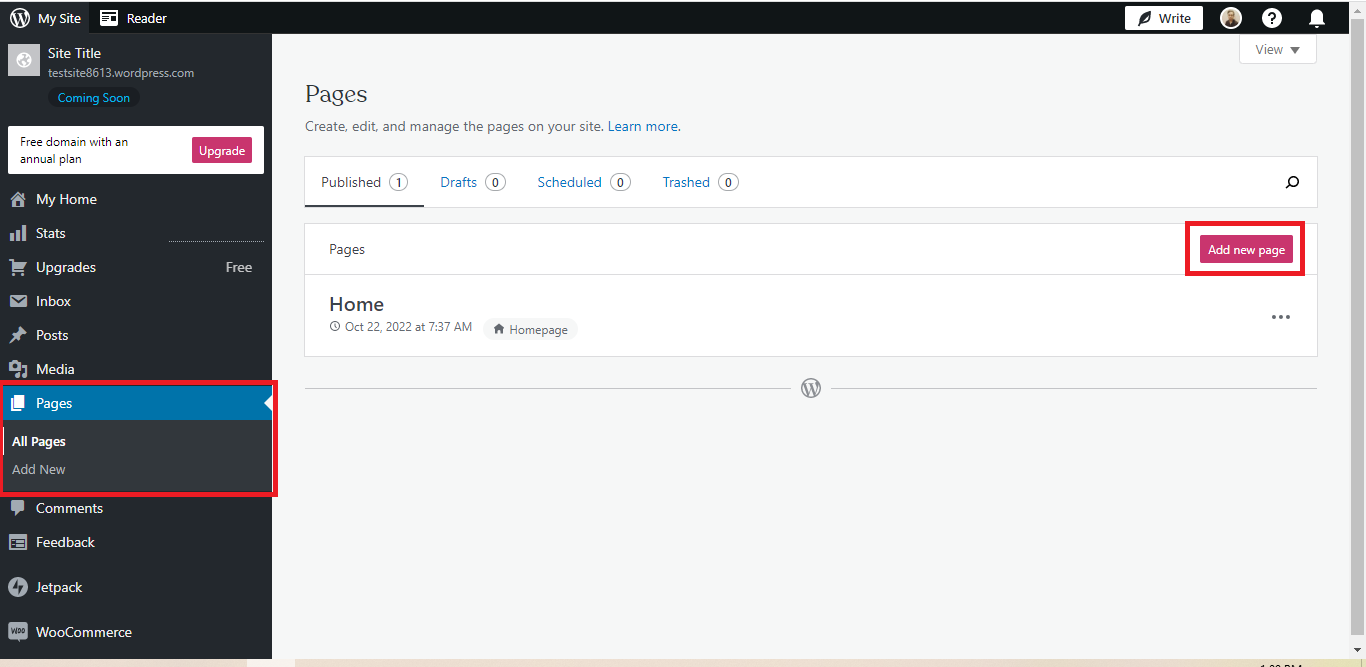
3. On your WordPress, go to the “Pages” section then click the “Add new page”.

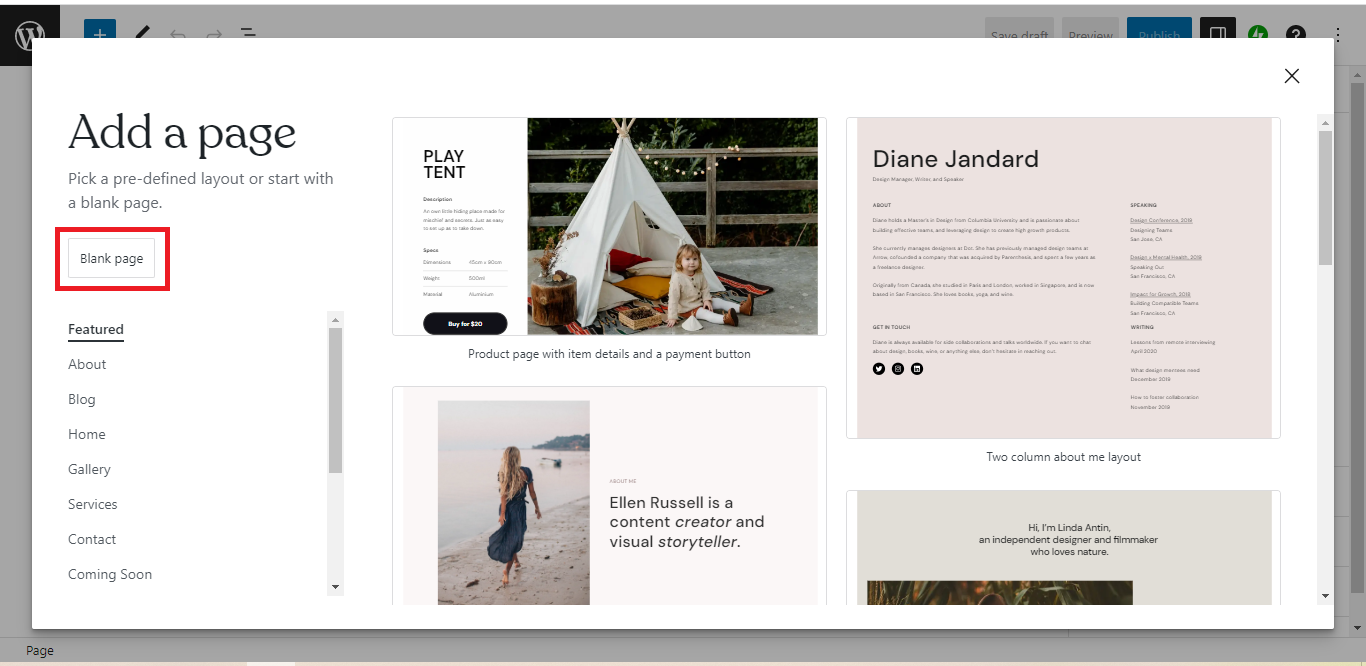
4. Pick a pre-defined layout or start with a blank page by clicking the “Blank page” button.

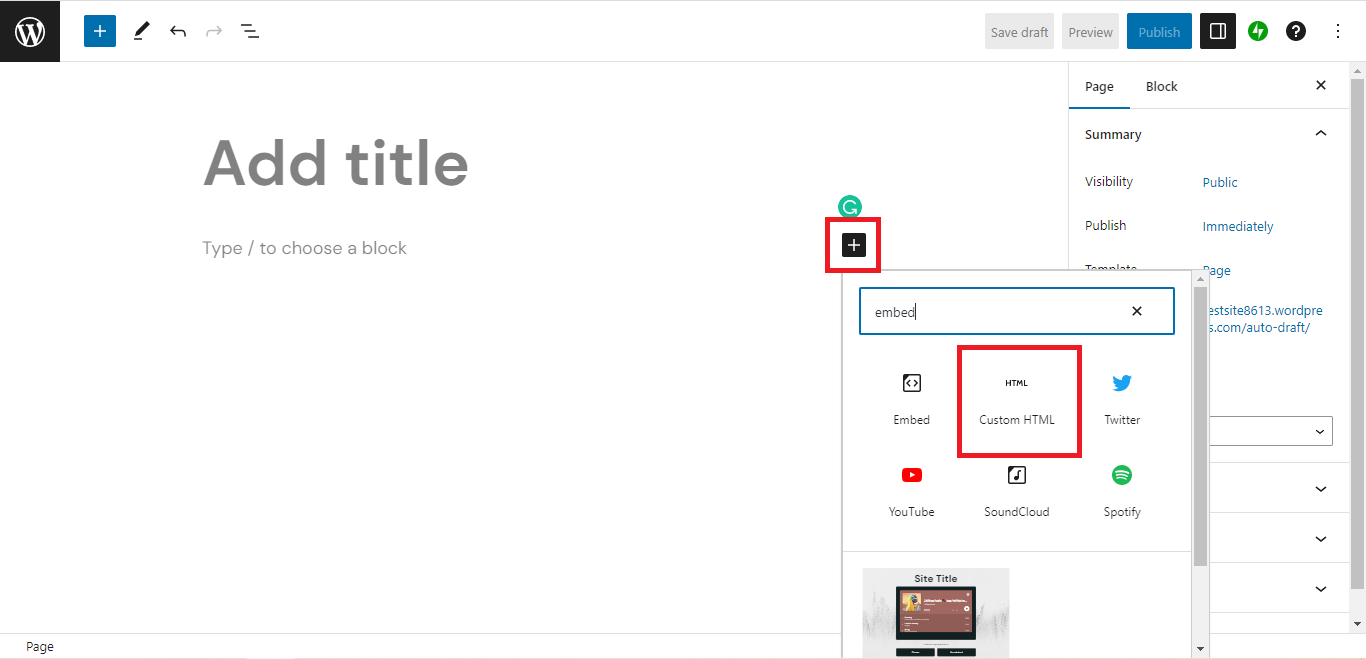
5. On the body of your page, click the “+” icon and click the “Custom HTML”.

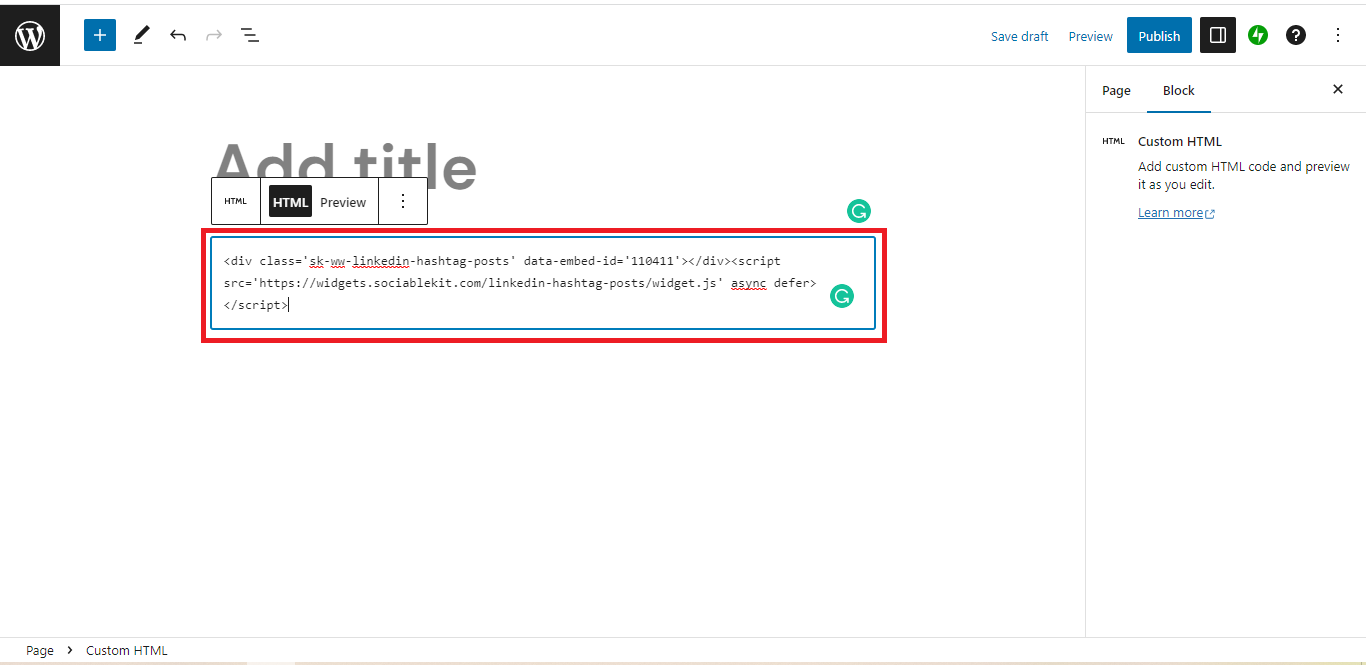
6. Paste the code in the text area.

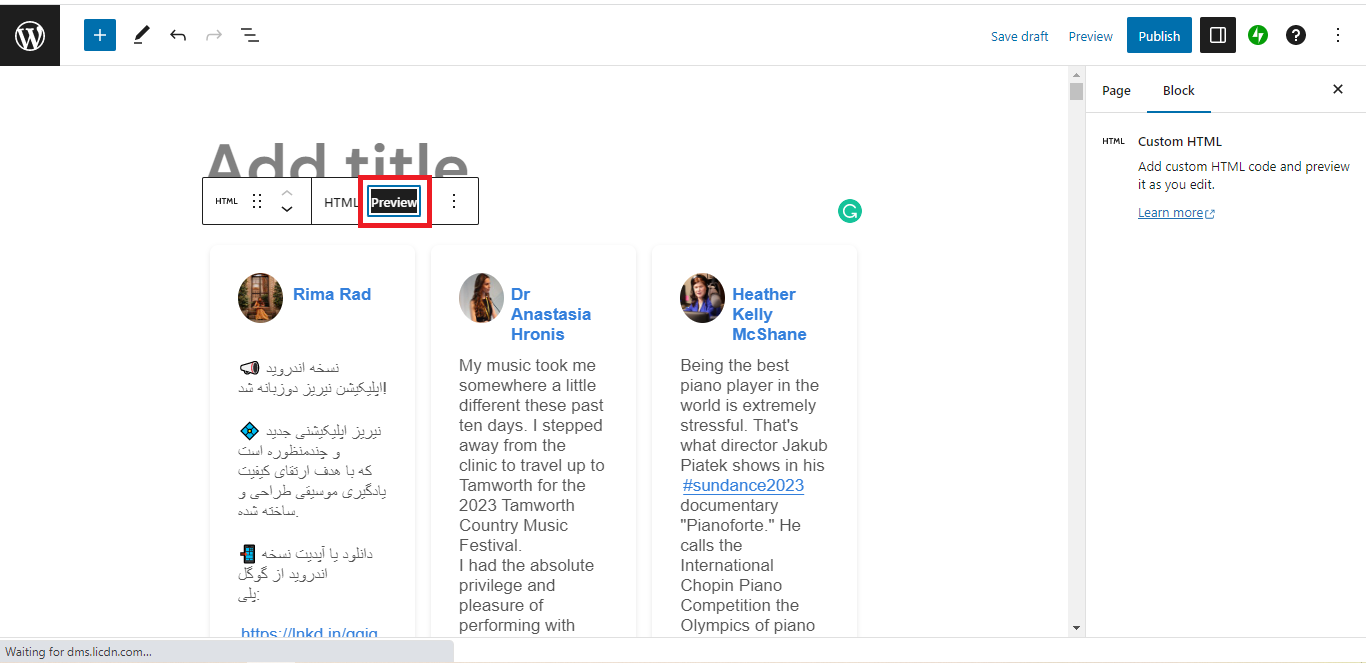
7. To preview, click the preview tab.

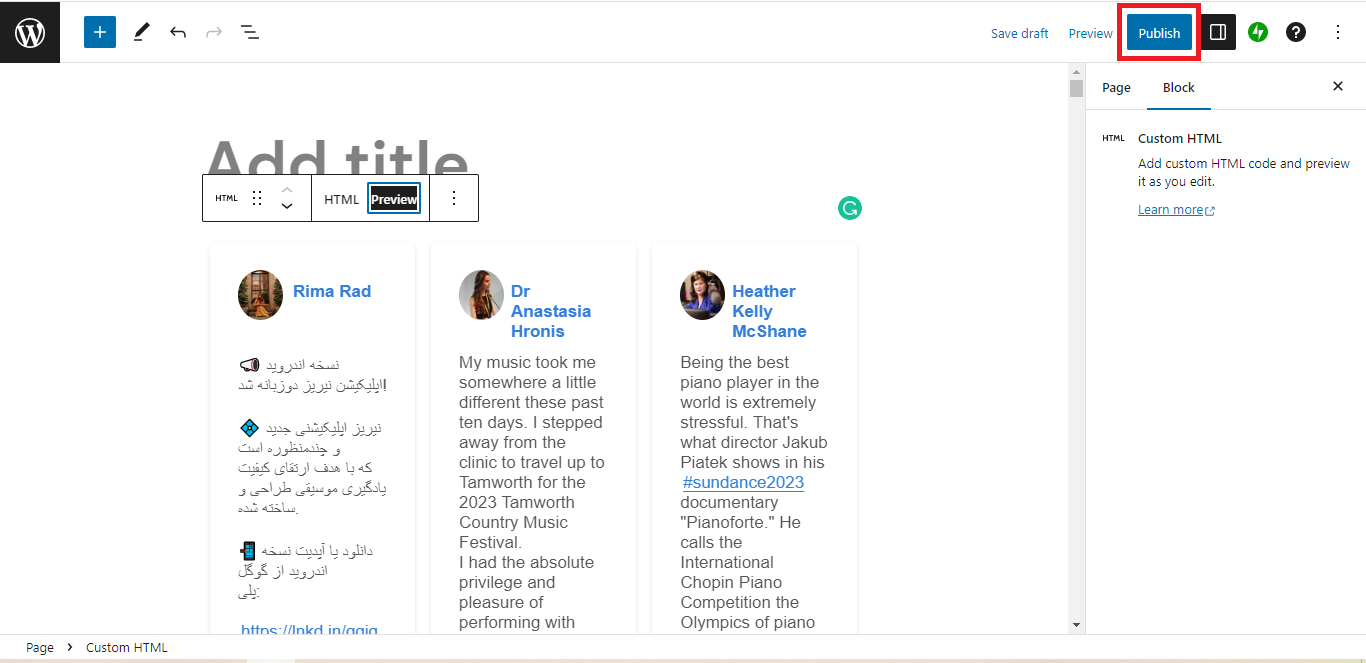
8. Click the Publish or Update button on your WordPress page.
9. Click the view page. Done!
See how easy it is to create and customize a LinkedIn feed with our widget?
Sign up for SociableKIT and join thousands of businesses and professionals using the widget method to share their career achievements and industry highlights on their WordPress sites.
Styling and Display Options for LinkedIn Feeds
A well-styled LinkedIn feed will increase your website’s engagement rate, providing opportunities for introducing potential leads to your conversion funnel.
Use our checklist to optimize the embedded LinkedIn and maximize your website’s dwell time:
- Use a Mobile-First Design: Place the embed code in a dynamic container to make the LinkedIn feed auto-responsive to different screen sizes, giving website visitors a consistent user experience regardless of the device type.
- Personalize the Feed: Customize the feed’s appearance, especially the color, to blend with your brand’s theme. Our SociableKIT widget also lets you choose your preferred feed layout, where you can opt for Masonry, Grid, or Carousel options.
- Include Dynamic Media: Combine various LinkedIn post types, including native videos and LinkedIn Carousels, to make your website visually appealing and quickly attract visitors’ attention.
- Curate the LinkedIn Feed: Not all your LinkedIn posts may be relevant to your website visitors. As such, we recommend curating the content so that only relevant posts appear on the feed. SociableKIT has a built-in automatic and manual moderation feature that lets you use filters to control which LinkedIn posts display on your website.

Common Issues When Adding LinkedIn Feeds to WordPress
Below are common pitfalls you might encounter when embedding a LinkedIn feed on WordPress and how to avoid them:
- Blank Feed: A blank or defective feed often points to compatibility or bug issues with your embed code. Repeat the integration process, ensuring the embed code is correct. To be safe, we recommend using our LinkedIn feed embed code generator to create an error-free script compatible with WordPress.
- Responsive Issues: Does the LinkedIn feed appear distorted when viewed on mobile devices? Use our widget to make your LinkedIn feed auto-responsive to all screen sizes.
- Limited Customizations: Adding a LinkedIn feed to WordPress using the link option means you may need to write additional CSS to style the embed, which may be complex for website owners with limited web design skills. On the other hand, SociableKIT lets you personalize the LinkedIn feed to complement your WordPress theme without writing any code.
- Data Security Concerns: Some users are often concerned that embedding their LinkedIn profiles on external sites like WordPress could jeopardize their account security. If this is a concern, we recommend using our widget for peace of mind. SociableKIT is safe, as we work with top cybersecurity experts to audit our systems regularly and address potential security vulnerabilities.

Yannick Picard
High Performance Coach, NeuroActivCoach
I have to hand it to a company that goes above and beyond with their customer service... your team is a notch above anything I've experienced. Great software, great support - what else can you ask for?
Robert Herring
CMO – Disciple Christian Motorcycle Club
Thank you SO MUCH!!! SociableKIT is EXACTLY what I was looking for. It works perfect. Your plugin will be in use on the Events page.
Einstein Gan
Senior Web Designer, Human & Human
Awesome easy-to-use solution for our client's social media campaign. Support was very responsive and helpful. Can't thank you enough for accommodating our new feature request.
Kristin Berg
Co-Founder – Tango Social Club
I’m using a custom Facebook page events feed on my website. I asked Mike to translate the day and month labels to French for my calendar. Mike quickly did it for me. Thank you Mike, I appreciate it a lot! SociableKIT support is great! :)
Cristian Castañeda
Business Process Manager, Maschinenfabrik
Wow, I'm using SK for sharing my LinkedIn posts on my WordPress site and it works incredible. It's quick and easy to "deploy". And when I was needing some extra customization, support worked really quick. You are great guys!
John Parker
Website Developer – Aura Entertainment
Finding SociableKIT saved a huge amount of hours in a project to integrate social/web channels. Absolutely excellent support with quick responses and updates.
Kristen Williams
Founder & CEO, Hempsley
This was a great way to easily embed Google Reviews into my client's Wix site. I had trouble at first because the business has no physical address listed, but the support team helped me out and everything is running smoothly so far. I recommend!
Marc Maessen
Founder & Owner – Online Profile Coach
Wow! I have had experience with a lot of companies who had good to great customer service but this is just insane! I absolutely love SociableKIT as I was planning on creating something similar myself. For these prices and the attention to detail and functionality I quickly decided that I won't even bother and will gladly subscribe to the SocialKIT services. Keep up the amazing work and thanks you so much!
David Chapa
Recording Artist, David Chapa Music
Simple, clean, and efficient. That's the best way to describe this platform of social plug-ins. Now I just have to update my events calendar in one place on Facebook and my website is updated automatically. That just saved me from hours of "double-entry" work!
John J. Janowski, PMP
Member – La Grange Citizens Council
Thank you!!! The SociableKIT website plugin is an incredibly simple, clean and easy solution for us.
Good Shepherd Episcopal Church
Church social media team
Excellent product and even better customer service. On the rare occasion that I run into an issue, they are very responsive and always solve the problem. They never give a workaround or make an excuse. They take care of it, and they do it quickly!!!
Benny Bowden
Co-Founder & Designer – Moonbase Labs
I LOVE what you’ve built here. I’ve successfully linked my client’s Facebook Page ID and events are coming in just fine. Thanks for what you do. You have been incredibly helpful! I’m really impressed with your customer service and I’ll be recommending SociableKIT to anyone looking for what it offers!
Embed LinkedIn Feed on Your WordPress Website in 2 Minutes
Quickly upgrade your website by embedding LinkedIn feed on WordPress website in 2 minutes.


Frequently Asked Questions (FAQs)
Let’s wind up this guide by answering commonly asked questions about embedding a LinkedIn feed on WordPress:
Can I Show Posts From a Personal LinkedIn Profile?
Yes. You can show posts from a personal LinkedIn profile on WordPress.
This is an effective strategy for building credibility for your personal blog or encouraging website visitors to send connection requests to your LinkedIn profile.
Will Adding a LinkedIn Feed Slow Down My WordPress Site?
No. Adding a LinkedIn feed should not slow down your WordPress site unless you have multiple embeds on the same web page.
Still, our widget solves this problem through ‘lazy loading’ where the LinkedIn feeds only display when visitors scroll to that/those section(s).
What Are The Limitations of LinkedIn’s API for Embedding?
Below are the main limitations of LinkedIn’s API for embedding:
- You must sign up on the LinkedIn Developer Portal for access to the API feature.
- The LinkedIn API doesn’t allow users to export full user profile data. You can mainly display public posts, company information, and LinkedIn Share/Follow buttons.
- The LinkedIn API has no built-in refresh function, so you must update the feed manually or write code to add the feature.
Do I Need A Business LinkedIn Account to Use A Feed Plugin?
No. You don’t necessarily need a business LinkedIn account to use a feed plugin. The SociableKIT widget lets you embed the following LinkedIn feeds:
Conclusion
Embedding a LinkedIn feed on WordPress helps keep your visitors updated on your professional journey and provides social proof for your website.
Even better, it solves double-posting hassles, as any content you post on LinkedIn appears on your WordPress website automatically. However, you need the right widget to enjoy such convenience.
Our SociableKIT widget lets you set up and customize your LinkedIn feed without writing any code. The widget refreshes frequently, ensuring recent LinkedIn posts appear on your feed.
Create a SociableKIT widget today and leverage your website traffic to grow your LinkedIn following!