
Your LinkedIn recommendations on Weebly website — live in 3 steps
SociableKIT syncs your linkedin recommendations automatically. Set up once, embed anywhere — free to start, no coding required.
-
Create in 60 seconds
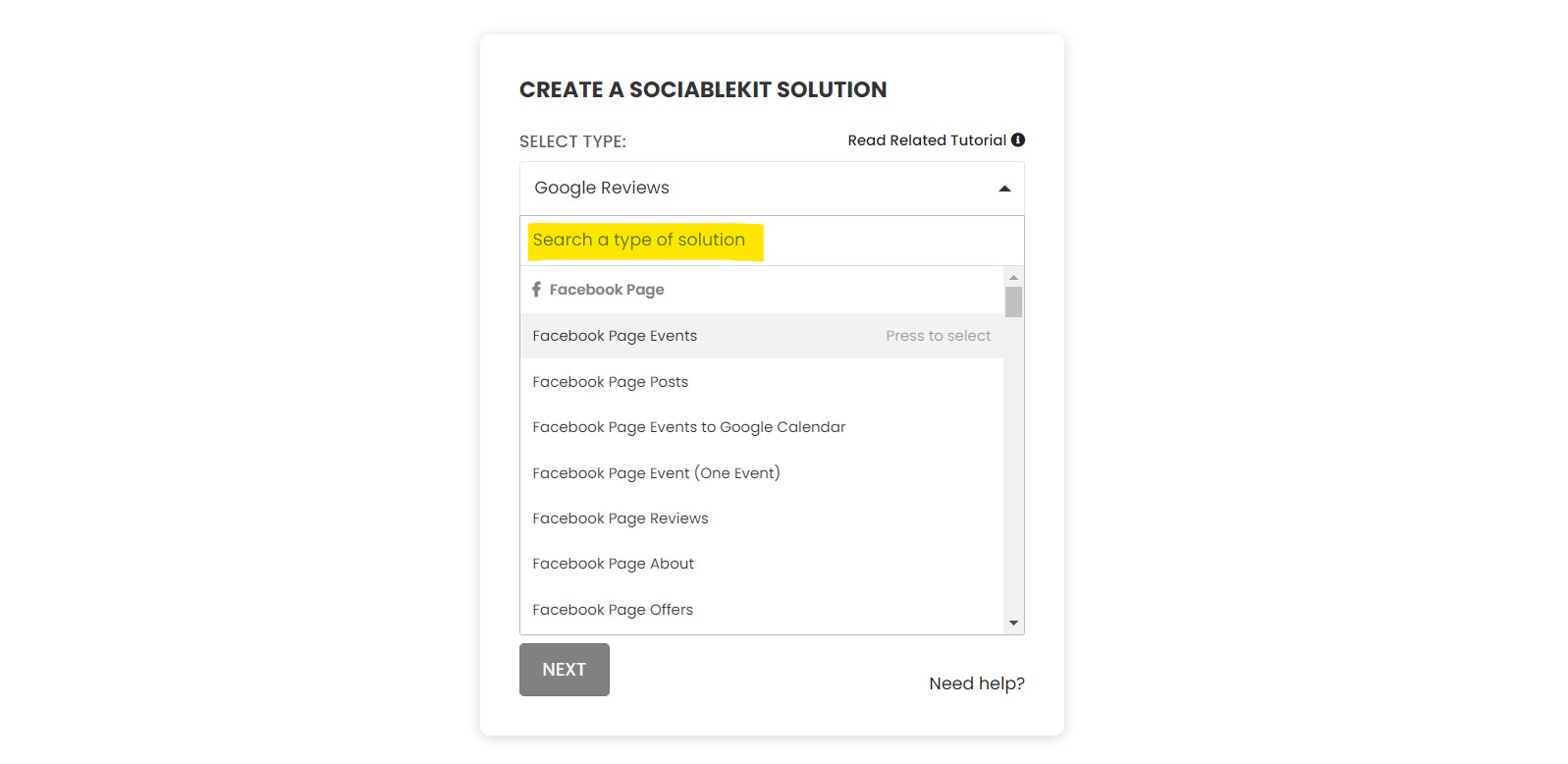
Pick LinkedIn recommendations in the dashboard and connect your source.
-
Match your brand
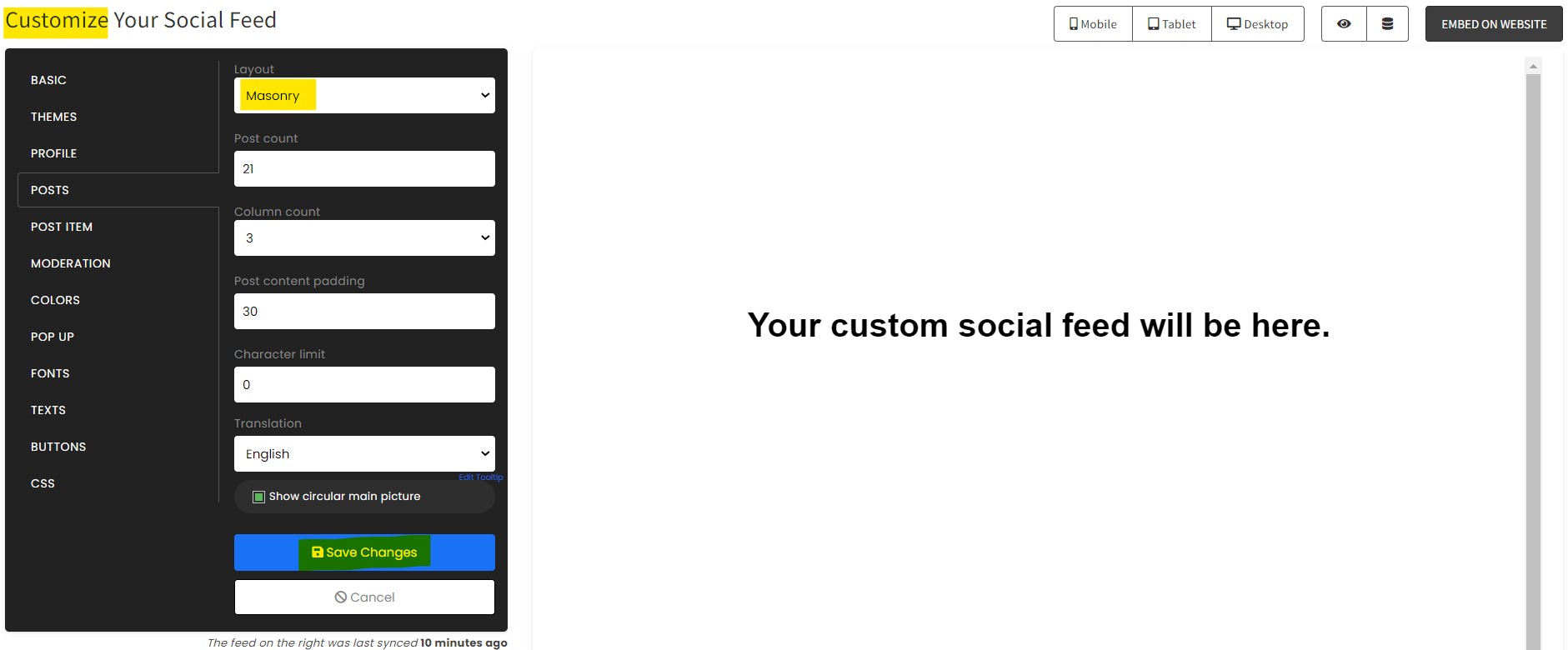
Colors, fonts, layout — tune it until it feels native to your site.
-
Paste one line of code
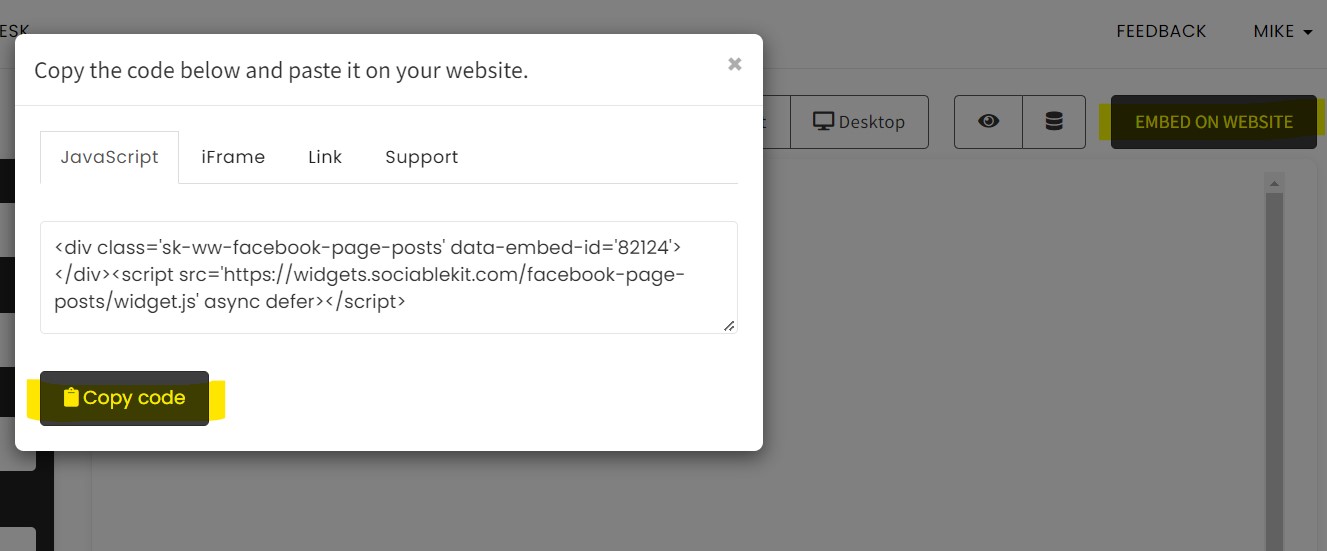
Drop the embed snippet on your Weebly website. No dev team needed.
Embed LinkedIn recommendations with SociableKIT — step by step
Create your widget in the dashboard, copy the embed code, and paste it on your Weebly website. Screenshots included so you never get stuck.
Create and customize your LinkedIn recommendations widget
The first part is creating your LinkedIn recommendations widget using the SociableKIT dashboard. Customize the look and feel to match your brand. Follow the steps below.
-
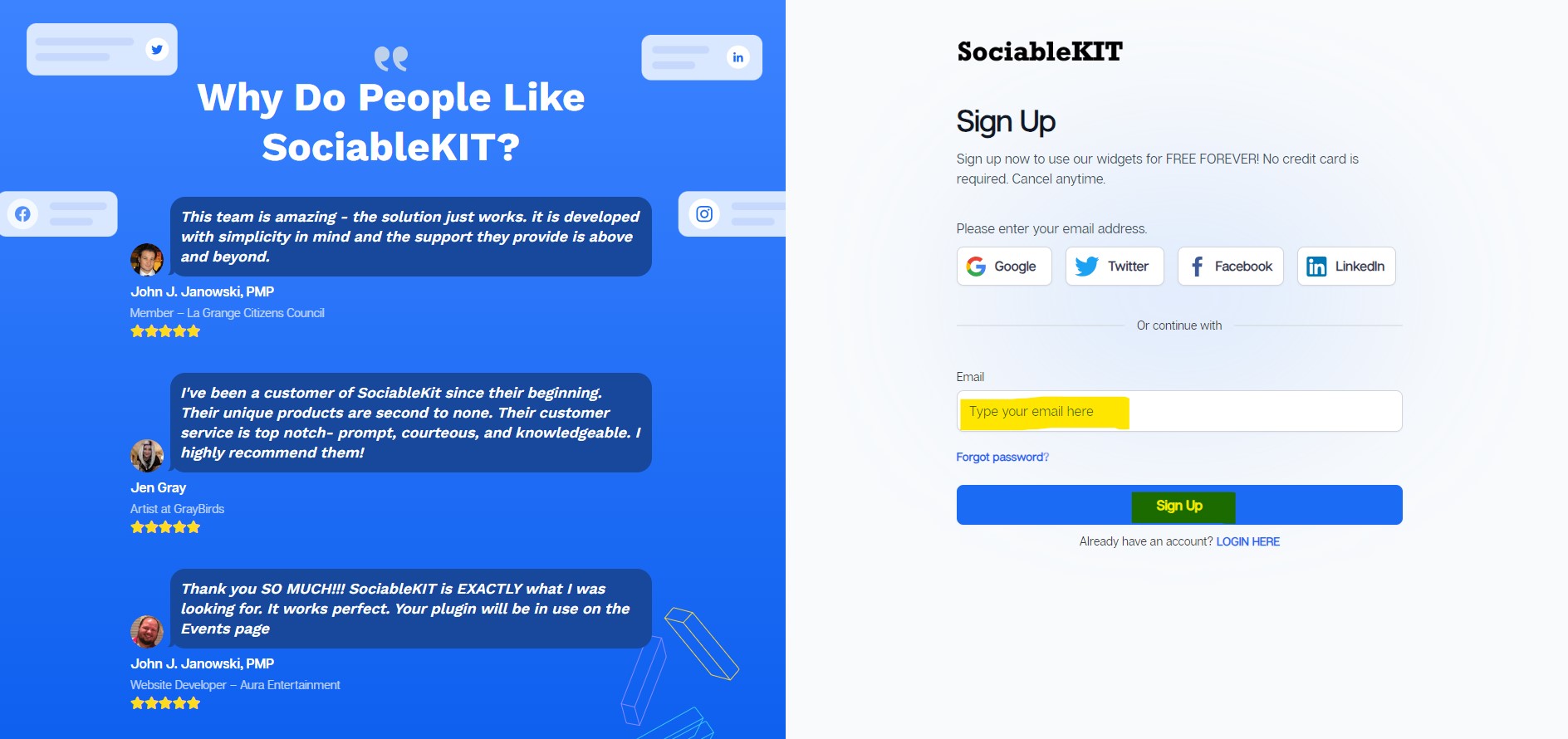
Sign up FREE or login to SociableKIT. You can login here if you already have an account. Once you sign up, you will start your 7-day premium trial. After 7 days, you can activate the free plan if you don't need our premium features.

- Paste the embed code and save your Weebly website page. Please follow the second part below to add LinkedIn recommendations widget to your Weebly website .
Add LinkedIn recommendations widget to your Weebly website
The second part is adding your LinkedIn recommendations widget to your Weebly website . After you customize your LinkedIn recommendations widget and copied the embed code, it is time to add it to your Weebly website . Follow the steps below.
- Copy your free LinkedIn recommendations widget embed code. Make sure you followed the first part above. It detailed how to you can create and customize your widget to get your free embed code.
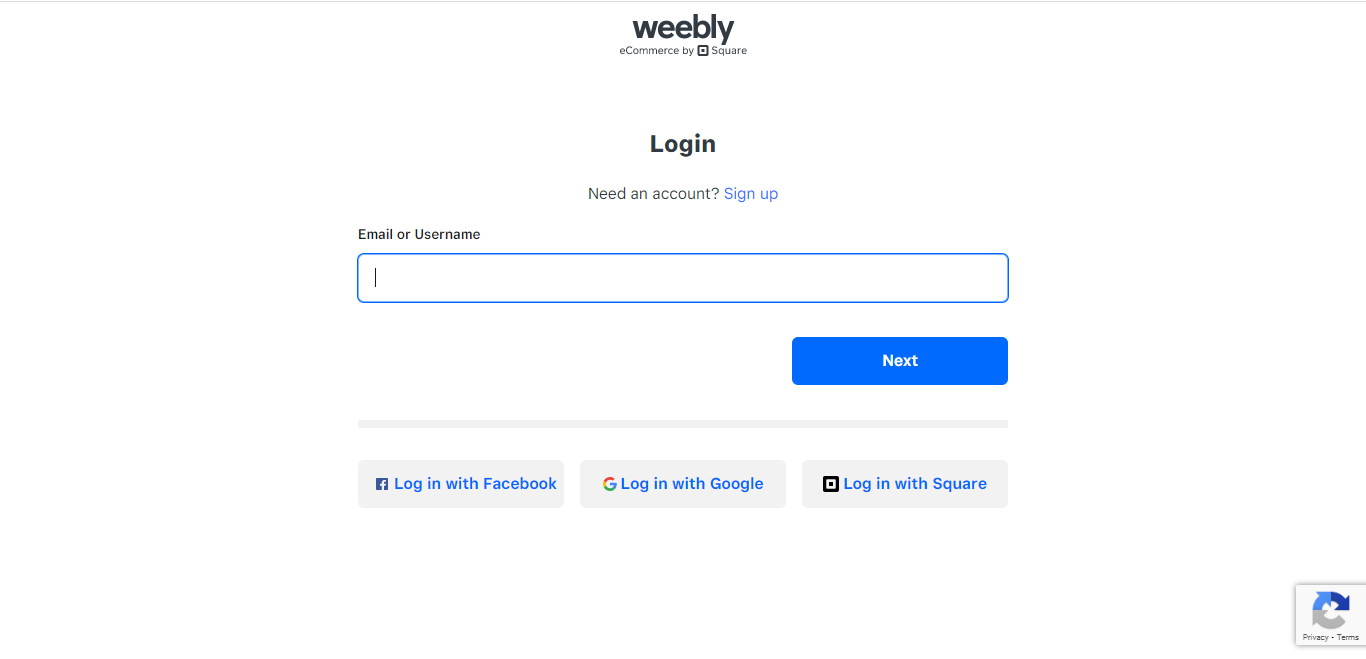
- Log in to Weebly.
![]()
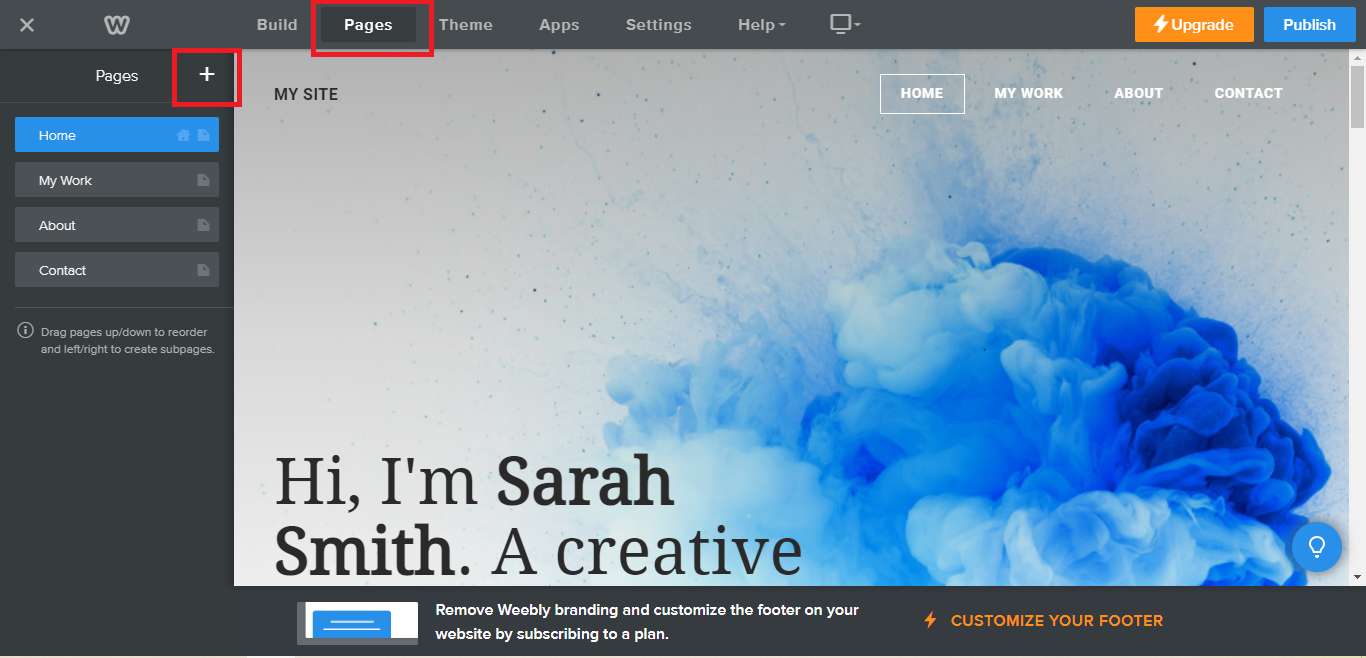
- On your existing website on Weebly, click the "Pages" section on the upper left then click the "+".
![]()
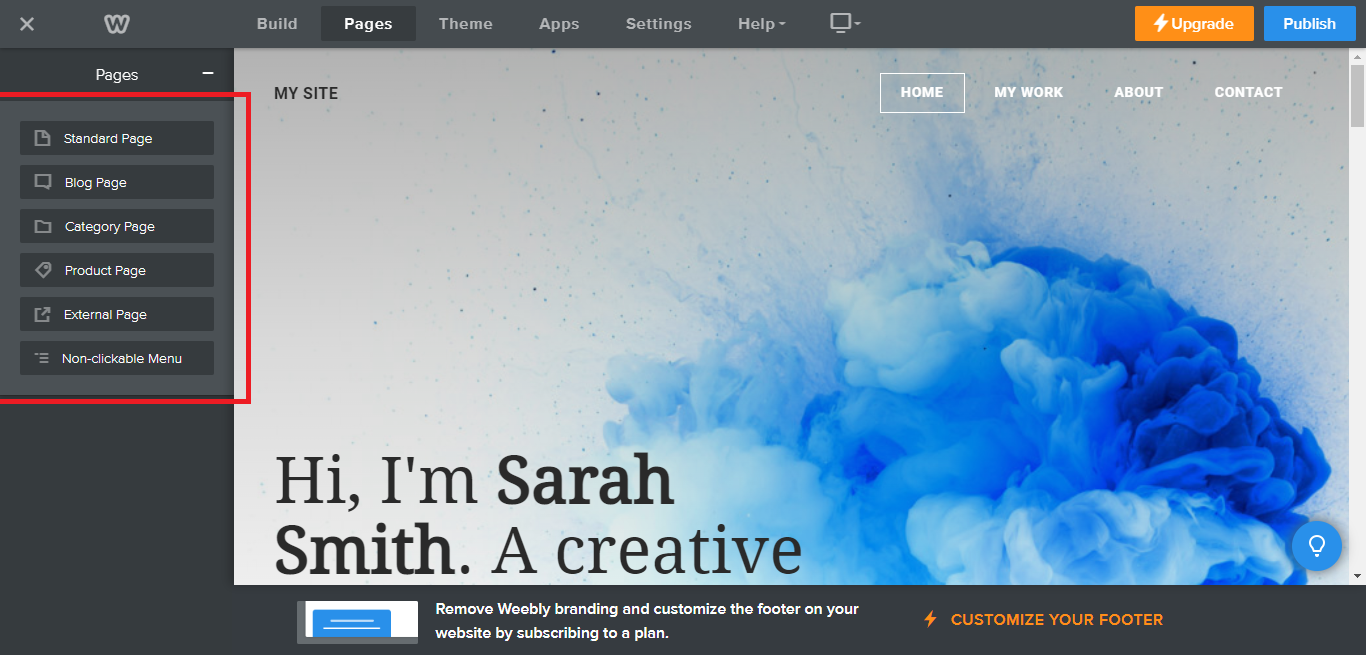
- Select what type of page you want to add.
![]()
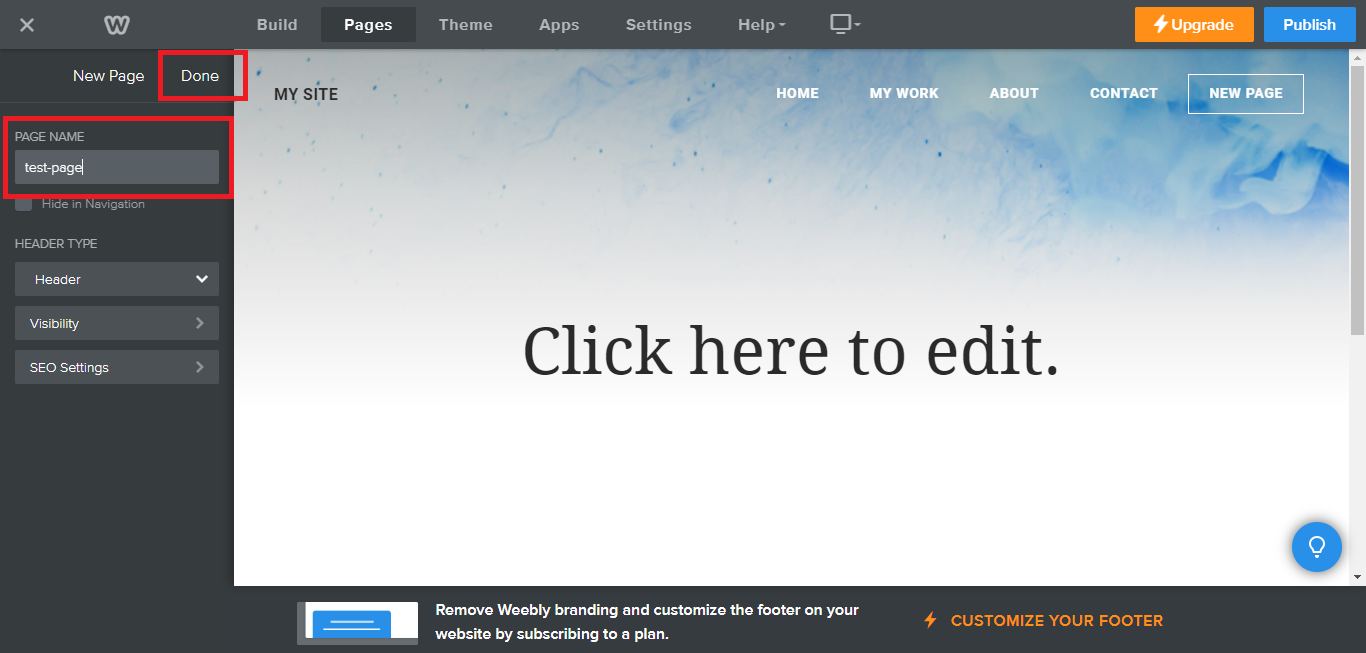
- Add a name to your page and then click "Done".
![]()
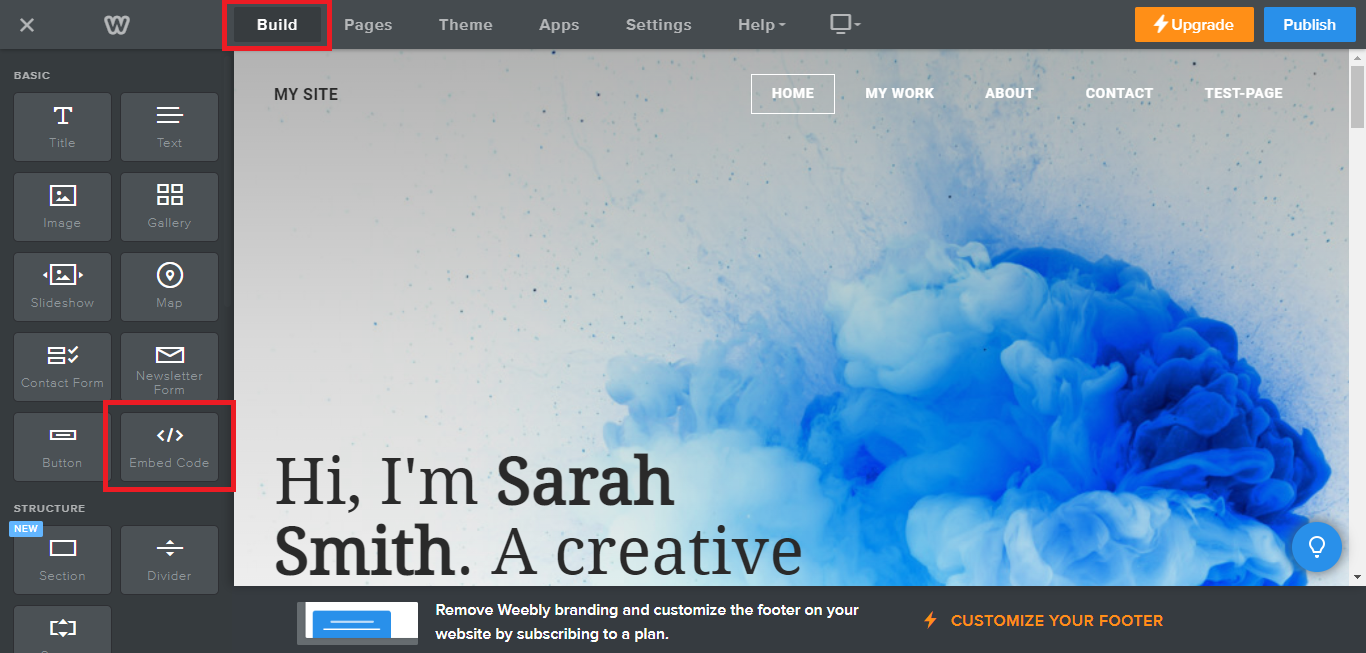
- On the top menu, click "Build" then on the sidebar, drag the "Embed Code" option on your page.
![]()
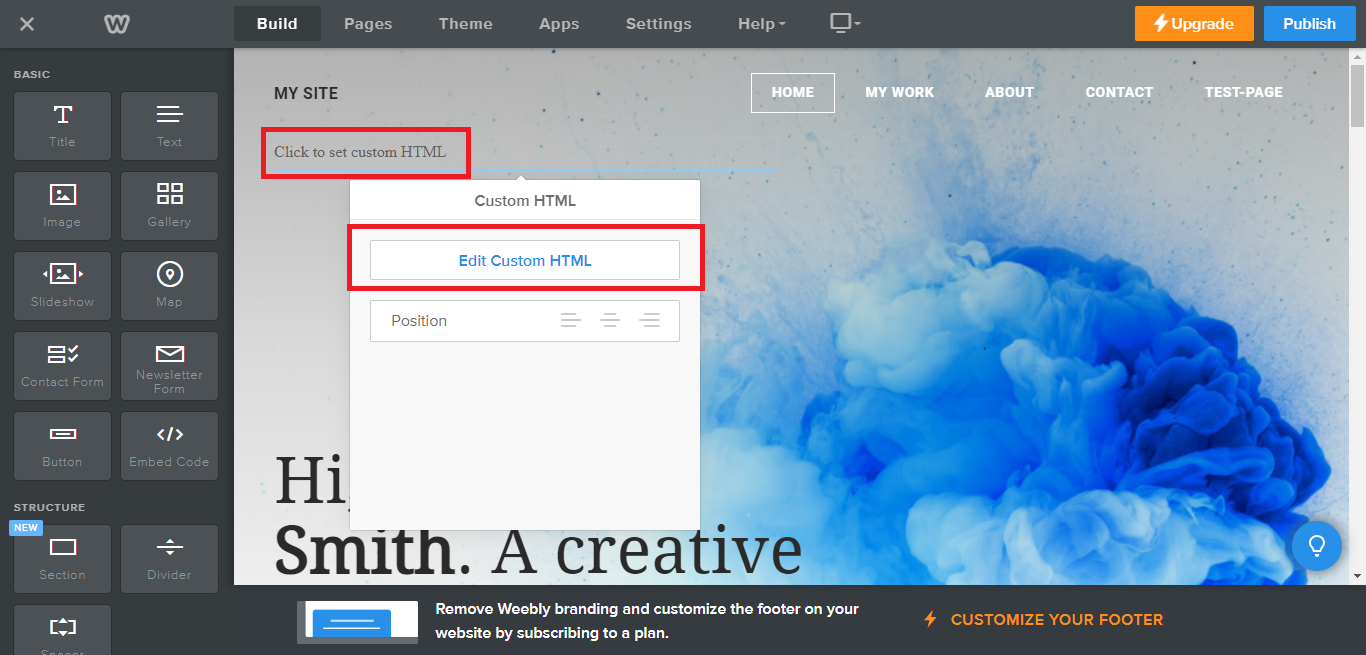
- Click the "Click to set custom HTML" then click "Edit Custom HTML".
![]()
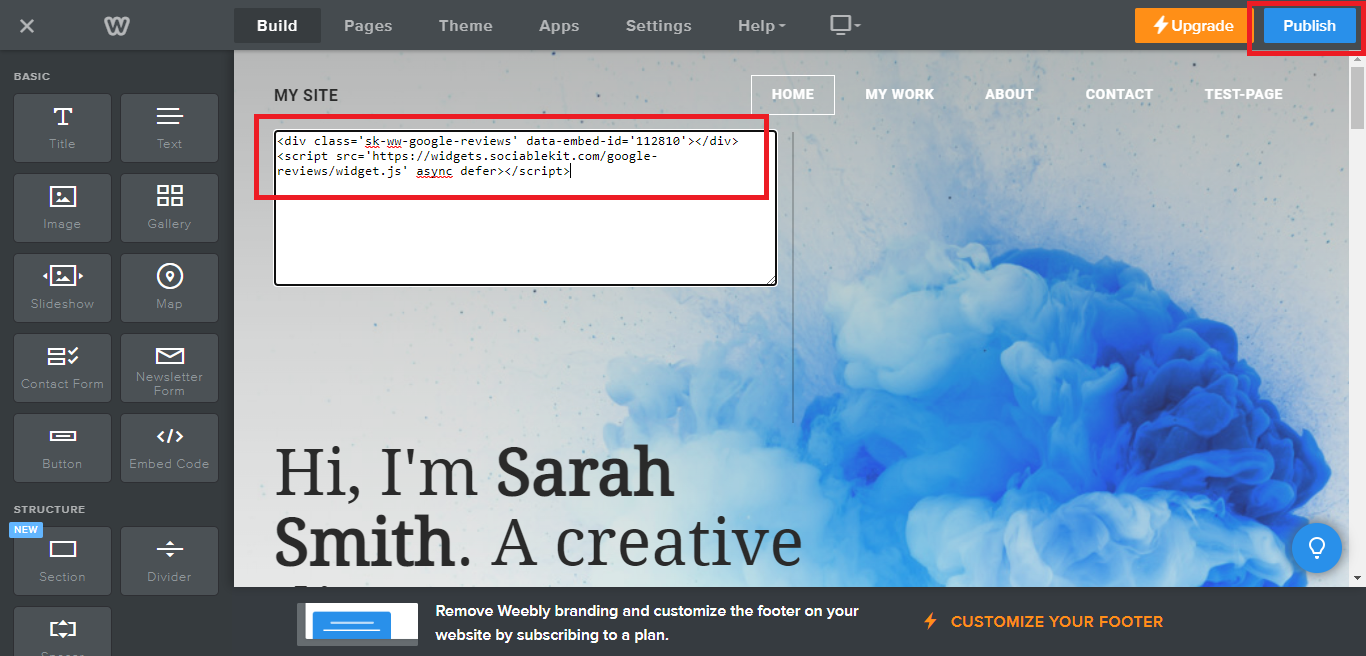
- Paste the code you copied from SociableKIT then in the upper right corner, click the “Publish” button.
![]()
- Click the link to your site. Done!
Use the embed or link option
Prefer a manual approach? Follow these steps to link or embed LinkedIn recommendations without a third-party widget.
- Go to LinkedIn.
- Search your LinkedIn Profile.
- Find your Recommendations.
- Choose a recommendation, screenshot, and save the image.
- Click "Copy Link".
- Login to your website admin panel.
- Create or update a page where you want to put your LinkedIn recommendations
- Upload the image you saved earlier.
- Highlight the uploaded image and insert a link.
- Paste the link you copied earlier.
- It will show the screenshot of your reviews with a link to the actual recommendation on LinkedIn.
- Save your page. Done!
You may choose method 1 or method 2, it depends on your needs. But in case you choose method 1, you can follow our complete guide below.
Website builders
Paste your embed code on any platform
SociableKIT works with every major website builder. Pick yours below for copy-paste instructions tailored to that platform.
To embed LinkedIn recommendations on your Weebly site, follow the steps below after you have your SociableKIT embed code.
- Sign up free to SociableKIT and create your LinkedIn recommendations widget.
- Customize your widget and copy the embed code from the dashboard.
- Log in to Weebly.
![]()
- On your existing website on Weebly, click the "Pages" section on the upper left then click the "+".
![]()
- Select what type of page you want to add.
![]()
- Add a name to your page and then click "Done".
![]()
- On the top menu, click "Build" then on the sidebar, drag the "Embed Code" option on your page.
![]()
- Click the "Click to set custom HTML" then click "Edit Custom HTML".
![]()
- Paste the code you copied from SociableKIT then in the upper right corner, click the “Publish” button.
![]()
- Click the link to your site. Done!
To embed LinkedIn recommendations on your WordPress site, follow the steps below after you have your SociableKIT embed code.
- Sign up free to SociableKIT and create your LinkedIn recommendations widget.
- Customize your widget and copy the embed code from the dashboard.
- Login to your WordPress site.
![]()
- On your WordPress, go to the "Pages" section then click the "Add new page".
![]()
- Pick a pre-defined layout or start with a blank page by clicking the "Blank page" button.
![]()
- On the body of your page, click the "+" icon and click the "Custom HTML".
![]()
- Paste the code in the text area and click update.
![]()
- The widget will appear on the WordPress page.
![]()
- Click the Publish or Update button on your WordPress page.
![]()
- Click the view page. Done!
To embed LinkedIn recommendations on your Wix site, follow the steps below after you have your SociableKIT embed code.
- Sign up free to SociableKIT and create your LinkedIn recommendations widget.
- Customize your widget and copy the embed code from the dashboard.
- Login to Wix.
![]()
- On your existing website click the "+" button beside the "Main pages" section.
![]()
- Then click the "Add page" button.
![]()
- Name your page then hit enter.
![]()
- On the left, click "Add element". Find and click "Embed code". Click and drag "Embed a site" on your page then resize the container.
![]()
- Click "Change website address".
![]()
- Paste the link you copied from SociableKIT then click "Apply".
![]()
- Click "Publish" on the upper right.
![]()
- Click "View site". Done!
![]()
To embed LinkedIn recommendations on your Squarespace site, follow the steps below after you have your SociableKIT embed code.
- Sign up free to SociableKIT and create your LinkedIn recommendations widget.
- Customize your widget and copy the embed code from the dashboard.
- Login to Squarespace. You must have a "Business" account in Squarespace to use the widget. The "code block" needed cannot be found if you only have a "Personal" account.
![]()
- Create a new blank page or edit your existing page. Identify which page you want the widget to appear. You can create a new page on Squarespace, or you can edit your existing page where you want the widget to appear.
![]()
- Add a Code Block. On your Squarespace page, click the 'Edit' button. Find the 'Code' block and click it.
![]()
- Paste the embed code from SociableKIT. On the 'Content' of the 'Code' block, paste the JavaScript embed code you have copied from your widget.
![]()
- Save the changes on the 'Code block'. After pasting your widget's embed code. Click the 'Save' button on the left part of the page.
![]()
- View your page. Refresh your Squarespace page and check your SociableKIT widget. Done!
![]()
To embed LinkedIn recommendations on your Webflow site, follow the steps below after you have your SociableKIT embed code.
- Sign up free to SociableKIT and create your LinkedIn recommendations widget.
- Customize your widget and copy the embed code from the dashboard.
- Login to Webflow.
![]()
- On your existing website, click the "Page: ...." in the upper left corner then click the "Create new page" icon.
![]()
- Once done add a name for your new page then click "Save".
![]()
- On the left, click "Add Element". Drag "Embed" to your page.
![]()
- Paste the JavaScript code you copied from SociableKIT.
![]()
- On the upper right, click "Publish" > "Publish to Selected Domains".
![]()
- View your page. Done!
To embed LinkedIn recommendations on your Shopify site, follow the steps below after you have your SociableKIT embed code.
- Sign up free to SociableKIT and create your LinkedIn recommendations widget.
- Customize your widget and copy the embed code from the dashboard.
- Login to Shopify.
![]()
- On the left side, click Online Store.
![]()
- Click Pages. Add a new page or edit your existing page.
![]()
- On the Page details, click Show HTML icon (<>).
![]()
- Paste the embed code and click the Save button.
![]()
- Click the View page button. Done!
![]()
To embed LinkedIn recommendations on your HTML site, follow the steps below after you have your SociableKIT embed code.
- Sign up free to SociableKIT and create your LinkedIn recommendations widget.
- Customize your widget and copy the embed code from the dashboard.
- Open your HTML file.
![]()
- You can create a new HTML page or edit your existing HTML page.
![]()
- Paste the Javascript code you copied from SociableKIT. Paste it where you want the widget to appear.
![]()
- Save your HTML page.
![]()
- You may now upload your HTML page to your web hosting.
To embed LinkedIn recommendations on your Google Sites site, follow the steps below after you have your SociableKIT embed code.
- Sign up free to SociableKIT and create your LinkedIn recommendations widget.
- Customize your widget and copy the embed code from the dashboard.
- Login to Google sites. You must have at least a 'Business Starter' plan to create and customize your Google sites.
![]()
- Create or edit an existing website. Click the + 'Blank' button on the 'Start a new site' section to create or find your existing website under the 'Recent sites' section.
![]()
- Create a new blank page or edit your existing page. Identify which page you want the widget to appear. On the right sidebar, you will see an 'Embed' button. Click the 'Embed' button.
![]()
- Add the widget. A popup 'Embed from the web' will open up. Select the 'Embed code' tab on the popup.
![]()
- Paste the embed code from SociableKIT. On the 'Embed code' tab, you will see 'HTML code goes here' text. Paste the embed code from your SociableKIT widget.
![]()
- Save the widget. Once you have pasted your embed code, click the 'Next' button.
![]()
- Preview of your SociableKIT widget. After clicking the Next button, a preview of your embed code will be displayed. Click the 'Insert' button to insert the widget to your Google sites page.
![]()
- Edit the widget. Once the widget has been inserted, you will have the option to resize the widget. After resizing the widget to your preferences, click the 'Publish' button on the upper right corner of the page.
![]()
- Publish your page. After publishing the site, click the down 'Arrow' button beside the 'Publish' button.
![]()
- View your page. A dropdown of buttons will be displayed, click the 'View published site' button. Done!
![]()
Live preview
Pick a LinkedIn recommendations template — see it live
Choose a starting design on the left and watch the preview update with real data. What you see is exactly what visitors get on your Weebly website.
Common questions
Frequently asked questions
Everything you need to know about embedding LinkedIn recommendations on your Weebly website.
What is the SociableKIT LinkedIn Recommendations widget?
The SociableKIT LinkedIn Recommendations widget lets you display your LinkedIn recommendations on your website in a clean, branded section. It helps visitors see real professional proof without leaving your page. It is built for consultants, agencies, coaches, service providers, founders, and professionals who want their credibility to be visible where buyers decide.
Can I embed LinkedIn recommendations on my website?
Yes. SociableKIT gives you an embed code you can add to your website so your LinkedIn recommendations can appear directly on your page. This helps turn recommendations that are usually hidden inside your profile into visible trust signals on your website.
Do I need coding skills to use the LinkedIn Recommendations widget?
No coding skills are needed. You create the widget in SociableKIT, customize the design, copy the embed code, and paste it into your website builder. If you get stuck, SociableKIT support can help you set it up.
Will my LinkedIn recommendations update automatically?
SociableKIT offers sync options to help keep your widget current without constant manual work. Free users can start with manual syncing, while paid plans can unlock automatic syncing depending on the widget and source behavior. This helps your website stay fresh when new recommendations become available.
Can I customize how the LinkedIn recommendations look?
Yes. You can customize the layout, colors, fonts, spacing, and overall style so the widget feels like part of your website. This makes your recommendations look polished instead of pasted in. A better match with your brand also helps the section feel more trustworthy.
Is the LinkedIn Recommendations widget mobile-friendly?
Yes. SociableKIT widgets are designed to work on desktop, tablet, and mobile screens. Your recommendations can resize and adapt to different devices, so visitors can read them clearly wherever they browse.
Will the widget work with my website builder?
SociableKIT works with popular website builders and custom websites that allow embed code. This includes common platforms used by small businesses, agencies, creators, and service professionals. In most cases, you only need to paste the embed code into an HTML or custom code block.
Can visitors read my recommendations without going to LinkedIn?
Yes. The goal of the widget is to show your recommendations directly on your website, so visitors can see social proof while they are already learning about your services. This reduces friction and keeps trust-building content close to your call to action.
Why should I add LinkedIn recommendations to my website?
LinkedIn recommendations are strong trust signals because they come from real professional relationships. Adding them to your website helps visitors understand who trusted you before and what results or qualities they appreciated. It gives your sales page, about page, or portfolio more proof without adding more copy.
Where should I place LinkedIn recommendations on my website?
Good places include your homepage, about page, service pages, coaching page, consulting page, portfolio, and landing pages. Place them near sections where visitors are deciding whether to trust you. The closer the proof is to the decision point, the more useful it becomes.
Can I choose which LinkedIn recommendations appear?
SociableKIT includes moderation features on paid plans to help you control what appears in your widget. This is helpful when you want to highlight your strongest recommendations or keep the section focused on a specific service. You can keep your website clean, relevant, and aligned with your brand message.
What if one of my LinkedIn recommendations does not appear?
A recommendation may not appear if it is hidden, private, not accepted, removed, or not available to the source. LinkedIn visibility settings can affect what can be displayed. If something looks wrong, SociableKIT support can help you check the setup and source details.
Do I need a LinkedIn API key to display recommendations?
No. SociableKIT is made for website owners who do not want to build or maintain their own LinkedIn integration. You can create the widget, style it, and embed it without managing API keys or developer tools.
Can I add LinkedIn recommendations from more than one profile?
You can create more widgets or connect more sources depending on your SociableKIT plan. This is useful for agencies, teams, coaches, consultants, or companies that want to show recommendations from different professionals. Your setup can scale as your social proof grows.
Can I remove SociableKIT branding from the widget?
Yes, branding options depend on your plan. Free plans may include SociableKIT branding, while paid plans can unlock more professional display options. This gives growing businesses a simple path from testing to a cleaner branded experience.
Does SociableKIT support high-traffic websites?
Yes. Paid SociableKIT plans are built for business websites that need more views and more flexibility. Unlimited views are available on paid options, so you do not have to worry about your social proof disappearing during busy traffic periods.
Will the LinkedIn Recommendations widget slow down my website?
SociableKIT is designed to make embedding social proof simple, but website speed can still depend on your page, theme, scripts, and number of widgets. For best results, show the recommendations that matter most and avoid overcrowding the page. If you need help, SociableKIT support can guide you.
Is there a free plan for the LinkedIn Recommendations widget?
Yes. You can start with a free SociableKIT plan and test the widget before upgrading. Paid plans are useful when you need automatic syncing, more control, more views, branding options, and stronger support.
Can SociableKIT help me set up the widget?
Yes. SociableKIT offers support to help you create, customize, and embed your widget. Paid plans include 24/7 human support, which is helpful if you want the widget live quickly or need help matching it to your website.
Who should use a LinkedIn Recommendations widget?
This widget is a strong fit for professionals and businesses that sell trust before a buyer contacts them. Consultants, agencies, freelancers, coaches, recruiters, founders, speakers, and service teams can use it to show proof from people they have worked with. It helps your website feel more credible with less explanation.
Add your LinkedIn recommendations widget today
Set up in minutes. Free forever to start.
Create your widgetFree forever · No credit card · Cancel anytime