
Your BBB reviews on Weebly website — live in 3 steps
SociableKIT syncs your bbb reviews automatically. Set up once, embed anywhere — free to start, no coding required.
-
Create in 60 seconds
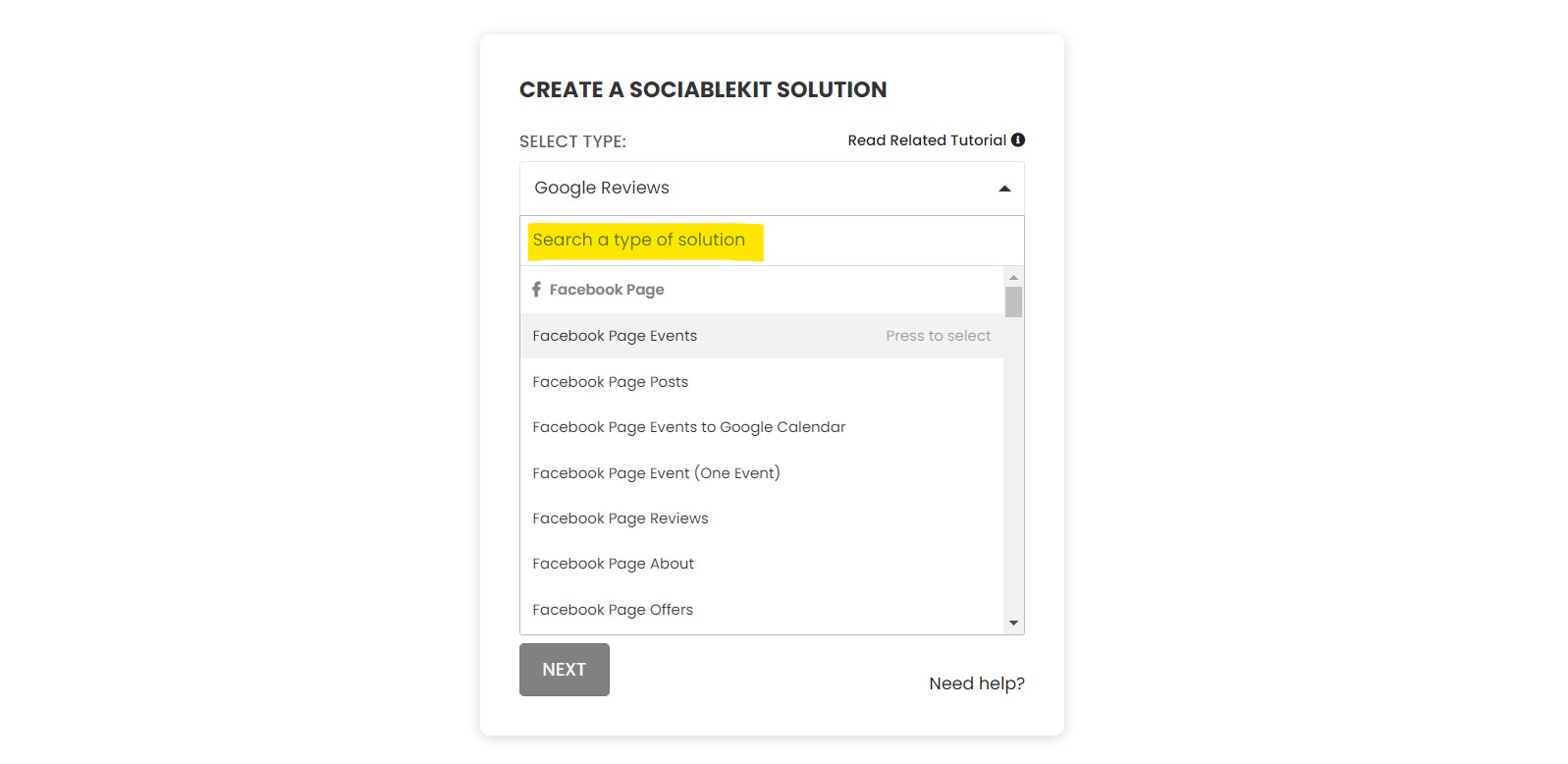
Pick BBB reviews in the dashboard and connect your source.
-
Match your brand
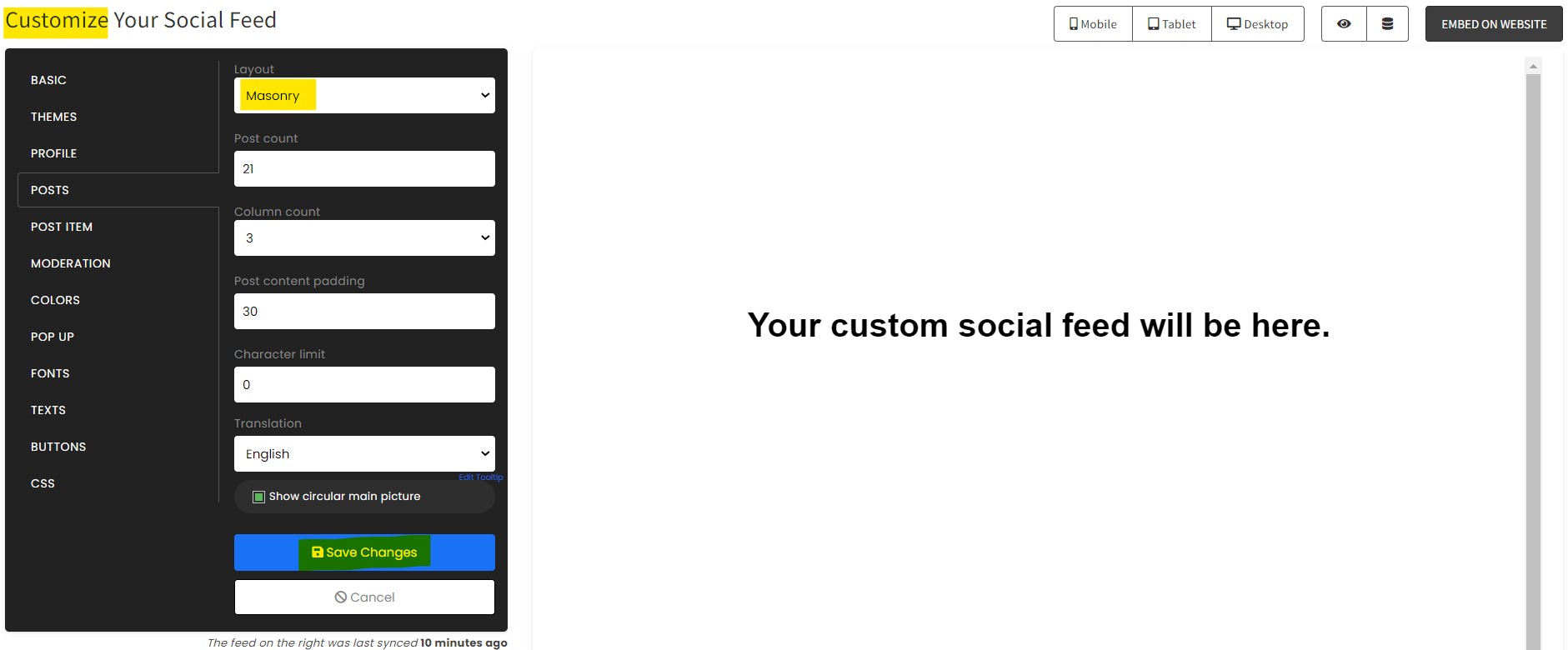
Colors, fonts, layout — tune it until it feels native to your site.
-
Paste one line of code
Drop the embed snippet on your Weebly website. No dev team needed.
Embed BBB reviews with SociableKIT — step by step
Create your widget in the dashboard, copy the embed code, and paste it on your Weebly website. Screenshots included so you never get stuck.
Create and customize your BBB reviews widget
The first part is creating your BBB reviews widget using the SociableKIT dashboard. Customize the look and feel to match your brand. Follow the steps below.
-
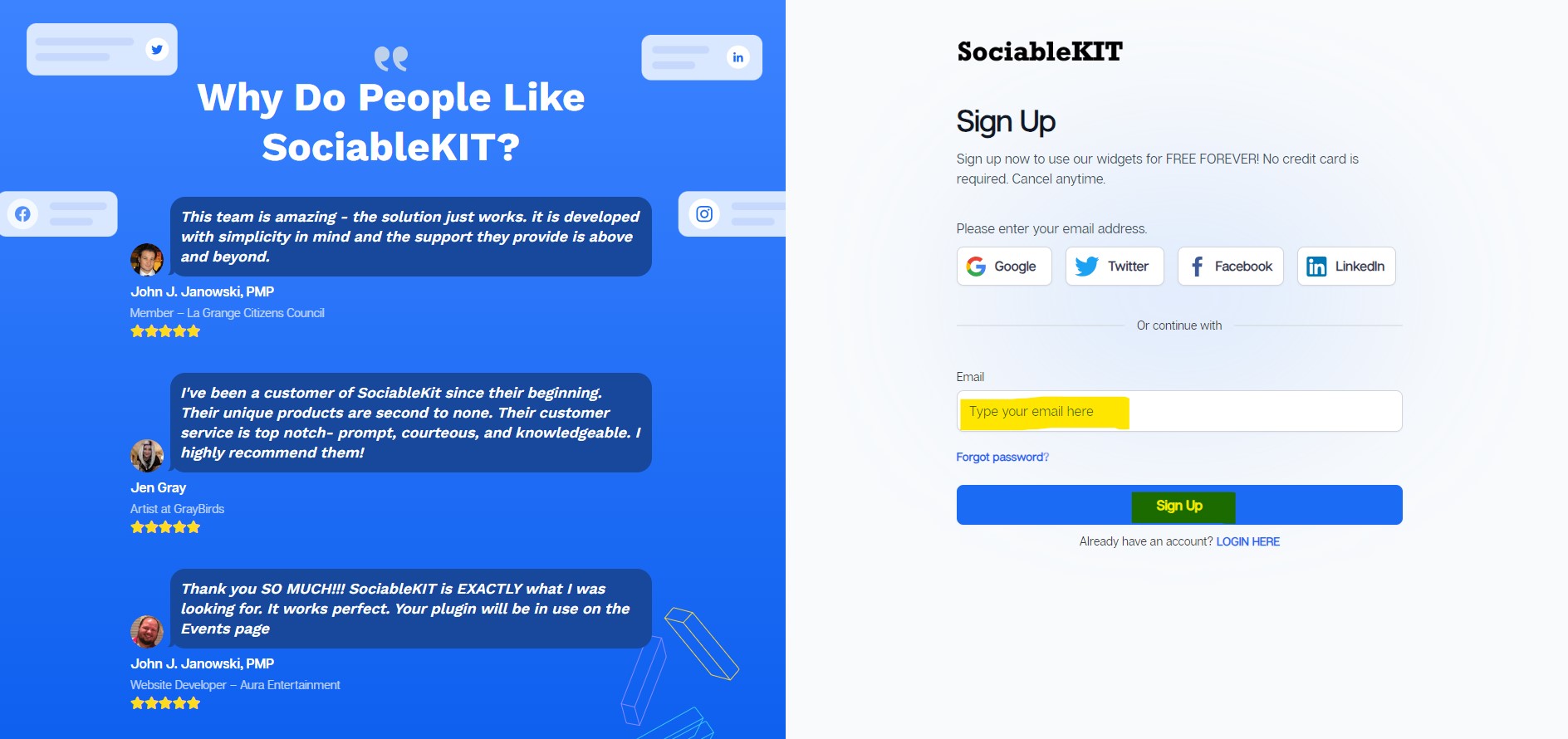
Sign up FREE or login to SociableKIT. You can login here if you already have an account. Once you sign up, you will start your 7-day premium trial. After 7 days, you can activate the free plan if you don't need our premium features.

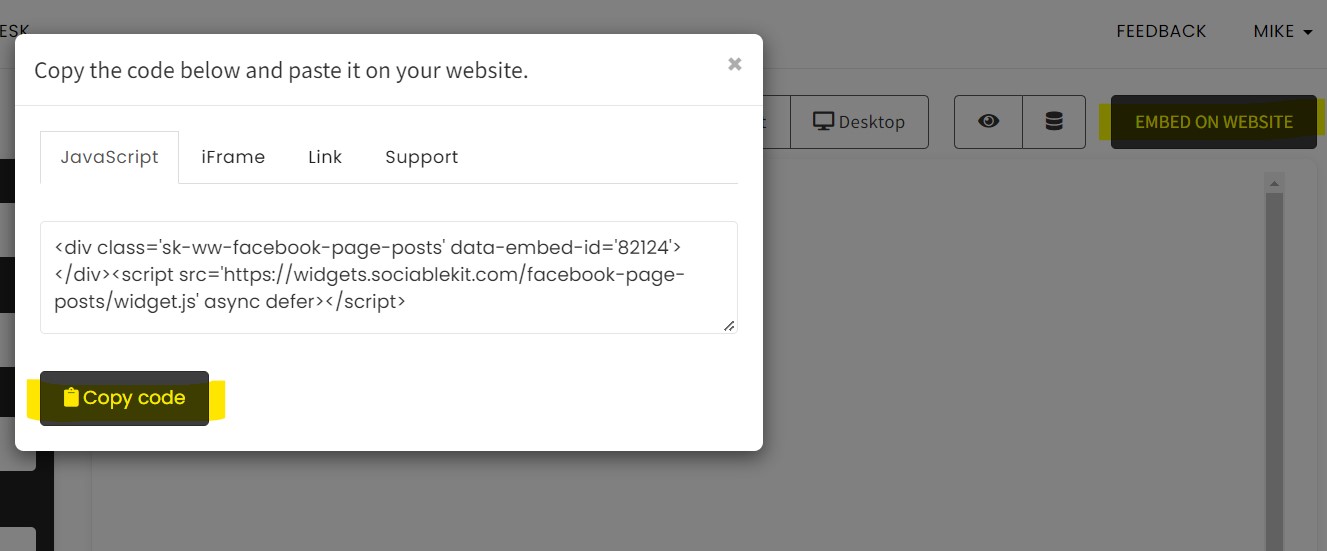
- Paste the embed code and save your Weebly website page. Please follow the second part below to add BBB reviews widget to your Weebly website .
Add BBB reviews widget to your Weebly website
The second part is adding your BBB reviews widget to your Weebly website . After you customize your BBB reviews widget and copied the embed code, it is time to add it to your Weebly website . Follow the steps below.
- Copy your free BBB reviews widget embed code. Make sure you followed the first part above. It detailed how to you can create and customize your widget to get your free embed code.
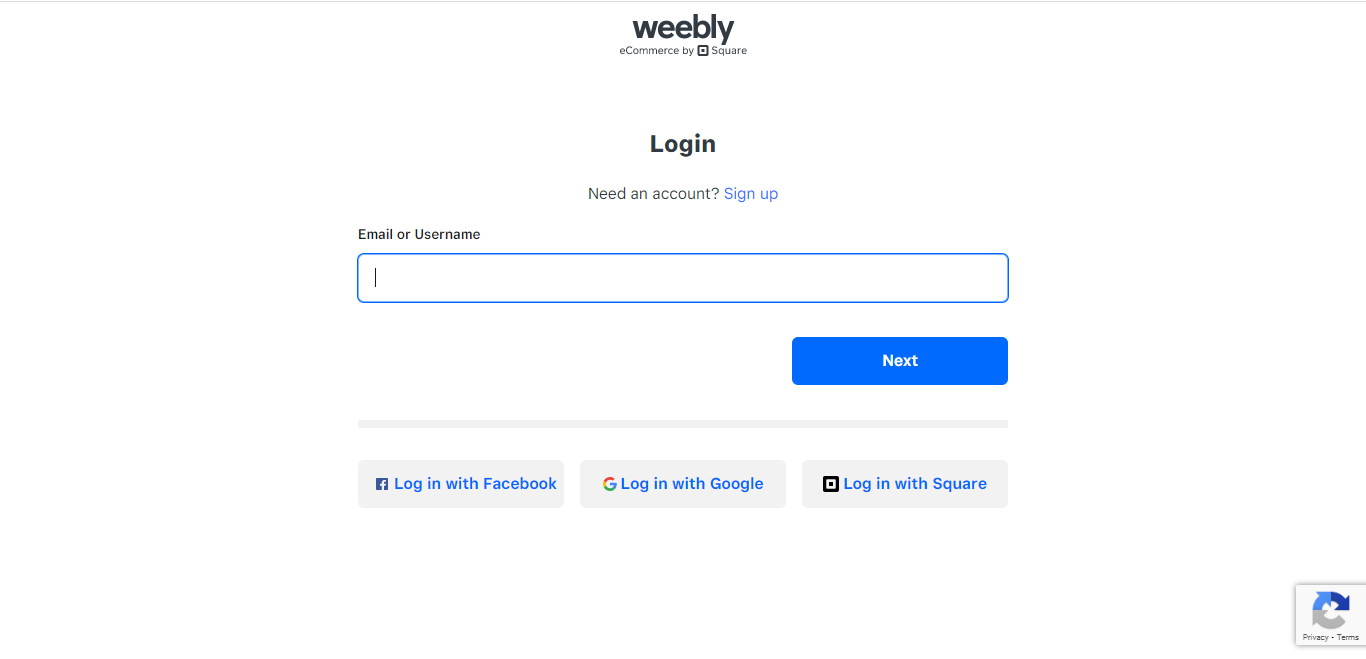
- Log in to Weebly.
![]()
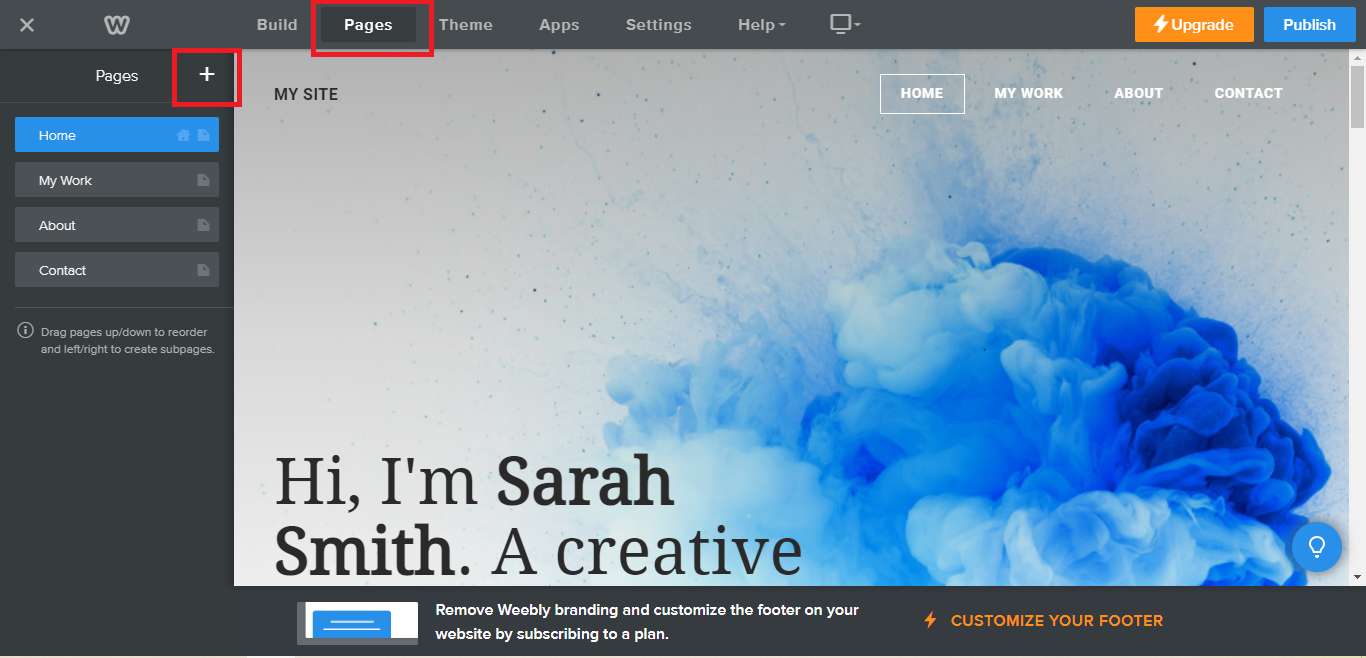
- On your existing website on Weebly, click the "Pages" section on the upper left then click the "+".
![]()
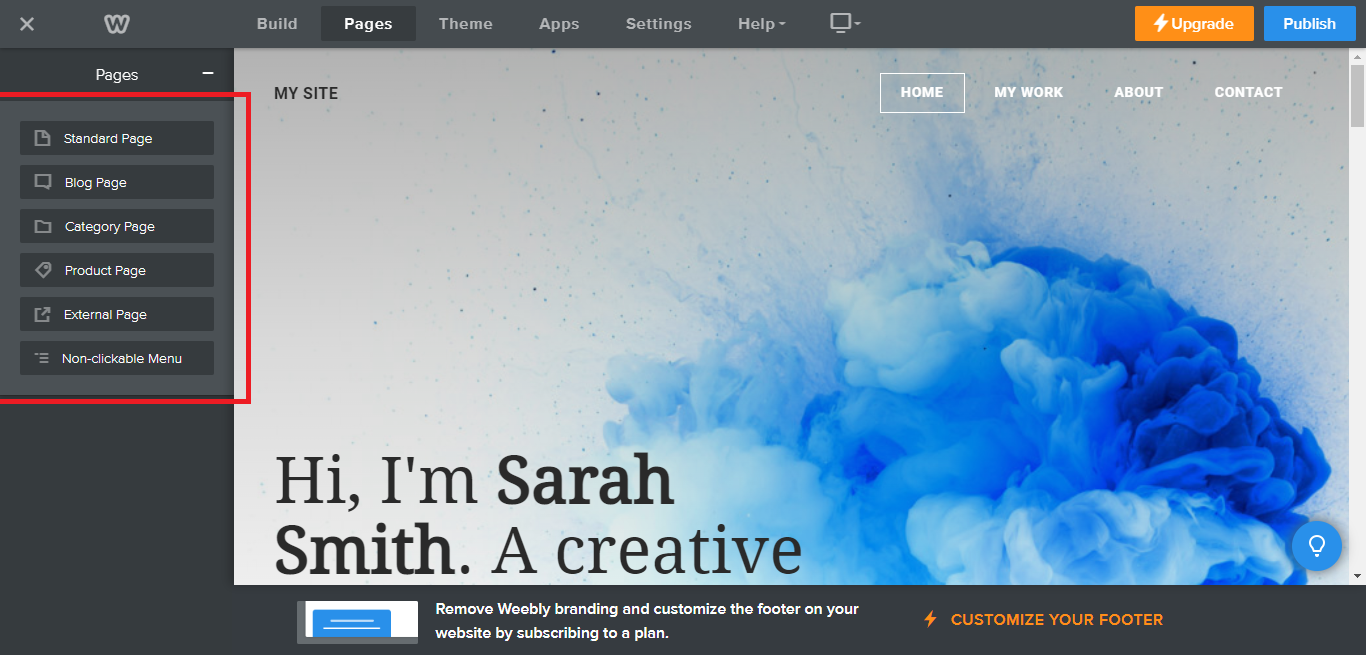
- Select what type of page you want to add.
![]()
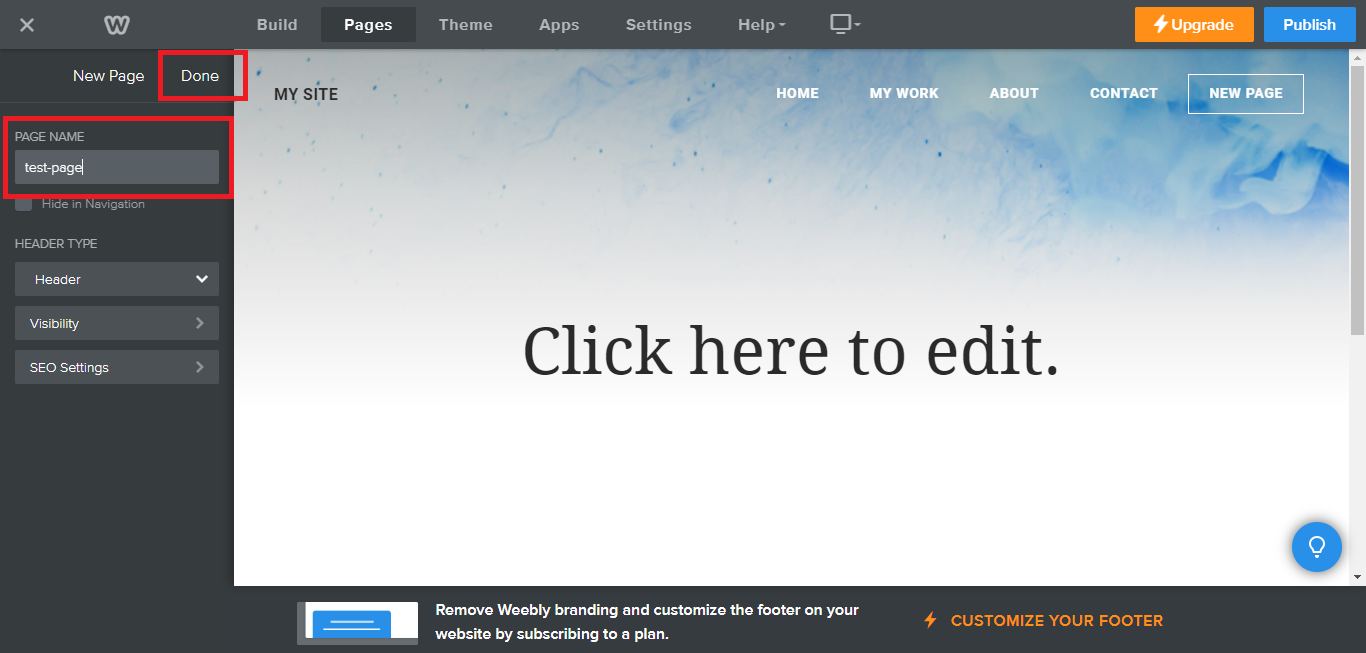
- Add a name to your page and then click "Done".
![]()
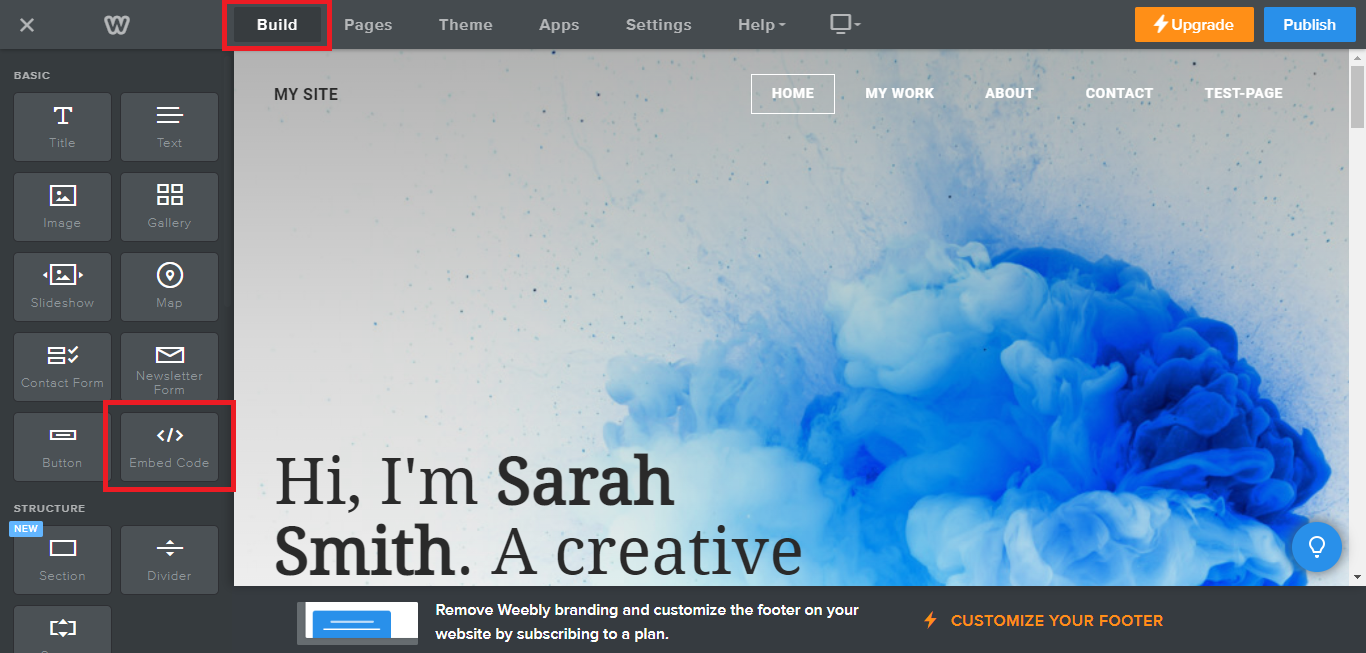
- On the top menu, click "Build" then on the sidebar, drag the "Embed Code" option on your page.
![]()
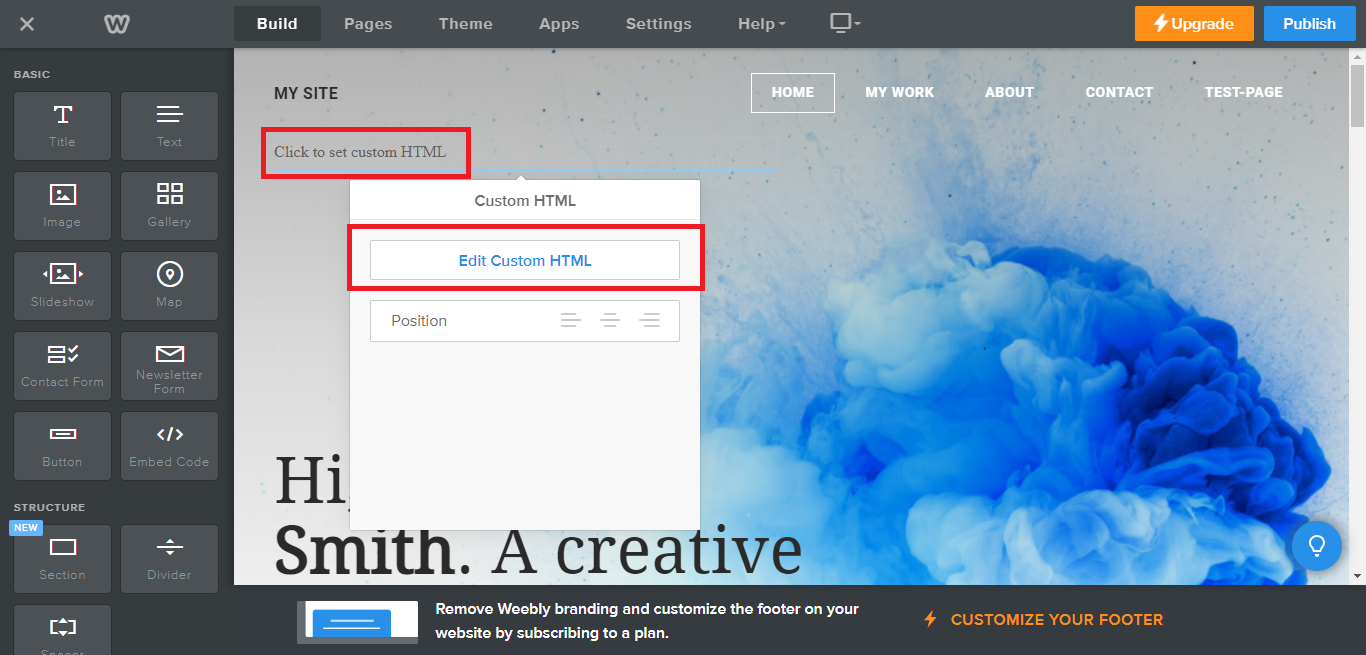
- Click the "Click to set custom HTML" then click "Edit Custom HTML".
![]()
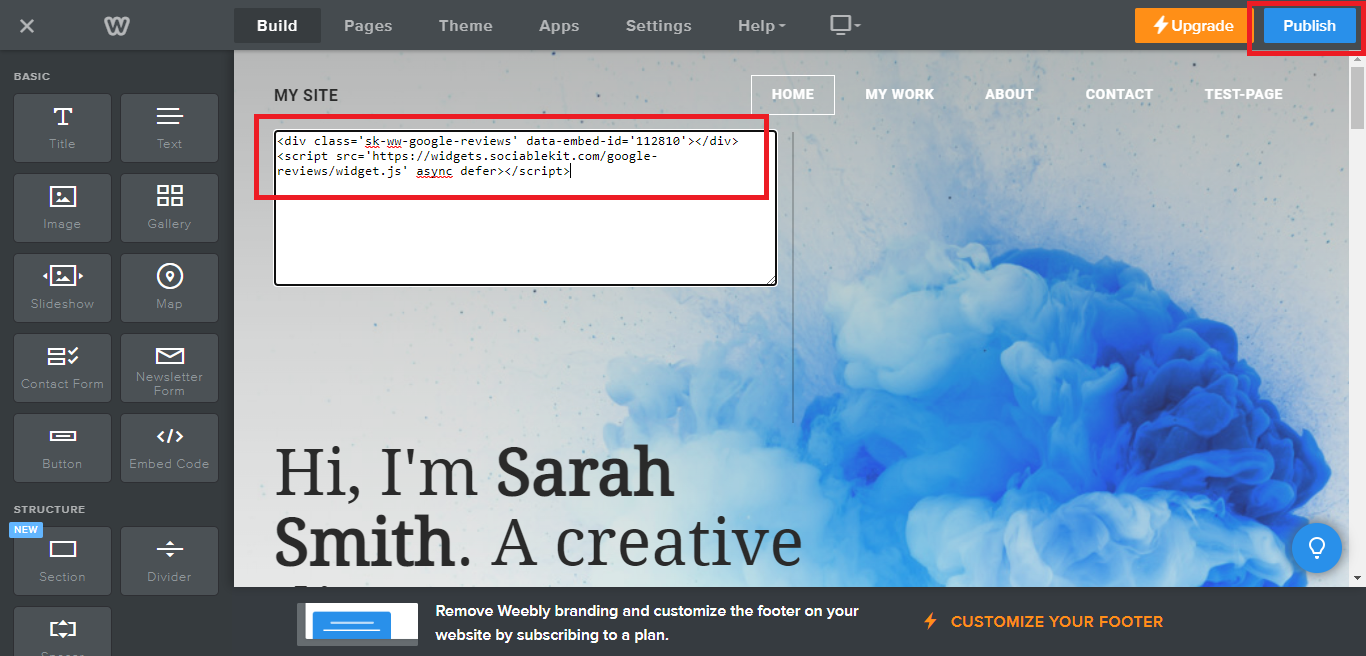
- Paste the code you copied from SociableKIT then in the upper right corner, click the “Publish” button.
![]()
- Click the link to your site. Done!
Website builders
Paste your embed code on any platform
SociableKIT works with every major website builder. Pick yours below for copy-paste instructions tailored to that platform.
To embed BBB reviews on your Weebly site, follow the steps below after you have your SociableKIT embed code.
- Sign up free to SociableKIT and create your BBB reviews widget.
- Customize your widget and copy the embed code from the dashboard.
- Log in to Weebly.
![]()
- On your existing website on Weebly, click the "Pages" section on the upper left then click the "+".
![]()
- Select what type of page you want to add.
![]()
- Add a name to your page and then click "Done".
![]()
- On the top menu, click "Build" then on the sidebar, drag the "Embed Code" option on your page.
![]()
- Click the "Click to set custom HTML" then click "Edit Custom HTML".
![]()
- Paste the code you copied from SociableKIT then in the upper right corner, click the “Publish” button.
![]()
- Click the link to your site. Done!
To embed BBB reviews on your WordPress site, follow the steps below after you have your SociableKIT embed code.
- Sign up free to SociableKIT and create your BBB reviews widget.
- Customize your widget and copy the embed code from the dashboard.
- Login to your WordPress site.
![]()
- On your WordPress, go to the "Pages" section then click the "Add new page".
![]()
- Pick a pre-defined layout or start with a blank page by clicking the "Blank page" button.
![]()
- On the body of your page, click the "+" icon and click the "Custom HTML".
![]()
- Paste the code in the text area and click update.
![]()
- The widget will appear on the WordPress page.
![]()
- Click the Publish or Update button on your WordPress page.
![]()
- Click the view page. Done!
To embed BBB reviews on your Wix site, follow the steps below after you have your SociableKIT embed code.
- Sign up free to SociableKIT and create your BBB reviews widget.
- Customize your widget and copy the embed code from the dashboard.
- Login to Wix.
![]()
- On your existing website click the "+" button beside the "Main pages" section.
![]()
- Then click the "Add page" button.
![]()
- Name your page then hit enter.
![]()
- On the left, click "Add element". Find and click "Embed code". Click and drag "Embed a site" on your page then resize the container.
![]()
- Click "Change website address".
![]()
- Paste the link you copied from SociableKIT then click "Apply".
![]()
- Click "Publish" on the upper right.
![]()
- Click "View site". Done!
![]()
To embed BBB reviews on your Squarespace site, follow the steps below after you have your SociableKIT embed code.
- Sign up free to SociableKIT and create your BBB reviews widget.
- Customize your widget and copy the embed code from the dashboard.
- Login to Squarespace. You must have a "Business" account in Squarespace to use the widget. The "code block" needed cannot be found if you only have a "Personal" account.
![]()
- Create a new blank page or edit your existing page. Identify which page you want the widget to appear. You can create a new page on Squarespace, or you can edit your existing page where you want the widget to appear.
![]()
- Add a Code Block. On your Squarespace page, click the 'Edit' button. Find the 'Code' block and click it.
![]()
- Paste the embed code from SociableKIT. On the 'Content' of the 'Code' block, paste the JavaScript embed code you have copied from your widget.
![]()
- Save the changes on the 'Code block'. After pasting your widget's embed code. Click the 'Save' button on the left part of the page.
![]()
- View your page. Refresh your Squarespace page and check your SociableKIT widget. Done!
![]()
To embed BBB reviews on your Webflow site, follow the steps below after you have your SociableKIT embed code.
- Sign up free to SociableKIT and create your BBB reviews widget.
- Customize your widget and copy the embed code from the dashboard.
- Login to Webflow.
![]()
- On your existing website, click the "Page: ...." in the upper left corner then click the "Create new page" icon.
![]()
- Once done add a name for your new page then click "Save".
![]()
- On the left, click "Add Element". Drag "Embed" to your page.
![]()
- Paste the JavaScript code you copied from SociableKIT.
![]()
- On the upper right, click "Publish" > "Publish to Selected Domains".
![]()
- View your page. Done!
To embed BBB reviews on your Shopify site, follow the steps below after you have your SociableKIT embed code.
- Sign up free to SociableKIT and create your BBB reviews widget.
- Customize your widget and copy the embed code from the dashboard.
- Login to Shopify.
![]()
- On the left side, click Online Store.
![]()
- Click Pages. Add a new page or edit your existing page.
![]()
- On the Page details, click Show HTML icon (<>).
![]()
- Paste the embed code and click the Save button.
![]()
- Click the View page button. Done!
![]()
To embed BBB reviews on your HTML site, follow the steps below after you have your SociableKIT embed code.
- Sign up free to SociableKIT and create your BBB reviews widget.
- Customize your widget and copy the embed code from the dashboard.
- Open your HTML file.
![]()
- You can create a new HTML page or edit your existing HTML page.
![]()
- Paste the Javascript code you copied from SociableKIT. Paste it where you want the widget to appear.
![]()
- Save your HTML page.
![]()
- You may now upload your HTML page to your web hosting.
To embed BBB reviews on your Google Sites site, follow the steps below after you have your SociableKIT embed code.
- Sign up free to SociableKIT and create your BBB reviews widget.
- Customize your widget and copy the embed code from the dashboard.
- Login to Google sites. You must have at least a 'Business Starter' plan to create and customize your Google sites.
![]()
- Create or edit an existing website. Click the + 'Blank' button on the 'Start a new site' section to create or find your existing website under the 'Recent sites' section.
![]()
- Create a new blank page or edit your existing page. Identify which page you want the widget to appear. On the right sidebar, you will see an 'Embed' button. Click the 'Embed' button.
![]()
- Add the widget. A popup 'Embed from the web' will open up. Select the 'Embed code' tab on the popup.
![]()
- Paste the embed code from SociableKIT. On the 'Embed code' tab, you will see 'HTML code goes here' text. Paste the embed code from your SociableKIT widget.
![]()
- Save the widget. Once you have pasted your embed code, click the 'Next' button.
![]()
- Preview of your SociableKIT widget. After clicking the Next button, a preview of your embed code will be displayed. Click the 'Insert' button to insert the widget to your Google sites page.
![]()
- Edit the widget. Once the widget has been inserted, you will have the option to resize the widget. After resizing the widget to your preferences, click the 'Publish' button on the upper right corner of the page.
![]()
- Publish your page. After publishing the site, click the down 'Arrow' button beside the 'Publish' button.
![]()
- View your page. A dropdown of buttons will be displayed, click the 'View published site' button. Done!
![]()
Live preview
Pick a BBB reviews template — see it live
Choose a starting design on the left and watch the preview update with real data. What you see is exactly what visitors get on your Weebly website.
Common questions
Frequently asked questions
Everything you need to know about embedding BBB reviews on your Weebly website.
What is a BBB Reviews widget?
A BBB Reviews widget displays your BBB customer reviews directly on your website. With SociableKIT, you can turn trusted customer feedback into a clean review section that helps visitors feel more confident before they call, book, or buy.
Why should I display BBB reviews on my website?
Many visitors will not leave your site to check your reputation elsewhere. Showing your BBB reviews on your own pages gives them proof at the exact moment they are deciding if they can trust you.
Can I embed BBB reviews on my own website?
Yes. SociableKIT gives you an embed code you can paste into your website, so your BBB reviews can appear on your homepage, service pages, landing pages, or any page where trust matters.
Do I need coding skills to add BBB reviews?
No coding skills are needed. Create your SociableKIT widget, customize the look, copy the embed code, and paste it into your website builder.
Will my BBB reviews update automatically?
Yes, automatic syncing is available on paid plans. This helps keep your review section fresh without manually copying new BBB reviews each time they appear.
Can I choose which BBB reviews appear on my website?
Yes. SociableKIT gives you control over how your reviews are displayed, and automatic moderation is available on supported plans. This helps you keep the widget clean, relevant, and aligned with your website experience.
Can I customize the design of my BBB Reviews widget?
Yes. You can adjust the layout, colors, fonts, spacing, and call to action so the widget feels native to your website. Your reviews stay trusted, while the design stays on brand.
Which website builders work with the BBB Reviews widget?
SociableKIT works with major website builders that support custom embed code. This includes WordPress, Shopify, Wix, Squarespace, Webflow, Weebly, Google Sites, SharePoint, and custom HTML websites.
Can I add BBB reviews to WordPress?
Yes. You can add the SociableKIT embed code to a WordPress page, post, widget area, or custom HTML block. It is a simple way to show BBB reviews without installing a heavy plugin.
Can I add BBB reviews to Shopify?
Yes. You can place the SociableKIT BBB Reviews widget on Shopify product pages, landing pages, homepages, or custom sections. It can help shoppers see real customer proof before they make a buying decision.
Can I add BBB reviews to Wix, Squarespace, Webflow, or Framer?
Yes. If your builder allows custom code or embed blocks, you can usually add the SociableKIT widget. It is designed to work across different platforms, so you do not have to rebuild your reviews section for every site.
Is the BBB Reviews widget mobile friendly?
Yes. The widget is responsive, so your reviews can look clean on phones, tablets, and desktops. This matters because many visitors will check your business from a mobile device first.
Can I show BBB reviews in a carousel, grid, list, or masonry layout?
Yes. SociableKIT gives you multiple layout options, including carousel, grid, list, and masonry styles. You can choose a compact layout for small spaces or a larger layout for pages where reviews are the main proof.
Where should I place BBB reviews on my website?
Place them where trust affects the next click. Good spots include your homepage, service pages, pricing page, contact page, landing pages, and near important call to action buttons.
Can BBB reviews help increase conversions?
They can help support conversions by reducing doubt and showing real customer experiences. SociableKIT brings that proof onto your website, so visitors do not have to search elsewhere before choosing you.
Can BBB reviews help with SEO?
They can add fresh, customer-written content to your website, which may support search visibility over time. SociableKIT helps display review content in a structured, readable way, but SEO results still depend on your overall website, content, and competition.
Will the BBB Reviews widget slow down my website?
SociableKIT is built to embed reviews without requiring you to upload screenshots or rebuild review cards by hand. As with any website element, performance can depend on your page setup, but the widget is designed to be simple to add and manage.
Do I need a BBB API key to use the widget?
No. SociableKIT is made for website owners who want a simpler way to display BBB reviews without handling technical API setup. You create the widget, connect the source, customize it, and embed it.
Are BBB reviews the same as BBB complaints?
No. BBB reviews and BBB complaints serve different purposes. Reviews share a customer’s experience, while complaints are used when a customer wants help resolving a dispute.
Do BBB reviews affect my BBB letter grade rating?
No. BBB states that customer reviews are not used to calculate a business’s BBB letter grade rating. The widget is best used to show customer trust and feedback, not as a way to change your BBB rating.
Add your BBB reviews widget today
Set up in minutes. Free forever to start.
Create your widgetFree forever · No credit card · Cancel anytime