
Your LinkedIn Page Posts on Umbraco website — live in 3 steps
SociableKIT syncs your linkedin page posts automatically. Set up once, embed anywhere — free to start, no coding required.
-
Create in 60 seconds
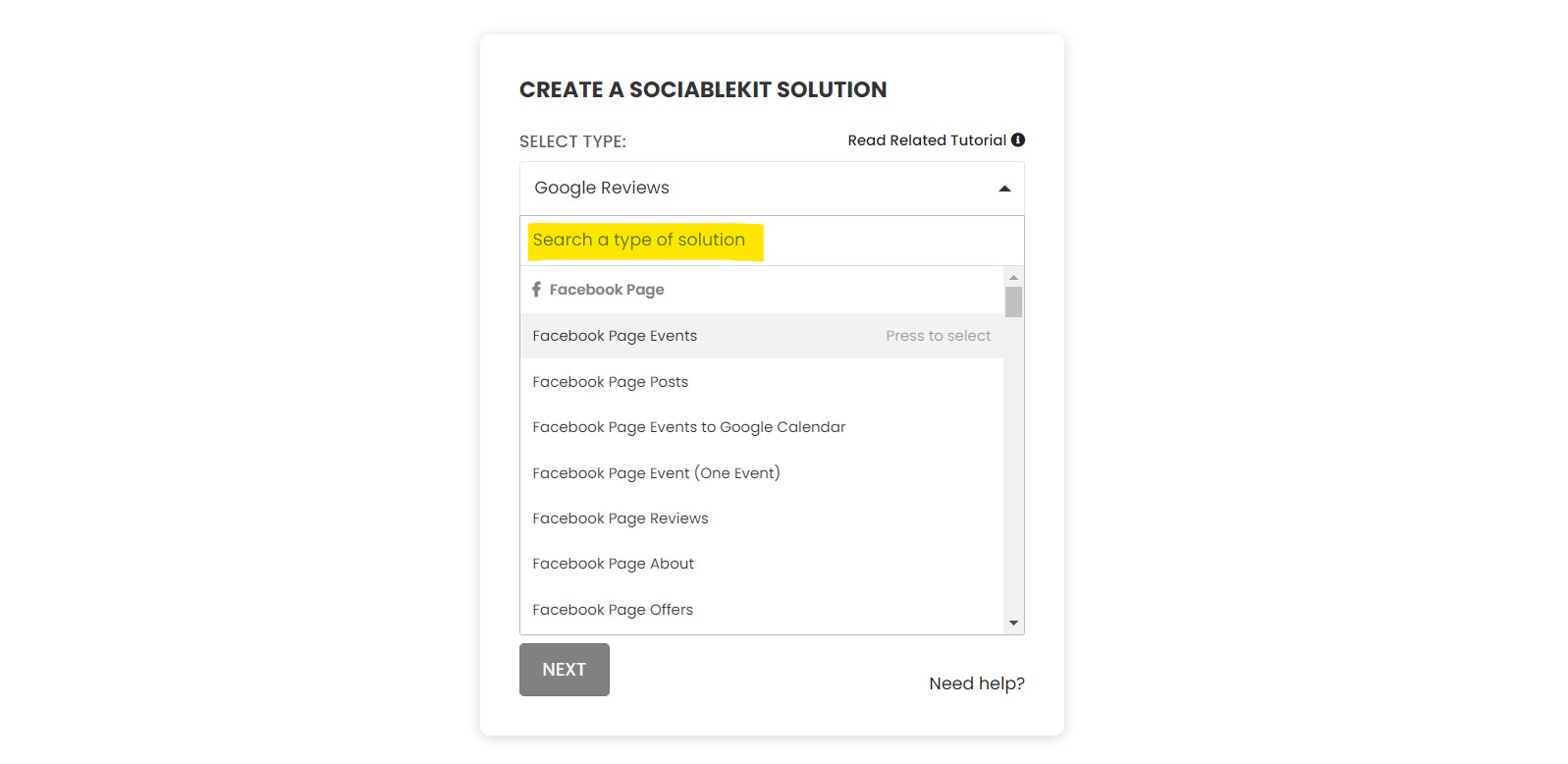
Pick LinkedIn Page Posts in the dashboard and connect your source.
-
Match your brand
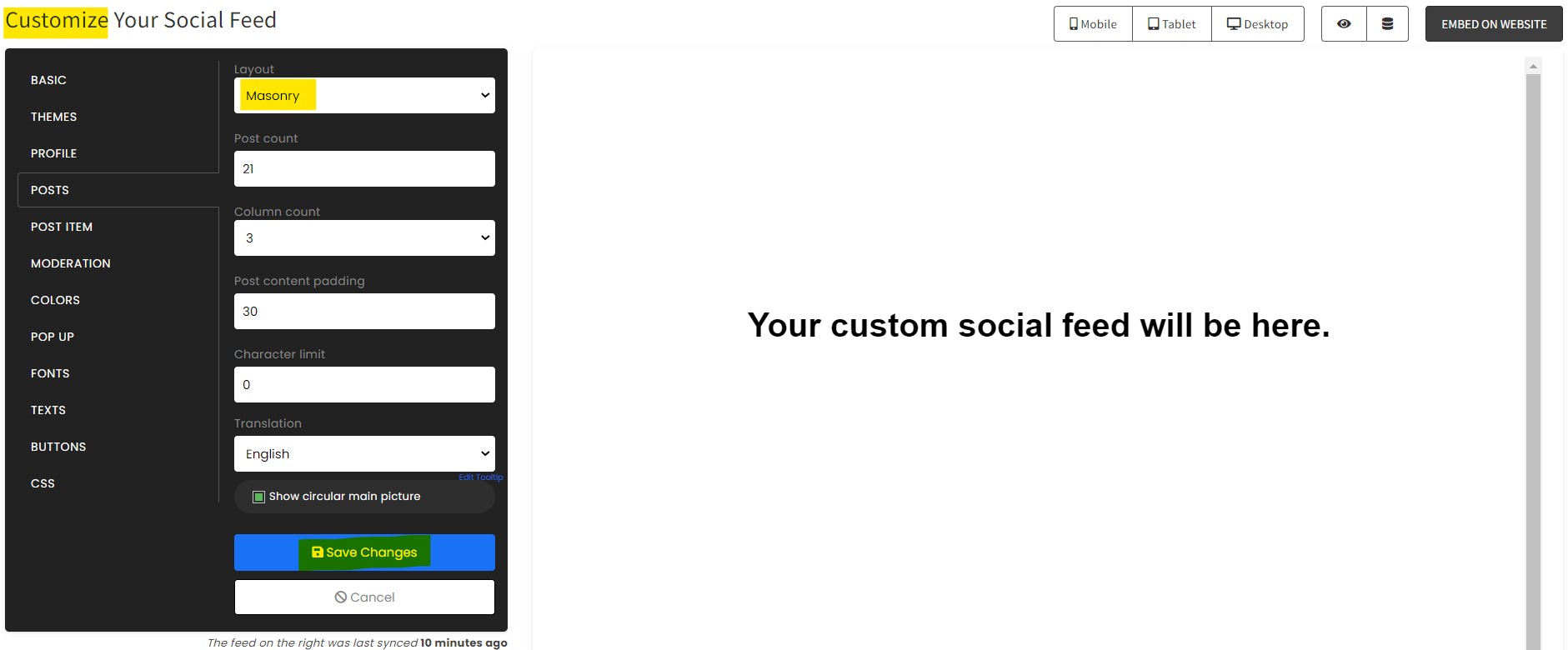
Colors, fonts, layout — tune it until it feels native to your site.
-
Paste one line of code
Drop the embed snippet on your Umbraco website. No dev team needed.
Embed LinkedIn Page Posts with SociableKIT — step by step
Create your widget in the dashboard, copy the embed code, and paste it on your Umbraco website. Screenshots included so you never get stuck.
Create and customize your LinkedIn Page Posts widget
The first part is creating your LinkedIn Page Posts widget using the SociableKIT dashboard. Customize the look and feel to match your brand. Follow the steps below.
-
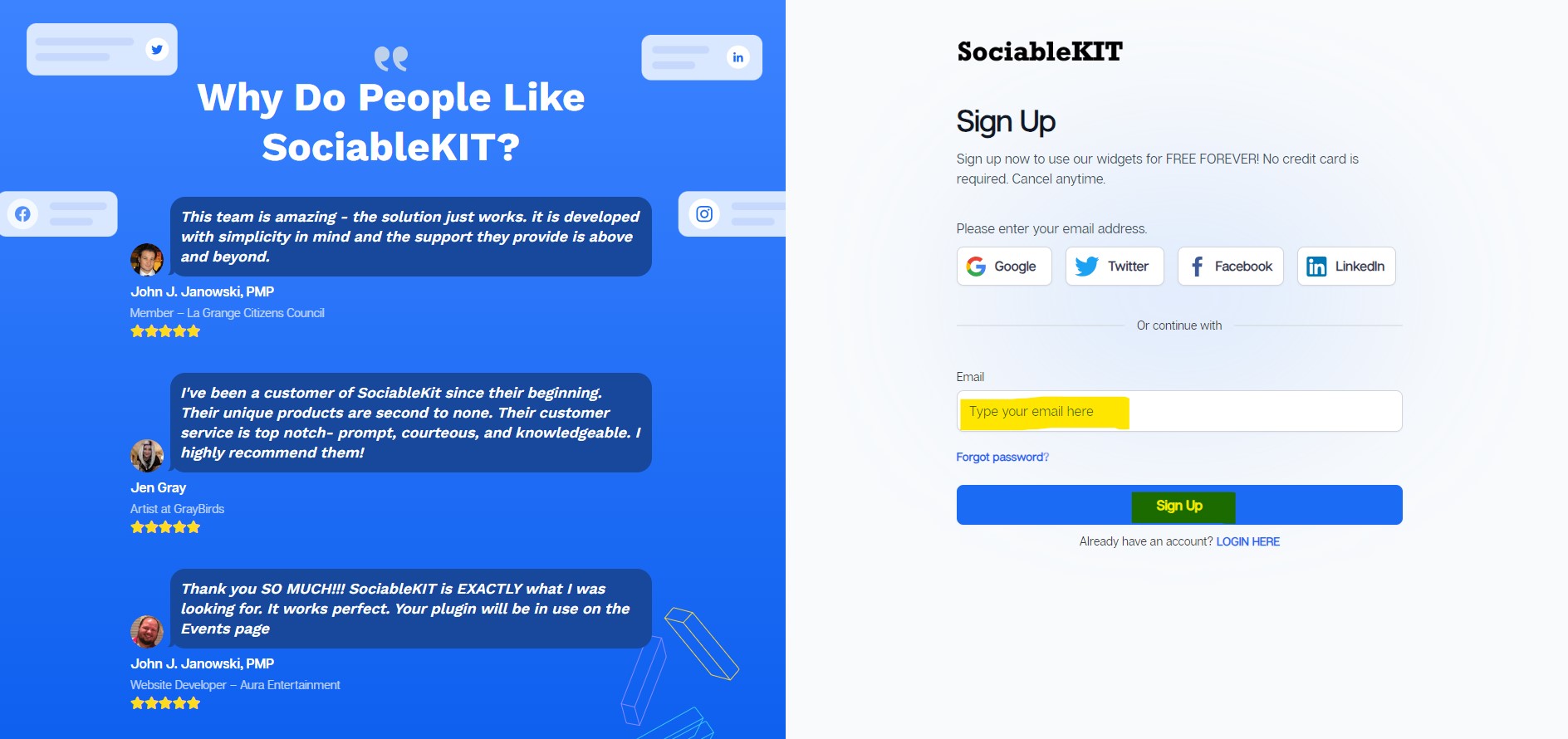
Sign up FREE or login to SociableKIT. You can login here if you already have an account. Once you sign up, you will start your 7-day premium trial. After 7 days, you can activate the free plan if you don't need our premium features.

- Paste the embed code and save your Umbraco website page. Please follow the second part below to add LinkedIn Page Posts widget to your Umbraco website .
Enter your LinkedIn page ID.
Add LinkedIn Page Posts widget to your Umbraco website
The second part is adding your LinkedIn Page Posts widget to your Umbraco website . After you customize your LinkedIn Page Posts widget and copied the embed code, it is time to add it to your Umbraco website . Follow the steps below.
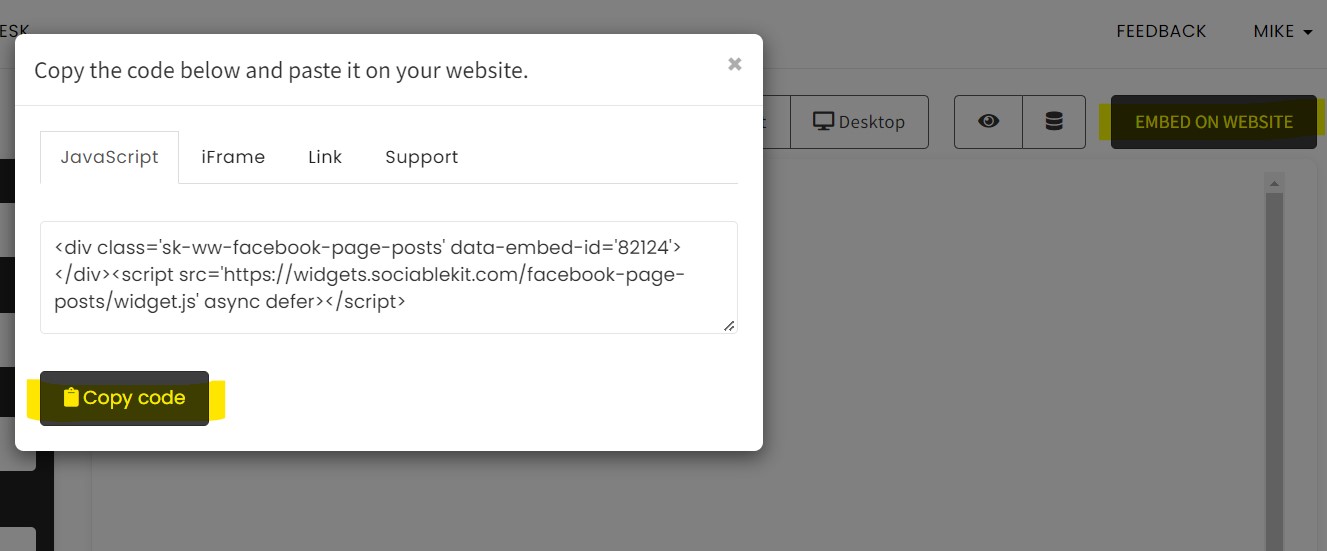
- Copy your free LinkedIn Page Posts widget embed code. Make sure you followed the first part above. It detailed how to you can create and customize your widget to get your free embed code.
- Login to Umbraco. Go to "Rich Text Editor". Click the 'Embed' button.
- Paste the link. An slides open a panel to enable editors to paste the URL. Paste the link you copied from SociableKIT.
- View your page. Click Submit. Done!
Website builders
Paste your embed code on any platform
SociableKIT works with every major website builder. Pick yours below for copy-paste instructions tailored to that platform.
To embed LinkedIn Page Posts on your Umbraco site, follow the steps below after you have your SociableKIT embed code.
- Sign up free to SociableKIT and create your LinkedIn Page Posts widget.
- Customize your widget and copy the embed code from the dashboard.
- Login to Umbraco. Go to "Rich Text Editor". Click the 'Embed' button.
- Paste the link. An slides open a panel to enable editors to paste the URL. Paste the link you copied from SociableKIT.
- View your page. Click Submit. Done!
To embed LinkedIn Page Posts on your WordPress site, follow the steps below after you have your SociableKIT embed code.
- Sign up free to SociableKIT and create your LinkedIn Page Posts widget.
- Customize your widget and copy the embed code from the dashboard.
- Login to your WordPress site.
![]()
- On your WordPress, go to the "Pages" section then click the "Add new page".
![]()
- Pick a pre-defined layout or start with a blank page by clicking the "Blank page" button.
![]()
- On the body of your page, click the "+" icon and click the "Custom HTML".
![]()
- Paste the code in the text area and click update.
![]()
- The widget will appear on the WordPress page.
![]()
- Click the Publish or Update button on your WordPress page.
![]()
- Click the view page. Done!
To embed LinkedIn Page Posts on your Wix site, follow the steps below after you have your SociableKIT embed code.
- Sign up free to SociableKIT and create your LinkedIn Page Posts widget.
- Customize your widget and copy the embed code from the dashboard.
- Login to Wix.
![]()
- On your existing website click the "+" button beside the "Main pages" section.
![]()
- Then click the "Add page" button.
![]()
- Name your page then hit enter.
![]()
- On the left, click "Add element". Find and click "Embed code". Click and drag "Embed a site" on your page then resize the container.
![]()
- Click "Change website address".
![]()
- Paste the link you copied from SociableKIT then click "Apply".
![]()
- Click "Publish" on the upper right.
![]()
- Click "View site". Done!
![]()
To embed LinkedIn Page Posts on your Squarespace site, follow the steps below after you have your SociableKIT embed code.
- Sign up free to SociableKIT and create your LinkedIn Page Posts widget.
- Customize your widget and copy the embed code from the dashboard.
- Login to Squarespace. You must have a "Business" account in Squarespace to use the widget. The "code block" needed cannot be found if you only have a "Personal" account.
![]()
- Create a new blank page or edit your existing page. Identify which page you want the widget to appear. You can create a new page on Squarespace, or you can edit your existing page where you want the widget to appear.
![]()
- Add a Code Block. On your Squarespace page, click the 'Edit' button. Find the 'Code' block and click it.
![]()
- Paste the embed code from SociableKIT. On the 'Content' of the 'Code' block, paste the JavaScript embed code you have copied from your widget.
![]()
- Save the changes on the 'Code block'. After pasting your widget's embed code. Click the 'Save' button on the left part of the page.
![]()
- View your page. Refresh your Squarespace page and check your SociableKIT widget. Done!
![]()
To embed LinkedIn Page Posts on your Webflow site, follow the steps below after you have your SociableKIT embed code.
- Sign up free to SociableKIT and create your LinkedIn Page Posts widget.
- Customize your widget and copy the embed code from the dashboard.
- Login to Webflow.
![]()
- On your existing website, click the "Page: ...." in the upper left corner then click the "Create new page" icon.
![]()
- Once done add a name for your new page then click "Save".
![]()
- On the left, click "Add Element". Drag "Embed" to your page.
![]()
- Paste the JavaScript code you copied from SociableKIT.
![]()
- On the upper right, click "Publish" > "Publish to Selected Domains".
![]()
- View your page. Done!
To embed LinkedIn Page Posts on your Shopify site, follow the steps below after you have your SociableKIT embed code.
- Sign up free to SociableKIT and create your LinkedIn Page Posts widget.
- Customize your widget and copy the embed code from the dashboard.
- Login to Shopify.
![]()
- On the left side, click Online Store.
![]()
- Click Pages. Add a new page or edit your existing page.
![]()
- On the Page details, click Show HTML icon (<>).
![]()
- Paste the embed code and click the Save button.
![]()
- Click the View page button. Done!
![]()
To embed LinkedIn Page Posts on your HTML site, follow the steps below after you have your SociableKIT embed code.
- Sign up free to SociableKIT and create your LinkedIn Page Posts widget.
- Customize your widget and copy the embed code from the dashboard.
- Open your HTML file.
![]()
- You can create a new HTML page or edit your existing HTML page.
![]()
- Paste the Javascript code you copied from SociableKIT. Paste it where you want the widget to appear.
![]()
- Save your HTML page.
![]()
- You may now upload your HTML page to your web hosting.
To embed LinkedIn Page Posts on your Google Sites site, follow the steps below after you have your SociableKIT embed code.
- Sign up free to SociableKIT and create your LinkedIn Page Posts widget.
- Customize your widget and copy the embed code from the dashboard.
- Login to Google sites. You must have at least a 'Business Starter' plan to create and customize your Google sites.
![]()
- Create or edit an existing website. Click the + 'Blank' button on the 'Start a new site' section to create or find your existing website under the 'Recent sites' section.
![]()
- Create a new blank page or edit your existing page. Identify which page you want the widget to appear. On the right sidebar, you will see an 'Embed' button. Click the 'Embed' button.
![]()
- Add the widget. A popup 'Embed from the web' will open up. Select the 'Embed code' tab on the popup.
![]()
- Paste the embed code from SociableKIT. On the 'Embed code' tab, you will see 'HTML code goes here' text. Paste the embed code from your SociableKIT widget.
![]()
- Save the widget. Once you have pasted your embed code, click the 'Next' button.
![]()
- Preview of your SociableKIT widget. After clicking the Next button, a preview of your embed code will be displayed. Click the 'Insert' button to insert the widget to your Google sites page.
![]()
- Edit the widget. Once the widget has been inserted, you will have the option to resize the widget. After resizing the widget to your preferences, click the 'Publish' button on the upper right corner of the page.
![]()
- Publish your page. After publishing the site, click the down 'Arrow' button beside the 'Publish' button.
![]()
- View your page. A dropdown of buttons will be displayed, click the 'View published site' button. Done!
![]()
Live preview
Pick a LinkedIn Page Posts template — see it live
Choose a starting design on the left and watch the preview update with real data. What you see is exactly what visitors get on your Umbraco website.
Common questions
Frequently asked questions
Everything you need to know about embedding LinkedIn Page Posts on your Umbraco website.
What is the SociableKIT LinkedIn Page Posts widget and why should I use it?
The SociableKIT LinkedIn Page Posts widget automatically pulls your latest company updates onto your website, turning your site into a living showcase of professional activity. By showing fresh LinkedIn content in one place, it builds credibility and keeps visitors engaged. With unlimited views on paid plans and easy customization, it’s a simple way to add real‑time social proof that you’re active and trustworthy.
How do I add my LinkedIn Page posts to my website?
Getting started takes minutes. Sign up, create a widget, and connect your LinkedIn page; customize the look with your own colors, fonts, and layout; then copy the one‑line embed code and paste it into your website. The widget works on any platform that supports custom code, so there’s no need for technical expertise.
Is there a free plan? What does it include?
Yes – the free plan lets you create one widget for one LinkedIn source with up to 2,000 monthly views and full design customization. It syncs manually, so you can refresh your feed with a click whenever you need; when you’re ready, upgrade to a paid plan for automatic updates and unlimited views.
What’s the difference between the free and paid plans?
Paid plans start at $10 per month and include unlimited views, unlimited widgets and automatic syncing. You can add extra sources for $5 each and access advanced analytics and moderation features on higher tiers. Free plans have SociableKIT branding and manual sync, while paid plans remove branding and give you 24/7 human support.
How often does the widget update my posts? Do I have to refresh it manually?
On paid plans the widget syncs automatically several times a day so your website reflects your latest LinkedIn posts. Free users can request a manual sync whenever they update their page, and there’s no long 48‑hour cache like some tools. Either way, new posts appear in minutes without you re‑embedding the code.
Do I need a LinkedIn company page or special API keys to use this widget?
The LinkedIn Page Posts widget is built for company pages and uses LinkedIn’s official API – you don’t need your own developer key. Simply connect your LinkedIn page inside SociableKIT, and we handle tokens and compliance for you. If you’re using a personal profile, consider our LinkedIn Profile Posts widget instead.
Can I embed posts from personal profiles, newsletters or hashtags?
This specific widget displays posts from LinkedIn company pages. SociableKIT also offers separate widgets for personal profiles, newsletters, jobs and hashtags; you can mix and match these under one account. Each widget pulls content from its own source so you can showcase exactly what matters to your audience.
Can I combine multiple LinkedIn pages or other social feeds into one widget?
Yes. You can create multiple LinkedIn Page Posts widgets and display them together, or upgrade to the Social Feed widget to combine LinkedIn with Instagram, Facebook, TikTok and more. You can manage over 100 sources under one account and add additional pages for a small fee per source.
Will embedding a LinkedIn feed slow down my website or hurt SEO?
No – the widget loads asynchronously and caches your feed, so it doesn’t block your page or noticeably slow loading. In fact, regularly updated content can improve SEO by showing search engines that your site is fresh and relevant. You get unlimited views without worrying about performance caps.
Can I customize the design to match my brand?
Absolutely. You can pick from layouts like Masonry, Grid and Carousel (plus dark modes) and fine‑tune colors, fonts, spacing and call‑to‑action buttons. Full design control is included on every plan, even the free one, so your LinkedIn feed feels native to your site.
Can I control which posts appear in the widget?
Yes. Built‑in moderation tools let you hide or highlight specific posts and filter by keywords or hashtags so only on‑brand content shows up. On higher plans you also get automatic moderation that flags and removes unwanted posts for you.
What types of content does the widget display?
The widget displays most post types from your LinkedIn page including text updates, photos, videos and articles. Due to LinkedIn’s API, private posts, multi‑photo carousels and reposts with commentary can’t be embedded, so ensure your content is public.
How does this widget differ from LinkedIn’s native embed code?
LinkedIn’s native embed only lets you display one static post and requires manual updates. The SociableKIT widget automatically syncs your entire feed, offers multiple layouts and design controls, and lets you moderate what appears. It’s a turn‑key way to turn your LinkedIn activity into on‑site social proof without extra work.
Do visitors need a LinkedIn account to view or share the posts?
No. Anyone can view the embedded feed on your site, and share buttons let visitors share posts to other networks without logging in. They’ll only need to sign in if they click through to LinkedIn to like or comment on a post.
Does the widget work on WordPress, Shopify, Wix, and other website builders?
Yes. SociableKIT works on any platform that accepts custom HTML or script – including WordPress, Shopify, Wix, Squarespace, Webflow, Weebly, Google Sites, SharePoint and plain HTML sites. You simply paste the embed code into the appropriate element; our team can help if you don’t see your platform listed.
Can I add call‑to‑action buttons or direct visitors back to LinkedIn?
Yes. You can add call‑to‑action buttons like “Follow us on LinkedIn” or link individual posts back to LinkedIn to encourage visitors to engage. This lets you grow your LinkedIn following while keeping the conversation on your site.
What happens if I cancel my paid subscription or exceed view limits?
If you cancel a paid plan, automatic syncing stops and your widget may revert to manual sync or show the free plan limits. You can reactivate at any time without losing your settings, and our pricing model never deactivates your widget when it’s popular – unlimited views are included from $10 per month.
Is my data and privacy safe when using the widget?
We use LinkedIn’s official API and follow data protection best practices, so your credentials and visitors’ data aren’t stored on your site. Only public posts you choose to display are shown, and you can disconnect or remove your feed at any time. We never sell or share your data.
What support is available if I need help?
Real humans are here to help. Paid plans include 24/7 chat and email support from our team, and even free users can access documentation, video tutorials and friendly email support. We also guide you through embedding on any platform so you’re never left guessing.
Can I upgrade or add more sources later?
Of course. Start with one LinkedIn source and upgrade anytime – additional sources cost just a small fee per month and you can manage over 100 feeds under one account. You can also upgrade or downgrade between plans as your needs change, with no long‑term contracts.
Add your LinkedIn Page Posts widget today
Set up in minutes. Free forever to start.
Create your widgetFree forever · No credit card · Cancel anytime