Your YouTube Channel on HubSpot website — live in 3 steps
SociableKIT syncs your youtube channel automatically. Set up once, embed anywhere — free to start, no coding required.
-
Create in 60 seconds
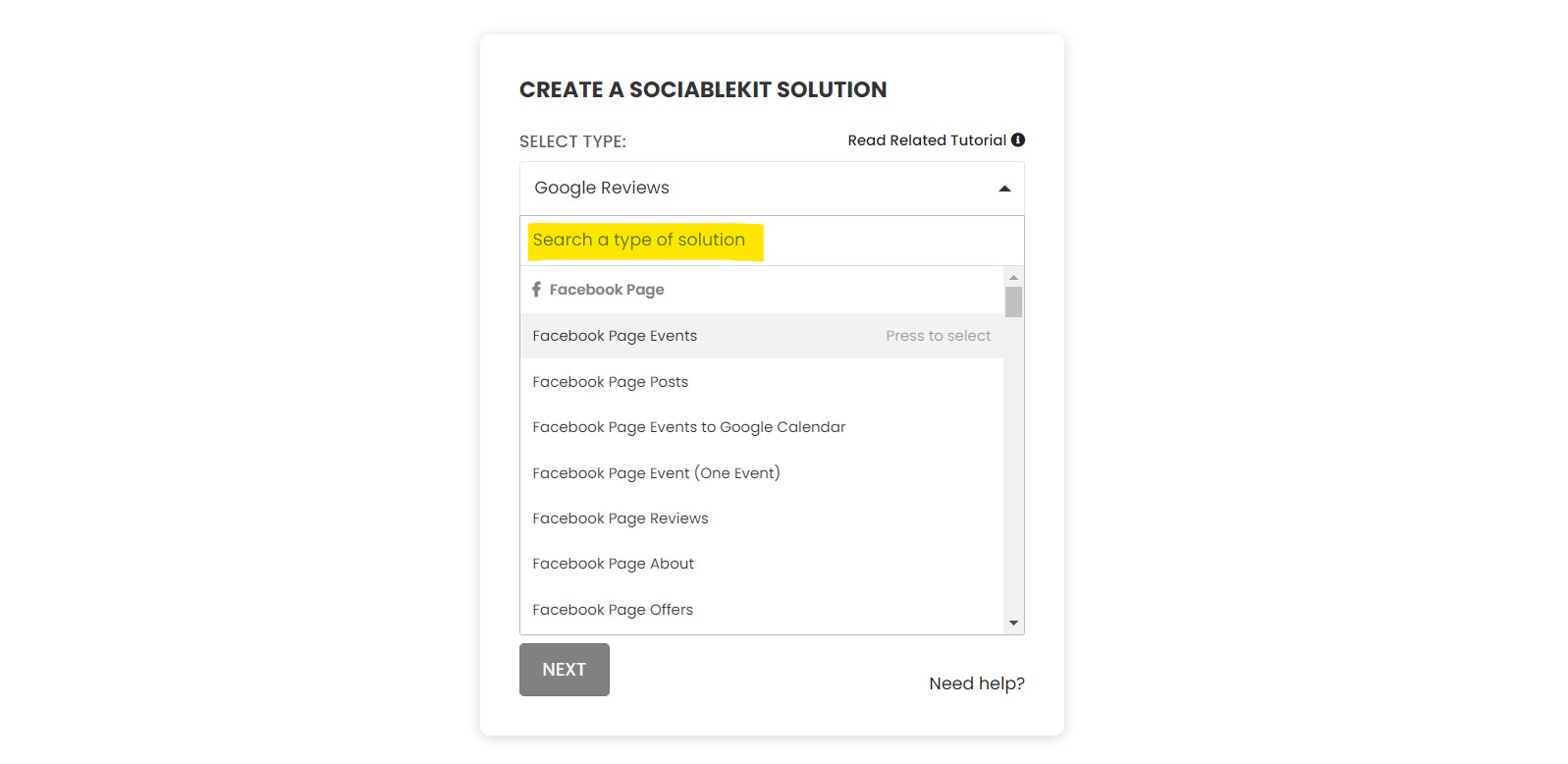
Pick YouTube Channel in the dashboard and connect your source.
-
Match your brand
Colors, fonts, layout — tune it until it feels native to your site.
-
Paste one line of code
Drop the embed snippet on your HubSpot website. No dev team needed.
Embed YouTube Channel with SociableKIT — step by step
Create your widget in the dashboard, copy the embed code, and paste it on your HubSpot website. Screenshots included so you never get stuck.
Create and customize your YouTube Channel widget
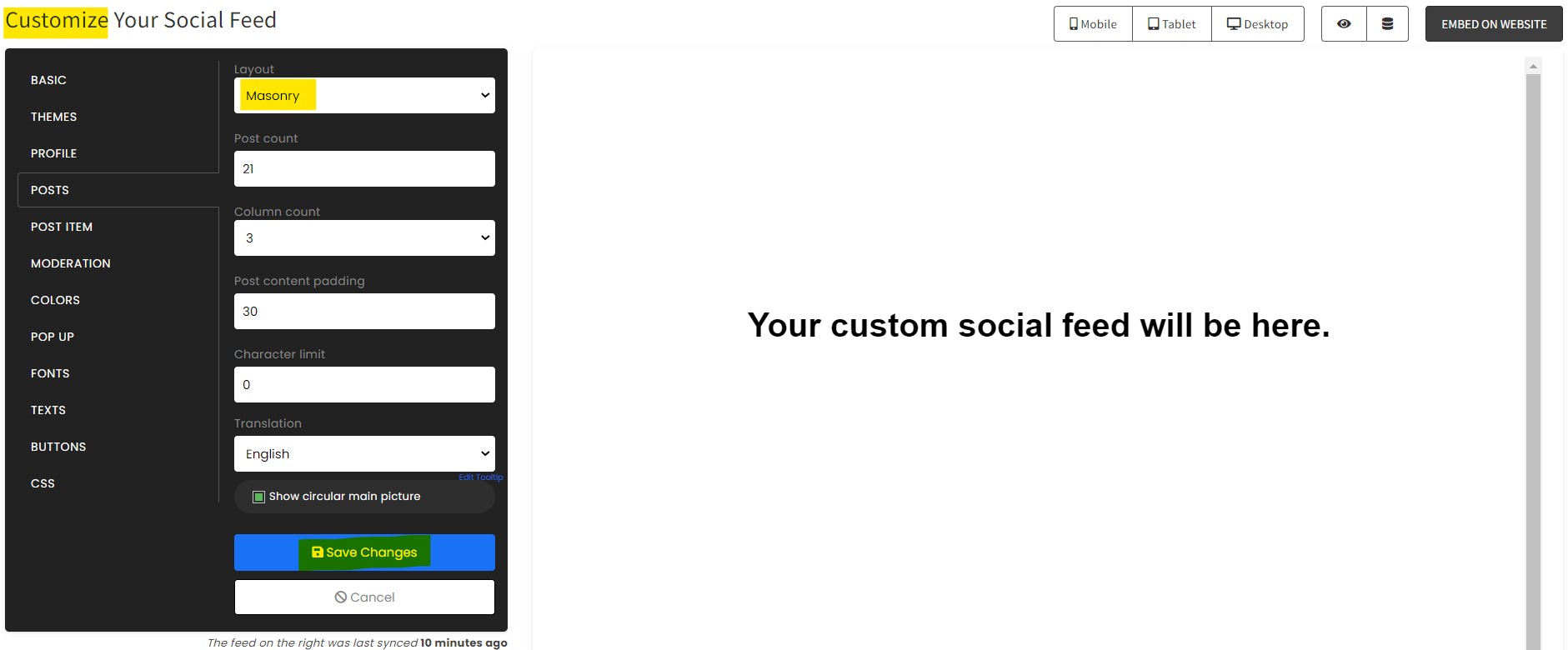
The first part is creating your YouTube Channel widget using the SociableKIT dashboard. Customize the look and feel to match your brand. Follow the steps below.
-
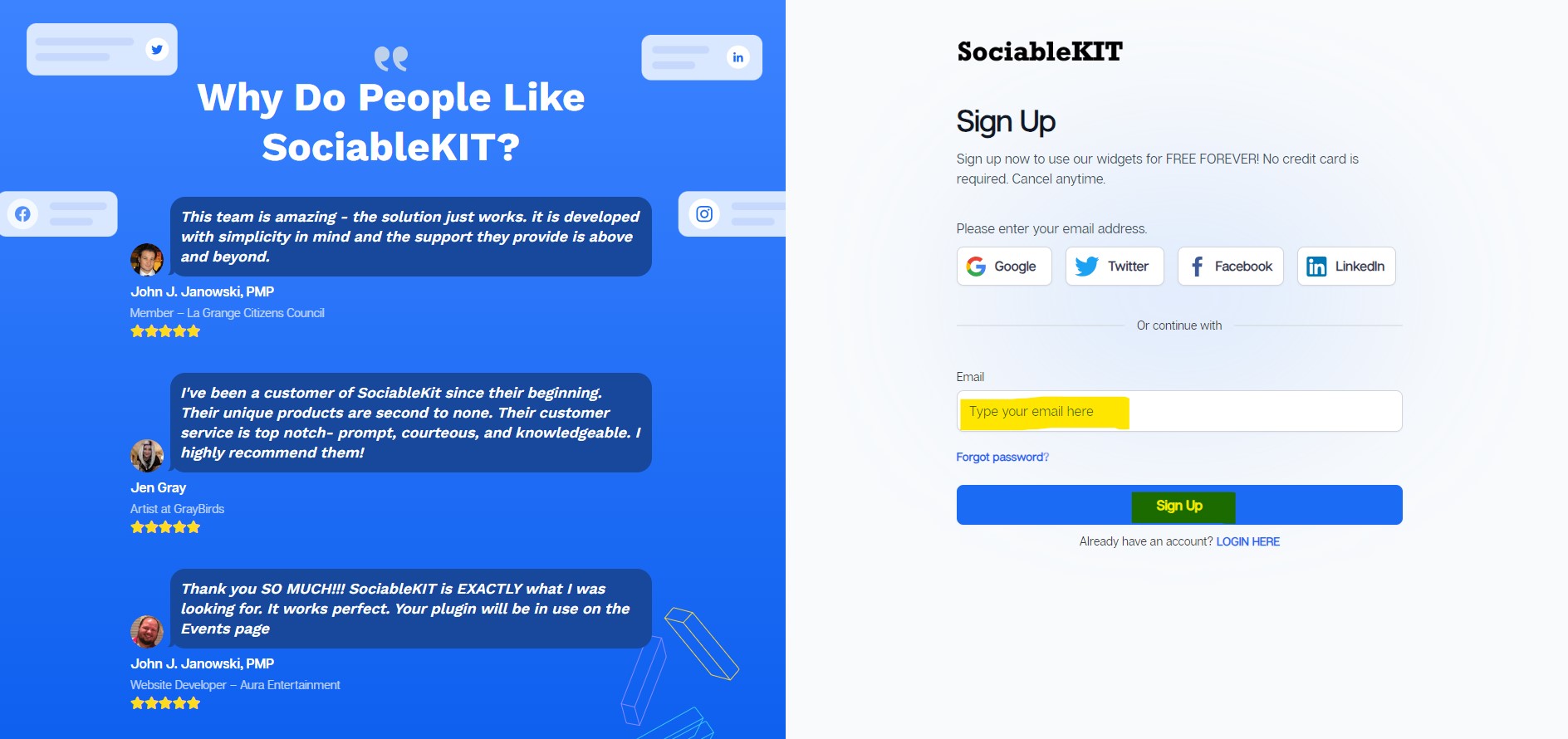
Sign up FREE or login to SociableKIT. You can login here if you already have an account. Once you sign up, you will start your 7-day premium trial. After 7 days, you can activate the free plan if you don't need our premium features.

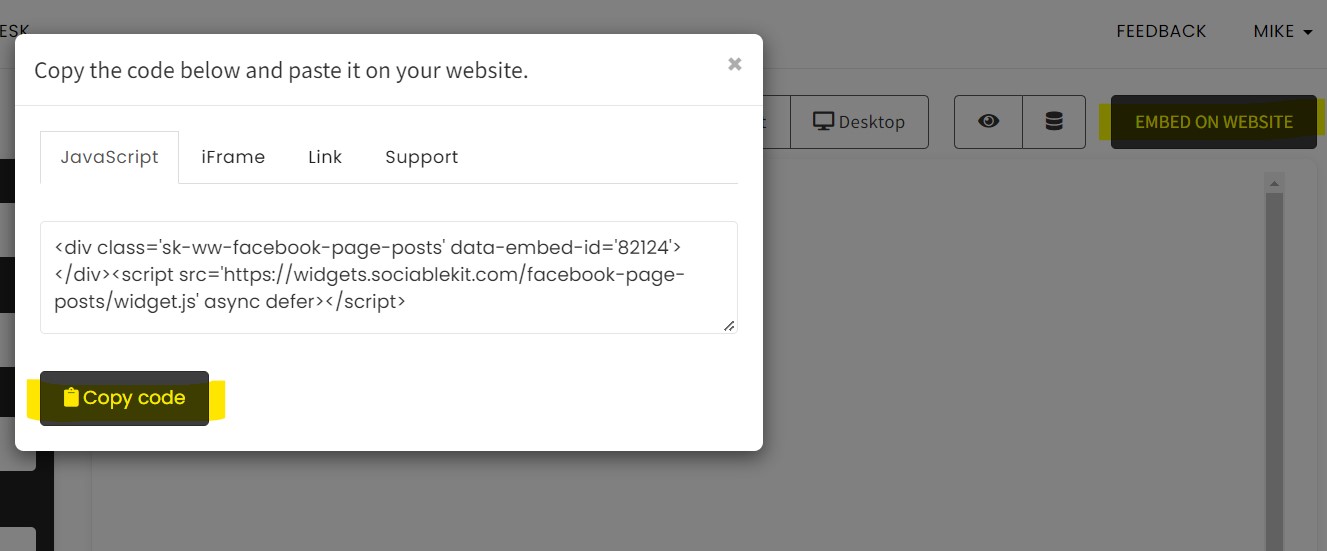
- Paste the embed code and save your HubSpot website page. Please follow the second part below to add YouTube Channel widget to your HubSpot website .
Enter your YouTube channel ID or custom name.
Add YouTube Channel widget to your HubSpot website
The second part is adding your YouTube Channel widget to your HubSpot website . After you customize your YouTube Channel widget and copied the embed code, it is time to add it to your HubSpot website . Follow the steps below.
- Copy your free YouTube Channel widget embed code. Make sure you followed the first part above. It detailed how to you can create and customize your widget to get your free embed code.
- Login or register an account to Hubspot.
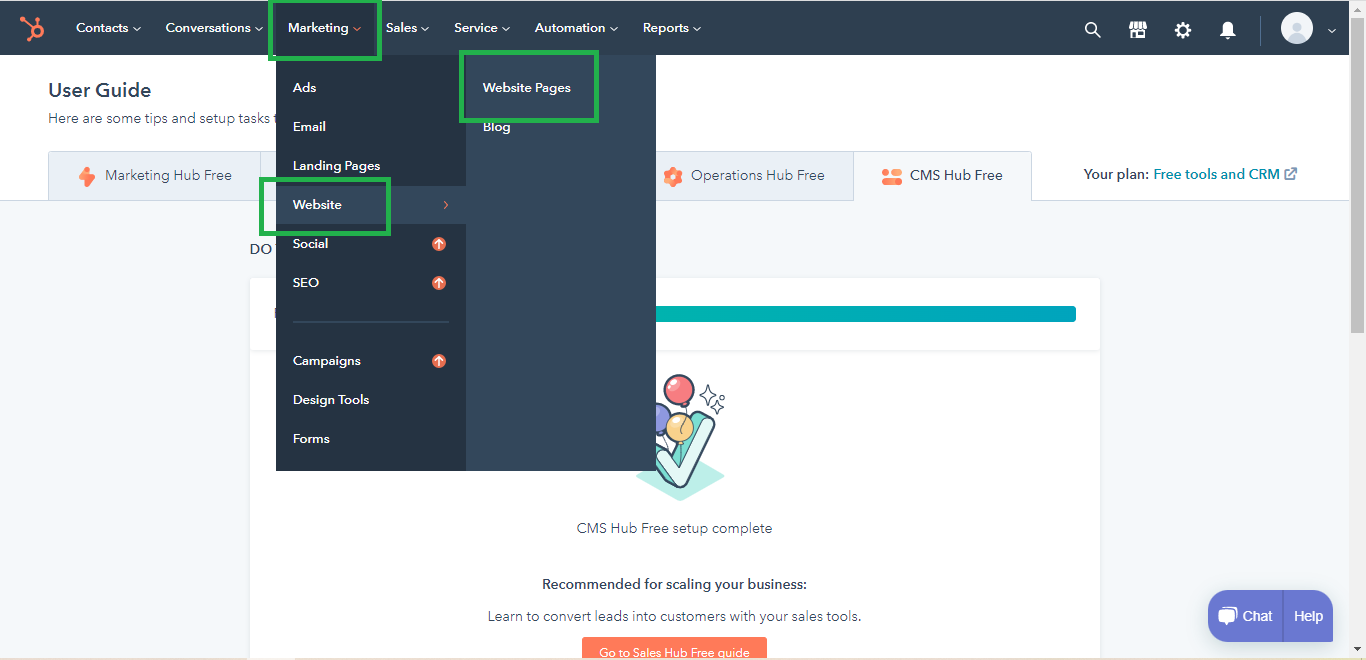
- Go to create a website dashboard. Go to "Marketing" tab "Website" tab then click the "Website pages".
![]()
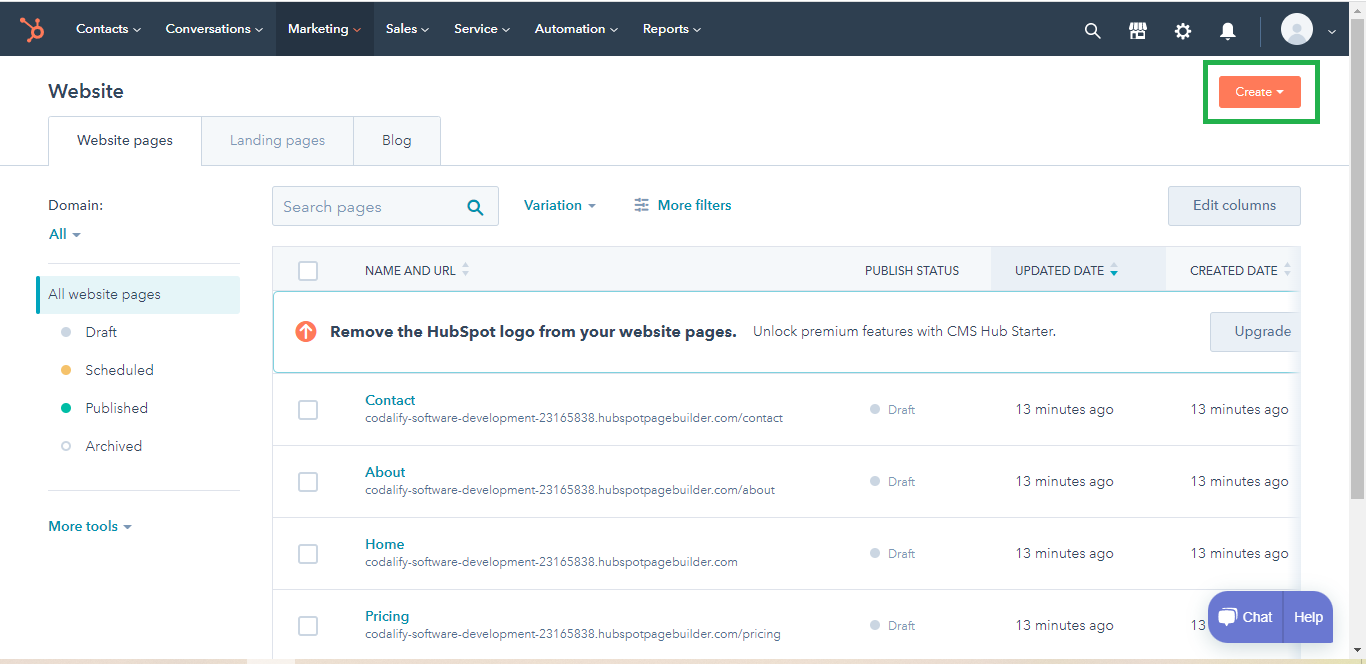
- Create or edit a website. Click the "Create" button or edit an existing website to continue. This is where you want to display your widget.
![]()
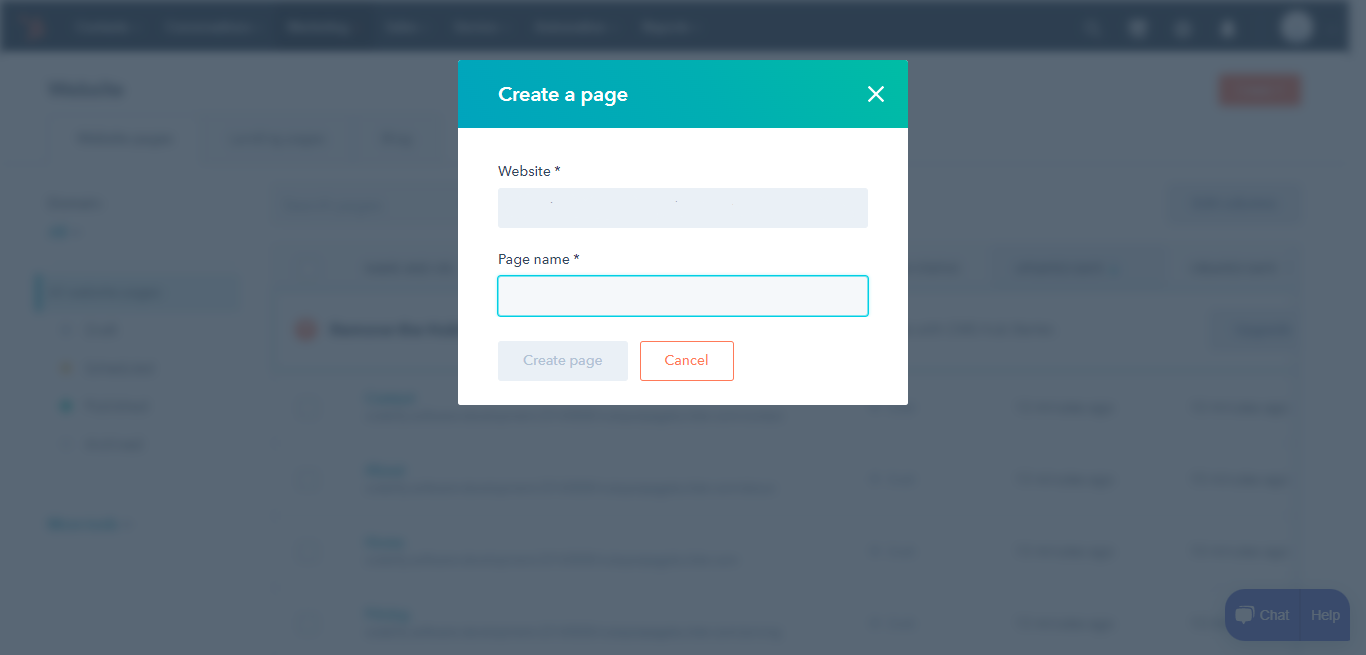
- Create a page. Fill up the information needed for creating a webpage.
![]()
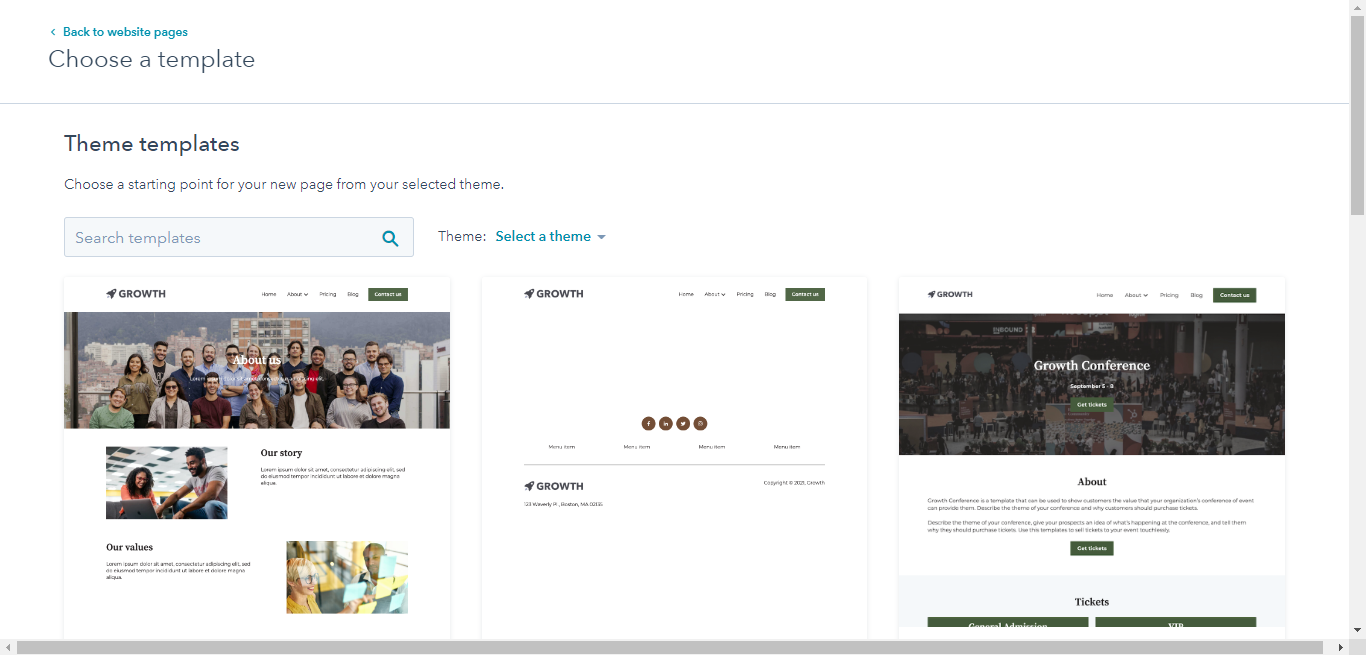
- Select your desired template.
![]()
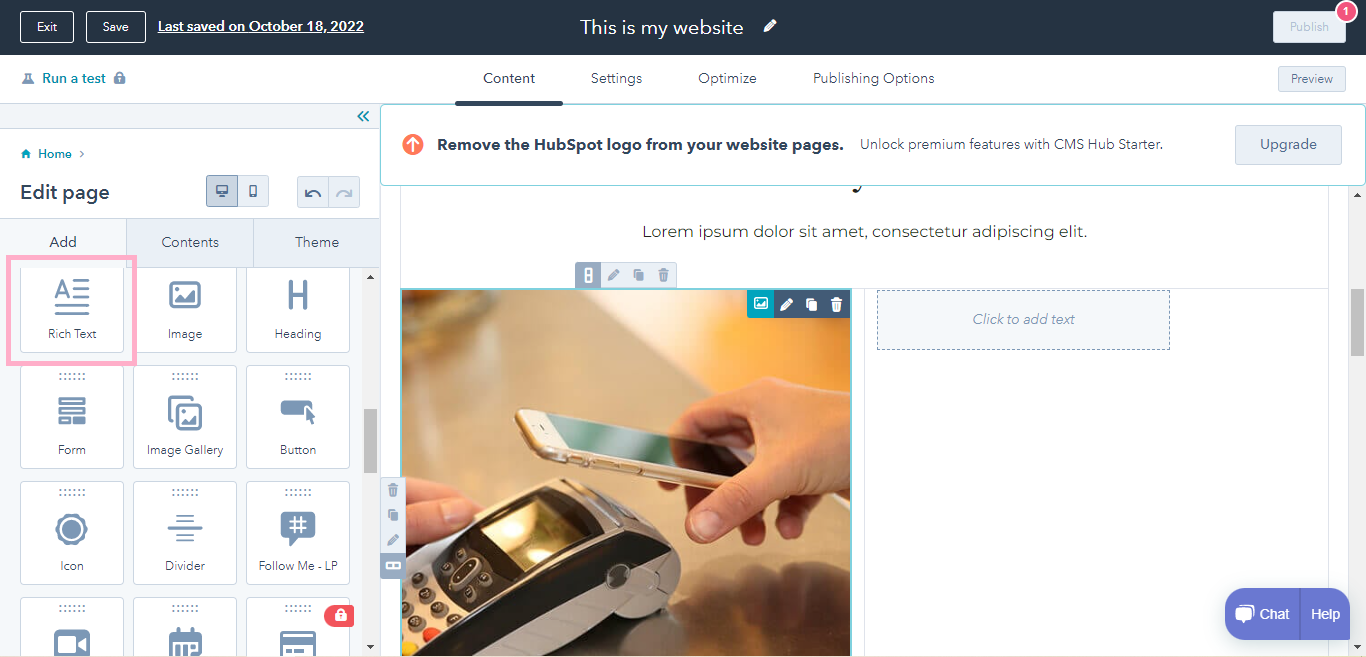
- Add rich text editor to your webpage. Drag and drop the rich text editor on wherever you wanted to display your widget.
![]()
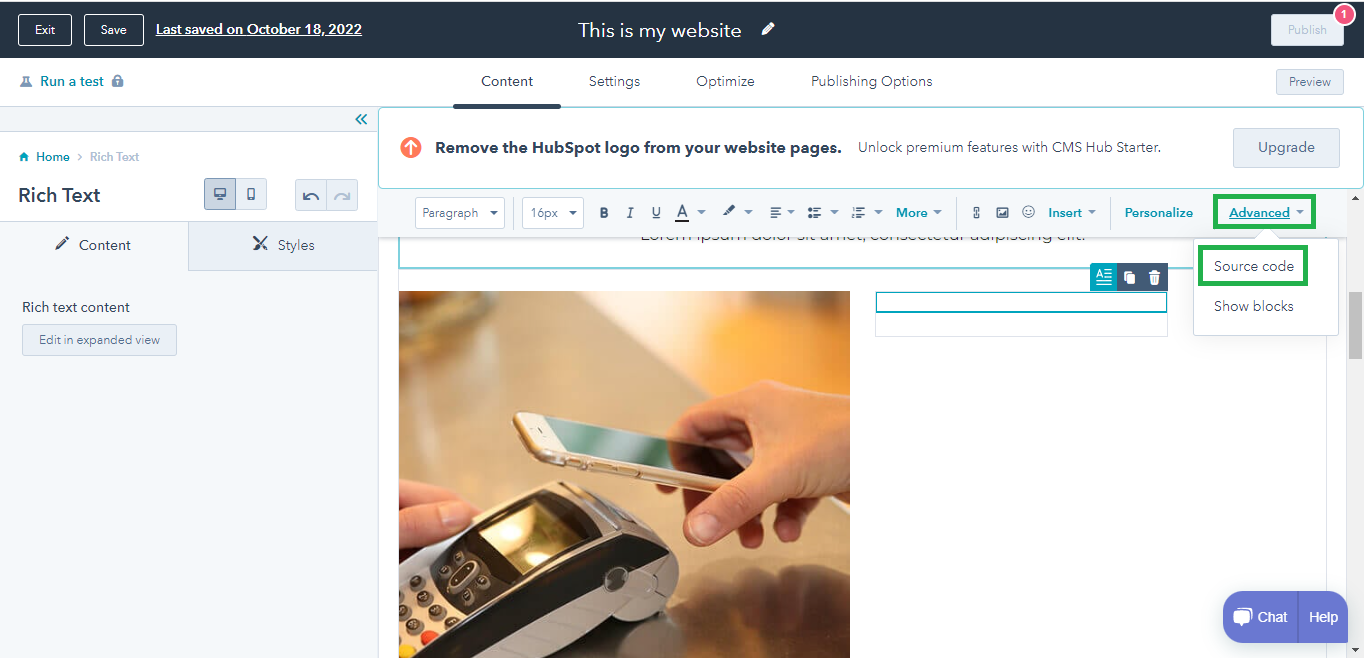
- Add source code. Click the "Advanced" dropdown then choose "Source code".
![]()
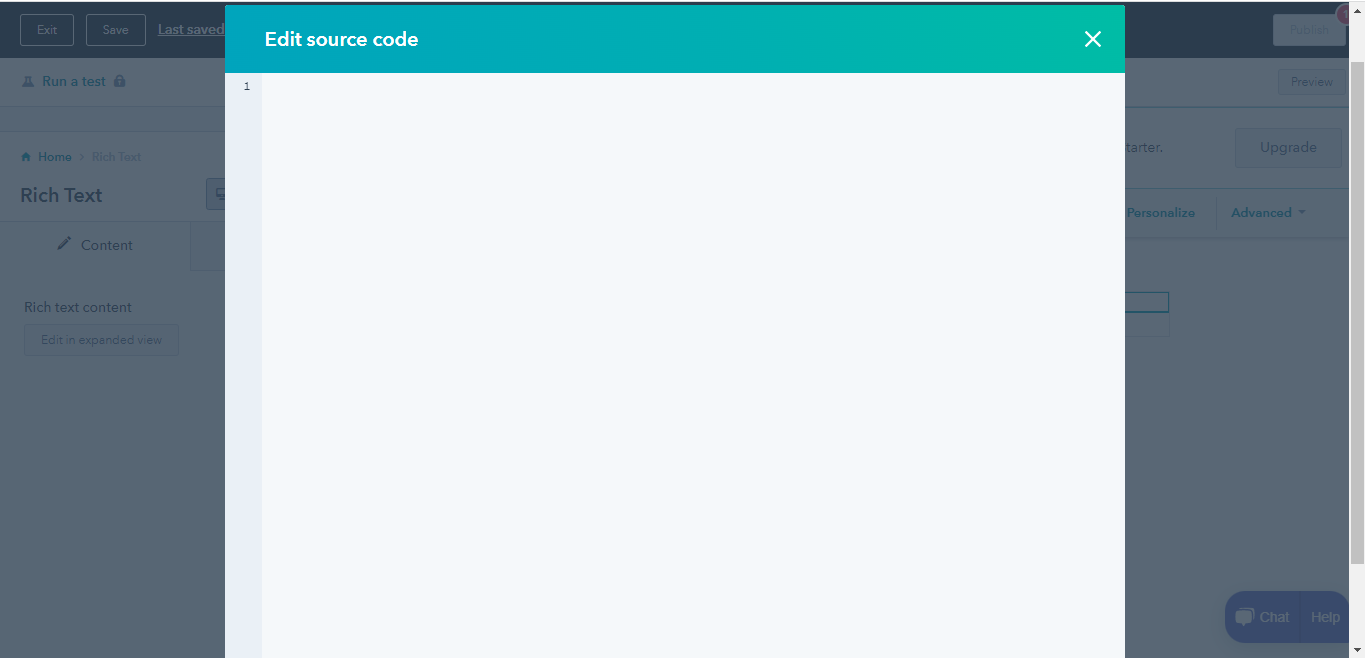
- Paste the Javascript code you copied from SociableKIT. Once the done scroll down to bottom part then click "Save changes".
![]()
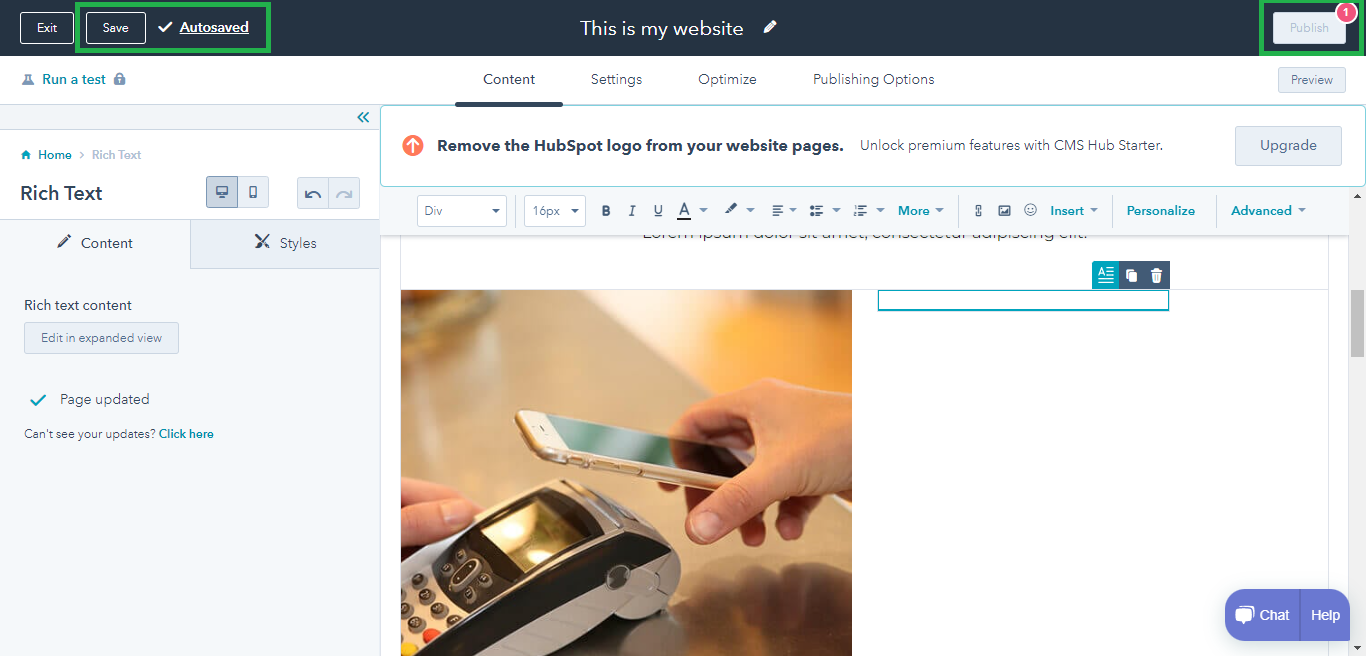
- Save your page. Click on the "Save" button, Hubspot also have autosave feature.
- View it in your web browser. Click on the "Publish" button. Done!
![]()
Use the embed or link option
Prefer a manual approach? Follow these steps to link or embed YouTube Channel without a third-party widget.
Share your YouTube video on your website, without the need for a third-party plugin like SociableKIT. Follow the steps below to explore this alternative approach.
- Go to your YouTube channel.
![]()
- Choose the YouTube video you want to embed.
![]()
- Click the "Share" option.
![]()
- Select the Embed option.
![]()
- Click the Copy button on the lower right.
![]()
- Open your WordPress editor, and add or edit a post.
- Login to your website admin panel.
- Create or update a page where you want to put your Youtube video
- Use the embed option of your website builder and paste the embed code you copied earlier.
- Save your page. Done!
- To create the Youtube channel feed on your website, you need to repeat steps 1 onwards to add more Youtube videos.
Why the Alternative Method is a Good Option
The alternative method is a good option when embedding a YouTube channel on your website. It keeps the YouTube look, which many users or customers find familiar.
Problems with the Alternative Method
The alternative method has a few problems. The layout cannot be changed, so you’re stuck with YouTube’s default appearance. You also cannot change the colors or fonts to match your website theme, making it less cohesive. Additionally, the widget is not directly embedded on your website, which can cause performance issues.
Solutions Offered by SociableKIT
SociableKIT solves these problems easily. Our Youtube channel widget allows you to change the layout to Carousel, Grid, or Masonry, offering more flexibility. The colors and fonts can be edited match your website theme and our widget loads only once the page has fully loaded, preventing any slowdown of your website.
Website builders
Paste your embed code on any platform
SociableKIT works with every major website builder. Pick yours below for copy-paste instructions tailored to that platform.
To embed YouTube Channel on your HubSpot site, follow the steps below after you have your SociableKIT embed code.
- Sign up free to SociableKIT and create your YouTube Channel widget.
- Customize your widget and copy the embed code from the dashboard.
- Login or register an account to Hubspot.
- Go to create a website dashboard. Go to "Marketing" tab "Website" tab then click the "Website pages".
![]()
- Create or edit a website. Click the "Create" button or edit an existing website to continue. This is where you want to display your widget.
![]()
- Create a page. Fill up the information needed for creating a webpage.
![]()
- Select your desired template.
![]()
- Add rich text editor to your webpage. Drag and drop the rich text editor on wherever you wanted to display your widget.
![]()
- Add source code. Click the "Advanced" dropdown then choose "Source code".
![]()
- Paste the Javascript code you copied from SociableKIT. Once the done scroll down to bottom part then click "Save changes".
![]()
- Save your page. Click on the "Save" button, Hubspot also have autosave feature.
- View it in your web browser. Click on the "Publish" button. Done!
![]()
To embed YouTube Channel on your WordPress site, follow the steps below after you have your SociableKIT embed code.
- Sign up free to SociableKIT and create your YouTube Channel widget.
- Customize your widget and copy the embed code from the dashboard.
- Login to your WordPress site.
![]()
- On your WordPress, go to the "Pages" section then click the "Add new page".
![]()
- Pick a pre-defined layout or start with a blank page by clicking the "Blank page" button.
![]()
- On the body of your page, click the "+" icon and click the "Custom HTML".
![]()
- Paste the code in the text area and click update.
![]()
- The widget will appear on the WordPress page.
![]()
- Click the Publish or Update button on your WordPress page.
![]()
- Click the view page. Done!
To embed YouTube Channel on your Wix site, follow the steps below after you have your SociableKIT embed code.
- Sign up free to SociableKIT and create your YouTube Channel widget.
- Customize your widget and copy the embed code from the dashboard.
- Login to Wix.
![]()
- On your existing website click the "+" button beside the "Main pages" section.
![]()
- Then click the "Add page" button.
![]()
- Name your page then hit enter.
![]()
- On the left, click "Add element". Find and click "Embed code". Click and drag "Embed a site" on your page then resize the container.
![]()
- Click "Change website address".
![]()
- Paste the link you copied from SociableKIT then click "Apply".
![]()
- Click "Publish" on the upper right.
![]()
- Click "View site". Done!
![]()
To embed YouTube Channel on your Squarespace site, follow the steps below after you have your SociableKIT embed code.
- Sign up free to SociableKIT and create your YouTube Channel widget.
- Customize your widget and copy the embed code from the dashboard.
- Login to Squarespace. You must have a "Business" account in Squarespace to use the widget. The "code block" needed cannot be found if you only have a "Personal" account.
![]()
- Create a new blank page or edit your existing page. Identify which page you want the widget to appear. You can create a new page on Squarespace, or you can edit your existing page where you want the widget to appear.
![]()
- Add a Code Block. On your Squarespace page, click the 'Edit' button. Find the 'Code' block and click it.
![]()
- Paste the embed code from SociableKIT. On the 'Content' of the 'Code' block, paste the JavaScript embed code you have copied from your widget.
![]()
- Save the changes on the 'Code block'. After pasting your widget's embed code. Click the 'Save' button on the left part of the page.
![]()
- View your page. Refresh your Squarespace page and check your SociableKIT widget. Done!
![]()
To embed YouTube Channel on your Webflow site, follow the steps below after you have your SociableKIT embed code.
- Sign up free to SociableKIT and create your YouTube Channel widget.
- Customize your widget and copy the embed code from the dashboard.
- Login to Webflow.
![]()
- On your existing website, click the "Page: ...." in the upper left corner then click the "Create new page" icon.
![]()
- Once done add a name for your new page then click "Save".
![]()
- On the left, click "Add Element". Drag "Embed" to your page.
![]()
- Paste the JavaScript code you copied from SociableKIT.
![]()
- On the upper right, click "Publish" > "Publish to Selected Domains".
![]()
- View your page. Done!
To embed YouTube Channel on your Shopify site, follow the steps below after you have your SociableKIT embed code.
- Sign up free to SociableKIT and create your YouTube Channel widget.
- Customize your widget and copy the embed code from the dashboard.
- Login to Shopify.
![]()
- On the left side, click Online Store.
![]()
- Click Pages. Add a new page or edit your existing page.
![]()
- On the Page details, click Show HTML icon (<>).
![]()
- Paste the embed code and click the Save button.
![]()
- Click the View page button. Done!
![]()
To embed YouTube Channel on your HTML site, follow the steps below after you have your SociableKIT embed code.
- Sign up free to SociableKIT and create your YouTube Channel widget.
- Customize your widget and copy the embed code from the dashboard.
- Open your HTML file.
- You can create a new HTML page or edit your existing HTML page.
![]()
- Paste the Javascript code you copied from SociableKIT. Paste it where you want the widget to appear.
![]()
- Save your HTML page.
![]()
- You may now upload your HTML page to your web hosting.
To embed YouTube Channel on your Google Sites site, follow the steps below after you have your SociableKIT embed code.
- Sign up free to SociableKIT and create your YouTube Channel widget.
- Customize your widget and copy the embed code from the dashboard.
- Login to Google sites. You must have at least a 'Business Starter' plan to create and customize your Google sites.
![]()
- Create or edit an existing website. Click the + 'Blank' button on the 'Start a new site' section to create or find your existing website under the 'Recent sites' section.
![]()
- Create a new blank page or edit your existing page. Identify which page you want the widget to appear. On the right sidebar, you will see an 'Embed' button. Click the 'Embed' button.
![]()
- Add the widget. A popup 'Embed from the web' will open up. Select the 'Embed code' tab on the popup.
![]()
- Paste the embed code from SociableKIT. On the 'Embed code' tab, you will see 'HTML code goes here' text. Paste the embed code from your SociableKIT widget.
![]()
- Save the widget. Once you have pasted your embed code, click the 'Next' button.
![]()
- Preview of your SociableKIT widget. After clicking the Next button, a preview of your embed code will be displayed. Click the 'Insert' button to insert the widget to your Google sites page.
![]()
- Edit the widget. Once the widget has been inserted, you will have the option to resize the widget. After resizing the widget to your preferences, click the 'Publish' button on the upper right corner of the page.
![]()
- Publish your page. After publishing the site, click the down 'Arrow' button beside the 'Publish' button.
![]()
- View your page. A dropdown of buttons will be displayed, click the 'View published site' button. Done!
![]()
Live preview
Pick a YouTube Channel template — see it live
Choose a starting design on the left and watch the preview update with real data. What you see is exactly what visitors get on your HubSpot website.
Common questions
Frequently asked questions
Everything you need to know about embedding YouTube Channel on your HubSpot website.
What is a YouTube Channel widget and how does it work?
A YouTube Channel widget is a small app you embed on your site to display videos from your YouTube channel in a grid, list or carousel. It uses the official YouTube API to fetch your latest uploads and keeps the feed fresh automatically. Visitors can browse your videos directly on your site, helping them stay longer and engage with your content.
How do I embed my YouTube channel on my website using SociableKIT?
Sign up for a free SociableKIT account and create a YouTube Channel widget in seconds. Customize the layout and colours to match your brand, then copy the one‑line embed code and paste it into your website builder—WordPress, Shopify, Wix, Squarespace, Webflow, Weebly, Google Sites or any HTML page. No coding skills are required.
Does the widget automatically update when I upload new videos?
Yes. Once connected, your widget automatically pulls in new uploads so your video library stays fresh without any manual work. Automatic syncing means you only post to YouTube, and SociableKIT keeps your website up‑to‑date.
What types of YouTube content can I display?
You can display videos from your channel feed and playlists. The widget supports regular videos, shorts, live streams and playlists so visitors see everything you publish. You choose which feed or playlist to connect when creating the widget.
Can I combine multiple YouTube channels or playlists into one widget?
Yes. SociableKIT allows you to create multiple YouTube Channel widgets—one per source—and then embed them in different sections or pages. On higher plans you can aggregate feeds from several channels or playlists; simply add additional sources to your account and arrange them in separate widgets.
Do I need a YouTube API key or developer account?
No. SociableKIT handles the connection using the official YouTube API, so you don’t need to set up an API key. Just sign in with your Google account when prompted, and the widget uses secure, authorised access to fetch your channel data.
Is the YouTube Channel widget mobile‑friendly?
Yes. The widget is fully responsive and adapts automatically to desktops, tablets and smartphones. Your videos will look great on any device without additional configuration.
Can I change the design to match my website’s branding?
Absolutely. On every plan you can customize colours, fonts, spacing, layout (grid, list or carousel) and even choose dark‑mode templates. This ensures the widget looks like a natural part of your site and not a third‑party plug‑in.
Can I limit the number of videos shown or control the order?
Yes. You can choose how many videos to display and arrange them by newest or most popular. Limiting the feed helps keep your page organised and focused on recent or featured content.
Will adding a video gallery slow down my website?
No. SociableKIT’s widget uses asynchronous loading and caching techniques to keep your site fast. Videos are loaded only when needed, so the widget doesn’t block the rest of your page.
Do I need coding skills to use the YouTube Channel widget?
Not at all. SociableKIT is a no‑code solution: create the widget via a visual editor, then copy‑paste the embed code into your site. You can preview changes live and never touch a single line of code.
Which website builders does the widget support?
Our YouTube widget works with any platform that supports custom HTML or embed codes, including WordPress, Shopify, Wix, Squarespace, Webflow, Weebly, Google Sites, SharePoint and standard HTML sites. Simply paste the embed code into the appropriate block for your platform.
Is there a free plan or trial?
Yes. You can start for free and embed a working YouTube Channel widget without providing a credit card. SociableKIT also offers a 7‑day premium trial so you can test all features before upgrading. After the trial, you can continue on the free plan or choose a paid plan.
How much does the YouTube Channel widget cost and how does pricing work?
Paid plans start at $10 per month and include unlimited views; you only pay for the number of sources you connect. Additional sources can be added for $5/month each, and higher tiers provide more sources, advanced analytics and automatic moderation. There are no long‑term commitments and you can cancel anytime.
What support options are available?
Human support is available on every plan. You can reach our team via chat or email, and paid plans include 24/7 support. We also have extensive tutorials and a knowledge base for self‑service answers.
Does the widget use the official YouTube API and is it GDPR compliant?
Yes. SociableKIT uses the official YouTube API to fetch your videos securely and legally, and it does not collect personal data. This makes the widget compliant with privacy regulations such as GDPR.
Does SociableKIT offer analytics for my YouTube widget?
The Business plan and higher include advanced analytics that show views, clicks and engagement for each widget. These insights help you understand which videos resonate and optimise your content strategy.
How do I cancel or pause my subscription?
You can cancel any time from your account dashboard—there are no long‑term commitments or cancellation fees. After cancellation, your widgets remain active until the end of your billing period. If you prefer to pause or downgrade, you can adjust your plan in the same area.
Add your YouTube Channel widget today
Set up in minutes. Free forever to start.
Create your widgetFree forever · No credit card · Cancel anytime