Your Facebook Page Events on infinityfree website — live in 3 steps
SociableKIT syncs your facebook page events automatically. Set up once, embed anywhere — free to start, no coding required.
-
Create in 60 seconds
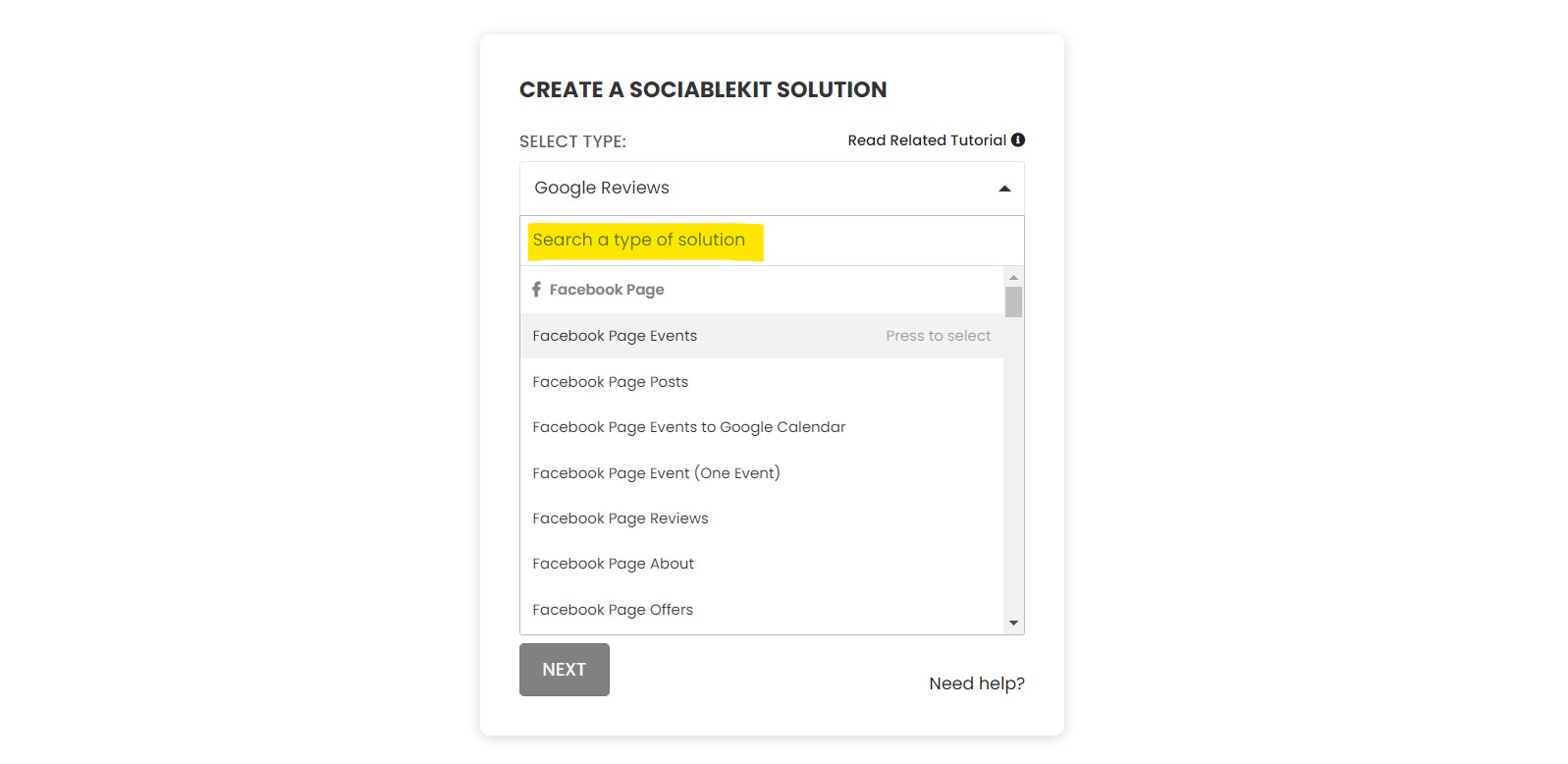
Pick Facebook Page Events in the dashboard and connect your source.
-
Match your brand
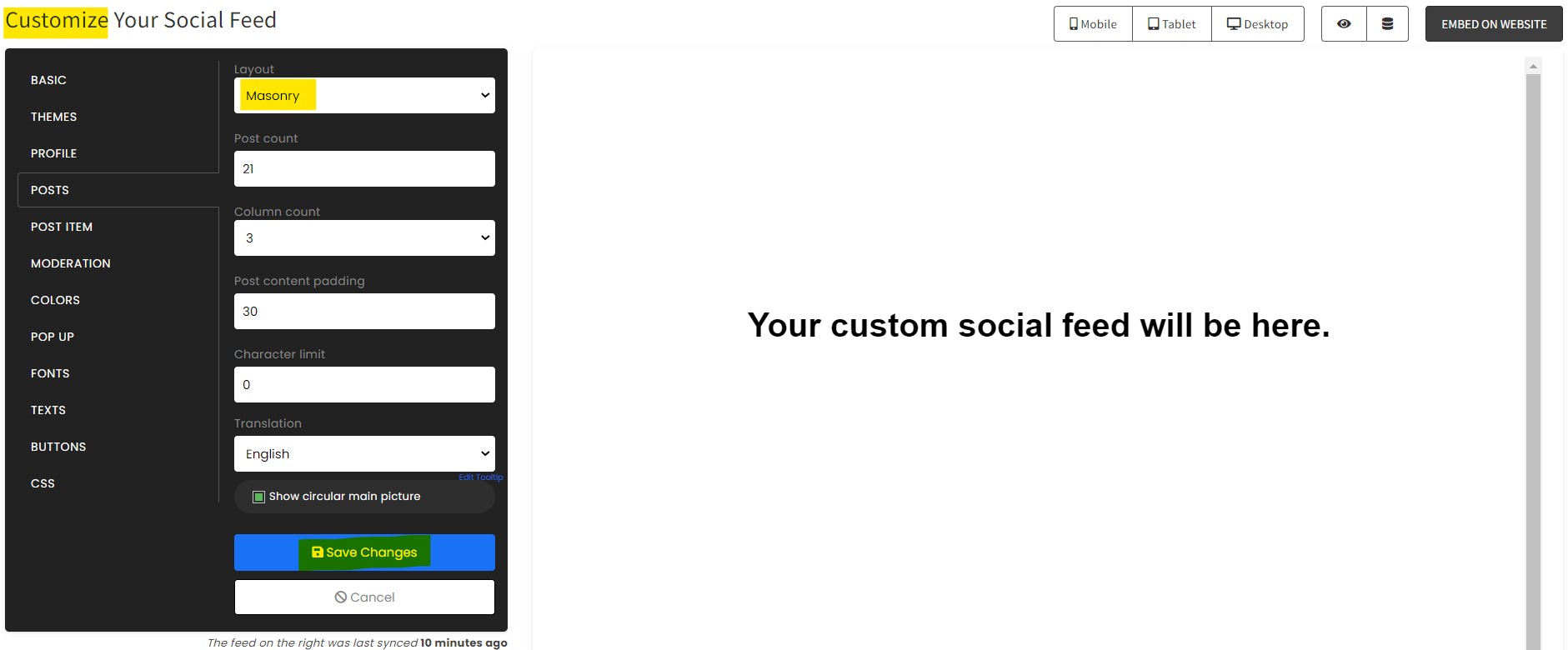
Colors, fonts, layout — tune it until it feels native to your site.
-
Paste one line of code
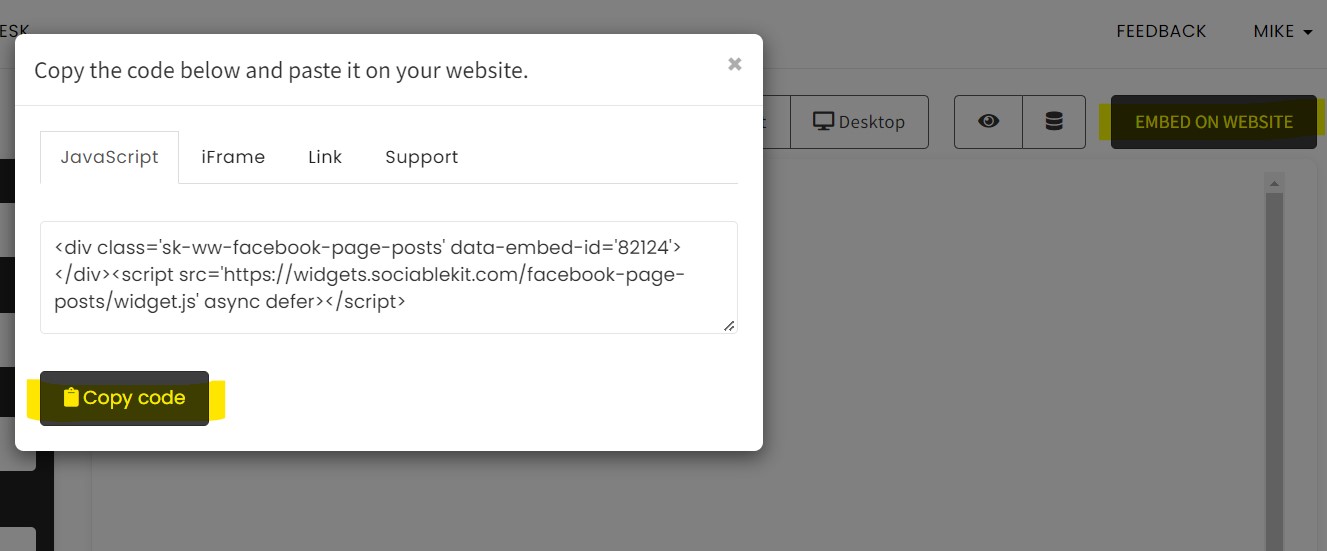
Drop the embed snippet on your infinityfree website. No dev team needed.
Embed Facebook Page Events with SociableKIT — step by step
Create your widget in the dashboard, copy the embed code, and paste it on your infinityfree website. Screenshots included so you never get stuck.
Create and customize your Facebook Page Events widget
The first part is creating your Facebook Page Events widget using the SociableKIT dashboard. Customize the look and feel to match your brand. Follow the steps below.
-
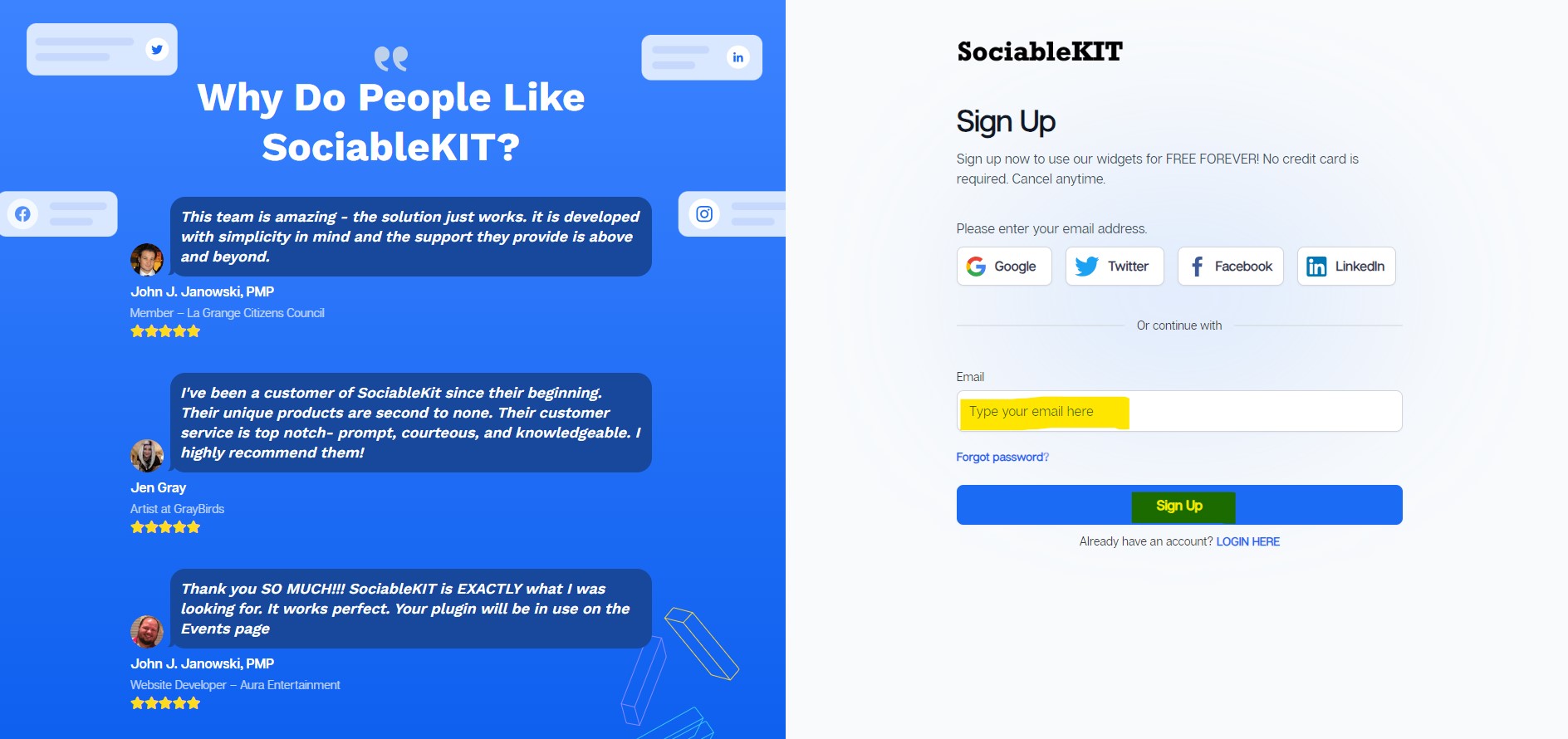
Sign up FREE or login to SociableKIT. You can login here if you already have an account. Once you sign up, you will start your 7-day premium trial. After 7 days, you can activate the free plan if you don't need our premium features.

-
Connect your Facebook page. Connect your Facebook account to select your target Facebook page on the dropdown. You need to be admin of the Facebook page you want to use. If your Facebook account is not yet connected, you will see this "Connect with Facebook" button. Click this button and follow Facebook's steps to connect your account.
Once connected, you will see this dropdown where you can select the Facebook page you want to use.
- Paste the embed code and save your infinityfree website page. Please follow the second part below to add Facebook Page Events widget to your infinityfree website .
Add Facebook Page Events widget to your infinityfree website
The second part is adding your Facebook Page Events widget to your infinityfree website . After you customize your Facebook Page Events widget and copied the embed code, it is time to add it to your infinityfree website . Follow the steps below.
- Copy your free Facebook Page Events widget embed code. Make sure you followed the first part above. It detailed how to you can create and customize your widget to get your free embed code.
- Login to Infinityfree.
- Create or edit an existing page.
- Hover on the page and click the 'Add stack' button. Click the 'Blank' tab.
- Select the column count you prefer.
- On the stack, click the 'Add Block' button. Select the 'Code block' block.
- Paste the embed code from SociableKIT.
- Click the 'Publish' button.
- Click the 'Preview' button on the upper mid part of the page. Done!
Website builders
Paste your embed code on any platform
SociableKIT works with every major website builder. Pick yours below for copy-paste instructions tailored to that platform.
To embed Facebook Page Events on your infinityfree site, follow the steps below after you have your SociableKIT embed code.
- Sign up free to SociableKIT and create your Facebook Page Events widget.
- Customize your widget and copy the embed code from the dashboard.
- Login to Infinityfree.
- Create or edit an existing page.
- Hover on the page and click the 'Add stack' button. Click the 'Blank' tab.
- Select the column count you prefer.
- On the stack, click the 'Add Block' button. Select the 'Code block' block.
- Paste the embed code from SociableKIT.
- Click the 'Publish' button.
- Click the 'Preview' button on the upper mid part of the page. Done!
To embed Facebook Page Events on your WordPress site, follow the steps below after you have your SociableKIT embed code.
- Sign up free to SociableKIT and create your Facebook Page Events widget.
- Customize your widget and copy the embed code from the dashboard.
- Login to your WordPress site.
![]()
- On your WordPress, go to the "Pages" section then click the "Add new page".
![]()
- Pick a pre-defined layout or start with a blank page by clicking the "Blank page" button.
![]()
- On the body of your page, click the "+" icon and click the "Custom HTML".
![]()
- Paste the code in the text area and click update.
![]()
- The widget will appear on the WordPress page.
![]()
- Click the Publish or Update button on your WordPress page.
![]()
- Click the view page. Done!
To embed Facebook Page Events on your Wix site, follow the steps below after you have your SociableKIT embed code.
- Sign up free to SociableKIT and create your Facebook Page Events widget.
- Customize your widget and copy the embed code from the dashboard.
- Login to Wix.
![]()
- On your existing website click the "+" button beside the "Main pages" section.
![]()
- Then click the "Add page" button.
![]()
- Name your page then hit enter.
![]()
- On the left, click "Add element". Find and click "Embed code". Click and drag "Embed a site" on your page then resize the container.
![]()
- Click "Change website address".
![]()
- Paste the link you copied from SociableKIT then click "Apply".
![]()
- Click "Publish" on the upper right.
![]()
- Click "View site". Done!
![]()
To embed Facebook Page Events on your Squarespace site, follow the steps below after you have your SociableKIT embed code.
- Sign up free to SociableKIT and create your Facebook Page Events widget.
- Customize your widget and copy the embed code from the dashboard.
- Login to Squarespace. You must have a "Business" account in Squarespace to use the widget. The "code block" needed cannot be found if you only have a "Personal" account.
![]()
- Create a new blank page or edit your existing page. Identify which page you want the widget to appear. You can create a new page on Squarespace, or you can edit your existing page where you want the widget to appear.
![]()
- Add a Code Block. On your Squarespace page, click the 'Edit' button. Find the 'Code' block and click it.
![]()
- Paste the embed code from SociableKIT. On the 'Content' of the 'Code' block, paste the JavaScript embed code you have copied from your widget.
![]()
- Save the changes on the 'Code block'. After pasting your widget's embed code. Click the 'Save' button on the left part of the page.
![]()
- View your page. Refresh your Squarespace page and check your SociableKIT widget. Done!
![]()
To embed Facebook Page Events on your Webflow site, follow the steps below after you have your SociableKIT embed code.
- Sign up free to SociableKIT and create your Facebook Page Events widget.
- Customize your widget and copy the embed code from the dashboard.
- Login to Webflow.
![]()
- On your existing website, click the "Page: ...." in the upper left corner then click the "Create new page" icon.
![]()
- Once done add a name for your new page then click "Save".
![]()
- On the left, click "Add Element". Drag "Embed" to your page.
![]()
- Paste the JavaScript code you copied from SociableKIT.
![]()
- On the upper right, click "Publish" > "Publish to Selected Domains".
![]()
- View your page. Done!
To embed Facebook Page Events on your Shopify site, follow the steps below after you have your SociableKIT embed code.
- Sign up free to SociableKIT and create your Facebook Page Events widget.
- Customize your widget and copy the embed code from the dashboard.
- Login to Shopify.
![]()
- On the left side, click Online Store.
![]()
- Click Pages. Add a new page or edit your existing page.
![]()
- On the Page details, click Show HTML icon (<>).
![]()
- Paste the embed code and click the Save button.
![]()
- Click the View page button. Done!
![]()
To embed Facebook Page Events on your HTML site, follow the steps below after you have your SociableKIT embed code.
- Sign up free to SociableKIT and create your Facebook Page Events widget.
- Customize your widget and copy the embed code from the dashboard.
- Open your HTML file.
- You can create a new HTML page or edit your existing HTML page.
![]()
- Paste the Javascript code you copied from SociableKIT. Paste it where you want the widget to appear.
![]()
- Save your HTML page.
![]()
- You may now upload your HTML page to your web hosting.
To embed Facebook Page Events on your Google Sites site, follow the steps below after you have your SociableKIT embed code.
- Sign up free to SociableKIT and create your Facebook Page Events widget.
- Customize your widget and copy the embed code from the dashboard.
- Login to Google sites. You must have at least a 'Business Starter' plan to create and customize your Google sites.
![]()
- Create or edit an existing website. Click the + 'Blank' button on the 'Start a new site' section to create or find your existing website under the 'Recent sites' section.
![]()
- Create a new blank page or edit your existing page. Identify which page you want the widget to appear. On the right sidebar, you will see an 'Embed' button. Click the 'Embed' button.
![]()
- Add the widget. A popup 'Embed from the web' will open up. Select the 'Embed code' tab on the popup.
![]()
- Paste the embed code from SociableKIT. On the 'Embed code' tab, you will see 'HTML code goes here' text. Paste the embed code from your SociableKIT widget.
![]()
- Save the widget. Once you have pasted your embed code, click the 'Next' button.
![]()
- Preview of your SociableKIT widget. After clicking the Next button, a preview of your embed code will be displayed. Click the 'Insert' button to insert the widget to your Google sites page.
![]()
- Edit the widget. Once the widget has been inserted, you will have the option to resize the widget. After resizing the widget to your preferences, click the 'Publish' button on the upper right corner of the page.
![]()
- Publish your page. After publishing the site, click the down 'Arrow' button beside the 'Publish' button.
![]()
- View your page. A dropdown of buttons will be displayed, click the 'View published site' button. Done!
![]()
Live preview
Pick a Facebook Page Events template — see it live
Choose a starting design on the left and watch the preview update with real data. What you see is exactly what visitors get on your infinityfree website.
Common questions
Frequently asked questions
Everything you need to know about embedding Facebook Page Events on your infinityfree website.
How long does it take to set up my Facebook events on my website?
You can have your Facebook events live on your website in just a couple of minutes. After you sign up for SociableKIT, you create your Facebook Page Events widget, preview your design, and copy a single line of embed code. Paste that code into your site, and the widget starts pulling your events immediately — no waiting or complex configuration needed.
How do I embed my Facebook events using SociableKIT?
It’s as simple as create, customize and paste. In your SociableKIT dashboard, create a Facebook Page Events widget and choose a template that fits your brand. Adjust colors, fonts and layout, then copy the one‑line embed code and paste it into your website builder. Your events feed appears instantly and can be updated anytime from your SociableKIT account.
Do I need to know how to code or install a plugin to use the widget?
No coding is required and there’s no plugin to install. Traditional manual embeds involve copying iFrame code and offer no design control, but SociableKIT removes that complexity. You simply copy a single snippet from your dashboard and paste it into an HTML block on your site, so anyone can get their events online without developer help.
Do I have to be the admin of my Facebook page to show events?
Yes. Facebook’s API only lets you pull events from pages you manage, so you need to be an admin or editor of the page to connect it. Once authorized, SociableKIT securely accesses your events and keeps them in sync.
Will my events update automatically when I add or change them on Facebook?
They will. A live events feed pulls data directly from Facebook, so any new or edited event appears on your website without manual updates. This keeps your event list current and saves you from copying details back and forth.
Can I control which events appear and hide past or canceled ones?
Absolutely. You can choose to show only upcoming events, set a date range or hide specific events that you don’t want displayed. Filtering helps you keep the list relevant — for example, by showing next month’s events and hiding past or canceled dates.
Can I customize the look and feel of the events feed to match my brand?
Yes. SociableKIT lets you style your events feed with your own colors, fonts and layouts so it blends seamlessly with your website. You can choose from list, grid, calendar or carousel views and adjust call‑to‑action buttons, typography and dark mode options. Customizations are available on every plan, even the free one, so your events always look on‑brand.
Can I combine events from multiple Facebook pages or groups in one feed?
Yes. If you manage several pages or groups, you can aggregate their events into a single SociableKIT widget. This unified feed sorts events by date, giving visitors a single schedule instead of multiple lists. It’s especially useful for venues or organizations with multiple departments that host events under different pages.
How many events or views can the SociableKIT widget handle? Are there limits?
On paid plans there are no caps on the number of people who can view your widget. You can display as many events as your page has, and the widget won’t shut off if you exceed a traffic threshold. The free plan lets you try the widget with a view allowance, then you can upgrade for unlimited views and sources when your audience grows.
Is there a free plan or trial available for the Facebook events widget?
Yes. SociableKIT offers a free‑forever plan with no credit card required, so you can set up a real working events widget and test it on your site. When you’re ready for automatic syncing and higher view limits, you can upgrade without losing your settings.
Does adding the events widget slow down my website or affect its performance?
No. The widget is lightweight and optimized to load asynchronously, so it doesn’t block your page or slow down your site. Third‑party sources note that a properly built social widget has zero impact on page speed, and SociableKIT follows that best practice. Your website remains fast while still showing dynamic event information.
Is the widget responsive and mobile‑friendly?
Yes. The events feed automatically adjusts to different screen sizes, from phones to desktops, and maintains readability across breakpoints. Long descriptions collapse behind a ‘Read More’ link on mobile devices, and images scale to fit the available space. You don’t need to create separate embeds for different devices.
Can I moderate or filter events to remove unwanted content or duplicates?
Yes. SociableKIT includes moderation tools that let you hide specific events or filter them by keyword and date. If an event is canceled, off‑brand or irrelevant, you can remove it from the feed without deleting it from Facebook. These filters help keep your schedule clean and focused.
Is the SociableKIT widget compliant with Facebook’s policies and secure?
Yes. It uses Facebook’s official API to pull data, so it adheres to Meta’s terms and privacy requirements. You log in to authorize the connection, and the widget only displays public event information. No sensitive account data is stored or exposed, keeping your page and visitors safe.
Does the widget include a call‑to‑action so visitors can RSVP or view details?
Yes. Each event card displays the date, time and location, and it links back to the original Facebook event page. Visitors can click through to RSVP, buy tickets or get more details on Facebook without leaving your site until they’re ready. This makes it easy for them to act while still showcasing the event on your own domain.
Does the widget support multiple languages and time zones?
Yes. Interface text (such as dates and buttons) can be localized into dozens of languages, and the feed respects your site’s time zone settings. Events show their scheduled time relative to the viewer’s local settings, ensuring accuracy for global audiences. You can also display day and month formats that match your region.
Can I embed the events widget on WordPress, Wix, Shopify, Squarespace, or other platforms?
Yes. The SociableKIT embed code works on any website builder that supports custom HTML. Detailed instructions are available for WordPress, Shopify, Wix, Squarespace, Webflow, Weebly, Google Sites, SharePoint and plain HTML sites. Wherever you can paste code, you can display your events feed.
What happens if an event is co‑hosted or created by another page?
Due to Facebook’s API rules, the events feed only displays events created by the page you connect. Co‑hosted events or events created by other organizers may not appear in the feed, so be sure to create events directly on your own page if you want them to show up. This limitation comes from Facebook rather than SociableKIT.
What kind of support is available if I need help setting up or customizing the widget?
SociableKIT provides real human support via chat and email, with 24/7 availability on paid plans. If you get stuck during setup or want to tweak the design, a member of our team can walk you through it. Extensive documentation and examples are also available to help you get the most from your events widget.
Add your Facebook Page Events widget today
Set up in minutes. Free forever to start.
Create your widgetFree forever · No credit card · Cancel anytime