
Your Instagram feed on infinityfree website — live in 3 steps
SociableKIT syncs your instagram feed automatically. Set up once, embed anywhere — free to start, no coding required.
-
Create in 60 seconds
Pick Instagram feed in the dashboard and connect your source.
-
Match your brand
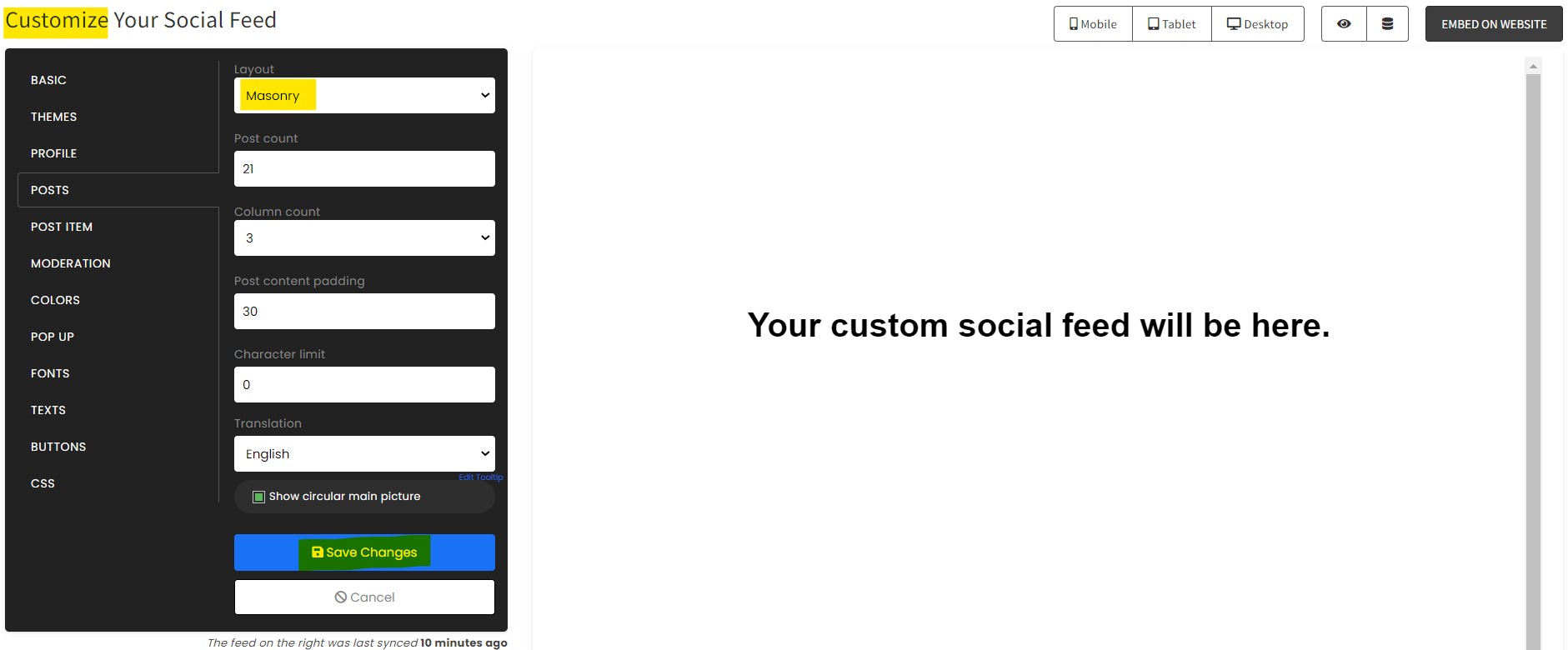
Colors, fonts, layout — tune it until it feels native to your site.
-
Paste one line of code
Drop the embed snippet on your infinityfree website. No dev team needed.
Embed Instagram feed with SociableKIT — step by step
Create your widget in the dashboard, copy the embed code, and paste it on your infinityfree website. Screenshots included so you never get stuck.
Create and customize your Instagram feed widget
The first part is creating your Instagram feed widget using the SociableKIT dashboard. Customize the look and feel to match your brand. Follow the steps below.
-
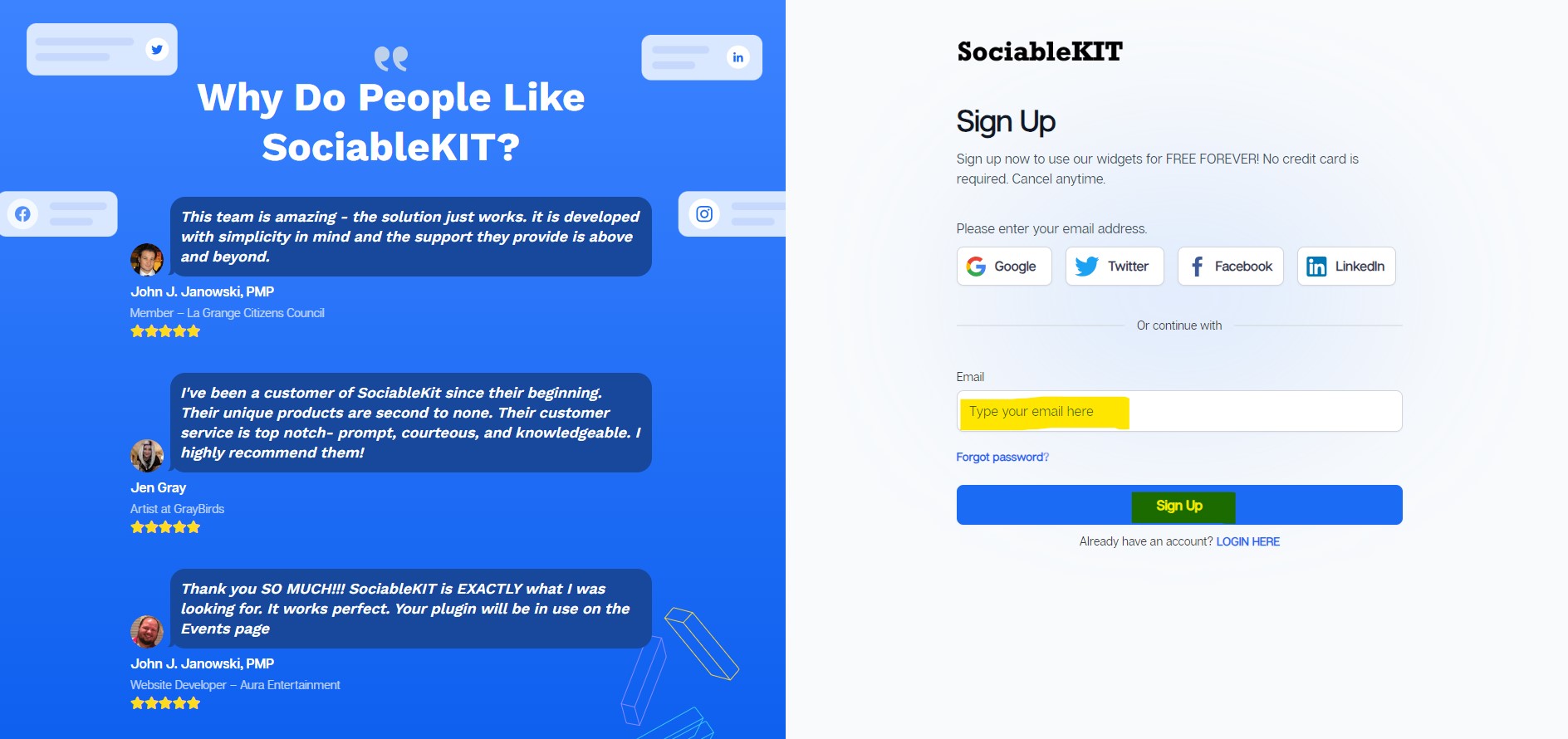
Sign up FREE or login to SociableKIT. You can login here if you already have an account. Once you sign up, you will start your 7-day premium trial. After 7 days, you can activate the free plan if you don't need our premium features.

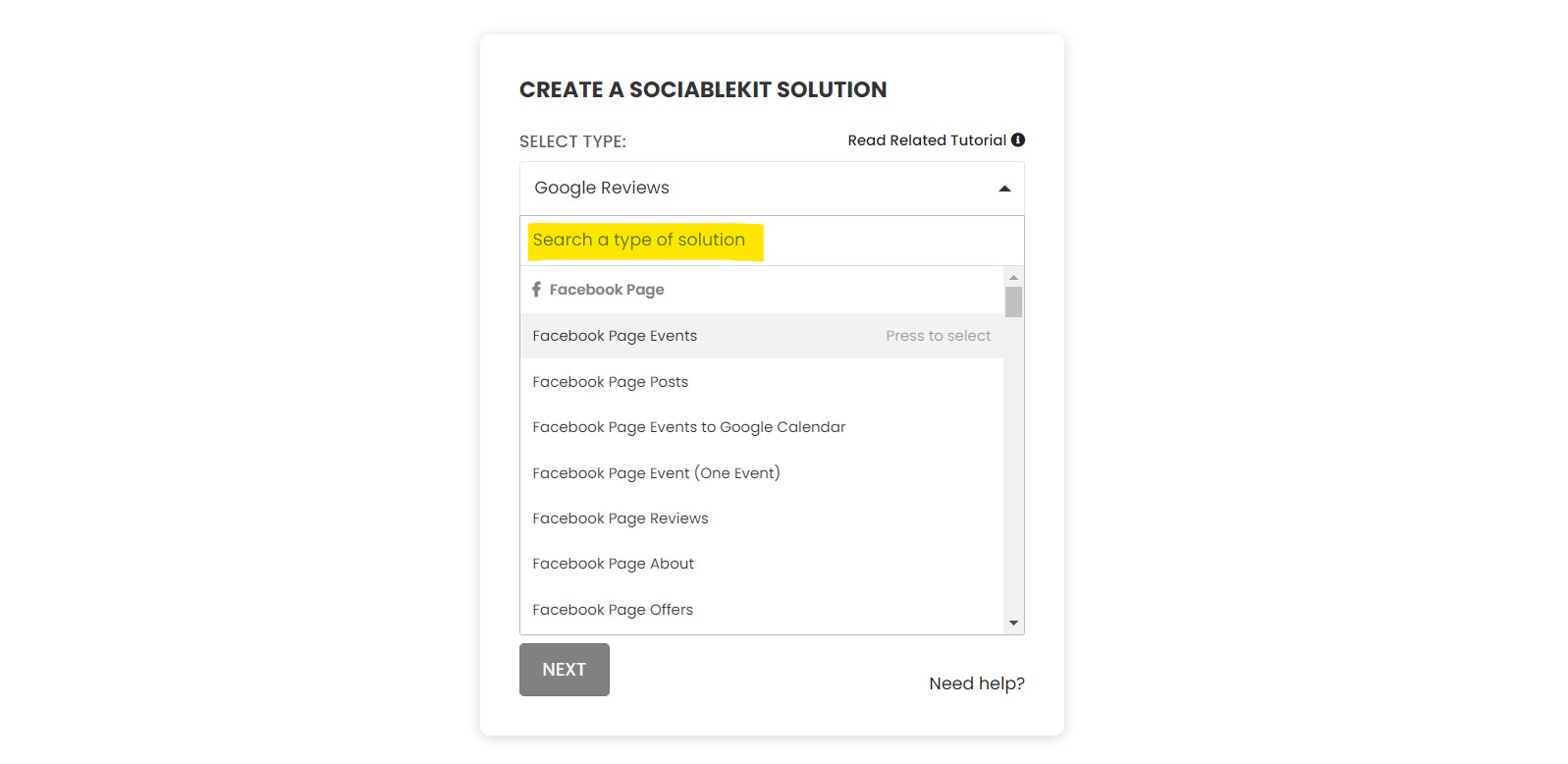
- Select your Instagram feed type on the dropdown.
SociableKIT offers several Instagram feed widgets. You might need to search it using the highlighted area below. Once found, you can then select it.
Here are the different types of Instagram feed that you can add to your infinityfree website :
Instagram Hashtag Feed widget – Showcase posts from your Instagram hashtag feed on your website to highlight trending content and encourage engagement around your brand. Learn how to embed Instagram Hashtag Feed on your website.
Instagram Location widget – Showcase location-specific Instagram posts on your website to engage visitors with authentic local experiences and boost your brand’s connection with the community. Learn how to embed Instagram Location on your website.
Instagram Profile widget – Display your Instagram profile posts on your website to showcase your latest content and strengthen your brand's connection with visitors. Learn how to embed Instagram Profile on your website.
Instagram Reel (Single reel) widget – Embed a single Instagram Reel (Single Reel) on your website to share captivating, high-impact content that draws in your audience and sparks interaction. Learn how to embed Instagram Reel (Single reel) on your website.
Instagram Reels widget – Embed your Instagram Reel on your website to captivate visitors with engaging, short-form content that drives attention and interaction. Learn how to embed Instagram Reels on your website.
Instagram Stories widget – Embed your Instagram Stories on your website to captivate visitors with scheduled regular updates, engaging content that drives interaction and excitement. Learn how to embed Instagram Stories on your website.
Instagram Story Highlights widget – Feature your Instagram Story Highlights on your website to share key moments and showcase your brand's best content in a lasting, engaging format. Learn how to embed Instagram Story Highlights on your website.
- Enter your Instagram feed ID or username. Copy your Instagram feed URL and paste it in the username box. Our system will automatically identify your Instagram feed ID or username.
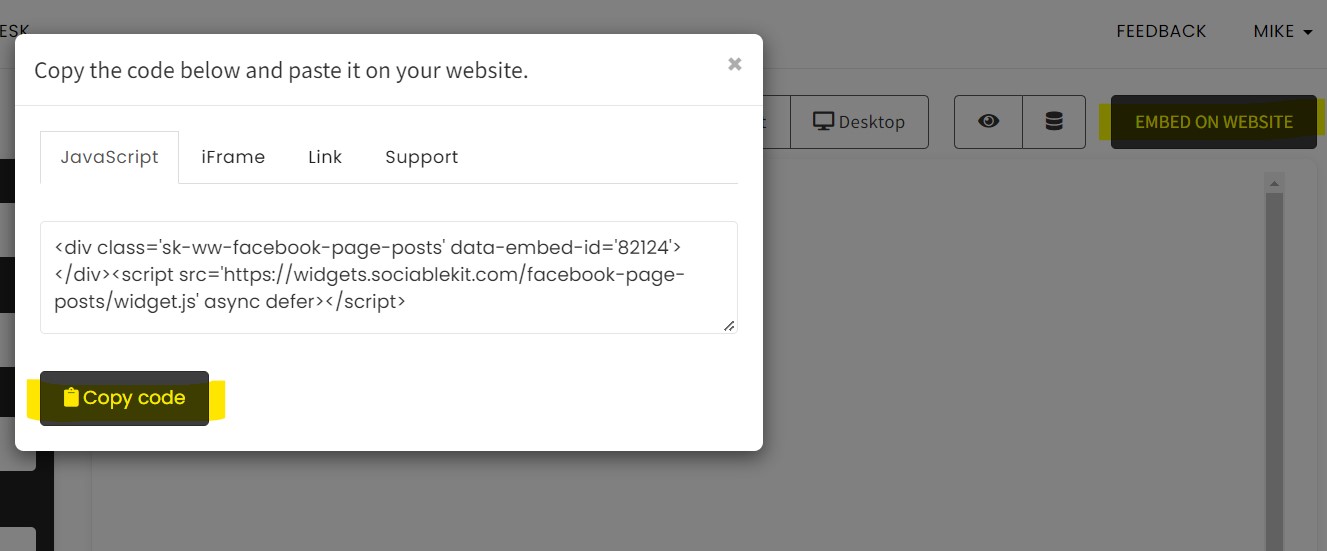
- Paste the embed code and save your infinityfree website page. Please follow the second part below to add Instagram feed widget to your infinityfree website .
Add Instagram feed widget to your infinityfree website
The second part is adding your Instagram feed widget to your infinityfree website . After you customize your Instagram feed widget and copied the embed code, it is time to add it to your infinityfree website . Follow the steps below.
- Get your free embed code from SociableKIT. Make sure you followed the first part above to create your widgget, customize it, and copy your free embed code.
- Login to Infinityfree.
- Create or edit an existing page.
- Hover on the page and click the 'Add stack' button. Click the 'Blank' tab.
- Select the column count you prefer.
- On the stack, click the 'Add Block' button. Select the 'Code block' block.
- Paste the embed code from SociableKIT.
- Click the 'Publish' button.
- Click the 'Preview' button on the upper mid part of the page. Done!
Website builders
Paste your embed code on any platform
SociableKIT works with every major website builder. Pick yours below for copy-paste instructions tailored to that platform.
To embed Instagram feed on your infinityfree site, follow the steps below after you have your SociableKIT embed code.
- Sign up free to SociableKIT and create your Instagram feed widget.
- Customize your widget and copy the embed code from the dashboard.
- Login to Infinityfree.
- Create or edit an existing page.
- Hover on the page and click the 'Add stack' button. Click the 'Blank' tab.
- Select the column count you prefer.
- On the stack, click the 'Add Block' button. Select the 'Code block' block.
- Paste the embed code from SociableKIT.
- Click the 'Publish' button.
- Click the 'Preview' button on the upper mid part of the page. Done!
To embed Instagram feed on your WordPress site, follow the steps below after you have your SociableKIT embed code.
- Sign up free to SociableKIT and create your Instagram feed widget.
- Customize your widget and copy the embed code from the dashboard.
- Login to your WordPress site.
![]()
- On your WordPress, go to the "Pages" section then click the "Add new page".
![]()
- Pick a pre-defined layout or start with a blank page by clicking the "Blank page" button.
![]()
- On the body of your page, click the "+" icon and click the "Custom HTML".
![]()
- Paste the code in the text area and click update.
![]()
- The widget will appear on the WordPress page.
![]()
- Click the Publish or Update button on your WordPress page.
![]()
- Click the view page. Done!
To embed Instagram feed on your Wix site, follow the steps below after you have your SociableKIT embed code.
- Sign up free to SociableKIT and create your Instagram feed widget.
- Customize your widget and copy the embed code from the dashboard.
- Login to Wix.
![]()
- On your existing website click the "+" button beside the "Main pages" section.
![]()
- Then click the "Add page" button.
![]()
- Name your page then hit enter.
![]()
- On the left, click "Add element". Find and click "Embed code". Click and drag "Embed a site" on your page then resize the container.
![]()
- Click "Change website address".
![]()
- Paste the link you copied from SociableKIT then click "Apply".
![]()
- Click "Publish" on the upper right.
![]()
- Click "View site". Done!
![]()
To embed Instagram feed on your Squarespace site, follow the steps below after you have your SociableKIT embed code.
- Sign up free to SociableKIT and create your Instagram feed widget.
- Customize your widget and copy the embed code from the dashboard.
- Login to Squarespace. You must have a "Business" account in Squarespace to use the widget. The "code block" needed cannot be found if you only have a "Personal" account.
![]()
- Create a new blank page or edit your existing page. Identify which page you want the widget to appear. You can create a new page on Squarespace, or you can edit your existing page where you want the widget to appear.
![]()
- Add a Code Block. On your Squarespace page, click the 'Edit' button. Find the 'Code' block and click it.
![]()
- Paste the embed code from SociableKIT. On the 'Content' of the 'Code' block, paste the JavaScript embed code you have copied from your widget.
![]()
- Save the changes on the 'Code block'. After pasting your widget's embed code. Click the 'Save' button on the left part of the page.
![]()
- View your page. Refresh your Squarespace page and check your SociableKIT widget. Done!
![]()
To embed Instagram feed on your Webflow site, follow the steps below after you have your SociableKIT embed code.
- Sign up free to SociableKIT and create your Instagram feed widget.
- Customize your widget and copy the embed code from the dashboard.
- Login to Webflow.
![]()
- On your existing website, click the "Page: ...." in the upper left corner then click the "Create new page" icon.
![]()
- Once done add a name for your new page then click "Save".
![]()
- On the left, click "Add Element". Drag "Embed" to your page.
![]()
- Paste the JavaScript code you copied from SociableKIT.
![]()
- On the upper right, click "Publish" > "Publish to Selected Domains".
![]()
- View your page. Done!
To embed Instagram feed on your Shopify site, follow the steps below after you have your SociableKIT embed code.
- Sign up free to SociableKIT and create your Instagram feed widget.
- Customize your widget and copy the embed code from the dashboard.
- Login to Shopify.
![]()
- On the left side, click Online Store.
![]()
- Click Pages. Add a new page or edit your existing page.
![]()
- On the Page details, click Show HTML icon (<>).
![]()
- Paste the embed code and click the Save button.
![]()
- Click the View page button. Done!
![]()
To embed Instagram feed on your HTML site, follow the steps below after you have your SociableKIT embed code.
- Sign up free to SociableKIT and create your Instagram feed widget.
- Customize your widget and copy the embed code from the dashboard.
- Open your HTML file.
- You can create a new HTML page or edit your existing HTML page.
![]()
- Paste the Javascript code you copied from SociableKIT. Paste it where you want the widget to appear.
![]()
- Save your HTML page.
![]()
- You may now upload your HTML page to your web hosting.
To embed Instagram feed on your Google Sites site, follow the steps below after you have your SociableKIT embed code.
- Sign up free to SociableKIT and create your Instagram feed widget.
- Customize your widget and copy the embed code from the dashboard.
- Login to Google sites. You must have at least a 'Business Starter' plan to create and customize your Google sites.
![]()
- Create or edit an existing website. Click the + 'Blank' button on the 'Start a new site' section to create or find your existing website under the 'Recent sites' section.
![]()
- Create a new blank page or edit your existing page. Identify which page you want the widget to appear. On the right sidebar, you will see an 'Embed' button. Click the 'Embed' button.
![]()
- Add the widget. A popup 'Embed from the web' will open up. Select the 'Embed code' tab on the popup.
![]()
- Paste the embed code from SociableKIT. On the 'Embed code' tab, you will see 'HTML code goes here' text. Paste the embed code from your SociableKIT widget.
![]()
- Save the widget. Once you have pasted your embed code, click the 'Next' button.
![]()
- Preview of your SociableKIT widget. After clicking the Next button, a preview of your embed code will be displayed. Click the 'Insert' button to insert the widget to your Google sites page.
![]()
- Edit the widget. Once the widget has been inserted, you will have the option to resize the widget. After resizing the widget to your preferences, click the 'Publish' button on the upper right corner of the page.
![]()
- Publish your page. After publishing the site, click the down 'Arrow' button beside the 'Publish' button.
![]()
- View your page. A dropdown of buttons will be displayed, click the 'View published site' button. Done!
![]()
Live preview
Pick a Instagram Profile template — see it live
Choose a starting design on the left and watch the preview update with real data. What you see is exactly what visitors get on your infinityfree website.
Common questions
Frequently asked questions
Everything you need to know about embedding Instagram feed on your infinityfree website.
What is an Instagram feed widget?
An Instagram feed widget is a tool that automatically pulls your latest Instagram photos, videos and updates into a gallery you embed on your website. Instead of copying individual posts, it uses the Instagram API to fetch content in real time, so your site always shows what’s new. It’s a powerful way to add social proof and keep your pages fresh without constant manual work.
How does showing my Instagram feed help my business?
Featuring your Instagram feed builds trust by showing visitors real, recent photos and interactions. Fresh content from your social profile demonstrates activity and authenticity, encourages visitors to engage and follow you, and keeps people on your site longer. It also adds social proof, which can increase conversions because customers see that others enjoy your products or services.
How do I embed the widget?
You can embed the widget in minutes. Sign up for a free SociableKIT account, create a new Instagram feed widget, then connect your account or hashtag. Choose a template and customize the look to match your brand, and the platform will generate a short code snippet. Copy that code and paste it into your website’s HTML block or page builder – no coding experience required.
Do I need a business account?
You can start with a public personal Instagram account if it is set to public and not private. However, Instagram’s API restricts private accounts, so you’ll need to switch to a Business or Creator account if you want to pull in hashtags, comments or full analytics. Switching is free and gives you access to more API features, which ensures the widget can sync all content reliably.
Can I combine multiple accounts or hashtags?
Yes, you can display content from multiple Instagram accounts, hashtags or locations in one combined feed. SociableKIT lets you add up to five sources to a single widget; mixing content from several profiles or branded hashtags creates a rich, varied gallery. If you manage several brands or run campaigns with different hashtags, combining them makes it easier for visitors to see everything in one place.
Are videos, carousels, Reels, Stories and Highlights supported?
The widget supports virtually every Instagram media type. Standard posts and photos appear alongside multi‑photo carousels and videos, and if you post Reels, they will display with a play button. For more specialized content, you can create separate feeds for Stories, Highlights or Reels using our dedicated widgets. Everything is responsive and automatically formatted for mobile and desktop visitors.
Can I customize the design?
You have complete control over how your feed looks. Choose from grid, masonry, carousel and slider templates; adjust colours, fonts, column counts and spacing; and show or hide elements such as captions, likes and comments. You can add call‑to‑action buttons to encourage clicks, or inject your own CSS for deeper customization. Even on the free plan, customization options allow your feed to blend seamlessly into your website design.
How often does the feed update?
Feed updates happen automatically on paid plans – our servers query Instagram at regular intervals allowed by the API. New posts typically appear within a few hours of being published on Instagram. If you’re on the free plan, you can refresh the feed manually as often as you like. We use caching and smart syncing to keep content fresh without overloading your site or hitting API limits.
Will the widget slow down my website?
No. SociableKIT’s widget is built for speed and SEO. It loads asynchronously, so it doesn’t block your page from rendering, and images are lazy‑loaded only when they scroll into view. We host assets on a global CDN and cache feed data, which reduces requests to Instagram and keeps your website fast. A single aggregated feed also means less code and fewer scripts than embedding multiple individual posts.
Can I filter or moderate posts?
Yes, you can manage exactly which posts appear. Use filters to include or exclude posts based on keywords, hashtags, user names or specific URLs, and choose the date range to show only recent content. Advanced moderation features let you hide posts automatically if they contain banned terms, or manually approve each post before it goes live. That way you maintain brand safety and keep the feed relevant.
Can I display posts from public profiles or hashtags I don’t own?
You can build feeds from any public profile, hashtag or mention, even if you don’t own that account. For example, you might display curated posts featuring your brand’s hashtag or user‑generated content. The only requirement is that the content is public; private or restricted accounts cannot be embedded. Always make sure you have permission to display third‑party content, and consider crediting the original creators.
Is it compatible with my website platform?
The widget works with virtually any website platform, because it’s just a snippet of HTML and JavaScript. Whether you use WordPress, Shopify, Wix, Squarespace, Webflow, Weebly, Google Sites, SharePoint or a custom‑coded site, you simply paste the code into the appropriate block or module. If you need help, our documentation and support team provide platform‑specific instructions and we can walk you through the process.
Is there a free plan and what’s included?
Yes. Our free plan lets you create one Instagram feed widget with one source and 2,000 monthly views. You still get full design customization and you can update your feed manually whenever you need to, but it will display a small SociableKIT watermark. It’s a great way to try the service before committing to a paid plan.
How much does the paid plan cost?
Paid plans start at US$10 per month for one source and include unlimited widgets, unlimited views and automatic syncing. Each additional source costs US$5 per month. For larger needs, our Business plan at US$40 per month allows up to 10 sources and includes advanced moderation and analytics; Enterprise plans offer custom solutions and dedicated support. You can cancel or upgrade at any time.
What if my site gets a lot of traffic?
Your feed won’t shut off when you get a traffic spike. Unlike some providers that cap monthly views and disable widgets when the limit is reached, all of our paid plans include unlimited views. Even on the free plan, your feed will display up to 2,000 views per month before showing a small notice. This ensures your social proof remains visible even when you go viral.
Can I make the feed shoppable?
Yes, you can add shoppable links to your feed. Each post can include a call‑to‑action button or linked caption that takes visitors directly to a product page, signup form or landing page. This turns your social feed into an effective marketing tool, allowing customers to discover and purchase products directly from the content they see.
What types of feeds can I create?
SociableKIT offers several feed types to suit your needs. You can create profile feeds from personal or business accounts, hashtag feeds to showcase posts around a specific topic or campaign, location feeds for tagged places, as well as specialized feeds for Reels, Stories and Story Highlights. You can mix and match feed types to present a comprehensive view of your Instagram presence.
How is SociableKIT different from other tools?
We stand out by offering unlimited views at a low monthly price, a simple pay‑per‑source model and customization options on every plan. Most competitors cap views or require costly higher tiers to unlock features. We also provide 24/7 live human support, support over 100 sources and automatically sync content so you never have to worry about updates. Our track record of reliability and ease of use has earned us a 4.9/5 rating from thousands of customers.
Can I try it before paying?
Absolutely. You can start a 7‑day premium trial without a credit card, which gives you full access to automatic syncing, unlimited views and all customization features. After the trial, you can downgrade to the free plan or subscribe to a paid plan. This trial period lets you fully evaluate whether the widget meets your needs without any commitment.
What support is available?
All paid plans include 24/7 live chat and email support from our dedicated team. Our specialists can help you set up your widget, troubleshoot issues, integrate with your website builder and customize the design. In addition to real‑time support, we provide extensive documentation, how‑to guides and video tutorials. Even on the free plan you can access our knowledge base and contact support for basic questions.
Add your Instagram feed widget today
Set up in minutes. Free forever to start.
Free forever · No credit card · Cancel anytime