
Welcome to our guide on how to easily embed Google Reviews on your website using our free website widgets. We understand the importance of showcasing customer feedback on your website, and our widgets make it quick, easy, and customizable. With our widgets, you can be sure that your Google Reviews will be displayed reliably and quickly, giving your visitors a great user experience.
Our widget is easy to set up and customize, taking about 2 minutes for a first-time user. It also refreshes regularly, so recent Google reviews appear on your website.
Create a SociableKIT widget today and use your Google reviews to build social proof for your business!
Why Display Google Reviews on Your Website
Showcasing customer testimonials on your website has numerous incentives for your business, including boosting your site’s engagement rate and increasing your lead generation opportunities.
Let’s discuss the benefits in detail below:
- Social Proof: Adding Google reviews increases your website’s trust factor, establishing your business or brand as credible and trustworthy. This encourages high-intent buyers to trust your products and services.
- Effective Engagement: Website visitors will likely spend time on your website interacting with the embedded testimonials, reducing your website’s bounce rate.
- Lead Generation: Positive Google reviews about your product quality and customer service help nudge potential clients to make their purchase decisions while still on your website.
- Local SEO: Google reviews often contain location-specific terms and long-tail keywords, which help your website rank high in SERPs.
- Feedback Cycle: Embedding customer feedback on your website is among the best ways to get Google reviews. Website visitors who interact with your customer testimonials will likely want to share their experiences as well, increasing your Google reviews count.

Methods to Add Google Reviews to Your Website
There are two main ways to export Google reviews to your website: the widget and the link options.
In this section, we’ll provide a step-by-step guide for each method, including the best use cases.
Method 1: Use a Website Widget
To quickly embed Google Reviews to your Google Sites website , follow the steps below.
- Create your Google Reviews widget here.
- Customize your Google Reviews widget.
- Copy the Google Reviews widget embed code.
- Login to your Google Sites website admin panel and create or edit a page.
- Paste the embed code where you want the Google Reviews widget to appear.
- Save and view your page. Done!
That’s easy! Embedding Google Reviews widget on your Google Sites website will take only 2 minutes. If you need a more detailed guide, scroll down to follow our complete guide or watch our video guide.
Looking to purchase our premium features like auto-sync, customization, premium support and more? Please check the details on our pricing page here.

Method 2: Use the Embed or Link Option
To add Google reviews to your website using Google’s embed option, follow the steps below.
- Go to google.com/maps/
- Search your Google business profile.
- Click the “Reviews” tab.
- Choose a review and click the 3 dots on the upper left.
- Click the “Share review” option.
- On the popup, click the “Embed…” tab.
- Click “Copy HTML”.
- Login to your website admin panel.
- Create or update a page where you want to put your Google reviews.
- Paste the HTML code you copied earlier.
- It will show the Google map with your company name, review count, and link to your reviews.
- Save your page. Done!
To add Google reviews to your website using Google’s link option, follow the steps below.
- Go to google.com/maps/
- Search your Google business profile.
- Click the “Reviews” tab.
- Choose a review, screenshot, and save the image.
- On the same review, click the 3 dots on the upper left.
- Click the “Share review” option.
- On the popup, click the “Send a link” tab.
- Click “Copy Link”.
- Login to your website admin panel.
- Create or update a page where you want to put your Google reviews.
- Upload the image you saved earlier.
- Highlight the uploaded image and insert a link.
- Paste the link you copied earlier.
- It will show the screenshot of your reviews with link to the actual review on Google.
- Save your page. Done!
You may choose method 1 or method 2, it depends on your needs. However, if you choose method 1, you can follow our complete guide below.

Add Google Reviews to Google Sites Step by Step
Follow our complete guide below to embed Google Reviews on your Google Sites website for free. The guide is divided into two parts to make it easier to follow.
Create and Customize Your Google Reviews Widget
The first part is creating your Google Reviews widget using the SociableKIT dashboard. Customize the look and feel to match your brand. Follow the steps below.
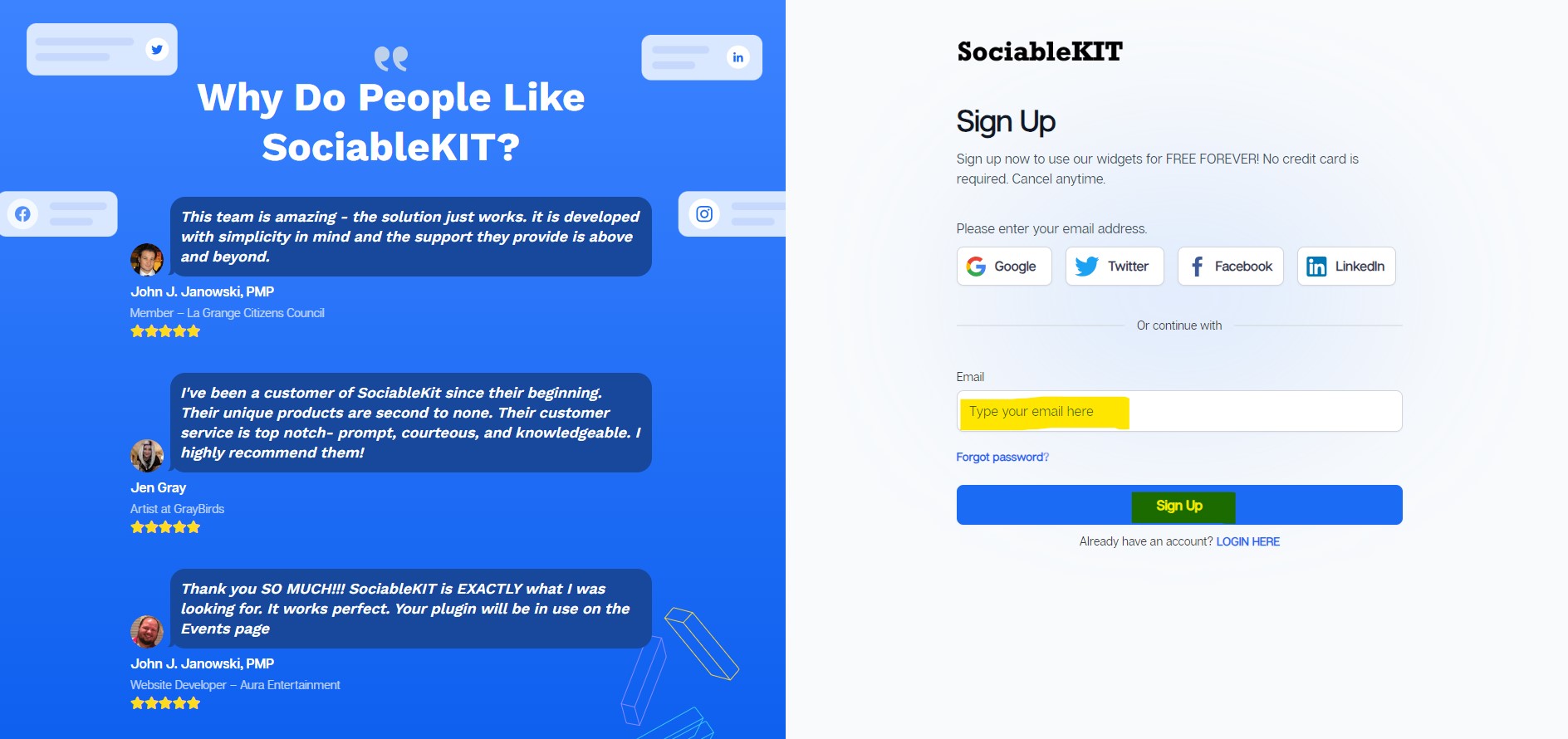
- Sign up FREE or login to SociableKIT. You can login here if you already have an account. Once you sign up, you will start your 7-day premium trial. After 7 days, you can activate the free plan if you don’t need our premium features.

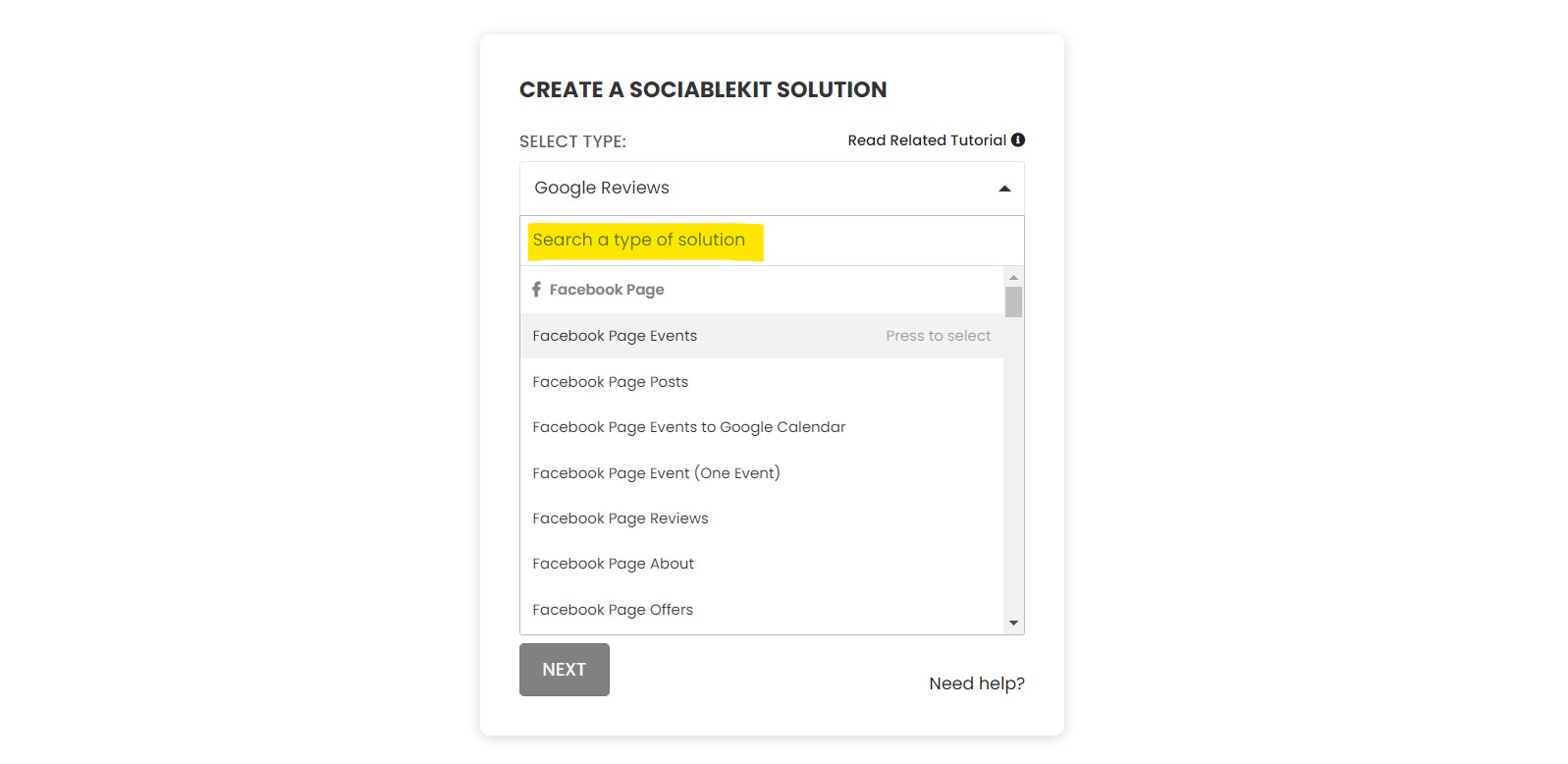
- Select “Google Reviews” on the dropdown. SociableKIT offers several social media feeds widgets. You might need to search it using the highlighted area below. Once found, you can then select it.

Search and select your Google place or enter your Google place ID in the box.
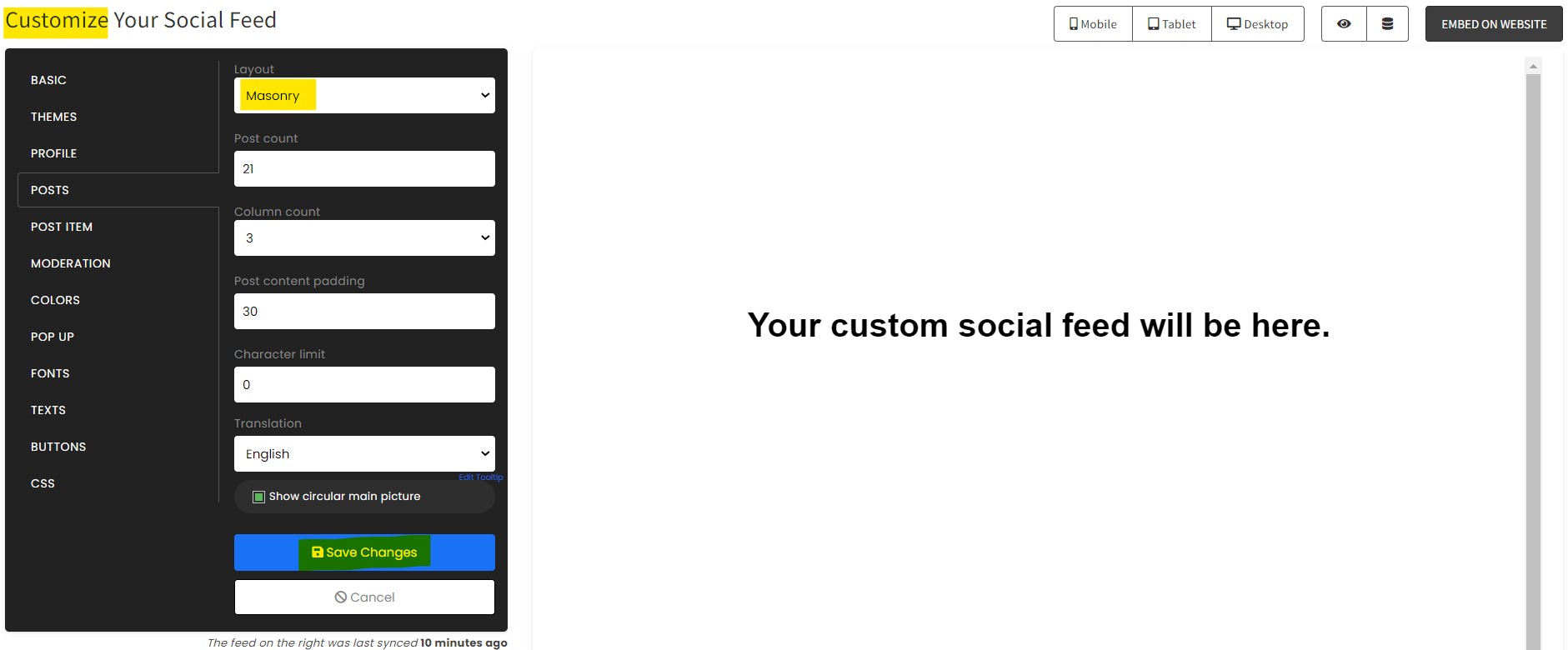
- Customize your feed. Click the “NEXT” button to show the customization options of your social feed. You can change the layout, colors, font, and more to match your brand. Click the Save changes button.

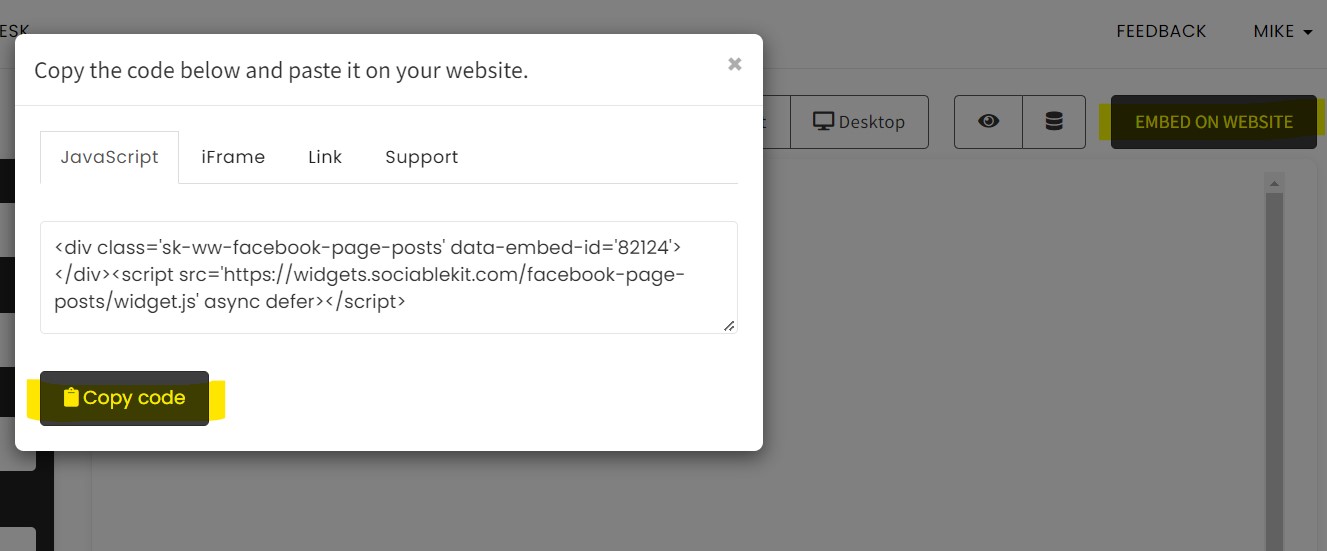
- Copy the embed code. Click the “Embed on website” button on the upper right corner. Select your website builder. On the popup, copy the JavaScript embed code.

- Paste the embed code and save your Google Sites website page. Please follow the second part below to add Google Reviews widget to your Google Sites website.
Add Google Reviews Widget to Your Google Sites Website
The second part is adding your Google Reviews widget to your Google Sites website . After you customize your Google Reviews widget and copied the embed code, it is time to add it to your Google Sites website . Follow the steps below.
- Copy your free Google Reviews widget embed code. Make sure you followed the first part above. It detailed how to you can create and customize your widget to get your free embed code.
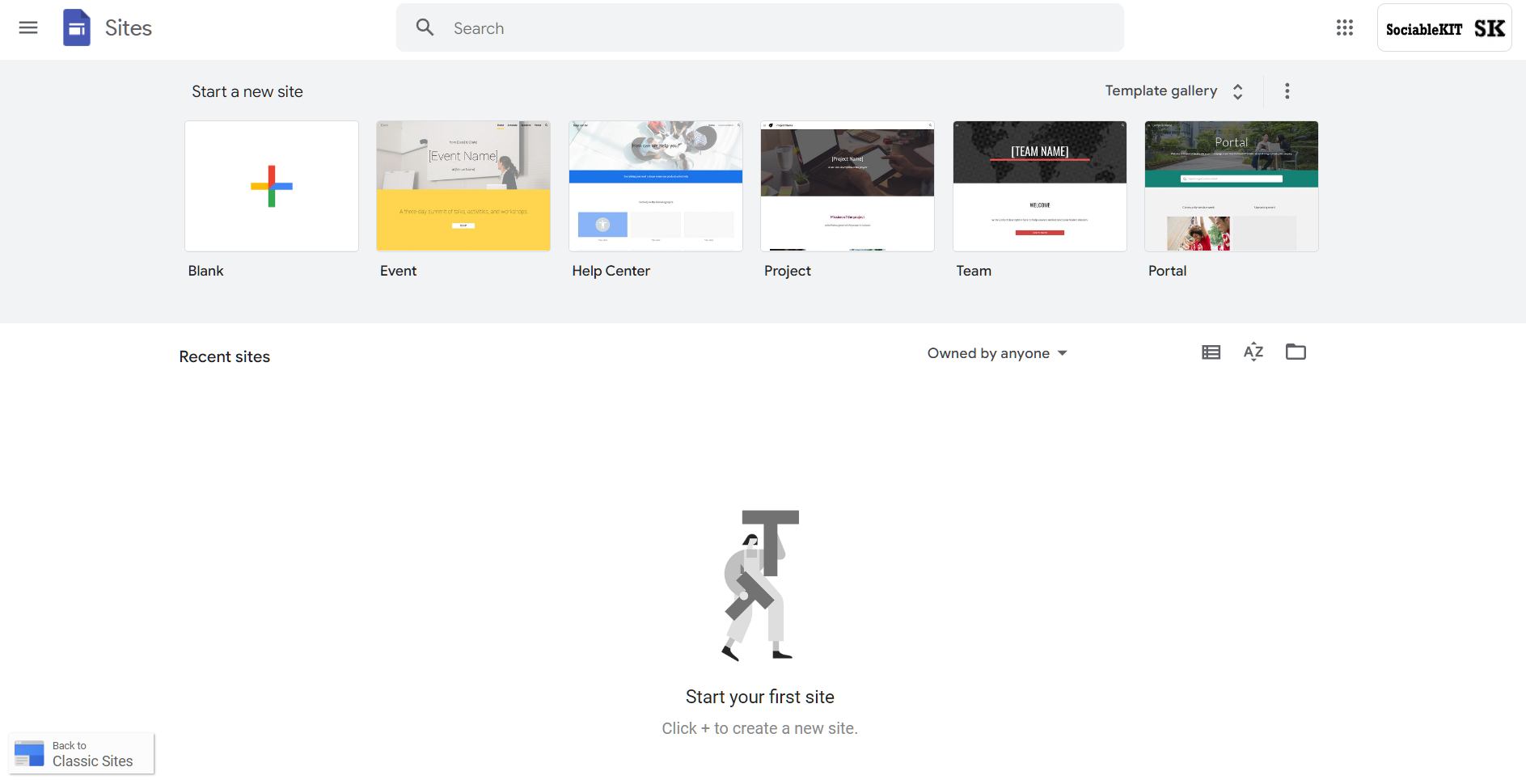
- Login to Google sites. You must have at least a ‘Business Starter’ plan to create and customize your Google sites.
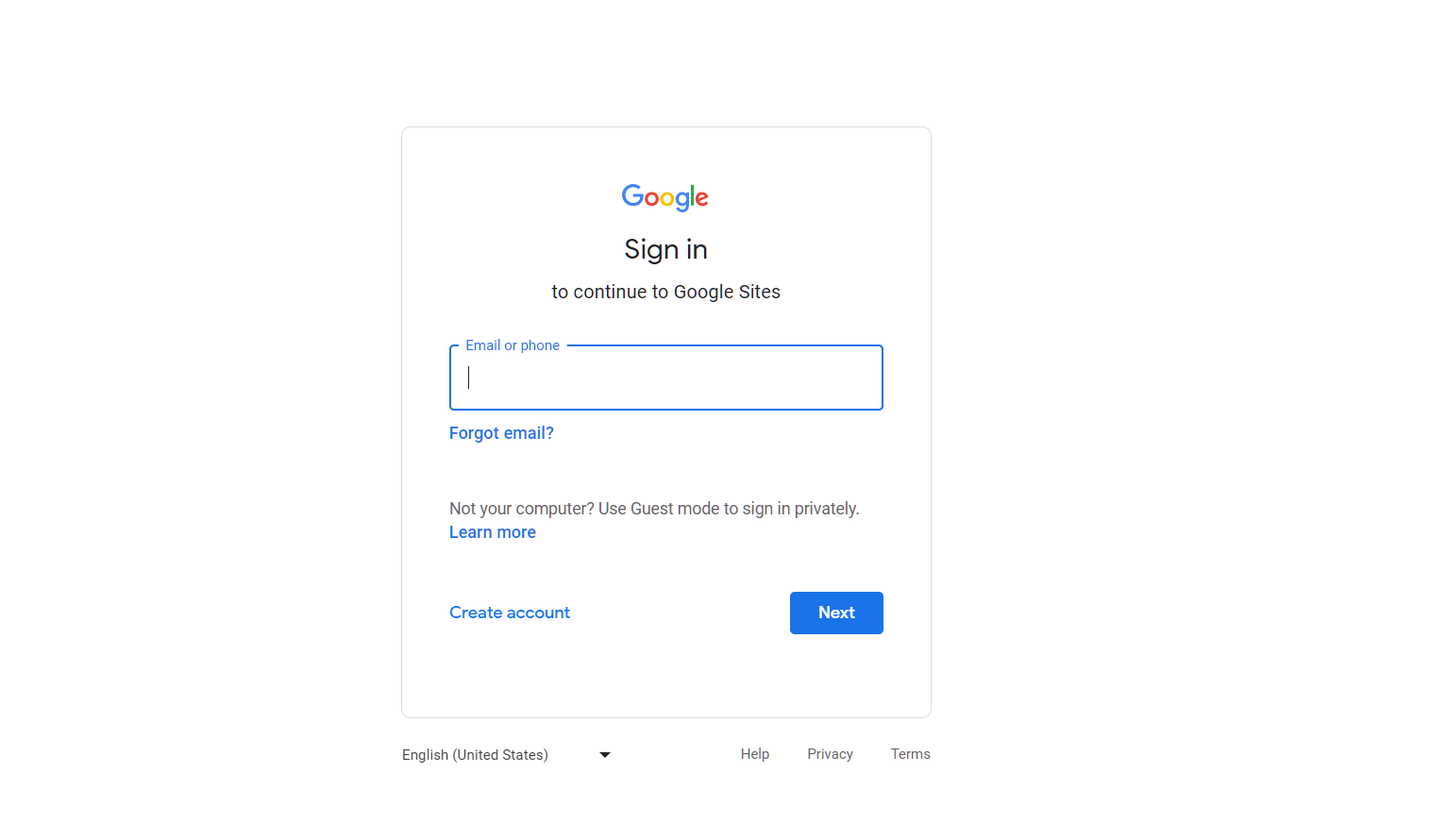
- Create or edit an existing website. Click the + ‘Blank’ button on the ‘Start a new site’ section to create or find your existing website under the ‘Recent sites’ section.

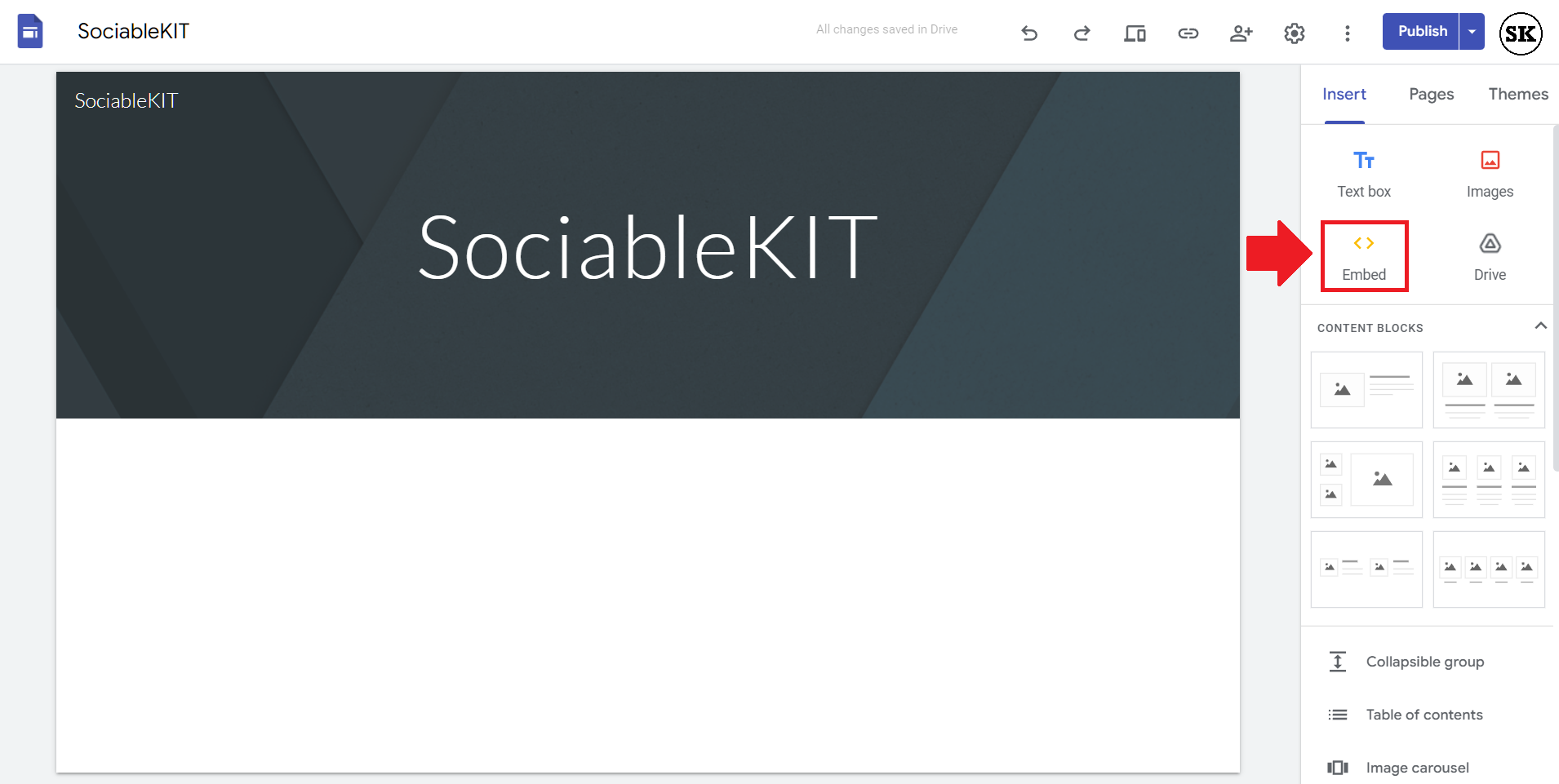
- Create a new blank page or edit your existing page. Identify which page you want the widget to appear. On the right sidebar, you will see an ‘Embed’ button. Click the ‘Embed’ button.

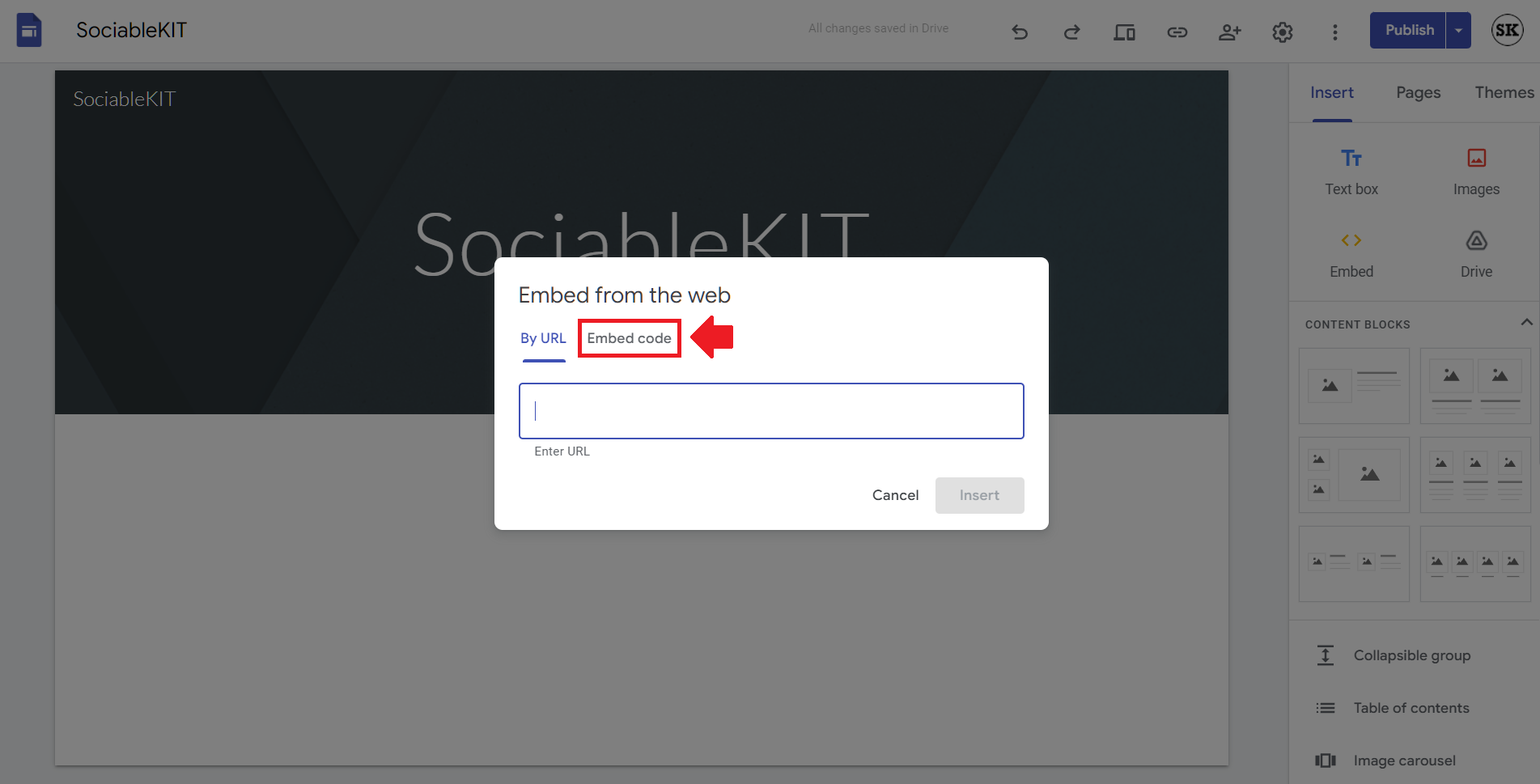
- Add the widget. A popup ‘Embed from the web’ will open up. Select the ‘Embed code’ tab on the popup.

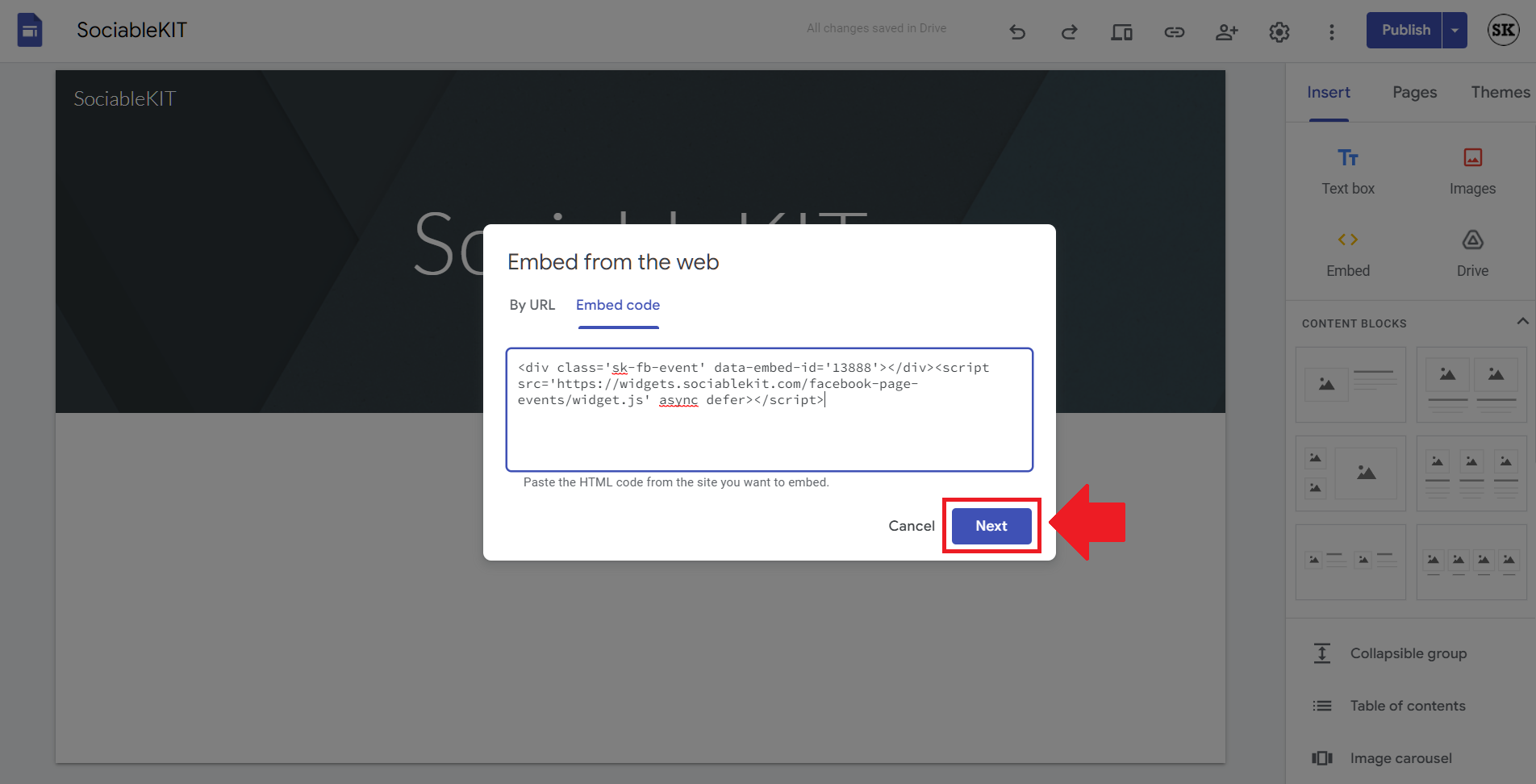
- Paste the embed code from SociableKIT. On the ‘Embed code’ tab, you will see ‘HTML code goes here’ text. Paste the embed code from your SociableKIT widget.
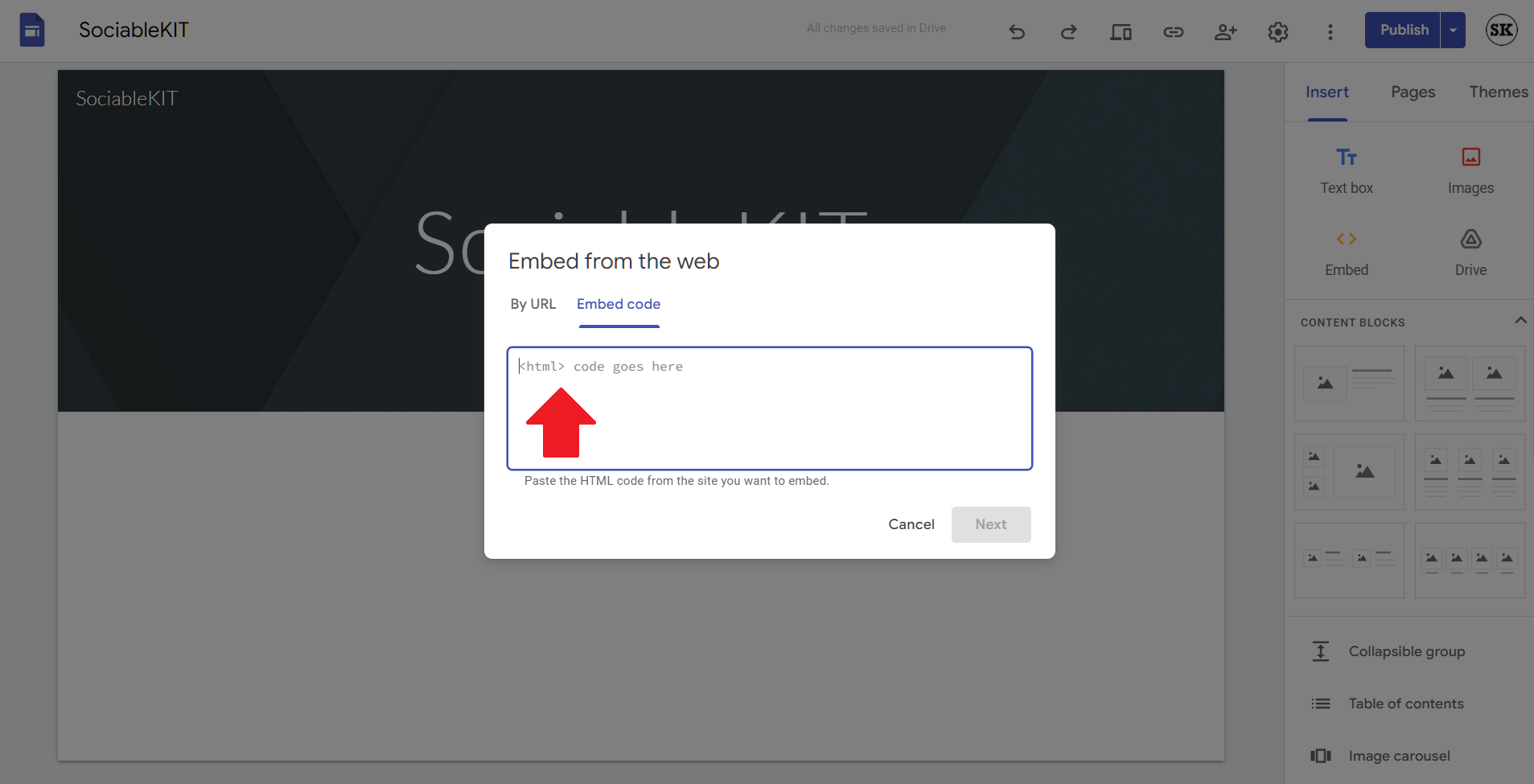
- Save the widget. Once you have pasted your embed code, click the ‘Next’ button.

- Preview of your SociableKIT widget. After clicking the Next button, a preview of your embed code will be displayed. Click the ‘Insert’ button to insert the widget to your Google sites page.
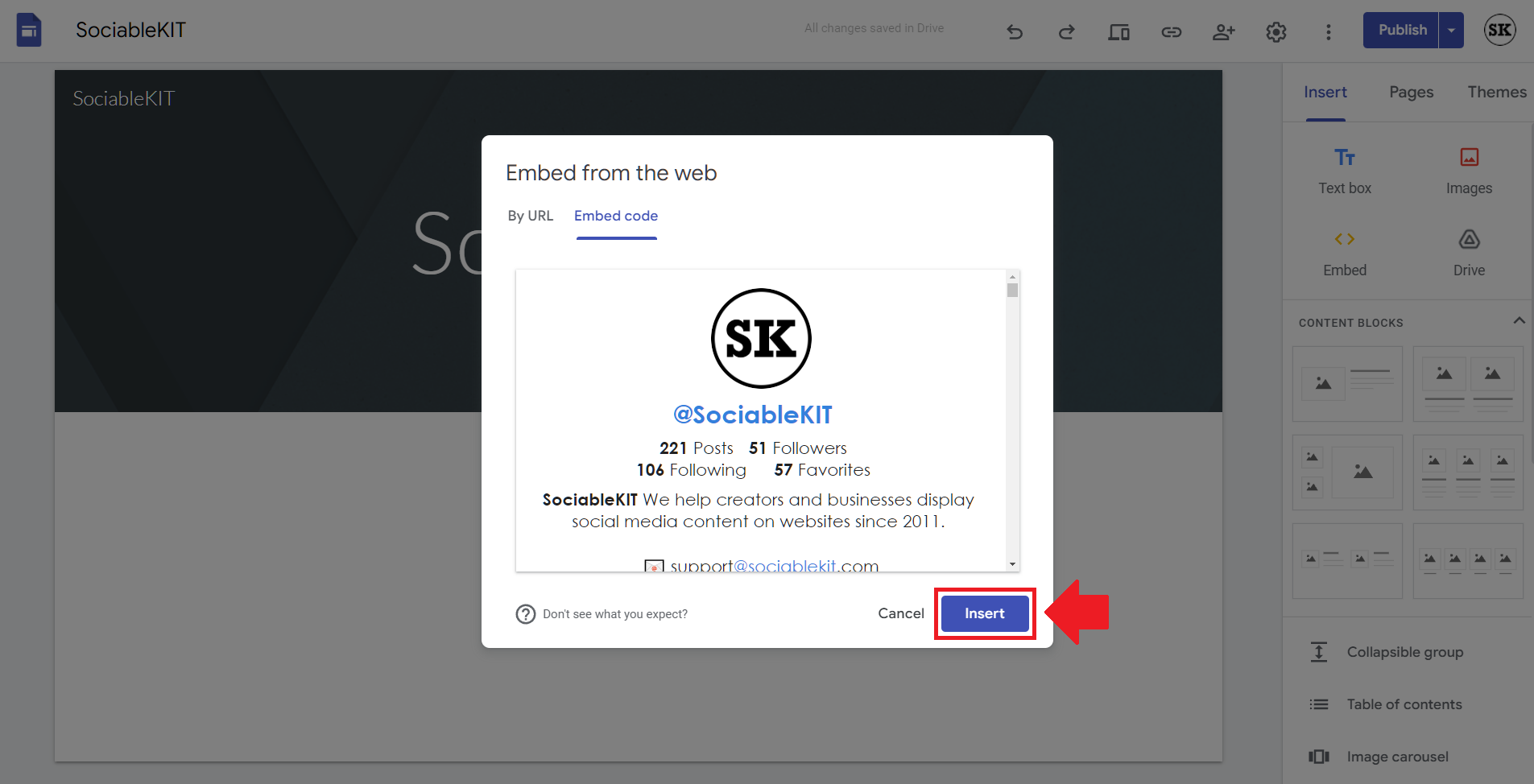
- Edit the widget. Once the widget has been inserted, you will have the option to resize the widget. After resizing the widget to your preferences, click the ‘Publish’ button on the upper right corner of the page.
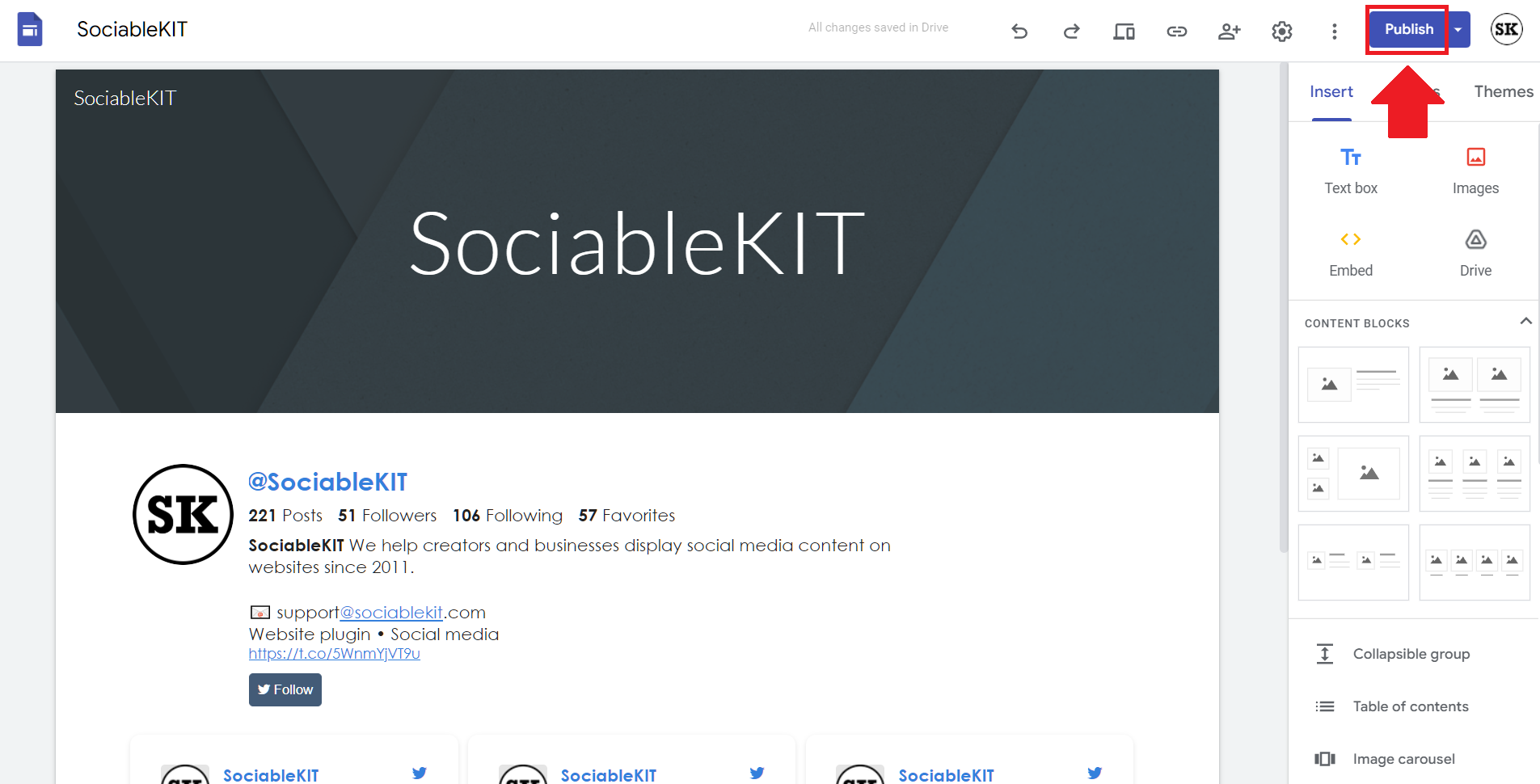
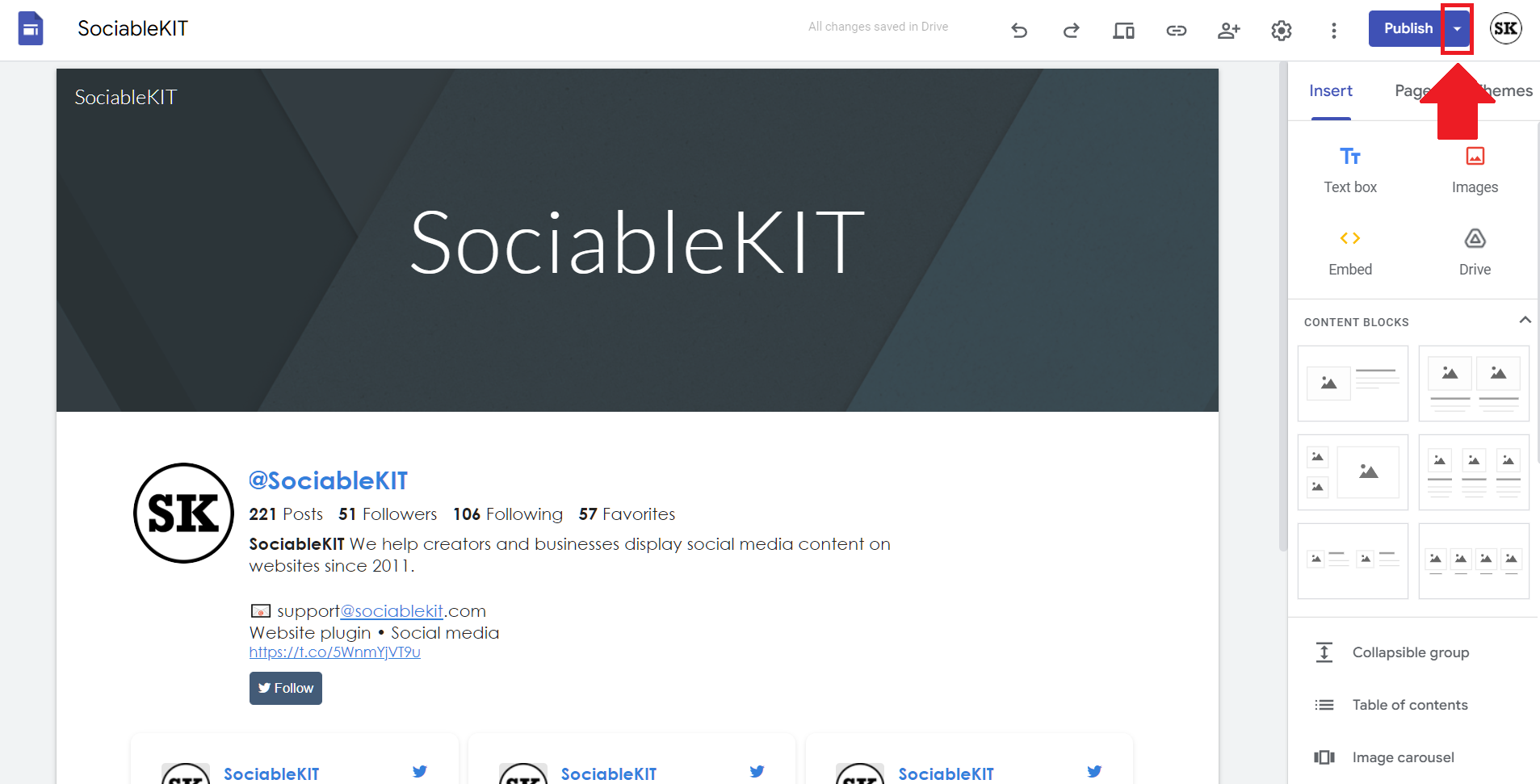
- Publish your page. After publishing the site, click the down ‘Arrow’ button beside the ‘Publish’ button.

- View your page. A dropdown of buttons will be displayed, click the ‘View published site’ button. Done!

Video Guide: Embed Google Reviews on Your Google Sites Website for Free
Watch our YouTube video below to learn how to embed Google Reviews on your Google Sites website for free.
https://www.youtube.com/watch?v=Ee80W1TyVmI
Common Embedding Issues and How to Fix Them
You might encounter a few challenges when embedding Google reviews on your website. Fortunately, most integration issues are easy to address, restoring your embed’s functionality.
Let’s discuss the issues and their solutions below:
- Blank Feed: The main reason your Google reviews feed appears blank could be due to errors in the embed code or not connecting to the correct data source. We recommend using our Google reviews embed code generator to create an error-free script.
- Responsiveness Issues: Your Google review feed might appear distorted when viewed on smaller devices, especially smartphones. Use our SociableKIT widget to make the feed dynamic and auto-respond to different screen sizes.
- Compatibility Issues: When you host your website on several servers, you might notice that your embed script works on some but not others. Use our SociableKIT widget to create a ‘universal’ code that is compatible with all major web builders.
- Outdated Feed: Most embed codes don’t include an update function, meaning you must refresh the feed manually. This can be time-consuming, especially if you receive multiple reviews daily. In contrast, our SociableKIT widget refreshes regularly to display recent customer testimonials on your website automatically.
- Customization Issues: Personalizing your Google reviews feed can be frustrating, especially if you’re not a proficient web developer. Use our widget to customize the embedded feed, including setting the theme color and font settings, code-free.

Live Demo
Below, you can see a live demo of our Google Reviews widget. You can click on different layouts such as Masonry layout, Grid, and Carousel if available.
Best Practices for Showcasing Google Reviews
Next, let’s discuss some tips for embedding Google reviews on your website to maximize visitor engagement:
- Show Positive Reviews: Display the best customer testimonials first to create a positive impression on website visitors. Our SociableKIT widget has a built-in automatic and manual moderation feature that lets you control which Google reviews appear on your feed.
- Make the Feed Mobile-Friendly: Place the Google review embed code in a responsive container to make the feed dynamic and adjust it to users’ screen sizes for a consistent user experience.
- Add Call-to-Action Statements: Craft compelling CTA statements urging website visitors to take action, such as ordering your product, submitting feedback, or sharing the reviews on social media.
- Customize the Feed: Embed Google reviews using SociableKIT for flexible customization options. Personalize the feed to match your website and brand theme.

Embed Google Reviews on Your Google Sites Website in 2 Minutes
Quickly upgrade your website by embedding Google Reviews on Google Sites website in 2 minutes.
Why Choose SociableKIT to Display Google Reviews
SociableKIT is the #1 rated tool for displaying Google reviews on Google Sites websites. Its user-friendly interface makes it easy to create and customize your Google reviews feed even without proficient web design skills.
Here are convincing reasons for using our SociableKIT Google reviews widget:
- Code-Free: You can set up and personalize your Google reviews feed, including choosing your preferred theme and font, without writing any code.
- Data and Website Security: Our SociableKIT widget is safe and implements stringent measures to protect website owners against related cyberattacks.
- Timely Support: Enjoy customer-centric support services to help you troubleshoot any integration issues.
- Affordable Subscriptions: We offer flexible plans that let you pay only for the features you need.
Sign up for SociableKIT for a seamless way to display your best Google reviews on your website!

Testimonials
Thousands of creators and business owners have already embedded Google Reviews on their website using SociableKIT. They love our service! Here’s what they tell us.
Yannick Picard
High Performance Coach, NeuroActivCoach
I have to hand it to a company that goes above and beyond with their customer service... your team is a notch above anything I've experienced. Great software, great support - what else can you ask for?
Robert Herring
CMO – Disciple Christian Motorcycle Club
Thank you SO MUCH!!! SociableKIT is EXACTLY what I was looking for. It works perfect. Your plugin will be in use on the Events page.
Einstein Gan
Senior Web Designer, Human & Human
Awesome easy-to-use solution for our client's social media campaign. Support was very responsive and helpful. Can't thank you enough for accommodating our new feature request.
Kristin Berg
Co-Founder – Tango Social Club
I’m using a custom Facebook page events feed on my website. I asked Mike to translate the day and month labels to French for my calendar. Mike quickly did it for me. Thank you Mike, I appreciate it a lot! SociableKIT support is great! :)
Cristian Castañeda
Business Process Manager, Maschinenfabrik
Wow, I'm using SK for sharing my LinkedIn posts on my WordPress site and it works incredible. It's quick and easy to "deploy". And when I was needing some extra customization, support worked really quick. You are great guys!
John Parker
Website Developer – Aura Entertainment
Finding SociableKIT saved a huge amount of hours in a project to integrate social/web channels. Absolutely excellent support with quick responses and updates.
Kristen Williams
Founder & CEO, Hempsley
This was a great way to easily embed Google Reviews into my client's Wix site. I had trouble at first because the business has no physical address listed, but the support team helped me out and everything is running smoothly so far. I recommend!
Marc Maessen
Founder & Owner – Online Profile Coach
Wow! I have had experience with a lot of companies who had good to great customer service but this is just insane! I absolutely love SociableKIT as I was planning on creating something similar myself. For these prices and the attention to detail and functionality I quickly decided that I won't even bother and will gladly subscribe to the SocialKIT services. Keep up the amazing work and thanks you so much!
David Chapa
Recording Artist, David Chapa Music
Simple, clean, and efficient. That's the best way to describe this platform of social plug-ins. Now I just have to update my events calendar in one place on Facebook and my website is updated automatically. That just saved me from hours of "double-entry" work!
John J. Janowski, PMP
Member – La Grange Citizens Council
Thank you!!! The SociableKIT website plugin is an incredibly simple, clean and easy solution for us.
Good Shepherd Episcopal Church
Church social media team
Excellent product and even better customer service. On the rare occasion that I run into an issue, they are very responsive and always solve the problem. They never give a workaround or make an excuse. They take care of it, and they do it quickly!!!
Benny Bowden
Co-Founder & Designer – Moonbase Labs
I LOVE what you’ve built here. I’ve successfully linked my client’s Facebook Page ID and events are coming in just fine. Thanks for what you do. You have been incredibly helpful! I’m really impressed with your customer service and I’ll be recommending SociableKIT to anyone looking for what it offers!
Frequently Asked Questions (FAQs)
We’ll end this guide by answering a few questions about adding Google reviews to your Google Sites website:
Is It Safe and Allowed to Use Google Reviews on My Google Sites Page?
Yes. It is safe and allowed to use Google reviews on your Google Sites page.
You could use the widget or link option to showcase customer reviews on your website, but we recommend the former for flexible customizations.
Can I Embed Google Reviews Directly into My Google Sites Website?
Yes. You can embed Google reviews directly into your Google Sites website. However, Google doesn’t provide a feature for exporting the reviews in bulk.
If you use the link option, you can only embed one review at a time. Alternatively, use our SociableKIT widget to export the Google reviews to your website as a single feed.
Do I Need to Make My Google Business Profile Public to Display Reviews?
Yes. You must make your Google Business Profile (GBP) public to display reviews, but realistically, it is public by default.
You cannot ‘hide’ it unless you mark your business as permanently closed so it doesn’t appear in SERPs.
Can I Choose Which Google Reviews to Show on My Site?
Yes. You can choose which Google reviews to show on your site. However, this is only possible with a third-party tool.
SociableKIT lets you use filters to control which testimonials appear on your review feed. This helps exclude reviews that breach Google’s content policy and guidelines.
Conclusion
We hope this guide has been helpful in showing you how easy it is to embed Google Reviews on your website using our free website widgets. The importance of showcasing customer feedback on your website cannot be overstated. It gives potential customers the confidence to do business with you, and it helps to build trust in your brand. With our widgets, you can be sure that your Google Reviews will be displayed quickly and reliably, giving your visitors the best possible experience.
So why wait? Give it a try and see the difference it can make for your business.