
Your Facebook feed on Mobirise website — live in 3 steps
SociableKIT syncs your facebook feed automatically. Set up once, embed anywhere — free to start, no coding required.
-
Create in 60 seconds
Pick Facebook feed in the dashboard and connect your source.
-
Match your brand
Colors, fonts, layout — tune it until it feels native to your site.
-
Paste one line of code
Drop the embed snippet on your Mobirise website. No dev team needed.
Embed Facebook feed with SociableKIT — step by step
Create your widget in the dashboard, copy the embed code, and paste it on your Mobirise website. Screenshots included so you never get stuck.
Create and customize your Facebook feed widget
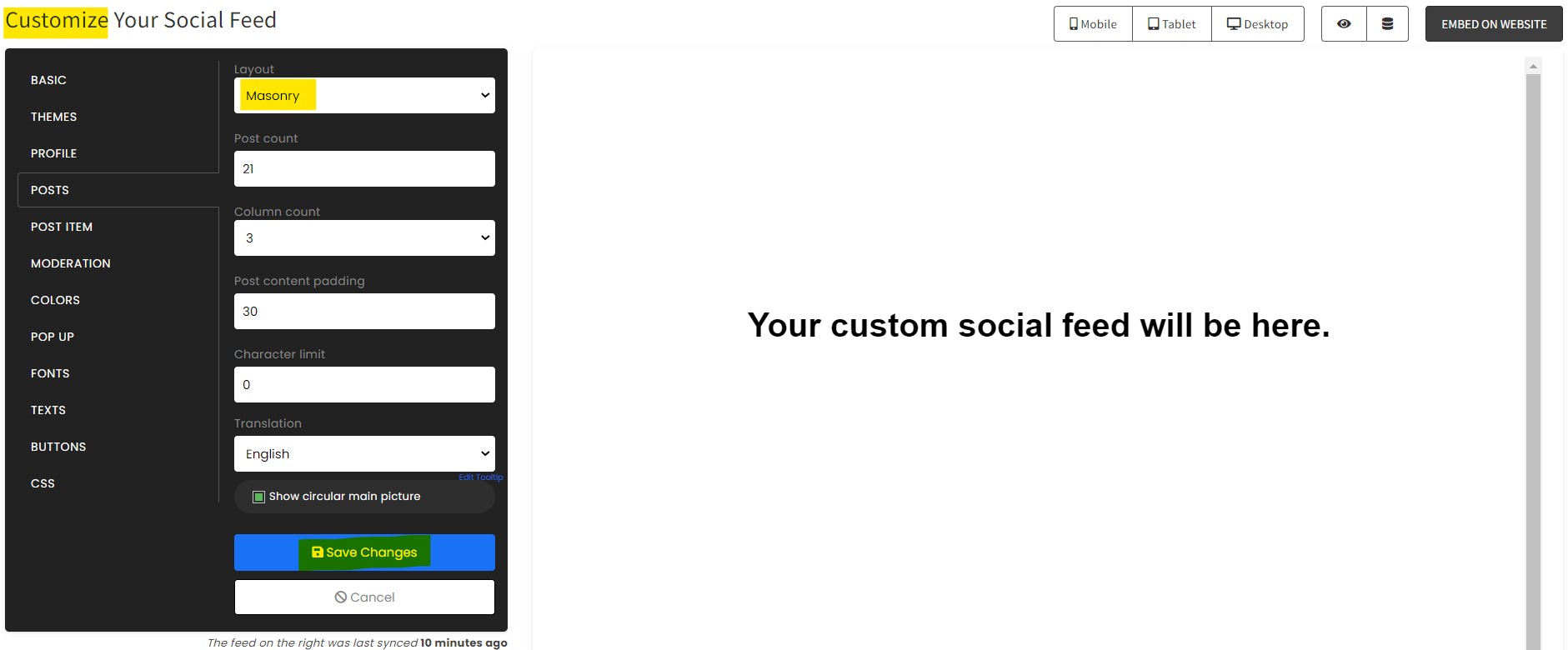
The first part is creating your Facebook feed widget using the SociableKIT dashboard. Customize the look and feel to match your brand. Follow the steps below.
-
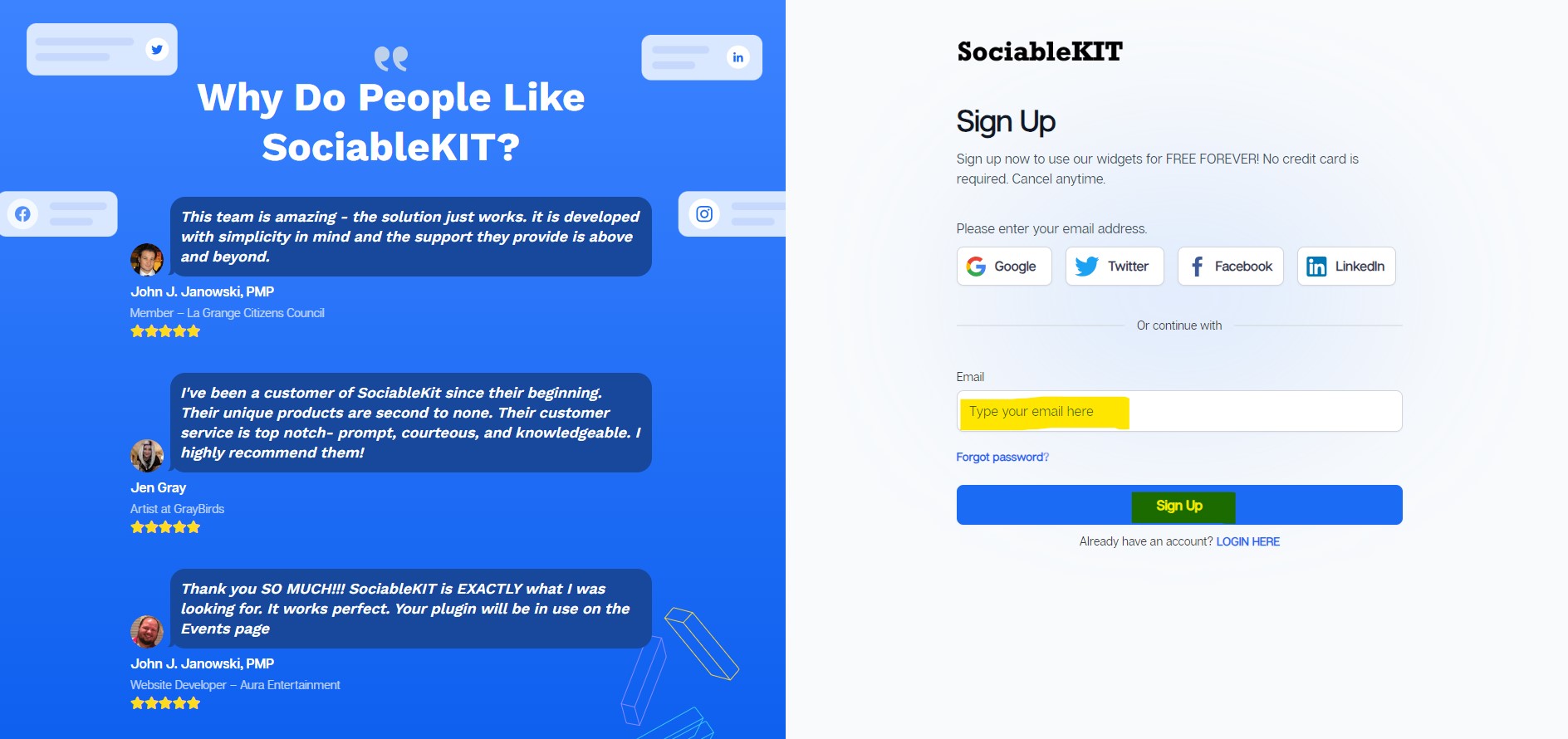
Sign up FREE or login to SociableKIT. You can login here if you already have an account. Once you sign up, you will start your 7-day premium trial. After 7 days, you can activate the free plan if you don't need our premium features.

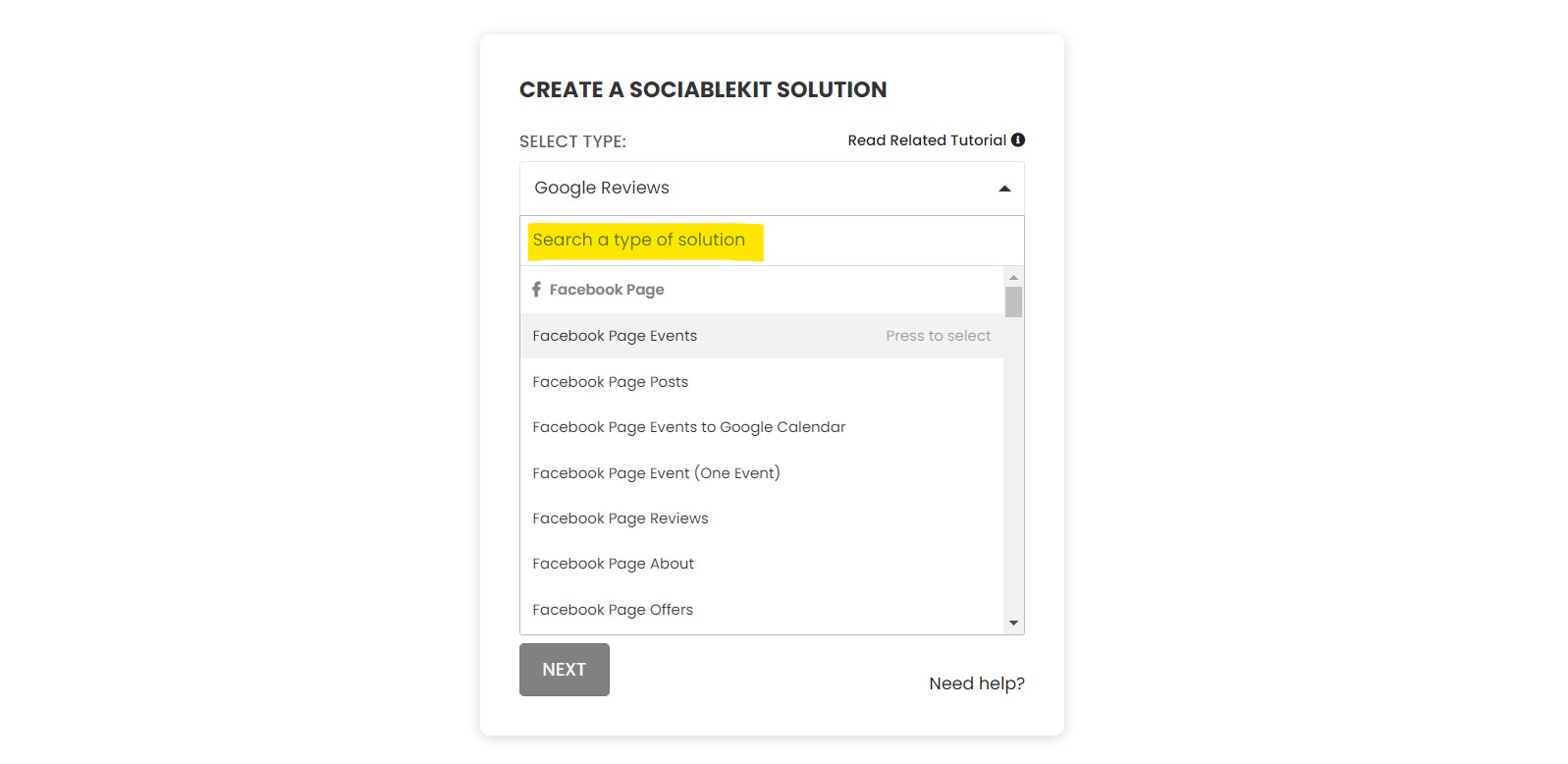
- Select your Facebook feed type on the dropdown.
SociableKIT offers several Facebook feed widgets. You might need to search it using the highlighted area below. Once found, you can then select it.
Here are the different types of Facebook feed that you can add to your Mobirise website :
Facebook Group Event (One Event) widget – Highlight a specific Facebook Group event on your website to increase visibility and encourage more attendees. Learn how to embed Facebook Group Event (One Event) on your website.
Facebook Group Events widget – Keep your community in the loop by showcasing Facebook Group events on your website, making it easy for members to stay connected and participate. Learn how to embed Facebook Group Events on your website.
Facebook Group Events to Google Calendar widget – Automatically sync your Facebook Group events with Google Calendar, streamlining event planning and ensuring your audience never misses a date. Learn how to embed Facebook Group Events to Google Calendar on your website.
Facebook Group Posts widget – Showcase your Facebook Group posts on your website, fostering community interaction and keeping visitors engaged with fresh content. Learn how to embed Facebook Group Posts on your website.
Facebook Hashtag Feed widget – Display posts from your Facebook hashtag feed on your website to engage visitors with scheduled regular updates, relevant content and amplify your brand's social presence. Learn how to embed Facebook Hashtag Feed on your website.
Facebook Page About widget – Present your Facebook Page's 'About' details on your website to share your story and build a deeper connection with your audience instantly. Learn how to embed Facebook Page About on your website.
Facebook Page Event (One Event) widget – Highlight a single Facebook event on your website to drive focused attention and increase attendance for your most important gathering. Learn how to embed Facebook Page Event (One Event) on your website.
Facebook Page Events widget – Effortlessly showcase your Facebook Page events on your website to boost attendance and keep your audience engaged with scheduled regular updates. Learn how to embed Facebook Page Events on your website.
Facebook Page Events to Google Calendar widget – Our widget seamlessly connects your Facebook page events to your Google Calendar, making it super easy to keep track of all your important dates. Just add the widget to your website, and voilà, your visitors can see your upcoming events without missing a beat. It's like having a personal assistant, ensuring you and your audience stay in the loop with minimal steps. Learn how to embed Facebook Page Events to Google Calendar on your website.
Facebook Page Live Stream widget – Embed your Facebook Page live stream on your website to connect with your audience in scheduled regular updates and elevate engagement during your broadcasts. Learn how to embed Facebook Page Live Stream on your website.
Facebook Page Photo Album (One Photo Album) widget – Feature a specific Facebook Page photo album on your website to spotlight key moments and create a lasting impression with your visitors. Learn how to embed Facebook Page Photo Album (One Photo Album) on your website.
Facebook Page Photo Albums widget – Display your Facebook Page photo albums on your website, sharing memories and visual stories that engage and captivate your audience. Learn how to embed Facebook Page Photo Albums on your website.
Facebook Page Posts widget – Display your latest Facebook Page posts on your website to keep visitors informed and connected with your brand’s updates. Learn how to embed Facebook Page Posts on your website.
Facebook Page Reviews widget – Showcase your Facebook Page reviews on your website to build trust and turn visitors into loyal customers with authentic social proof. Learn how to embed Facebook Page Reviews on your website.
Facebook Page Video (One Video) widget – Highlight a specific Facebook Page video on your website, capturing attention and delivering your message through powerful, engaging content. Learn how to embed Facebook Page Video (One Video) on your website.
Facebook Page Videos widget – Showcase your Facebook Page videos directly on your website to boost engagement and bring your brand stories to life through video. Learn how to embed Facebook Page Videos on your website.
Facebook profile widget – Display your Facebook profile posts directly on your website, building trust and boosting engagement with your authentic content. Learn how to embed Facebook profile on your website.
Facebook Reels widget – Bring your Facebook Reels to your website to captivate visitors with dynamic, short-form video content that drives engagement. Learn how to embed Facebook Reels on your website.
- Enter your Facebook feed ID or username. Copy your Facebook feed URL and paste it in the username box. Our system will automatically identify your Facebook feed ID or username.
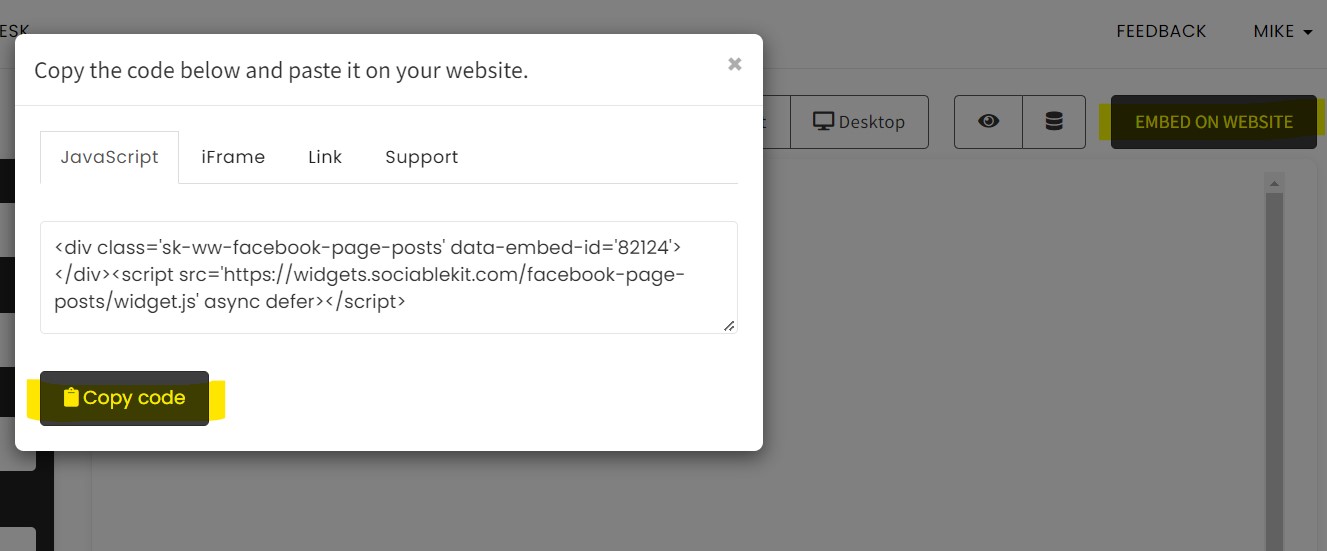
- Paste the embed code and save your Mobirise website page. Please follow the second part below to add Facebook feed widget to your Mobirise website .
Add Facebook feed widget to your Mobirise website
The second part is adding your Facebook feed widget to your Mobirise website . After you customize your Facebook feed widget and copied the embed code, it is time to add it to your Mobirise website . Follow the steps below.
- Get your free embed code from SociableKIT. Make sure you followed the first part above to create your widgget, customize it, and copy your free embed code.
- Install the "Mobirise" application. Download and install the "Mobirise" website builder.
- Create or edit your website. Click on the hamburger menu (3 lines) on the upper left of the app then go to "Sites" and then create or edit your site.
- Add the "HTML" block. On the upper right side of the app drag and drop the "HTML" block wherever you want to display your widget. *Note: Make sure that the "Code Editor" is added to the Mobirise application extensions.
- Paste the Javascript code you copied from SociableKIT. Add the Javascript code you copied earlier to the "HTML" block.
- Save or publish your article.
- View it in your web browser. Done!
Website builders
Paste your embed code on any platform
SociableKIT works with every major website builder. Pick yours below for copy-paste instructions tailored to that platform.
To embed Facebook feed on your Mobirise site, follow the steps below after you have your SociableKIT embed code.
- Sign up free to SociableKIT and create your Facebook feed widget.
- Customize your widget and copy the embed code from the dashboard.
- Install the "Mobirise" application. Download and install the "Mobirise" website builder.
- Create or edit your website. Click on the hamburger menu (3 lines) on the upper left of the app then go to "Sites" and then create or edit your site.
- Add the "HTML" block. On the upper right side of the app drag and drop the "HTML" block wherever you want to display your widget. *Note: Make sure that the "Code Editor" is added to the Mobirise application extensions.
- Paste the Javascript code you copied from SociableKIT. Add the Javascript code you copied earlier to the "HTML" block.
- Save or publish your article.
- View it in your web browser. Done!
To embed Facebook feed on your WordPress site, follow the steps below after you have your SociableKIT embed code.
- Sign up free to SociableKIT and create your Facebook feed widget.
- Customize your widget and copy the embed code from the dashboard.
- Login to your WordPress site.
![]()
- On your WordPress, go to the "Pages" section then click the "Add new page".
![]()
- Pick a pre-defined layout or start with a blank page by clicking the "Blank page" button.
![]()
- On the body of your page, click the "+" icon and click the "Custom HTML".
![]()
- Paste the code in the text area and click update.
![]()
- The widget will appear on the WordPress page.
![]()
- Click the Publish or Update button on your WordPress page.
![]()
- Click the view page. Done!
To embed Facebook feed on your Wix site, follow the steps below after you have your SociableKIT embed code.
- Sign up free to SociableKIT and create your Facebook feed widget.
- Customize your widget and copy the embed code from the dashboard.
- Login to Wix.
![]()
- On your existing website click the "+" button beside the "Main pages" section.
![]()
- Then click the "Add page" button.
![]()
- Name your page then hit enter.
![]()
- On the left, click "Add element". Find and click "Embed code". Click and drag "Embed a site" on your page then resize the container.
![]()
- Click "Change website address".
![]()
- Paste the link you copied from SociableKIT then click "Apply".
![]()
- Click "Publish" on the upper right.
![]()
- Click "View site". Done!
![]()
To embed Facebook feed on your Squarespace site, follow the steps below after you have your SociableKIT embed code.
- Sign up free to SociableKIT and create your Facebook feed widget.
- Customize your widget and copy the embed code from the dashboard.
- Login to Squarespace. You must have a "Business" account in Squarespace to use the widget. The "code block" needed cannot be found if you only have a "Personal" account.
![]()
- Create a new blank page or edit your existing page. Identify which page you want the widget to appear. You can create a new page on Squarespace, or you can edit your existing page where you want the widget to appear.
![]()
- Add a Code Block. On your Squarespace page, click the 'Edit' button. Find the 'Code' block and click it.
![]()
- Paste the embed code from SociableKIT. On the 'Content' of the 'Code' block, paste the JavaScript embed code you have copied from your widget.
![]()
- Save the changes on the 'Code block'. After pasting your widget's embed code. Click the 'Save' button on the left part of the page.
![]()
- View your page. Refresh your Squarespace page and check your SociableKIT widget. Done!
![]()
To embed Facebook feed on your Webflow site, follow the steps below after you have your SociableKIT embed code.
- Sign up free to SociableKIT and create your Facebook feed widget.
- Customize your widget and copy the embed code from the dashboard.
- Login to Webflow.
![]()
- On your existing website, click the "Page: ...." in the upper left corner then click the "Create new page" icon.
![]()
- Once done add a name for your new page then click "Save".
![]()
- On the left, click "Add Element". Drag "Embed" to your page.
![]()
- Paste the JavaScript code you copied from SociableKIT.
![]()
- On the upper right, click "Publish" > "Publish to Selected Domains".
![]()
- View your page. Done!
To embed Facebook feed on your Shopify site, follow the steps below after you have your SociableKIT embed code.
- Sign up free to SociableKIT and create your Facebook feed widget.
- Customize your widget and copy the embed code from the dashboard.
- Login to Shopify.
![]()
- On the left side, click Online Store.
![]()
- Click Pages. Add a new page or edit your existing page.
![]()
- On the Page details, click Show HTML icon (<>).
![]()
- Paste the embed code and click the Save button.
![]()
- Click the View page button. Done!
![]()
To embed Facebook feed on your HTML site, follow the steps below after you have your SociableKIT embed code.
- Sign up free to SociableKIT and create your Facebook feed widget.
- Customize your widget and copy the embed code from the dashboard.
- Open your HTML file.
- You can create a new HTML page or edit your existing HTML page.
![]()
- Paste the Javascript code you copied from SociableKIT. Paste it where you want the widget to appear.
![]()
- Save your HTML page.
![]()
- You may now upload your HTML page to your web hosting.
To embed Facebook feed on your Google Sites site, follow the steps below after you have your SociableKIT embed code.
- Sign up free to SociableKIT and create your Facebook feed widget.
- Customize your widget and copy the embed code from the dashboard.
- Login to Google sites. You must have at least a 'Business Starter' plan to create and customize your Google sites.
![]()
- Create or edit an existing website. Click the + 'Blank' button on the 'Start a new site' section to create or find your existing website under the 'Recent sites' section.
![]()
- Create a new blank page or edit your existing page. Identify which page you want the widget to appear. On the right sidebar, you will see an 'Embed' button. Click the 'Embed' button.
![]()
- Add the widget. A popup 'Embed from the web' will open up. Select the 'Embed code' tab on the popup.
![]()
- Paste the embed code from SociableKIT. On the 'Embed code' tab, you will see 'HTML code goes here' text. Paste the embed code from your SociableKIT widget.
![]()
- Save the widget. Once you have pasted your embed code, click the 'Next' button.
![]()
- Preview of your SociableKIT widget. After clicking the Next button, a preview of your embed code will be displayed. Click the 'Insert' button to insert the widget to your Google sites page.
![]()
- Edit the widget. Once the widget has been inserted, you will have the option to resize the widget. After resizing the widget to your preferences, click the 'Publish' button on the upper right corner of the page.
![]()
- Publish your page. After publishing the site, click the down 'Arrow' button beside the 'Publish' button.
![]()
- View your page. A dropdown of buttons will be displayed, click the 'View published site' button. Done!
![]()
Live preview
Pick a Facebook Page Posts template — see it live
Choose a starting design on the left and watch the preview update with real data. What you see is exactly what visitors get on your Mobirise website.
Common questions
Frequently asked questions
Everything you need to know about embedding Facebook feed on your Mobirise website.
What is a Facebook feed widget and how does SociableKIT work?
A Facebook feed widget is a small piece of code that displays your public Facebook posts, photos, videos and updates directly on your website. SociableKIT connects to your Facebook Page, Group or personal profile, pulls your latest content and shows it in a live feed that matches your site’s design. New posts sync automatically, so your site always feels fresh.
How do I embed my Facebook feed on my website with SociableKIT?
You don’t need to code. Sign up for a free account, create a Facebook feed widget, pick a layout, customize colors and fonts, then copy one line of embed code. Paste it into a Custom HTML block (WordPress), a section in your Shopify theme, or any place where you can add custom code. Updates you make in SociableKIT automatically appear on your site.
Do I need a business account or admin access to show my Facebook posts?
Yes. To pull posts through Facebook’s API, you must connect a Facebook Page or Group where you have Admin or Editor permissions. Private or restricted pages won’t display due to Meta’s rules. If you want to show personal profile posts, SociableKIT offers a Facebook profile widget that connects to your profile instead.
Can I combine multiple Facebook pages, groups or hashtags into one feed?
Yes. SociableKIT lets you add multiple sources under one account—pages, groups, hashtags or profiles—and combine them in a single widget. You can mix brand updates, community posts and partner pages so your visitors see everything in one place. Each additional source is just $5/mo on paid plans.
How often does the Facebook feed update on my site?
Your widget refreshes automatically. SociableKIT’s free plan allows manual sync whenever you want; on paid plans your feed syncs automatically around the clock. If you post something new on Facebook, it will appear on your site within a few minutes.
Can I filter or moderate posts before they appear?
Yes. Within the widget settings you can hide posts by keywords, hashtags or author, and manually approve items before publishing. This helps keep your feed on‑brand and prevents unwanted content from appearing on your site.
What types of Facebook content can the widget display?
SociableKIT supports a wide range of Facebook content: page posts, group posts, photos, videos, live streams, events, albums, reviews, reels and hashtag feeds. You can choose a specific type (e.g., events or albums) or combine them. Each widget type is designed to keep your site engaging and up‑to‑date.
Will the widget slow down my website?
No. The SociableKIT widget loads asynchronously and caches data so it doesn’t block your page. Images and posts are delivered from our optimized servers, keeping your site fast on desktop and mobile. Unlimited views on paid plans mean there’s no throttling or hidden caps to worry about.
Is it mobile‑responsive and customizable?
Absolutely. Our templates adapt to phones, tablets and desktops, scaling posts and columns automatically. You can customize colors, fonts, layout, number of columns, dark mode, spacing, CTAs and more to match your brand—no coding needed.
Does the widget show reactions, comments and likes?
Yes. When visitors click a post in your feed, a pop‑up displays the full post along with reactions, comments and shares. If they want to interact, they’ll be redirected to Facebook to like or comment there.
Will SociableKIT work with my website builder?
Yes. SociableKIT works on any platform that allows custom HTML: WordPress, Shopify, Wix, Squarespace, Webflow, Weebly, Google Sites, SharePoint, or any plain HTML site. Simply paste the embed code wherever you can add custom code.
Do I need to code or install a plugin?
No coding or plugins are required. All you do is create the widget, customize it in our editor, and paste one line of code. There’s no maintenance and you can manage everything from your SociableKIT dashboard.
What does the free plan include?
The free plan lets you connect one Facebook source, build one widget, display up to 2,000 monthly views and fully customize the design. It includes manual sync and shows SociableKIT branding. There’s no credit card required and you can stay on the free plan as long as you like.
How much does it cost to upgrade and what do paid plans include?
Paid plans start at $10 per month for one source and unlimited views. You can add extra sources for $5 each. The Business plan ($40/month) includes up to 10 sources, advanced analytics, 24/7 support and automatic moderation. Enterprise plans offer custom source counts and dedicated support.
What happens when my site gets a lot of traffic? Are there view limits?
Your widget stays online. Unlike many competitors that cap monthly views and deactivate feeds until you upgrade, SociableKIT offers unlimited views on paid plans. Your feed will keep running even if your site goes viral, and you only pay for additional sources if you need them.
Is SociableKIT compliant with GDPR and other privacy regulations?
Yes. We use Facebook’s official APIs and don’t scrape or store personal data from your visitors. All data processing follows GDPR and industry best practices, so you can safely display your Facebook feed without violating privacy rules.
Can the widget display content in multiple languages?
Yes. If your audience speaks different languages, you can localize the widget to match. SociableKIT’s interface and templates support various languages, and right‑to‑left languages are displayed correctly.
Can I track engagement or get analytics for my Facebook feed?
Yes. Paid plans include analytics so you can see views, clicks, and engagement over time. These insights help you measure the impact of your feed and optimize your content strategy.
How do I cancel or pause my subscription?
You can cancel or downgrade anytime by logging into your account and following the cancellation steps. There are no long‑term contracts or hidden fees—your widget will remain active until the end of your billing period. If you decide to return, you can reactivate at any time.
Where can I get help or request new features?
Our support team is available via chat and email; paid plans have 24/7 human support. If you have a feature request, send it through our support channel—we love hearing how we can make the product better and often work directly with customers to build improvements.
Add your Facebook feed widget today
Set up in minutes. Free forever to start.
Free forever · No credit card · Cancel anytime