Your Customer reviews on Sharepoint website — live in 3 steps
SociableKIT syncs your customer reviews automatically. Set up once, embed anywhere — free to start, no coding required.
-
Create in 60 seconds
Pick Customer reviews in the dashboard and connect your source.
-
Match your brand
Colors, fonts, layout — tune it until it feels native to your site.
-
Paste one line of code
Drop the embed snippet on your Sharepoint website. No dev team needed.
- Select specific widget type:
-
 Facebook Page Reviews
-
 Google Reviews
-
 Google Play Reviews
-
 Yelp Reviews
-
 Airbnb Reviews
-
 Sitejabber Reviews
-
 G2 Reviews
-
 Tripadvisor Reviews
-
 Reviews
- Free forever plan
- No credit card
- Cancel any time
Embed Customer reviews with SociableKIT — step by step
Create your widget in the dashboard, copy the embed code, and paste it on your Sharepoint website. Screenshots included so you never get stuck.
Create and customize your Customer reviews widget
The first part is creating your Customer reviews widget using the SociableKIT dashboard. Customize the look and feel to match your brand. Follow the steps below.
-
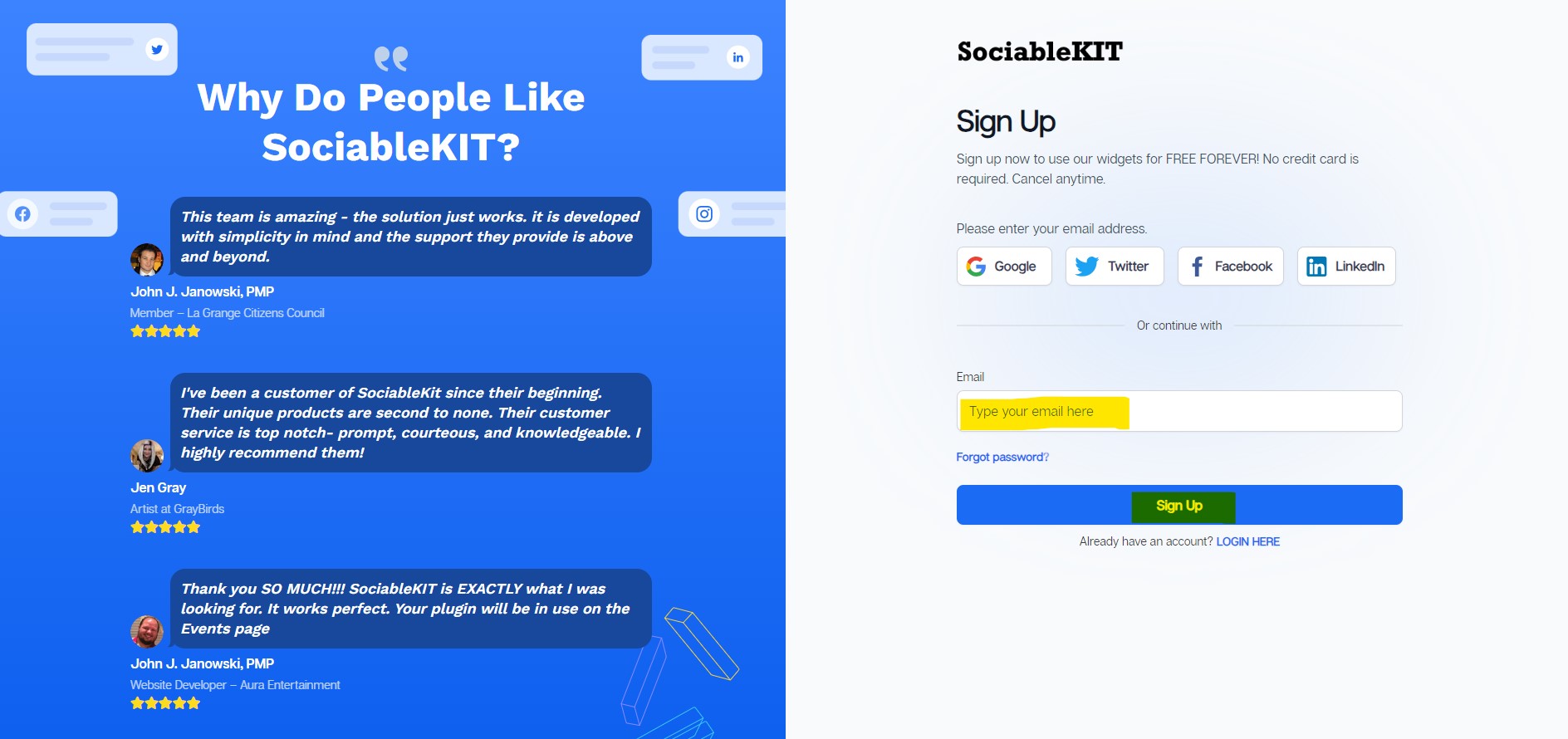
Sign up FREE or login to SociableKIT. You can login here if you already have an account. Once you sign up, you will start your 7-day premium trial. After 7 days, you can activate the free plan if you don't need our premium features.

- Select your Customer reviews type on the dropdown.
SociableKIT offers several Customer reviews widgets. You might need to search it using the highlighted area below. Once found, you can then select it.
Here are the different types of Customer reviews that you can add to your Sharepoint website :

- Enter your Customer reviews ID or username. Copy your Customer reviews URL and paste it in the username box. Our system will automatically identify your Customer reviews ID or username.
-
Customize your feed. Click the "NEXT" button to show the customization options of your social feed. You can change the layout, colors, font, and more to match your brand. Click the Save changes button.

-
Copy the embed code. Click the "Embed on website" button on the upper right corner. On the popup, copy the JavaScript embed code.

- Paste the embed code and save your Sharepoint website page. Please follow the second part below to add Customer reviews widget to your Sharepoint website .


Add Customer reviews widget to your Sharepoint website
The second part is adding your Customer reviews widget to your Sharepoint website . After you customize your Customer reviews widget and copied the embed code, it is time to add it to your Sharepoint website . Follow the steps below.
- Get your free embed code from SociableKIT. Make sure you followed the first part above to create your widgget, customize it, and copy your free embed code.
- Copy the iframe embed code from your SociableKIT dashboard.
![]()
- Go to your SharePoint site and sign in with your work email and password on the Microsoft sign-in page.
![]()
- Open your site, click + New at the top left, and select Page.
![]()
- In the Template gallery, click Create blank to start with an empty page.
![]()
- Click the + icon where you want the widget. In the Toolbox panel on the right, scroll to Advanced and click Embed.
![]()
- In the Embed panel on the right, paste your SociableKIT iframe code into the code box. The widget preview appears on the page right away.
![]()
- Click Publish page at the top right to make it live.
![]()
- widgets.sociablekit.com
- data.accentapi.com
- sociablekit.com
- images.sociablekit.com


Note: If you receive an error that states Embedding content from this website isn't allowed, you will have to add the following to the list of sites that are allowed on your website and the HTML Field Security list of the site collection where the site is located:
Website builders
Paste your embed code on any platform
SociableKIT works with every major website builder. Pick yours below for copy-paste instructions tailored to that platform.
To embed Customer reviews on your Sharepoint site, follow the steps below after you have your SociableKIT embed code.
- Sign up free to SociableKIT and create your Customer reviews widget.
- Customize your widget and copy the embed code from the dashboard.
- Copy the iframe embed code from your SociableKIT dashboard.
![]()
- Go to your SharePoint site and sign in with your work email and password on the Microsoft sign-in page.
![]()
- Open your site, click + New at the top left, and select Page.
![]()
- In the Template gallery, click Create blank to start with an empty page.
![]()
- Click the + icon where you want the widget. In the Toolbox panel on the right, scroll to Advanced and click Embed.
![]()
- In the Embed panel on the right, paste your SociableKIT iframe code into the code box. The widget preview appears on the page right away.
![]()
- Click Publish page at the top right to make it live.
![]()
- widgets.sociablekit.com
- data.accentapi.com
- sociablekit.com
- images.sociablekit.com
Note: If you receive an error that states Embedding content from this website isn't allowed, you will have to add the following to the list of sites that are allowed on your website and the HTML Field Security list of the site collection where the site is located:
To embed Customer reviews on your WordPress site, follow the steps below after you have your SociableKIT embed code.
- Sign up free to SociableKIT and create your Customer reviews widget.
- Customize your widget and copy the embed code from the dashboard.
- Log in to your WordPress site.
![]()
- Go to the Posts section. To add a new widget, click the Add Post button at the top.
![]()
- To edit an existing widget, click the title of the post that has your widget instead. Skip this step if you’re adding a new post.
![]()
- In your SociableKIT editor, click Get code at the top right.
![]()
- In the Get the embed code window, make sure the JavaScript tab is selected, then click “Copy code.”
![]()
- Back in WordPress, click the + icon in the post body, type Custom HTML in the search bar, then select the Custom HTML block.
![]()
- In the HTML tab, paste the code, then click Update.
![]()
- Click the Save button at the top right of your WordPress post (or Publish if it’s a new post).
![]()
- The widget will appear on your WordPress post. Done!
![]()


To embed Customer reviews on your Wix site, follow the steps below after you have your SociableKIT embed code.
- Sign up free to SociableKIT and create your Customer reviews widget.
- Customize your widget and copy the embed code from the dashboard.
- Log in to Wix.
![]()
- On your existing website, click the “+ Add” button at the top left.
![]()
- Click “Elements”.
![]()
- In the Add Elements panel, click “Embed” from the left menu.
![]()
- Under the Embed section, click “Embed code” to add it to your page.
![]()
- Click the HTML Element on your page, then click the Settings (gear) icon in the toolbar above it.
![]()
- Under “Choose what to embed”, open the dropdown and select “Link”.
![]()
- Paste the link you copied from SociableKIT into the Link field, then click “Apply”.
![]()
- Click “Publish” at the upper right.
![]()
- Click “View Site”. Done!
![]()


To embed Customer reviews on your Squarespace site, follow the steps below after you have your SociableKIT embed code.
- Sign up free to SociableKIT and create your Customer reviews widget.
- Customize your widget and copy the embed code from the dashboard.
- Log in to Squarespace.
![]()
- In the Pages panel, click the page where you want the widget, then click the Edit button at the top left of the page preview.
![]()
- In the page section, click the Add Block button at the top left.
![]()
- In the search bar, type Code, then select the Code block.
![]()
- In your SociableKIT editor, click Get code at the top right.
![]()
- In the “Get the embed code” window, make sure the JavaScript tab is selected, then click Copy code.
![]()
- Back in Squarespace, open the Code block’s Content tab, make sure the Mode is set to HTML, then paste the embed code in the code area.
![]()
- Click the Save button at the top left of the page.
![]()
- Refresh your Squarespace page to check the widget. Done!
![]()


To embed Customer reviews on your Webflow site, follow the steps below after you have your SociableKIT embed code.
- Sign up free to SociableKIT and create your Customer reviews widget.
- Customize your widget and copy the embed code from the dashboard.
- Login to Webflow.
![]()
- On your existing website, click the "Page: ...." in the upper left corner then click the "Create new page" icon.
![]()
- Once done add a name for your new page then click "Save".
![]()
- On the left, click "Add Element". Drag "Embed" to your page.
![]()
- Paste the JavaScript code you copied from SociableKIT.
![]()
- On the upper right, click "Publish" > "Publish to Selected Domains".
![]()
- View your page. Done!


To embed Customer reviews on your Shopify site, follow the steps below after you have your SociableKIT embed code.
- Sign up free to SociableKIT and create your Customer reviews widget.
- Customize your widget and copy the embed code from the dashboard.
- Log in to Shopify.
![]()
- On the left side, click Online Store.
![]()
- Click “Pages,” then click Add page at the top right. To edit an existing widget page, click its title instead.
![]()
- In your SociableKIT editor, click Get code at the top right.
![]()
- In the Get the embed code window, make sure the JavaScript tab is selected, then click Copy code.
![]()
- Back in Shopify, Click the Show HTML icon (<>) in the Content toolbar.
![]()
- Enter a page title, then click Save.
![]()
- Click the Save button at the top.
![]()
- Click the Preview button at the top right to check your widget. Done!
![]()
![]()


To embed Customer reviews on your HTML site, follow the steps below after you have your SociableKIT embed code.
- Sign up free to SociableKIT and create your Customer reviews widget.
- Customize your widget and copy the embed code from the dashboard.
- Open your HTML file.
![]()
- You can create a new HTML page or edit your existing HTML page.
![]()
- Paste the Javascript code you copied from SociableKIT. Paste it where you want the widget to appear.
![]()
- Save your HTML page.
![]()
- You may now upload your HTML page to your web hosting.


To embed Customer reviews on your Google Sites site, follow the steps below after you have your SociableKIT embed code.
- Sign up free to SociableKIT and create your Customer reviews widget.
- Customize your widget and copy the embed code from the dashboard.
- Login to Google sites.
![]()
- Create or edit an existing website. Click the ‘Blank site’ tile (the + icon) in the ‘Start a new site’ section to create a new website, or open your existing website from the ‘Recent sites’ section.
![]()
- Create a new blank page or edit your existing page. Identify which page you want the widget to appear on. On the right sidebar, under the ‘Insert’ tab, click the ‘Embed’ button.
![]()
- Add the widget. A popup ‘Embed from the web’ will open. Select the ‘Embed code’ tab, paste the embed code from your SociableKIT widget into the ‘HTML code goes here’ box, then click the ‘Next’ button.
![]()
- Preview your widget. A preview of your SociableKIT widget will be displayed. To change the code, click the pencil icon on the preview. When you’re happy with it, click the ‘Insert’ button to add the widget to your page.
![]()
- Publish your page. Click the ‘Publish’ button on the upper right corner of the page. Done!
![]()


Live preview
Pick a Google Reviews template — see it live
Choose a starting design on the left and watch the preview update with real data. What you see is exactly what visitors get on your Sharepoint website.
Common questions
Frequently asked questions
Everything you need to know about embedding Customer reviews on your Sharepoint website.
What is a reviews widget and how does it work?
The SociableKIT reviews widget pulls customer reviews from multiple platforms into one unified feed. Instead of juggling separate embed codes for each platform, you connect your accounts once and we automatically display them in a single, customizable widget on your site. Visitors can quickly see authentic feedback across channels, building trust and saving you time.
Which review platforms can I connect?
SociableKIT supports over 100 review sources, including major sites like Google, Facebook, Yelp, TripAdvisor, Amazon, Airbnb, G2, and more. You can mix sources so visitors see feedback wherever your customers are talking.
How do I embed the reviews widget on my website? Do I need coding skills or a plugin?
Setup is quick and code‑free. Sign up for a free account, connect your review sources, choose a template and customize colours and layout. Then copy one line of code and paste it into any website builder or HTML page—WordPress, Shopify, Wix, Squarespace, Webflow and SharePoint are all supported. No plugins or coding skills are required.
Can I combine reviews from multiple platforms into one feed?
Yes. Simply connect each review source in your dashboard and SociableKIT will merge them into a single feed. This consolidated view helps visitors see a more complete picture of your brand and reduces page clutter.
Can I filter or moderate which reviews appear?
Absolutely. You can display or hide reviews based on star rating, keywords, author or recency, and even manually approve each review before it goes live. This gives you control over your brand narrative while still showing authentic feedback.
Can I display only positive reviews or hide star‑only ratings?
Yes. You can set a minimum star rating and exclude reviews that don’t include comments. This helps you highlight your best feedback while avoiding empty ratings or irrelevant remarks.
How often does the reviews widget update with new reviews?
On paid plans, SociableKIT automatically syncs new reviews at regular intervals, so fresh feedback appears on your site without any manual work. On the Free plan, you can refresh your feed manually whenever you like.
Does the widget include SEO‑friendly schema markup and help my search rankings?
Yes. The widget injects AggregateRating structured data into your page, so search engines can display rich snippets like star ratings and review counts. Embedding real reviews also adds fresh user‑generated content, and studies show that pages with review‑rich snippets can boost click‑through rates by 10–30%.
Can visitors submit new reviews through my widget?
Yes. You can enable a ‘Write a Review’ button that opens a simple form or redirects people to the official review page on your chosen platform. This feature encourages satisfied customers to leave feedback and keeps your review feed growing.
How customizable is the reviews widget?
Our templates are fully responsive and can be customized to match your brand. Choose from grid, masonry, carousel or list layouts, adjust colours, fonts and spacing, and even add your own CSS. Even on the free plan, you have full design control.
Will the widget slow down my website?
No. The widget loads asynchronously, uses caching and lazy loading, and doesn’t block your page from rendering. A single consolidated feed also avoids the overhead of multiple scripts, leading to faster pages and better Core Web Vitals.
Can I sort the reviews by date or random order?
Yes. You can display the newest reviews first or randomize the order to keep the feed fresh. Sorting options are built into the widget settings.
Do I need permission to display reviews?
You don’t need to log into each platform to display publicly available reviews, but some sources like Google Business or Facebook require admin access to authorize the feed. SociableKIT uses official APIs or publicly available endpoints and respects platform policies.
Is the widget mobile‑friendly and responsive?
Yes. The widget automatically adapts to mobile, tablet and desktop screens and you can preview how it looks on different devices. Responsive design ensures a consistent experience across all platforms.
How much does the reviews widget cost, and are there view limits?
You can start for free with one source, one widget and 2,000 monthly views. The Pro plan at $10/month includes unlimited widgets, unlimited views and automatic syncing, and you can add extra sources for $5/month. Higher plans offer more sources and advanced analytics—pricing scales with you, and we never shut off your widget when traffic spikes.
What happens if I cancel or pause my subscription?
There are no long‑term contracts, so you can cancel or change your plan at any time. If you cancel, the widget stops displaying after the current billing period, and you can reactivate it later whenever you need.
Does SociableKIT offer support if I have questions?
Absolutely. You can reach a real person via chat or email on any plan, with 24/7 support on Business and Enterprise plans. Our team is here to help you set up and customize your widget or troubleshoot any issues.
How does displaying real customer reviews benefit my business?
Authentic reviews build trust, provide social proof and encourage visitors to choose you. A unified feed shows feedback across all your touchpoints, reduces decision friction and can improve conversion rates while adding fresh content that helps SEO.
Add your Customer reviews widget today
Set up in minutes. Free forever to start.
- Select specific widget type:
-
Facebook Page Reviews
-
Google Reviews
-
Google Play Reviews
-
Yelp Reviews
-
Airbnb Reviews
-
Sitejabber Reviews
-
G2 Reviews
-
Tripadvisor Reviews
-
Reviews
Free forever · No credit card · Cancel anytime