Your Vimeo Channel on TYPO3 website — live in 3 steps
SociableKIT syncs your vimeo channel automatically. Set up once, embed anywhere — free to start, no coding required.
-
Create in 60 seconds
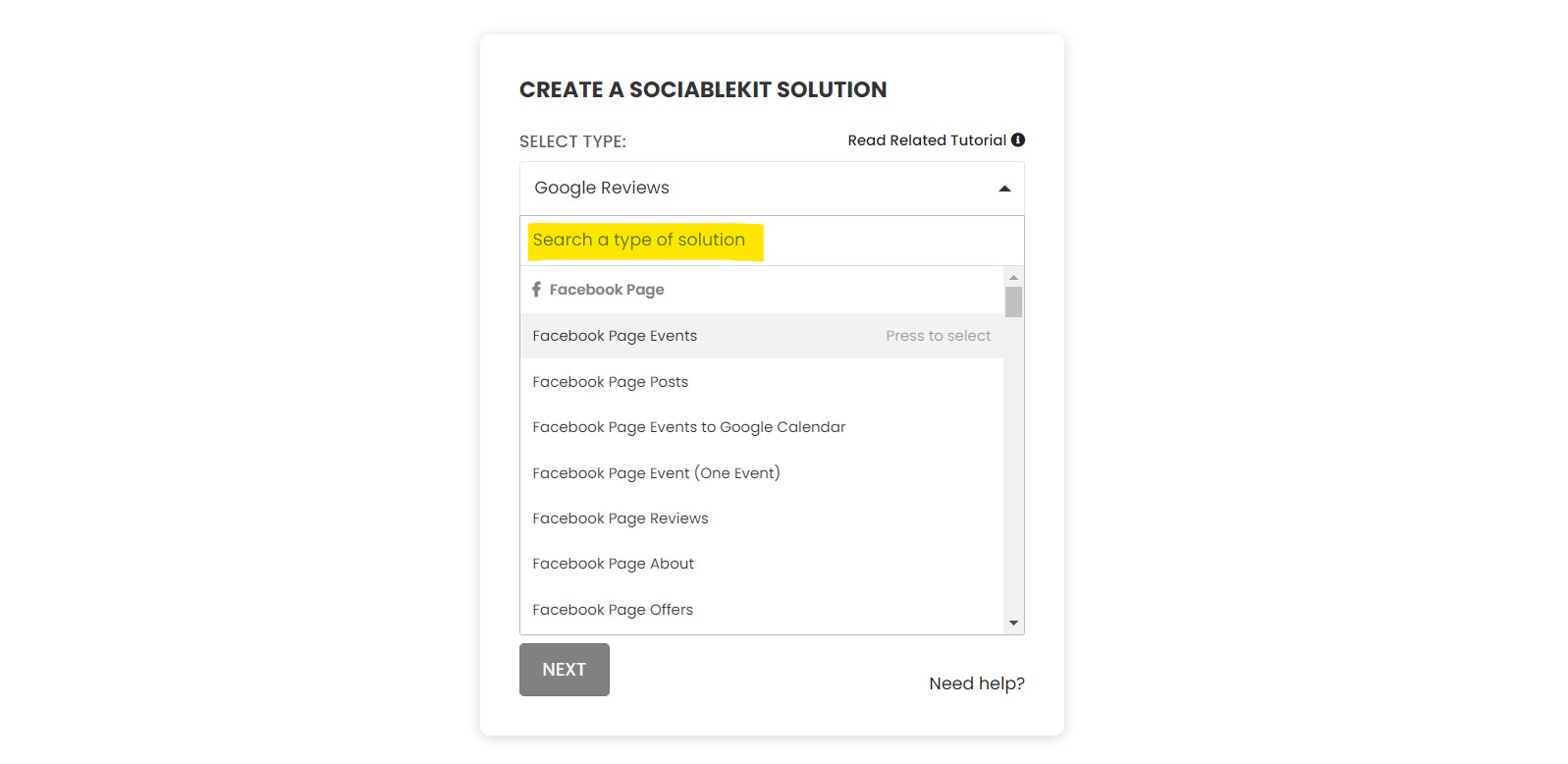
Pick Vimeo Channel in the dashboard and connect your source.
-
Match your brand
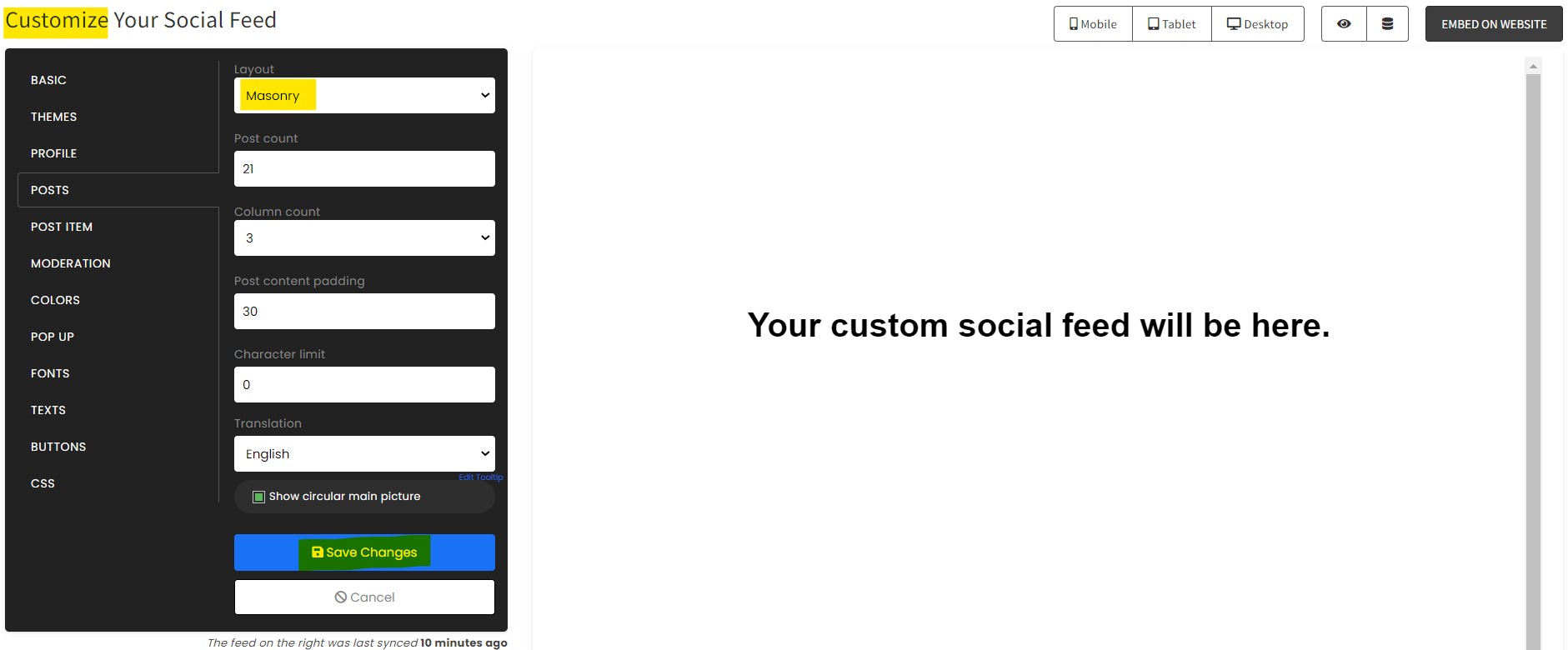
Colors, fonts, layout — tune it until it feels native to your site.
-
Paste one line of code
Drop the embed snippet on your TYPO3 website. No dev team needed.
Embed Vimeo Channel with SociableKIT — step by step
Create your widget in the dashboard, copy the embed code, and paste it on your TYPO3 website. Screenshots included so you never get stuck.
Create and customize your Vimeo Channel widget
The first part is creating your Vimeo Channel widget using the SociableKIT dashboard. Customize the look and feel to match your brand. Follow the steps below.
-
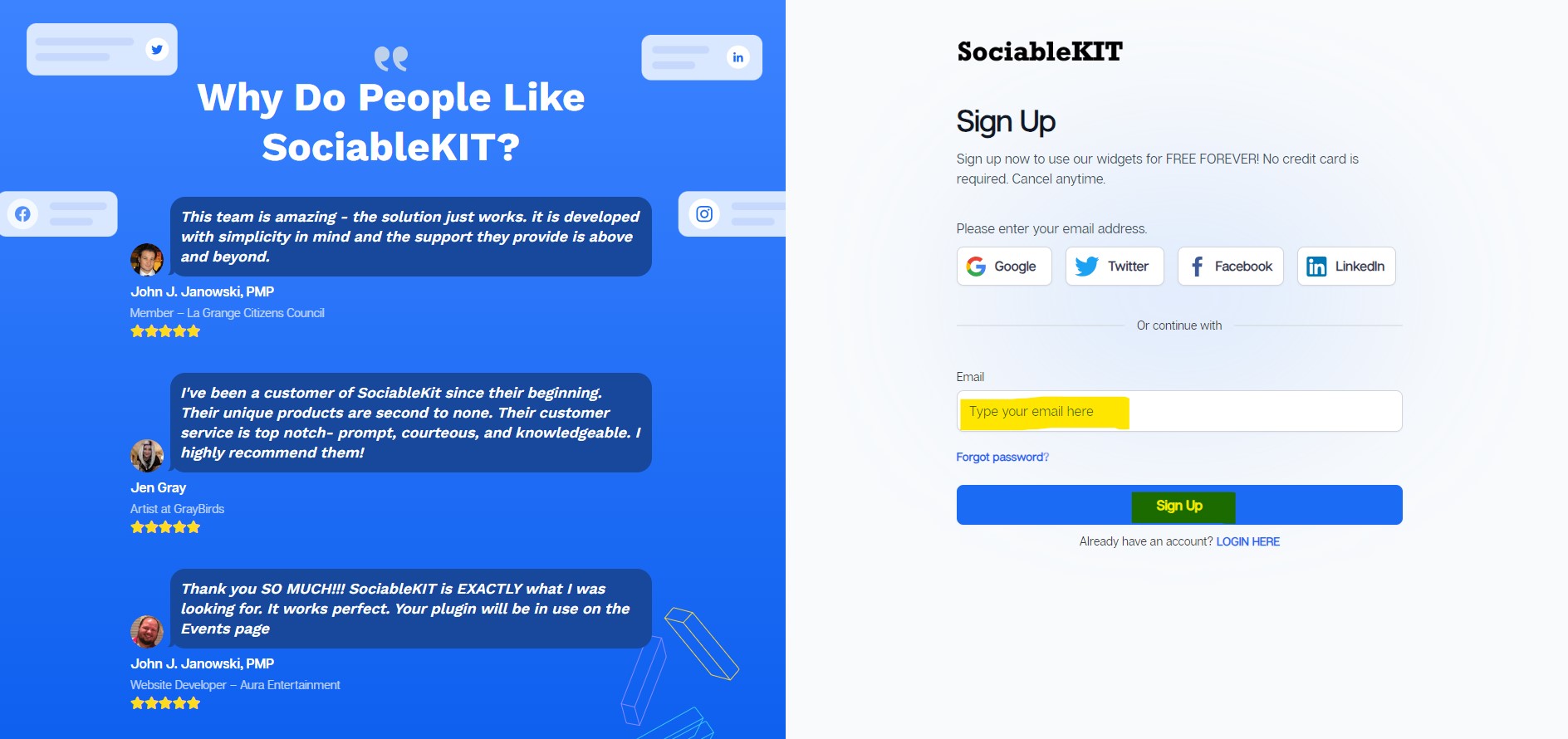
Sign up FREE or login to SociableKIT. You can login here if you already have an account. Once you sign up, you will start your 7-day premium trial. After 7 days, you can activate the free plan if you don't need our premium features.

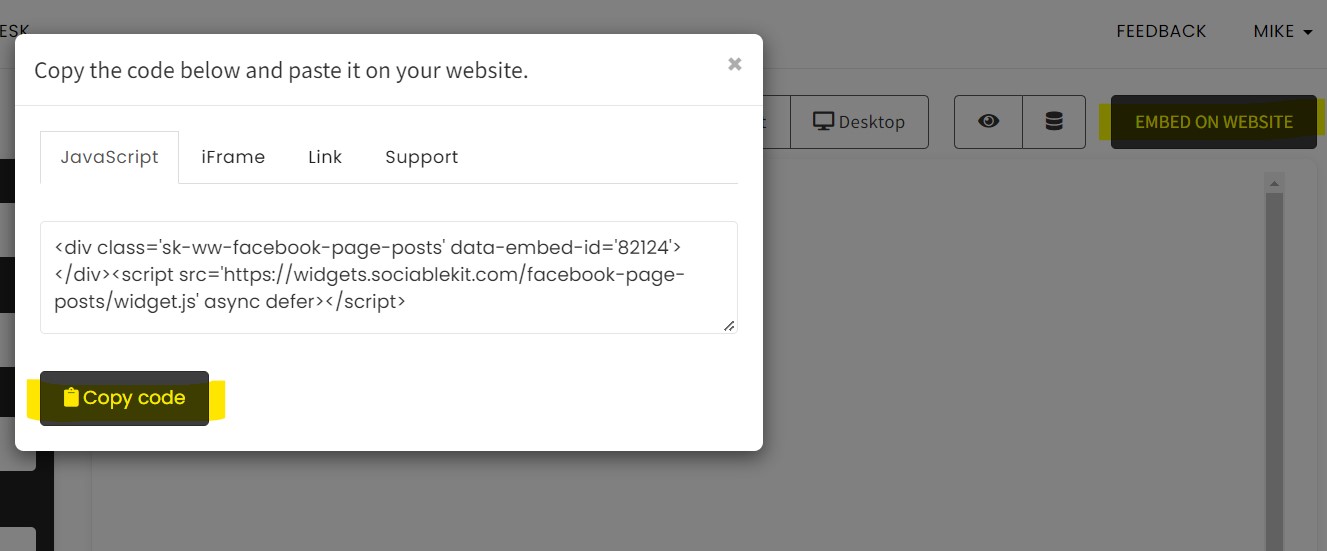
- Paste the embed code and save your TYPO3 website page. Please follow the second part below to add Vimeo Channel widget to your TYPO3 website .
Enter your Vimeo channel ID.
Add Vimeo Channel widget to your TYPO3 website
The second part is adding your Vimeo Channel widget to your TYPO3 website . After you customize your Vimeo Channel widget and copied the embed code, it is time to add it to your TYPO3 website . Follow the steps below.
- Copy your free Vimeo Channel widget embed code. Make sure you followed the first part above. It detailed how to you can create and customize your widget to get your free embed code.
- Login to TYPO3.
- Open a page's editor and click the '+Content' button.
![]()
- From the options, select 'Special elements' tab and a 'Plain HTML' element.
![]()
- Add the embed code to the editor and click ‘Save’.
![]()
- Preview or publish the page. Done!
Website builders
Paste your embed code on any platform
SociableKIT works with every major website builder. Pick yours below for copy-paste instructions tailored to that platform.
To embed Vimeo Channel on your TYPO3 site, follow the steps below after you have your SociableKIT embed code.
- Sign up free to SociableKIT and create your Vimeo Channel widget.
- Customize your widget and copy the embed code from the dashboard.
- Login to TYPO3.
- Open a page's editor and click the '+Content' button.
![]()
- From the options, select 'Special elements' tab and a 'Plain HTML' element.
![]()
- Add the embed code to the editor and click ‘Save’.
![]()
- Preview or publish the page. Done!
To embed Vimeo Channel on your WordPress site, follow the steps below after you have your SociableKIT embed code.
- Sign up free to SociableKIT and create your Vimeo Channel widget.
- Customize your widget and copy the embed code from the dashboard.
- Login to your WordPress site.
![]()
- On your WordPress, go to the "Pages" section then click the "Add new page".
![]()
- Pick a pre-defined layout or start with a blank page by clicking the "Blank page" button.
![]()
- On the body of your page, click the "+" icon and click the "Custom HTML".
![]()
- Paste the code in the text area and click update.
![]()
- The widget will appear on the WordPress page.
![]()
- Click the Publish or Update button on your WordPress page.
![]()
- Click the view page. Done!
To embed Vimeo Channel on your Wix site, follow the steps below after you have your SociableKIT embed code.
- Sign up free to SociableKIT and create your Vimeo Channel widget.
- Customize your widget and copy the embed code from the dashboard.
- Login to Wix.
![]()
- On your existing website click the "+" button beside the "Main pages" section.
![]()
- Then click the "Add page" button.
![]()
- Name your page then hit enter.
![]()
- On the left, click "Add element". Find and click "Embed code". Click and drag "Embed a site" on your page then resize the container.
![]()
- Click "Change website address".
![]()
- Paste the link you copied from SociableKIT then click "Apply".
![]()
- Click "Publish" on the upper right.
![]()
- Click "View site". Done!
![]()
To embed Vimeo Channel on your Squarespace site, follow the steps below after you have your SociableKIT embed code.
- Sign up free to SociableKIT and create your Vimeo Channel widget.
- Customize your widget and copy the embed code from the dashboard.
- Login to Squarespace. You must have a "Business" account in Squarespace to use the widget. The "code block" needed cannot be found if you only have a "Personal" account.
![]()
- Create a new blank page or edit your existing page. Identify which page you want the widget to appear. You can create a new page on Squarespace, or you can edit your existing page where you want the widget to appear.
![]()
- Add a Code Block. On your Squarespace page, click the 'Edit' button. Find the 'Code' block and click it.
![]()
- Paste the embed code from SociableKIT. On the 'Content' of the 'Code' block, paste the JavaScript embed code you have copied from your widget.
![]()
- Save the changes on the 'Code block'. After pasting your widget's embed code. Click the 'Save' button on the left part of the page.
![]()
- View your page. Refresh your Squarespace page and check your SociableKIT widget. Done!
![]()
To embed Vimeo Channel on your Webflow site, follow the steps below after you have your SociableKIT embed code.
- Sign up free to SociableKIT and create your Vimeo Channel widget.
- Customize your widget and copy the embed code from the dashboard.
- Login to Webflow.
![]()
- On your existing website, click the "Page: ...." in the upper left corner then click the "Create new page" icon.
![]()
- Once done add a name for your new page then click "Save".
![]()
- On the left, click "Add Element". Drag "Embed" to your page.
![]()
- Paste the JavaScript code you copied from SociableKIT.
![]()
- On the upper right, click "Publish" > "Publish to Selected Domains".
![]()
- View your page. Done!
To embed Vimeo Channel on your Shopify site, follow the steps below after you have your SociableKIT embed code.
- Sign up free to SociableKIT and create your Vimeo Channel widget.
- Customize your widget and copy the embed code from the dashboard.
- Login to Shopify.
![]()
- On the left side, click Online Store.
![]()
- Click Pages. Add a new page or edit your existing page.
![]()
- On the Page details, click Show HTML icon (<>).
![]()
- Paste the embed code and click the Save button.
![]()
- Click the View page button. Done!
![]()
To embed Vimeo Channel on your HTML site, follow the steps below after you have your SociableKIT embed code.
- Sign up free to SociableKIT and create your Vimeo Channel widget.
- Customize your widget and copy the embed code from the dashboard.
- Open your HTML file.
![]()
- You can create a new HTML page or edit your existing HTML page.
![]()
- Paste the Javascript code you copied from SociableKIT. Paste it where you want the widget to appear.
![]()
- Save your HTML page.
![]()
- You may now upload your HTML page to your web hosting.
To embed Vimeo Channel on your Google Sites site, follow the steps below after you have your SociableKIT embed code.
- Sign up free to SociableKIT and create your Vimeo Channel widget.
- Customize your widget and copy the embed code from the dashboard.
- Login to Google sites. You must have at least a 'Business Starter' plan to create and customize your Google sites.
![]()
- Create or edit an existing website. Click the + 'Blank' button on the 'Start a new site' section to create or find your existing website under the 'Recent sites' section.
![]()
- Create a new blank page or edit your existing page. Identify which page you want the widget to appear. On the right sidebar, you will see an 'Embed' button. Click the 'Embed' button.
![]()
- Add the widget. A popup 'Embed from the web' will open up. Select the 'Embed code' tab on the popup.
![]()
- Paste the embed code from SociableKIT. On the 'Embed code' tab, you will see 'HTML code goes here' text. Paste the embed code from your SociableKIT widget.
![]()
- Save the widget. Once you have pasted your embed code, click the 'Next' button.
![]()
- Preview of your SociableKIT widget. After clicking the Next button, a preview of your embed code will be displayed. Click the 'Insert' button to insert the widget to your Google sites page.
![]()
- Edit the widget. Once the widget has been inserted, you will have the option to resize the widget. After resizing the widget to your preferences, click the 'Publish' button on the upper right corner of the page.
![]()
- Publish your page. After publishing the site, click the down 'Arrow' button beside the 'Publish' button.
![]()
- View your page. A dropdown of buttons will be displayed, click the 'View published site' button. Done!
![]()
Live preview
Pick a Vimeo Channel template — see it live
Choose a starting design on the left and watch the preview update with real data. What you see is exactly what visitors get on your TYPO3 website.
Common questions
Frequently asked questions
Everything you need to know about embedding Vimeo Channel on your TYPO3 website.
What is a Vimeo Channel widget?
A Vimeo Channel widget displays videos from a public Vimeo Channel directly on your website. It turns your curated video collection into a polished library that visitors can browse without searching for the channel first.
How do I embed a Vimeo Channel on my website without coding?
Create the widget in SociableKIT, enter your Vimeo Channel ID, customize the design, and copy the generated embed code. Paste it into an HTML, custom code, iframe, or embed block on your website.
Where can I find my Vimeo Channel ID?
Open your Vimeo Channel and look at its address in the browser. Copy the text that appears after the channels section of the address and enter it as the Channel ID in SociableKIT.
Does my Vimeo Channel need to be public?
A channel set to Anyone gives the widget the most reliable public source. Channels limited to moderators or selected people are not designed for an openly accessible website feed.
Do I need to own the Vimeo Channel or create an API key?
No custom API development or developer key is required for the standard SociableKIT setup. A public channel can be used as a source, although you should feature only videos that you own or have permission to display.
Will new Vimeo Channel videos appear automatically?
Yes, paid SociableKIT plans include automatic syncing, so you can keep the same embed code as eligible videos are added or changed. The free plan lets you request a manual sync when you want to refresh the widget.
Which Vimeo videos can appear in a Channel widget?
Vimeo Channels can include public and password-protected videos, while unlisted and embed-only videos are not available inside Channels. The final website display depends on the channel privacy, video availability, and information Vimeo provides.
Why is a Vimeo video missing from my channel widget?
The video may not have been added to the correct Channel, may be restricted by its owner, or may be waiting for the next SociableKIT sync. Vimeo also lets video owners prevent their videos from being added to Channels and other collections.
What happens when a Vimeo video is deleted or made private?
The video can disappear or show an availability error after Vimeo updates the source and SociableKIT syncs again. Videos set to Private are visible only to the owner and authorized team members, even when an old embed remains on a website.
Why does an embedded Vimeo video say it cannot be played here?
The video owner may have disabled external embedding or limited playback to specific domains. Check the video’s Vimeo embed privacy and make sure the exact website domain is allowed before troubleshooting the SociableKIT widget.
Do visitors need a Vimeo account to watch the videos?
Visitors can generally watch eligible public videos without signing in to Vimeo. Password protection, mature-content rules, regional restrictions, or other access settings may still require additional steps.
Can Vimeo Channel videos autoplay or loop on my website?
Vimeo supports autoplay, mute, and loop settings, but browsers control whether autoplay is permitted. Autoplay with sound is commonly blocked, so visitors may need to press play or the video may need to start muted.
Will Vimeo captions and subtitles appear in the widget?
Captions and subtitles can appear when text tracks are available in the original Vimeo video and supported by the player. Manage or correct those tracks in Vimeo because SociableKIT displays the source video but does not create the captions.
Can I choose, hide, or reorder the videos in the widget?
Manage the main Channel membership and order in Vimeo, where Channels can be sorted automatically or arranged manually. SociableKIT also provides display and moderation options for supported setups, while the exact controls depend on the current widget editor.
What is the difference between a Vimeo Channel and a Vimeo Showcase?
A Vimeo Channel is a public collection that people can discover and follow on Vimeo. A Showcase offers different presentation and privacy options, so use SociableKIT’s Vimeo Showcase Videos widget when your source is a Showcase rather than a Channel.
What video information can the Vimeo Channel widget display?
The widget can present available details such as the thumbnail, video title, description, publish information, and a watch action. The exact elements depend on what Vimeo makes public and which SociableKIT display settings are enabled.
Can visitors like, comment, share, or follow from the widget?
The widget helps visitors discover and watch your videos, while Vimeo controls the final social interactions. Some actions may open Vimeo and require the visitor to sign in.
Can I display multiple Vimeo Channels or reuse one Channel on several websites?
Yes, each additional Channel can be connected as a separate source, while one source can power multiple widget designs. Paid SociableKIT plans include unlimited widgets, websites, and domains.
Is the Vimeo Channel widget mobile responsive, customizable, and fast?
Yes, the widget adjusts to desktop, tablet, and mobile screens and supports customizable colors, fonts, spacing, layouts, and calls to action. Any video library adds page resources, so keep the section focused and test the finished page on mobile.
Is there a free plan, unlimited views, and customer support?
SociableKIT offers a free plan with one source, one widget, 2,000 monthly views, full design customization, branding, and sync requests. Paid plans add automatic syncing, unlimited widgets and views, unlimited websites, and human chat and email support available 24/7.
Add your Vimeo Channel widget today
Set up in minutes. Free forever to start.
Create your widgetFree forever · No credit card · Cancel anytime