
SociableKIT
SociableKIT
close-icon
  • Home
  • Widgets

    Widgets

    socials

    Featured widgets

    • Google Reviews Widget
    • LinkedIn Feed Widget
    • Instagram Feed Widget
    • YouTube Channel Widget
    • Facebook Feed Widget
    • TikTok Feed Widget
    • X Feed Widget
    • Facebook Events Widget
    • Indeed Jobs Widget
    • YouTube Playlist Widget
    socials

    Aggregator widgets

    • Social Feed Widget
    • Reviews Widget
    • Content Aggregator Widget
    socials

    Google widgets

    • Google Reviews Widget
    • Google Business Profile Widget
    • Google Business Photos Widget
    • Google Calendar Widget
    • Google Play Reviews Widget
    socials

    Linkedin widgets

    • Linkedin Page Posts
    • Linkedin Profile Posts
    • Linkedin Page Jobs
    • Linkedin Recommendations
    • Linkedin Hashtag Posts
    socials

    Instagram widgets

    • Instagram Feed
    • Instagram Hashtag Feed
    • Instagram Reels
    • Instagram Story Highlights
    • Instagram Stories
    socials

    Facebook widgets

    • Facebook Page Events
    • Facebook Page Posts
    • Facebook Reels
    • Facebook Page Reviews
    • Facebook Profile Posts
    socials

    Youtube widgets

    • Youtube Channel Widget
    • Youtube Playlist Widget
    • Youtube Shorts Widget
    • Youtube Posts Widget
    • Youtube Live Stream Widget
    socials

    Tiktok widgets

    • Tiktok Profile Widget
    • Tiktok Hashtag Widget
    • Tiktok Playlist Widget
    socials

    Indeed widgets

    • Indeed Jobs Widget
    • Indeed Reviews Widget
    socials

    X (Twitter) widgets

    • X Profile Widget
    • X Feed Widget
    • X List Widget
    • X Jobs Widget
    view-widgets
    View all widgets
  • Pricing
  • Reviews
  • Social
  • Resources

    Resources

    • Tutorials
    • Blog
    • Demos
    • About Us
    • Support
    • Free Widgets
    • All Resources
Login Create a Widget

What are you looking for?

  • Home
  • Tutorials
  • Bubble
Kristen Williams Marc Maessen John Janowski Jules Webb ★★★★★ Rated 4.9/5 · 620+ Reviews

How to embed Workable jobs on your Bubble website for FREE?

Attract top talent with ease using our Workable Jobs widget, displaying your latest job openings on your website to streamline the application process and grow your team.

How to embed Workable jobs on your Bubble website  for FREE?
Photo of Mike Dalisay
Mike Dalisay Follow
Co-founder of SociableKIT · Helping small businesses since 2011
July 30, 2026 5 min read Ask ChatGPT
Quick answer

Your Workable jobs on Bubble website — live in 3 steps

SociableKIT syncs your workable jobs automatically. Set up once, embed anywhere — free to start, no coding required.

  1. 1

    Create in 60 seconds

    Pick Workable jobs in the dashboard and connect your source.

  2. 2

    Match your brand

    Colors, fonts, layout — tune it until it feels native to your site.

  3. 3

    Paste one line of code

    Drop the embed snippet on your Bubble website. No dev team needed.

Create your widget
  • Free forever plan
  • No credit card
  • Cancel any time
Full walkthrough

Embed Workable jobs with SociableKIT — step by step

Create your widget in the dashboard, copy the embed code, and paste it on your Bubble website. Screenshots included so you never get stuck.

Complete Guide

Follow our complete guide below to embed Workable jobs on your Bubble website for free. The guide is divided into two parts to make it easier to follow.

Create and customize your Workable jobs widget

The first part is creating your Workable jobs widget using the SociableKIT dashboard. Customize the look and feel to match your brand. Follow the steps below.

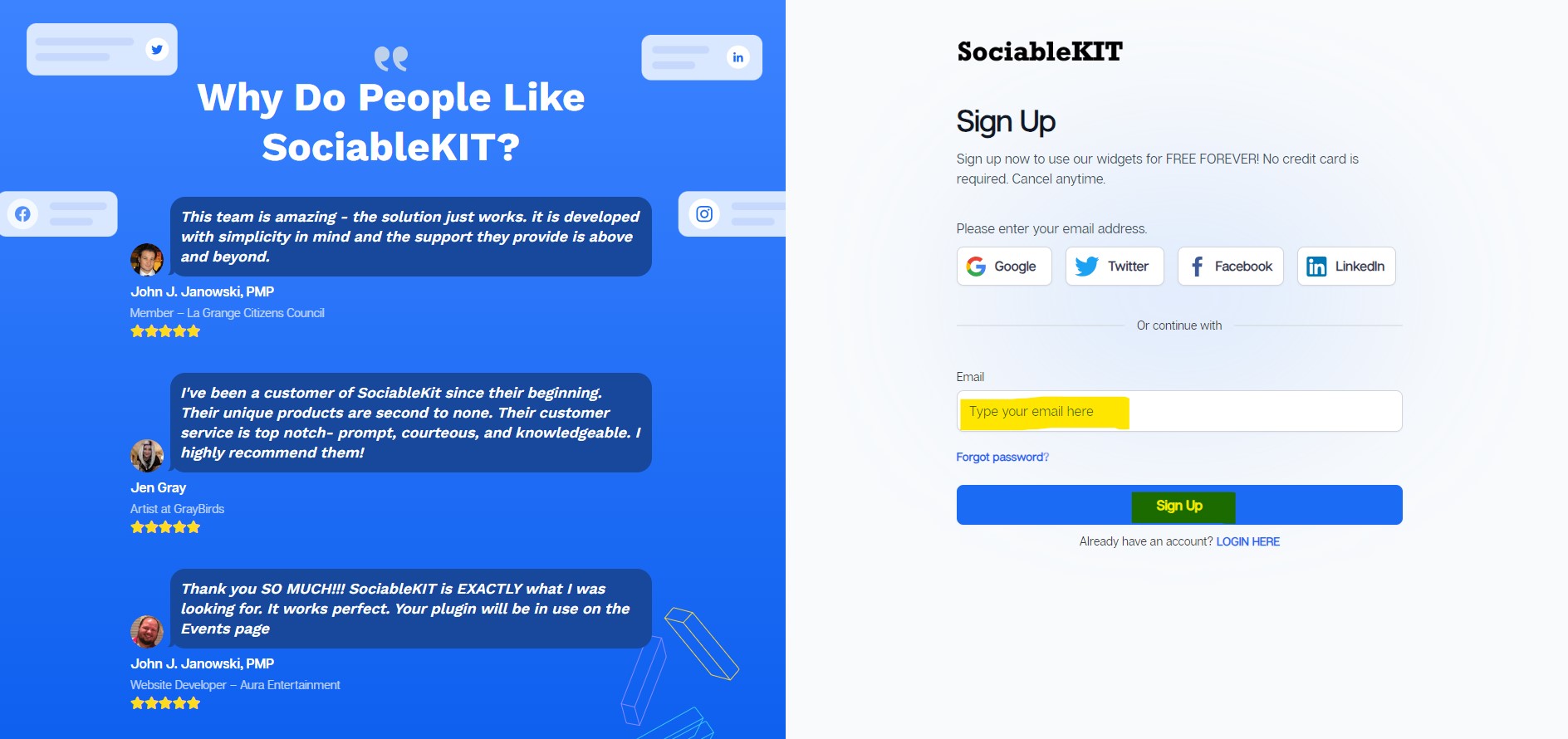
  1. Sign up FREE or login to SociableKIT. You can login here if you already have an account. Once you sign up, you will start your 7-day premium trial. After 7 days, you can activate the free plan if you don't need our premium features. Sign up to SociableKIT - How to embed Workable jobs on your Bubble website  for FREE?

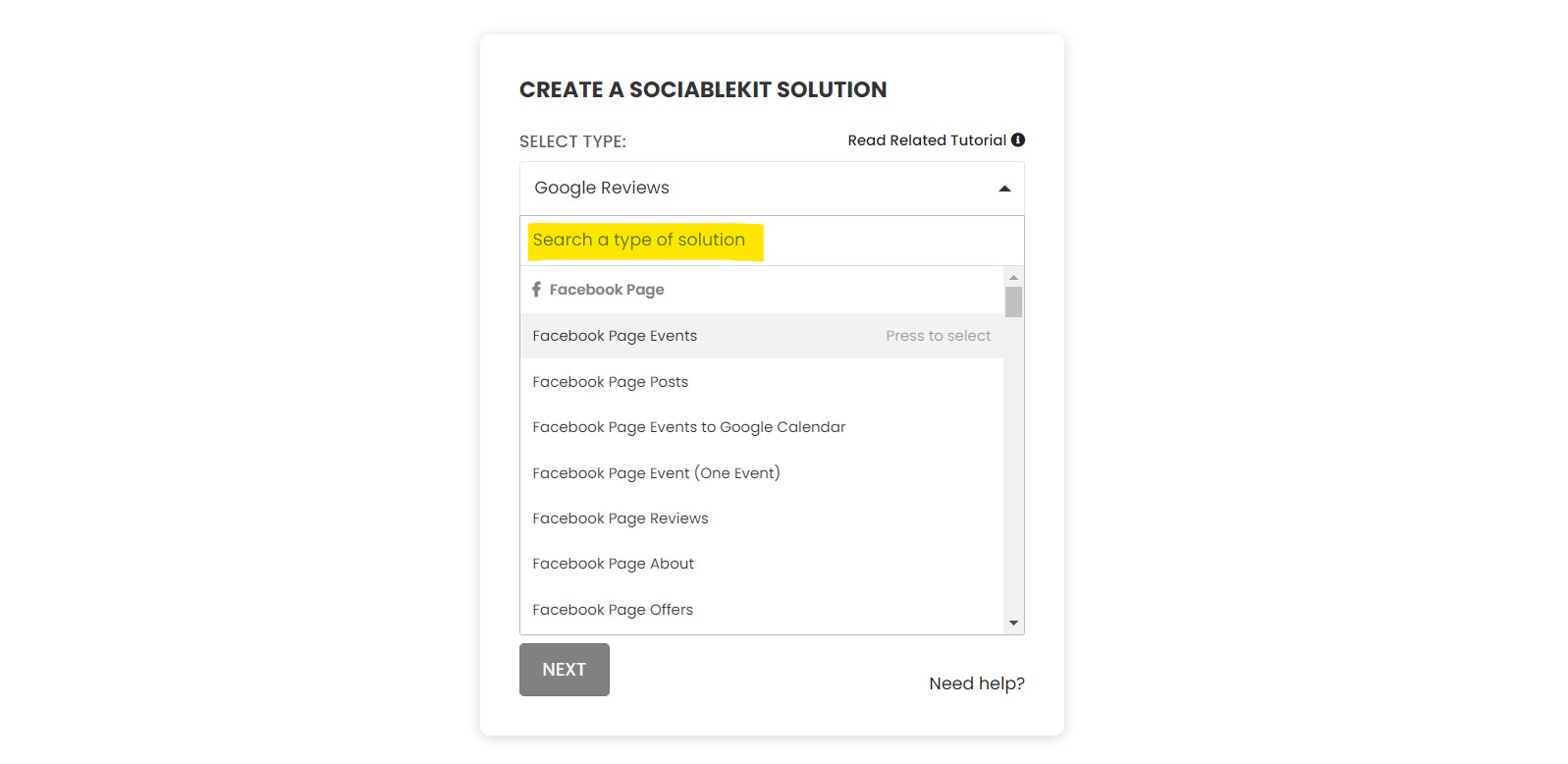
  2. Select "Workable jobs" on the dropdown. SociableKIT offers several social media feeds widgets. You might need to search it using the highlighted area below. Once found, you can then select it.Select "Workable jobs" on the dropdown - How to embed Workable jobs on your Bubble website  for FREE?

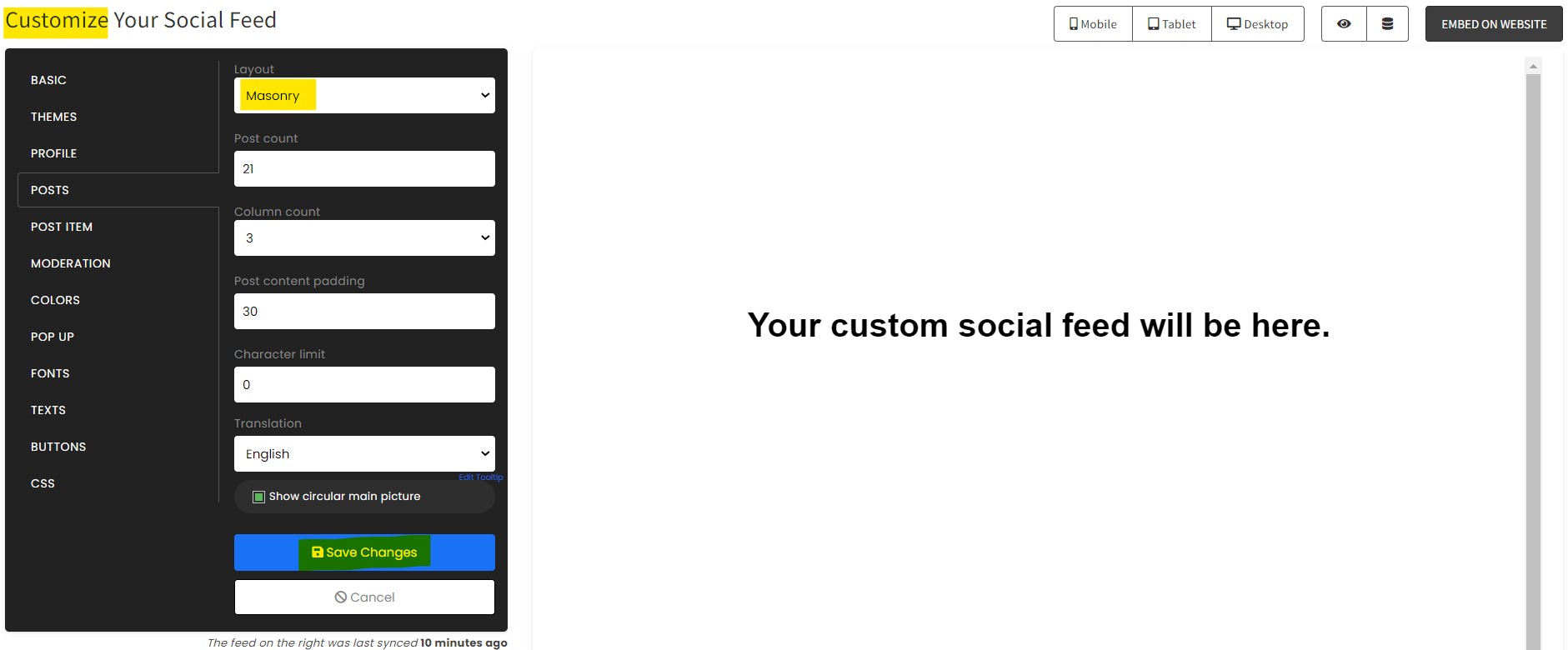
  3. Customize your feed. Click the "NEXT" button to show the customization options of your social feed. You can change the layout, colors, font, and more to match your brand. Click the Save changes button.Customize your feed - How to embed Workable jobs on your Bubble website  for FREE?
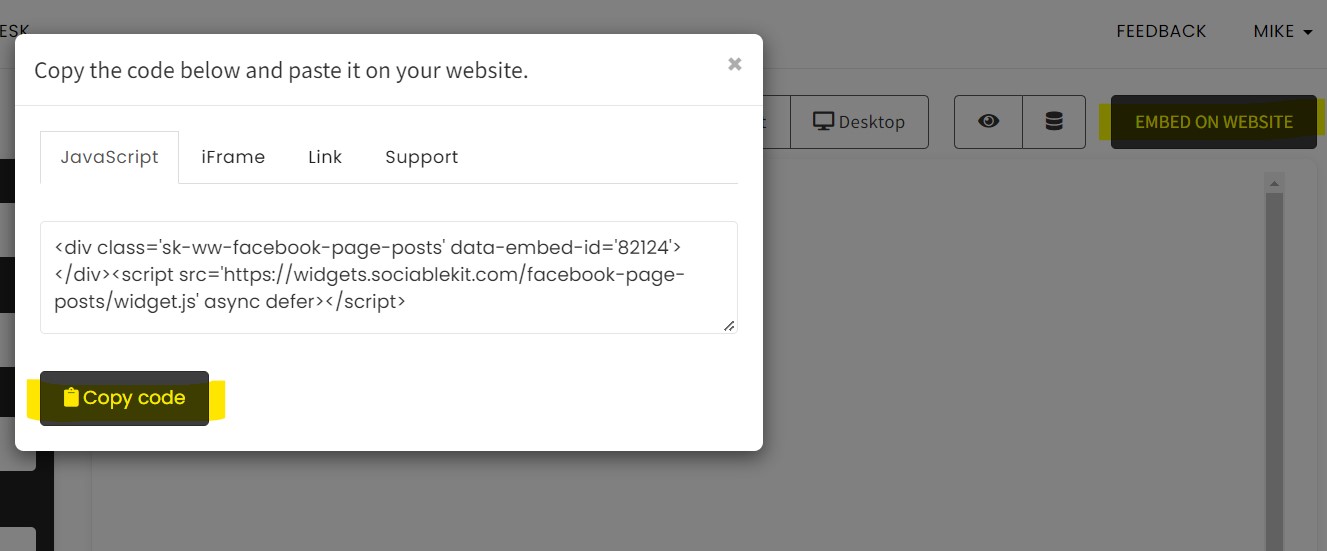
  4. Copy the embed code. Click the "Embed on website" button on the upper right corner. Select your website builder. On the popup, copy the JavaScript embed code.Copy the embed code. - How to embed Workable jobs on your Bubble website  for FREE?
  5. Paste the embed code and save your Bubble website page. Please follow the second part below to add Workable jobs widget to your Bubble website .

Add Workable jobs widget to your Bubble website

The second part is adding your Workable jobs widget to your Bubble website . After you customize your Workable jobs widget and copied the embed code, it is time to add it to your Bubble website . Follow the steps below.

  1. Copy your free Workable jobs widget embed code. Make sure you followed the first part above. It detailed how to you can create and customize your widget to get your free embed code.
  2. Log in to your account in Bubble. You can have a free account and sign up for free for 14-day free trial.
  3. Create an app. Click the "Create an app" button and the pop-up will show to name your app.
  4. Once click, Name your app and press "Get started". If you have an account on Bubble for free, Just click "Start with the basic features" to go through.
  5. The preview of your app will show. Under the "Design" tab, Click the UI Elements and look for " HTML".
  6. Drag and click on the blank space in the "HTML" UI elements. It can be modified to the preferred size of the view of the widget.
  7. On the side window, Click the appearance and paste the embed code. For this, you can also add your custom CSS on the HTML editor here in a small rectangle. You can click also the "Display as an iFrame" option for the exact size you modified.
  8. After you paste it, The preview will show right away and automatically save.
  9. Click Preview on the upper right corner of your page. The new tab or window will show your finished product.
  10. Done! Your sample app with the embedded code will shown. Also, It can be debugged if you have a concern on your page. Click the "Inspect" button on the lower right corner of the page.

Website builders

Paste your embed code on any platform

SociableKIT works with every major website builder. Pick yours below for copy-paste instructions tailored to that platform.

To embed Workable jobs on your Bubble site, follow the steps below after you have your SociableKIT embed code.

  1. Sign up free to SociableKIT and create your Workable jobs widget.
  2. Customize your widget and copy the embed code from the dashboard.
  3. Log in to your account in Bubble. You can have a free account and sign up for free for 14-day free trial.
  4. Create an app. Click the "Create an app" button and the pop-up will show to name your app.
  5. Once click, Name your app and press "Get started". If you have an account on Bubble for free, Just click "Start with the basic features" to go through.
  6. The preview of your app will show. Under the "Design" tab, Click the UI Elements and look for " HTML".
  7. Drag and click on the blank space in the "HTML" UI elements. It can be modified to the preferred size of the view of the widget.
  8. On the side window, Click the appearance and paste the embed code. For this, you can also add your custom CSS on the HTML editor here in a small rectangle. You can click also the "Display as an iFrame" option for the exact size you modified.
  9. After you paste it, The preview will show right away and automatically save.
  10. Click Preview on the upper right corner of your page. The new tab or window will show your finished product.
  11. Done! Your sample app with the embedded code will shown. Also, It can be debugged if you have a concern on your page. Click the "Inspect" button on the lower right corner of the page.
Full Bubble tutorial →

To embed Workable jobs on your WordPress site, follow the steps below after you have your SociableKIT embed code.

  1. Sign up free to SociableKIT and create your Workable jobs widget.
  2. Customize your widget and copy the embed code from the dashboard.
  3. Login to your WordPress site. 
  4. On your WordPress, go to the "Pages" section then click the "Add new page".
  5. Pick a pre-defined layout or start with a blank page by clicking the "Blank page" button.
  6. On the body of your page, click the "+" icon and click the "Custom HTML".
  7. Paste the code in the text area and click update.
  8. The widget will appear on the WordPress page.
  9. Click the Publish or Update button on your WordPress page. 
  10. Click the view page. Done!
Full WordPress tutorial →

To embed Workable jobs on your Wix site, follow the steps below after you have your SociableKIT embed code.

  1. Sign up free to SociableKIT and create your Workable jobs widget.
  2. Customize your widget and copy the embed code from the dashboard.
  3. Login to Wix. 
  4. On your existing website click the "+" button beside the "Main pages" section.
  5. Then click the "Add page" button.
  6. Name your page then hit enter.
  7. On the left, click "Add element". Find and click "Embed code". Click and drag "Embed a site" on your page then resize the container. 
  8. Click "Change website address". 
  9. Paste the link you copied from SociableKIT then click "Apply".
  10. Click "Publish" on the upper right. 
  11. Click "View site". Done!
Full Wix tutorial →

To embed Workable jobs on your Squarespace site, follow the steps below after you have your SociableKIT embed code.

  1. Sign up free to SociableKIT and create your Workable jobs widget.
  2. Customize your widget and copy the embed code from the dashboard.
  3. Login to Squarespace. You must have a "Business" account in Squarespace to use the widget. The "code block" needed cannot be found if you only have a "Personal" account.
  4. Create a new blank page or edit your existing page. Identify which page you want the widget to appear. You can create a new page on Squarespace, or you can edit your existing page where you want the widget to appear.
  5. Add a Code Block. On your Squarespace page, click the 'Edit' button. Find the 'Code' block and click it.
  6. Paste the embed code from SociableKIT. On the 'Content' of the 'Code' block, paste the JavaScript embed code you have copied from your widget.
  7. Save the changes on the 'Code block'. After pasting your widget's embed code. Click the 'Save' button on the left part of the page.
  8. View your page. Refresh your Squarespace page and check your SociableKIT widget. Done!
Full Squarespace tutorial →

To embed Workable jobs on your Webflow site, follow the steps below after you have your SociableKIT embed code.

  1. Sign up free to SociableKIT and create your Workable jobs widget.
  2. Customize your widget and copy the embed code from the dashboard.
  3. Login to Webflow. 
  4. On your existing website, click the "Page: ...." in the upper left corner then click the "Create new page" icon.
  5. Once done add a name for your new page then click "Save".
  6. On the left, click "Add Element". Drag "Embed" to your page. 
  7. Paste the JavaScript code you copied from SociableKIT.
  8. On the upper right, click "Publish" > "Publish to Selected Domains". 
  9. View your page. Done!
Full Webflow tutorial →

To embed Workable jobs on your Shopify site, follow the steps below after you have your SociableKIT embed code.

  1. Sign up free to SociableKIT and create your Workable jobs widget.
  2. Customize your widget and copy the embed code from the dashboard.
  3. Login to Shopify. 
  4. On the left side, click Online Store. 
  5. Click Pages. Add a new page or edit your existing page.
  6. On the Page details, click Show HTML icon (<>). 
  7. Paste the embed code and click the Save button.
  8. Click the View page button. Done!
Full Shopify tutorial →

To embed Workable jobs on your HTML site, follow the steps below after you have your SociableKIT embed code.

  1. Sign up free to SociableKIT and create your Workable jobs widget.
  2. Customize your widget and copy the embed code from the dashboard.
  3. Open your HTML file.
  4. You can create a new HTML page or edit your existing HTML page.
  5. Paste the Javascript code you copied from SociableKIT. Paste it where you want the widget to appear.
  6. Save your HTML page.
  7. You may now upload your HTML page to your web hosting.
Full HTML tutorial →

To embed Workable jobs on your Google Sites site, follow the steps below after you have your SociableKIT embed code.

  1. Sign up free to SociableKIT and create your Workable jobs widget.
  2. Customize your widget and copy the embed code from the dashboard.
  3. Login to Google sites. You must have at least a 'Business Starter' plan to create and customize your Google sites.
  4. Create or edit an existing website. Click the + 'Blank' button on the 'Start a new site' section to create or find your existing website under the 'Recent sites' section.
  5. Create a new blank page or edit your existing page. Identify which page you want the widget to appear. On the right sidebar, you will see an 'Embed' button. Click the 'Embed' button. 
  6. Add the widget. A popup 'Embed from the web' will open up. Select the 'Embed code' tab on the popup. 
  7. Paste the embed code from SociableKIT. On the 'Embed code' tab, you will see 'HTML code goes here' text. Paste the embed code from your SociableKIT widget.
  8. Save the widget. Once you have pasted your embed code, click the 'Next' button. 
  9. Preview of your SociableKIT widget. After clicking the Next button, a preview of your embed code will be displayed. Click the 'Insert' button to insert the widget to your Google sites page. 
  10. Edit the widget. Once the widget has been inserted, you will have the option to resize the widget. After resizing the widget to your preferences, click the 'Publish' button on the upper right corner of the page. 
  11. Publish your page. After publishing the site, click the down 'Arrow' button beside the 'Publish' button. 
  12. View your page. A dropdown of buttons will be displayed, click the 'View published site' button. Done!
Full Google Sites tutorial →

Common questions

Frequently asked questions

Everything you need to know about embedding Workable jobs on your Bubble website.

What is a Workable Jobs widget?

A Workable Jobs widget displays your published job openings directly on your website. It gives candidates a clear place to discover opportunities while your recruiting team continues managing jobs and applicants in Workable.

How does the SociableKIT Workable Jobs widget work?

SociableKIT collects the available jobs from your connected Workable source and turns them into a website-ready feed. Create the widget, customize its design, copy the embed code, and paste it into your careers page.

What do I need to connect my Workable jobs?

You need a Workable account with job openings published for public viewing. Select or enter the required source information in SociableKIT, then the widget can collect the available job data.

Do I need coding skills or a Workable API key?

No coding experience or custom API development is required for the standard SociableKIT setup. You connect your source, copy one embed code, and paste it into a supported code or embed block.

Will new Workable jobs update automatically on my website?

Yes, automatic syncing is included on paid SociableKIT plans. Newly published or updated openings can appear without rebuilding the widget, while the free plan can be refreshed using sync requests.

What happens when a job is closed or unpublished in Workable?

A closed or unpublished role is no longer intended for the public careers feed. After SociableKIT receives the latest source data, the opening should stop appearing without requiring you to remove it manually from your website.

Can the widget display draft, internal, or confidential jobs?

The widget is designed to display jobs that are published for public viewing. Draft, internal, confidential, closed, or archived roles should be managed in Workable and may not be available to the public feed.

What job information can the widget display?

Available details may include the job title, department, location, workplace type, job code, salary, description, and application destination. The exact information shown depends on what is published in Workable and supported by the selected widget design.

Can candidates apply for a job through the widget?

Candidates can select an opening and continue to the job or application page provided by Workable. This keeps your existing application process in place while making each opportunity easier to discover from your website.

Does SociableKIT collect or store candidate applications?

SociableKIT displays your job openings and directs candidates to the available application destination. Applications submitted through the Workable form remain part of your existing Workable recruiting workflow.

Can the widget show remote, hybrid, and on-site jobs?

Yes, when workplace information is published and available from Workable, the widget can use that source data. The exact label and placement depend on the fields supported by the current widget layout.

Can jobs with multiple locations appear in the widget?

Yes, Workable supports job postings with multiple locations, and available public location data can be included in the feed. How each location is presented depends on the source information and your SociableKIT widget settings.

Can I customize the widget to match my employer brand?

Yes. You can customize the colors, fonts, layout, calls to action, and other design details on every SociableKIT plan. This helps your job feed feel like a natural part of your careers page.

Can I control which Workable jobs appear?

The most reliable way to control the feed is to manage each job's public status and details in Workable. Additional content controls or automatic moderation depend on the features included in your SociableKIT plan.

Which website builders support the Workable Jobs widget?

SociableKIT works with major website builders including WordPress, Shopify, Wix, Squarespace, Webflow, Weebly, Google Sites, SharePoint, and custom HTML websites. Your platform only needs to support a code or embed block.

Will the widget work on mobile devices?

Yes. The widget is designed for responsive website layouts, helping candidates browse your openings on desktop, tablet, and mobile screens. Preview the page at different sizes before publishing for the best experience.

Does SociableKIT offer a free Workable Jobs widget?

Yes. The free plan includes one source, one widget, 2,000 monthly views, full design customization, SociableKIT branding, and sync requests. No credit card is required to start.

Can the widget scale across multiple websites and growing traffic?

Paid SociableKIT plans include unlimited widgets, views, domains, websites, and teammates, while pricing is based mainly on connected sources. Paid plans also include automatic syncing and allow SociableKIT branding to be removed.

Will embedding Workable jobs slow down my website?

Any external widget adds some browser work, but SociableKIT removes the need to build and maintain the job integration yourself. Place it on a relevant careers page and test page performance after publishing, especially when the page already contains several scripts.

What support is available if I need help?

SociableKIT provides human support through chat and email on every plan, with 24/7 support on paid plans. The team can help with source setup, embedding, customization, syncing, and common website-builder issues.

Add your Workable jobs widget today

Set up in minutes. Free forever to start.

Create your widget

Free forever · No credit card · Cancel anytime

Just need a free widget? See our free plan → View Workable jobs widget page →
More widgets

Show off everything your customers love.

Workable jobs is just the start. Embed reviews and content from anywhere your customers talk about you.

Social Feed

Social Feed

Pull in your social posts and recommendations.

Learn more →
Reviews Widget

Reviews Widget

Show your latest reviews directly on your site.

Learn more →
Google Reviews

Google Reviews

Display your Google business reviews and ratings.

Learn more →
LinkedIn Feed

LinkedIn Feed

Share your professional updates and articles.

Learn more →
Instagram Feed

Instagram Feed

Show your latest Instagram posts directly on your site.

Learn more →
YouTube Channel

YouTube Channel

Embed your latest YouTube videos in a clean feed.

Learn more →
Facebook Feed

Facebook Feed

Pull in your Facebook page reviews and posts.

Learn more →
TikTok Feed

TikTok Feed

Showcase your TikTok content on your website.

Learn more →
X Feed

X Feed

Display your latest posts from X on your site.

Learn more →
Facebook Events

Facebook Events

Perfect for promoting upcoming events and meetups.

Learn more →
Indeed Jobs

Indeed Jobs

Show job listings from Indeed on your website.

Learn more →
YouTube Playlist

YouTube Playlist

Embed a curated YouTube playlist on your site.

Learn more →

100+ more widgets

Browse the full catalog of widgets for your website.

See all →
SociableKIT

SociableKIT turns your social feeds, reviews, and customer content into 24/7 social proof — automatically building trust on your website while you sleep. Trusted by 400,000+ websites worldwide.

Kristen Williams Marc Maessen John Janowski Jules Webb
Rated 4.9/5 from 620+ Reviews
  • twitter
  • fb
  • linkedin
  • youtube
  • instagram
Tour
  • Home
  • Widgets
  • Pricing
  • Blog
  • Tutorials
  • Demos
Company
  • About us
  • Reviews
  • Social
  • Customers
  • Support
  • Webynize
Resources
  • Tutorials
  • Free Widgets
  • Examples
  • Developers
  • Generators
  • Export
  • All resources
Policies
  • Terms of Service
  • Privacy Policy
  • Acceptable Use

All rights reserved © 2014 - 2026 / Sitemap